












The photos folder looked normal at first glance. Then the storage warning popped up. One trip photo appeared four times. A tax PDF sat in three different folders. Two old setup files were still in Downloads, and each one was over 500 MB. Nobody plans this mess. Copies pile up slowly. A download runs twice. […]
How To Change Your Default Web Browser Windows 11 And 10 [Complete Guide]
Your web browser is the gateway to everything you do online. It opens your emails, plays your videos, and loads your favorite websites. But what if the browser that opens every time is not the one you like? That is a small problem with a very easy fix. You can change your default web browser Windows settings in just a few clicks.
Most people do not know that Windows does not always pick the best browser for you. It often sets Microsoft Edge as the default right after installation. This is fine for some users. But if you prefer Chrome, Firefox, Brave, or Opera, you deserve to use the browser that works best for you. Knowing how to change your default web browser Windows 10 or 11 gives you that control.
This guide will walk you through everything. You will learn the official ways to change your default web browser Windows offers, plus some extra tips and tools. Whether you are a beginner or someone who just forgot where the settings are, this article has you covered.
Let us get started.
Precautions: Things To Keep In Mind
There are a few things you should know before you change your browser settings. Skipping these can cause small problems that are easy to avoid.
- Your browser must be installed first. You cannot set a browser as the default if it is not on your computer. Download and install your preferred browser before going into settings. This applies whether you want Chrome, Firefox, or any other option.
- Windows 11 works slightly differently from Windows 10. The steps to change your default web browser in Windows 11 are a little different from Windows 10. The settings menus look different, so pay attention to which version you are using.
- Edge may reset your default browser. Microsoft Edge sometimes resets itself as the default after a Windows update. If your browser keeps changing back, this is likely why. You may need to set it again after major updates.
- Some file types are linked separately. In Windows 11, links in apps like Mail or Teams may open in Edge even after you change the default. You may need to change those file type associations individually.
- Backup your browser data first. If you are switching browsers entirely, export your bookmarks and saved passwords before making the switch. Most browsers have a simple export option in settings.
- Admin rights may be needed. On some office or school computers, you may need administrator permission to change your default web browser Windows settings. Check with your IT team if the option is grayed out.
- Browser updates can affect settings. Sometimes, installing a browser update can reset your default back to Edge. Keep an eye on your default settings after any major update.
- Third-party browsers may prompt you automatically. When you open Chrome or Firefox for the first time, they often ask if you want to make them the default. Saying yes is the fastest way to change your default web browser Windows without going into settings manually.
The Questions No One Answers (But Should):
Why Does Windows Keep Changing My Default Browser Back To Edge?
Microsoft designed Windows to favor Edge, and some updates quietly reset your browser choice. After you change your default web browser Windows settings, a feature update can undo your changes. The fix is simple. After every major Windows update, check your default browser settings again. You can also use a third-party tool like EdgeDeflector or use browser-specific prompts to lock your choice in place more reliably.
Can I Set Different Browsers For Different Things?
Yes, you can do that. Windows allows you to set different browsers for different file and link types. For example, you might use Firefox for HTTP links and Chrome for PDFs. This option is available in the Default Apps section in Settings. It takes a bit more effort to set up, but it gives you more control than a simple default browser change.
Does Changing The Default Browser Affect All Users On My PC?
No, it does not. Default browser settings are tied to individual user accounts on Windows. So if your family shares one computer, each person can have their own default browser. When you change your default web browser Windows 10 or 11, you are only changing it for your own login. Other users on the same PC will keep their own settings untouched.
Will My Bookmarks And Passwords Transfer Automatically?
Not automatically, no. Changing your default browser does not move your saved data. Your bookmarks, passwords, and history stay in whatever browser they were saved in. If you want to bring that data to your new browser, you need to import it manually. Most browsers make this easy. When you open a new browser for the first time, it usually asks if you want to import data from another browser. Say yes and follow the steps.
Change Your Default Web Browser Windows: 3 Official Ways
Windows offers a few built-in ways to change your browser settings. Each option works a little differently but reaches the same result. Choose the one that feels simplest. All three are official and safe methods provided by Windows.
Method 1: Using Windows Settings (Works On Both Windows 10 And 11)
This is the most straightforward method. You go directly into your Windows Settings and make the change from there. It does not require any extra software or technical knowledge. Anyone can do this in under two minutes. This method works whether you want to change your default web browser Windows 11 or Windows 10 style.
Step 1: Press the Windows key. Open Settings. Go to Apps > Default Apps, search your browser, and select it.
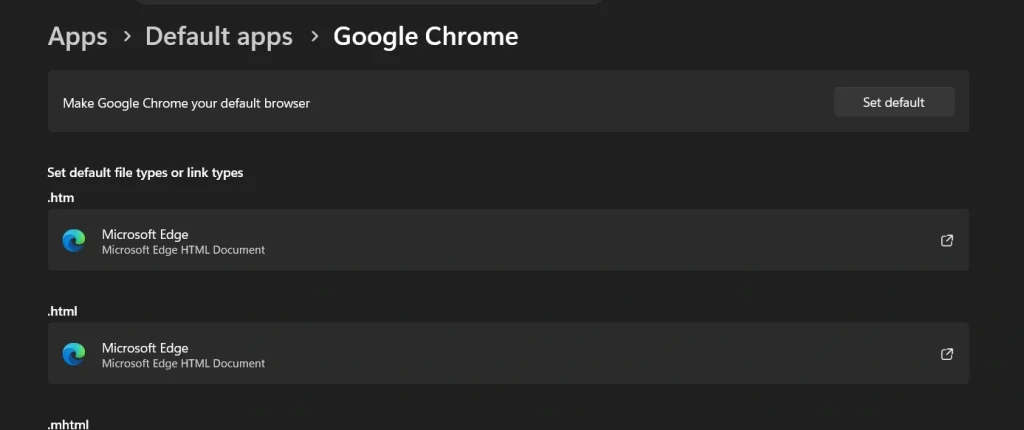
Step 2: Set your browser as the default for .htm, .html, HTTP, and HTTPS by selecting it for each option.
Method 2: Using The Browser’s Own Prompt
Many browsers ask you to set them as the default when you first open them. This is the fastest and most user-friendly way to change your default web browser on Windows without digging through menus. Chrome, Firefox, and Brave all do this automatically.
Step 1: Open your browser and click the “Make default” prompt shown at the top.
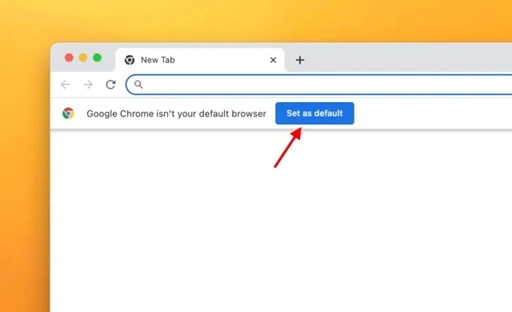
Step 2: When Settings opens, set your browser as the default for the listed link types.
Method 3: Through The Control Panel (Windows 10 Mainly)
This older method still works on Windows 10 and is familiar to long-time Windows users. It uses the classic Control Panel instead of the newer Settings app. If you are on Windows 10 and prefer the old-school interface, this one is for you.
Step 1: Press the Windows key, open Control Panel, then go to Programs > Default Programs.
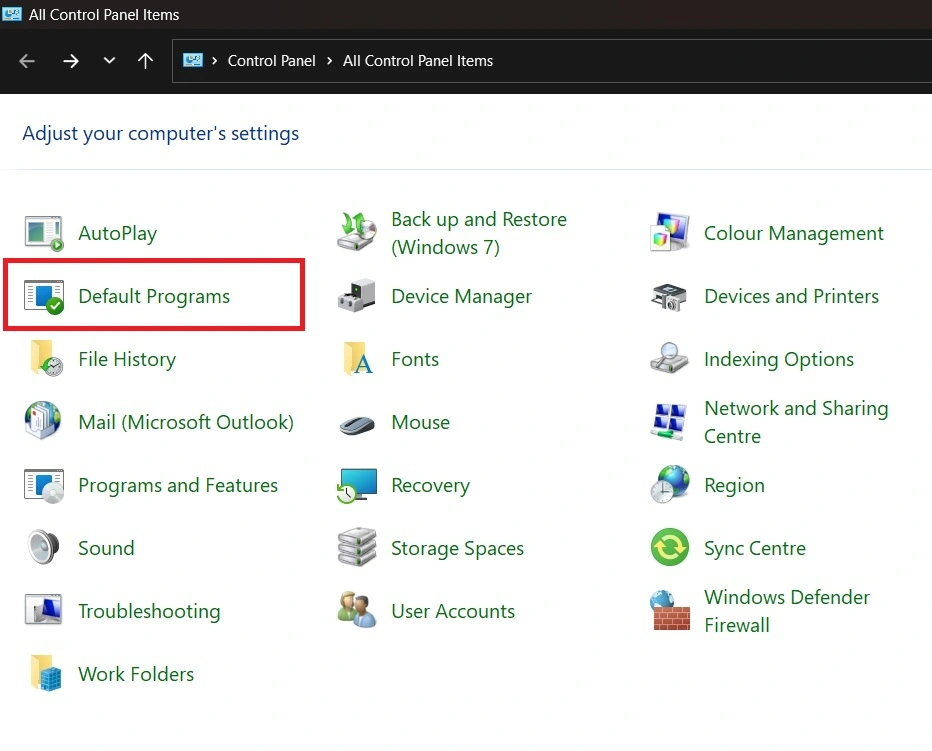
Step 2: Select your browser and click Set this program as default, then save.
When You Need Extra Help: Outside Tools And Resources
Sometimes the built-in methods do not work perfectly. Here are some outside options that can help you take full control of your browser settings.
- EdgeDeflector (Windows 10): This small tool intercepts links that Windows forces to open in Edge and redirects them to your default browser. It is free and lightweight. Great for users who want a true change your default Windows web browser experience.
- MSEdgeRedirect: This is an updated alternative to EdgeDeflector. It works on both Windows 10 and 11 and handles more types of forced Edge links. It runs quietly in the background.
- Browser-built-in import tools: If you are switching browsers, use the built-in import feature in your new browser. It pulls over your bookmarks, saved passwords, and browsing history from your old browser in one step.
- NirSoft’s Default Programs Editor: This is a free tool that gives you more detailed control over file type associations than Windows Settings does. It is useful if you want to fine-tune which browser opens which type of file.
- Autoruns by Sysinternals: This advanced Windows tool shows you all the programs that run at startup and system levels. It can help identify if Edge or another app is resetting your browser choice after updates.
- Browser sync features: Tools like Chrome Sync or Firefox Sync keep your bookmarks and settings backed up to the cloud. Before you change your default web browser Windows setup, turn on sync so your data is safe.
- YouTube tutorials: Searching for your specific Windows version plus “change default browser” on YouTube gives you visual, step-by-step guides. Sometimes seeing someone else do it makes the process much clearer.
- Microsoft Support forums: If nothing works, the official Microsoft Community forums have threads from other users who faced the same problem. You can often find version-specific fixes that are not in official guides.
Author’s Tip
After years of helping people set up their computers, one thing is clear: the biggest mistake people make is skipping the file type associations. They change the default app but forget to update HTTP, HTTPS, .htm, and .html separately on Windows 11. Then they wonder why links still open in Edge. Always double-check every link type in the Default Apps settings.
Also, do yourself a favor and write down what browser you prefer before doing a fresh Windows install. Right after setup, Windows will push you toward Edge hard. If you know what you want ahead of time, you can change your default web browser Windows settings immediately and avoid any confusion.
Finally, keep your chosen browser updated. An outdated browser can sometimes cause Windows to question its reliability and may default back to Edge after an update. Staying current on browser updates keeps everything running smoothly and keeps your choice locked in.
Conclusion
Changing your default web browser on Windows is not complicated. It takes just a few minutes and makes your daily internet experience much more enjoyable. Whether you use Chrome, Firefox, Brave, or any other browser, you deserve to open the one you actually like. The steps in this guide cover every official method to change your default web browser Windows 10 and Windows 11 offers.
If you run into any issues, the extra tools listed above can help you go further. And remember to check your settings after any major Windows update. With the right setup, your preferred browser will always be the one that greets you every time you go online.
FAQs
Q1: How do I change my default browser in Windows 11?
Go to Settings, then Apps, then Default Apps. Search for your preferred browser by name. Click on it and then update each link type, especially HTTP and HTTPS, to your chosen browser. Windows 11 requires you to set each file type individually, which is different from Windows 10. It takes about two minutes once you know where to look.
Q2: Why is Edge still opening even after I changed the default browser?
Some links inside Windows apps like the Start menu search, Widgets, or the Mail app are hardcoded to open in Edge. Even after you change your default web browser Windows settings, these specific links bypass your choice. You need to use a tool like MSEdgeRedirect to catch those forced links, or manually update the file type associations inside Default Apps for types like Microsoft Edge and search-ms.
Q3: Is it safe to use third-party tools to change my default browser?
Yes, tools like EdgeDeflector and MSEdgeRedirect are well-known in the Windows community and are considered safe. They do not delete files or change system settings in harmful ways. They simply redirect certain links to your chosen browser. Always download them from their official GitHub pages or developer websites to make sure you are getting the real version.
Author Bio:
Dinesh Lakhwani 

Dinesh Lakhwani, the entrepreneurial brain behind “TechCommuters,” achieved big things in the tech world. He started the company to make smart and user-friendly tech solutions. Thanks to his sharp thinking, focus on quality and the motto of never giving up, TechCommuters became a top player in the industry. His commitment to excellence has propelled the company to a leading position in the industry.
Popular Post
Recent Post

Wise Duplicate Finder Review: Real Results from Wise Duplicate Finder
Read my honest Wise Duplicate Finder review. See features, pricing, pros and cons, and real PC test results. Find out if this free duplicate cleaner can free up your Windows storage.

How to Recover Deleted Files from Pen drive, USB Drive, SD Card
Introduction: On tech forums, you’ll often see posts like this: “I connected my pen drive to my laptop this morning, but the folder was empty. All my college project files had vanished. I don’t have a backup. Can someone help me?” Stories like this are very common. Pen drives, USB drives and SD cards are […]

How To Recover Files Deleted from the Recycle Bin [Windows 11]
Losing a file can happen in seconds. You clear your desktop, hit Delete, and empty the Recycle Bin. Then, just when you need that file again, it seems to have vanished. This guide will walk you through ways to restore files removed from the Recycle Bin. We will begin with simple fixes, then look at […]

Disk Drill Data Recovery Tool Explained: Full Review and Guide
It happens in a split second. You delete a folder by mistake. Your drive stops showing up. A photo album from your last trip just vanishes. And your stomach drops. Lost files feel personal. They are not just data. They are memories, work hours, and sometimes years of effort packed into a few gigabytes. When […]

Recover Deleted Files In Windows 11 With Software & Without
Introduction What is the first thing that goes through your mind the second an important file vanishes from a Windows 11 PC? For most people, it is a mix of panic and disbelief, followed by a frantic click through every folder that file could possibly be hiding in. It happens in a split second: one […]

EaseUS Data Recovery Wizard: Everything To Know
Data loss does not always come from a big disaster either. Most cases start small and boring. A drive gets formatted by mistake. A laptop freezes mid-save and restarts on its own. A memory card stops showing up after being pulled out too fast. None of these feel like emergencies at first, until you realize […]

Recuva Data Recovery Tool: Is it Actually Worth it?
When I first tried Recuva Data Recovery, I wanted to see if it could really bring back lost files. The tool is free, small in size, and promises quick recovery, which made me curious enough to test it on my own PC. The setup was fast, and the wizard guided me step by step. I […]

GetData Recover My Files Data Recovery Tool: Honest Review
A hard drive error brings a special kind of silence. Well, yes! The screen freezes, then a message appears saying the drive can’t be found or must be formatted. In that moment, years of photos and work files feel at risk. It never happens at a good time. Coffee spills near a laptop, a memory […]

Windows File Recovery: A Complete Review [Tried & Tested]
Imagine this. You spend hours perfecting a video project. You hit save. Then your laptop freezes, reboots, and when the screen comes back. The file is gone. Your stomach sinks. It’s not just you. Lost files happen all the time. A dropped hard drive, a bad update, an accidental delete, or a corrupted partition can […]

