How to Fix Battery Drain Issue in macOS Big Sur?

Like any other operating system available on the market, macOS Big Sur was also beta-tested for the most common issues & bugs, before finally releasing it for public use. While the OS was thoroughly tested to avoid any inconvenience to users, still it has some bugs & issues that manage to creep through. Battery draining fast in macOS Big Sur is one such issue that many users have encountered after upgrading to this latest operating system for Mac by Apple. You may also notice that MacBook getting very hot and fans working hard to keep them cool.
Why does battery drain faster after an update?
Some CPU intensive tasks such as re-indexing the Spotlight database and other file databases, including Photos’ library is one major issue why battery drain faster in macOS Big Sur. During these tasks, processor drives hard and consumes more energy, draining the battery faster.
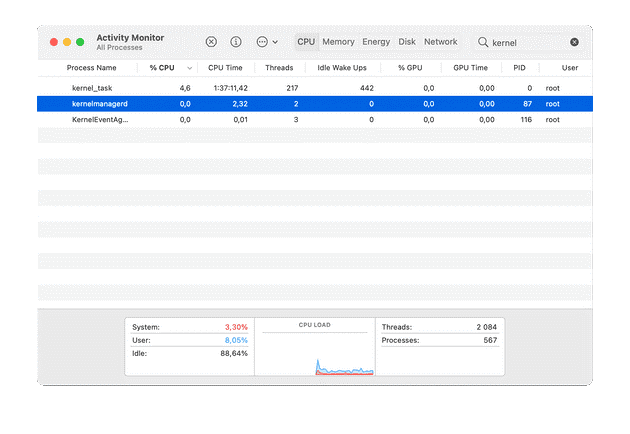
Another reason behind battery draining fast is related to process called “kernelmanagerd”. Here, this process is consuming a lot of CPU cycles consuming more energy.
What is “kernelmanagerd”?
Kernelmanagerd is a process designed to manage kernel extensions, or kexts, in third-party applications. It is possible that certain third-party apps are facing issue with kernel extensions. It makes Kernelmanagerd to work hard to resolve them. Thus, it consumes a lot of CPU cycles.
How to identify if the kernelmanagerd process is causing trouble?
- Select Applications > Utilities and launch Activity Monitor.
- To order processes by the CPY cycles the are using click the CPU column.
- Check kernelmanagerd process.
- If it is consuming over or close to 70% of CPU cycles, then this is the reason behind battery drain.
How to fix battery draining fast issue in macOS Big Sur?
Spotlight indexing the disk could lead to fast battery draining. New indexing could last up to two days consuming a lot of energy. You need to check if Spotlight is still indexing by following these steps:
- Click on the Spotlight.
- Type a couple of characters into the search bar.
- If it displays “indexing…” in the progress bar, then Spotlight is still indexing, consuming igher number of CPU cycles.
Now all that you can do is to wait to complete indexing by Spotlight. Once it is done, your battery will be back to normal.
If you found kernelmanagerd process is consuming more CPU cycles, then you should consider uninstalling all unnecessary programs from your Mac. It will help you free up valuable device resources and release pressure from them as many third-party software run in the background unnecessarily.
To uninstall unwanted programs, you can use the best app uninstaller software for Mac.
Reduce the load on the CPU
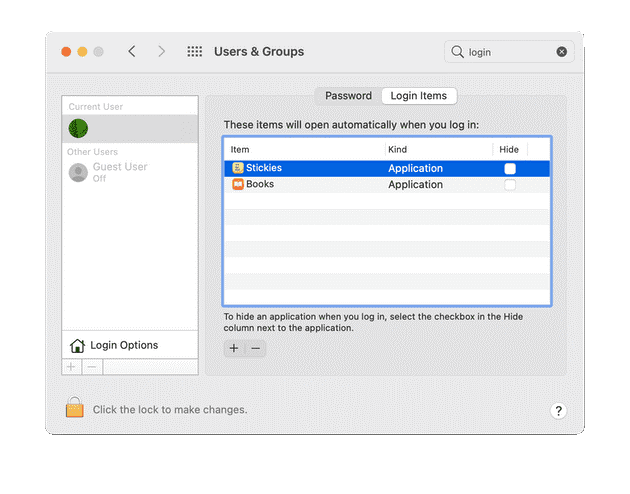
To reduce to load on the CPU, you should consider managing login items. Login items are programs & processes that run in the background when you boot your Mac. Many of these processes run unnecessarily, thus it is always a good idea to reduce login items. To do this, open System Preferences > Users & Groups. Now select and disable all unnecessary apps that run at startup.
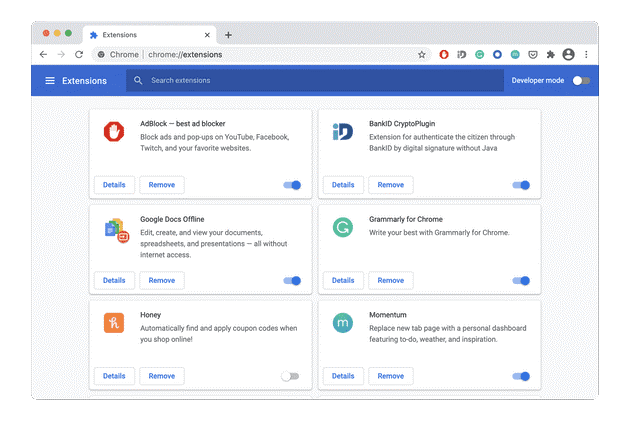
Another thing you should try is to reduce the browser tabs. If you open a lot of browser tabs unnecessarily while working, then remember they are consuming more RAM and CPU cycles. Simply close all unnecessary browser tabs to save CPU cycles and draining battery life. This especially important to close unnecessary tabs, if you’re using Google Chrome.
Conclusion
So these were few quick solutions to fix battery draining fast in macOS Big Sur. Do try these steps and share your experience in the comments below.
Author Bio:
Dinesh Lakhwani 

Dinesh Lakhwani, the entrepreneurial brain behind “TechCommuters,” achieved big things in the tech world. He started the company to make smart and user-friendly tech solutions. Thanks to his sharp thinking, focus on quality and the motto of never giving up, TechCommuters became a top player in the industry. His commitment to excellence has propelled the company to a leading position in the industry.
Popular Post











Recent Post

How To Get Help With Notepad in Windows [2026]
Notepad has been part of Windows for many years. And people still use it for quick notes, lists, and simple edits. Its clean layout helps new users, while its small set of tools supports everyday tasks. Yet problems can appear when features behave in unexpected ways or when users try something new, so clear guidance […]

Software Performance Optimization Tips: Complete Guide
Software often slows down over time, turning once-fast programs into frustrating delays. While many assume their device is outdated, the real issue often lies in how the software runs. With a few simple habits and checks, users can restore speed and avoid costly upgrades. This guide offers clear, beginner-friendly software performance optimization tips. It covers […]
How To Connect a Scanner to Your Device Windows 11 In 2026
Have you ever needed to scan a document in a hurry and did not know how to begin? Many people face this problem when they buy a new scanner or a new computer. Windows 11 includes helpful tools that make the process easy, but you must know the right steps. This guide explains each method […]

How To Connect to Your PC Remotely Windows [Complete Guide]
Many people need to reach their computer from far away. Well, yes! It may be for work, study, or personal use. Remote access helps you open files, use your apps, and control your system even when you are not near the device. It gives you the comfort of using your computer anywhere through the internet. […]
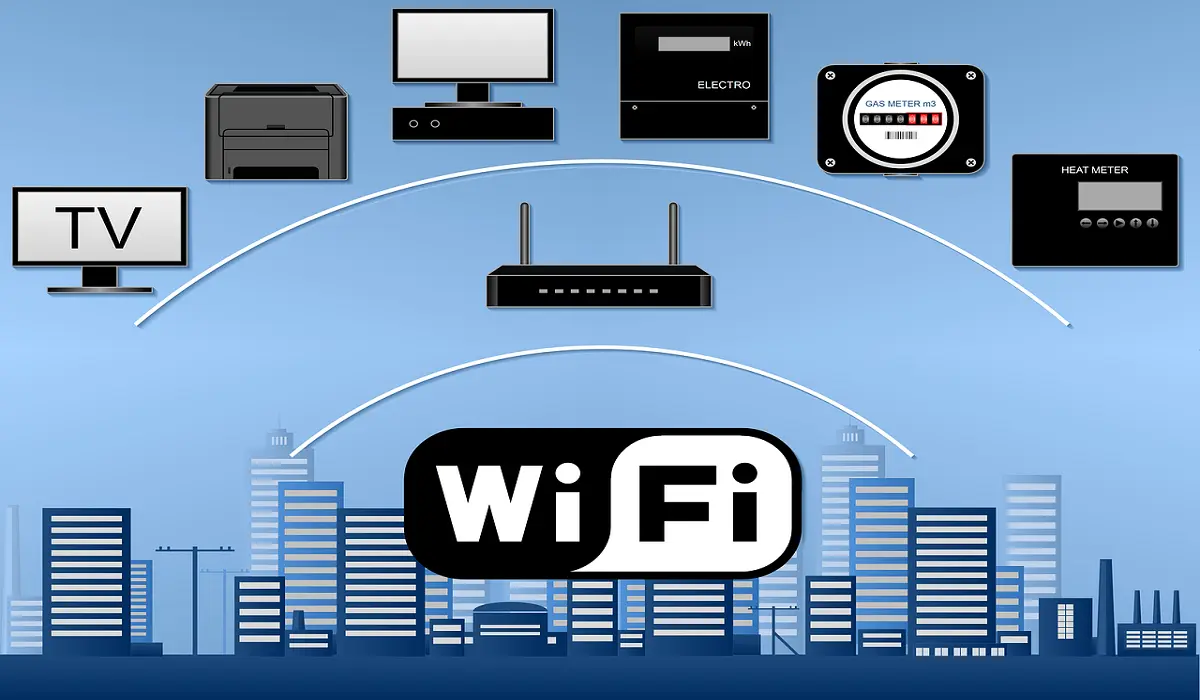
How To Connect to a Wi Fi Using a QR Code: Latest Guide
Wi-Fi is now a basic part of our lives. We use it at home, in offices, schools, and public places. But typing long passwords every time you connect can be annoying. Sometimes you might even forget your Wi-Fi password. That is where QR codes come in handy. With QR codes, you can connect to any […]
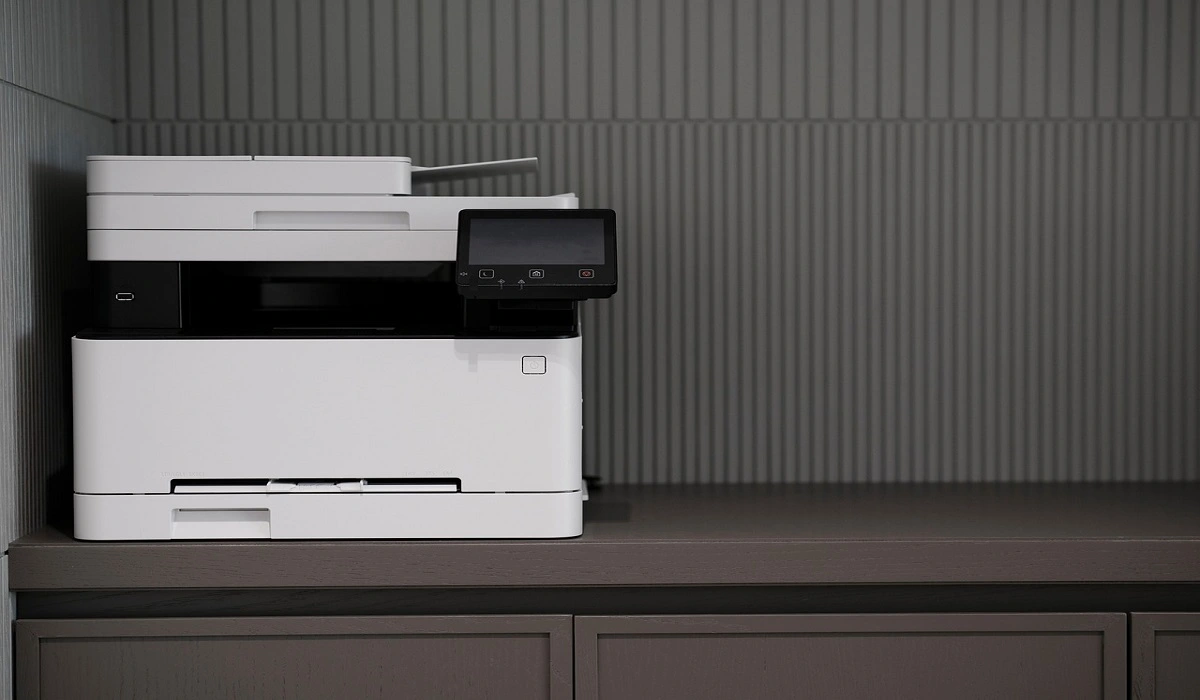
How To Connect a Wireless Printer Easily to Windows 11/10 PC
Printing tasks are part of most home and office work today. Isn’t it? Well, yes! Using a wireless printer makes printing easier and faster because you don’t need cables. It allows you to print documents and images from any corner of your room as long as your device and printer are connected to the same […]
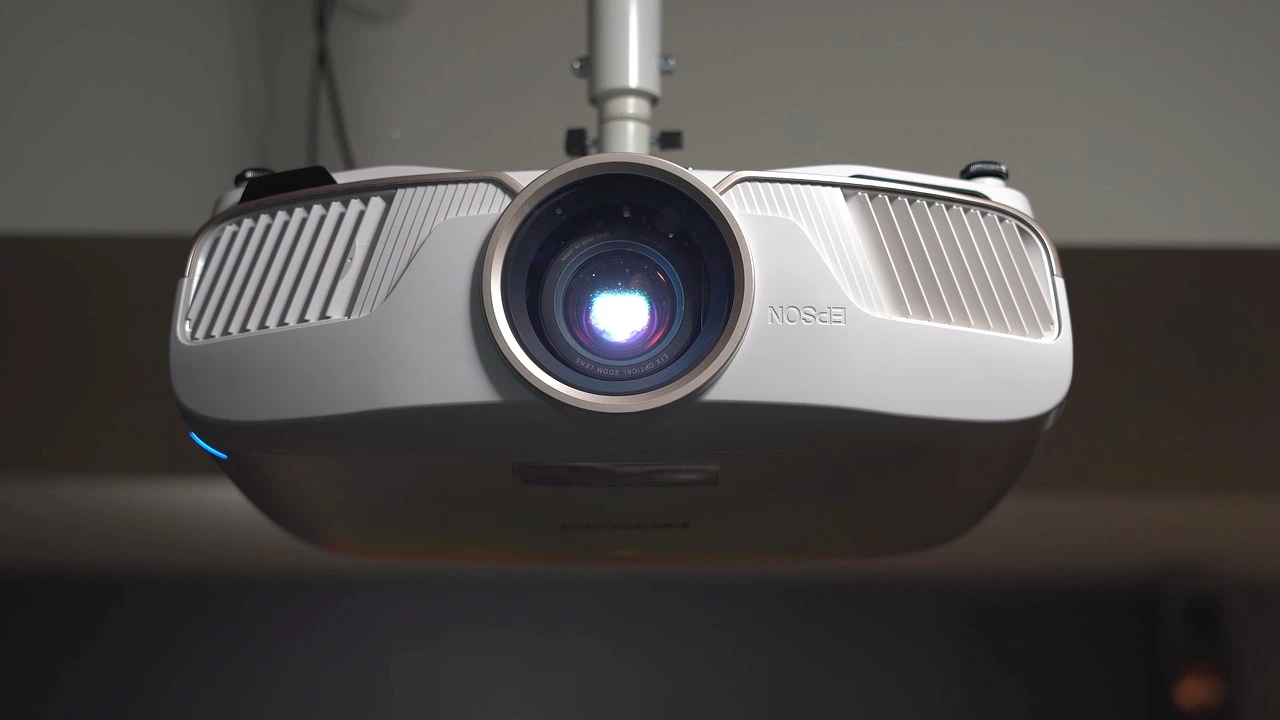
How To Connect Your Windows 11 PC to a Projector or Another PC
A bigger screen can help you share your work with others. When you connect your Windows 11 PC to a projector, your screen becomes easier to view in a meeting room, classroom, or home. You can show slides, videos, notes, or entertainment. Most people do this for work or study, but it is also helpful […]
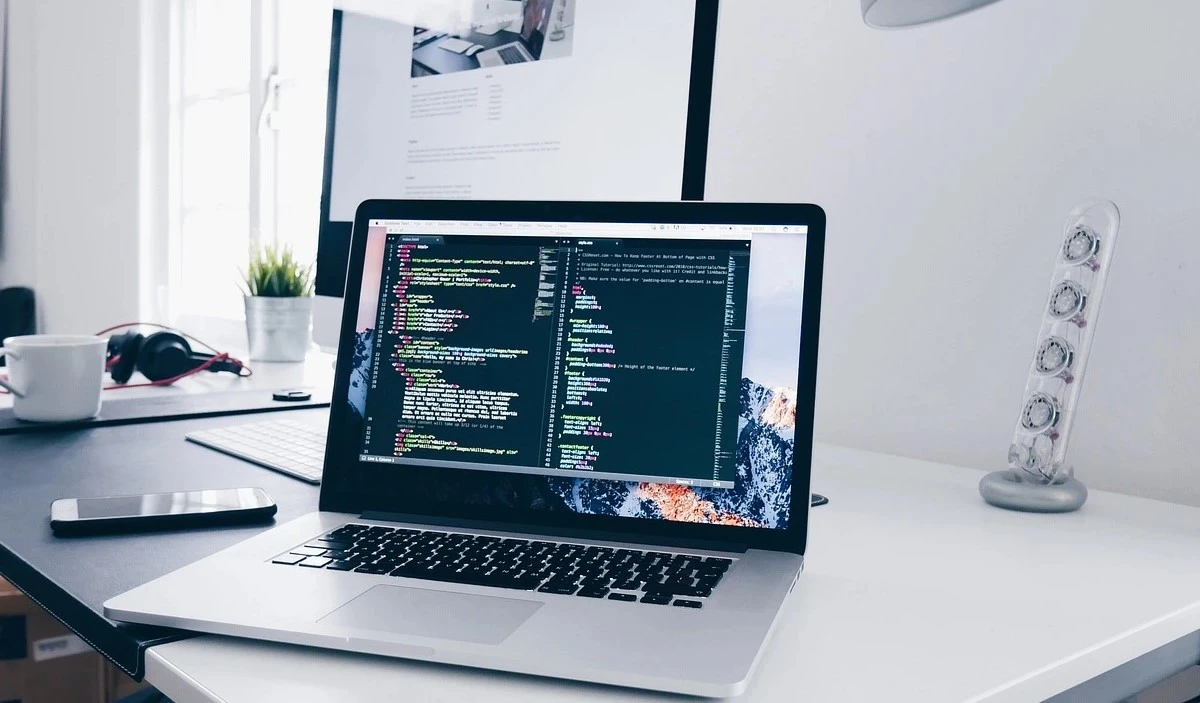
How To Set Up Dual Monitors Easily Windows 11/10: Complete Guide
Working with one screen can feel limiting. You switch between apps constantly. Your workflow slows down. A dual monitor setup changes everything. It gives you more space to work. You can see multiple things at once. This guide shows you how to set up dual monitors easily on Windows systems support. Windows 11 and Windows […]
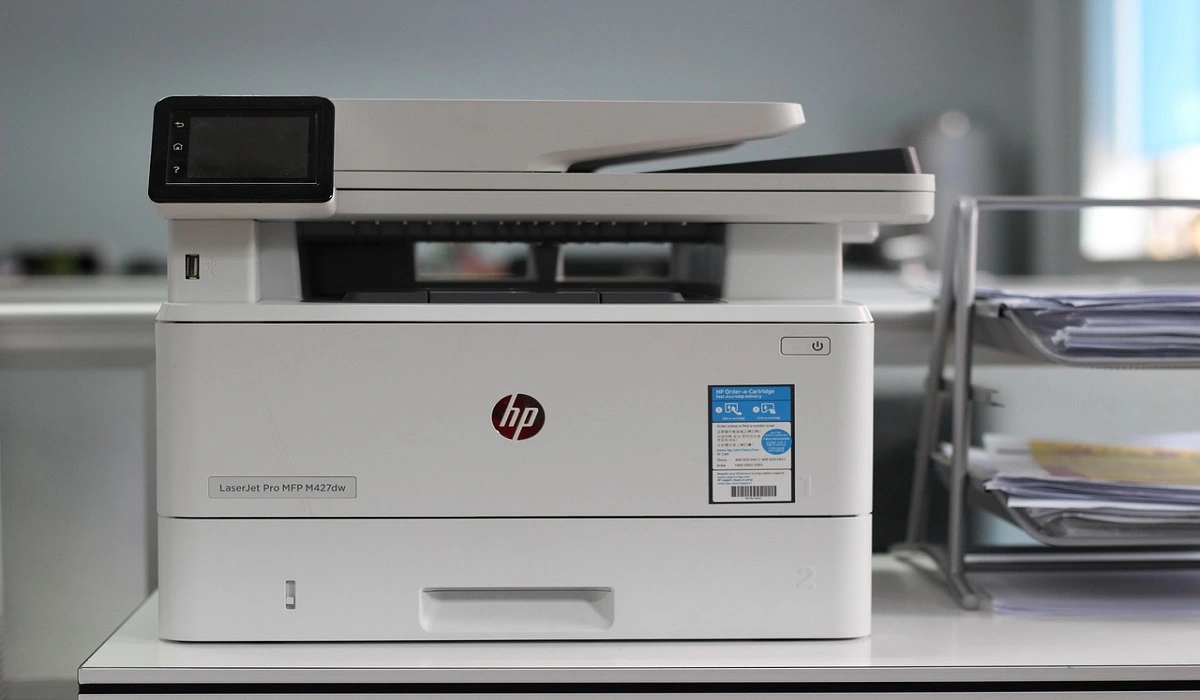
How to Set Your Preferred Default Printer On Windows 11/10: Complete Guide
Printing documents should be simple. But many users struggle with their printer settings. Windows often picks the wrong printer as the default. This creates delays and wastes paper. Setting up your preferred printer as the default saves time. It prevents printing errors. This guide shows you how to set your preferred default printer Windows systems […]
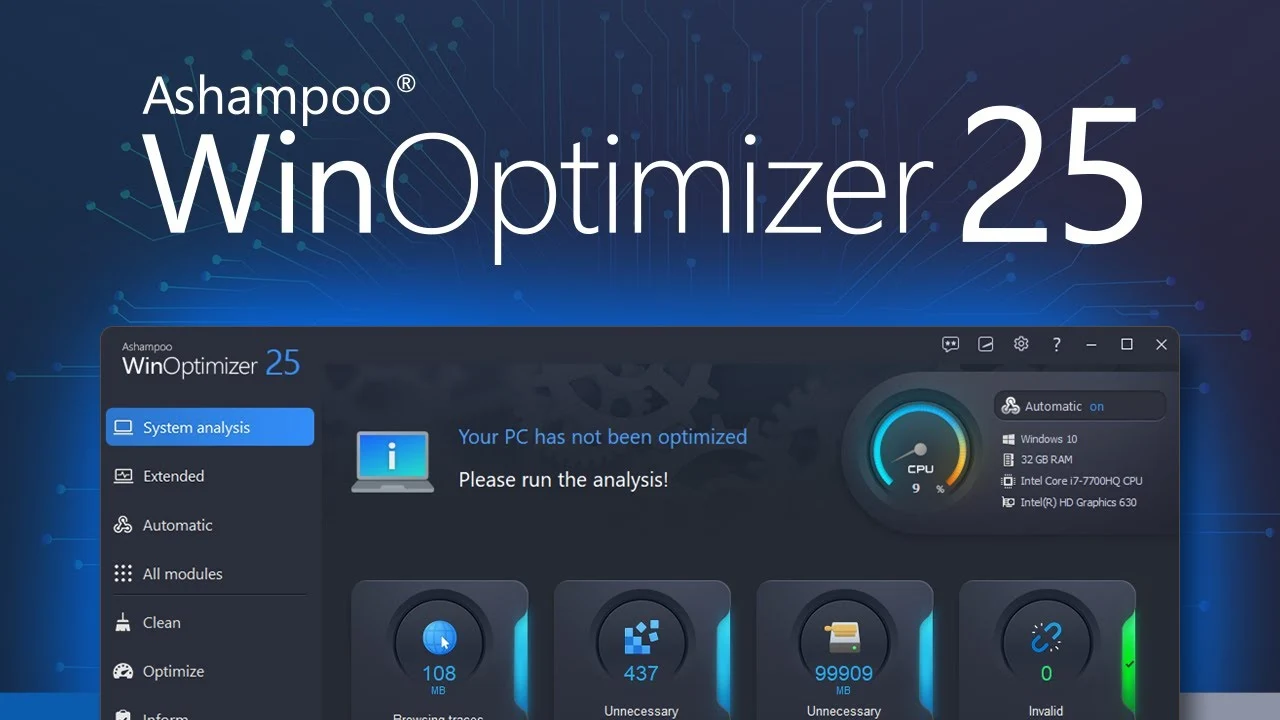
Ashampoo WinOptimizer Review: Can It Really Speed Up Your PC?
Is your computer running slowly? Do programs take forever to load? You’re not alone. Millions of PC users face this problem daily. Ashampoo WinOptimizer claims it can fix these issues. This software promises to clean junk files, boost speed, and make your computer run like new. But does it really work? Or is it just […]

