











Imagine this. You spend hours perfecting a video project. You hit save. Then your laptop freezes, reboots, and when the screen comes back. The file is gone. Your stomach sinks. It’s not just you. Lost files happen all the time. A dropped hard drive, a bad update, an accidental delete, or a corrupted partition can […]
How to Fix a Camera or Webcam Not Working on Windows 10 and Mac?
Introduction:
Webcams are used for video calls, meetings, and streaming. But sometimes, they stop working without warning. This can be annoying and disruptive.
Both Windows 10 and Mac users face this issue. It may be a software glitch or a hardware fault. The symptoms are often the same.
This guide will help you fix your camera. Follow each step to find the cause and apply the right solution.
Common Reasons: Why Cameras Don’t Work
Camera issues are common and usually easy to fix. The problem could be in the settings, software, or hardware. Here are the most frequent causes:
- Camera access is disabled in privacy settings
- Drivers are outdated or missing
- Antivirus software is blocking the camera
- The camera is not connected or detected
- Another app is using the camera
- System update caused a conflict
- Physical damage to the camera
Old or unsupported camera model
5 Ways Fix Windows 10 Camera Not Working
When the Windows 10 camera is not working on your computer, tablet, or smartphone, you can fix it as:
1. Check the Camera Button on your Device
A physical camera button is available on some laptops and portable devices to switch on and off the webcam. If the camera button is turned off, your device won’t recognize the camera, and you can’t use it. You need to make sure that the button is on before using the camera.
2. Update your Camera Driver
The webcam not working problem arises when your camera drivers are outdated. The simple way to fix this problem is to update your camera driver:
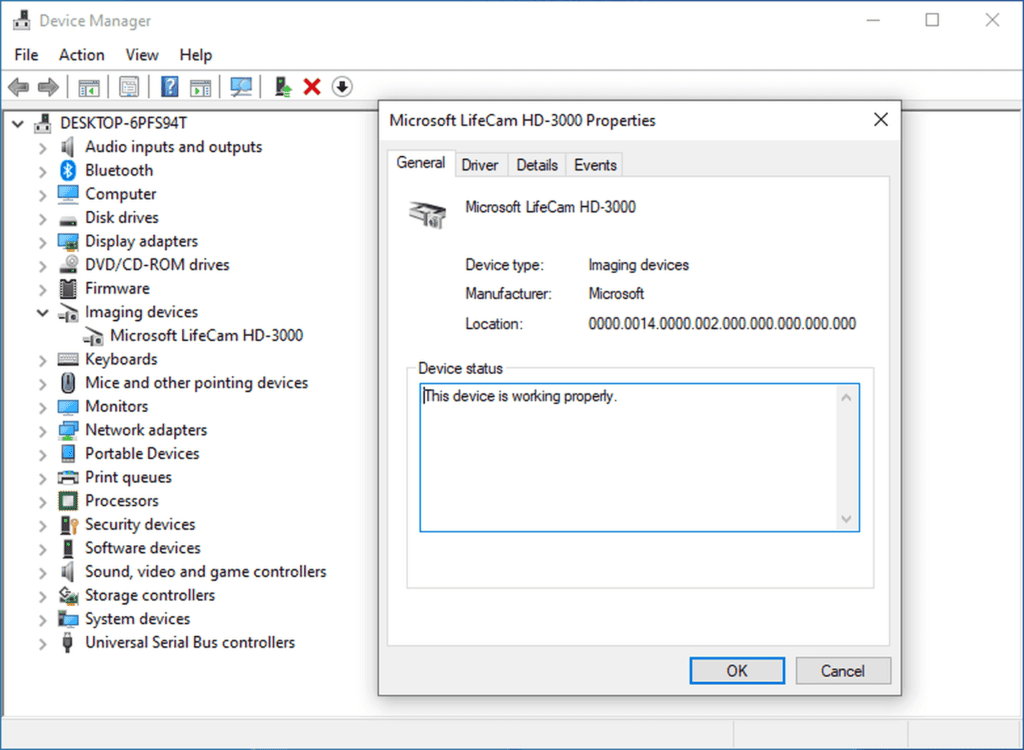
- Use the Start menu to open the Device Manager.
- Navigate to the Imaging Devices and look for your camera.
- Right-click on the camera and click on the Update Driver Software.
- Or, you can open your manufacturer’s website and automatically update the camera driver by following the installation instructions.
3. Provide a Permission to the App
Suppose your webcam was perfectly working with Skype until you switch to WhatsApp. This Windows 10 camera is not working issue may be due to camera access permission to the specific app. So, you should check camera access settings to clear your doubt.
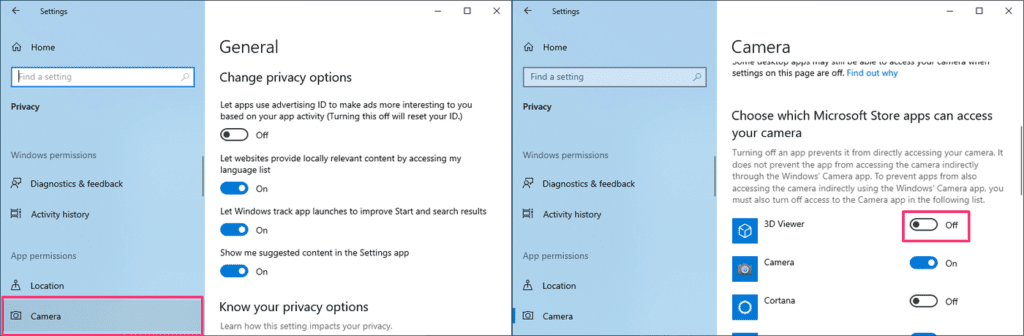
- Go to Start > Settings > Privacy > Camera.
- Under the Allow access to the camera device on this device select Change, turn on Camera access for this device, and Allow apps to access your computer.
- To grant access to WhatsApp or other apps, scroll down to Choose which Microsoft Store app can access your camera and turn on the video conferencing app.
4. Analyze your Incompatible Camera Driver
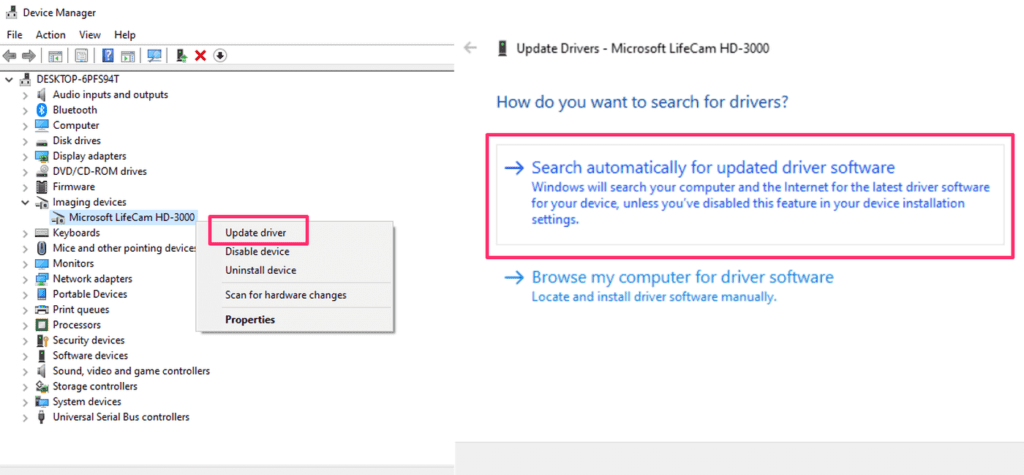
If you are using an older camera that is not designed for Windows 10, your webcam will not work for you. To check the incompatible camera driver, follow these steps:
- Go to the Device Manager, navigate for your Camera or Imaging Devices tab.
- Right-click on your camera and select Properties.
- Click on the Driver tab, select the Driver Details button, and look for a file name. If your camera was designed before Windows 7, you have to replace your camera.
5. Uninstall your Camera Driver
When nothing fixes Windows 10 camera not working for you, as a last resort, you can uninstall your camera driver and scan for hardware changes. Before that do take a backup of your camera driver settings.
- Open the Device Manager, right-click on your camera, and select Properties.
- Click on the Driver tab and then Uninstall Device. Select the check box for Delete the driver software for this device, then select OK.
- Next, click on the Action menu from the Device Manager and select Scan for hardware changes.
- You have to wait for the scan to complete and reinstall updated drivers on your PC.
5 Ways to Fix Mac Camera Not Working
On your powerful Mac devices, webcam not working is possible and can be fixed easily with:
1. Close Other Camera Apps
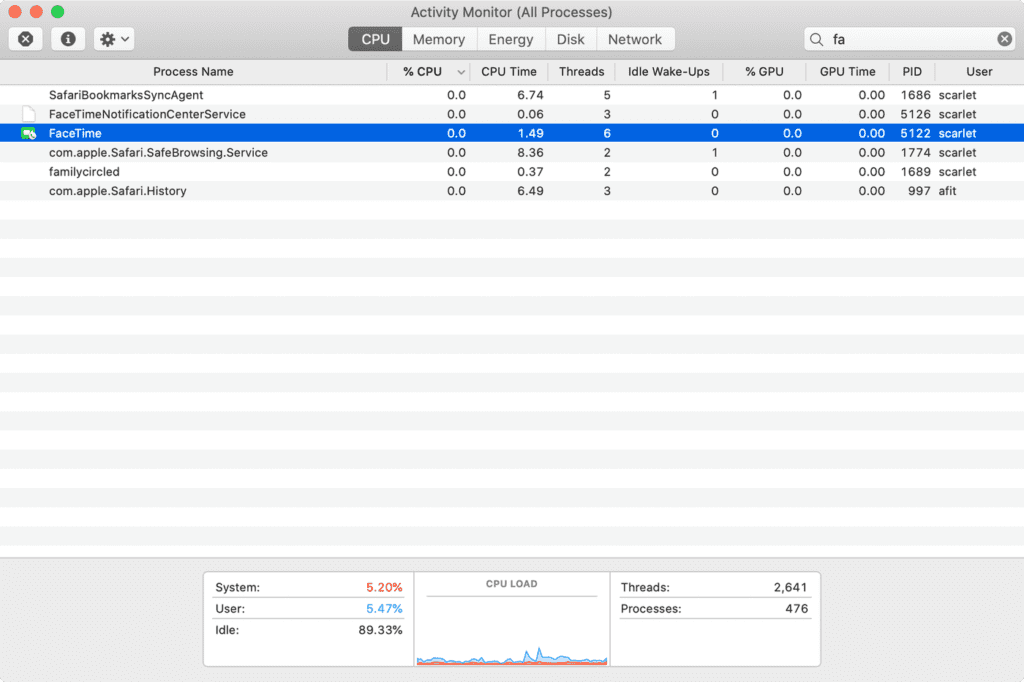
If you are using multiple camera apps on your Mac, switching from one app to another can cause the Mac camera not working. For instance, if you open the Zoom app without closing the FaceTime camera, your Zoom camera will not work. Therefore, close all other camera apps before using your camera.
- Press hold ⌘ Cmd + on the keyboard.
- Type Activity and select the Activity Monitor.
- Double click on all other apps using the camera and select Quit on the window that pops up.
2. Reset your System Management Controller
If you are facing a webcam not working issue along with some other issues on your Mac, resetting SMC is a good idea. The resetting method depends on your Mac type. The SMC on MacBook containing Apple T2 Security Chip is:
- Power off your Mac.
- Hold the following keys for seven seconds — ⌘ Cmd + ⌥ Option + ⇧ Shift.
- While holding these keys, hold the power button for another seven seconds. If your Mac has turned on, it will turn off now.
- After a few minutes, turn on your Mac.
To reset SMC on all the Macs released in 2010 or later:
- Power off your Mac.
- Hold together ⌘ Cmd + ⌥ Option + ⇧ Shift.
- Also, hold the power button for ten seconds.
- Power on your Mac.
3. Stop the VDC Assistant and Apple Camera Assistant Processes
The VDCAssistant and AppleCameraAssistant are two processes that perform webcam duties in the background on your Mac. If these processes stop working correctly, it can cause the Mac camera not working issue.
Mostly, when a process crashes, the system automatically restarts. Sometimes, the automatic restart won’t work, and you have to manually kill processes with a terminal command, either searching for it in Spotlight or going to Applications > Utilities. Type the following command, and then press Enter:
sudo killall VDCAssistant;sudo killall AppleCameraAssistant
You need to enter your admin password and then try to use the webcam again. If you aren’t comfortable with terminal commands, you can also restart your Mac.
4. Check Screen Time Permissions
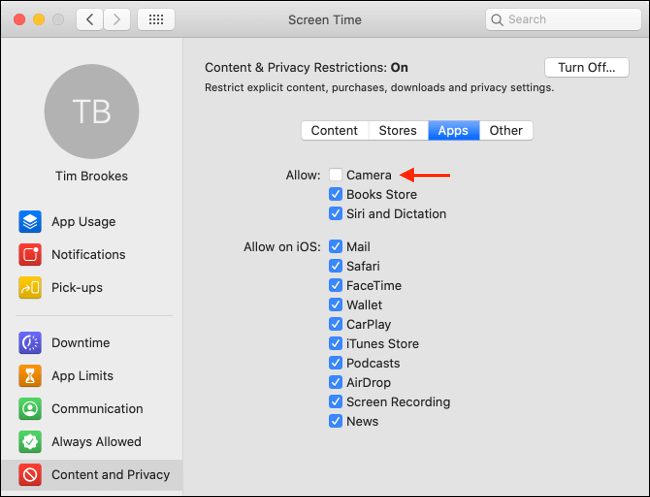
Screen Time is a core macOS feature that monitors your Mac’s usage. It is a macOS parental control handler that includes restricting access to the webcam. If you have restricted webcam access, your Mac camera will not work.
To confirm the Screen Time restriction problem, follow these steps:
- Go to System Preferences > Screen Time > Content and Privacy and click on Camera.
- If the Camera is disabled under the Apps tab, you can authenticate or change the settings.
5. Evaluate the Camera Indicator Light
When your Mac camera is not working after all your attempts, you should closely observe the camera indicator light. If the camera flashes green on your Mac notebook, you should immediately contact Apple support to get help.
5 Quick Tips to Fix Webcam Not Working on Windows 10 & Mac
Apart from the above-mentioned solutions, you can try common webcam not working on Windows 10 and Mac tips:
- Reinstall the camera app or try another software to use the camera feature.
- Update your operating systems from the settings on your Windows 10 and Mac devices.
- Look for any covering or physical damage to your webcam.
- Run an antivirus scan in your system because many viruses affect the webcams.
- As a last resort, you can reinstall your system settings if you are facing more than just camera troubles.
Conclusion
Most camera problems can be solved with basic troubleshooting. Start by checking privacy settings and permissions. Make sure your camera is enabled and not blocked by antivirus software. Update your drivers and restart your device. On Windows, use Device Manager and the built-in troubleshooter. On Mac, check System Preferences and test the camera in different apps.
If the issue continues, it may be a hardware fault. Try using an external webcam to confirm. You can also contact support or visit a technician. In some cases, replacing the camera is the best option. With the right steps, you can fix most issues without spending money or wasting time.
FAQs:
Q1: Why is my camera not working after a system update?
System updates can reset permissions or install incompatible drivers. Check your privacy settings and update your camera driver manually. Restart your device and test the camera again.
Q2: Can antivirus software block my webcam?
Yes, some antivirus programs include webcam protection. This can block access to your camera. Open your antivirus settings and allow camera access or disable the protection temporarily.
Q3: How do I test if my webcam is working?
Use a built-in app like Camera on Windows or FaceTime on Mac. If the app shows video, your webcam is working. If not, try another app or check your settings and permissions.
Dinesh Lakhwani
Author Bio:
Dinesh Lakhwani 

Dinesh Lakhwani, the entrepreneurial brain behind “TechCommuters,” achieved big things in the tech world. He started the company to make smart and user-friendly tech solutions. Thanks to his sharp thinking, focus on quality and the motto of never giving up, TechCommuters became a top player in the industry. His commitment to excellence has propelled the company to a leading position in the industry.
Popular Post
Recent Post

5 Best Data Recovery Software For Windows 11 and Windows 10
A crashed drive can ruin a whole day. One minute your photos, work files, and tax records sit safe on your PC. The next minute they are gone. A power cut, a bad update, or one wrong click can wipe out years of memories and months of work in seconds. That sinking feeling is why […]

How To Update NVIDIA Drivers On Windows 11/10 PC
Learn how to update NVIDIA drivers on Windows 11/10 with simple methods, safety tips, and easy steps for smoother gaming and better PC performance.

Top AI Features Hidden Inside Windows 11
Explore the top AI features in Windows 11, from Copilot to Recall, plus safety tips and simple steps to use each tool the right way.

Customize Your Screen Saver Settings in Windows [Easy Steps]
Learn how to customize screen saver settings in Windows 11 with easy steps, safety tips, and simple tricks to personalize your PC screen.

Driver Easy Windows Driver Updater Tool Review: Tried & Tested
In-depth information about Driver Easy’s functions and features can be found in our review. Learn how to update drivers more easily with this tool for a more seamless computer experience.

Is Avast Driver Updater Worth It? A Hands-On Analysis
A full review of Avast Driver Updater covering features, setup steps, pricing, pros and cons, and real PC results, to help you decide if it is worth buying.

IObit Driver Booster 13 (PRO) Review: [Tried & Tested]
IObit Driver Booster 13 is built for one purpose: keeping your PC drivers up to date. Well, yes! Outdated drivers can cause crashes, slowdowns, and hardware issues. This tool scans fast and updates with one click. The interface is simple. Even beginners can use it without confusion. Updates are pulled from a huge database, covering […]

Auslogics Driver Updater: A Detailed Walkthrough [2026]
This comprehensive review covers the key features, pros, and cons, pricing, and a final verdict on Auslogics’ driver update utility. Learn how it stacks up against manual driver maintenance.

5 Best Driver Updater Tools for Windows to Use (Free and Paid)
Introduction: Most people blame their PC for problems that a driver caused. A driver works like a bridge between your hardware and your operating system. When this bridge cracks, strange things start to happen. Screens flicker without reason. Printers go silent mid-task. Games freeze or crash out of nowhere. Manually finding the right driver is […]

