












Read my honest Wise Duplicate Finder review. See features, pricing, pros and cons, and real PC test results. Find out if this free duplicate cleaner can free up your Windows storage.
Wondershare MirrorGo: The Best Mirroring Tool for Windows
Humans are never satisfied with what they have, due to this they always want something more and different. With that said, over the years the screen size of our smartphone has changed, yet we all look for options to increase display size, right?
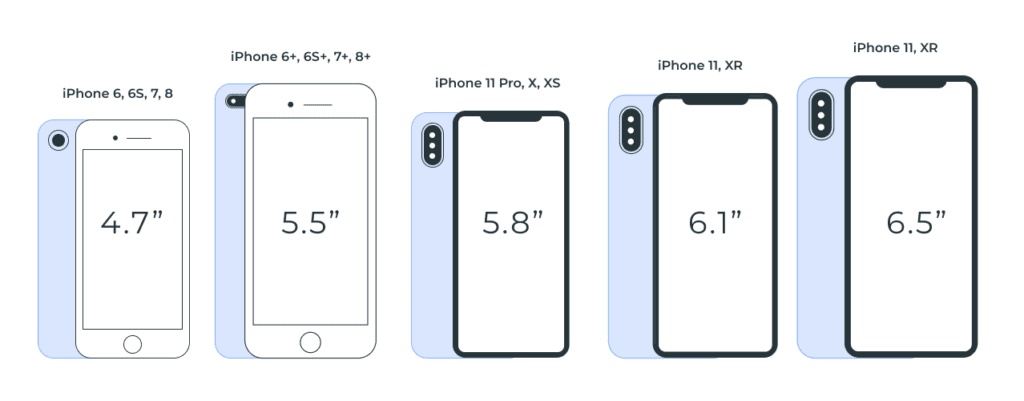
If you too want to increase the phone’s aspect ratio, you are at the right place.
Curious to know how that can be done?
Well, it can be done by mirroring the device on PC using WonderShare’s powerful MirrorGo. This professional screen mirroring tool makes accessing for both Android and iPhone on TV swift. Using it, you can not only replicate smartphone screen to desktop or laptop screen but can also control the device.
So, without any further delay let us know in detail about WonderShareMirroGo.
What is screen mirroring, and why should you use MirrorGo?
Small screens are good to carry but when it comes to playing games, creating PowerPoint presentations, etc. we all like big screens. But how can one transfer the media that is playing on Android, iPhone onto a bigger screen?
Using MirrorGo’s screen mirroring technology this can be done easily. This intelligent software easily mirrors all your phone content on TV. Moreover, it helps play favorite mobile game, watch movies on large screens and more.
Besides this you can record live moments, game play, share it and create tutorials too. Take screenshots for a demonstration, check messages and app notifications received on the phone.
Benefits of Using MirrorGo
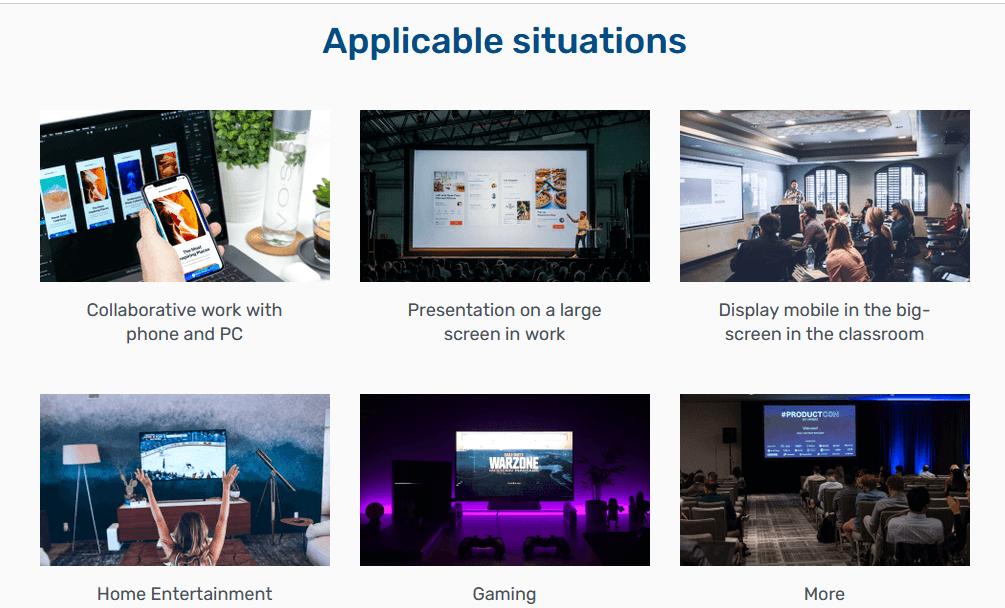
- Play Android and iPhone Games on PC – Once you have MirrorGo app installed on your PC simply connect your phone via USB. This will synchronize the device and you are all set to play games and synchronize everything you have on your small screen on a bigger screen.
Also, you can execute moves via keyboard and mouse.
- Transfer PC’s data to mobile– Using MirrorGo app you can easily transfer data from PC to phone and vice versa. This entire process is transparent and can be verified by clicking the Transfer button. All the moved files are saved under the MirrorGo folder of the phone.
- Reply to SMS, manage app notifications– MirrorGo does not interfere with the normal functioning of the phone. This means even when you are playing games with MirrorGo you can reply to SMS, check app notifications and social media accounts.
- Record and share– When playing games on PC via MirrorGo you can record and share them online.
- No Downtime – Often to play Android and iOS games on system, emulators are used but they face downtime with hi-end games. This problem can be resolved with MirrorGo as it offers a stable platform for seamless gaming.
- Play Games using Keyboard and Mouse – For gamers, this facility is of great use. When playing games, they can use keyboard and mouse and give a crazy sense of vivacity to the game.
Now that we are aware of what MirrorGo has to offer let’s learn what makes it the best screen mirroring tool.
Why do we recommend MirrorGo?
Ease of Use – It is the most straightforward screen mirroring tool that both iOS and Android users can use. Once the tool is installed and running on the system to replicate an iPhone or Android screen simply connect the devices via the USB or can do so through Wi-Fi.
There’s no need for technical support or making any configuration settings.
Another exemplary thing about MirrorGo, is the free trial that gives an insight about how the tool works. The software is malware free and poses no risk to the PC.
Usefulness–Adaptability can be seen in various dimensions like the free and pro version works differently on Windows. When subscribed to a paid package you can work with unlimited number of phones and enjoy other features.
Customer Support– Backed by a prompt 24/7 support team MirrorGo is an excellent screen mirroring tool. This means you can connect with the technical team anytime when you face a problem either via chat or call.
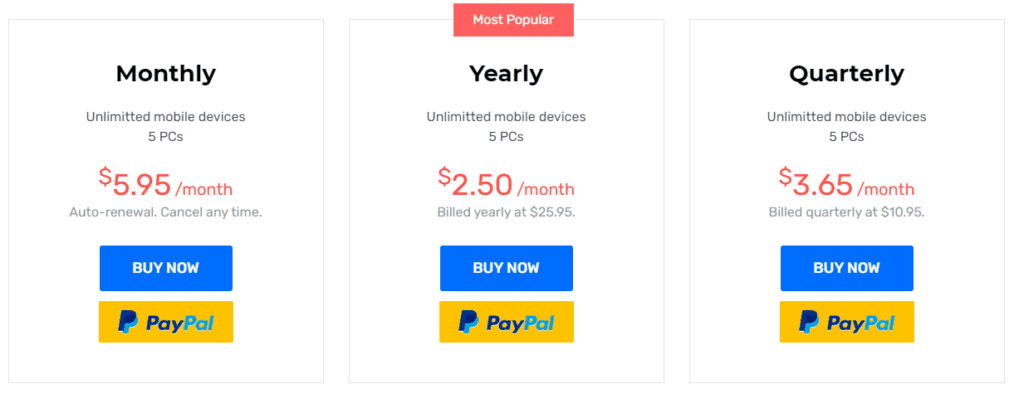
Price– MirrorGocan be purchased at monthly, quarterly and yearly pricing.
Now, let’s learn how to use MirrorGo on your device.


1. Download the software on your PC
Visit Wondershare MirrorGo’s website and download the software by clicking the download button. Wait for the process to finish.
You will now have the free trial version installed. If you have purchased the product click the profile icon and enter your email address along with the registration number.
In case you just want to see how it works, you can use the trial version.
Note: Paid version offers advanced functionality and unlocks various resources to guarantee a full experience. MirrorGo works well with Windows 10 and older versions.
2. Connect your iPhone or Android to the PC.
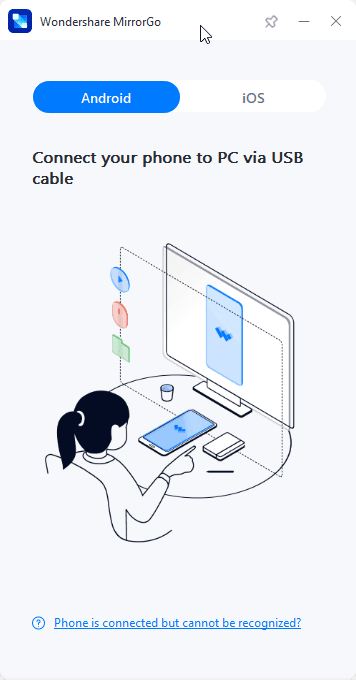
Now that MirrorGo is installed and running on the PC, connect your phone. You will receive on screen instructions to screen the mirror.
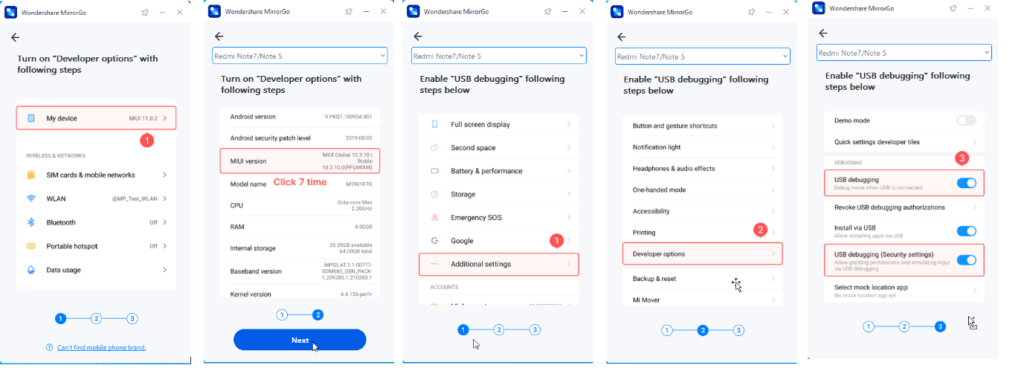
If using Android, you will be asked to enable Developer mode.
Note: If you don’twant to connect via cable you can connect via Wi-Fi. For this make sure both PC and the device are connected on the same Wi-Fi network. Once connected slide the screen to the access control centre and click Screen Mirroring. If you do not see the option, refresh the Wi-Fi connection. Your iPhone is now mirrored to the PC.
3. Connect Peripheral Devices (iOS0
Once mirroring is initiated, connect other peripheral devices to replicate the screen. You can connect the mouse to the iPhone and easily follow-on screen instructions.
To connect mouse to iPhone head to Settings > Accessibility > Touch > Enable Assistive Touch. You can now use the mouse and run the mirrored display. For this function to work Bluetooth needs to be enabled.
Using the above steps, you can use WonderShare MirrorGo to mirror iPhone to PC and Android Screen to PC
It is an excellent tool to rely on when the mirroring function is what you want.
Wrap Up
When it comes to increasing the aspect ratio of display, mirroring technology comes in handy. It makes communications with small screen devices easy and allows recording the content for an online streaming on channels. To experience it yourself download the MirrorGo application and mirror your Android or iPhone device.
Get the program today and mirror the smartphone on PC flawlessly.
Author Bio:
Dinesh Lakhwani 

Dinesh Lakhwani, the entrepreneurial brain behind “TechCommuters,” achieved big things in the tech world. He started the company to make smart and user-friendly tech solutions. Thanks to his sharp thinking, focus on quality and the motto of never giving up, TechCommuters became a top player in the industry. His commitment to excellence has propelled the company to a leading position in the industry.
Popular Post
Recent Post

How to Recover Deleted Files from Pen drive, USB Drive, SD Card
Introduction: On tech forums, you’ll often see posts like this: “I connected my pen drive to my laptop this morning, but the folder was empty. All my college project files had vanished. I don’t have a backup. Can someone help me?” Stories like this are very common. Pen drives, USB drives and SD cards are […]

How To Recover Files Deleted from the Recycle Bin [Windows 11]
Losing a file can happen in seconds. You clear your desktop, hit Delete, and empty the Recycle Bin. Then, just when you need that file again, it seems to have vanished. This guide will walk you through ways to restore files removed from the Recycle Bin. We will begin with simple fixes, then look at […]

Disk Drill Data Recovery Tool Explained: Full Review and Guide
It happens in a split second. You delete a folder by mistake. Your drive stops showing up. A photo album from your last trip just vanishes. And your stomach drops. Lost files feel personal. They are not just data. They are memories, work hours, and sometimes years of effort packed into a few gigabytes. When […]

Recover Deleted Files In Windows 11 With Software & Without
Introduction What is the first thing that goes through your mind the second an important file vanishes from a Windows 11 PC? For most people, it is a mix of panic and disbelief, followed by a frantic click through every folder that file could possibly be hiding in. It happens in a split second: one […]

EaseUS Data Recovery Wizard: Everything To Know
Data loss does not always come from a big disaster either. Most cases start small and boring. A drive gets formatted by mistake. A laptop freezes mid-save and restarts on its own. A memory card stops showing up after being pulled out too fast. None of these feel like emergencies at first, until you realize […]

Recuva Data Recovery Tool: Is it Actually Worth it?
When I first tried Recuva Data Recovery, I wanted to see if it could really bring back lost files. The tool is free, small in size, and promises quick recovery, which made me curious enough to test it on my own PC. The setup was fast, and the wizard guided me step by step. I […]

GetData Recover My Files Data Recovery Tool: Honest Review
A hard drive error brings a special kind of silence. Well, yes! The screen freezes, then a message appears saying the drive can’t be found or must be formatted. In that moment, years of photos and work files feel at risk. It never happens at a good time. Coffee spills near a laptop, a memory […]

Windows File Recovery: A Complete Review [Tried & Tested]
Imagine this. You spend hours perfecting a video project. You hit save. Then your laptop freezes, reboots, and when the screen comes back. The file is gone. Your stomach sinks. It’s not just you. Lost files happen all the time. A dropped hard drive, a bad update, an accidental delete, or a corrupted partition can […]

5 Best Data Recovery Software For Windows 11 and Windows 10
Introduction: A crashed drive can ruin a whole day. One minute your photos, work files, and tax records sit safe on your PC. The next minute they are gone. A power cut, a bad update, or one wrong click can wipe out years of memories and months of work in seconds. That sinking feeling is […]

