











Antivirus is the one kind of software that people think about at only two moments. The first is right after installing it. The second is right after something goes wrong. In between, it runs quietly, and most users never check if it is doing a good job. That silence makes the choice harder. Windows 10 […]
How to Speed Up Mac Startup Times in 5 Easy Ways
Are you missing your brand new Mac? That used to start up in just 30 seconds and saved you a lot of time—those good old days!
Since you have now loaded your Mac with numerous applications and games containing bulky installation setups, it has consumed large disk space and eventually deteriorated system performance.
Therefore, if you are tired of your Mac’s lethargic behavior while starting up, we can help you speed up things a bit.
Generally, Macs boot up way faster than PCs, but there are still many things that you can do right to make a painless boot-up process. Just follow our how to speed up Mac startup times tutorial to know some cool tactics.
A Few Common Questions Before You Begin
Why does my Mac take longer to start over time?
As a Mac ages, more apps add themselves to startup, system cache grows, and background services increase. These factors extend boot time because macOS has more items to load before the desktop is ready. Regular cleanup and startup control help keep boot times consistent.
Does disabling startup apps affect how programs work?
No, disabling a startup app only stops it from launching automatically. You can still open the app manually whenever needed. This change often improves startup speed without affecting normal use.
Can macOS updates slow down startup?
Some updates temporarily increase startup time due to reindexing and system optimization after installation. This usually settles after a few restarts. Keeping macOS updated helps long-term performance rather than hurting it.
What Makes My Mac Slow Down? 5 Common Causes
Your Mac’s startup speed depends on your macOS version, disk space, and multiple other factors. Thus, we can’t pinpoint what’s affecting your Mac, but based on our research on Apple Forums, we have found five common causes that disturb most Mac users:
Too Many Auto-startup Apps
If you have too many auto startup applications running on your Mac, you have to wait for them all to load up before using your computer. Thus, try to reduce the number of autoloading apps and services for quick boot-up. This small step can bring significant changes in your Mac’s startup time—just try once.
Lack of Storage
When your startup disk is on the brink of getting full, it can incredibly slow down overall performance, including the startup time. It is always recommended to keep 20% of your disk space free (minimum), but more will be better.
Third-party Devices
Do you use your Mac as a hub for everything? Have you connected USB-C, scanner, printer, iPhone, and SSD drive to your MacBook? If yes, these peripherals are consuming a large chunk of your machine’s performance and slowing its speed.
NVRAM Troubles
NVRAM stands for Non-volatile Random Access Memory that stores important information pieces for Mac to load its operating system. Unfortunately, if values get out of order in NVRAM, your computer won’t start properly. However, if you are using an older Mac computer, you might have PRAM instead of NVRAM—both have the same functions.
Major Update
It has been reported by many users that their Mac boots up a bit slower after updating to the latest OS. Now, this isn’t a common case, but sometimes it occurs when you perform a major macOS update—for instance, updating from MacOS 10.13.1 to 14.3 can create some issues. On the contrary, moving from 10.13.1 to 10.13.4 won’t affect anything.
How to Speed Up Mac Startup Times?
If none of the above mentioned common causes aren’t slowing down your Mac startup time, the problem is quite serious, and you should try the following solutions:
Upgrade to Faster SSD
Updating Solid State Storage, aka SSD disk, can immensely boost startup time as Mac can read data from SSD disk much faster than the traditional magnetic disk. Averagely, the random access time for SSD is 0.1 milliseconds as compared to 5-10 milliseconds for a hard drive.
Apple has already equipped MacBook Air with a fast SSD, but you might have to upgrade to the fastest SSD if you are using an old computer. Now, updating SSD won’t be a cheap business, for example:
- For MacBook Air, a 125 GB base 1 TB SSD disk costs $600.
- For iMac Pros, 4 TB SSD available for $1200-$2400.
Streamline Login Process
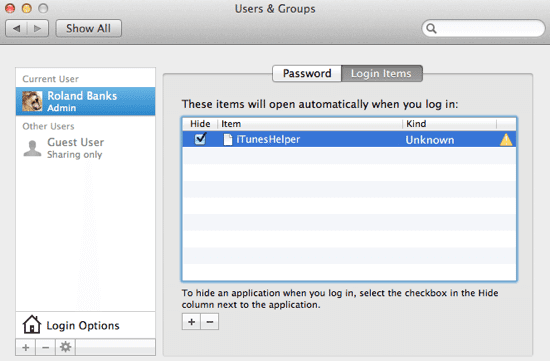
If you have a personal Mac, you can use an automatic login process to reduce its startup time. You can enable automatic login by clicking on System Preferences > Users and Groups > Login Options.
Additional passcode layering can sometimes delay the login process; therefore, you shouldn’t need passcode safety anyway if you don’t have any snoopers around your Mac.
Use Activity Monitor
Some applications are more resource-consuming than others, and you have to quickly find and manage them to avoid slow startup speed issues. And, using Activity Monitor, you can easily locate troublesome apps, monitor CPU, network, and disk usage as a live graph right in the Dock.
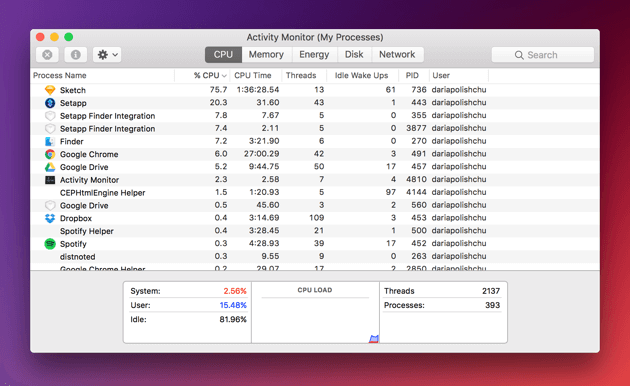
Once you found the most energy-consuming app on your Mac, you can treat it in the following manner:
- In the Activity Monitor, select the troublesome app you want to quit under the Process Name list. Noteworthily, the Process Name list isn’t available on the cache page.
- Click on the Stop button, located at the upper left corner of the Activity Monitor.
- Now, you can select any of the two options; Quit and Force Quit. In the first option, the process quits when it’s safe to do—contrary, the process immediately quits in the second option.
Periodic Health Check-Ups
To maintain your Mac’s performance and speed, it is ideal for checking its health thoroughly. You should run periodic system check-ups to identify any persistent problems that might affect boot uptime.
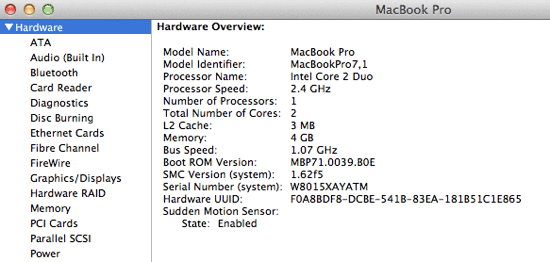
You can navigate to Apple Menu > Select About This Mac > Click on the More Info > Choose System Report to enlist your Mac hardware. From this section, you can view all the installed applications’ properties and status along with the potentially problematic areas.
Additionally, if you keep your Mac up to date, you won’t have to run periodic health check-ups as Apple often fixes common startup time-related issues.
Shut Off Visual Effects
One of the prominent ways to speed up Mac startup times suggestion would be turning off visual effects. Definitely, visual effects make the user experience better, but they occasionally also slow down the Mac. Therefore, enabling some of the unnecessary visual features can boost your MacBook or iMac speed dramatically.
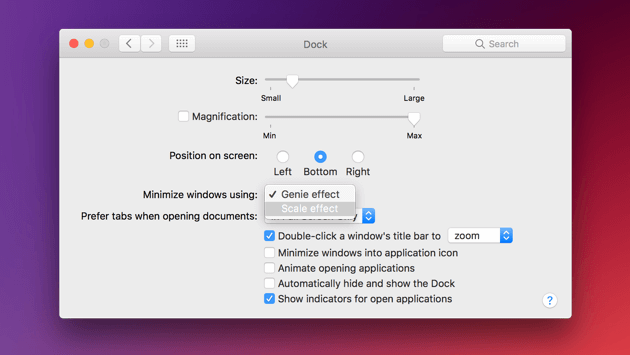
To turn off visual effects, you can go to System Preferences > Dock > Uncheck boxes—Automatically hide, show the Dock, and Animate opening applications. Also, click on Minimise windows to change the Genie effect to Scale effect.
Remove Unused Startup Services
Many applications install helper services that load during startup, even if you no longer use the app regularly. These background services increase boot time by adding extra processes macOS must initialize before the desktop becomes usable. Over time, they quietly stack up and slow the login process.
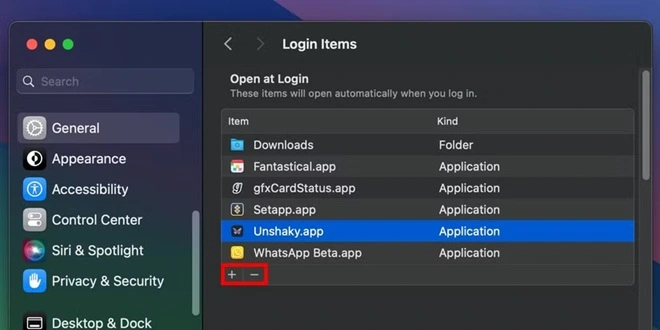
Open System Settings, go to General, then Login Items, and remove services you do not need at startup.
Keep Enough Free Storage Space
macOS depends on free disk space to manage temporary files and memory during startup. When the startup drive is almost full, the system struggles to load essential components quickly. This can lead to slower boot times and delayed app launches. Maintaining free space helps macOS operate efficiently from the moment it starts.
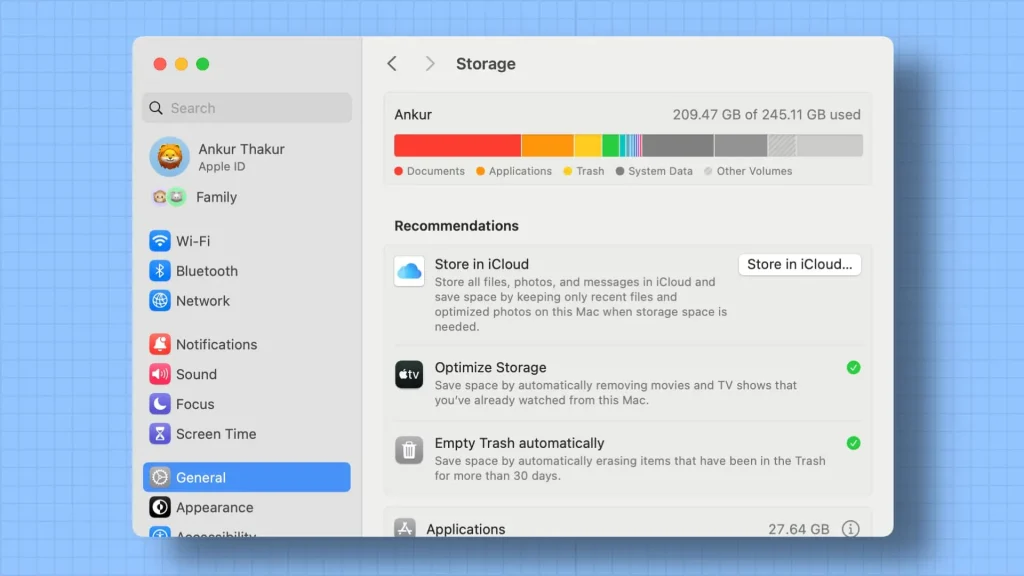
Check storage under System Settings, review large files, and delete or move items you no longer need.
Update macOS and Installed Apps Regularly
System and app updates often include performance improvements, bug fixes, and better startup behavior. Outdated software can cause background errors, repeated checks, or slow compatibility routines during boot. Staying updated ensures smoother system initialization and fewer startup delays.
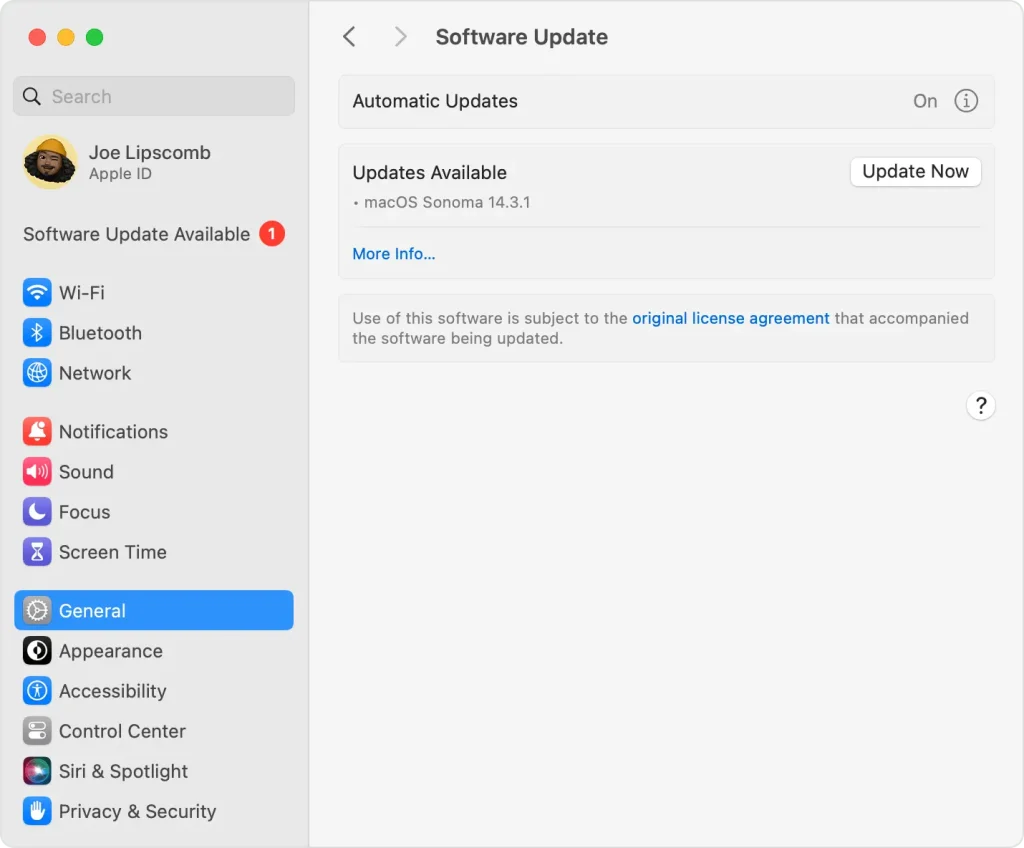
Go to System Settings, open General, select Software Update, and install available updates.
_____________________________________________________
Conclusion
Speeding up Mac startup times does not require complex changes or risky tweaks. Small steps like managing login items, keeping storage tidy, and updating macOS can noticeably reduce boot delays. These adjustments help macOS load only what is necessary during startup.
Applying these habits regularly keeps your Mac responsive over the long term. Faster startup not only saves time but also reduces background strain on system resources, leading to smoother performance throughout the day.
FAQs
How many startup apps are too many?
There is no fixed number, but fewer is better. Only apps you truly need right away should launch at startup. Most users benefit from having no more than three to five essential login items.
Will resetting SMC or NVRAM speed up startup?
Resetting SMC or NVRAM can help in specific cases, such as hardware detection or power management issues. It is not a routine fix, but it can improve startup time when system settings become unstable.
Does adding more RAM improve Mac startup speed?
More RAM can help once macOS is running, but startup speed mainly depends on disk speed and startup processes. An SSD upgrade has a greater impact on boot time than extra memory.
Author Bio:
Dinesh Lakhwani 

Dinesh Lakhwani, the entrepreneurial brain behind “TechCommuters,” achieved big things in the tech world. He started the company to make smart and user-friendly tech solutions. Thanks to his sharp thinking, focus on quality and the motto of never giving up, TechCommuters became a top player in the industry. His commitment to excellence has propelled the company to a leading position in the industry.
Popular Post
Recent Post

Top 5 Lightest Antivirus Software To Protect Your PC
Introduction: Antivirus software helps protect Windows PCs from digital threats. It detects viruses, blocks ransomware, and alerts users about unsafe websites. However, some security tools consume too much RAM and CPU power. This can make everyday tasks feel slow. Older laptops and low-end PCs often face this problem. The computer may take longer to start. […]

How To Disable Cookies in Browser [Complete Guide]
So, search for a pair of shoes once online. Close the tab. By evening, those same shoes are sitting on your news site, your video app, and even your recipe blog. Nobody placed them there by chance. A cookie did. Well, yes! Cookies are small files that websites place on your device while you browse. […]

How To Disable Background Apps In Windows: 4 Quick Methods
A slow PC rarely gives a warning. One day, it simply takes longer to start. Apps open late. The fan runs loud, even when the screen is almost empty. Most people blame old hardware. Often, that is not the real reason. The real reason is hiding in plain sight. Windows keeps many apps active in […]

How to Activate Windows with a Product Key for Windows 11 & Windows 10
It always shows up at the worst time. You are halfway through a report, or about to join a video call. Then you spot it in the bottom right corner of the screen. Activate Windows. Go to Settings to activate Windows. Initially, an unactivated copy of Windows may seem like a minor inconvenience. Over time, […]

Is Easy Duplicate Finder Worth It? Honest Review
The photos folder looked normal at first glance. Then the storage warning popped up. One trip photo appeared four times. A tax PDF sat in three different folders. Two old setup files were still in Downloads, and each one was over 500 MB. Nobody plans this mess. Copies pile up slowly. A download runs twice. […]

Wise Duplicate Finder Review: Real Results from Wise Duplicate Finder
Read my honest Wise Duplicate Finder review. See features, pricing, pros and cons, and real PC test results. Find out if this free duplicate cleaner can free up your Windows storage.

How to Recover Deleted Files from Pen drive, USB Drive, SD Card
Introduction: On tech forums, you’ll often see posts like this: “I connected my pen drive to my laptop this morning, but the folder was empty. All my college project files had vanished. I don’t have a backup. Can someone help me?” Stories like this are very common. Pen drives, USB drives and SD cards are […]

How To Recover Files Deleted from the Recycle Bin [Windows 11]
Losing a file can happen in seconds. You clear your desktop, hit Delete, and empty the Recycle Bin. Then, just when you need that file again, it seems to have vanished. This guide will walk you through ways to restore files removed from the Recycle Bin. We will begin with simple fixes, then look at […]

Disk Drill Data Recovery Tool Explained: Full Review and Guide
It happens in a split second. You delete a folder by mistake. Your drive stops showing up. A photo album from your last trip just vanishes. And your stomach drops. Lost files feel personal. They are not just data. They are memories, work hours, and sometimes years of effort packed into a few gigabytes. When […]

