











Imagine this. You spend hours perfecting a video project. You hit save. Then your laptop freezes, reboots, and when the screen comes back. The file is gone. Your stomach sinks. It’s not just you. Lost files happen all the time. A dropped hard drive, a bad update, an accidental delete, or a corrupted partition can […]
iMyFone AnyRecover Review – Recover Your Deleted File
Accidentally deleted an important file, Now what?
Nothing can make you feel more helpless than losing an important document, photo, or file from your system. It’s the nastiest dream coming true. But then knowing it’s not just one file it’s a whole lot of important documents, things get out of hand. And in this case, you are ready to do anything to get those files back, right? But worry not, in today’s post we are going to look at a software that will help with all these problems and will recover all deleted data. This amazing and best recovery tool is called iMyFone AnyRecover.
This powerful data recovery tool helps recover deleted files from both Mac and Windows. Not only this, using it you can recover 1000+ file types that include photos, videos, documents, audio, archives, emails, etc. Alongside this, you can also retrieve files from a PC or SD card. The tool also helps find any traces of deleted files so that you can recover lost data from any rewritable media.
What can iMyFone AnyRecover do?
In situations where you want to recover your important data that was lost or deleted, iMyFone AnyRecover data recovery tool proves to be a beneficial solution. Using this best file recovery software, you can recover files effortlessly from a hard drive, SD card, and other forms of portable storage.
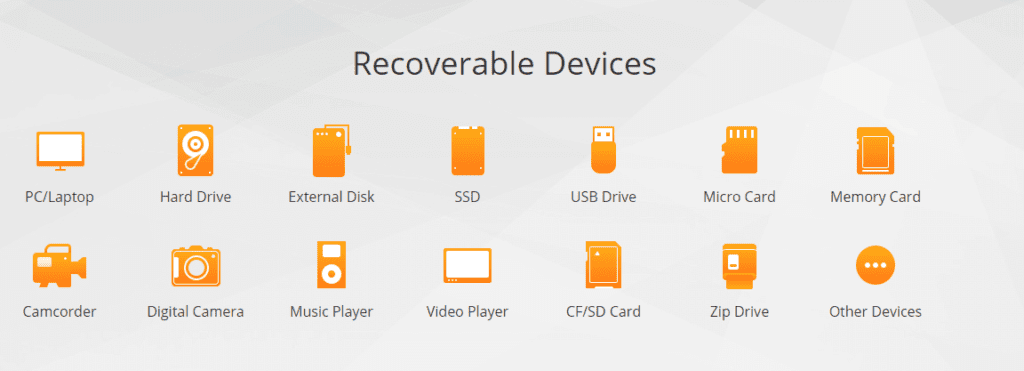
The only thing it cannot do is, to recover files from an SSD (Solid-State Drive).
Nonetheless, this best recovery tool for Windows and Mac ensures an in-depth file search is done so that you can get more and accurate results. The recovery process is simple to use, this means even a beginner without any help can recover data using iMyFone AnyRecover. The most amazing thing about the AnyRecover data recovery tool is that, it gives the option to preview files before recovery, this helps decide whether to recover or not.
What makes iMyFone AnyRecover the best Data Recovery tool for Windows?
Questions like how or when you lost data doesn’t matter, iMyFone AnyRecover can handle all the situations and retrieve data efficiently. To know what kind of data loss situations the tool can handle read below:
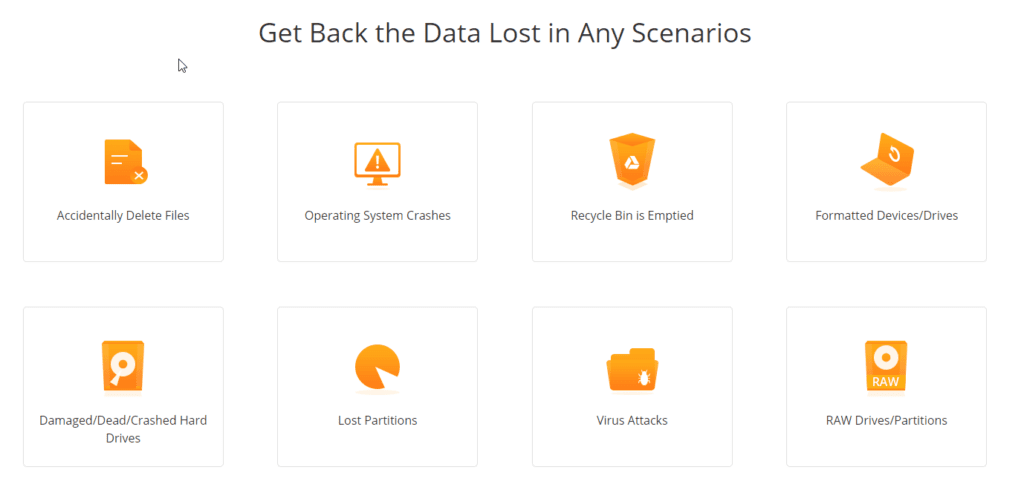
Accidentally deleted data – This is the most common way of losing data. So, if you happen to move a data to Recycle Bin or delete it by pressing Shift+Delete don’t worry iMyFone AnyRecover will help recover this data.
Lost Partition – Sometimes without taking a data backup we create disk partitions due to which we lose data. iMyFone AnyRecover can handle these situations and retrieve data from partitions too.
Formatted Drive – Another common mistake is to format a hard drive without backing up data. Worry, not if you have made this mistake iMyFone AnyRecover will help get back the data.
Crashed System – Running into situations where your operating system stops working can make you lose files. When this happens, there’s nothing to worry about, iMyFone AnyRecover has your back.
Malware Attack – Windows is prone to malware attacks, so if your system is infected and your essential files are corrupt use iMyFone AnyRecover
Hardware Issues – Hard drive issues are unpredictable you can not know when a hard disk might fail. If you are facing any such situation use iMyFone AnyRecover.
What does the iMyFone AnyRecover have to offer?
Unlike other data recovery tools, this Windows tool is simple to use. Moreover, its neat and intuitive interface makes it easy to use. The home screen gives you a whole lot of options to pick devices and recover data.
Highlights
- Recover lost data in any scenarios
- Retrieve deleted files from any PC or storage media
- Supports 1000+ file types thereby helping recover lost files
- Rescue data from broken PC using AnyRecover Pro
Overview:

Multi-Lingual – Yes
Version – 4.0
Money-Back Guarantee– 30-Day
Compatible Operating System– Mac and Windows
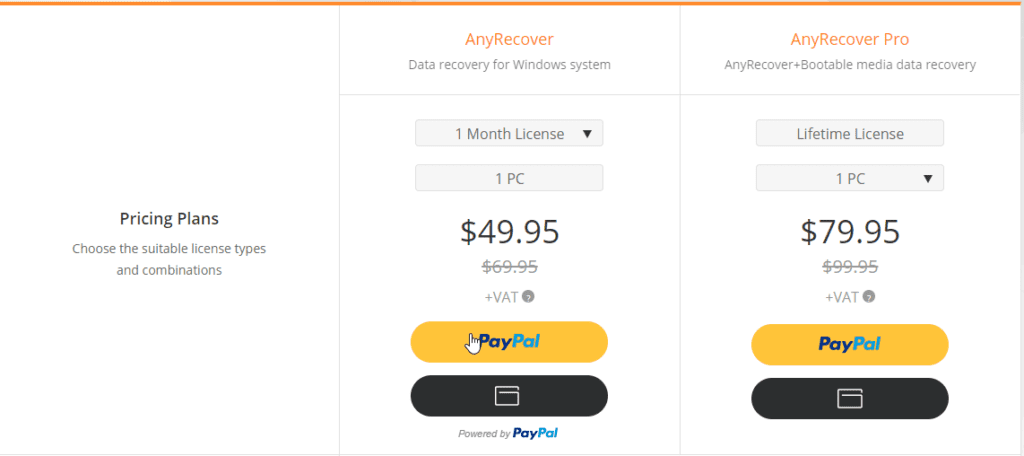
Subscription – 1-Month & Lifetime
Pricing – starts at $49.95
Compatible File Systems: NTFS, FAT16, FAT32, and exFAT
| Pros | Cons |
| Supports both Windows and Mac | Only iMyFone AnyRecover Pro can help restore data from crashed PC |
| Faster scanning and easy recovery process | The trial version recovers only 3 files |
| Restore unlimited data | |
| Recover data irrespective of the reason it was lost | |
| Designed to recover deleted files from Recycle Bin, formatted device, lost partition, an external device, and crashed PC | |
| Does not overwrites existing data |
How to use iMyFone AnyRecover?
To use iMyFone AnyRecover follow the steps below:
- Download, install and launch iMyFone AnyRecover
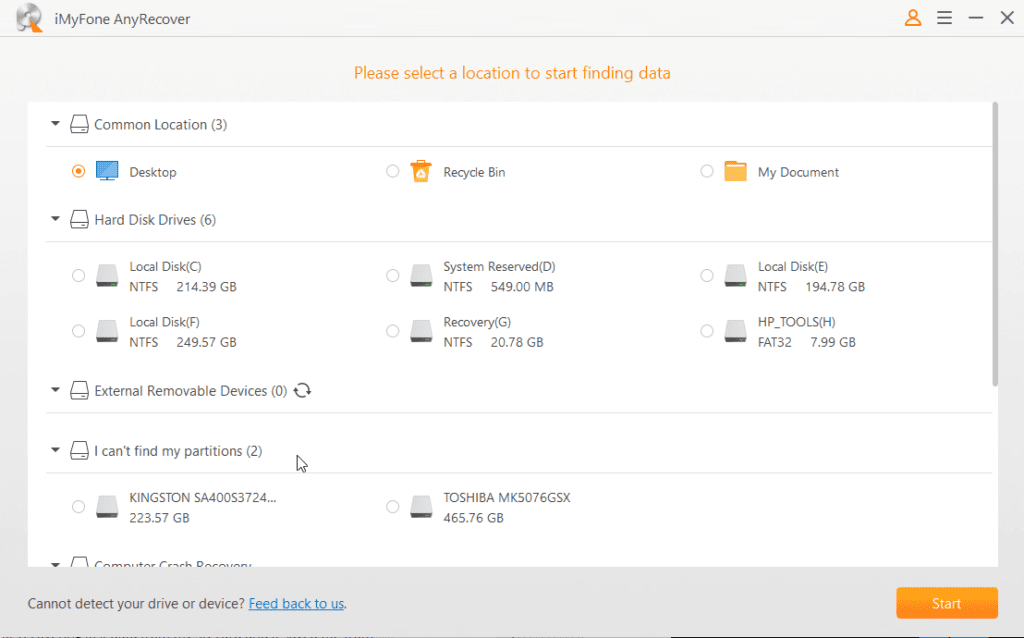
- The data recovery tool will now give you options to select the drive that you wish to scan.
- Once the location is selected click the orange Start button to start scanning.
Note: If you want you can pause the scanning process by clicking the Pause button.
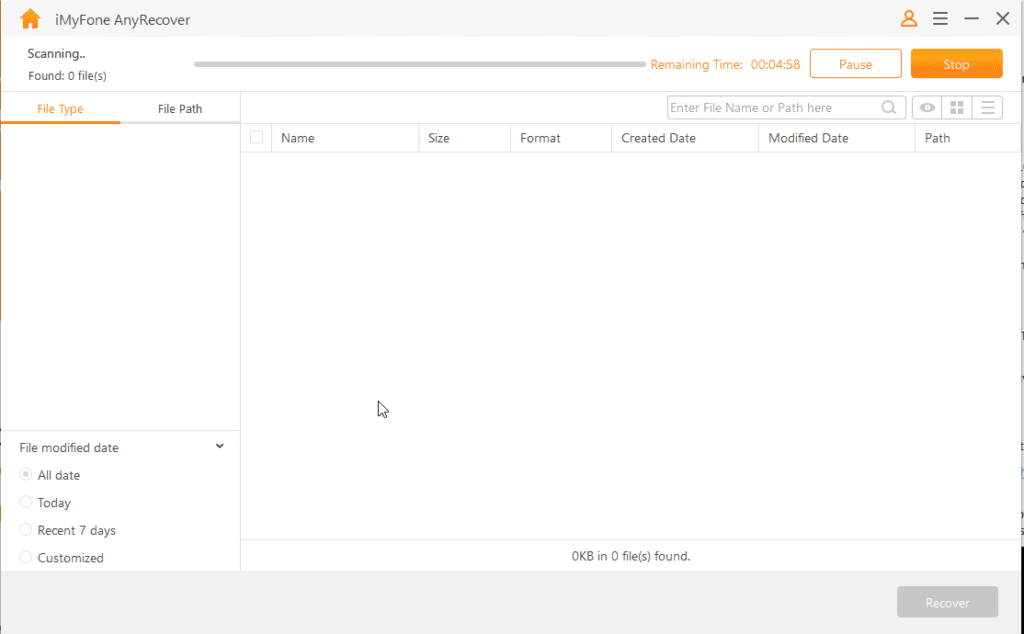
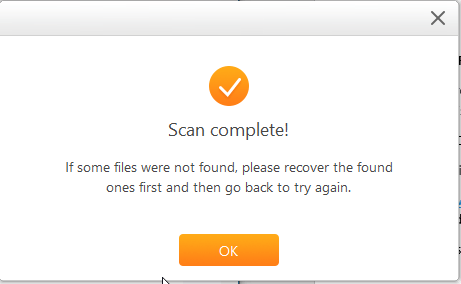
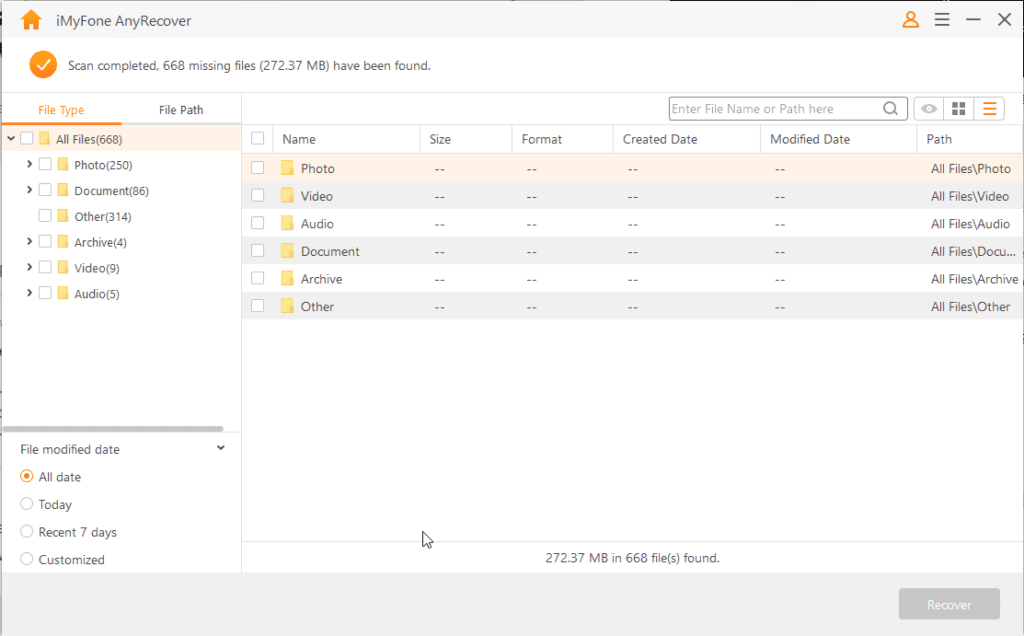
- After the scanning is done, you’ll receive a message click Ok and view all the file types or file directories with the original filenames.
- Preview them by double-clicking the files or select them and hit Recover.
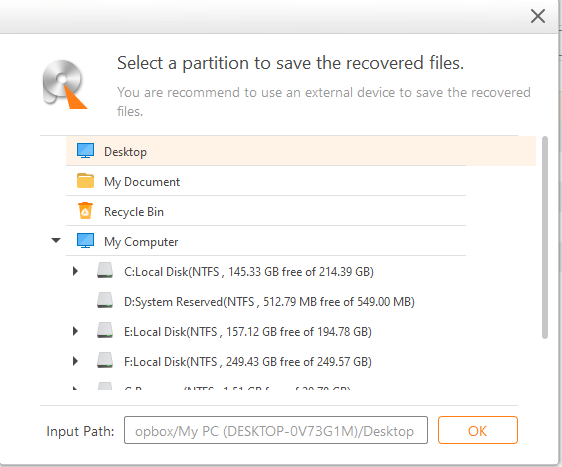
Note: Never save recovered files in the same location, as this reduces the chances of data recovery.
- Select the partition or location where you want to save recovered files and click Ok.
That’s all using these simple steps you can recover data from Recycle Bin, External Devices, Lost Partition, and Crashed Computer.
What is the difference between the paid and free version?
The free version allows scanning and preview of files but you can recover only 3 files. While AnyRecover Pro works without limits and it helps restore data, lost due to any reason.
Conclusion
If you or someone else has accidentally deleted an important file or a bundle of files don’t panic. Simply download, install, and run iMyFone AnyRecover. Perform the scan and recover all deleted files in a few clicks. Do try this tool and share your experience in the comments b
Dinesh Lakhwani
Author Bio:
Dinesh Lakhwani 

Dinesh Lakhwani, the entrepreneurial brain behind “TechCommuters,” achieved big things in the tech world. He started the company to make smart and user-friendly tech solutions. Thanks to his sharp thinking, focus on quality and the motto of never giving up, TechCommuters became a top player in the industry. His commitment to excellence has propelled the company to a leading position in the industry.
Popular Post
Recent Post

5 Best Data Recovery Software For Windows 11 and Windows 10
A crashed drive can ruin a whole day. One minute your photos, work files, and tax records sit safe on your PC. The next minute they are gone. A power cut, a bad update, or one wrong click can wipe out years of memories and months of work in seconds. That sinking feeling is why […]

How To Update NVIDIA Drivers On Windows 11/10 PC
Learn how to update NVIDIA drivers on Windows 11/10 with simple methods, safety tips, and easy steps for smoother gaming and better PC performance.

Top AI Features Hidden Inside Windows 11
Explore the top AI features in Windows 11, from Copilot to Recall, plus safety tips and simple steps to use each tool the right way.

Customize Your Screen Saver Settings in Windows [Easy Steps]
Learn how to customize screen saver settings in Windows 11 with easy steps, safety tips, and simple tricks to personalize your PC screen.

Driver Easy Windows Driver Updater Tool Review: Tried & Tested
In-depth information about Driver Easy’s functions and features can be found in our review. Learn how to update drivers more easily with this tool for a more seamless computer experience.

Is Avast Driver Updater Worth It? A Hands-On Analysis
A full review of Avast Driver Updater covering features, setup steps, pricing, pros and cons, and real PC results, to help you decide if it is worth buying.

IObit Driver Booster 13 (PRO) Review: [Tried & Tested]
IObit Driver Booster 13 is built for one purpose: keeping your PC drivers up to date. Well, yes! Outdated drivers can cause crashes, slowdowns, and hardware issues. This tool scans fast and updates with one click. The interface is simple. Even beginners can use it without confusion. Updates are pulled from a huge database, covering […]

Auslogics Driver Updater: A Detailed Walkthrough [2026]
This comprehensive review covers the key features, pros, and cons, pricing, and a final verdict on Auslogics’ driver update utility. Learn how it stacks up against manual driver maintenance.

5 Best Driver Updater Tools for Windows to Use (Free and Paid)
Introduction: Most people blame their PC for problems that a driver caused. A driver works like a bridge between your hardware and your operating system. When this bridge cracks, strange things start to happen. Screens flicker without reason. Printers go silent mid-task. Games freeze or crash out of nowhere. Manually finding the right driver is […]

