












The photos folder looked normal at first glance. Then the storage warning popped up. One trip photo appeared four times. A tax PDF sat in three different folders. Two old setup files were still in Downloads, and each one was over 500 MB. Nobody plans this mess. Copies pile up slowly. A download runs twice. […]
How to Clean & Optimize Windows 10 for Gaming?
If you are short on time:
There are multiple manual methods available to help you boost gaming performance on Windows 10. But, the problem is, it consumes a lot of time and efforts. Now that, if you are looking for an instant solution to optimize Windows 10 for gaming, then we suggest you should use best PC cleaner tools for enhanced gaming performance. CleanMyPC and CCleaner are two best tools available that offer tons of useful features to optimize PC for improved gaming.
Overview
If you love gaming on Windows 10, then you are not alone. The Microsoft has designed Windows 10 keeping needs of power gamers in mind. This powerful operating system for gamers allows mixing native games, support retro titles, and even supports Xbox One Streaming. But, there are limitations with Windows systems as well that could affect your gaming experience negatively.
Why you should clean Windows 10 for better gaming performance?
You may encounter sluggish gaming performance due to various reasons. It could include over occupied disk space, malware issues, hardware & settings issues, and more. Now to get best out of your PC to enjoy seamless gaming experience, you need to make certain tweaks. With these tweaks, you can optimize Windows 10 for improved gaming performance.
How to clean & optimize Windows 10 for gaming?
To clean & optimize Windows 10 for gaming, you can consider to enable Game Mode, disable Nagle’s algorithm, upgrade to SSD, manage the active hours, tweak visual effects settings, and try similar things. Remember, best PC cleaner software also helps you optimize your PC for better gaming performance.
Method 1: Use Windows 10 Game Mode
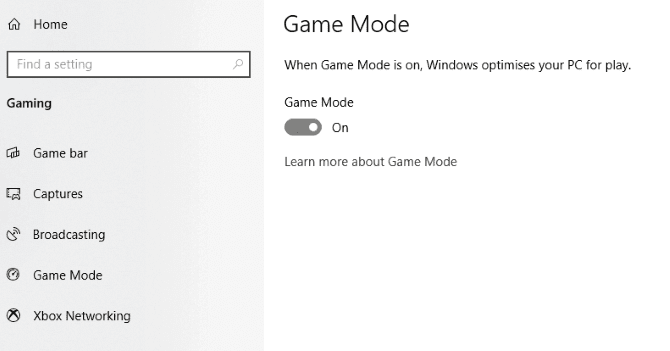
Game Mode on your Windows 10 PC is a powerful tool that is designed to dedicate more resources for games for seamless gaming experience. Once you enable this mode, it will prevent other programs and Windows Update from distracting you with annoying notifications. It will also prevent these programs from hogging system resource while you are playing. To enable Game Mode, follow these steps:
- Press Windows + I keys to open system Settings.
- On Settings window, type game mode in the search box and hit Enter.
- Click Control Game Mode for optimizing your PC for games option.
- On the next window, select Game Mode from the left pane.
- In the right pane, turn on the Game Mode option.
If your PC supports game mode, it will optimize your system for seamless gaming experience, If yu can’t see this option, then latest Windows Creators Update is not installed on your PC.
Method 2: Tweak Visual Effects Settings
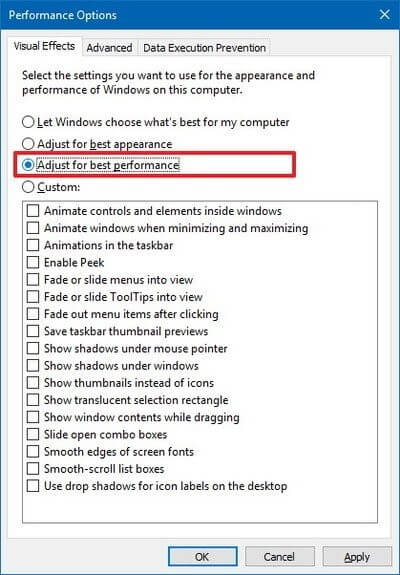
Next thing you should do to optimize Windows 10 for gaming is to tweak Visual Effects settings. You can find stunning visual effects on your Windows 10 PC that enhances aesthetics of your PC. But, it consumes a lot of device resources making gaming experience sluggish. To deal with that, you can consider tweaking Visual Effects settings. To do this, follow these steps:
- Press Win + I keys to open Settings.
- On Settings window, search Performance and hit Enter.
- On the next window, select Adjust the appearance and performance of Windows option,
- Select Adjust for best performance when prompted.
- Click Apply.
- Next you need to click the Advanced tab and make sure, the Adjust the best performance of is set to Programs.
- Click Apply & OK.
Method 3: Adjust for high performance
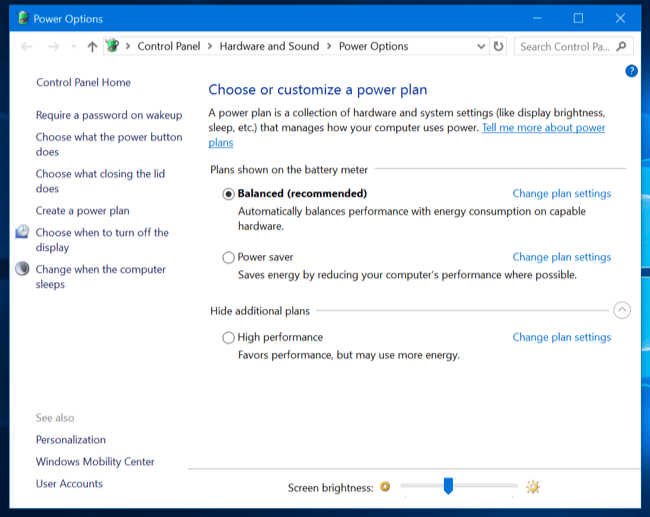
You can tweak power plans to adjust for high performance to speed up your gaming experience. To do this, you need to tweak your power settings. Follow these steps to adjust for high performance.
- Press Windows key + I to open Settings.
- On Settings window, type Power and hit Enter.
- Select Power & sleep settings > Additional power settings option in the right panel.
- On the next window, select the High Performance option.
- If you can’t find this option, then select Create a power plan from left pane and select High Performance on the next window.
- Follow the on-screen instructions to complete the process.
Method 4: Update drivers
To speed up gaming performance in Windows 10, you can consider to update display drivers. Outdated, missing or corrupt drivers could affect your gaming performance, thus, it is suggested to update them immediately to avoid performance issues. To update drivers on Windows 10, follow these steps:
- Right click on Start menu and select Device Manager.
- On Device Manager window, search and expand Display Adapters category.
- Once expanded, right click on device type and select Update Driver.
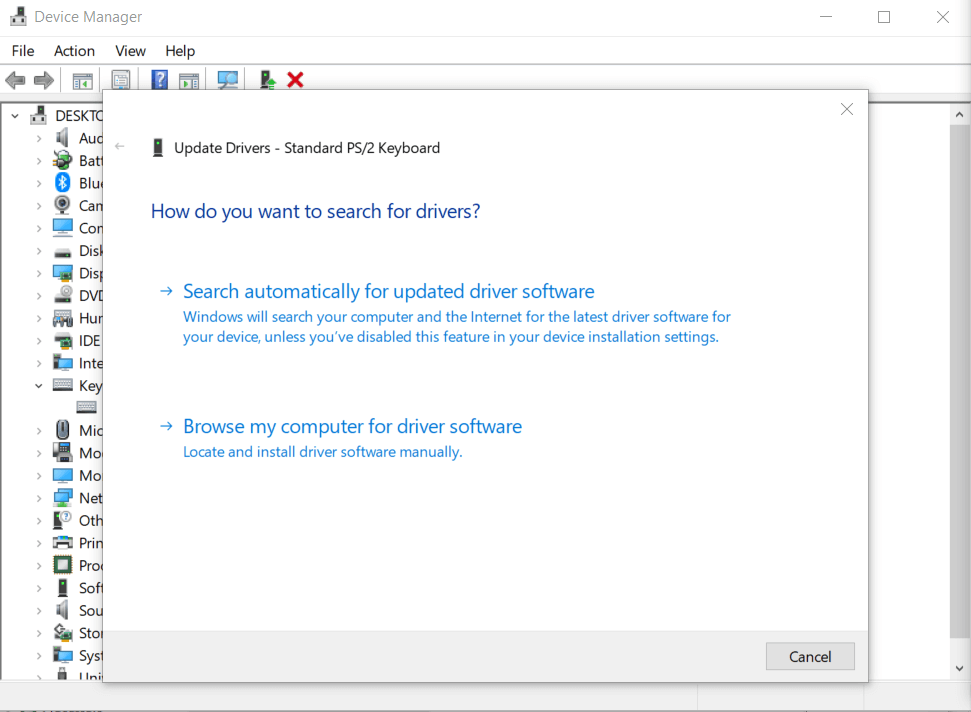
Now you will find two options on next window:
First, Search automatically for updated driver software that allows Windows to search and install the latest drivers automatically.
Second, Browse my computer for driver software, where you can browse the location of your driver file and install it.
Note: Before you browse the location of driver file, you need to download the latest driver file from the device manufacturer website.
If you find updating drivers manually complicated task, then you can consider using best driver updater software for instant and effective results.
Method 5: Install DirectX 12
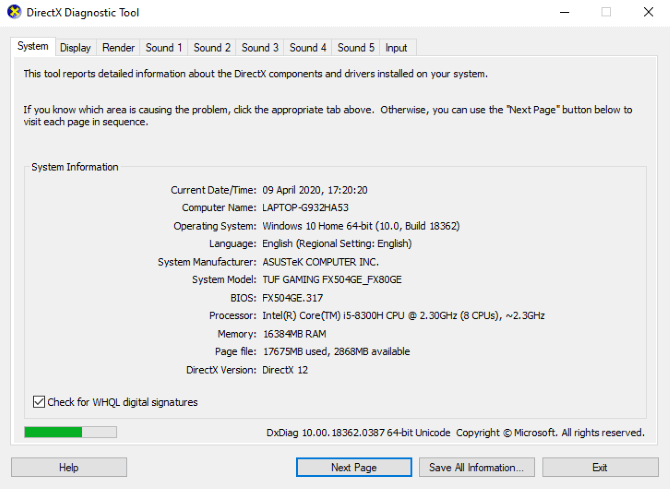
DirectX 12 is useful addition on Windows PC that enhances gaming performance. It comes with the latest version of Microsoft’s popular API tool. With DirectX 12, you will find support for various CPU and GPU cores, lowered power consumption, better frame rates, and enhanced graphical effects. To check if your system has DirectX 12, open Windows PowerSheel, type dxdiag and hit Enter. You will find a direct Diagnostic Tool. If you don’t have DirectX 12 installed, follow these steps:
- Open Settings > Update and Security.
- Select Windows Update from left pane.
- Click Check for updates in right panel.
- Let the system update automatically.
DirectX 12 will be installed automatically and optimize many gaming settings.
Method 6: Tweak DNS Settings
If you are relying on a remote server for Windows 10 gaming or playing online multiplayer, then network traffic could cause a trouble. To fix this issue, you can consider upgrading to faster Internet. To do this, follow these steps:
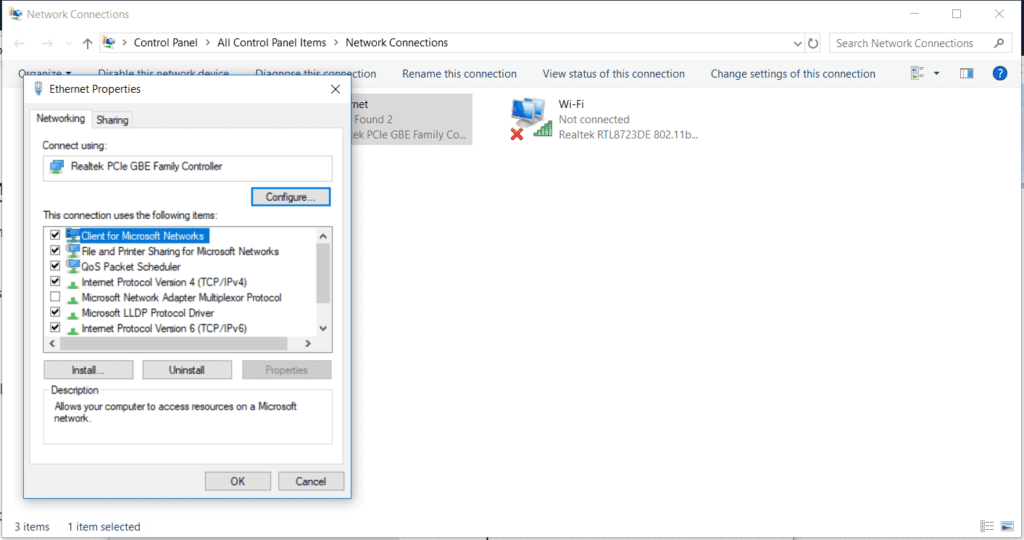
- Open Settings > Network and Internet > Change Adapter Options.
- On the next window, right-click on your wirless network.
- Choose Properties.
- On Properties window, highlight Internet Protocol Version 4.
- Here, you need to write down the two DNS entries for future reference.
- Next is to replace these entries with 1.1.1.1 and 1.0.0.1
- Click OK.
- Restart your browser to changes take place.
Method 7: Disable Automatic Updates
If you find Windows 10 updates and restarts automatically, then you can disable automatic updates to avoid trouble during game save. This is one of the easiest ways to optimize Windows 10 for gaming. To do this, follow these steps:
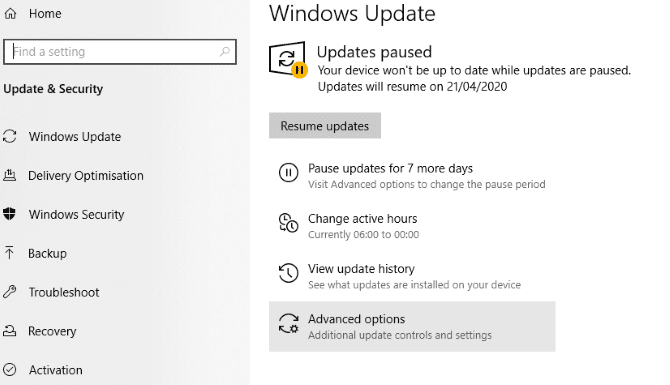
- Go to Settings > Update & Security > Windows Update.
- Click on Advanced options > Update Options.
- Here, disable Restart this device as soon as possible when a restart is required to install an update.
- Enable Show a notification to allow Windows to send notifications before restarts.
- You can click on Pause Updates to delay installation for different time duration.
Method 8: Disable Notifications in Windows 10
Notifications and pop-ups could be annoying while you are playing your favorite game. To disable notifications, chimes, and pop-ups, follow these steps:
- Go to Settings > System.
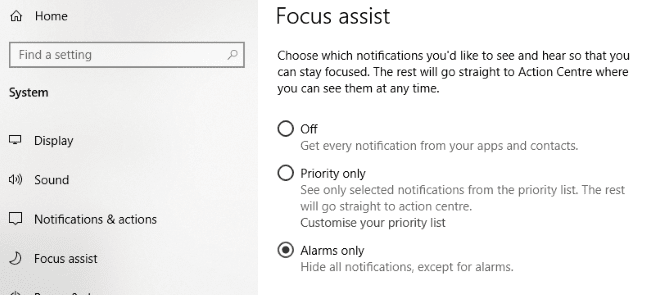
- On the next window, select Focus Assist from left pane.
- In the right pane, select Alarms Only to hide all other notifications.
- You’re done.
Method 9: Manage your Active Hours
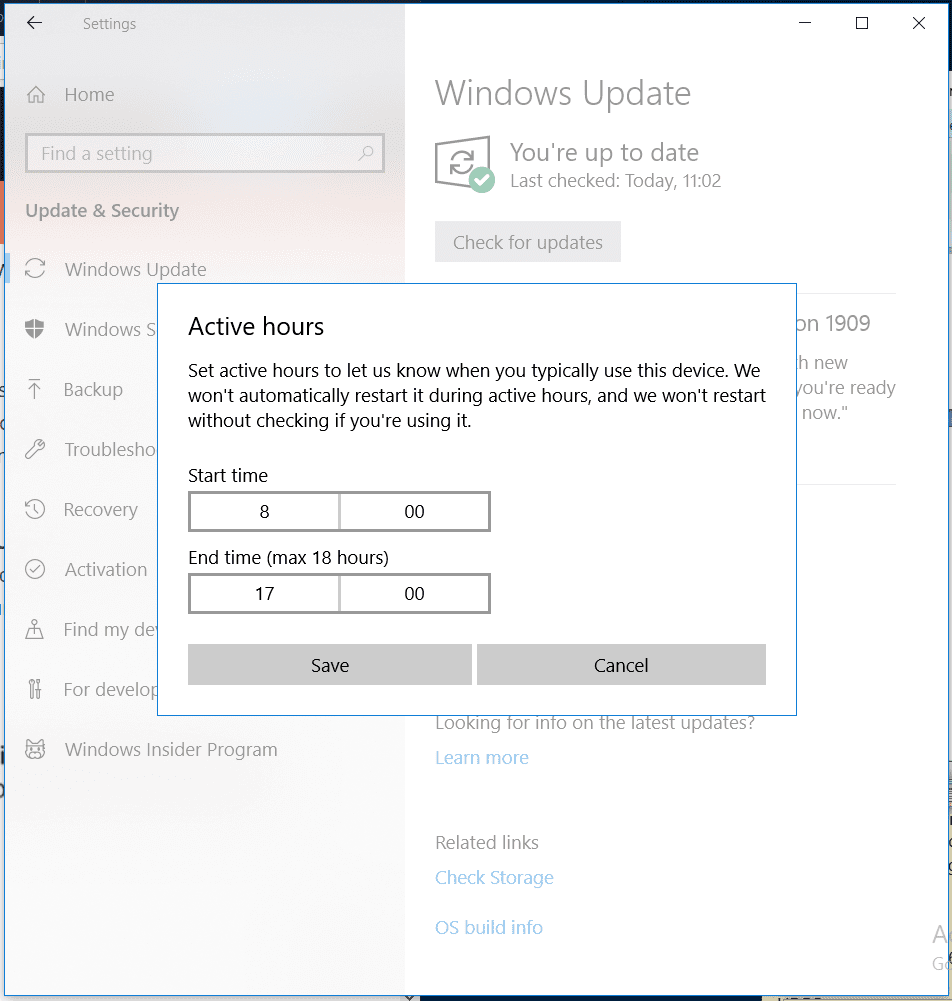
To stop Windows from updating automatically, you can consider to enable Active Hours. Once you specify active hours on your PC for gaming and working schedule, the OS will be prevented from downloading updates during those times. You can try to optimize Windows 10 for gaming using this step to heading to Settings > Update & Security > Change active hours.
Method 10: Disable Mouse Acceleration
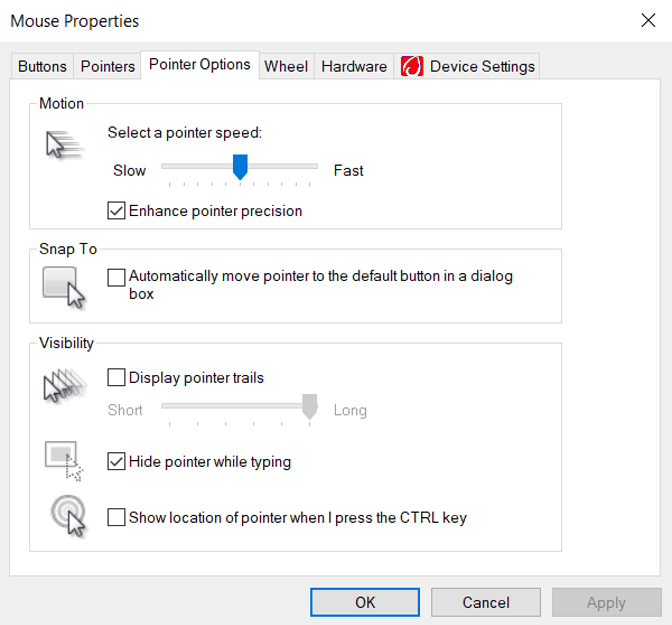
It doesn’t improve your Windows performance directly, instead, it helps you enhance your personal gaming performance. When this feature is enabled, your system mouse will move based on detection of physical movements and on speed. Thus, it may interfere with gaming performance. To disable mouse acceleration, follow these steps.
- Press Windows key + I to open Settings.
- On Settings window, type Change the mouse pointer display or speed and press Enter.
- On the next window, select Pointer Options tab and uncheck Enhance pointer precision.
You can also try to change the pointer speed slider to set it to the best configuration that suits you.
FAQ
How to turn on Game Mode in Windows 10?
To turn on Game Mode in Windows 10, press Windows + I keys to open Settings. On Settings page, type game mode and press Enter. Next click Game Mode settings or Turn on Game Mode. On the gaming screen, turn on Game Mode option.
How to clean & optimize Windows 10 for gaming?
There are multiple ways to clean & optimize Windows 10 for gaming. It includes turnig on Game Mode, disabling Nagle’s algorithms, using faster DNS servers, disabling automatic updates, disabling notifications, and more. You can also use best PC cleaner to speed up gaming performance.
Which Windows 10 is best for gaming?
If you are going to use your system only for gaming, then Windows 10 Home edition will suffice. You can upgrade to Pro version, if you are power user. Here, you will find better security and compatibility features.
Does RAM increases FPS?
Depending on the memory size you are using, it could affect FPS. By adding more RAM, you could expect to increase your FPS. As all games require certain amount of memory to run, more RAM will translate into better gaming speed.
Conclusion
Following above mentioned steps, you can easily clean & optimize Windows 10 for gaming performance. Do try these steps and share your experience in the comments below.
Author Bio:
Dinesh Lakhwani 

Dinesh Lakhwani, the entrepreneurial brain behind “TechCommuters,” achieved big things in the tech world. He started the company to make smart and user-friendly tech solutions. Thanks to his sharp thinking, focus on quality and the motto of never giving up, TechCommuters became a top player in the industry. His commitment to excellence has propelled the company to a leading position in the industry.
Popular Post
Recent Post

Wise Duplicate Finder Review: Real Results from Wise Duplicate Finder
Read my honest Wise Duplicate Finder review. See features, pricing, pros and cons, and real PC test results. Find out if this free duplicate cleaner can free up your Windows storage.

How to Recover Deleted Files from Pen drive, USB Drive, SD Card
Introduction: On tech forums, you’ll often see posts like this: “I connected my pen drive to my laptop this morning, but the folder was empty. All my college project files had vanished. I don’t have a backup. Can someone help me?” Stories like this are very common. Pen drives, USB drives and SD cards are […]

How To Recover Files Deleted from the Recycle Bin [Windows 11]
Losing a file can happen in seconds. You clear your desktop, hit Delete, and empty the Recycle Bin. Then, just when you need that file again, it seems to have vanished. This guide will walk you through ways to restore files removed from the Recycle Bin. We will begin with simple fixes, then look at […]

Disk Drill Data Recovery Tool Explained: Full Review and Guide
It happens in a split second. You delete a folder by mistake. Your drive stops showing up. A photo album from your last trip just vanishes. And your stomach drops. Lost files feel personal. They are not just data. They are memories, work hours, and sometimes years of effort packed into a few gigabytes. When […]

Recover Deleted Files In Windows 11 With Software & Without
Introduction What is the first thing that goes through your mind the second an important file vanishes from a Windows 11 PC? For most people, it is a mix of panic and disbelief, followed by a frantic click through every folder that file could possibly be hiding in. It happens in a split second: one […]

EaseUS Data Recovery Wizard: Everything To Know
Data loss does not always come from a big disaster either. Most cases start small and boring. A drive gets formatted by mistake. A laptop freezes mid-save and restarts on its own. A memory card stops showing up after being pulled out too fast. None of these feel like emergencies at first, until you realize […]

Recuva Data Recovery Tool: Is it Actually Worth it?
When I first tried Recuva Data Recovery, I wanted to see if it could really bring back lost files. The tool is free, small in size, and promises quick recovery, which made me curious enough to test it on my own PC. The setup was fast, and the wizard guided me step by step. I […]

GetData Recover My Files Data Recovery Tool: Honest Review
A hard drive error brings a special kind of silence. Well, yes! The screen freezes, then a message appears saying the drive can’t be found or must be formatted. In that moment, years of photos and work files feel at risk. It never happens at a good time. Coffee spills near a laptop, a memory […]

Windows File Recovery: A Complete Review [Tried & Tested]
Imagine this. You spend hours perfecting a video project. You hit save. Then your laptop freezes, reboots, and when the screen comes back. The file is gone. Your stomach sinks. It’s not just you. Lost files happen all the time. A dropped hard drive, a bad update, an accidental delete, or a corrupted partition can […]

