












Read my honest Wise Duplicate Finder review. See features, pricing, pros and cons, and real PC test results. Find out if this free duplicate cleaner can free up your Windows storage.
What is Zoom? How it Works? Comprehensive Review
Got lockdown in the home due to the Covid19 situation? Want to communicate with your team from home and want to Guide and instruct employees from home? Video conferencing tools are the best aid for conducting uninterrupted conferences with a greater number of participants. There are many video conferencing tools available and this page will explain about ZOOM Video communications tool.
Zoom: Comprehensive Review
The Necessity of Video Conferencing
Video conferencing is important for building up associations with clients, team members, and partners to improve the work outcome. Instructions presented in visual imparts more value with the viewers. Video correspondence is an effective tool for communicating, guiding and interacting with staff, associates, and business collaborators.
Even schools and other educational institutions are switching to online classes. Online education has been the need of the hour and most of the schools have switched to Zoom meetings to conduct their online classes. Students are getting accustomed to online classes at an early age.
What is Zoom?
Zoom is an advanced solution that combines video conferencing, Online meetings and group messaging on a single platform. It is an innovative product of Zoom Video Communications of San Jose, California. With this magnificent tool, the user can organize meetings with a maximum of a hundred participants with a time limit of 40 minutes for free. For scheduling meetings with extended time limits and a greater number of participants, the paid version of the tool is required.
Zoom Account Plans
Zoom account for making video meetings can be availed for free or paid depending on the requirements of the user. Different variants of Zoom accounts are explained below.
Zoom Free
The free collaborative software package is beneficial if your participants and meeting duration is less. Using this option. users can make unlimited conferences within a time limit of 40 minutes per session. The number of participates is also restricted to a hundred at a time.
Zoom Pro
This option charges $14.99 per month and it provides an unlimited meeting facility along with the facility to conduct ID enabled recurring meetings and recording options. The meetings can be recorded and saved on cloud memory or the user’s devices. This package provides 24 hours of meeting duration with a maximum of a hundred participants.
Zoom Business
Zoom business pack is provided with all pro features. Users can add up to 300 participants to attend their meetings. This package offers customized URL for enterprise, Customer branding facility during the meeting along with options to organize educational seminars for the right students. Clients can purchase these packages for a price of $19.99 per month per host.
Zoom Enterprise
This package is suitable for businesses with more than a thousand employees. Zoom enterprise pack costs $19.99 per month per host. It enables five hundred participants with unlimited cloud storage for storing meeting recordings. Webinars and Zoom Rooms bonuses are available in this package.
How Zoom Meetings Work?
Zoom online conferencing service is provided by using cloud-based peer to peer software platform. Zoom applications can be downloaded from the website that is available for desktop and mobile applications (Android + iOS). Zoom meetings can be conducted by scheduling and inviting the required participants for the meeting.
Zoom Login
User has to login with the Zoom website to start using this wonderful tool.
Step 1: To sign up with the service provider, the users have to provide their date of birth and email address in the Zoom’s sign up page.
Step 2: After entering the email address, a confirmation mail will be sent to your inbox. The user has to select the Activate account button available in the confirmation mail to activate the account.
Step 3: After completing the mail activation, the user will be directed to a page where the account holder has to fill their first name, last name, and password.
Step 4: The users can also sign in to their Zoom account directly by using Google or Facebook ID instead of Signing Up though it is not recommended for security purposes.
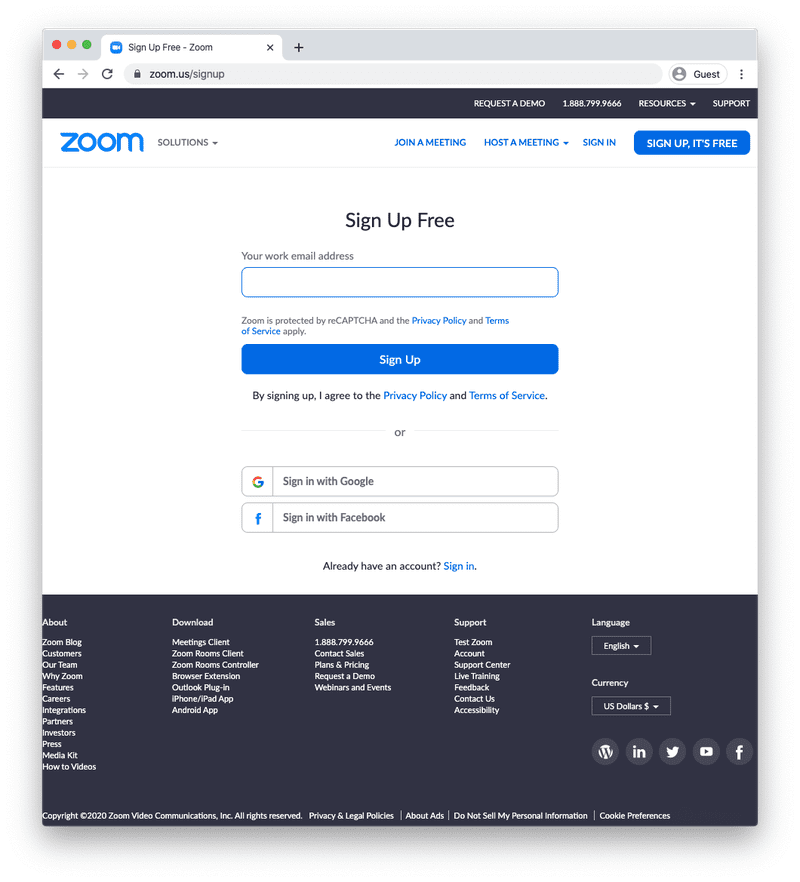
After singing into the Zoom account, the clients can schedule, organize, conduct or join meetings as per their requirements.
How to Start Using Zoom?
After signing in to the Zoom account, users access Zoom through a desktop browser. They can also download the Zoom application for mobile or Zoom desktop software.
Using Zoom Through the Browser
Step 1: Access the desktop browser of the personal computer and open the Zoom website.
Step 2: Log in to your Zoom account with essential credentials.
Step 3: From the options available at the top of the page, the user can schedule, join or organize a meeting.
Step 4: The profile details can be updated by using the options available on the left side of the web page.
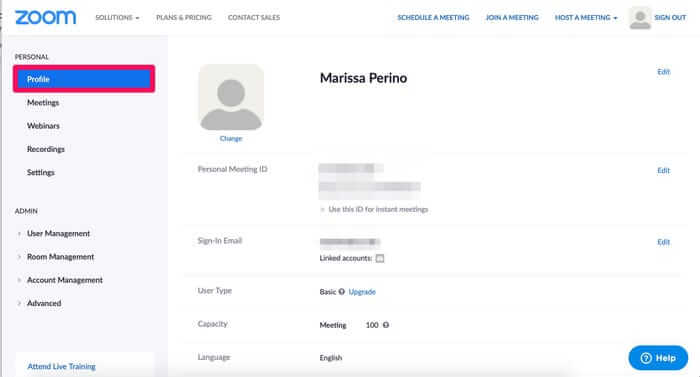
Step 5: The settings of the account can be changed through the gear icon available at the top right corner of the web page.
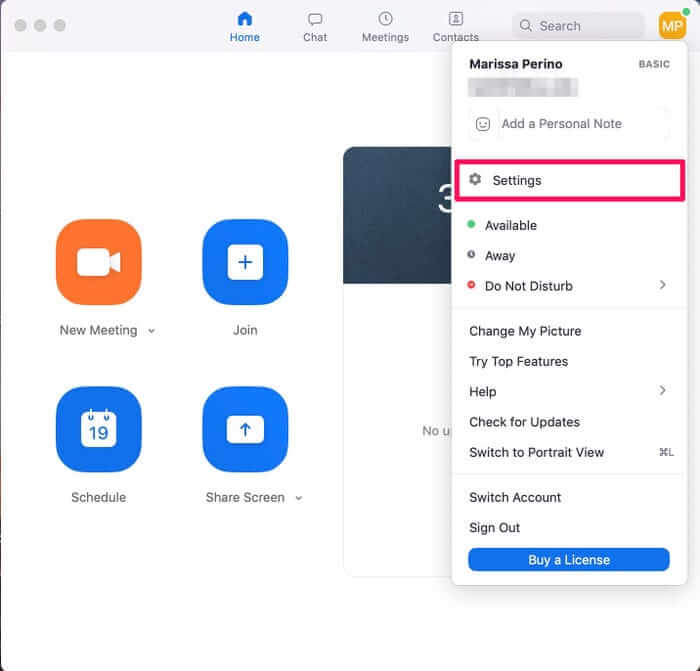
Step 6: The Chat tab of the page enables the user to manage previous conversations of the users.
Downloading the Zoom Desktop Software
The Zoom account can be accessed by using the project management and team communication software available at the source website. This can be done with the following steps.
Windows Computers
Step 1: Access the official website of the Zoom service through the desktop browser.
Step 2: Select the Zoom Download link available at the bottom of the page.
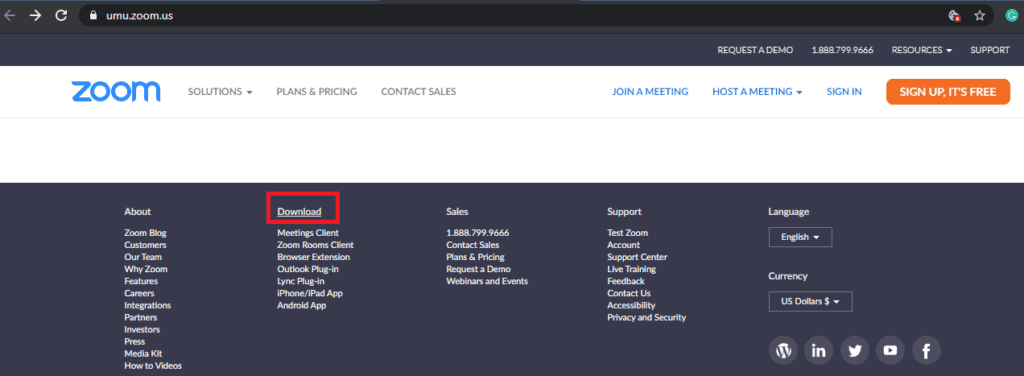
Step 3: Select and download the ‘Zoom Client for Meetings’ on the download page.
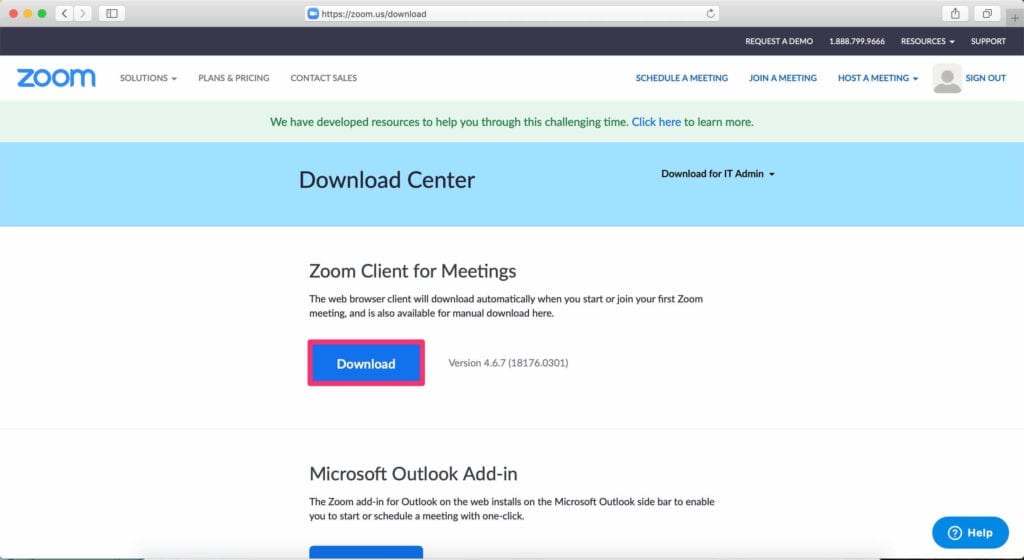
Step 4: After downloading, select and run the .exe file to install the Zoom Client.
Step 5: Open the installed application and Login to your Zoom account to start using the service.
MAC Machines
Step 1: Access the Zoom Download Center through the desktop browser.
Step 2: Select the download button that is available under the ‘Zoom Clients for Meetings’ option.
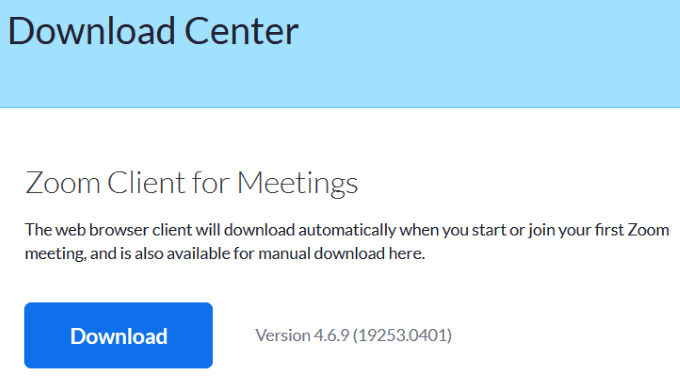
Step 3: The software will be download and saved in the device memory.
Step 4: Select the downloaded file and install the software.
Step 5: After installation, login to the Zoom account to start using the software.
Downloading the Zoom Mobile Application
The Zoom client can be enabled and accessed by using the mobile application available in reliable sources. The following steps summarize the downloading and installing process of Zoom Client on mobile.
Step 1: Open Play Store on Android mobile or Apple App Store on iOS mobile.
Step 2: Search and locate the Zoom Cloud Meetings mobile application.
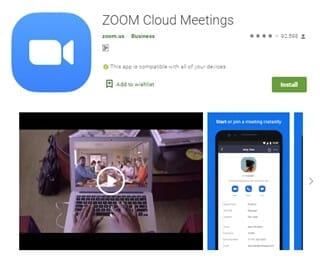
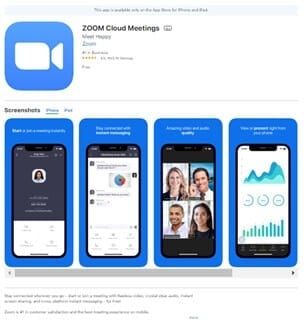
Step 3: Download and install the app on the device.
Step 4: Open the installed application and log in to your account.
Step 5: Select the ‘Schedule’ option to start a new meeting.
The Zoom account can also be accessed through Zoom launcher plug-ins for Chrome, Firefox, and Safari browser without downloading the Zoom Client software.
How to Organize a Zoom Meeting?
Zoom conference can be organized on the PC directly through the web source or the Zoom Client software. Also, Zoom video call meetings can be arranged through a mobile device by using the Zoom Cloud meeting applications.
Zoom Meetings Through PC
The steps explained below portraits the general procedure to organize meetings through the Zoom account website.
Step 1: Log in to the Zoom account using the appropriate user ID and password.
Step 2: Click on the ‘New Meeting’ icon to organize a new meeting.
Step 3: You will be guided to a Virtual conference room from where you can invite the participants for your meeting.
Step 4: Participants can be invited by selecting persons from your contacts or by sending Emails to the members.
Step 5: Members can also be invited to the meeting by sharing the video conference invitation URL or Invitation Email.
Step 6: Meeting can be conducted as per schedule after inviting all members.
Step 7: Meeting can be finished by using End meeting icon available at the bottom of the page.
Zoom Conference Through Mobile
The following steps summarize the step to be followed to conduct a meeting through the Zoom Cloud Meeting app.
Step 1: Open the Zoom Cloud Meeting app and log in to your account.
Step 2: Select the schedule option to start a new meeting.
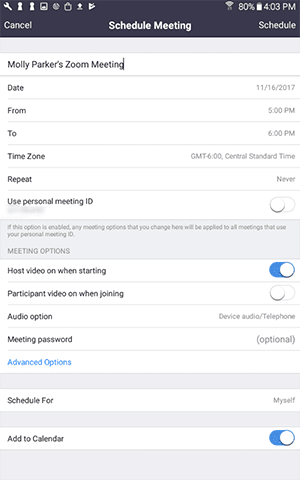
Step 3: Choose meeting options and specify all particulars of meeting like Topic, date, time, video and audio options.
Step 4: From the meeting options, the user can avail personalized meeting ID, video hosting options and also can enable the participant’s video for the meeting.
Sync Zoom with Your Calendar
Zoom meetings can be organized with the meeting data available on the calendar. This prevents the user from missing out on a meeting schedule. This facility can be enabled with the following steps.
Step 1: Sign in to your Zoom account with login details.
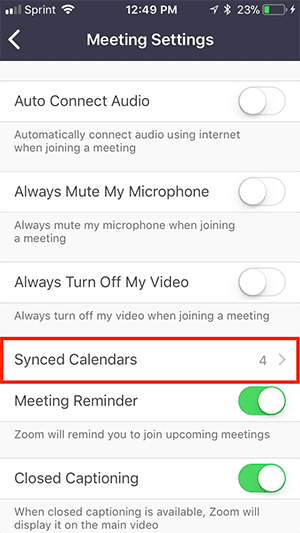
Step 2: Choose the ‘Meetings’ option available in the settings menu.
Step 3: Move on to ‘Synched Calendars’ and select ‘Sync Zoom Meeting from Calendars.’
Step 4: Select the calendar that is to be synchronized with Zoom.
Zoom Safety Measures
For ensuring the privacy of your Zoom meetings, the following methods can be used. Security issues of the Zoom meeting are called Zoom Bombing that occurs when an unsolicited person enters the meeting.
Enabling Password Protection
Users can preserve the privacy of their meeting by setting a strong password for the meeting. This can be done by enabling the ‘Require Meeting Password’ option in the password section.
Avail Waiting Room Feature for the Meeting
With the help of this option, the user can control the participant from entering the meeting. The meeting host can allow participants individually and can prevent unauthorized entry. These features can be availed by enabling the ‘Enable Waiting Room’ option from the advanced settings.
Lock the Meeting
After the commencement of the meeting, the host can lock the meeting to prevent new unwanted entry of participants. ‘Lock Meeting’ option can be enabled from the ‘Manage Participants’ option.
Tips and Tools for Enhanced Video Conferencing
User can elevate the eminence of the Zoom meeting, with the help of the following ideas.
- Users can enhance the quality of their meetings by customizing their preferences for the meeting.
- The meeting can be recorded in cloud storage or device storage for future reference. This can also be used to review the meeting and to improve the quality of the next meeting. Permission from the host is required to record a meeting.
- During the meeting, mute yourself when you are not participating in the conversation. This will prevent unwanted background noise.
- Using some effective keyboard shortcuts for inviting participates (Alt + I for Windows and CMD + I for MacOS), Mute the audio (Alt + M for Windows and CMD + Ctrl + M for MacOS) and share your screen (Alt + Shift + S for Windows and CMD + Shift + S for MacOS) will enrich the ease of the access of the meeting.
- Pairing the Zoom meeting with the best camera to enhance the visual score of the conference.
How to Change Zoom Background?
Users can customize the background screen of the Zoom tool window to enhance the visual Pleasence of the gadget. The following steps depict the procedure to change the Zoom background.
Change Zoom Background on Mac OR Windows System
Step 1: Login to your Zoom account through the installed software or inbuilt browser.
Step 2: Click on the profile picture to access the settings menu.
Step 3: Navigate to the visual background option to select the background image that is to be applied.
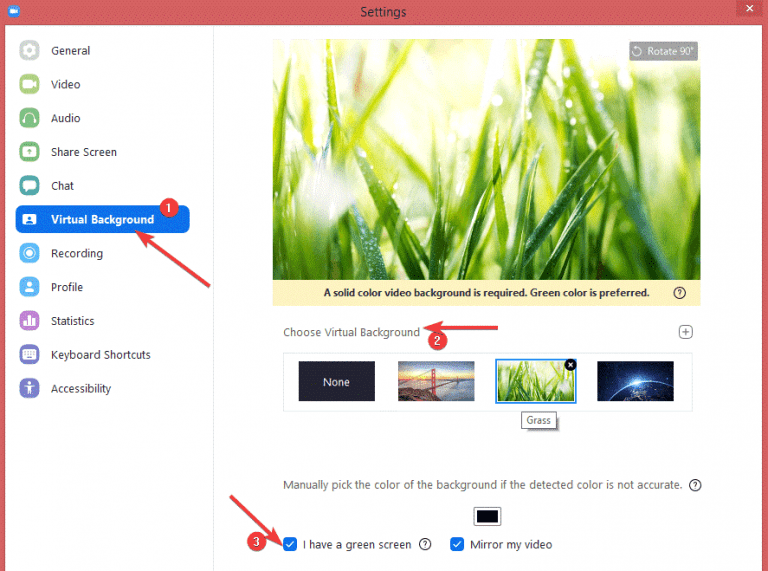
Step 4: Apply the selected image as the background picture.
Change Zoom Background on Android and iOS App
Step 1: Login to your Zoom account through the Android or iOS app.
Step 2: Join or organize a meeting.
Step 3: Navigate to the ‘More’ option by selecting three dots icon available at the bottom right.
Step 4: Select the Virtual background option.
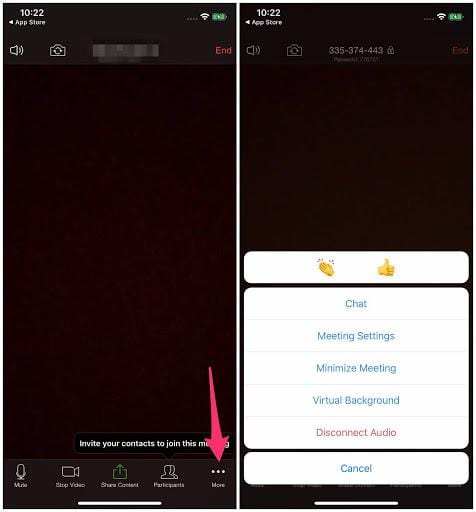
Step 5: Choose the image of your choice to apply as background.
Step 6: Apply the selected image as a background.
Other Video Conferencing Tools
Apart from the outstanding Zoom Client tool, several tools like Google Hangouts, Uberconference, Skype, Free Conference, and Appear.in are available for conducting online meetings, webinars, and seminars.
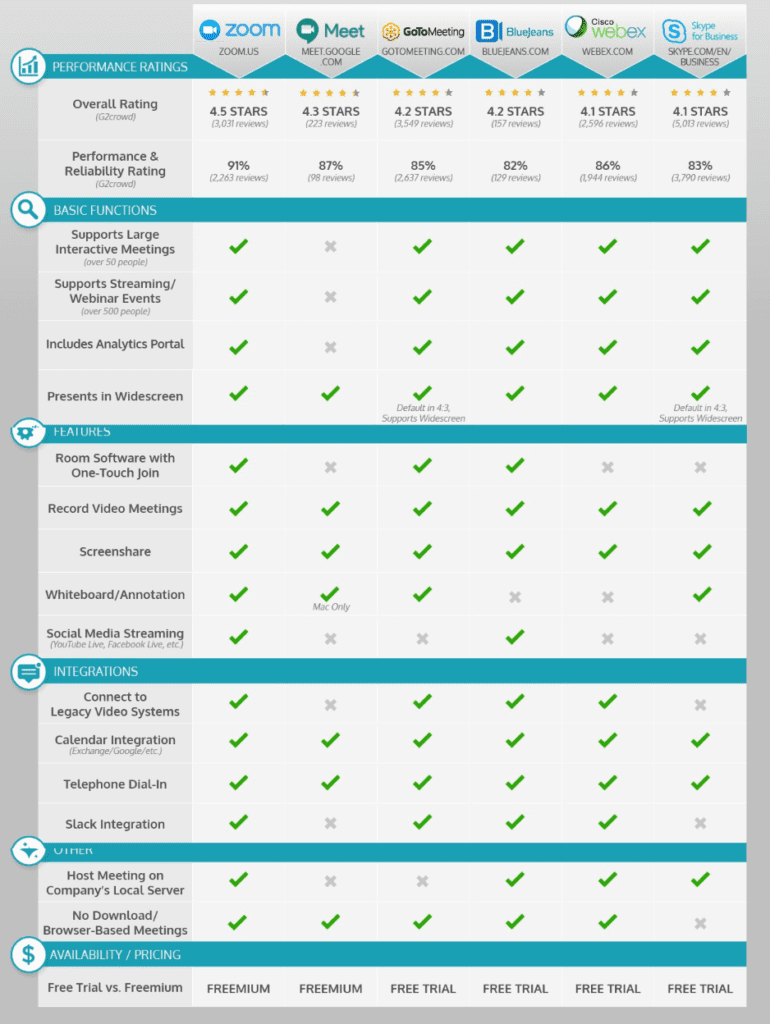
Comparisons
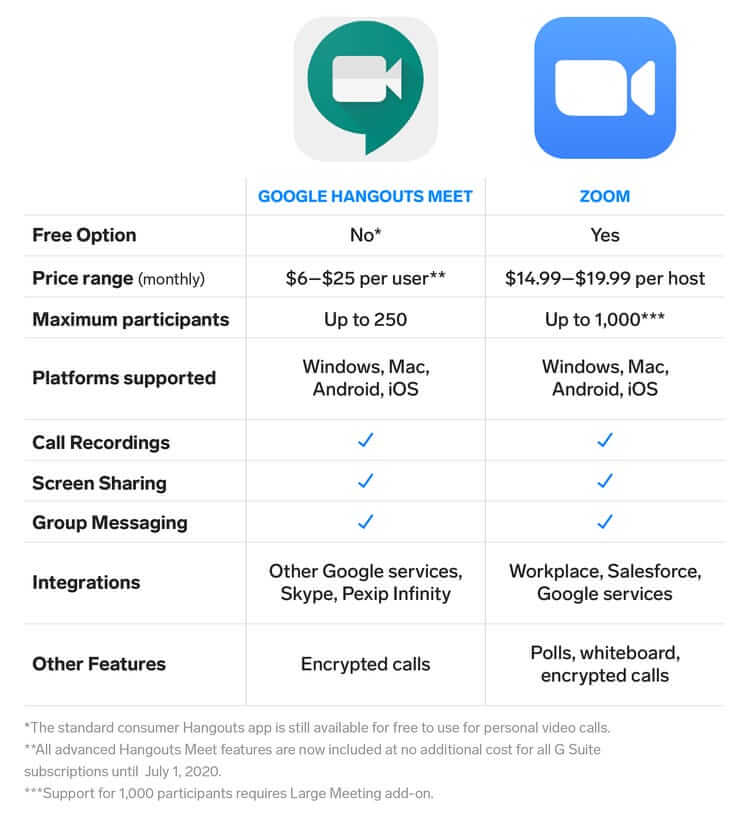
- Zoom meetings can be conducted with 1000 participants when enabled with add on features, whereas Google Hangouts can only include a maximum of 250 participants in a meeting.
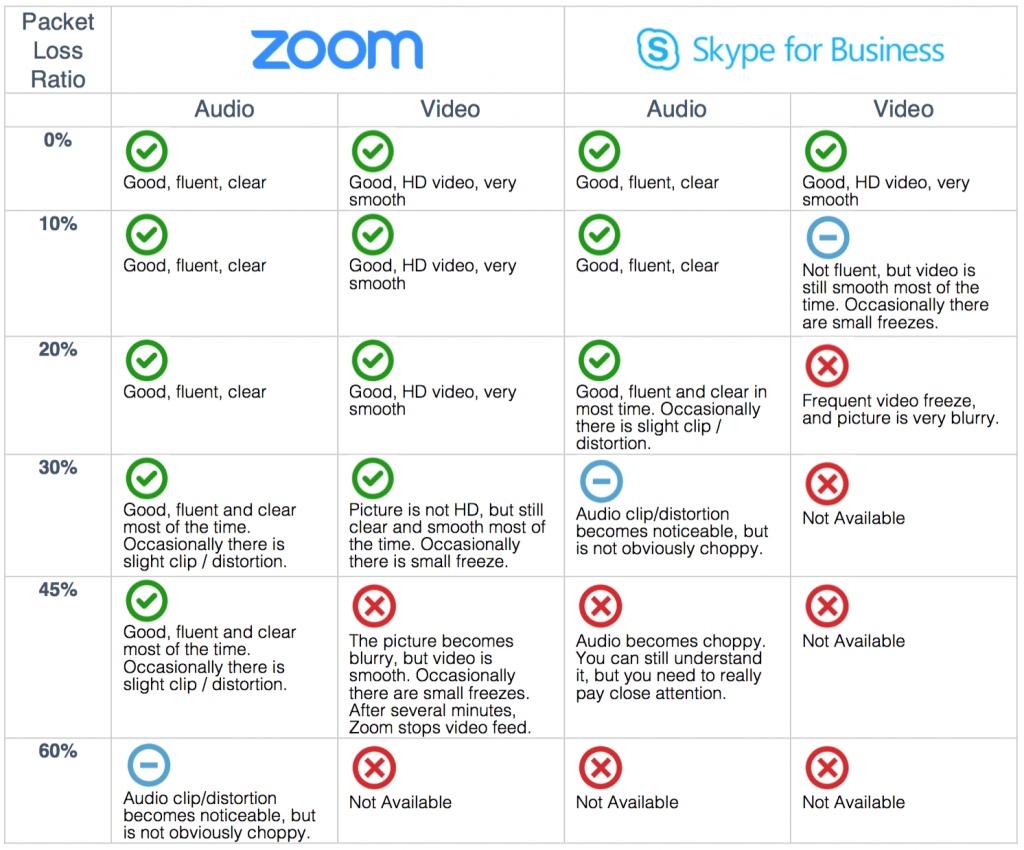
- Zoom client is better in several factors when compared with Skype for business tools. Zoom tool can provide online support to its clients whereas Skype gadgets provide only On-demand support to its customers.
Conclusion
In the current situation of Covid 19, businesses and education institutions are moving on to online meetings and seminars. Most of the establishments are switching over to work from home strategy. Zoom Client is one of the best video conferencing tools with excellent features. This page explains the particularities of the Zoom Client service.
Author Bio:
Dinesh Lakhwani 

Dinesh Lakhwani, the entrepreneurial brain behind “TechCommuters,” achieved big things in the tech world. He started the company to make smart and user-friendly tech solutions. Thanks to his sharp thinking, focus on quality and the motto of never giving up, TechCommuters became a top player in the industry. His commitment to excellence has propelled the company to a leading position in the industry.
Popular Post
Recent Post

How to Recover Deleted Files from Pen drive, USB Drive, SD Card
Introduction: On tech forums, you’ll often see posts like this: “I connected my pen drive to my laptop this morning, but the folder was empty. All my college project files had vanished. I don’t have a backup. Can someone help me?” Stories like this are very common. Pen drives, USB drives and SD cards are […]

How To Recover Files Deleted from the Recycle Bin [Windows 11]
Losing a file can happen in seconds. You clear your desktop, hit Delete, and empty the Recycle Bin. Then, just when you need that file again, it seems to have vanished. This guide will walk you through ways to restore files removed from the Recycle Bin. We will begin with simple fixes, then look at […]

Disk Drill Data Recovery Tool Explained: Full Review and Guide
It happens in a split second. You delete a folder by mistake. Your drive stops showing up. A photo album from your last trip just vanishes. And your stomach drops. Lost files feel personal. They are not just data. They are memories, work hours, and sometimes years of effort packed into a few gigabytes. When […]

Recover Deleted Files In Windows 11 With Software & Without
Introduction What is the first thing that goes through your mind the second an important file vanishes from a Windows 11 PC? For most people, it is a mix of panic and disbelief, followed by a frantic click through every folder that file could possibly be hiding in. It happens in a split second: one […]

EaseUS Data Recovery Wizard: Everything To Know
Data loss does not always come from a big disaster either. Most cases start small and boring. A drive gets formatted by mistake. A laptop freezes mid-save and restarts on its own. A memory card stops showing up after being pulled out too fast. None of these feel like emergencies at first, until you realize […]

Recuva Data Recovery Tool: Is it Actually Worth it?
When I first tried Recuva Data Recovery, I wanted to see if it could really bring back lost files. The tool is free, small in size, and promises quick recovery, which made me curious enough to test it on my own PC. The setup was fast, and the wizard guided me step by step. I […]

GetData Recover My Files Data Recovery Tool: Honest Review
A hard drive error brings a special kind of silence. Well, yes! The screen freezes, then a message appears saying the drive can’t be found or must be formatted. In that moment, years of photos and work files feel at risk. It never happens at a good time. Coffee spills near a laptop, a memory […]

Windows File Recovery: A Complete Review [Tried & Tested]
Imagine this. You spend hours perfecting a video project. You hit save. Then your laptop freezes, reboots, and when the screen comes back. The file is gone. Your stomach sinks. It’s not just you. Lost files happen all the time. A dropped hard drive, a bad update, an accidental delete, or a corrupted partition can […]

5 Best Data Recovery Software For Windows 11 and Windows 10
Introduction: A crashed drive can ruin a whole day. One minute your photos, work files, and tax records sit safe on your PC. The next minute they are gone. A power cut, a bad update, or one wrong click can wipe out years of memories and months of work in seconds. That sinking feeling is […]

