












Introduction: On tech forums, you’ll often see posts like this: “I connected my pen drive to my laptop this morning, but the folder was empty. All my college project files had vanished. I don’t have a backup. Can someone help me?” Stories like this are very common. Pen drives, USB drives and SD cards are […]
A Canon Pixma G3010 Review – A Reliable Wireless Printing Device
If you are planning to buy a new printer for your home or office use, then you have to first make the hard decision between Ink Tanks and Ink Jets. Additionally, there are so many different brands of printers available in the market today that selecting one printer is a tough cookie.
So, today, we are going to review and test the Canon Pixma G3010 printer which has been lately talk of the town because Canon company has delivered numerous promising electronic gadgets already.
Canon Pixma G3010: Complete Review
Design and Structure
Source – Beebom
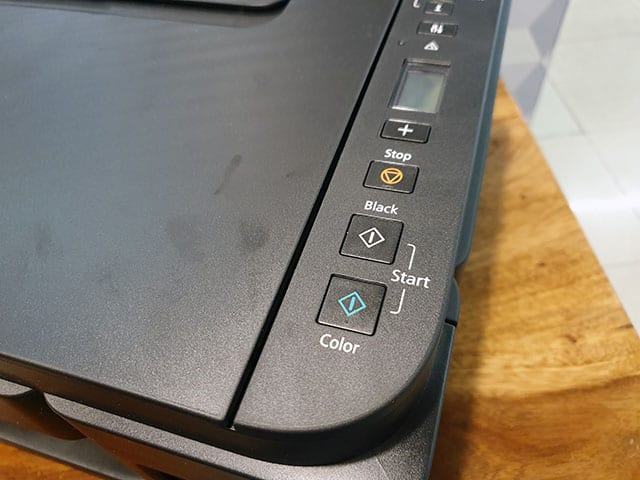
Canon Pixma isn’t a compact printer from the design point of view. However, if you are looking for better structural design, then you won’t be disappointed. It comes in a clean matte black finish that simply looks classy sitting on your desk. All the buttons are arranged on the right side where you will also find an LCD screen.
However, you won’t be using printer buttons much as all the work can be done using your smartphone. But, if you want to use buttons, then they are well-built and tactical that will make it easier to operate the printer.
Apart from the well-built Canon design, you will get the usual things with the printer like – an external paper tray and paper output tray. The input tray can be easily folded on the top of the printer so the internal parts of the Pixma G3010 can be protected from the dust, this even makes it easier to store printer when you are not using it.
The ports section of the Pixma G3010 is also well arranged. The main power port is on the left side of the printer which can be used as a reversible connector and the USB port is arranged on the right side that you can use to establish a wired connection between the printer and your computer system.
Setting Up the Printer
Source – Beebom
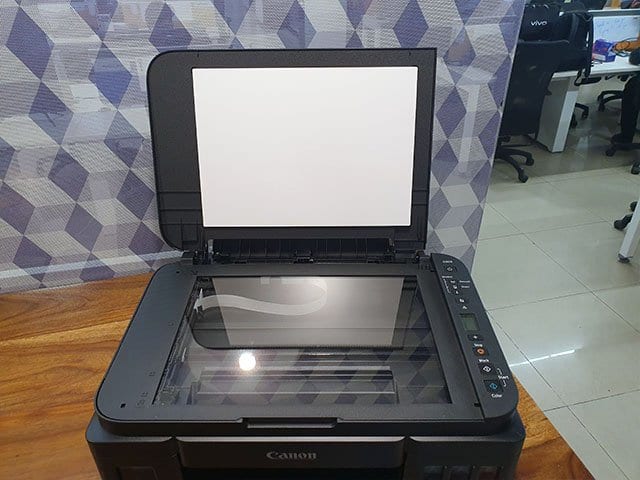
If you are following the instructional manual of Canon Pixma G3010 printer, then setting up might seem like a confusing task. However, in reality, it isn’t that hard. The most crucial thing while setting up the printer is installing the cartilage in the printer head and filling up the colors. In your Canon pack, you will get all the colors that you need to fill the printer, so you can start using it right away after purchasing.
Once you have filled ink and arranged the cartridge, then you can move ahead and connect your printer to your PC or smartphone either using the wired or wireless connectivity. To establish the wired connection, you have to use a USB port, but for the wireless connection, you just have to set up a connection between your device and the printer.
Also Read: Guide to Connect Canon Printer to the Wi-Fi Router
Connection
Source – Beebom
Well, the Pixma G3010 only offers a single USB port for the wired connection, but it offers various ways to connect with your smartphone. The first method that you can use is by connecting the printer to your PC through a USB cable by installing the drivers from the official website of Canon or the CD that you received with the printer.
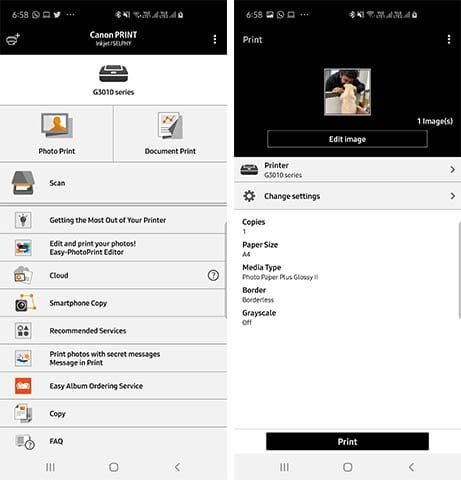
You can here also use the Canon PRINT app which is available on both the Apple App Store and Google Play Store. You can print photos, documents, and can directly scan your phone’s memory using this app. You can even instantly click pictures on your phone and directly print them out on your Pixma G3010.
The Canon Pixma can be also availed over the internet connection so that you can connect all your devices wirelessly and get the printing job done instantly. These functions make it easy to share the printer with your colleagues as everyone present in the office can link their devices with this printer to make their job simpler.
You need the right drivers to set up the printer. However, Canon said that macOS doesn’t support the printer yet which is true because you won’t find macOS driver on their website, but you can use some third party drivers to connect your macOS. However, certainly, Canon won’t approve this so you have tried at your own risk here.
Performance
Source – Beebom
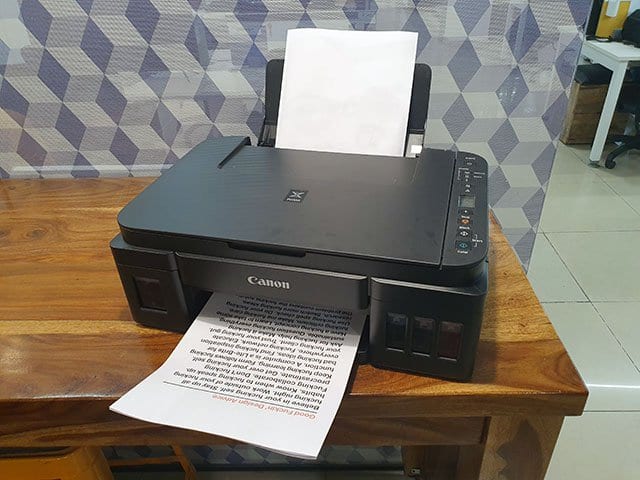
If we test the performance of the Pixma G3010 on different grounds, then you won’t be feeling disappointed. You can print tons of colored and black-and-white photos, documents, and other things using this printer instantly. It can print large text files, images, photos clicked from your smartphone, and even phone screenshots with a decent speed and high quality that other printer of the same price range fails to offer.
You won’t see any ink smudge after printing through this Canon gadget if you rub paper. Talking about the picture printing, on the regular A4 size paper you can get good quality printing.
The printer won’t mess up colors and photos will be printed perfectly. When you are planning to print a large number of documents using this printer, then the little delay in the print process starts can annoy you, but for good quality, you have to make this compromise.
Apart from the printing functions, Pixma G3010 can perform the scanning job where you can scan and copy documents easily. You can either start a copy function by pressing the ‘Black’ or ‘Colour’ button on the printer, or you can start a copy job through the Canon PRINT app. Scanning also works well with this printer.
Pros
- Good design
- Printing quality is magnificent
- Scanning and copying work is nice
- Brilliant mobile app connectivity
Cons
- Buttons are a bit complicated to use
- No macOS support
Final Verdict
Overall, Canon Pixma G3010 is a pretty amazing printer with various features like good print quality, wireless support, mobile app, easy to set up, scanning, and much more. Moreover, the price range of the printer is quite excellent so you can avoid small negative points of Canon Pixma. You should try this printer and don’t forget to share your experience with us.
Author Bio:
Dinesh Lakhwani 

Dinesh Lakhwani, the entrepreneurial brain behind “TechCommuters,” achieved big things in the tech world. He started the company to make smart and user-friendly tech solutions. Thanks to his sharp thinking, focus on quality and the motto of never giving up, TechCommuters became a top player in the industry. His commitment to excellence has propelled the company to a leading position in the industry.
Popular Post
Recent Post

How To Recover Files Deleted from the Recycle Bin [Windows 11]
Losing a file can happen in seconds. You clear your desktop, hit Delete, and empty the Recycle Bin. Then, just when you need that file again, it seems to have vanished. This guide will walk you through ways to restore files removed from the Recycle Bin. We will begin with simple fixes, then look at […]

Disk Drill Data Recovery Tool Explained: Full Review and Guide
It happens in a split second. You delete a folder by mistake. Your drive stops showing up. A photo album from your last trip just vanishes. And your stomach drops. Lost files feel personal. They are not just data. They are memories, work hours, and sometimes years of effort packed into a few gigabytes. When […]

Recover Deleted Files In Windows 11 With Software & Without
Introduction What is the first thing that goes through your mind the second an important file vanishes from a Windows 11 PC? For most people, it is a mix of panic and disbelief, followed by a frantic click through every folder that file could possibly be hiding in. It happens in a split second: one […]

EaseUS Data Recovery Wizard: Everything To Know
Data loss does not always come from a big disaster either. Most cases start small and boring. A drive gets formatted by mistake. A laptop freezes mid-save and restarts on its own. A memory card stops showing up after being pulled out too fast. None of these feel like emergencies at first, until you realize […]

Recuva Data Recovery Tool: Is it Actually Worth it?
When I first tried Recuva Data Recovery, I wanted to see if it could really bring back lost files. The tool is free, small in size, and promises quick recovery, which made me curious enough to test it on my own PC. The setup was fast, and the wizard guided me step by step. I […]

GetData Recover My Files Data Recovery Tool: Honest Review
A hard drive error brings a special kind of silence. Well, yes! The screen freezes, then a message appears saying the drive can’t be found or must be formatted. In that moment, years of photos and work files feel at risk. It never happens at a good time. Coffee spills near a laptop, a memory […]

Windows File Recovery: A Complete Review [Tried & Tested]
Imagine this. You spend hours perfecting a video project. You hit save. Then your laptop freezes, reboots, and when the screen comes back. The file is gone. Your stomach sinks. It’s not just you. Lost files happen all the time. A dropped hard drive, a bad update, an accidental delete, or a corrupted partition can […]

5 Best Data Recovery Software For Windows 11 and Windows 10
Introduction: A crashed drive can ruin a whole day. One minute your photos, work files, and tax records sit safe on your PC. The next minute they are gone. A power cut, a bad update, or one wrong click can wipe out years of memories and months of work in seconds. That sinking feeling is […]

How To Update NVIDIA Drivers On Windows 11/10 PC
Learn how to update NVIDIA drivers on Windows 11/10 with simple methods, safety tips, and easy steps for smoother gaming and better PC performance.

