












A slow PC rarely gives a warning. One day, it simply takes longer to start. Apps open late. The fan runs loud, even when the screen is almost empty. Most people blame old hardware. Often, that is not the real reason. The real reason is hiding in plain sight. Windows keeps many apps active in […]
How To Disable Background Apps In Windows: 4 Quick Methods
A slow PC rarely gives a warning. One day, it simply takes longer to start. Apps open late. The fan runs loud, even when the screen is almost empty. Most people blame old hardware. Often, that is not the real reason.
The real reason is hiding in plain sight. Windows keeps many apps active in the background. They check for updates, sync files, and send alerts. Each one takes a small bite of memory, power, and data. Add them up, and the slowdown is easy to feel. Speed drops, and laptop batteries fade faster.
This guide explains how to disable background apps in Windows in four easy ways.
At the end, you will also find smart tips to keep your PC fast. Let us begin.
How to Disable Background Apps in Windows 11 & Windows 10 to Speed Up Your PC
Part 1: What are Background Apps in Windows?
Not every app stops running when you finish using it. Some programs remain active in the system even after you close them. These hidden processes can continue checking for updates, receiving alerts, syncing data, or carrying out automated functions without any direct input from you.
Background activity is not always a bad thing. Apps like email, calendar, weather, and cloud storage rely on it to deliver updates, reminders, and file syncing. The problem arises when less important apps stay active for hours without doing anything meaningful, quietly consuming system resources in the process.
Part 2: Why Stop Background Apps From Eating Your PC Resources?
Every app that runs in the background takes a small share of your system. One app may not matter. Twenty apps matter a lot. Turning off the ones you do not need gives your PC room to breathe. Here are a few reasons:
- Faster performance: When fewer apps compete for power, your PC reacts faster. Programs open quickly and switch smoothly.
- More free RAM: Each background app holds some memory. Closing them frees that memory for the apps you actually use.
- Lower CPU usage: Background apps wake up often to check things. This keeps the processor busy. Less activity means a cooler and calmer CPU.
- Better battery life: Idle apps still use power. On a laptop, this adds up. You can get extra hours when they stay off.
- Faster startup: Some apps load as soon as Windows starts. Stopping them helps the desktop appear sooner.
- Less internet data: Many apps use the web in the background. They download updates and send reports. Turning them off saves data, which helps on a slow or limited plan.
- Better privacy: Some apps collect usage details when they run. Fewer active apps means fewer chances for this to happen.
- Fewer distractions: Background apps often show pop-ups and alerts. Stopping them gives you a quieter and more focused screen.
Part 3: How to Disable Background Apps in Windows: 4 Easy Methods
Windows gives you more than one way to control background activity. Some methods are quick and easy. Others give you deeper control. Pick the one that fits your needs and your Windows edition.
All four methods below work on both Windows 10 and Windows 11, unless we say otherwise.
Method 1: Use the Windows Settings App
The Settings app is the simplest place to start. It is built for everyday users. You do not need any special skills. You only need to click a few options.
On Windows 11, you can control each app one by one. This is helpful when you want to keep a few apps active. On Windows 10, there is one main switch. You can turn off all apps at once or choose which ones to allow.
Keep in mind that this setting mainly affects apps from the Microsoft Store. Older desktop programs follow different rules. For those, use Method 2.
Why use this method:
- It is the easiest option for beginners.
- It needs no admin tools or code.
- It works on Home, Pro, and all other editions.
Step 1: Open Settings by pressing the Windows key and I together. Go to Apps. Then Installed apps. Click the three dots next to an app and choose Advanced options. On Windows 10, go to Privacy, then Background apps.
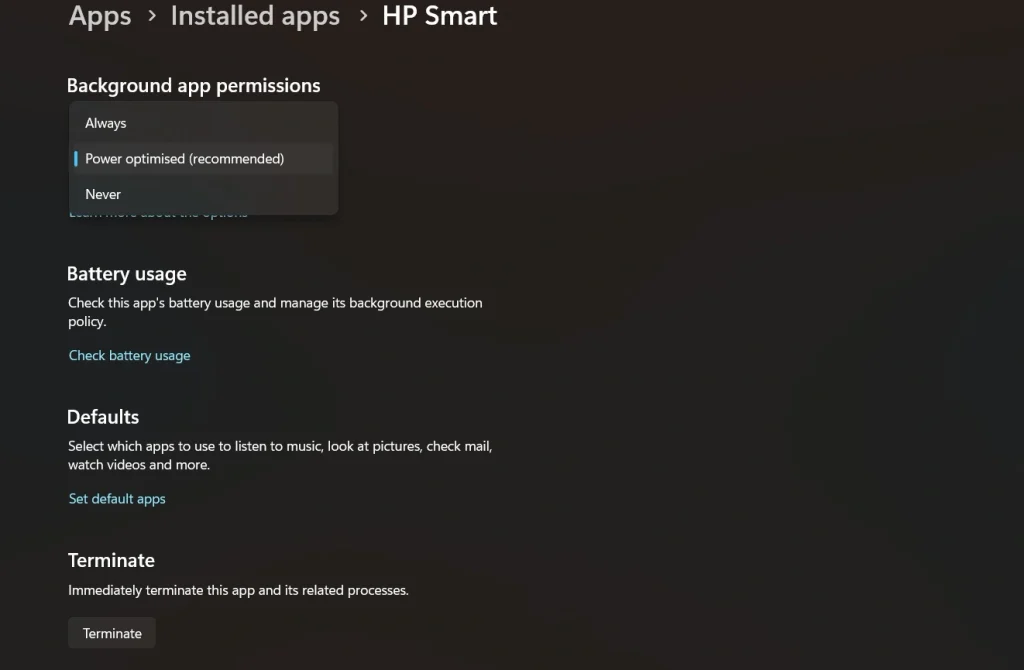
Step 2: On Windows 11, find the section called Background apps permissions. Open the menu under “Let this app run in the background” and choose Never. Carry out the same steps for any other apps you want to prevent from running in the background. If you are using Windows 10, you can either disable background activity for all supported apps with a single toggle or switch off only the specific apps you do not use regularly.
Method 2: Use the Task Manager
Task Manager gives you a real-time view of the programs and processes currently active on your computer. It also displays how much CPU, memory, disk, and power resources each one is consuming, making it easier to identify apps that may be slowing down your system.
Another useful section is the Startup tab, where you can see which programs are set to launch automatically when Windows boots. Since many unnecessary background processes begin at startup, disabling them here can prevent them from running in the first place.
If your computer feels sluggish right now, Task Manager can also help. You can immediately close an app or process that is using excessive resources, which may improve system responsiveness without requiring a restart.
Why use this method:
- It shows live CPU, memory, and disk usage for each app.
- It helps you spot heavy apps in seconds.
- It handles desktop programs, not only Store apps.
- It is free and already built into Windows.
Step 1: Press Ctrl, Shift, and Esc together to open Task Manager. Click the Startup apps tab. On Windows 10, the tab is called Startup. Look at the Startup impact column to find apps marked High.
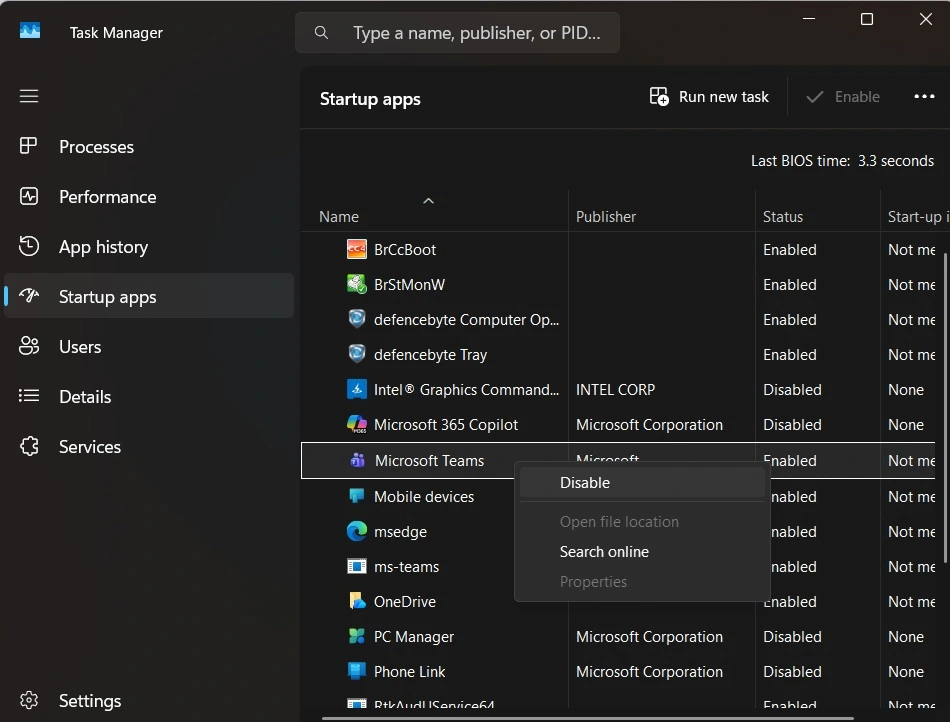
Step 2: Right-click the app you do not need and choose Disable. To stop a running app right now, go to the Processes tab. Select the app and click End task. Be careful here. Do not end items that look like Windows system files.
Method 3: Use the Group Policy Editor
The Group Policy Editor is a powerful tool. It lets you set rules for the whole system. With one policy, you can stop Store apps from running in the background for every user on the PC.
This method is great for shared computers. It is also helpful for offices and school labs. One change covers all accounts. Users cannot easily turn the apps back on.
There is one limit. The Group Policy Editor is only available in Windows Pro, Enterprise, and Education. Windows Home does not include it. If you use Home, skip to Method 4.
Why use this method:
- It applies one rule to every user account.
- It gives you strong and lasting control.
- It stops users from changing the setting by mistake.
- It can force all apps to stay off by default.
- It is a clean option for work and shared PCs.
Step 1: Press the Windows key and R together. Type gpedit.msc and press Enter. In the window that opens, go to Computer Configuration, then Administrative Templates, then Windows Components, then App Privacy.
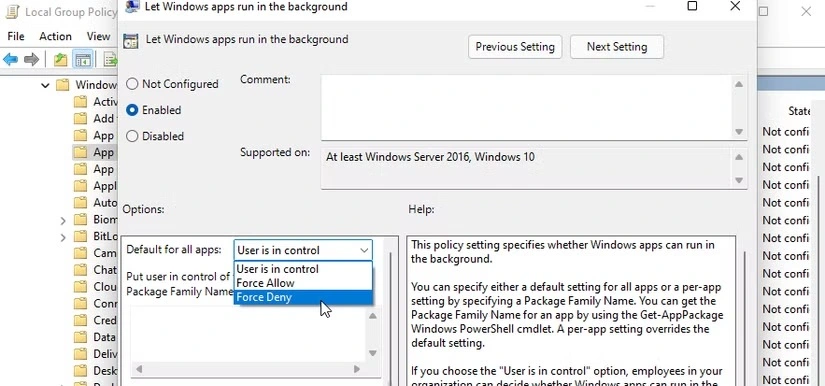
Step 2: Double-click the policy named “Let Windows apps run in the background.” Select Enabled. Under the options, find “Default for all apps” and choose Force Deny. Click Apply, then OK. Restart your PC to make sure the change takes effect.
Method 4: Use the Registry Editor
The Registry Editor is the fourth option. It does the same job as the Group Policy method. The difference is that it works on Windows Home too. This makes it handy when other tools are missing.
You will create one small value in the registry. It tells Windows to deny background access to Store apps. The steps are short, but you must be careful. A wrong edit in the registry can cause problems.
Before you start, create a restore point. You can also export the registry as a backup. Sign in with an admin account. Then follow the steps slowly.
Why use this method:
- It works on Windows Home, where Group Policy is missing.
- It gives the same result as the policy method.
- It takes only a minute once you know the path.
- It can be undone by deleting the value.
- It is useful for advanced users who like full control.
Step 1: Press the Windows key and R together. Type regedit and press Enter. Click Yes if Windows asks for permission. Go to HKEY_LOCAL_MACHINE\SOFTWARE\Policies\Microsoft\Windows. If you do not see a folder called AppPrivacy, right-click Windows, choose New, then Key, and name it AppPrivacy.
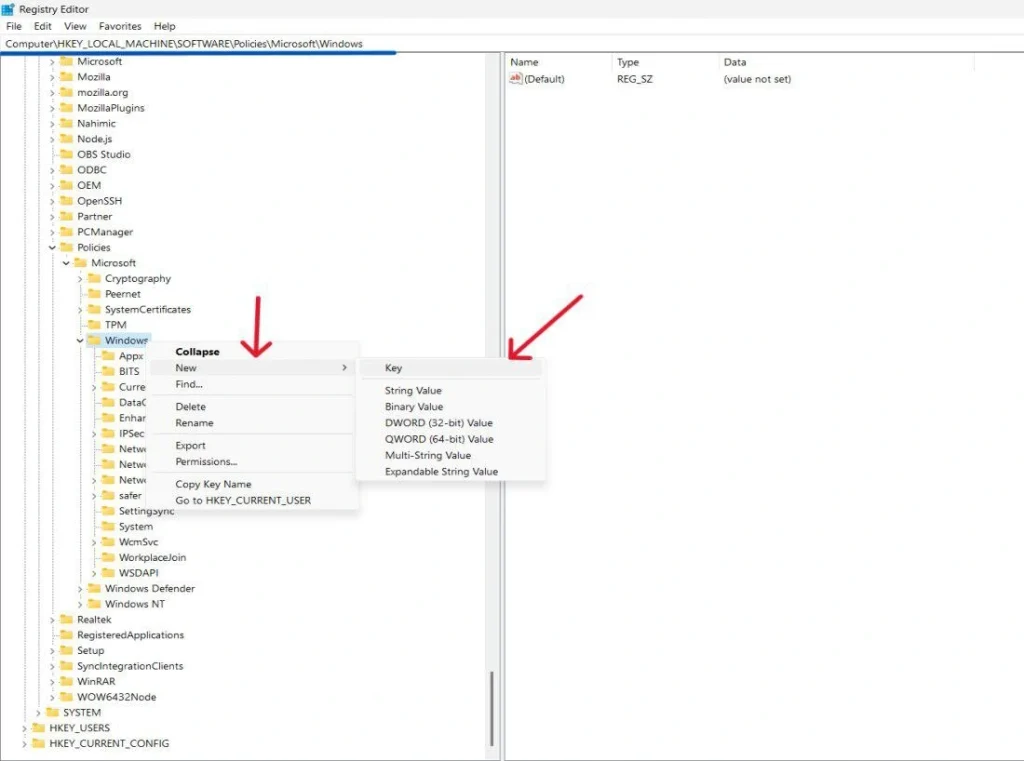
Step 2: Right-click inside the AppPrivacy folder and choose New, then DWORD (32 bit) Value. Name it LetAppsRunInBackground. Double-click it and set the value to 2. Click OK, close the editor, and restart your PC. To undo this change later, delete the value or set it to 0.
Part 4: Smart Habits To Keep Your PC Fast After Turning Off Background Apps
Turning off background apps is a great first step. But a fast PC needs a little care now and then. A few small habits can keep your system smooth for a long time. Try these tips along with the methods above.
- Restart your PC often: A restart clears memory and stops stuck processes. Do it at least once a week.
- Review startup apps: New programs add themselves to startup without asking. Check the list every month and remove what you do not need.
- Uninstall unused software: Old programs take space and may run small helper tasks. If you do not use an app, remove it.
- Keep Windows updated: Updates fix bugs and improve speed. Install them so your system runs as it should.
- Use Storage Sense: This tool deletes junk files and empty trash on its own. A tidy drive works faster.
- Turn on Battery Saver: On a laptop, Battery Saver limits background work when power is low. It also helps you last longer away from the plug.
- Scan for malware: Some viruses hide as background programs. Run a full scan with Windows Security to be safe.
- Limit browser tabs and extensions: Browsers use a lot of memory. Close tabs you do not need and remove extensions you never use.
Conclusion
Background apps are not always bad. Many of them help you every day. But too many of them can slow down your PC and drain your battery. A small cleanup can make a big difference. You can feel it in how fast your computer starts, opens apps, and responds.
Now you know how to disable background apps in Windows using four simple methods. Start with the Settings app, since it is the easiest. Use Task Manager when you want to find heavy apps. Choose Group Policy or the Registry Editor when you need stronger control. Whatever you pick, you stay in charge of your PC.
Do not turn off everything at once. Start with apps you never use. Watch how your PC behaves for a few days. If something stops working, you can turn that app back on. Add the tips from Part 4, and your PC will stay quick and smooth for a long time.
FAQs
Is it safe to disable background apps in Windows?
Yes, it is safe for most apps. Windows keeps its own system services running no matter what you choose. You are only stopping extra apps that run without your help. The only thing you may lose is some automatic updates or alerts. If an app stops working the way you like, just turn it back on in Settings.
Will disabling background apps stop my notifications?
It can, but only for the apps you turn off. A mail or chat app needs to run in the background to show new messages. If you stop it, you may only see messages when you open the app. So keep your important apps on, such as email, calendar, and messaging. Turn off the rest.
Can I turn background apps back on later?
Yes, you can reverse every method in this guide. In the Settings app, set the app back to Always or Power optimized. In Task Manager, right-click the startup app and choose Enable. For Group Policy, set the policy to Not configured. For the Registry Editor, delete the LetAppsRunInBackground value. Restart your PC after you make any changes.
Author Bio:
Dinesh Lakhwani 

Dinesh Lakhwani, the entrepreneurial brain behind “TechCommuters,” achieved big things in the tech world. He started the company to make smart and user-friendly tech solutions. Thanks to his sharp thinking, focus on quality and the motto of never giving up, TechCommuters became a top player in the industry. His commitment to excellence has propelled the company to a leading position in the industry.
Popular Post
Recent Post

How to Activate Windows with a Product Key for Windows 11 & Windows 10
It always shows up at the worst time. You are halfway through a report, or about to join a video call. Then you spot it in the bottom right corner of the screen. Activate Windows. Go to Settings to activate Windows. Initially, an unactivated copy of Windows may seem like a minor inconvenience. Over time, […]

Is Easy Duplicate Finder Worth It? Honest Review
The photos folder looked normal at first glance. Then the storage warning popped up. One trip photo appeared four times. A tax PDF sat in three different folders. Two old setup files were still in Downloads, and each one was over 500 MB. Nobody plans this mess. Copies pile up slowly. A download runs twice. […]

Wise Duplicate Finder Review: Real Results from Wise Duplicate Finder
Read my honest Wise Duplicate Finder review. See features, pricing, pros and cons, and real PC test results. Find out if this free duplicate cleaner can free up your Windows storage.

How to Recover Deleted Files from Pen drive, USB Drive, SD Card
Introduction: On tech forums, you’ll often see posts like this: “I connected my pen drive to my laptop this morning, but the folder was empty. All my college project files had vanished. I don’t have a backup. Can someone help me?” Stories like this are very common. Pen drives, USB drives and SD cards are […]

How To Recover Files Deleted from the Recycle Bin [Windows 11]
Losing a file can happen in seconds. You clear your desktop, hit Delete, and empty the Recycle Bin. Then, just when you need that file again, it seems to have vanished. This guide will walk you through ways to restore files removed from the Recycle Bin. We will begin with simple fixes, then look at […]

Disk Drill Data Recovery Tool Explained: Full Review and Guide
It happens in a split second. You delete a folder by mistake. Your drive stops showing up. A photo album from your last trip just vanishes. And your stomach drops. Lost files feel personal. They are not just data. They are memories, work hours, and sometimes years of effort packed into a few gigabytes. When […]

Recover Deleted Files In Windows 11 With Software & Without
Introduction What is the first thing that goes through your mind the second an important file vanishes from a Windows 11 PC? For most people, it is a mix of panic and disbelief, followed by a frantic click through every folder that file could possibly be hiding in. It happens in a split second: one […]

EaseUS Data Recovery Wizard: Everything To Know
Data loss does not always come from a big disaster either. Most cases start small and boring. A drive gets formatted by mistake. A laptop freezes mid-save and restarts on its own. A memory card stops showing up after being pulled out too fast. None of these feel like emergencies at first, until you realize […]

Recuva Data Recovery Tool: Is it Actually Worth it?
When I first tried Recuva Data Recovery, I wanted to see if it could really bring back lost files. The tool is free, small in size, and promises quick recovery, which made me curious enough to test it on my own PC. The setup was fast, and the wizard guided me step by step. I […]

