












A slow PC rarely gives a warning. One day, it simply takes longer to start. Apps open late. The fan runs loud, even when the screen is almost empty. Most people blame old hardware. Often, that is not the real reason. The real reason is hiding in plain sight. Windows keeps many apps active in […]
How To Extend Your Battery Life Effectively in Windows
A laptop is useful only when the battery lasts long enough to support your work. When the charge falls too fast, even small tasks feel stressful. You may rush to find a charger. You may feel forced to lower the performance. You may even stop your work in the middle of something important. This can affect focus and productivity.
Windows provides many options that help with power use. These features are simple once you learn where they are. You can change settings in a few clicks. You can adjust habits that drain battery without your knowledge. You can also use built-in tools to check battery health. These steps help you extend your battery life effectively in Windows and improve your overall experience every day.
Precautions Before Changing Any Battery Settings
Before you make changes, you should follow a few basic precautions. These steps protect your laptop. They prevent mistakes. They also help you avoid damage that may affect battery health. These steps prepare your system for smoother adjustments and better results.
Important Precautions to Follow
- Check your charger
Use the original charger. If the charger is damaged, replace it. A weak charger causes slow charging. It may also push unstable power into the battery. - Keep the laptop cool
Heat damages the battery slowly. Keep the device on a flat and clean surface. Avoid placing it on beds, blankets, or cushions. - Avoid deep discharge
Do not let the charge fall to zero very often. Try to charge the laptop when it reaches around twenty percent. - Update Windows often
Updates improve stability. They also reduce bugs that drain power. Updated drivers also improve hardware performance. - Check for heavy apps
Some apps run even when you are not using them. These apps use memory and power. Identify and close them to reduce drain. - Do not use random optimization tools
Some third-party apps make big claims but harm the system. Stick to official Windows tools. - Scan for malware
Malware consumes power in the background. A quick scan removes harmful processes and protects battery life. - Give the battery a rest
If you use your laptop plugged in all day, unplug it sometimes. This helps the battery cycle naturally.
How To Extend Your Battery Life Effectively in Windows
Windows provides many built-in tools that help you reduce power use. When you combine these tools with good habits, you get strong and stable battery performance. These methods help you extend your battery life effectively in Windows without needing expert skills.
Method 1: Use Battery Saver Mode
Battery Saver is one of the easiest ways to cut power use. It works by stopping background apps and reducing extra tasks. It changes some system behaviors in a safe way. These changes help your laptop run longer on battery.
This mode is useful when you want to focus on light work. It reduces the number of things your system handles at the same time. You do not need to adjust any other setting. Once Battery Saver is on, it starts controlling power use automatically.
Step 1: Open Settings. Go to System. Click Power and Battery.
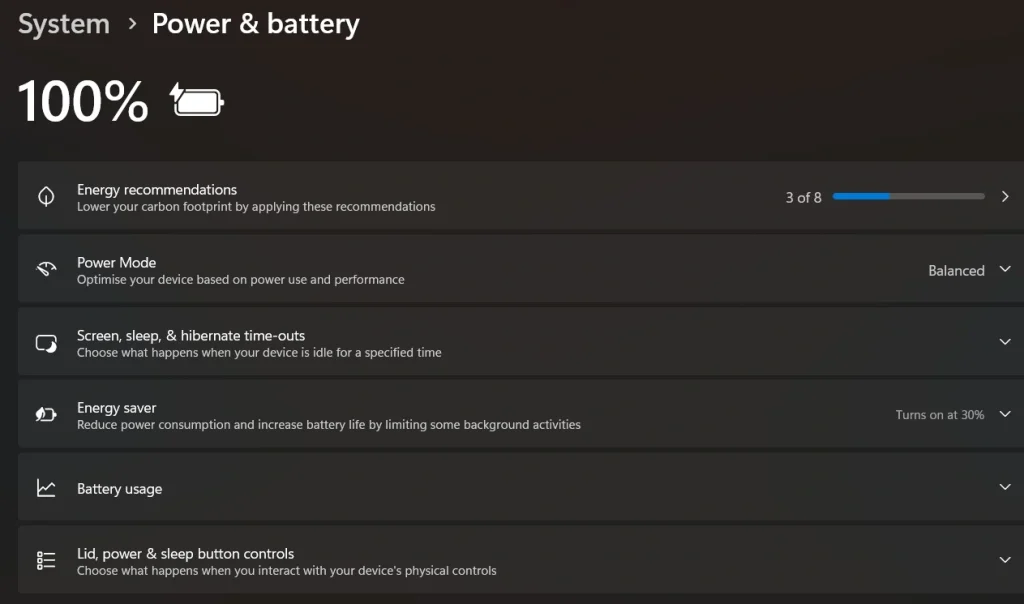
Step 2: Turn on Energy Saver. You can also set it to start automatically at a chosen percentage.
Method 2: Reduce Display Brightness
The display is usually the biggest source of battery drain. Bright screens use a strong backlight that consumes steady power. Even a small reduction in brightness can save many minutes of battery life. This makes brightness control one of the most effective habits.
A lower screen brightness also reduces eye strain in many cases. You get a more comfortable viewing experience, especially indoors. Most users do not notice a big difference in clarity. The change is small, but the improvement in battery life is steady and reliable.
Step 1: Open Action Center. Move the brightness slider down.
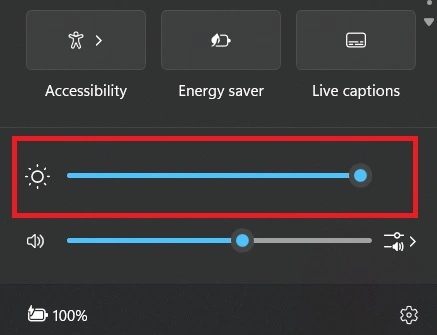
Step 2: Turn off auto brightness if it changes too often.
Method 3: Change Power Mode
Power modes let you decide how your laptop uses energy. Each mode controls the processor, background tasks, and system speed. When you choose a more efficient mode, the system slows down heavy functions. This saves battery without affecting simple tasks.
These modes are helpful for long work sessions. They help you extend your battery life effectively in Windows by reducing unnecessary power use. You can switch between modes anytime. Many people use efficiency mode for writing, browsing, or basic office work.
Step 1: Open Settings. Go to Power and Battery.
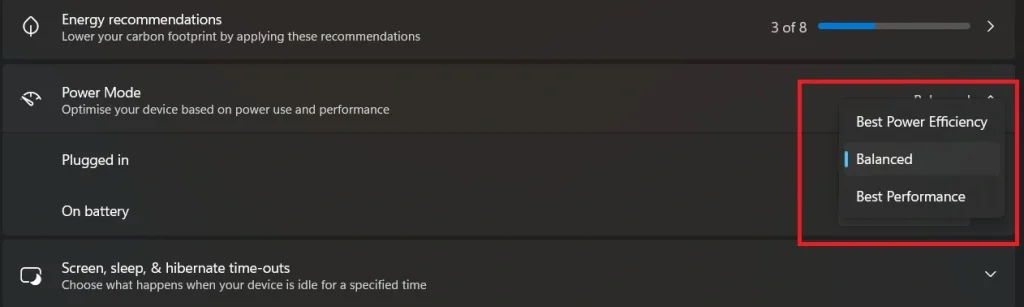
Step 2: Choose a power mode that suits your task.
Method 4: Turn Off Wi-Fi and Bluetooth
Wi-Fi and Bluetooth stay active even when you are not using them. They search for networks and devices in the background. This constant activity drains battery slowly but steadily. Turning them off saves power when you do not need connectivity.
This habit is useful during travel or offline work. It also reduces interruptions from unnecessary connections. You keep your system quieter while using less power. Many users see a clear improvement when they turn off these features during long sessions.
Step 1: Open Action Center.
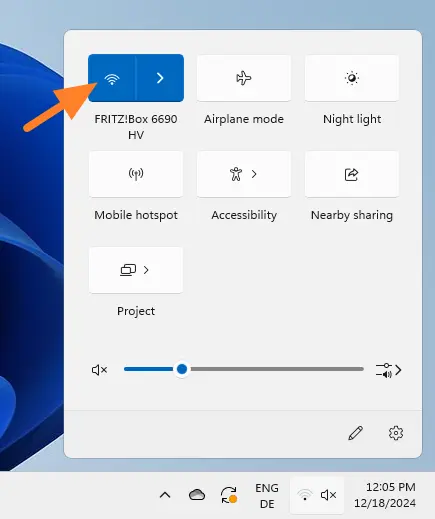
Step 2: Turn off Wi-Fi or Bluetooth when not needed.
Method 5: Close Background Apps
Background apps run many hidden tasks. They sync files, check servers, show notifications, and download updates. These tasks use memory, processor power, and network resources. All of this affects battery life.
Closing background apps gives your system breathing room. It reduces pressure on hardware and lowers heat. It also helps apps run smoothly when you actually use them. This simple step helps you extend your battery life effectively in Windows with minimal effort.
Step 1: Open Task Manager.
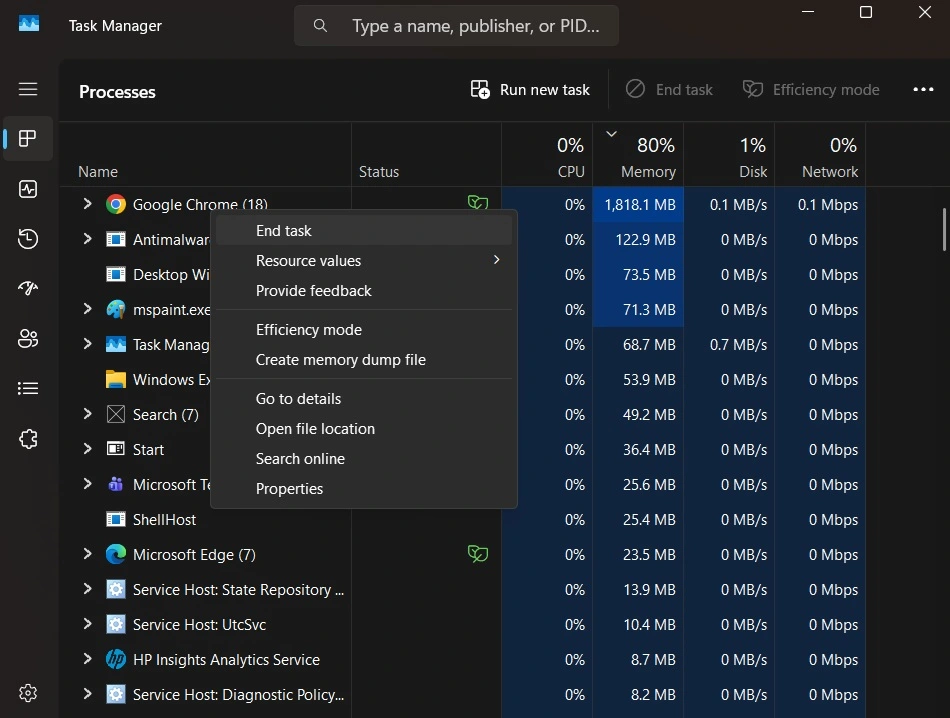
Step 2: Check power usage. Close the apps that consume too much power.
Method 6: Manage Startup Programs
Some apps start running the moment your laptop turns on. They continue running even when you do not need them. This increases startup time and drains the battery early. These apps use memory, network access, and background services.
Managing startup programs improves performance and battery health. It makes your system lighter and more responsive. It also ensures that power is used only when necessary. This is one of the best long-term habits for improving efficiency.
Step 1: Open Task Manager. Go to the Startup tab.
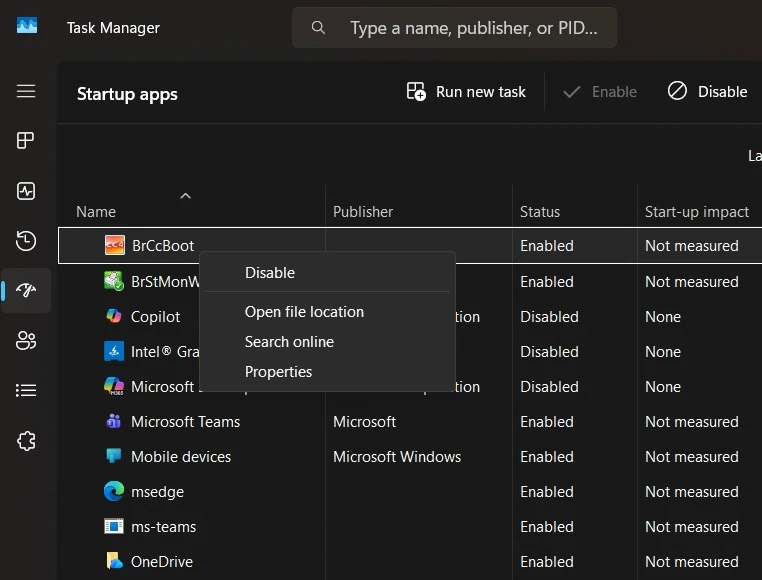
Step 2: Disable apps you do not use often.
Why does screen brightness affect the battery so strongly?
The screen uses a large amount of power. A bright screen needs more backlight. The backlight draws a steady flow of electricity. Lower brightness reduces this load and saves battery during every task.
Can sleep mode drain battery?
Yes. Sleep mode uses a little power to keep session data active. The drain is small but continues over time. Hibernate uses less power, but it takes more time to resume. Sleep is fine for short breaks. Hibernate is better for long hours.
Do background apps affect battery health?
Yes. Background apps run tasks that use the processor, memory, and network. These tasks drain power even when you are not actively using the apps. Closing such apps helps the battery last longer every day.
Advanced Tips for Longer Battery Life
These tips help you go further. They work well when you need more control. They are useful when you want to extend your battery life effectively in Windows over long periods.
Powerful Tips for Better Power Efficiency
- Turn off visual animations
Windows animations look smooth, but use extra graphics power. Turning them off saves energy - Limit cloud sync
Cloud apps sync files often. Reduce sync frequency to save power. - Uninstall unused software
Old apps leave services running in the background. Removing them cuts hidden power use. - Disable location services
Location tracking uses sensors that stay active. Turn it off except when needed. - Use efficient browsers
Some browsers use too much memory. Choose one known for better resource control. - Avoid keeping many tabs open
Each tab loads scripts and media. Closing old tabs helps reduce drain. - Generate a battery report
Windows can create a battery report. It shows usage history and health. Review the report to understand your habits. - Keep drivers updated
Updated drivers improve hardware performance. They also help reduce unnecessary power use.
Why Does Battery Drain So Much?
Many users wonder why their battery drains even when they are not doing heavy work. The reasons vary. Some reasons are normal. Others come from habits that slowly reduce battery health.
Common Reasons for Fast Drain
- High screen brightness
Bright displays consume a lot of energy. - Heavy software
Games and editing tools use more processor power. - Wireless features
Wi-Fi and Bluetooth stay active even when idle. - Too many browser tabs
Tabs keep running scripts that drain the battery. - Heat buildup
Heat forces hardware to work harder. - Cloud sync tools
These tools run frequent background tasks. - Old battery condition
Batteries lose strength with age. - Faulty apps
Some apps run in loops or crash often.
Conclusion
Battery life depends on habits and settings. When you follow these steps, you extend your battery life effectively in Windows with ease. Simple changes like lowering brightness or closing unused apps make a real difference. Windows tools also give you strong control over power use.
Advanced habits help even more. When you update drivers, check reports, and adjust cloud sync, your system runs smoothly and consumes less energy. The goal is to find balance. With regular care, your laptop remains useful for long hours, even without a charger nearby.
FAQs
Do power modes affect performance?
Yes. Power modes adjust how the processor works. When you use the efficiency mode, performance reduces slightly. But battery life improves.
How often should I generate a battery report?
Once every few months is enough. This helps you track changes in battery health and detect early issues.
Is it safe to use the laptop while charging?
Yes. It is safe. However, avoid heavy tasks that generate heat when charging. Heat harms long-term battery life.
Author Bio:
Dinesh Lakhwani 

Dinesh Lakhwani, the entrepreneurial brain behind “TechCommuters,” achieved big things in the tech world. He started the company to make smart and user-friendly tech solutions. Thanks to his sharp thinking, focus on quality and the motto of never giving up, TechCommuters became a top player in the industry. His commitment to excellence has propelled the company to a leading position in the industry.
Popular Post
Recent Post

How to Activate Windows with a Product Key for Windows 11 & Windows 10
It always shows up at the worst time. You are halfway through a report, or about to join a video call. Then you spot it in the bottom right corner of the screen. Activate Windows. Go to Settings to activate Windows. Initially, an unactivated copy of Windows may seem like a minor inconvenience. Over time, […]

Is Easy Duplicate Finder Worth It? Honest Review
The photos folder looked normal at first glance. Then the storage warning popped up. One trip photo appeared four times. A tax PDF sat in three different folders. Two old setup files were still in Downloads, and each one was over 500 MB. Nobody plans this mess. Copies pile up slowly. A download runs twice. […]

Wise Duplicate Finder Review: Real Results from Wise Duplicate Finder
Read my honest Wise Duplicate Finder review. See features, pricing, pros and cons, and real PC test results. Find out if this free duplicate cleaner can free up your Windows storage.

How to Recover Deleted Files from Pen drive, USB Drive, SD Card
Introduction: On tech forums, you’ll often see posts like this: “I connected my pen drive to my laptop this morning, but the folder was empty. All my college project files had vanished. I don’t have a backup. Can someone help me?” Stories like this are very common. Pen drives, USB drives and SD cards are […]

How To Recover Files Deleted from the Recycle Bin [Windows 11]
Losing a file can happen in seconds. You clear your desktop, hit Delete, and empty the Recycle Bin. Then, just when you need that file again, it seems to have vanished. This guide will walk you through ways to restore files removed from the Recycle Bin. We will begin with simple fixes, then look at […]

Disk Drill Data Recovery Tool Explained: Full Review and Guide
It happens in a split second. You delete a folder by mistake. Your drive stops showing up. A photo album from your last trip just vanishes. And your stomach drops. Lost files feel personal. They are not just data. They are memories, work hours, and sometimes years of effort packed into a few gigabytes. When […]

Recover Deleted Files In Windows 11 With Software & Without
Introduction What is the first thing that goes through your mind the second an important file vanishes from a Windows 11 PC? For most people, it is a mix of panic and disbelief, followed by a frantic click through every folder that file could possibly be hiding in. It happens in a split second: one […]

EaseUS Data Recovery Wizard: Everything To Know
Data loss does not always come from a big disaster either. Most cases start small and boring. A drive gets formatted by mistake. A laptop freezes mid-save and restarts on its own. A memory card stops showing up after being pulled out too fast. None of these feel like emergencies at first, until you realize […]

Recuva Data Recovery Tool: Is it Actually Worth it?
When I first tried Recuva Data Recovery, I wanted to see if it could really bring back lost files. The tool is free, small in size, and promises quick recovery, which made me curious enough to test it on my own PC. The setup was fast, and the wizard guided me step by step. I […]

