












So, search for a pair of shoes once online. Close the tab. By evening, those same shoes are sitting on your news site, your video app, and even your recipe blog. Nobody placed them there by chance. A cookie did. Well, yes! Cookies are small files that websites place on your device while you browse. […]
How To Link a Microsoft Account to a Digital License on Windows [2026]
Most people never think about Windows activation until it suddenly stops working. Something as simple as replacing hardware or reinstalling Windows can cause the system to lose its activated status. Linking your Microsoft account to your digital license beforehand helps prevent unnecessary trouble and makes activation recovery much easier later on.
Many people using Windows 10 or Windows 11 do not even know this option exists. Microsoft introduced it quietly to make activation recovery much easier for users. Once your digital license is linked to your account, you can restore activation far more easily after reinstalling Windows or changing hardware, without spending hours contacting support.
This guide is here to help. You will learn who can use this feature, what to prepare beforehand, and how to complete the setup correctly. Whether you are using a new PC or an older system, these instructions will help you link your Microsoft account to your Windows digital license smoothly and without confusion.
Understanding When Windows Allows Digital License Linking
Eligibility Criteria:
Not every Windows user can use this feature. Before you try, it helps to understand which situations allow it and which do not.
- You have a digital license (also called digital entitlement): This type of license is tied to your device hardware. It was introduced in Windows 10. If you upgraded from Windows 7 or 8.1 for free, or bought a new PC with Windows pre-installed, you likely have one.
- Your Windows is already activated: You can only link an account if Windows shows as activated. If activation is pending or failed, you need to fix that first.
- You are using a personal Microsoft account or a work or school account: Both types work for linking. However, personal accounts give you more flexibility for reactivation.
- You are running Windows 10 or Windows 11: This feature is not available on older versions like Windows 7 or 8.1.
- You cannot link if you have a product key-based license only. If your license came with a retail product key that is not tied to a digital license, linking may not apply in the same way.
- You cannot link if Windows is not genuine: Non-genuine copies of Windows will not activate and therefore cannot be linked to any account.
- You cannot link using a local account alone: You need to sign in to Windows with a Microsoft account, not just a local user account, for the link to work.
Get Your System Ready Before You Begin
A little preparation goes a long way. Rushing into settings without checking a few things can waste your time. Go through this checklist:
- Confirm your Windows activation status: Open Settings, go to System, then Activation. It should say Windows is activated with a digital license. If not, resolve the activation issue first.
- Sign in with a Microsoft account on Windows: Go to Settings, then Accounts. If you see a local account, switch it to a Microsoft account. Use an email you own and remember.
- Use a stable internet connection: The linking process requires your device to communicate with Microsoft servers. Use a reliable Wi-Fi or wired connection to avoid errors.
- Keep your Microsoft account credentials handy: You will need to log in during the process. Know your email address and password before you start.
- Check that your device meets Windows 11 or Windows 10 requirements: If your PC is old, make sure it is running a supported and updated version of Windows.
- Disable VPN temporarily: A VPN can interfere with Microsoft’s activation servers. Turn it off before you attempt to link your account.
Precautions Before Linking Your Microsoft Account
This process is generally safe. But it is good practice to be careful with account and activation settings. Keep these points in mind.
- Use your own Microsoft account: Never link someone else’s account to your device. If you sell or transfer the PC later, it may create complications for the new owner.
- Do not use a shared or work-managed account if possible: Work or school accounts managed by an organization may have restrictions. Use a personal Microsoft account for the best experience.
- Write down your Microsoft account email: Store it somewhere safe. If you forget which account you used for the link, reactivation after a reinstall can become difficult.
- Do not perform major hardware changes right after linking: Changing multiple components like the motherboard soon after linking can still trigger activation errors. Let your system settle first.
- Keep your recovery email or phone number updated: Your Microsoft account needs a valid recovery option. If you ever get locked out, you need a way to recover access.
- Do not skip the verification step: Microsoft may ask you to verify your identity during setup. Complete this step carefully. It protects your account from unauthorized access.
- Backup your important data before making system changes: Although linking your account is not a risky operation, it is always smart to have a backup before touching system settings.
How to Link a Microsoft Account to a Digital License on a Windows PC
Knowing how to link a Microsoft account to a digital license for Windows gives you real peace of mind. Imagine reinstalling Windows and getting it activated again in seconds without any product key. This feature stays out of sight during normal use, but it becomes incredibly useful when activation problems suddenly appear.
Many users only discover this feature after a major problem. A failed hard drive, a corrupted Windows installation, or a complete system reset can leave you scrambling for activation. If you had taken five minutes earlier to link Microsoft account to digital license Windows, none of that would be a crisis. Reactivation becomes a one-click job.
Microsoft designed this feature to make Windows more personal and portable for its users. It also reduces the need to contact support for activation help. The benefits are clear, and the steps are very straightforward. Let us look at why this matters and how to do it.
Why Do It
Linking your Microsoft account to your digital license is a smart move for any Windows user. Here are five solid reasons.
- Easy reactivation after reinstall: If you ever need to reinstall Windows, your license is already saved to your Microsoft account. You do not need to hunt for a product key.
- Protection after hardware changes: Upgrades like a new SSD or RAM can sometimes trigger activation checks. Being linked makes it easier to pass those checks.
- One account for everything: Your license, your apps, and your settings all connect to one account. It keeps things simple and organized.
- Faster troubleshooting: If activation fails, Microsoft support can verify your license through your account quickly. It speeds up the resolution process.
- Works across reinstalls and resets: Whether you do a clean install or a factory reset, your linked account keeps your license recoverable.
Steps to Link Your Microsoft Account
Step 1: Open Activation Settings
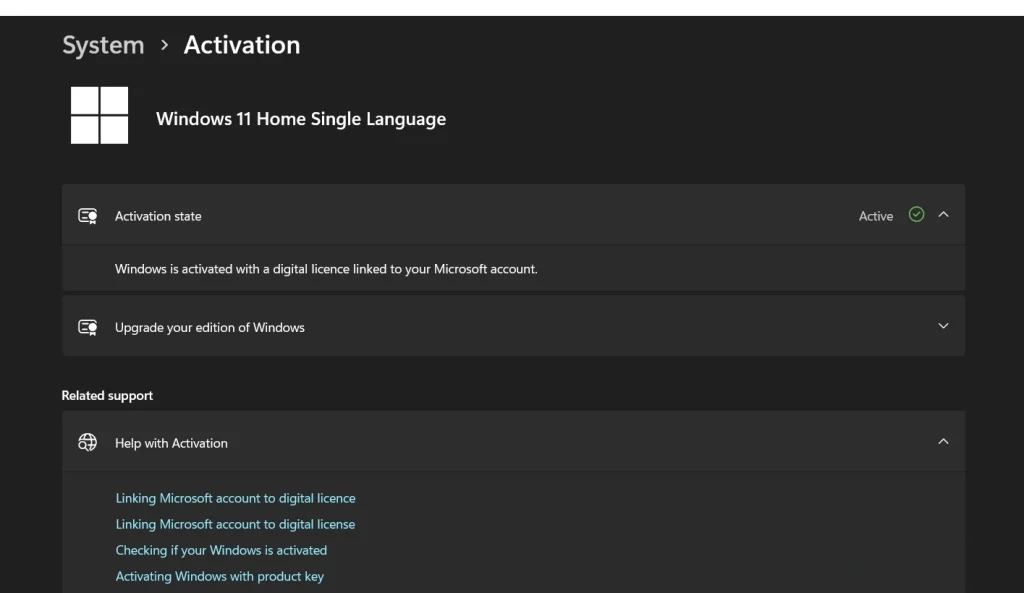
Go to Settings on your Windows PC. Click on System in the left panel. Then select Activation from the menu. You will see your current activation status here. If it says activated with a digital license, you are ready to move forward.
Step 2: Add Your Microsoft Account
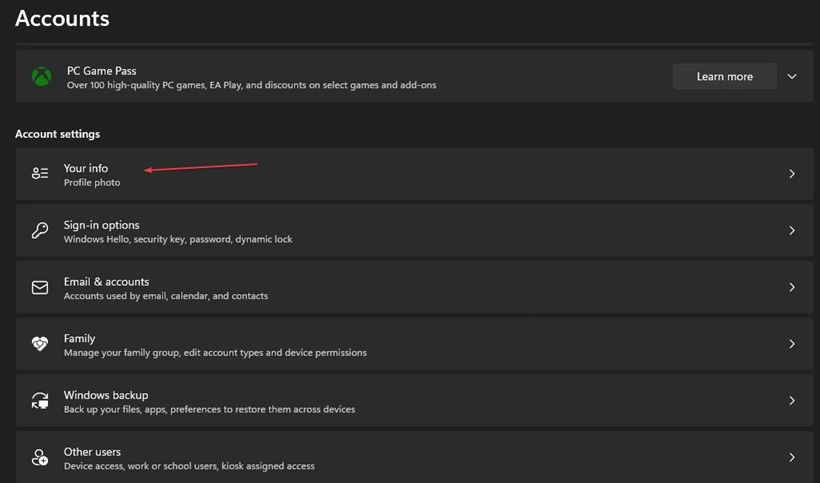
Press Windows + I to open Settings. Next, go to Accounts and select Your info. Click on it. Sign in with your Microsoft account email and password. If you are already signed in to Windows with a Microsoft account, this step may be automatic.
Step 3: Confirm the Link
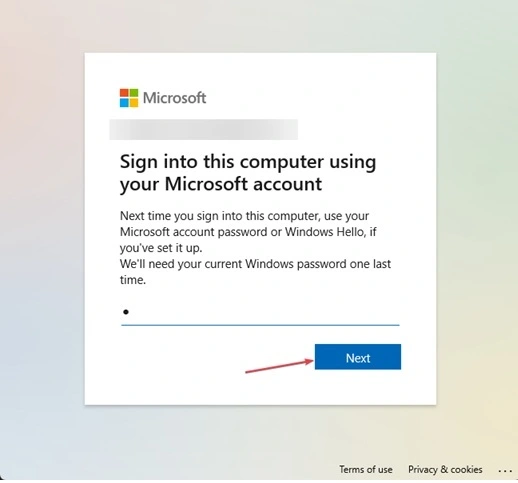
After signing in, Windows will confirm that your digital license is now linked to your Microsoft account. You should see a message that says Windows is activated with a digital license linked to your Microsoft account. That is it. You have successfully completed the process to link your Microsoft account to the Windows digital license.
When Things Go Wrong and How to Fix Them
Even simple processes can run into issues. If something goes wrong when you try to link your account, do not panic. Here are eight problems you might face, along with their fixes.
- Windows shows as not activated: You cannot link an account if Windows is not activated. Run the activation troubleshooter from Settings, then System, then Activation. Follow the steps it gives you to fix the issue first.
- No option to add a Microsoft account on the Activation page: This usually happens when you are signed in with a local account. Go to Settings, Accounts, and then Your Info. Switch to a Microsoft account, then return to the Activation page.
- Sign-in fails during linking: Double-check your Microsoft account email and password. If you forgot your password, reset it at account.microsoft.com before trying again.
- Error code 0x803F8001 or similar: This often means your license is not a digital one or Windows is not genuine. Verify your activation type or contact Microsoft support for help.
- VPN or firewall blocking the process: Turn off any VPN, proxy, or third-party firewall temporarily. Try the linking process again once the network path is clear.
- Account already linked to another device: One Microsoft account can hold licenses from multiple devices. This should not block you. If it does, sign out and sign back in, then retry.
- Two-factor authentication delay: If your account uses two-step verification, keep your phone handy. You will need to approve the sign-in from your authentication app or receive a code by text.
- Activation page says contact support: This is rare, but it can happen if your license has a conflict. Contact Microsoft support through support.Microsoft.com with your device details and activation history.
Conclusion
Taking care of your Windows activation is not complicated. But most users ignore it until something breaks. Now you know why it matters and exactly what to do. When you link a Microsoft account to a digital license for Windows, you are creating a safety net for your PC.
The steps are simple and take only a few minutes. The peace of mind you get in return is worth much more than that. You no longer have to worry about losing your activation after a reinstall, a reset, or a hardware swap. Your license lives in your account, safe and ready.
Do not wait for a problem to push you into action. Set it up today while everything is working fine. Follow the steps in this guide, check the eligibility section, prepare your system, and protect your Windows license the smart way.
FAQs
Q1. What is a digital license in Windows?
A digital license is a method of activation tied to your device’s hardware. It does not require you to enter a product key. When you upgrade from an older version of Windows or buy a new PC with Windows pre-installed, you often get a digital license. It gets stored on Microsoft’s servers and linked to your hardware. This means Windows can activate automatically when connected to the internet. It is more convenient than a traditional product key and works well with the option to link a Microsoft account to a digital license for Windows for extra security.
Q2. Can I move my digital license to a new PC?
A digital license is usually tied to the device it was issued for. You cannot freely transfer it to a completely different PC the way you can with a retail product key. However, if you replace parts on the same machine or do a clean reinstall on the same PC, the license should still work. Linking your Microsoft account helps in this case. If Windows asks for reactivation after a hardware change, you can use the Activation troubleshooter and sign in with your Microsoft account to restore it.
Q3. What happens if I change my Microsoft account password after linking?
Changing your Microsoft account password does not break the link between your account and your digital license. The license stays connected to your account as long as the account itself remains active. Just make sure you remember your new password and update your recovery options. If you ever need to reactivate Windows, you will need to sign in with your current credentials. Keeping your account in good standing ensures the process to link your Microsoft account to the digital license Windows continues to protect your activation smoothly.
Author Bio:
Dinesh Lakhwani 

Dinesh Lakhwani, the entrepreneurial brain behind “TechCommuters,” achieved big things in the tech world. He started the company to make smart and user-friendly tech solutions. Thanks to his sharp thinking, focus on quality and the motto of never giving up, TechCommuters became a top player in the industry. His commitment to excellence has propelled the company to a leading position in the industry.
Popular Post
Recent Post

How To Disable Background Apps In Windows: 4 Quick Methods
A slow PC rarely gives a warning. One day, it simply takes longer to start. Apps open late. The fan runs loud, even when the screen is almost empty. Most people blame old hardware. Often, that is not the real reason. The real reason is hiding in plain sight. Windows keeps many apps active in […]

How to Activate Windows with a Product Key for Windows 11 & Windows 10
It always shows up at the worst time. You are halfway through a report, or about to join a video call. Then you spot it in the bottom right corner of the screen. Activate Windows. Go to Settings to activate Windows. Initially, an unactivated copy of Windows may seem like a minor inconvenience. Over time, […]

Is Easy Duplicate Finder Worth It? Honest Review
The photos folder looked normal at first glance. Then the storage warning popped up. One trip photo appeared four times. A tax PDF sat in three different folders. Two old setup files were still in Downloads, and each one was over 500 MB. Nobody plans this mess. Copies pile up slowly. A download runs twice. […]

Wise Duplicate Finder Review: Real Results from Wise Duplicate Finder
Read my honest Wise Duplicate Finder review. See features, pricing, pros and cons, and real PC test results. Find out if this free duplicate cleaner can free up your Windows storage.

How to Recover Deleted Files from Pen drive, USB Drive, SD Card
Introduction: On tech forums, you’ll often see posts like this: “I connected my pen drive to my laptop this morning, but the folder was empty. All my college project files had vanished. I don’t have a backup. Can someone help me?” Stories like this are very common. Pen drives, USB drives and SD cards are […]

How To Recover Files Deleted from the Recycle Bin [Windows 11]
Losing a file can happen in seconds. You clear your desktop, hit Delete, and empty the Recycle Bin. Then, just when you need that file again, it seems to have vanished. This guide will walk you through ways to restore files removed from the Recycle Bin. We will begin with simple fixes, then look at […]

Disk Drill Data Recovery Tool Explained: Full Review and Guide
It happens in a split second. You delete a folder by mistake. Your drive stops showing up. A photo album from your last trip just vanishes. And your stomach drops. Lost files feel personal. They are not just data. They are memories, work hours, and sometimes years of effort packed into a few gigabytes. When […]

Recover Deleted Files In Windows 11 With Software & Without
Introduction What is the first thing that goes through your mind the second an important file vanishes from a Windows 11 PC? For most people, it is a mix of panic and disbelief, followed by a frantic click through every folder that file could possibly be hiding in. It happens in a split second: one […]

EaseUS Data Recovery Wizard: Everything To Know
Data loss does not always come from a big disaster either. Most cases start small and boring. A drive gets formatted by mistake. A laptop freezes mid-save and restarts on its own. A memory card stops showing up after being pulled out too fast. None of these feel like emergencies at first, until you realize […]

