












A computer quietly gathers clutter over time. This includes duplicate photos, repeated downloads, and forgotten backups hiding in random folders. This buildup slowly eats away at storage and can make even a fast PC feel sluggish. Manually finding and deleting duplicates is tedious. It means checking every folder, comparing file names, and guessing which copies […]
How to Switch Windows 10 to a Local Account: Complete Guide
Windows 10 allows users to sign in with either a Microsoft account or a local account. When you set up a new computer, the system often suggests using a Microsoft account. This account connects your device to Microsoft services such as Outlook, OneDrive, and the Microsoft Store. It also syncs settings, themes, and passwords across devices. Many users find this helpful, especially if they use more than one Windows device.
However, not everyone feels comfortable linking their computer to an online account. Some users prefer more privacy and direct control. A local account keeps all login details stored on the device itself. It does not require constant internet access. If you want more independence from online services, you may want to switch Windows 10 to a local account.
Many people also choose to convert Windows 10 to a local account when they are sharing a computer or setting up a system for office use. This guide explains everything clearly, using simple steps and plain language so that you can complete the process without confusion.
Switch Windows 10 to Local Account: Key Benefits of Using a Local Account
Before making any changes, it is important to understand why some users prefer a local account. A local account works independently from Microsoft’s cloud services. It focuses only on your computer. Below are the main benefits explained in detail.
- Improved privacy control
Your account details stay on your device. They are not linked to an online Microsoft profile. This reduces online tracking and data sharing. - No internet needed for login
You can access your computer without internet access. This is useful during network outages. - Fewer background sync processes
Without cloud syncing, the system runs fewer background services. This may improve performance slightly. - Simpler account management
You manage your username, password, and security hints directly from system settings. - Reduced data usage
Since files are not syncing to the cloud, you may save on internet data. - Better for shared or office computers
Many businesses prefer local accounts for fixed workstations. - No forced online sign-ins for daily use
The device functions normally without requiring Microsoft authentication for basic tasks. - Clear separation from Microsoft services
If you want to use your PC mainly for offline work, a local account keeps things simple.
Switch Windows 10 to Local Account: Possible Drawbacks You Should Know
While many users decide to switch Windows 10 to a local account, there are also limitations. You should review these carefully before making your decision.
- No automatic device sync
Settings such as wallpaper and saved passwords will not sync to other devices. - Limited Microsoft Store experience
Some apps require a Microsoft account for installation. - No built-in OneDrive backup
Cloud backup must be set manually. - More responsibility for password safety
If you forget your password, there are only a few recovery options available. - No automatic email or calendar sync
Online account services will not connect automatically. - Manual updates for some services
You may need to log in separately for specific apps. - Less integration with Microsoft ecosystem
Services like Xbox or Skype may require separate login steps. - Not ideal for users with multiple Windows devices
Sync features are helpful for people who switch between devices often.
Important Precautions Before Switching
Before you convert Windows 10 to a local account, take a few precautions. These steps help you avoid problems during or after the switch.
- Back up important files: Save all important documents, photos, videos, and work files before making any changes. Use an external hard drive, USB drive, or trusted cloud storage. This step protects your data in case something unexpected happens during the switch.
- Ensure you know your Microsoft account password: You may be asked to enter your current Microsoft account password to confirm your identity. Make sure you remember it correctly. If you are unsure, reset it before starting the process to avoid delays.
- Check device administrator rights: Only accounts with administrator rights can change sign-in settings. Open your account settings and confirm that your profile has admin access. If not, sign in with an administrator account before continuing.
- Disable BitLocker temporarily if enabled: If BitLocker encryption is active, it may ask for verification during account changes. It is safer to pause or disable it temporarily. After the process is complete, you can enable it again for security.
- Write down your new local password safely: A local account does not provide email password recovery as a Microsoft account does. Create a strong password and keep it written in a secure place. Setting a helpful password hint can also make recovery easier.
- Sync essential data before switching: If you use OneDrive or other Microsoft services, make sure your important files are fully synced. Check that uploads are complete. This prevents loss of data stored in the cloud.
- Update Windows before making changes: Make sure all pending Windows updates are installed before you change the account type. Updates often correct system issues and improve overall stability. An updated system lowers the chances of problems during the switch.
4 Methods to Switch Windows 10 to a Local Account
There are different ways to change from a Microsoft account to a local account. The method you choose depends on your system condition and preferences. Each method is explained below with clear guidance.
Method 1: Using Windows Settings
The easiest way to switch Windows 10 to a local account is through the Settings menu. This method works for most users. It does not require advanced knowledge. Everything is handled through the account section of Windows.
This approach is recommended for home users. It keeps your data safe and does not remove files. The system simply replaces your sign-in method. You remain in control during the entire process.
Many users choose this method because it is direct. It is also the safest way to convert Windows 10 to a local account without affecting installed programs or personal files.
Why Use This Method
- It is built into Windows
- No extra software is needed
- Files remain safe
- Works for most standard users
- Quick process
Steps
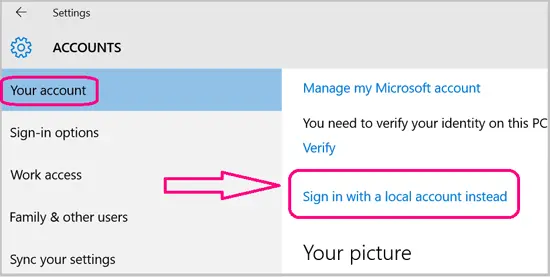
Step 1: Open Settings. Click on Accounts. Select Your info. Choose the option that says “Sign in with a local account instead.” Enter your Microsoft account password when prompted.
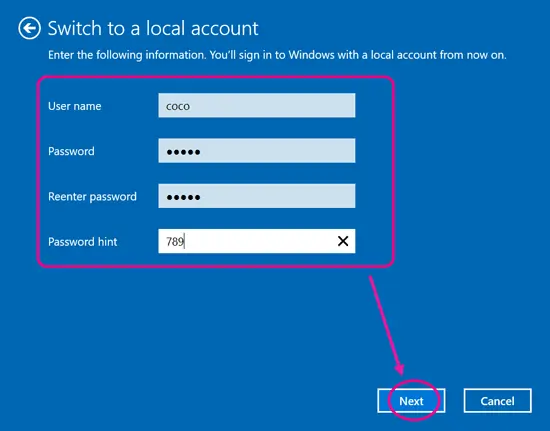
Step 2: Create a new username and password for the local account. Add a password hint. Click Next and then Sign out, and finish. Log in again using your new local account details.
Method 2: Using Control Panel
Another way to convert Windows 10 to a local account is through the Control Panel. This method is useful for users who prefer traditional system tools.
Control Panel still manages many account settings. While newer versions of Windows focus on Settings, Control Panel remains functional. Some users find it easier to navigate.
This method provides the same result as the Settings method. The difference is only in navigation style.
Why Use This Method
- Familiar interface
- Useful for older users
- Access to detailed account settings
- Reliable and stable
- Works in most Windows 10 versions
Steps
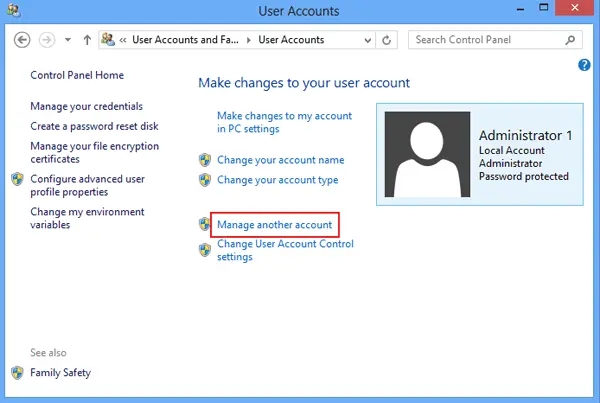
Step 1: Open Control Panel. Click User Accounts. Select Manage another account. Choose your current account.
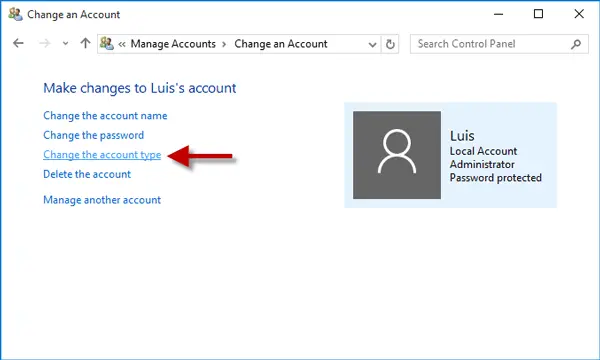
Step 2: Click Change the account type. Follow the prompts to remove the Microsoft account connection and confirm local account setup.
Method 3: Creating a New Local Account
Instead of replacing your account, you can create a new local account. Then you can remove the Microsoft account later.
This method is helpful if you want to keep both accounts temporarily. It also works well for testing. You can move files before deleting the original account.
It is a safe choice if you are unsure. You can switch Windows 10 to a local account by transferring to the newly created profile.
Why Use This Method
- Keeps the original account intact
- Allows testing first
- Good for shared devices
- Flexible transition
- Safer for beginners
Steps
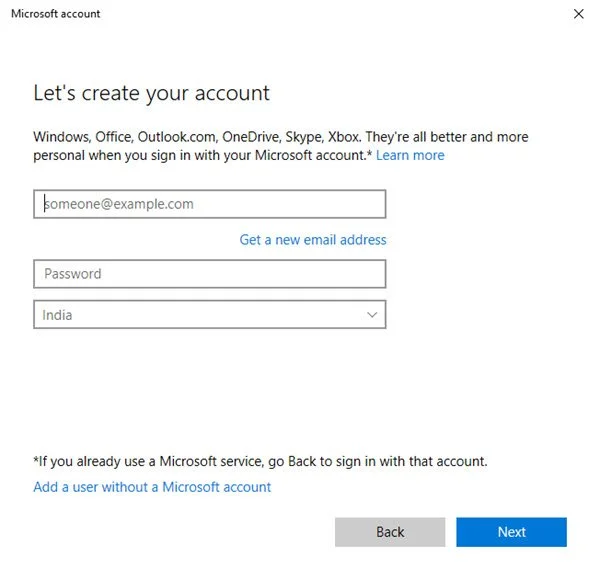
Step 1: Go to Settings. Click Accounts. Select Family & other users. Click Add someone else to this PC. Choose the option without a Microsoft account.
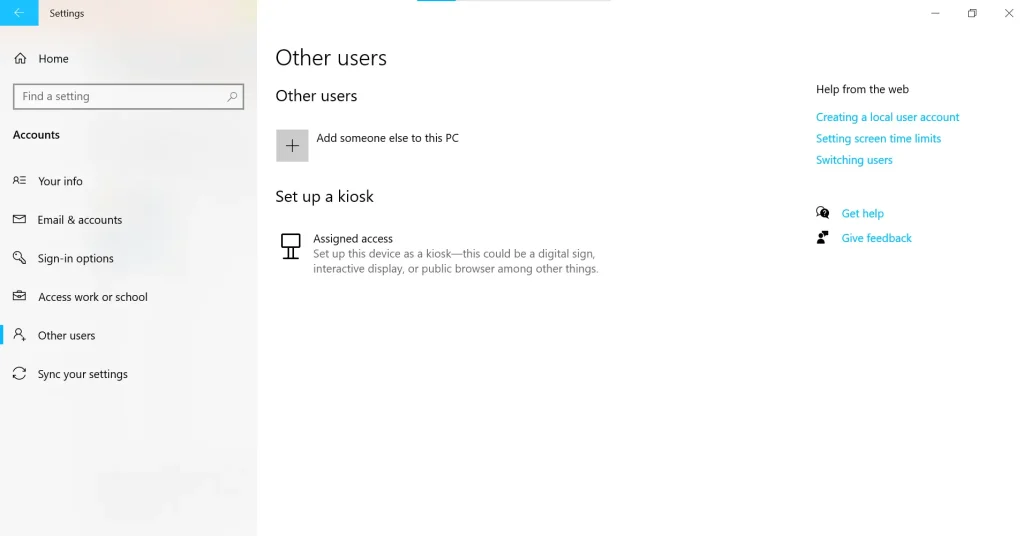
Step 2: Enter a username and password. Create the account. Log in to the new local account. Transfer files if needed. Remove the old account from settings.
Method 4: Using Command Prompt
Advanced users can convert Windows 10 to a local account using Command Prompt. This method requires careful typing.
It is faster for IT professionals. It also works well on systems managed in bulk.
However, this method is not recommended for beginners. Small mistakes can cause problems.
Why Use This Method
- Faster for experts
- Useful in bulk system setups
- No need for navigation menus
- Good for administrators
- Works even with limited interface access
Steps
Step 1: Open Command Prompt as Administrator. Type the following command to create a new local user account:
net user NewLocalUser NewPassword /add
Replace NewLocalUser with your preferred username and NewPassword with a strong password of your choice. Press Enter.
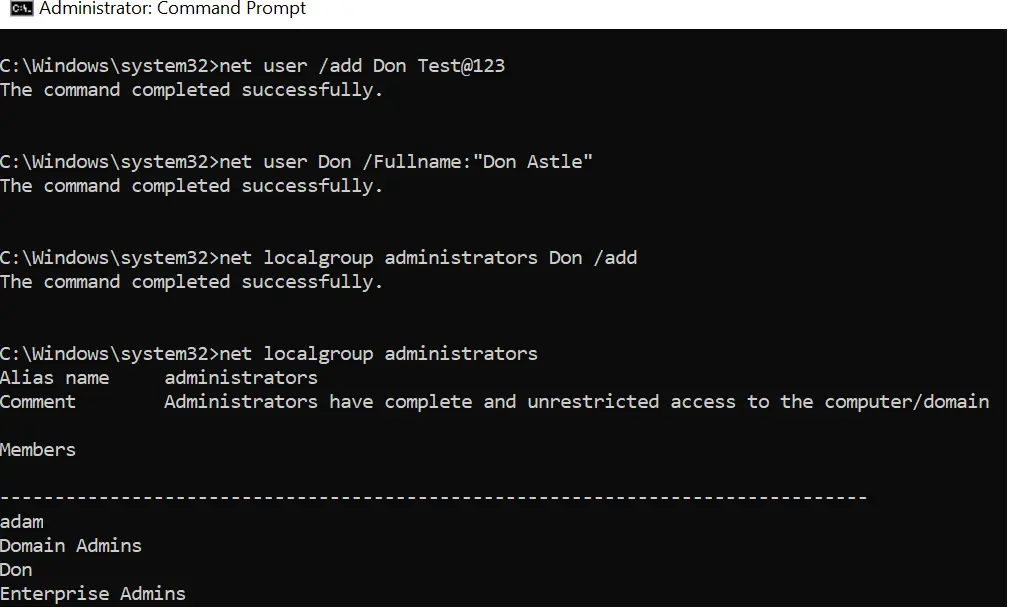
Step 2: Add the new user to the Administrators group by typing:
net localgroup Administrators NewLocalUser /add
Press Enter. After this, log out of your current account and sign in using the new local account credentials. Once you confirm it works properly, you can remove the old Microsoft account from the system settings if needed.
Author’s Tip
Before making the change, think carefully about how you use your computer each day. If you depend on OneDrive, Outlook, or syncing settings across multiple devices, a Microsoft account may be more practical for you. It keeps everything connected and updated automatically.
However, if you value privacy and prefer that your computer works independently without linking to online services, a local account may be the better choice. Your decision should match your daily habits and comfort level with cloud services.
Always create a backup of your important files before changing account settings. Save your data to an external drive or secure cloud storage. The process is usually safe, but preparation reduces risk and avoids unnecessary worry. Move slowly through each step and read every prompt carefully. A calm and careful approach helps ensure a smooth transition.
Conclusion
Choosing between a Microsoft account and a local account depends on how you use your computer and what matters most to you. Some users prefer connected features and cloud syncing, while others value privacy and a simple setup. For those who want more control and fewer online links, many decide to switch Windows 10 to a local account. The process is straightforward when you follow the correct steps and take basic precautions.
When you convert Windows 10 to a local account, you manage your login details directly on your device. This gives you greater independence from Microsoft services. At the same time, features like automatic syncing across devices will no longer work. It is important to review the benefits and limitations before making your decision. Once you are confident, follow the step-by-step instructions carefully to complete the change without issues.
FAQs
1. Will I lose my files if I switch accounts?
No, you will not lose your personal files when you switch Windows 10 to a local account. The process only changes your sign-in method. Your documents, pictures, installed programs, and system settings remain on the same device. However, it is still wise to back up important files before you convert Windows 10 to a local account, just to stay safe.
2. Can I switch back to a Microsoft account later?
Yes, you can return to a Microsoft account at any time. Windows 10 allows you to reconnect through the Accounts section in Settings. The process is similar to when you switch Windows 10 to a local account, but in reverse. After you convert Windows 10 to a local account, you still have the flexibility to sign in again with your Microsoft email if needed.
3. Do I need internet access for a local account?
No, internet access is not required for daily use once you switch Windows 10 to a local account. You can log in and use your computer offline. This is one reason many people choose to convert Windows 10 to a local account, especially for systems used in areas with unstable internet connections.
Author Bio:
Dinesh Lakhwani 

Dinesh Lakhwani, the entrepreneurial brain behind “TechCommuters,” achieved big things in the tech world. He started the company to make smart and user-friendly tech solutions. Thanks to his sharp thinking, focus on quality and the motto of never giving up, TechCommuters became a top player in the industry. His commitment to excellence has propelled the company to a leading position in the industry.
Popular Post
Recent Post

CCleaner Duplicate File Finder: Key Features, Pricing, Step-by-Step Guide and More
Every computer collects junk over time. Right? Well, yes! Photos often get copied twice. Documents get saved in two folders by mistake. Old downloads pile up and never get deleted. This slowly eats up your storage space, and most people do not even notice until their drive is almost full. That is where a duplicate […]

Duplicate File Finder Pro: A Complete Review, Everything You Should Know
Computers collect thousands of files over time. Well, yes! Many of them end up being duplicates created by backups, downloads, or accidental copies. These extra files take up valuable storage space and make it harder to keep everything organized. Finding and removing them manually can take hours. Right? Duplicate File Finder Pro is a tool […]

Monitor Screen Calibration Guide: Everything You Should Know
Your monitor shows colors every single day. But are those colors actually correct? Most people never stop to check this. They just use the screen as it comes out of the box. This habit can lead to wrong colors in photos, videos, and work files. Colors may look too warm or too cold without you […]

How To Check Installed RAM and RAM Slots [Complete Guide]
RAM plays an important role in how smoothly a computer runs. Short for Random Access Memory, it stores the data and instructions that Windows and active applications need at any given moment. From opening multiple browser tabs to running games and productivity software, RAM helps keep everything responsive. A system with limited memory may experience […]

What is Microsoft Autopilot Everything You Need To Know
Technology has changed the way companies manage computers. Well, yes! Employees now work from offices, homes, and remote locations. Setting up devices manually for every worker takes time and effort. It can also create mistakes that slow down productivity. This is where Microsoft Autopilot becomes useful. It helps businesses prepare and deploy Windows devices with […]
Enable Automatic Device Locking Feature Windows: Complete Guide
Introduction: Your computer stores important information such as emails, documents, passwords, and personal photos. Leaving it unlocked can put that data at risk. Thankfully, Windows includes built-in features that can automatically lock your device when you are away. Setting up automatic device locking is quick and does not require any extra software. In this guide, […]
How to Update Wireless Network Driver in Windows 11 and 10
Your Wi-Fi keeps dropping. Pages load slowly. The connection feels unstable? Well, you are not alone. Most of the time, the problem is not with your internet plan. It is with your wireless network driver. A driver is a small piece of software that helps your computer talk to its hardware. When it gets outdated, […]
Common Windows 11 Problems and Solutions (2026 Version)
Windows 11 has become more polished over the years, but it is still not completely free from problems. Even after regular updates from Microsoft, many users continue to face issues like lagging performance, failed updates, audio troubles, random crashes, and network errors. Some problems appear after installing new features, while others develop gradually as the […]
Fortect Driver Updater Review: Features, Steps, Pros, and Cons.
A new PC usually feels quick and responsive. Applications open instantly, games run smoothly, and everything works as expected. As time passes, however, you may notice slower performance, system crashes, hardware glitches, or devices that stop working properly. While many people assume malware or low storage space is to blame, outdated drivers are often the […]

