












A slow computer makes it hard to focus. Programs take too long to open. Free space keeps shrinking until the disk is almost full. This happens to most PC owners at some point. Even new machines can slow down after a while. That is the exact problem cleanup tools are built to solve. They comb […]
How to Switch From Local To Microsoft Account On Windows
Many users begin with a local account when they set up a new Windows computer. A local account works only on that single device. It stores settings, files, and preferences locally. It does not connect to online Microsoft services. For basic offline use, it works well. However, as digital needs grow, many users want better integration and syncing features. That is when they decide to switch from local to Microsoft account Windows.
A Microsoft account connects your computer to cloud based services. It links your system with OneDrive, Outlook, and the Microsoft Store. It also allows settings and passwords to sync across devices. If you choose to convert a local account to Microsoft account, you do not lose your personal files or installed programs. The transition is safe when done correctly.
This guide explains the process in clear language and detailed steps so that even beginners can follow it without confusion.
Key Benefits of Using a Microsoft Account
Using a Microsoft account unlocks features that are not available with a local account. While a local account keeps everything offline, an online account connects your device to a wider ecosystem of services. When you switch from local to Microsoft account on Windows, you gain access to several advanced tools. Before you convert a local account to Microsoft account, review these advantages carefully.
- Cloud storage access
Your files can sync automatically to OneDrive. This allows you to access them from another computer or mobile device. - Settings synchronization
System themes, saved passwords, language preferences, and browser data can sync across all your Windows devices. - Easy password recovery
If you forget your password, you can reset it online through Microsoft’s recovery system. - Microsoft Store downloads
You can install apps, games, and updates smoothly without additional login steps. - Stronger security options
Two-step verification and account alerts add extra layers of protection. - Device management
You can track, locate, or lock your device remotely if it is lost. - License connection
Your Windows activation can link directly to your Microsoft profile. This helps during hardware changes. - Family safety controls
You can manage child accounts, set screen time limits, and filter content.
Because of these benefits, many people decide to switch from a local to Microsoft account on Windows. When you convert a local account to Microsoft account, your overall system experience becomes more connected and flexible.
Possible Disadvantages to Consider When Switching Accounts
Although there are many advantages, it is important to understand the limitations as well. A local account provides complete offline independence. An online account introduces cloud connectivity and background syncing. Before you switch from local to Microsoft account on Windows, consider these disadvantages. Think carefully before you convert a local account to Microsoft account.
- Internet dependency
Some features require a stable internet connection to function properly. - Privacy concerns
Certain settings and usage data may sync with Microsoft servers. - Email based sign in
You must log in using an email address instead of a simple username. - Account lock risk
If unusual activity is detected, your account may be temporarily restricted. - Security notifications
You may receive frequent alerts for new sign-ins or changes. - Password requirements
Online accounts often require complex passwords for security. - Shared device challenges
On shared computers, linking an email account may reduce privacy. - Linked services activation
Some Microsoft services may activate automatically after login.
For most users, these disadvantages are manageable. Still, it is wise to review them before you switch from a local to Microsoft account on Windows.
Important Precautions Before You Start: Switch from Local to Microsoft Account Windows
Preparation is important before making account changes. Although the process is safe, small mistakes can create login confusion. When you convert a local account to Microsoft account, follow these precautions carefully. Proper preparation ensures a smooth experience when you switch from local to Microsoft account on Windows.
- Back up important files: Save copies of documents, photos, and other essential data to an external drive or cloud storage. This protects your information in case something unexpected happens during the process.
- Confirm internet stability: Ensure your internet connection is stable before you begin. A weak connection may interrupt account verification.
- Verify Microsoft login details: Check your email address and password carefully. Incorrect details can delay the process.
- Install pending updates: Install available Windows updates to reduce the risk of compatibility issues during the change.
- Check administrator access: Make sure you are using an administrator account. Standard accounts cannot make this type of change.
- Disable temporary VPN services: Turn off VPN or similar network tools temporarily, as they may block account verification.
- Remember your local password: Keep your current local password ready. Windows may ask for it to confirm the switch.
- Create a system restore point: Set a restore point before starting. This allows you to return to previous settings if needed.
Following these precautions reduces risks and protects your data.
3 Methods to Switch from a Local Account to a Microsoft Windows Account
There are multiple ways to change your account type. The method you use depends on your Windows version and personal preference. Each option helps you convert a local account to Microsoft account safely.
Method 1: Using Windows Settings
This is the most direct method. It works smoothly on Windows 10 and Windows 11. The Settings app provides clear guidance. Most users complete the process in just a few minutes.
The Settings interface includes a dedicated section for account management. It displays your current account type. From there, you can begin the switch. Many users prefer this method because it is simple and officially recommended. It is the easiest way to switch from local to Microsoft account on Windows.
Before beginning, confirm you are logged in as an administrator. Keep your Microsoft login credentials ready.
Step 1: Click the Start menu. Open Settings. Select Accounts. Click Your Info. Choose Sign in with a Microsoft account instead.
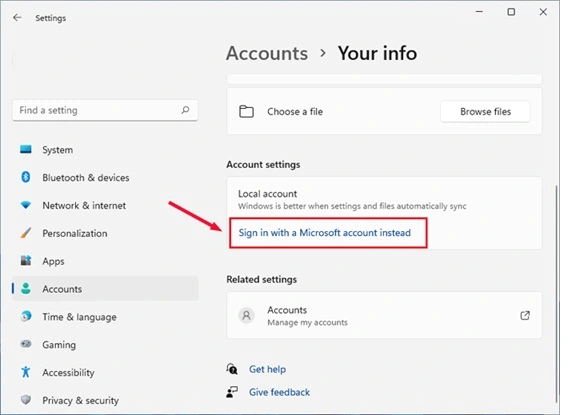
Step 2: Enter your Microsoft email address and password. Confirm your current local password when prompted. Follow the on-screen instructions and restart your computer if required.
Method 2: Through Control Panel
Some users prefer the classic Control Panel interface. While newer Windows versions highlight the Settings app, Control Panel still provides user management tools in certain builds.
This method can be useful if you cannot access the Settings option. The navigation may look different depending on your system version. However, the overall process remains similar. You provide your Microsoft credentials and confirm the change.
It is another effective way to switch from local to Microsoft account on Windows if Settings is unavailable.
Step 1: Open Control Panel. Select User Accounts. Choose Manage another account. Click your local user profile.
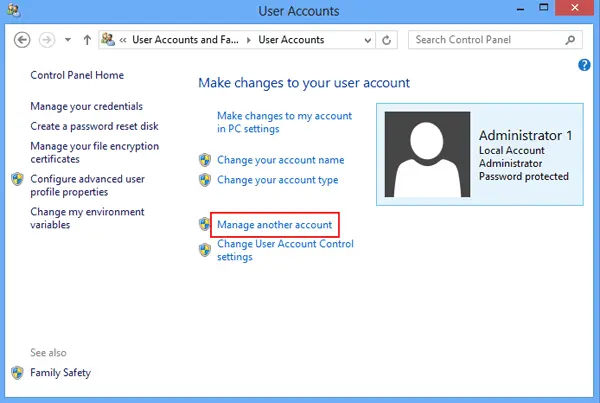
Step 2: Select the option to link a Microsoft account. Enter your login information. Complete verification steps and restart your system.
Method 3: Create a New Microsoft Account Profile
If direct switching fails, this method offers a reliable solution. System errors or restrictions sometimes prevent instant conversion. In such cases, creating a new user account works well.
You first add a Microsoft account as a new user. After signing in, you move personal files from the old local account folder. This method requires more time but avoids technical issues. It is helpful when you cannot directly convert a local account to a Microsoft account.
This approach also works on shared computers where administrative policies limit changes.
Step 1: Open Settings. Click Accounts. Select Family & other users. Choose Add account. Enter Microsoft account details and create the profile.
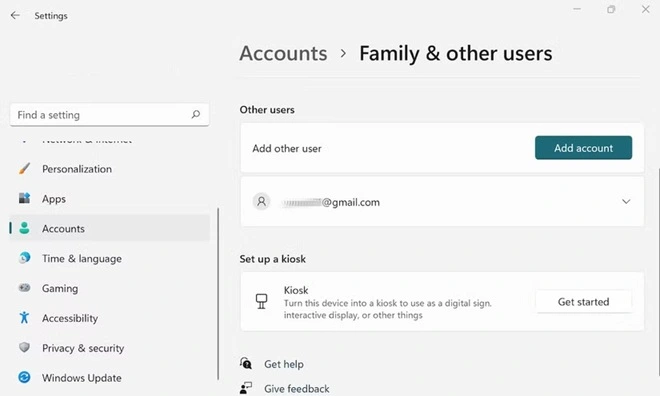
Step 2: Log in to the new account. Transfer files from the old local user folder. After verifying that everything works, delete the old local account.
Author’s Tip
When changing your account type, take your time. Read every screen before selecting Next. Many sign-in issues occur because the email address or password is entered incorrectly. After you switch from local to a Microsoft account on Windows, restart the computer so all settings apply correctly. Then check your activation status and make sure your files open without any problem.
After the change, review your sync settings as well. Microsoft lets you decide which preferences should sync across devices. Modify these options based on your needs and privacy comfort. If you plan to convert a local account to a Microsoft account for work purposes, confirm your company guidelines first.
A careful check now can prevent login or access problems later and help maintain system security.
Conclusion
Switching account types in Windows is a manageable task when you follow proper steps. A Microsoft account offers improved syncing, security, and cloud integration. Many users prefer these connected features over a basic local account. That is why they choose to switch from local to Microsoft account.
By backing up data and verifying login details, you can complete the transition smoothly. When you convert a local account to microsoft account, your personal files remain safe. Follow the methods described above, and your system will be ready for a more connected experience.
FAQs:
1. Will my personal files be deleted if I switch from local to a Microsoft account on Windows?
No, your personal files will not be deleted during the account change. When you switch from a local to Microsoft account on Windows, the system only updates the sign-in method. Your documents, pictures, installed programs, and most settings remain exactly as they were. It is still recommended to create a backup before making any major system change, but the process itself does not remove user data.
2. Do I need internet access to convert a local account to a Microsoft account?
Yes, an active internet connection is required to convert a local account to a Microsoft account. Windows must contact Microsoft servers to verify your email address and password. Without internet access, the system cannot complete the verification step. Make sure your connection is stable before you begin, so the process finishes without interruption.
3. Can I return to a local account later?
Yes, you can switch back to a local account at any time through the account settings menu. Windows provides an option to sign in with a local account instead. The process is simple and does not remove your personal files. This flexibility allows users to try a Microsoft account and later return to offline sign-in if they prefer.
Author Bio:
Dinesh Lakhwani 

Dinesh Lakhwani, the entrepreneurial brain behind “TechCommuters,” achieved big things in the tech world. He started the company to make smart and user-friendly tech solutions. Thanks to his sharp thinking, focus on quality and the motto of never giving up, TechCommuters became a top player in the industry. His commitment to excellence has propelled the company to a leading position in the industry.
Popular Post
Recent Post

Fortect Software Review: The Ultimate PC & Mobile Cleaning, Optimization & Security Tool
Slow computers are a common problem for almost every Windows user. Well, yes! Over time, your PC picks up junk files. These files sit quietly in the background. They take up space and slow things down. Programs open slower. Windows takes longer to boot. Even simple tasks like opening a folder can feel sluggish. There […]

CCleaner PC Optimizer Review: A Complete Guide for Windows Users
If your computer has started to feel slow, you are not alone. Most Windows PCs slow down over time. Junk files pile up. The registry gets messy. Too many apps open when you start your PC. All this adds up and makes even a good machine feel tired. This is where a PC cleaner tool […]

Auslogics Duplicate File Finder: Full Review and User Guide
A computer quietly gathers clutter over time. This includes duplicate photos, repeated downloads, and forgotten backups hiding in random folders. This buildup slowly eats away at storage and can make even a fast PC feel sluggish. Manually finding and deleting duplicates is tedious. It means checking every folder, comparing file names, and guessing which copies […]

CCleaner Duplicate File Finder: Key Features, Pricing, Step-by-Step Guide and More
Every computer collects junk over time. Right? Well, yes! Photos often get copied twice. Documents get saved in two folders by mistake. Old downloads pile up and never get deleted. This slowly eats up your storage space, and most people do not even notice until their drive is almost full. That is where a duplicate […]

Duplicate File Finder Pro: A Complete Review, Everything You Should Know
Computers collect thousands of files over time. Well, yes! Many of them end up being duplicates created by backups, downloads, or accidental copies. These extra files take up valuable storage space and make it harder to keep everything organized. Finding and removing them manually can take hours. Right? Duplicate File Finder Pro is a tool […]

Top 3 Duplicate File Finder for Windows 11 & Windows 10
If your PC storage keeps filling up even after you delete big files, duplicate files could be the real reason. Most of us save the same photo twice, download a document more than once, or copy a whole folder by mistake. Over months and years, these duplicate files pile up quietly. You do not even […]

Monitor Screen Calibration Guide: Everything You Should Know
Your monitor shows colors every single day. But are those colors actually correct? Most people never stop to check this. They just use the screen as it comes out of the box. This habit can lead to wrong colors in photos, videos, and work files. Colors may look too warm or too cold without you […]

How To Check Installed RAM and RAM Slots [Complete Guide]
RAM plays an important role in how smoothly a computer runs. Short for Random Access Memory, it stores the data and instructions that Windows and active applications need at any given moment. From opening multiple browser tabs to running games and productivity software, RAM helps keep everything responsive. A system with limited memory may experience […]

What is Microsoft Autopilot Everything You Need To Know
Technology has changed the way companies manage computers. Well, yes! Employees now work from offices, homes, and remote locations. Setting up devices manually for every worker takes time and effort. It can also create mistakes that slow down productivity. This is where Microsoft Autopilot becomes useful. It helps businesses prepare and deploy Windows devices with […]

