How To Get Help With Notepad in Windows [Complete Guide]
Notepad has been part of Windows for many years. And people still use it for quick notes, lists, and simple edits. Its clean layout helps new users, while its small set of tools supports everyday tasks. Yet problems can appear when features behave in unexpected ways or when users try something new, so clear guidance becomes useful.
Notepad also receives updates that bring new options like tabs and better encoding support. Older guides may not explain these changes, which can make things feel unclear at first. When you understand how to get help with Notepad in Windows, you can handle updates, fix small issues, and move through tasks with more confidence.
Part 1: What Notepad Can Do for You?
Notepad looks plain, but it provides enough features for daily writing and editing. Many people open it to write a quick note or to save thoughts before moving them into other apps. The relaxed layout keeps the screen clean, so you do not get distracted. Notepad starts quickly, which is useful when you need to record something without delay.
- Quick note-taking: Ideal for jotting down ideas, reminders, or thoughts before moving them into other apps.
- Clean layout: Minimal design keeps the screen distraction-free, helping you focus on writing.
- Fast startup: Opens instantly, making it convenient when you need to record something without delay.
- Supports multiple file types: Can open logs, small code files, and configuration files, which are useful for developers and IT professionals.
- Plain text viewing: Displays raw content without formatting, preventing issues caused by extra styling in other editors.
- Versatile utility: Fits into many tasks, from everyday writing to technical troubleshooting and script testing.
Part 2: Where to Get Help With Notepad Inside Windows?
Windows provides built-in help resources that guide you through settings and common questions. These sources are easy to reach and work even for beginners. Most of them offer short instructions that take only a few moments to read.
1. The Search Bar
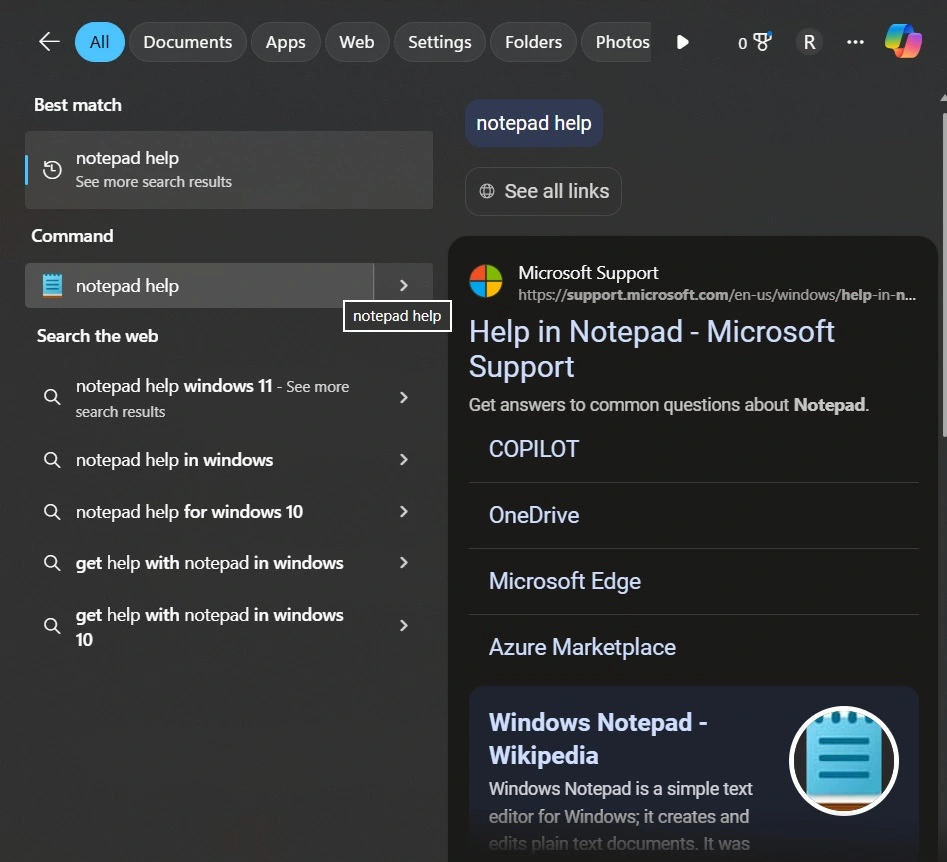
The search bar beside the Start button is the fastest way to look for answers. You can type simple phrases like “Notepad help” or “Notepad settings.” Windows will show suggestions from the system, help pages, and online links if your internet is active. This is often the first place new users should check.
2. The Notepad App Page in Settings
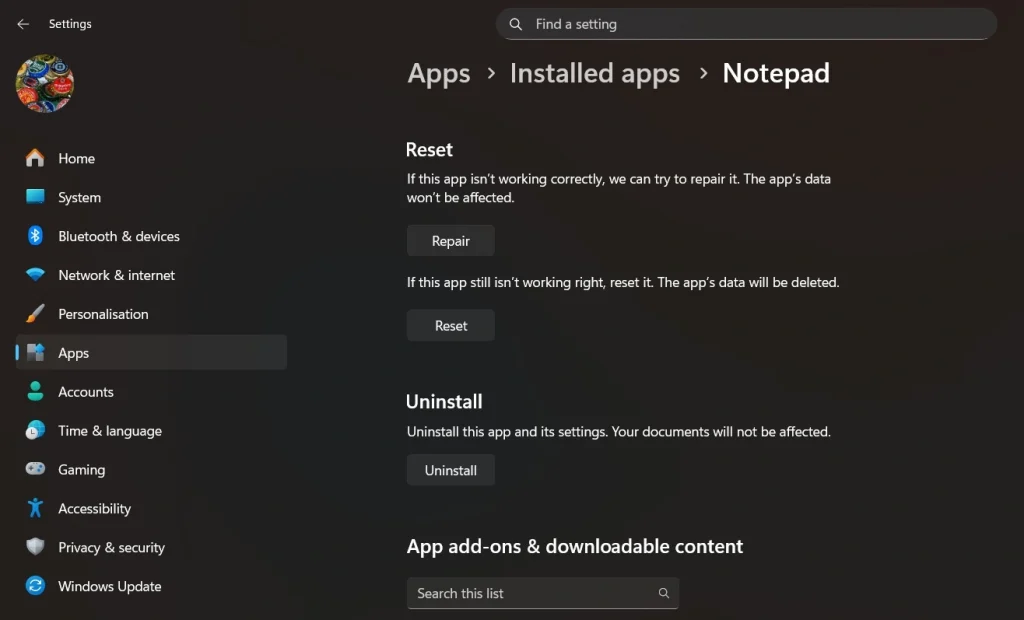
Open Settings and search for “Notepad.” This leads to the app settings page. Here you can reset the app, repair it, or open advanced options. Many users do not notice this page, but it solves a large number of problems. Resetting the app restores the default configuration without harming your files.
3. Microsoft Support Website
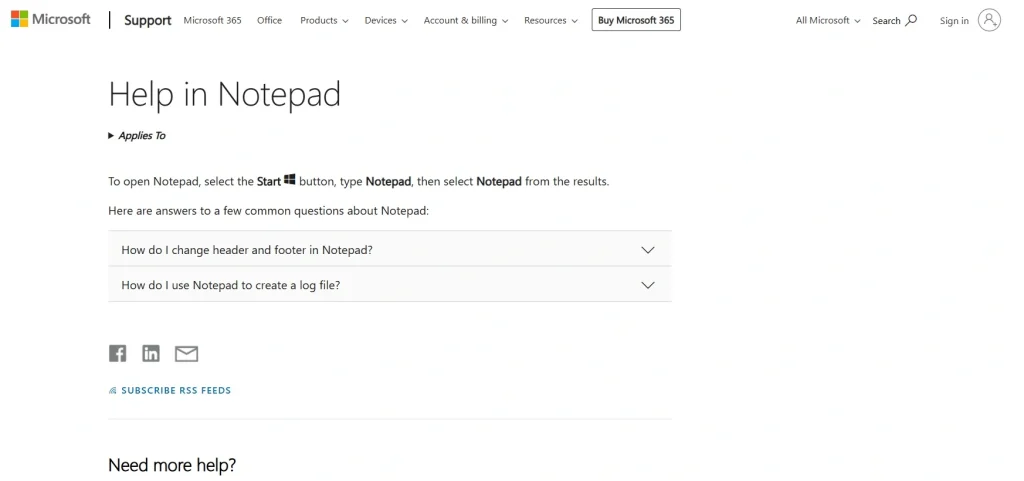
Microsoft Support includes step-by-step guides that explain common tasks. These pages are written for normal users, so the steps stay simple. If you need to understand new features or solve errors, this site is dependable. Most official articles include pictures that show where to click. If you want to get help with Notepad in Windows through trusted guidance, this site is often the best option.
4. Community Forums
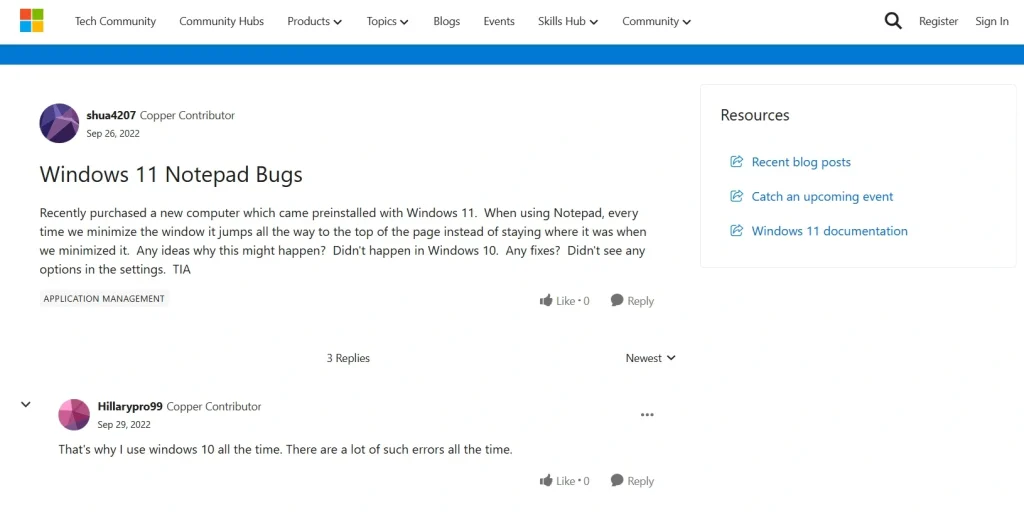
Microsoft Community and other user groups give answers from people who faced similar issues. If you describe your problem clearly, someone may provide a tested solution. Community answers are not official, but they can help you find steps that match real situations. Many users prefer this because real people share their experiences.
Part 3: Basic Fixes You Should Try First
Many common Notepad issues can be solved with simple actions. These steps take only a moment and solve most minor troubles before you turn to more complex solutions.
Step 1: Close and Reopen Notepad
This step refreshes the app and clears small memory faults. If your text is not showing properly or if the cursor is stuck, reopening usually solves the problem. It is surprising how often this works.
Step 2: Restart Your Computer
Restarting clears clogged memory and resets background processes. If Notepad keeps freezing or lags, a restart may resolve the issue. Many users skip this step, but it fixes a large number of software problems.
Notepad works best with small files. If you open a large log or data file, the app may slow down. You can split the file into smaller parts to open them more smoothly.
Open Settings and check for updates. New updates fix bugs and improve the Notepad app. If Notepad behaves strangely, an update may correct the issue.
In Settings, go to Apps> Installed Apps. Select Notepad. Scroll down and choose “Reset.” This clears old settings that may cause trouble. It does not delete your notes, but it restores the app to a clean condition.
Part 4: Easy Tips That Improve Your Work
Small habits can make your writing smoother and more organized. Below are two lists that show simple ways to manage your notes and edit faster.
A. Tips to Organize Your Writing
- Save each file with a clear name
- Create simple folder groups to hold your notes
These habits help you find files quickly and reduce confusion.
B. Tips to Edit Text Faster
- Use Find to jump to a word in long files
- Use Replace to update repeated words or lines
These quick steps help you move through tasks smoothly. If you want to get help with Notepad in Windows, it helps when you already understand these core editing tools.
Part 5: How To Use Tabs in Newer Versions
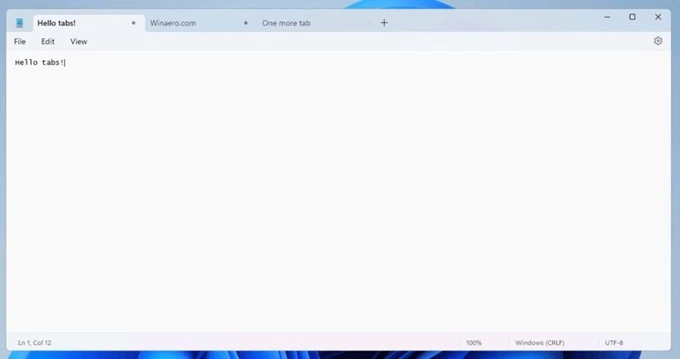
Tabs are one of the most useful upgrades in newer versions of Notepad. They allow you to open multiple files in a single window, reducing clutter and making it easier to switch between documents. With a simple shortcut like Ctrl + N, you can create a new tab and move between files quickly, which is especially helpful for comparing text or copying content across documents. Keeping everything in one place also prevents losing track of open files.
Managing tabs in Notepad is easy. You can close them with the X or drag to rearrange related files. This keeps projects organized, saves time, and prevents mistakes, making tabs a key feature for efficient work.
Part 6: How To Solve Encoding Issues
Encoding issues can confuse even experienced users. These problems appear when a file uses one format and Notepad reads it using another. The result is strange symbols, missing letters, or characters that do not match your language. It may look like the file is damaged, but in most cases, the fix is simple.
Encoding issues often happen when files use different text standards. The best fix is saving with UTF-8, which supports most languages and symbols.
If text looks wrong, try ANSI or UTF-16, especially for older files. Copying text into a blank Notepad file and saving it as UTF-8 also removes hidden formatting.
Part 7: Notepad Crashes and How To Handle Them?
Crashes are uncommon, but they can happen when a file is too large, when system settings break, or when updates cause conflicts. You can narrow down the cause by trying a few clear steps. These checks help you understand what went wrong and guide you toward the right fix.
Steps to Handle Crashes
- Open the file in another editor
Try WordPad or a code editor. If the file opens there, Notepad may be struggling with size or format. Break the file into smaller pieces if it is very long. - Check for Windows updates
Updates often correct bugs that appear after new releases. Install the latest patches and restart your system to clear older conflicts. - Repair or reset Notepad
Open Settings and search for Notepad. Choose Repair first. If the issue continues, choose Reset. This restores the app’s original setup without harming your saved files. - Create a new user profile
If crashes continue, your profile settings may be damaged. A new profile gives you a clean environment to test whether the issue is connected to your main account.
These simple checks solve most Notepad crash issues and help you return to your work with fewer interruptions.
Part 8: When To Look for Online Support?
Online support becomes helpful when your problem is unusual or when you cannot find clear steps in the built-in Windows help. Many sites offer guides, images, and videos that explain each step in a simple way. This is useful for visual learners.
Microsoft Support is the most reliable option. Articles there match your system and stay updated with new releases. They also provide instructions for rollback steps if a recent update created errors.
Tech communities are another useful source. People in these groups often test solutions and share practical experiences. You can search for your issue using short phrases and read through similar reports. You will usually find that someone has faced the same issue earlier and posted their solution.
Conclusion
Notepad remains a useful Windows tool because it loads quickly and stays simple to use. When you learn its features and follow the basic steps for fixing common issues, you can work with fewer delays and avoid unnecessary confusion. Keep your system updated, organize your files, and use tabs and encoding options when needed.
With these habits, you can handle small problems on your own and know how to get help with Notepad in Windows through built-in support and reliable guides.
FAQs
1. Why does my file show unreadable symbols or broken characters
This happens when the file uses a different encoding than the one Notepad expects. The text is still there, but Notepad cannot match each character to the correct symbol. Open the file, choose Save As, and test UTF-8 first because it supports most languages. If the symbols remain, switch to ANSI or UTF-16 and check the preview again. One of these options usually restores the text to its proper form without needing extra tools.
2. Why does Notepad slow down or stop responding when I open large files
Notepad is designed for small text files, so large logs or long data files can overload it. When the file grows too big, the app struggles to fit everything into memory and becomes slow or stuck. To handle such files, open them in WordPad or a code editor that supports large amounts of content. If you want to stay with Notepad, split the file into smaller parts so the app can load each section smoothly without freezing.
3. How can I reset Notepad when the layout looks wrong or features stop working
If the window layout changes by itself or features no longer respond, the app settings may be corrupted. Open Windows Settings, search for Notepad, and select the Reset option. This clears the damaged settings and returns the app to its original form while keeping your files safe. After the reset, reopen Notepad and test the feature again. Most layout and behaviour issues disappear after this quick repair.
Author Bio:
Dinesh Lakhwani 

Dinesh Lakhwani, the entrepreneurial brain behind “TechCommuters,” achieved big things in the tech world. He started the company to make smart and user-friendly tech solutions. Thanks to his sharp thinking, focus on quality and the motto of never giving up, TechCommuters became a top player in the industry. His commitment to excellence has propelled the company to a leading position in the industry.
Popular Post











Recent Post

What is Microsoft Autopilot Everything You Need To Know
Technology has changed the way companies manage computers. Well, yes! Employees now work from offices, homes, and remote locations. Setting up devices manually for every worker takes time and effort. It can also create mistakes that slow down productivity. This is where Microsoft Autopilot becomes useful. It helps businesses prepare and deploy Windows devices with […]

Enable Automatic Device Locking Feature Windows: Complete Guide
Introduction: Your computer stores important information such as emails, documents, passwords, and personal photos. Leaving it unlocked can put that data at risk. Thankfully, Windows includes built-in features that can automatically lock your device when you are away. Setting up automatic device locking is quick and does not require any extra software. In this guide, […]

How to Update Wireless Network Driver in Windows 11 and 10
Your Wi-Fi keeps dropping. Pages load slowly. The connection feels unstable? Well, you are not alone. Most of the time, the problem is not with your internet plan. It is with your wireless network driver. A driver is a small piece of software that helps your computer talk to its hardware. When it gets outdated, […]

Common Windows 11 Problems and Solutions (2026 Version)
Windows 11 has become more polished over the years, but it is still not completely free from problems. Even after regular updates from Microsoft, many users continue to face issues like lagging performance, failed updates, audio troubles, random crashes, and network errors. Some problems appear after installing new features, while others develop gradually as the […]

Fortect Driver Updater Review: Features, Steps, Pros, and Cons.
A new PC usually feels quick and responsive. Applications open instantly, games run smoothly, and everything works as expected. As time passes, however, you may notice slower performance, system crashes, hardware glitches, or devices that stop working properly. While many people assume malware or low storage space is to blame, outdated drivers are often the […]

New Features Coming in Windows 11 This Year [2026]
Microsoft is always working to make Windows better. This year is no exception. The company has announced and rolled out several exciting updates for its users. These updates touch almost every part of the operating system. From the Start menu to system settings, changes are arriving fast. If you use Windows daily, you will want […]

Top 14 Duplicate Photo Finder and Remover For Windows [2026]
Introduction: Photos pile up fast. Well, yes! You take ten shots of the same moment. You download the same image twice. You back up your folder and forget you already did it. Before you know it, your storage is packed with copies. A good duplicate photo finder helps you take back that space without losing […]
Advanced System Settings on Windows 11: Complete Guide
Windows 11 is a powerful operating system. It comes with many features that most users never explore. One of the most useful areas is the System Properties panel. This is where you can control how your computer performs, starts up, and handles memory. Many users only change basic settings like wallpaper or display options. But […]

21 Advanced Windows Security Settings: Latest Updates
Introduction: Your computer holds a lot of important data. From personal photos to work files, everything sits on your Windows system. That is why protecting it properly matters more than ever. Windows security settings have come a long way. Microsoft keeps adding stronger layers of protection with every update. Most users never go beyond the […]

Security Upgrades of Microsoft Windows in This Decade [Complete Guide]
Introduction Microsoft has been working hard to make Windows safer every year. Cyberattacks are growing fast. Hackers are smarter now. They target millions of Windows users every single day. That is why Microsoft has added many powerful new security upgrades of Microsoft Windows since 2020. These upgrades protect your data, your identity, and your device […]

