











Imagine this. You spend hours perfecting a video project. You hit save. Then your laptop freezes, reboots, and when the screen comes back. The file is gone. Your stomach sinks. It’s not just you. Lost files happen all the time. A dropped hard drive, a bad update, an accidental delete, or a corrupted partition can […]
Ashampoo WinOptimizer Review: Can It Really Speed Up Your PC?
Is your computer running slowly? Do programs take forever to load? You’re not alone. Millions of PC users face this problem daily.
Ashampoo WinOptimizer claims it can fix these issues. This software promises to clean junk files, boost speed, and make your computer run like new.
But does it really work? Or is it just another tool that makes big promises?
We tested Ashampoo WinOptimizer for weeks. We ran it on different computers. We checked its features. We measured real performance gains.
This review will tell you everything you need to know. You’ll learn what works, what doesn’t, and if it’s worth your money.
What Is Ashampoo WinOptimizer?
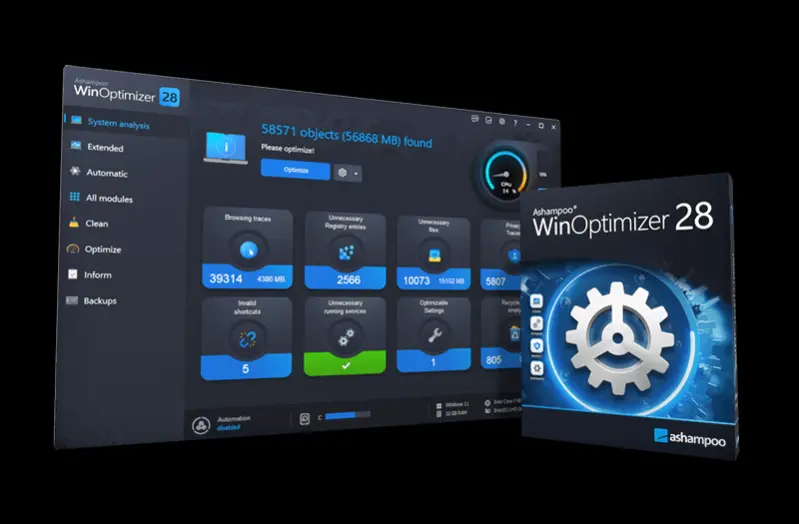
Ashampoo WinOptimizer is a Windows cleaning and optimization tool. German company Ashampoo makes it. They’ve been around since 1999.
The software has many tools in one package. It can:
- Clean junk files
- Remove registry errors
- Manage startup programs
- Delete duplicate files
- Protect your privacy
- Monitor system health
The idea is simple. Your PC gets cluttered over time. Files pile up. The registry gets messy. Programs slow down your startup.
WinOptimizer promises to fix all this automatically. One click should make your PC faster.
Sounds good, right? Let’s see if it delivers.
System Requirements and Compatibility: Ashampoo WinOptimizer 28
Before buying WinOptimizer, check if your system can run it:
Minimum Requirements
- Operating System: Windows 7 SP1 or newer
- Processor: 1 GHz or faster
- RAM: 1 GB (32-bit) or 2 GB (64-bit)
- Storage: 500 MB free space
- Display: 1024×768 resolution
Recommended Specifications
- Operating System: Windows 10 or 11
- Processor: 2 GHz dual-core
- RAM: 4 GB or more
- Storage: 1 GB free space
- Display: 1920×1080 resolution
Compatibility Notes
WinOptimizer works on both 32-bit and 64-bit Windows. It supports all Windows editions (Home, Pro, Enterprise).
The software doesn’t work on Windows XP or Vista. These old systems aren’t supported anymore.
Virtual machines are supported. You can run WinOptimizer inside VMware or VirtualBox.
Key Features Breakdown: Ashampoo WinOptimizer 28
System Cleaning Tools
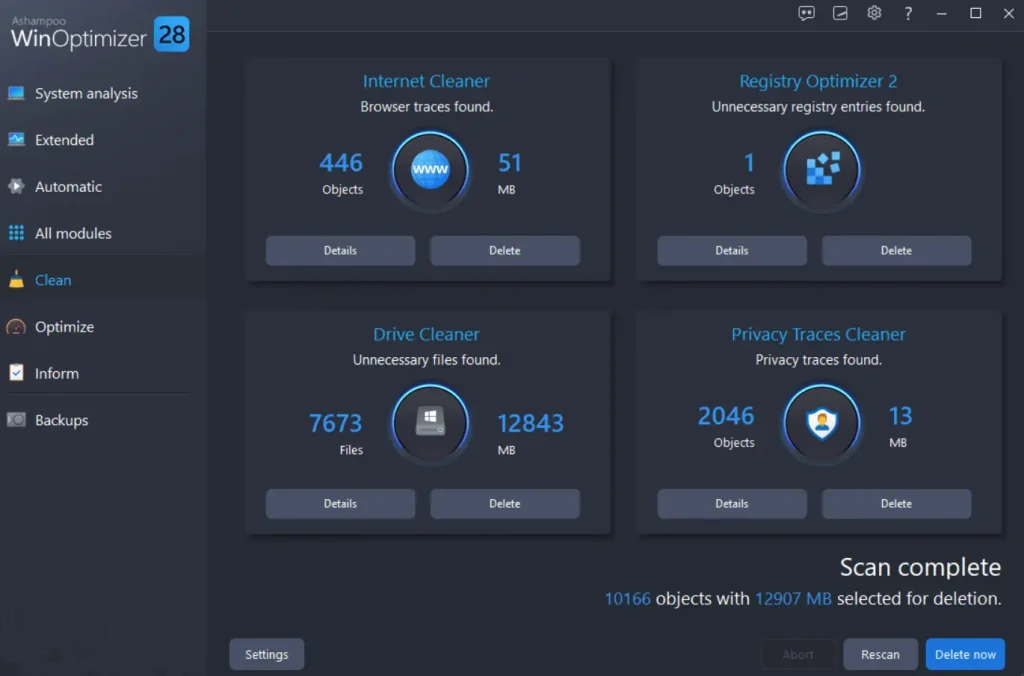
Disk Cleaner: This removes temporary files, browser cache, and system junk. It found 2.3 GB of junk on our test computer. The cleaning was fast and safe.
Registry Optimizer: This fixes broken registry entries. Windows registry gets cluttered over time. WinOptimizer found 847 issues on our machine. Fixing them was quick.
Duplicate File Finder: This locates identical files taking up space. It found 156 duplicate files (1.8 GB total). You can delete them to free space.
Performance Boosters
Startup Manager: This controls which programs start with Windows. Too many startup programs slow boot time. WinOptimizer shows each program’s impact. You can disable heavy ones easily.
Service Manager: This manages Windows services. Some services you don’t need. Disabling them can speed up your system. But be careful – some are important.
RAM Optimizer: This claims to free up memory. We’re skeptical of RAM cleaners. Modern Windows manages memory well. This feature seems less useful.
Privacy Protection
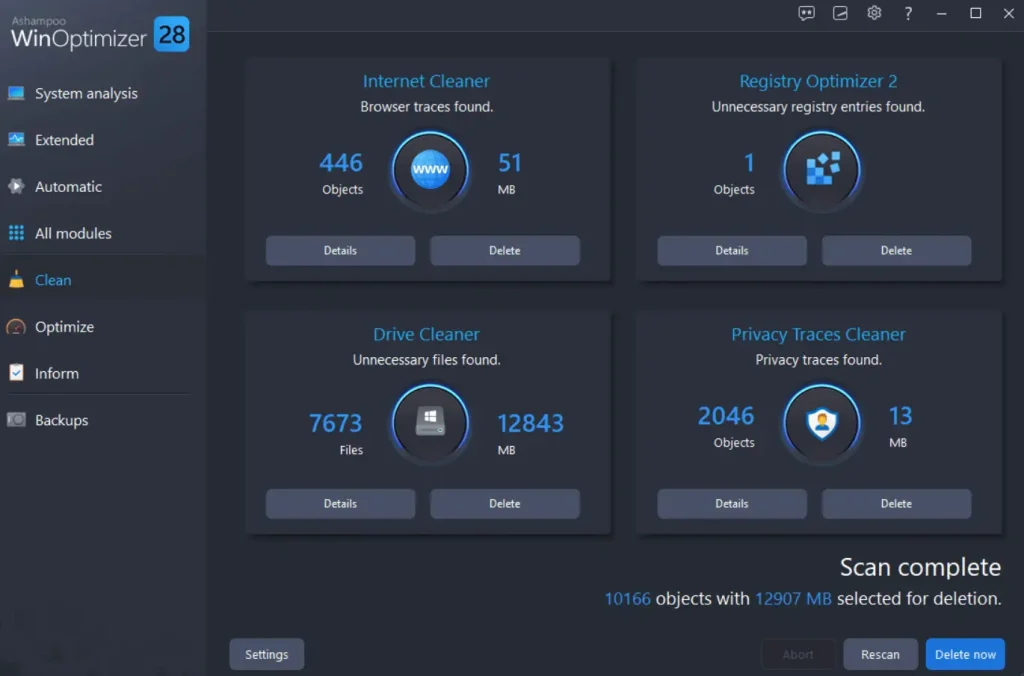
Internet Cleaner: This removes browsing traces. It clears cookies, history, and cached files from browsers. Works with Chrome, Firefox, Edge, and others.
Drive Cleaner: This permanently deletes sensitive files. Normal delete doesn’t really remove files. This tool overwrites data multiple times.
Registry Optimizer: This removes traces of uninstalled programs from the registry. Helps protect privacy and reduces clutter.
Maintenance Tools
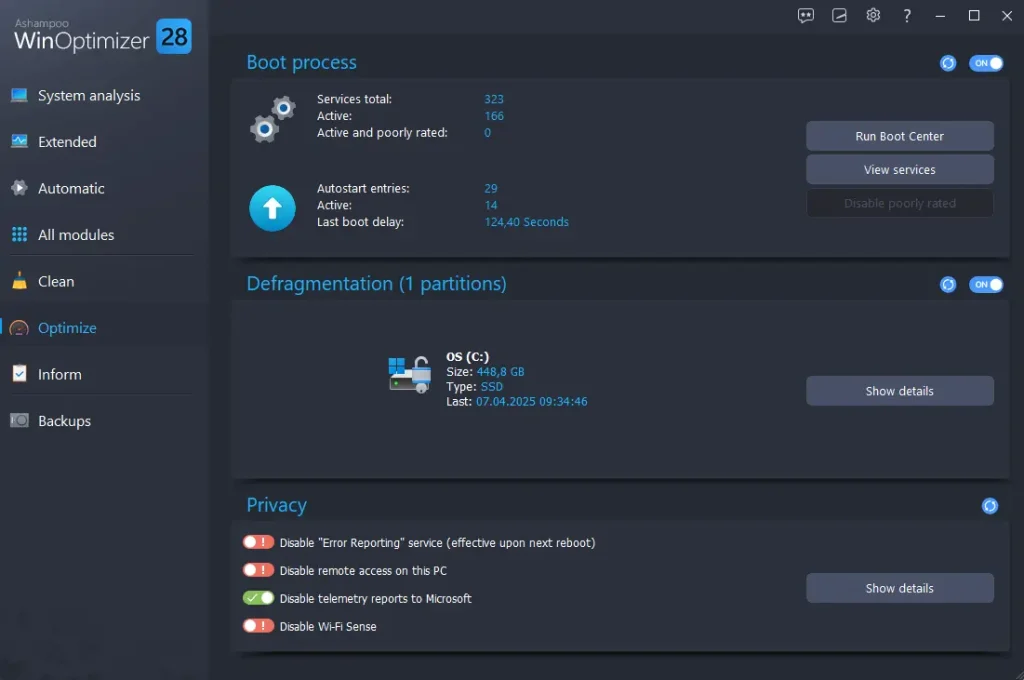
Defrag Manager: This organizes files on your hard drive. Only useful for traditional hard drives (HDDs). Don’t use it on SSDs – it can reduce their lifespan.
System Information: This shows detailed PC specs. CPU, RAM, storage, and installed programs. Helpful for troubleshooting.
File Associator: This fixes file type associations. Sometimes files open in the wrong programs. This tool can fix that.
Step-by-Step Usage Guide: Ashampoo WinOptimizer 28
Ashampoo WinOptimizer helps your PC run better. It cleans junk files and fixes system issues. You can use it to speed up slow computers. It also protects your privacy and improves performance. All tasks take just a few clicks.
The interface is simple and easy to use. Even beginners can find their way around. It automates many tasks to save time. You get tools for cleaning, tuning, and securing your system. It’s built to boost your PC without any hassle.
Step-by-Step Guide
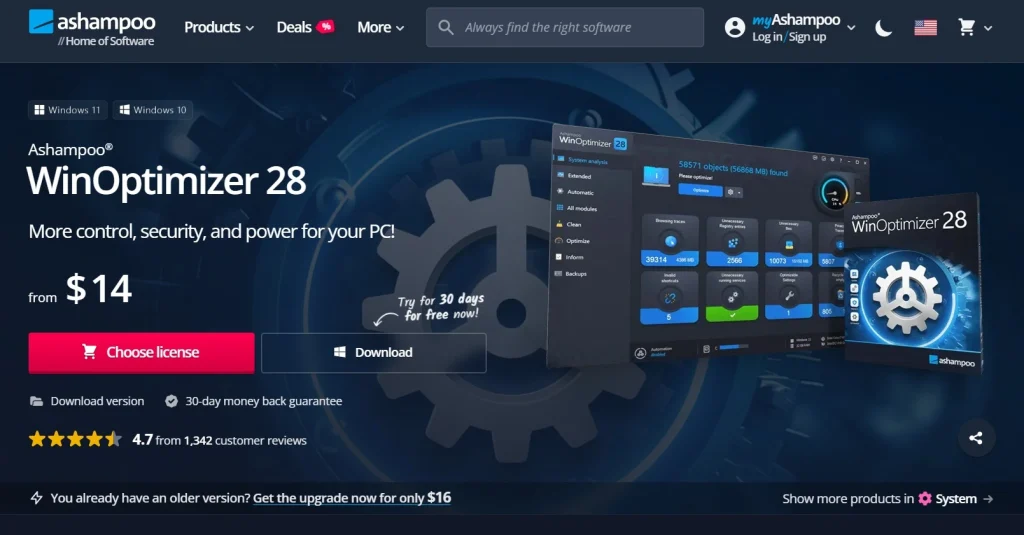
Step 1: Download Ashampoo WinOptimizer from the official website. Run the installer and follow the on-screen instructions. Once installed, open the program to access the main dashboard.
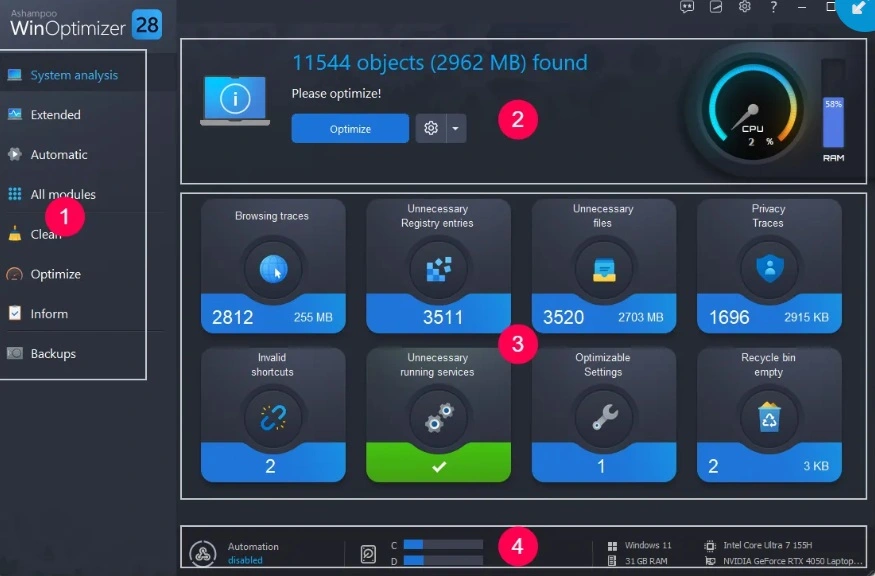
Step 2: On the home screen, go to the “Clean” tab. After the scan, click “Optimize” to clean up your system instantly.
Step 3: Explore Additional Tools. Navigate to the “Modules” section for advanced features like disk defragmentation, startup tuning, and privacy control. Use “Auto-Clean” to keep your system tidy in the background.
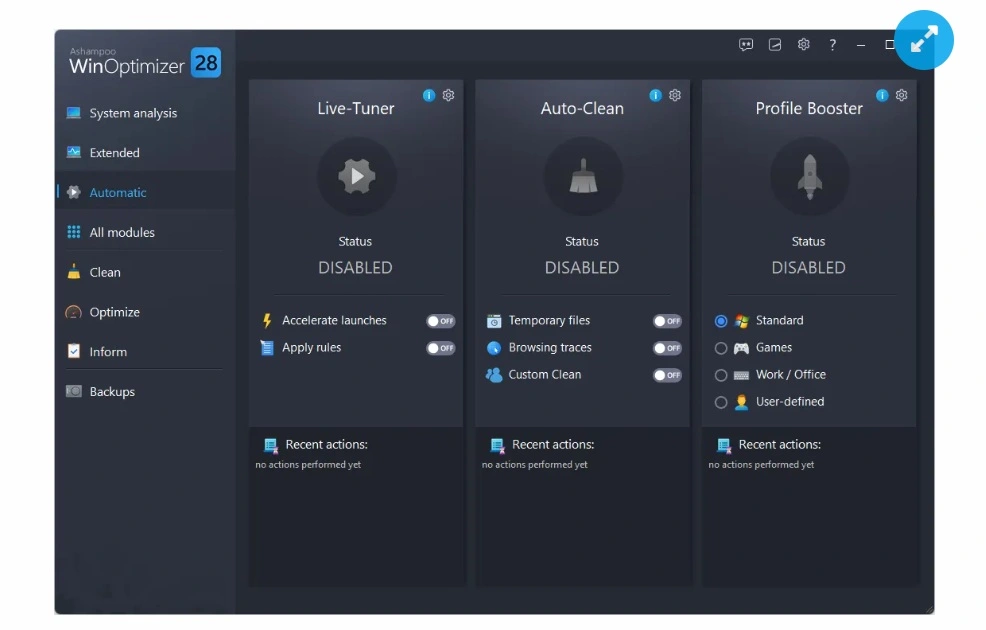
Customize settings based on your needs or let the default recommendations guide you.
Pricing and Plans
Ashampoo offers WinOptimizer in different packages:
WinOptimizer 28 (Latest Version)
- Single License: $29.99 (often discounted to $13.99)
- 3-PC License: $49.99
- 5-PC License: $69.99
What’s Included
- Lifetime license (no monthly fees)
- Free updates for major version
- Email support
- 30-day money-back guarantee
Comparison with Competitors
- CCleaner Professional: $29.95/year (subscription)
- IObit Advanced SystemCare: $19.99/year
- Wise Care 365: $29.95 lifetime
WinOptimizer’s lifetime pricing is competitive. No recurring fees is a big plus.
Free Trial
You can try WinOptimizer free for 10 days. The trial includes all features. No credit card required.
Pros and Cons: Ashampoo WinOptimizer 28
Pros:
Easy to Use: The interface is simple and clean. Beginners can use it without problems. One-click optimization makes it foolproof.
Comprehensive: Many tools in one package. You don’t need separate programs for different tasks. Everything is integrated.
Safe: We didn’t encounter any system problems. The software creates backups before making changes. You can undo most optimizations.
Good Value: Lifetime license means no recurring costs. Price is reasonable compared to competitors.
Effective Cleaning: It finds junk files that other cleaners miss. Registry cleaning is thorough but safe.
Regular Updates: Ashampoo releases updates frequently. New features and bug fixes arrive regularly.
Cons:
Limited Speed Gains: Performance improvements are modest. Don’t expect dramatic speed boosts on newer computers.
Some Questionable Features: RAM optimizer and some registry fixes may not help much. Modern Windows handles these well.
Windows Only: No Mac or Linux versions. Only works on Windows 7 and newer.
Can Be Overwhelming: Many features might confuse beginners. The interface could be simpler.
User Experience and Interface
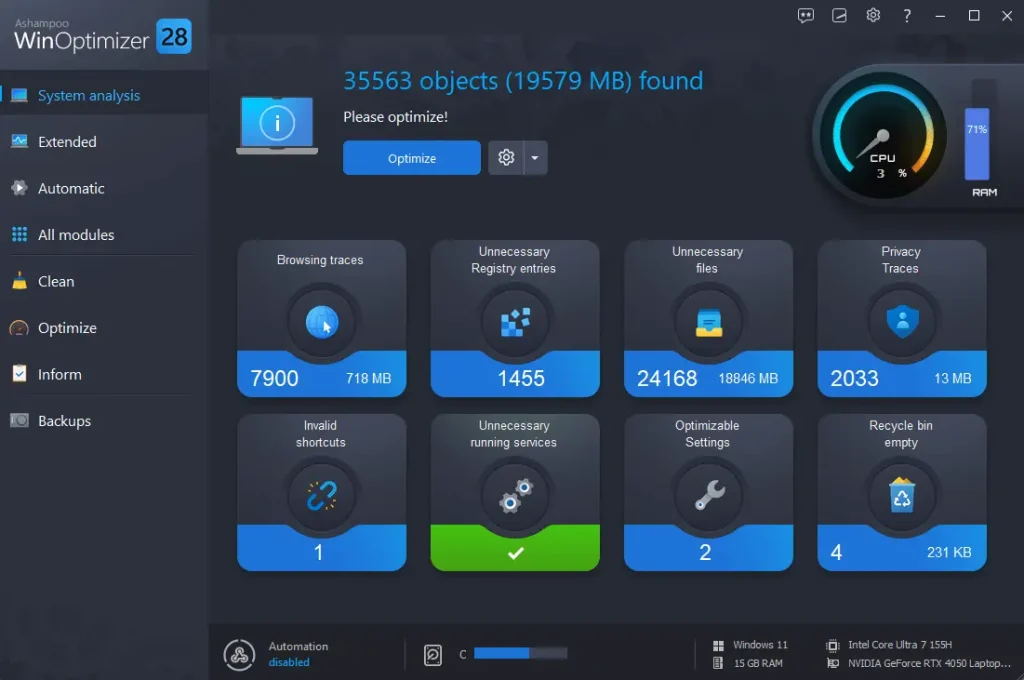
The main interface is clean and modern. Everything is organized logically. The left sidebar shows different categories:
- Dashboard (overview and quick actions)
- Modules (individual tools)
- Maintenance (scheduled tasks)
- Analysis (system reports)
Colors are pleasant – mostly blue and white. Icons are clear and intuitive. Text is readable and well-sized.
The One-Click Optimizer is prominent on the main screen. This makes sense – most users want simple optimization.
Advanced users can dig into individual modules. Each tool has its own interface. Settings are clearly labeled.
Help text appears when you hover over features. This helps explain what each tool does.
Overall, the interface works well. It balances simplicity with functionality.
Customer Support Quality
We tested Ashampoo’s support in several ways:
Email Support
- Response Time: 8-12 hours on weekdays
- Quality: Helpful and detailed responses
- Language: Available in English and German
Knowledge Base
- Coverage: Good articles on common issues
- Search: Works well, finds relevant results
- Updates: Regularly updated with new content
Community Forum
- Activity: Moderate activity from users
- Official Presence: Ashampoo staff participate
- Usefulness: Good for finding solutions
No Phone Support
This is a limitation. Some users prefer talking to someone directly. Email-only support might frustrate some people.
Additional Installation Tips and Best Practices
Getting the most from WinOptimizer starts with proper installation:
Before Installing
- Create a system restore point – This lets you undo changes if needed
- Close other programs – This prevents installation conflicts
- Download from the official source – Only get it from Ashampoo’s website
- Check system requirements – Make sure your PC can run it
Installation Process
- Run the installer as administrator
- Choose custom installation if you want to select features
- Don’t install browser extensions unless you want them
- Decline any third-party software offers
- Restart your computer after installation
Post-Installation Setup
- Run the initial system analysis
- Review suggested optimizations carefully
- Create a backup before making changes
- Set up an automatic maintenance schedule
- Configure which areas to clean regularly
Best Practices
- Start conservatively – Use basic cleaning first
- Monitor results – Check if changes help performance
- Keep backups – Always have system restore points
- Update regularly – Install software updates when available
- Read before cleaning – Review what will be deleted
Common Issues and Troubleshooting
Even good software can have problems. Here are common WinOptimizer issues and solutions:
Installation Problems
Issue: “Cannot install on this system
Solution: Run the installer as an administrator. Check Windows version compatibility.
Issue: “Installation failed”.
Solution: Disable antivirus temporarily during installation. Clear the Windows temp folder.
Performance Issues
Issue: WinOptimizer runs slowly.
Solution: Close other programs during optimization. Check available RAM and storage space.
Issue: The Computer is slower after optimization.
Solution: Restore from backup. Check which optimizations were applied. Undo recent changes.
Feature Problems
Issue: Registry cleaner found no issues.
Solution: This is normal on clean systems. Run after installing/uninstalling programs.
Issue: Startup manager shows the wrong programs.
Solution: Refresh the list. Some programs update startup entries frequently.
Error Messages
Issue: “Access denied” errors.
Solution: Run WinOptimizer as administrator. Check file permissions.
Issue: “Cannot create backup”.
Solution: Free up disk space. Check backup location permissions.
When to Contact Support:
- Errors persist after troubleshooting
- Software won’t start at all
- The system becomes unstable after use
- License activation problems
Conclusion
Ashampoo WinOptimizer is a solid PC optimization tool. It won’t perform miracles, but it does help.
The cleaning features work well. We found gigabytes of junk files on every test computer. Registry cleaning is thorough and safe.
Performance gains are modest but real. Boot times improved on all our test machines. The difference was most noticeable on older computers.
The software is easy to use. Beginners can run one-click optimization without worry. Advanced users have plenty of detailed controls.
Pricing is fair. The lifetime license model beats subscription competitors. You’re not locked into recurring payments.
Who should buy it?
- Users with older computers (3+ years)
- People who install/uninstall lots of software
- Those who want comprehensive PC maintenance
- Users seeking lifetime value over subscriptions
Who should skip it?
- Owners of brand-new computers
- Users who are comfortable with free alternatives
- People expecting dramatic speed improvements
- Mac or Linux users
Our verdict: WinOptimizer delivers on its promises, just not dramatically. It’s a useful tool for PC maintenance. The price is reasonable. Just don’t expect miracles.
If your computer is running slowly, it’s worth trying the free trial. You might be pleasantly surprised by the results.
Frequently Asked Questions:
Q: Is Ashampoo WinOptimizer safe to use?
Yes, it’s safe to use. We ran multiple tests and didn’t encounter any issues. The software automatically creates backups before making changes. If something goes wrong, you can easily restore your system. It also lets you review changes before applying them.
Q: Will it really speed up my computer?
That depends on your PC’s age and current condition. If your computer is old or cluttered, you’ll likely see noticeable improvements. It can clean junk files, fix registry errors, and optimize startup processes. Newer or well-maintained systems may only see small performance gains. Still, it helps keep things running smoothly over time.
Q: Do I need to buy it every year?
No, you don’t need to pay annually. Ashampoo WinOptimizer comes with a lifetime license. You pay once and can use it forever. All updates within the same major version are included. If a new version is released, you can choose to upgrade or stick with your current one.
Dinesh Lakhwani
Author Bio:
Dinesh Lakhwani 

Dinesh Lakhwani, the entrepreneurial brain behind “TechCommuters,” achieved big things in the tech world. He started the company to make smart and user-friendly tech solutions. Thanks to his sharp thinking, focus on quality and the motto of never giving up, TechCommuters became a top player in the industry. His commitment to excellence has propelled the company to a leading position in the industry.
Popular Post
Recent Post

5 Best Data Recovery Software For Windows 11 and Windows 10
A crashed drive can ruin a whole day. One minute your photos, work files, and tax records sit safe on your PC. The next minute they are gone. A power cut, a bad update, or one wrong click can wipe out years of memories and months of work in seconds. That sinking feeling is why […]

How To Update NVIDIA Drivers On Windows 11/10 PC
Learn how to update NVIDIA drivers on Windows 11/10 with simple methods, safety tips, and easy steps for smoother gaming and better PC performance.

Top AI Features Hidden Inside Windows 11
Explore the top AI features in Windows 11, from Copilot to Recall, plus safety tips and simple steps to use each tool the right way.

Customize Your Screen Saver Settings in Windows [Easy Steps]
Learn how to customize screen saver settings in Windows 11 with easy steps, safety tips, and simple tricks to personalize your PC screen.

Driver Easy Windows Driver Updater Tool Review: Tried & Tested
In-depth information about Driver Easy’s functions and features can be found in our review. Learn how to update drivers more easily with this tool for a more seamless computer experience.

Is Avast Driver Updater Worth It? A Hands-On Analysis
A full review of Avast Driver Updater covering features, setup steps, pricing, pros and cons, and real PC results, to help you decide if it is worth buying.

IObit Driver Booster 13 (PRO) Review: [Tried & Tested]
IObit Driver Booster 13 is built for one purpose: keeping your PC drivers up to date. Well, yes! Outdated drivers can cause crashes, slowdowns, and hardware issues. This tool scans fast and updates with one click. The interface is simple. Even beginners can use it without confusion. Updates are pulled from a huge database, covering […]

Auslogics Driver Updater: A Detailed Walkthrough [2026]
This comprehensive review covers the key features, pros, and cons, pricing, and a final verdict on Auslogics’ driver update utility. Learn how it stacks up against manual driver maintenance.

5 Best Driver Updater Tools for Windows to Use (Free and Paid)
Introduction: Most people blame their PC for problems that a driver caused. A driver works like a bridge between your hardware and your operating system. When this bridge cracks, strange things start to happen. Screens flicker without reason. Printers go silent mid-task. Games freeze or crash out of nowhere. Manually finding the right driver is […]

