











Imagine this. You spend hours perfecting a video project. You hit save. Then your laptop freezes, reboots, and when the screen comes back. The file is gone. Your stomach sinks. It’s not just you. Lost files happen all the time. A dropped hard drive, a bad update, an accidental delete, or a corrupted partition can […]
How To Screen Record in Windows 11 Laptop/PC [Complete Guide]
Screen recording has become a common need today. People use it to share tutorials, record gameplay, or save online meetings. With a few clicks, you can capture everything on your display. This makes it easier to explain ideas, create lessons, or keep a copy of something important.
If you have ever asked how to record your screen on Windows or how to record your computer screen, you are not alone.
Many people look for simple ways to do this. Windows 11 gives you built-in tools. You can also use apps that add more features. Screen recording in a laptop or PC is easy once you learn the basic steps.
Precautions to Take: Recording Screen on Windows
Before you begin, it is smart to take some precautions. These steps will help you record smoothly and keep your system safe.
- Close personal or private files you do not want to appear.
- Check if your PC or laptop has enough free disk space.
- Adjust the microphone and camera settings before recording.
- Turn off notifications to avoid sudden pop-ups.
- Keep your laptop charged or connect to power.
- Test audio quality if you plan to record voice or system sound.
- Use a stable internet connection for online meetings.
- Save all your ongoing work before starting the recording.
How to Record Your Screen on Windows PC
If you wonder how to screen record on laptop or how to screen record on a PC, there are many ways. You can use built-in Windows tools or install other apps. Here are the three most trusted methods.
Method 1: Use Xbox Game Bar
The Xbox Game Bar is a built-in tool in Windows 11. Many people use it to record games, but it works for any app or program on your PC. It does not need extra downloads, which makes it very quick and easy. This is a good option if you want to know how to record your computer screen without installing software.
The tool lets you record in high quality and also capture system audio or your microphone. You can even take screenshots while recording. Files are saved directly to your computer, so you can access them right away. For most people asking how to record your screen on Windows, this is the fastest way.
Step 1. Press Windows Key + G to open the Xbox Game Bar.
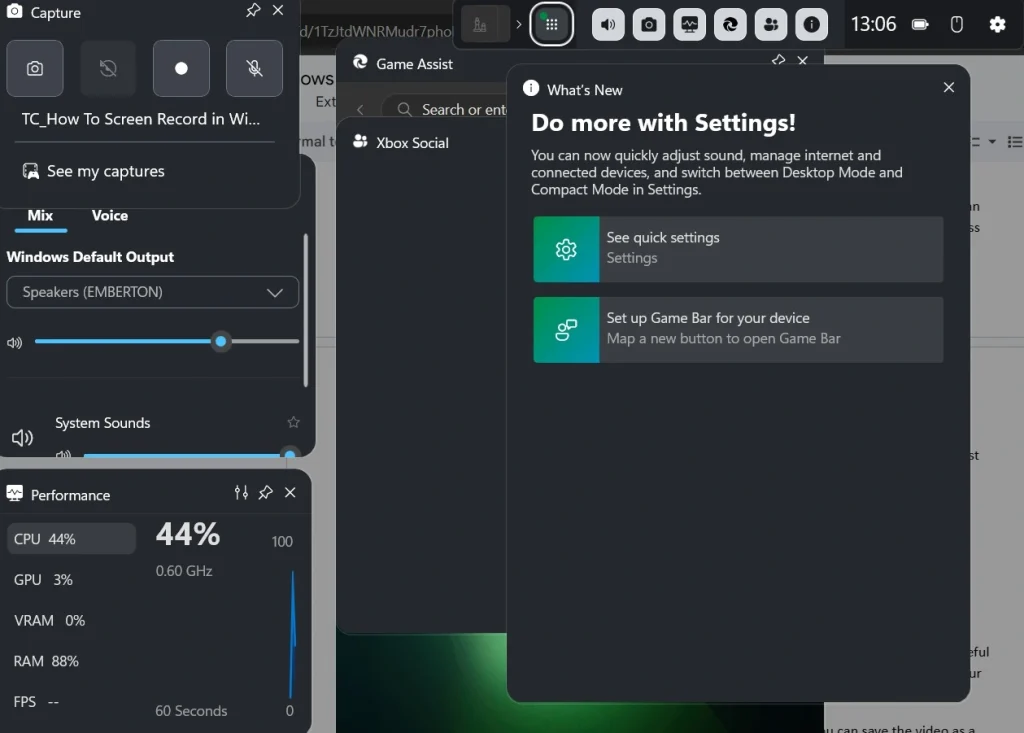
Step 2. Click the white record button, or press Windows Key + Alt + R to start.
Method 2: Use Microsoft PowerPoint
PowerPoint has a screen recording feature that many people do not know about. It is a hidden but useful tool for teachers, trainers, and anyone making presentations. With this option, you can record your computer screen and then place the video right inside your slide.
It is simple to use and works well for short recordings. After recording, you can save the video as a separate file. This makes it useful when you want to share or upload it outside of PowerPoint. For users searching how to record your screen on Windows for work or study, this method is very effective.
Step 1. Open PowerPoint and go to Insert > Screen Recording.
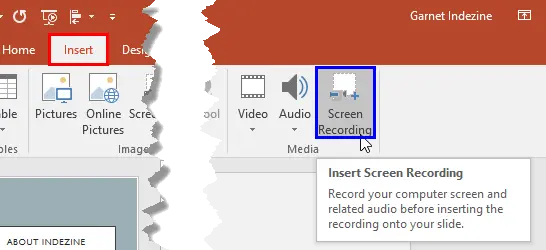
Step 2. Select the part of the screen you want to capture, then click record.
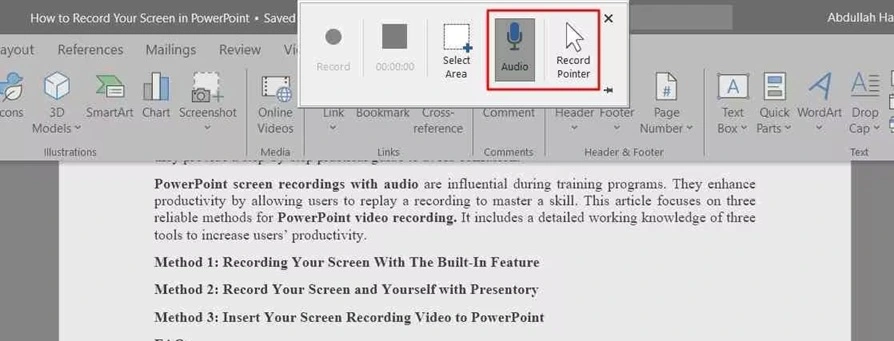
Method 3: Use Third-Party Software
Sometimes you need more control than built-in tools provide. This is when third-party software helps. Apps like OBS Studio, Bandicam, or Camtasia give more options, such as editing, screen overlays, and flexible file formats. These tools are popular with gamers, YouTubers, and professionals.
They are also good for long recordings because they do not stop after a set time. You can record with multiple audio sources and choose different screen areas. If you want advanced features, this is the best answer for how to screen record on Windows or how to record on PC.
Step 1. Download and install a trusted app like OBS Studio.
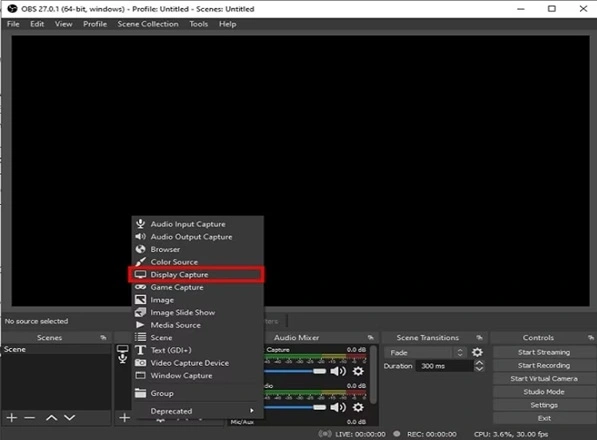
Step 2. Choose the screen area, audio, and video settings, then click record.
Method 4: Use Snipping Tool
Windows 11 has updated the Snipping Tool. It is not only for screenshots anymore. The latest version also allows you to record your computer screen. This feature is simple and built into the system, so you do not need to install anything new.
It works well for quick recordings and short clips. You can choose part of your screen and record without opening heavy apps. If you often ask how to screen record on a laptop without extra tools, this method is perfect.
Step 1. Open Snipping Tool from the Start menu.
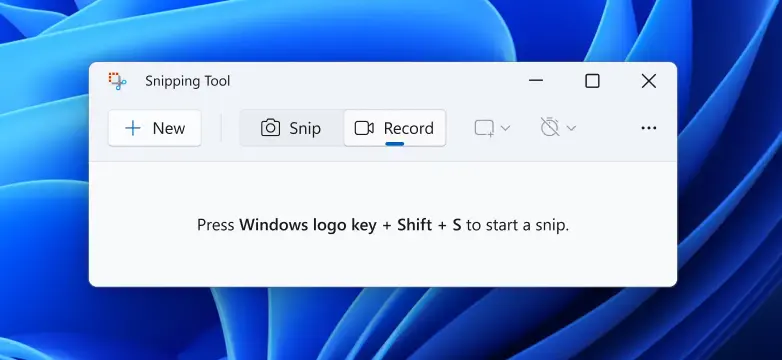
Step 2. Click on the record button, select your area, and press start.
Author’s Tip
When you record your screen, keep recordings short. A ten-minute video is easier to manage than an hour-long one. Short clips are also easier to share online.
Pay attention to the audio. Viewers can forgive poor video quality, but unclear sound is harder to follow. If your microphone is weak, add subtitles. This keeps your recording useful.
Organize your files. Rename each saved recording with a clear title and date. This makes it simple to find them later, especially if you make many screen recordings on Windows.
Common Problems When Recording Screen on Windows
When learning how to record your screen on Windows, you may face a few small issues. These are normal and easy to fix.
- No Sound Recorded – Check your microphone or system audio settings. Make sure the correct device is selected.
- Low Video Quality – Adjust the settings in Xbox Game Bar or the app you use. Higher quality gives better results but needs more storage.
- Recording Stops Suddenly – This can happen if your PC runs out of space or memory. Close other apps before recording.
- App Not Recording – Some apps, like certain system windows, cannot be recorded with Xbox Game Bar. In such cases, try PowerPoint or third-party software.
- Video Not Saving – Always stop the recording properly. If files are missing, check the Captures folder or your chosen save location.
These problems are common but not hard to solve. Once fixed, you can record smoothly.
Best Uses of Screen Recording in Laptop or PC
Screen recording in laptop or PC is more than just capturing games. It can help in many parts of daily life.
- Online Classes – Students and teachers can record lessons to watch later.
- Work Meetings – Record meetings on your PC to keep notes and details.
- Tutorials – Show others how to do something by recording your computer screen.
- Gaming – Share your gameplay with friends or upload it online.
- Tech Support – Record a problem on your screen to show it to support staff.
If you often ask how to record your computer screen, think of these uses. It saves time and makes sharing information easier.
Conclusion
Learning how to record your screen on Windows does not take much time. Once you know the methods, you can do it in minutes. Xbox Game Bar, PowerPoint, and third-party apps all work well.
If you are searching how to screen record on Windows or how to record on PC, these options will guide you. Each method fits a different need, from simple capture to advanced editing.
Screen recording on a laptop or PC is no longer difficult. With these tools, you can create tutorials, record meetings, or share gameplay with ease. Start with one method today and see how simple it feels.
FAQs
Q1. Can I record my full screen in Windows 11?
Yes, you can record the full screen. Xbox Game Bar lets you record games or apps in full view. PowerPoint allows you to capture the whole display as well. Third-party apps like OBS Studio give even more control. These are the best choices when you want the complete screen recorded without missing any part.
Q2. Why is my screen recording not saving?
Sometimes the recording does not save because of low storage or app errors. Xbox Game Bar saves files in the Captures folder, but if your disk is full, the video will not appear. Another issue is closing the app too soon. Always stop the recording properly and wait for it to save. Check your folders before recording again to avoid losing your work.
Q3. Can I record with sound in Windows 11?
Yes, you can record with sound. Xbox Game Bar has settings for the microphone and system sound. PowerPoint also records with audio if enabled. Third-party apps let you select both the microphone and the system input at the same time. This is very useful for tutorials, meetings, and gameplay. Always check sound levels before you start.
Dinesh Lakhwani
Author Bio:
Dinesh Lakhwani 

Dinesh Lakhwani, the entrepreneurial brain behind “TechCommuters,” achieved big things in the tech world. He started the company to make smart and user-friendly tech solutions. Thanks to his sharp thinking, focus on quality and the motto of never giving up, TechCommuters became a top player in the industry. His commitment to excellence has propelled the company to a leading position in the industry.
Popular Post
Recent Post

5 Best Data Recovery Software For Windows 11 and Windows 10
A crashed drive can ruin a whole day. One minute your photos, work files, and tax records sit safe on your PC. The next minute they are gone. A power cut, a bad update, or one wrong click can wipe out years of memories and months of work in seconds. That sinking feeling is why […]

How To Update NVIDIA Drivers On Windows 11/10 PC
Learn how to update NVIDIA drivers on Windows 11/10 with simple methods, safety tips, and easy steps for smoother gaming and better PC performance.

Top AI Features Hidden Inside Windows 11
Explore the top AI features in Windows 11, from Copilot to Recall, plus safety tips and simple steps to use each tool the right way.

Customize Your Screen Saver Settings in Windows [Easy Steps]
Learn how to customize screen saver settings in Windows 11 with easy steps, safety tips, and simple tricks to personalize your PC screen.

Driver Easy Windows Driver Updater Tool Review: Tried & Tested
In-depth information about Driver Easy’s functions and features can be found in our review. Learn how to update drivers more easily with this tool for a more seamless computer experience.

Is Avast Driver Updater Worth It? A Hands-On Analysis
A full review of Avast Driver Updater covering features, setup steps, pricing, pros and cons, and real PC results, to help you decide if it is worth buying.

IObit Driver Booster 13 (PRO) Review: [Tried & Tested]
IObit Driver Booster 13 is built for one purpose: keeping your PC drivers up to date. Well, yes! Outdated drivers can cause crashes, slowdowns, and hardware issues. This tool scans fast and updates with one click. The interface is simple. Even beginners can use it without confusion. Updates are pulled from a huge database, covering […]

Auslogics Driver Updater: A Detailed Walkthrough [2026]
This comprehensive review covers the key features, pros, and cons, pricing, and a final verdict on Auslogics’ driver update utility. Learn how it stacks up against manual driver maintenance.

5 Best Driver Updater Tools for Windows to Use (Free and Paid)
Introduction: Most people blame their PC for problems that a driver caused. A driver works like a bridge between your hardware and your operating system. When this bridge cracks, strange things start to happen. Screens flicker without reason. Printers go silent mid-task. Games freeze or crash out of nowhere. Manually finding the right driver is […]

