












Introduction: On tech forums, you’ll often see posts like this: “I connected my pen drive to my laptop this morning, but the folder was empty. All my college project files had vanished. I don’t have a backup. Can someone help me?” Stories like this are very common. Pen drives, USB drives and SD cards are […]
10 Most Lightweight Android Emulators For Windows 11/10 & Mac
Lightweight Android emulators are software applications that replicate the Android operating system on a computer. They let users run Android apps and games on their PC or laptop without an actual Android device, and the intention behind creating these emulators is to provide a smooth emulation experience while utilizing the minimum amount of CPU, memory, and disk space.
For Android emulators, there are lots of options on the market that may be tailored to each user’s specifications. The best 10 lightweight Android emulators will be looked at here, along with a detailed description and analysis of each.
How to Choose the Best Android Emulator
Choosing the right Android emulator means balancing performance, compatibility, and ease of use. Emulators vary in speed, resource demands, and features that matter for gaming, app testing, or general use. A good choice fits your system’s power, supports the Android version you need, and runs smoothly without lag. The following points help you pick the best emulator for your needs.
- System Requirements: Choose an emulator that works well with your CPU, RAM, and GPU. Lightweight options need less hardware power.
- Performance and Speed: Look for fast load times and smooth gameplay. Emulators that optimize for speed run better on older machines.
- Android Version Support: Newer Android versions offer better app compatibility. Check the version the emulator uses.
- Features for Gaming: If you play games, consider keyboard mapping, multi-instance support, and frame rate controls.
- User Interface Simplicity: A clean and intuitive interface makes setup and use easier, especially for new users.
- App Compatibility: The best emulators run a wide range of apps without crashes or glitches.
- Resource Usage: Lightweight emulators use less RAM and battery, reducing system strain during use.
- Updates and Support: Regular updates fix bugs and improve compatibility. Good support helps if issues arise.
Top 5 Android Emulators for Windows and Mac
Here is a comparison of five widely used Android emulators chosen for performance, features, and overall experience. This table highlights key differences to help you decide which suits your needs best.
| Feature / Emulator | BlueStacks | Nox Player | MEmu Play | LDPlayer | Genymotion |
| Performance | High but heavier | Good for mid-range systems | Fast and optimized | Smooth, fast for games | Moderate, more for testing |
| System Requirements | Moderate to high | Moderate | Low | Moderate | Variable by setup |
| Android Version Supported | Latest versions | Recent versions | Recent versions | Recent versions | Custom Android images |
| Gaming Features | Great controls, scripting | Strong mapping tools | Good FPS support | Excellent gaming tools | Limited gaming focus |
| User Interface | Clean and modern | Simple and customizable | User-friendly | Lightweight and clear | Professional interface |
| Multi-Instance Support | Yes | Yes | Yes | Yes | Yes |
| Mac Support | Yes | Limited | No official | No official | Yes |
| Best For | Gamers and general use | Gamers and casual users | Low-end systems | Game-focused performance | App developers and testers |
BlueStacks offers wide compatibility and strong gaming features. Nox Player blends performance with customization. MEmu Play runs well on systems with limited hardware. LDPlayer targets gamers with smooth frame rates and controls. Genymotion stands out for developers needing testing environments.
Top 10 Lightest Android Emulators for Windows 11, Windows 10, and Mac
1. BlueStacks
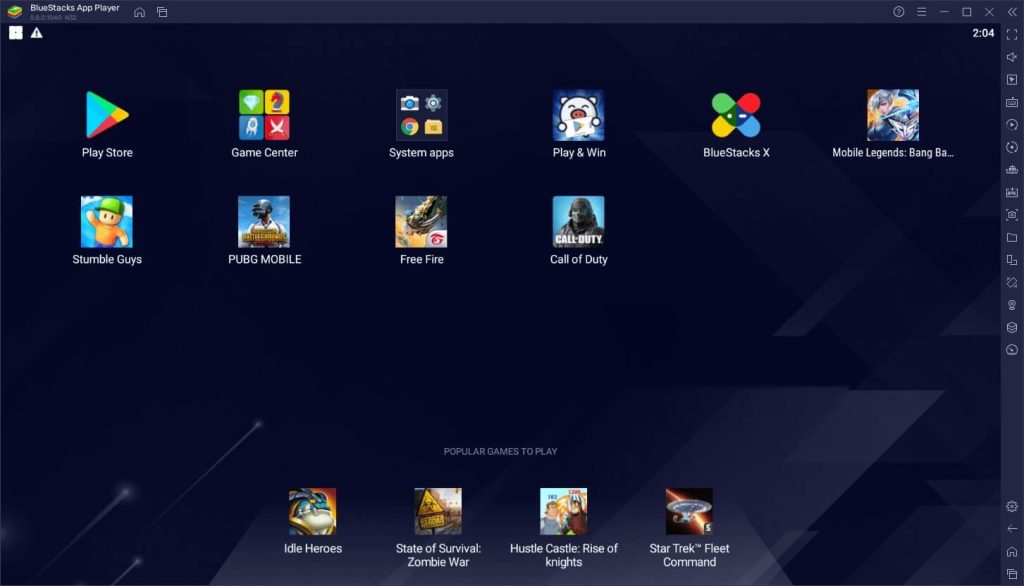
BlueStacks is a widely used Android emulator. It boasts a user-friendly interface and seamless compatibility with both Mac and Windows operating systems and is one of the most lightweight Android emulators. It is a flexible tool that functions well with both productivity and gaming applications. Apart from its intuitive UI, BlueStacks offers an all-inclusive platform that allows users to access and operate their preferred Android applications on their laptop or desktop computer.
BlueStack’s seamless integration with both Windows and Mac operating systems ensures that users can enjoy a consistent and reliable experience across different platforms.
Features:
- Multi-instance support for running multiple apps simultaneously.
- Keymapping for enhanced gaming experience.
- Integration with Twitch for live game streaming.
- Robust compatibility with a wide range of Android apps and games.
Pros:
- Smart user interface contributing to ease of use.
- High performance and stability for all kinds of purposes.
- Seamless synchronization with Android devices.
- Regular updates and optimization for new games.
Cons:
- Requires a relatively higher system configuration.
- Occasional compatibility issues with certain apps.
Compatibility: Windows & Mac.
2. Nox Player
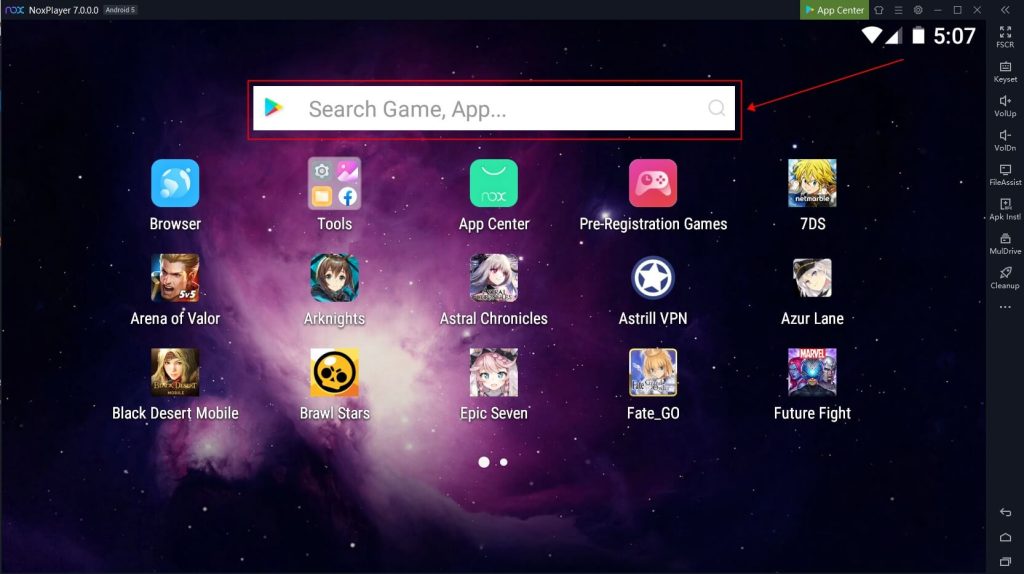
Among the lightest Android emulators, made especially for gaming, Nox Player stands out for providing a smooth and responsive gaming experience. With its cutting-edge features and customizable options, it meets the needs of gamers and gives them a platform to improve their desktop or laptop gaming experiences.
Since Nox Player places a strong emphasis on gaming optimization, users can be guaranteed a smooth and immersive gaming experience, making it a top option for gamers. With its user-friendly interface and robust performance, Nox Player continues to gain traction as a go-to emulator for individuals seeking a seamless gaming experience on non-mobile platforms.
Features:
- Built-in macro recorder for creating complex scripts and automating tasks.
- Support for gamepad and controller configurations.
- Root access for advanced customization and system-level tweaks.
- Compatibility with both Intel and AMD processors.
Pros:
- Outstanding frame rates and performance in games.
- Multiple Android instances may be run using a multi-instance manager.
- Customizable CPU and RAM allocation for enhanced performance.
- Regular updates and bug fixes.
Cons:
- Ad-supported interface in the free version.
- Limited support for productivity apps compared to gaming.
Compatibility: Windows & Mac.
3. MEmu Play
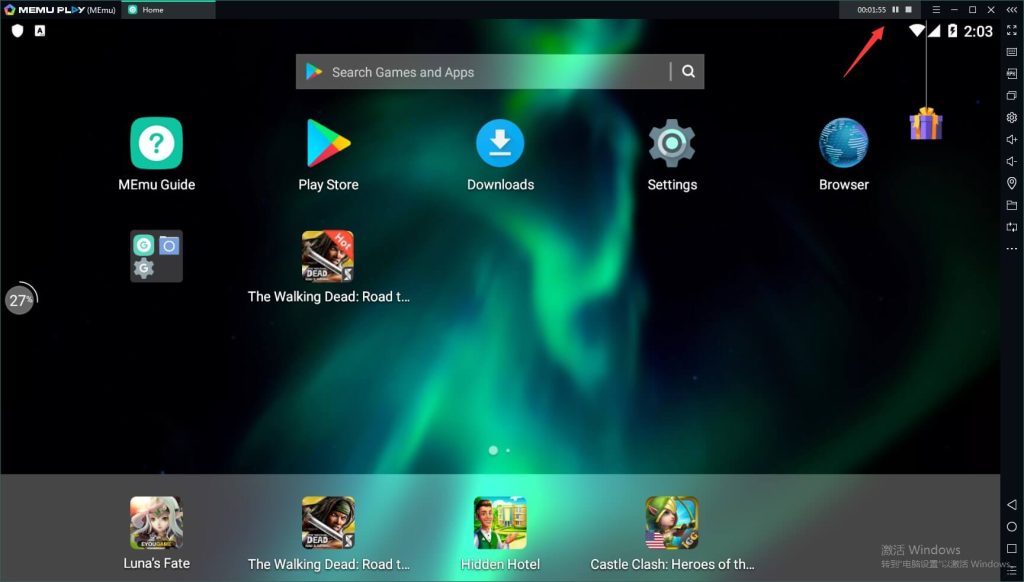
MEmu Play is a feature-rich, lightweight Android emulator that meets users’ demands for both gaming and productivity. It is appropriate for a variety of users due to its adaptable and user-friendly interface. MEmu Play’s feature-rich nature encompasses a wide array of
functionalities that cater to both gaming and productivity requirements. Users may customize their experience using its customizable interface, which improves ease and usefulness.
Features:
- Excellent compatibility with a large selection of games and applications.
- Even on low-end computers, performance is fluid and responsive.
- Support for both Intel and AMD processors.
- Virtual GPS simulation for location-based apps and games.
Pros:
- A high degree of interoperability with a variety of games and apps.
- Reliable and seamless operation, even on less powerful computers.
- Multiple instance support for multitasking and parallel app usage.
- Regular updates and optimization for new Android versions.
Cons:
- Occasional performance issues on older hardware.
- Limited support for high-demanding 3D games.
Compatibility: Windows.
4. LDPlayer
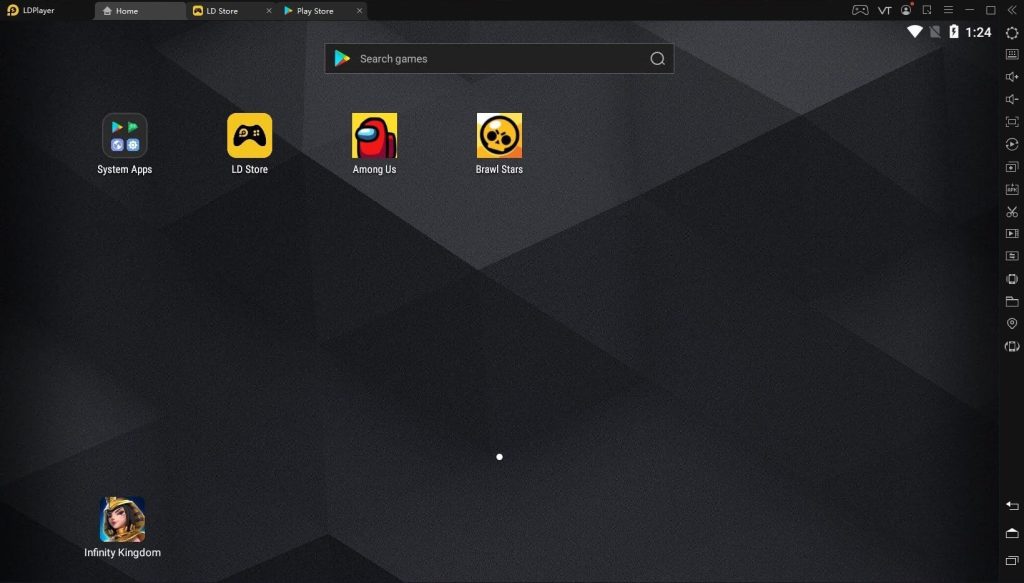
LDPlayer focuses on delivering a high-performance gaming experience, with optimizations for a wide range of games, and is one of the most lightweight Android emulators. Its stability and compatibility with resource-intensive games make it a compelling choice for users looking to emulate Android games on their personal computers or laptops.
LDPlayer’s lightweight design and emphasis on gaming performance contribute to its appeal among gamers, as it provides a reliable platform for running Android games with minimal system requirements. By offering a seamless and responsive gaming experience, LDPlayer has established itself as a prominent player in the realm of Android emulators, catering to the diverse gaming needs of its user base.
Features:
- Customizable resolution and frame rates for gaming.
- Multi-instance manager for running multiple game accounts simultaneously.
- Support for virtualization technology for enhanced performance.
- Built-in video recording and sharing features.
Pros:
- Excellent gaming performance and support for high FPS games.
- Low resource consumption, suitable for older systems.
- Easy setup and configuration for new users.
- Active community and support for issue resolution.
Cons:
- Limited support for productivity apps.
- Occasional compatibility issues with specific game titles.
Compatibility: Windows.
5. Genymotion
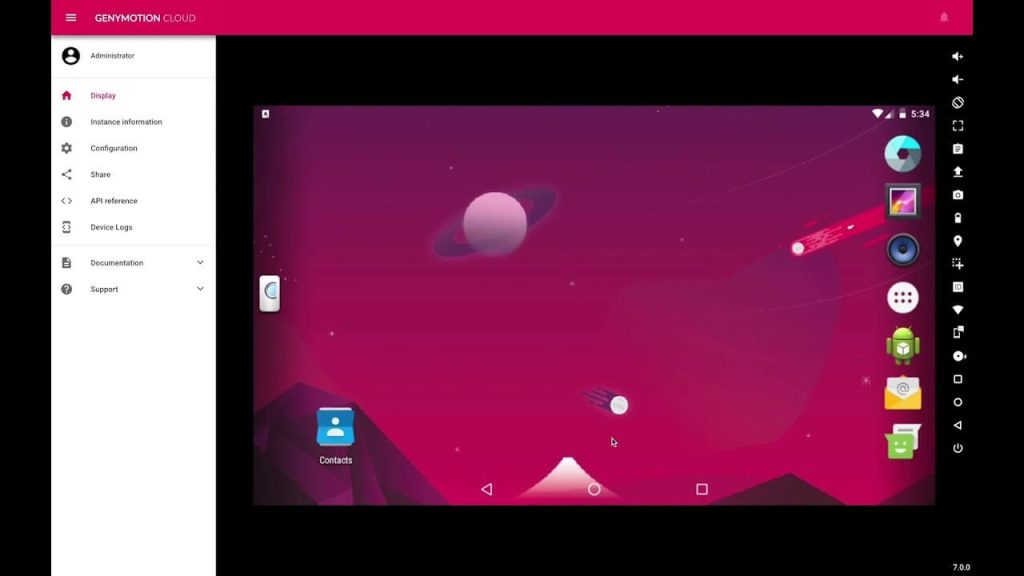
Genymotion is among the lightest Android emulators and is versatile, targeted toward developers and testers. Its sophisticated features and customizable settings are designed to specifically fulfill the needs of app development and testing.
Android developers seeking a dependable environment to assess their app’s performance will find Genymotion to be an invaluable tool. By providing all the necessary functions to create and test Android applications, it streamlines the app-building process.
Genymotion’s versatility and capacity for accommodating various testing scenarios make it an essential platform for developers and testers. Its flexibility makes app testing and development an effortless process, which results in efficient and effective app creation.
Features:
- Virtual device manager for creating and managing custom device configurations.
- Compatibility with Android Studio and other development tools.
- Advanced networking features for testing app behavior under different network conditions.
- Cloud-based testing for remote device access and collaboration.
Pros:
- High performance and stability for app testing and development.
- Advanced debugging and profiling tools for developers.
- Support for custom ROMs and system images.
- Regular updates and compatibility with the latest Android versions.
Cons:
- Limited focus on gaming and consumer-oriented apps.
- Premium pricing for advanced features and cloud testing.
Compatibility: Windows.
6. Andy
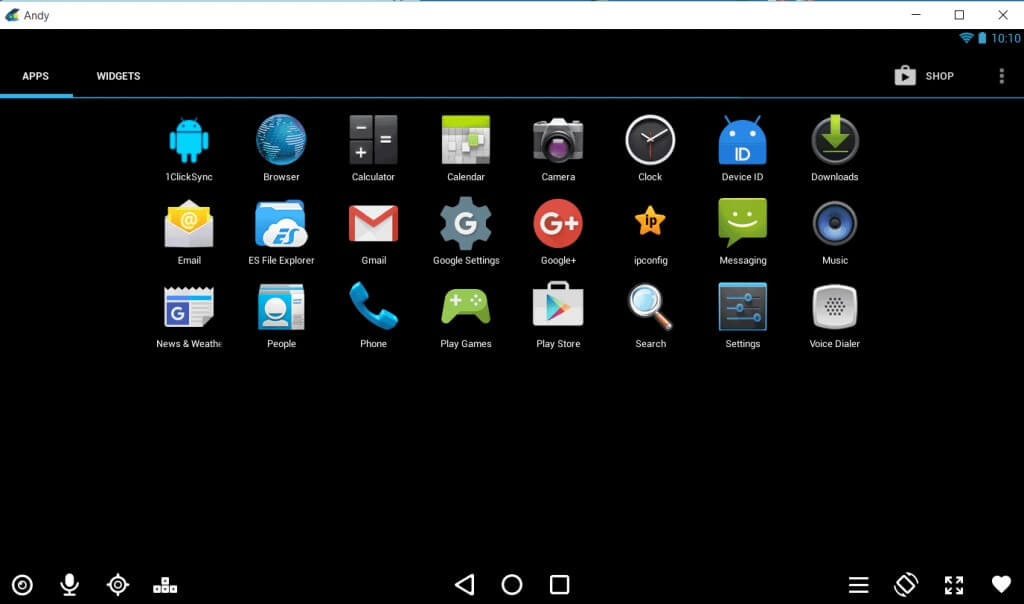
Andy is designed to provide a seamless and integrated Android experience on a computer, offering features for both productivity and gaming. Its focus on ease of use and compatibility ensures that users can effortlessly navigate the Android environment on their desktop or laptop, making it an accessible and user-friendly emulator.
Andy’s support for both productivity and gaming applications broadens its utility, catering to the diverse needs of users who seek a multifaceted Android experience on non-mobile platforms.
Features:
- Seamless synchronization with Android devices for data and app transfer.
- Multi-touch support for gaming and productivity tasks.
- Cloud save integration for backing up app data and settings.
- Camera and microphone integration for video calls and app usage.
Pros:
- User-friendly interface with a familiar Android environment.
- Seamless integration with Windows and Mac operating systems.
- Support for both productivity and gaming apps.
- Regular updates and bug fixes.
Cons:
- Occasional performance issues on lower-end systems.
- Limited customization and advanced features compared to other modulators.
Compatibility: Windows and Mac.
7. KoPlayer
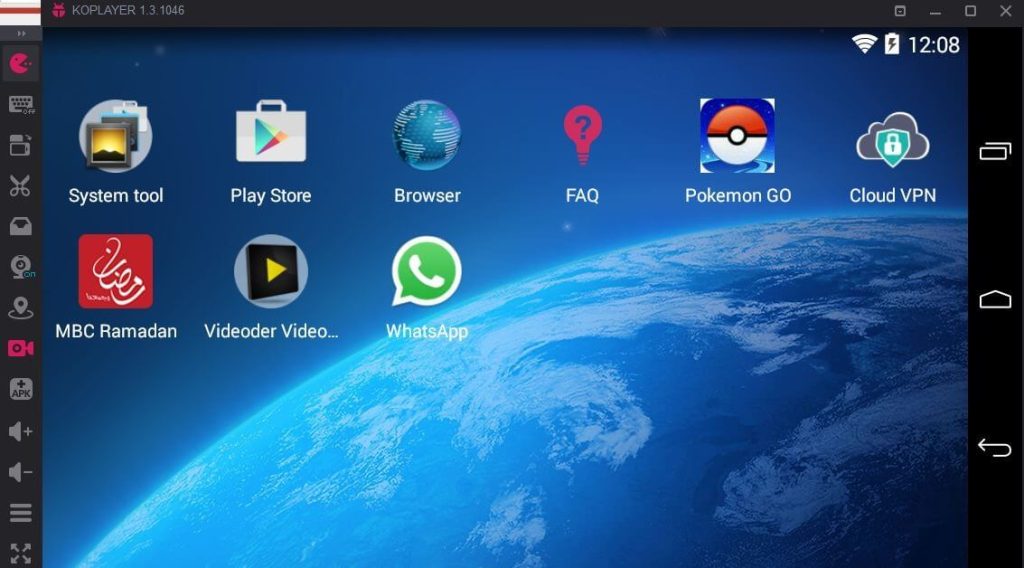
KoPlayer is tailored towards gaming, providing a smooth and responsive gaming experience with a range of features and customization options, and is one of the most lightweight Android emulators. Its specialized focus on gaming optimization ensures that users can enjoy an immersive and lag-free gaming experience, thereby solidifying its position as a prominent emulator for gaming enthusiasts.
KoPlayer’s lightweight design and user-friendly interface contribute to its appeal, offering a platform that prioritizes gaming performance without compromising on accessibility and ease of use.
Features:
- Keyboard mapping for customizing controls and shortcuts.
- Support for gamepad and controller configurations.
- Built-in video recording and sharing features.
- Multi-instance support for running multiple game accounts simultaneously.
Pros:
- Excellent gaming performance and support for high FPS games.
- Multi-language support for global users.
- Customizable CPU and RAM allocation for enhanced performance.
- Regular updates and bug fixes.
Cons:
- Ad-supported interface in the free version.
- Limited support for productivity apps compared to gaming.
Compatibility: Windows and Mac.
8. ARChon
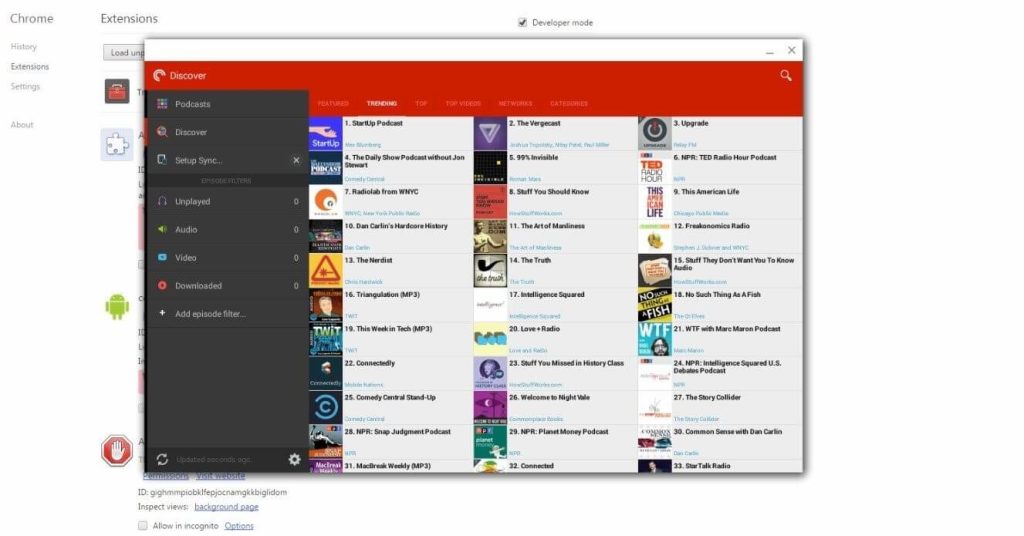
On Windows, Mac, and Linux platforms, users can run Android apps directly within the Chrome browser by using ARChon, a special Android emulator that functions as a Google Chrome plugin. Unlike other emulators, it takes a fresh method of simulating Android apps in a web browser, providing a new option for users to access and use Android apps on their desktop or laptop.
Because ARChon is compatible with a variety of operating systems, it is more widely accessible and gives users a platform to easily incorporate Android features into their preferred web surfing environment.
Features:
- Compatibility with a wide range of Android apps and games.
- Customizable runtime parameters for app compatibility.
- Support for touchscreen and keyboard input.
- Integration with Google Chrome for seamless app usage.
Pros:
- Lightweight and resource-efficient compared to standalone emulators.
- Seamless integration with the Chrome browser.
- Support for running multiple apps simultaneously.
- Regular updates and optimization for new Chrome versions.
Cons:
- Limited support for advanced features and customization.
- Reliance on Google Chrome for app usage.
Compatibility: Windows.
9. Bliss OS
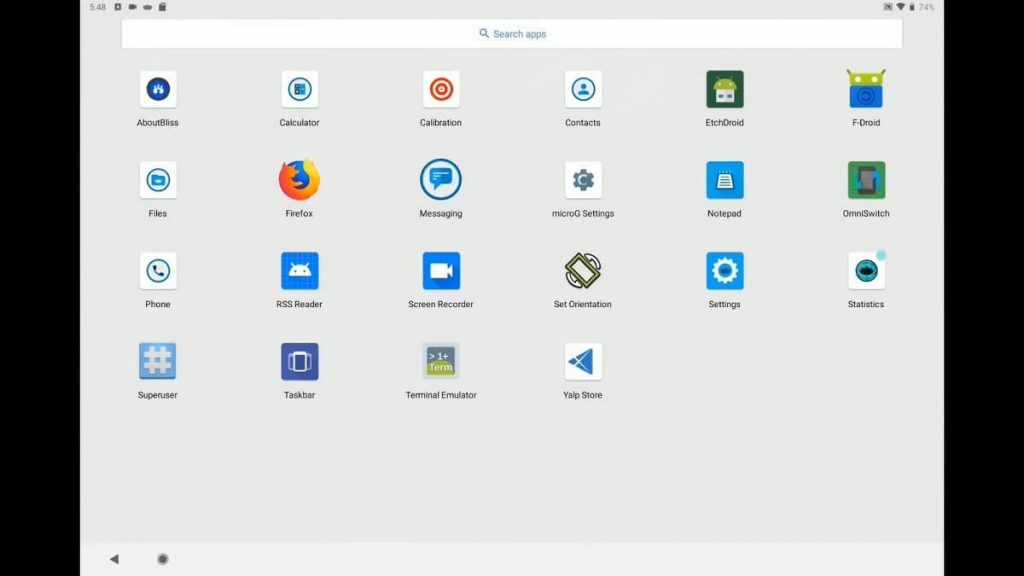
Bliss OS is a unique open-source Android emulator that prioritizes performance and customization. It aims to provide a complete Android experience on PC hardware. With its open-source nature, it enables users and developers to collaborate in its ongoing development to keep it adaptable and responsive to evolving user requirements.
Users may customize their Android experience to suit their preferences because of Bliss OS’s emphasis on performance and customization, which offers a platform that values flexibility and user control.
Features:
- Customizable system settings and configurations.
- Support for dual-boot installation alongside existing operating systems.
- Compatibility with a wide range of PC hardware configurations.
- Active community and support for issue resolution.
Pros:
- High performance and stability on PC hardware.
- Full Android experience with Google Play Store and services.
- Regular updates and optimization for new hardware architectures.
- Customization options for power users and developers.
Cons:
- Requires technical expertise for installation and setup.
- Limited support for virtualization and multi-instance usage.
Compatibility: Windows and Mac.
10. Remix OS Player
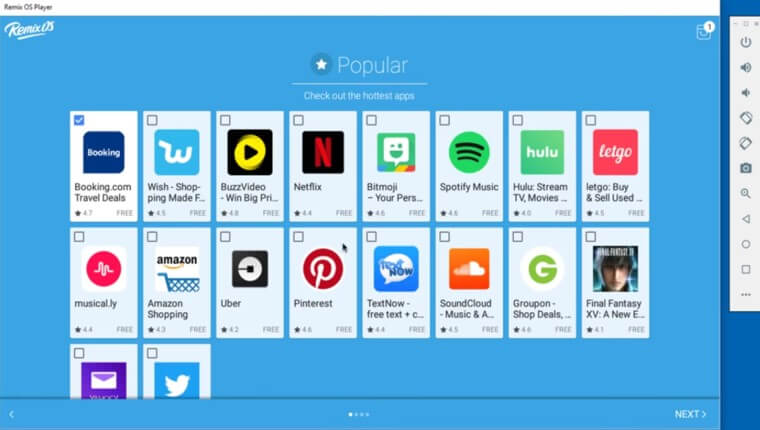
With a variety of features and customization options, Remix OSPlayer is designed with gaming in mind and is among the lightest Android emulators. It offers a responsive and fluid gaming experience. Users may get a smooth and immersive gaming experience on their laptops or personal computers because of its emphasis on game performance and user experience.
Remix OS Player’s emphasis on optimization and customization caters to the diverse preferences of gamers, offering a platform that adapts to their specific gaming needs.
Features:
- Multi-window support for multitasking and parallel app usage.
- Keyboard mapping for customizing controls and shortcuts.
- Support for gamepad and controller configurations.
- Integration with Google Play Store for app installation.
Pros:
- Excellent gaming performance and support for high FPS games.
- Multi-language support for global users.
- Customizable CPU and RAM allocation for enhanced performance.
- Regular updates and bug fixes.
Cons:
- Limited support for productivity apps compared to gaming.
- Occasional performance issues on lower-end systems.
Compatibility: Windows.
Author’s Tip
The best emulator is not always the one with the most features. Think about why you need it first. If you game often, pick an emulator that handles FPS and input mapping well. If you want to run apps or test builds, choose one with stable Android version support and easy asset management. Trying a few lightweight options first saves time and frustration.
Keep your system updated and close unnecessary apps while using the emulator. Emulators mimic mobile hardware, so your system needs free memory and processing headroom to avoid lag. Regularly check for emulator updates. They fix bugs and improve performance over time.
Conclusion
Android emulators bring the mobile experience to PC and Mac. They let you play games, test apps, or run mobile-only tools on larger screens. Lightweight emulators are especially useful for older systems or machines with limited RAM. Knowing your system’s strength and emulator features helps avoid slowdowns and crashes. The right choice balances speed, compatibility, and ease of use without overloading your hardware.
Each emulator has its strengths. Some focus on gaming, others on development or general use. Testing a few on your system reveals which feels more responsive and stable. Once you find the one that fits your needs, you get smoother performance and fewer interruptions. A good emulator turns your PC or Mac into a capable Android environment without extra cost or complexity.
FAQs
1. Are Android Emulators Suitable for Gaming?
Yes, these software can be used for gaming purposes. Many popular lightweight emulators offer support for gaming, providing users with a platform to play Android games on their computers.
2. What are the benefits of Using Lightweight Android Emulators?
Lightweight emulators allow developers to test their Android applications on different virtual devices, facilitating the debugging and optimization process. Lightweight emulators are also faster to boot and have lower latency, making them ideal for quick testing and prototyping.
3. How Do Lightweight Android Emulators Differ from Traditional Emulators?
Unlike traditional emulators, lightweight Android emulators are specifically optimized for performance and efficiency. While traditional emulators may consume significant system resources and exhibit lag or latency issues, lightweight emulators are designed to minimize resource usage and provide a responsive emulation environment.
Author Bio:
Dinesh Lakhwani 

Dinesh Lakhwani, the entrepreneurial brain behind “TechCommuters,” achieved big things in the tech world. He started the company to make smart and user-friendly tech solutions. Thanks to his sharp thinking, focus on quality and the motto of never giving up, TechCommuters became a top player in the industry. His commitment to excellence has propelled the company to a leading position in the industry.
Popular Post
Recent Post

How To Recover Files Deleted from the Recycle Bin [Windows 11]
Losing a file can happen in seconds. You clear your desktop, hit Delete, and empty the Recycle Bin. Then, just when you need that file again, it seems to have vanished. This guide will walk you through ways to restore files removed from the Recycle Bin. We will begin with simple fixes, then look at […]

Disk Drill Data Recovery Tool Explained: Full Review and Guide
It happens in a split second. You delete a folder by mistake. Your drive stops showing up. A photo album from your last trip just vanishes. And your stomach drops. Lost files feel personal. They are not just data. They are memories, work hours, and sometimes years of effort packed into a few gigabytes. When […]

Recover Deleted Files In Windows 11 With Software & Without
Introduction What is the first thing that goes through your mind the second an important file vanishes from a Windows 11 PC? For most people, it is a mix of panic and disbelief, followed by a frantic click through every folder that file could possibly be hiding in. It happens in a split second: one […]

EaseUS Data Recovery Wizard: Everything To Know
Data loss does not always come from a big disaster either. Most cases start small and boring. A drive gets formatted by mistake. A laptop freezes mid-save and restarts on its own. A memory card stops showing up after being pulled out too fast. None of these feel like emergencies at first, until you realize […]

Recuva Data Recovery Tool: Is it Actually Worth it?
When I first tried Recuva Data Recovery, I wanted to see if it could really bring back lost files. The tool is free, small in size, and promises quick recovery, which made me curious enough to test it on my own PC. The setup was fast, and the wizard guided me step by step. I […]

GetData Recover My Files Data Recovery Tool: Honest Review
A hard drive error brings a special kind of silence. Well, yes! The screen freezes, then a message appears saying the drive can’t be found or must be formatted. In that moment, years of photos and work files feel at risk. It never happens at a good time. Coffee spills near a laptop, a memory […]
Windows File Recovery: A Complete Review [Tried & Tested]
Imagine this. You spend hours perfecting a video project. You hit save. Then your laptop freezes, reboots, and when the screen comes back. The file is gone. Your stomach sinks. It’s not just you. Lost files happen all the time. A dropped hard drive, a bad update, an accidental delete, or a corrupted partition can […]
5 Best Data Recovery Software For Windows 11 and Windows 10
Introduction: A crashed drive can ruin a whole day. One minute your photos, work files, and tax records sit safe on your PC. The next minute they are gone. A power cut, a bad update, or one wrong click can wipe out years of memories and months of work in seconds. That sinking feeling is […]
How To Update NVIDIA Drivers On Windows 11/10 PC
Learn how to update NVIDIA drivers on Windows 11/10 with simple methods, safety tips, and easy steps for smoother gaming and better PC performance.

