











Imagine this. You spend hours perfecting a video project. You hit save. Then your laptop freezes, reboots, and when the screen comes back. The file is gone. Your stomach sinks. It’s not just you. Lost files happen all the time. A dropped hard drive, a bad update, an accidental delete, or a corrupted partition can […]
How to Fix “File is Open in Another Program” Error in Windows
Introduction:
We often encounter error messages that can be perplexing and frustrating. One such error that Windows users frequently encounter is the “File is Open in Another Program” message. This annoying pop-up appears when you attempt to modify, move, or delete a file, only to be informed that it is currently being used by another application, that can disrupt your workflow.
In this comprehensive guide, we will equip you with practical methods to overcome it. Whether you’re a seasoned computer whiz or a casual user, we’ll walk you through the step-by-step process of troubleshooting and fixing this error in Windows, enabling you to regain control of your files and restore your productivity.
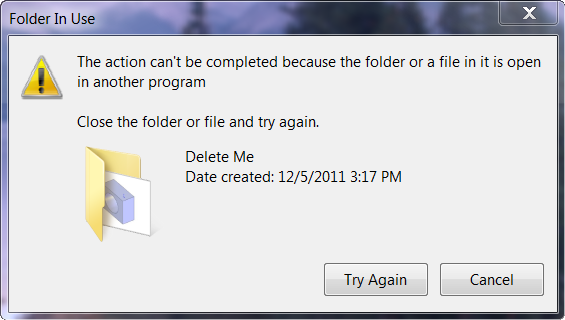
How to Fix the “File Is Open in Another Program” Error in Windows
Solution 1: Reboot your PC
When you encounter the frustrating error in Windows, you might be surprised by the effectiveness of a straightforward solution. It’s time to give your computer a refreshing restart and see if it can resolve the underlying hiccup responsible for this error message.
Solution 2: Terminate the App Using Task Manager
If a simple reboot didn’t do the trick, it’s time to use another workaround – Task Manager. This handy tool allows you to identify and forcefully terminate the application that’s holding your file hostage, causing the “File is Open in Another Program” error. Here’s what you need to do:
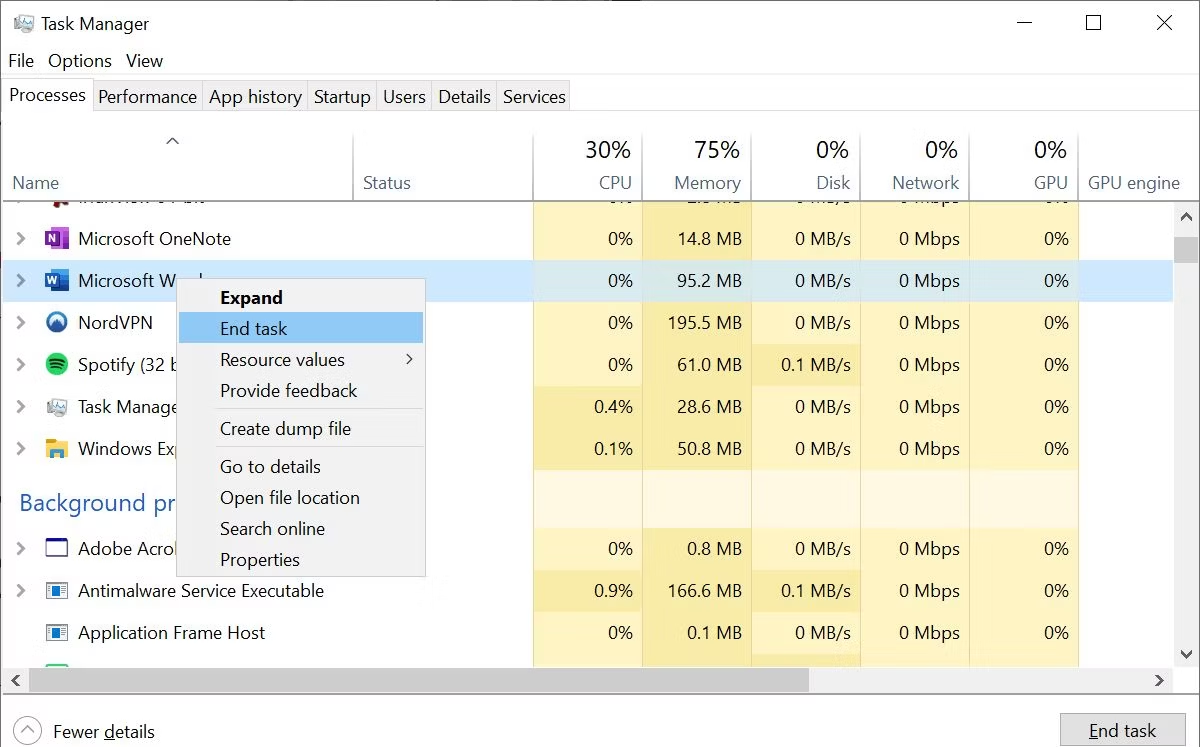
Press Ctrl + Shift + Esc, locate the troublesome application in the list and click “End Task” to forcefully terminate it.
Solution 3: Customize File Explorer Settings
To tackle the persistent “File is Open in Another Program” error, let’s delve into the settings of File Explorer. By customizing a specific option, we can eliminate potential conflicts and regain control over your files. Here’s how you can do it:
Open File Explorer by pressing the Windows key + E or by clicking on the folder icon in the taskbar.
Once File Explorer is open, tap on the three-dot icon located at the top of the window. Select “Options”.
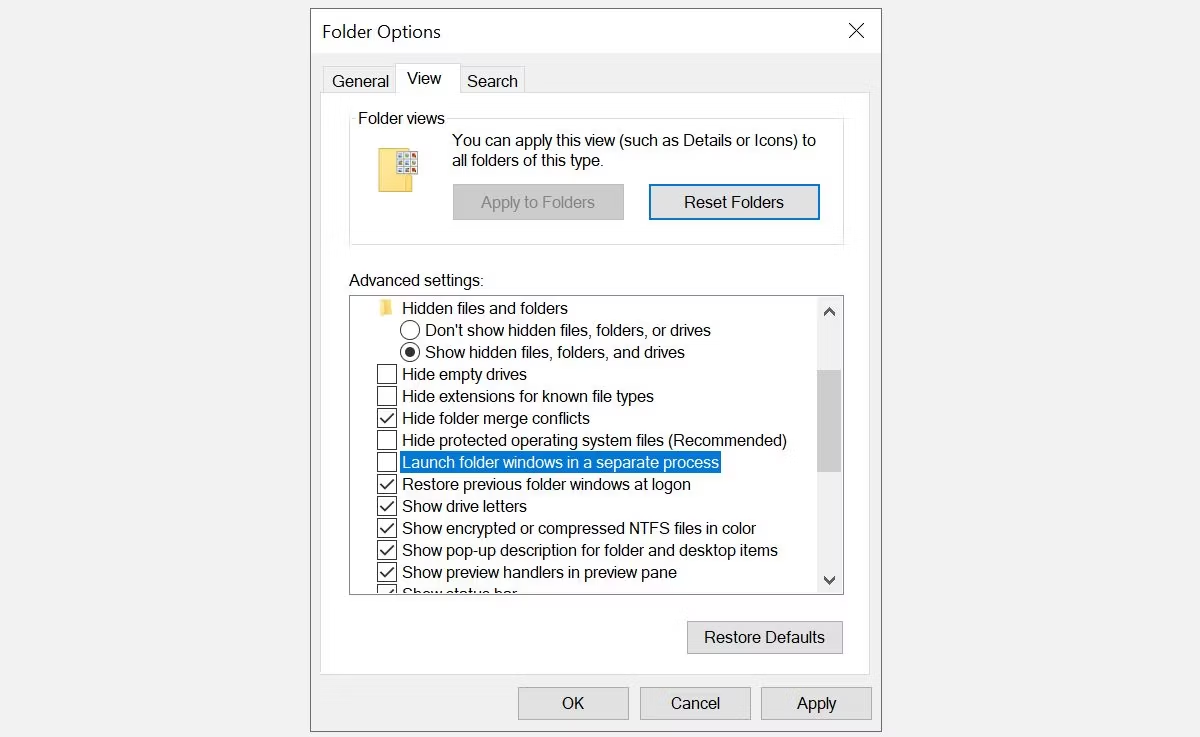
Now, switch to the “View” tab, and look for an option called “Launch folder windows in a separate process.” Take a moment to ensure that this option is not checked. If it is, click on the checkbox to uncheck it.
After unchecking the option, click on the “Apply” button to save the changes you’ve made.
By disabling the “Launch folder windows in a separate process” option, you are modifying how File Explorer handles multiple instances.
Solution 4: Delete the File Using Command Prompt
When faced with the persistent “File is Open in Another Program” error, another powerful technique involves utilizing Command Prompt to delete the file using its address. By following these steps, you can override any conflicts and bid farewell to the troublesome file:
Begin by opening File Explorer and locating the file you wish to delete. Make note of its complete address or path.
Next, open Command Prompt by pressing the Windows key + R to launch the Run dialog box. Type “cmd” and press Enter.
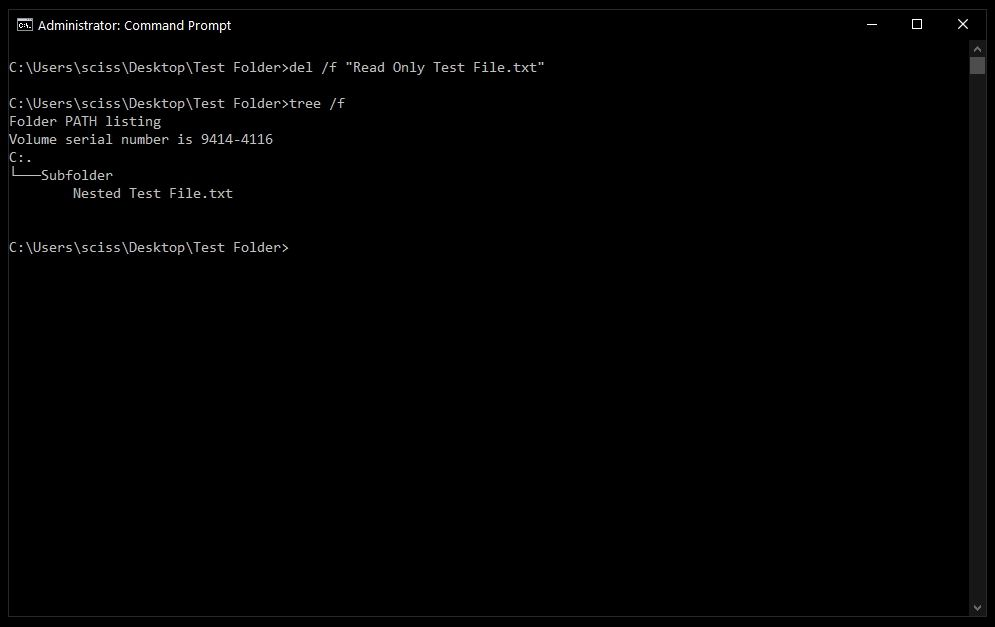
The Command Prompt window will appear. Now, input the command “del /f file_address” (without the quotes), where “file_address” is the complete address or path of the file you want to delete. To paste the file address, right-click inside the Command Prompt window and choose “Paste.” Press Enter to execute the command.
Command Prompt will initiate the file deletion process, bypassing any program locks or restrictions. If the file is successfully deleted, you will see a confirmation message in the Command Prompt window.
Finally, close the Command Prompt window. By copying the file address from File Explorer and using Command Prompt to forcefully delete it, you’re taking direct control over the file deletion process.
Solution 5: Check Network Sharing
If the file is located on a network shared folder, verify that there are no active connections or users accessing the file. Disconnect any unnecessary network connections and try accessing the file again.
Solution 6: Perform a Thorough Malware Scan to Safeguard Your System
One of the significant culprits behind the “File is Open in Another Program” error can be sneaky malware infections. These malicious entities can wreak havoc on your system, causing file conflicts and disrupting access. To combat this threat, it’s crucial to undertake a comprehensive malware scan using trusted software. By doing so, you can root out any hidden malware and pave the way for a smoother file management experience.
Ensure that you have reliable antivirus software installed on your computer. If not, choose a reputable antivirus program and install it. Ensure it is up to date with the latest virus definitions.
Solution 7: Use Third-Party Unlocker Tools
Tried the above-listed solutions and still unable to resolve the error? There’s a secret weapon at your disposal: specialized third-party unlocker tools. These tools are designed to help you release stubborn file locks imposed by other programs, granting you the freedom to modify or delete the file without hassle. By utilizing these tools, you can override the error and regain control over your files.
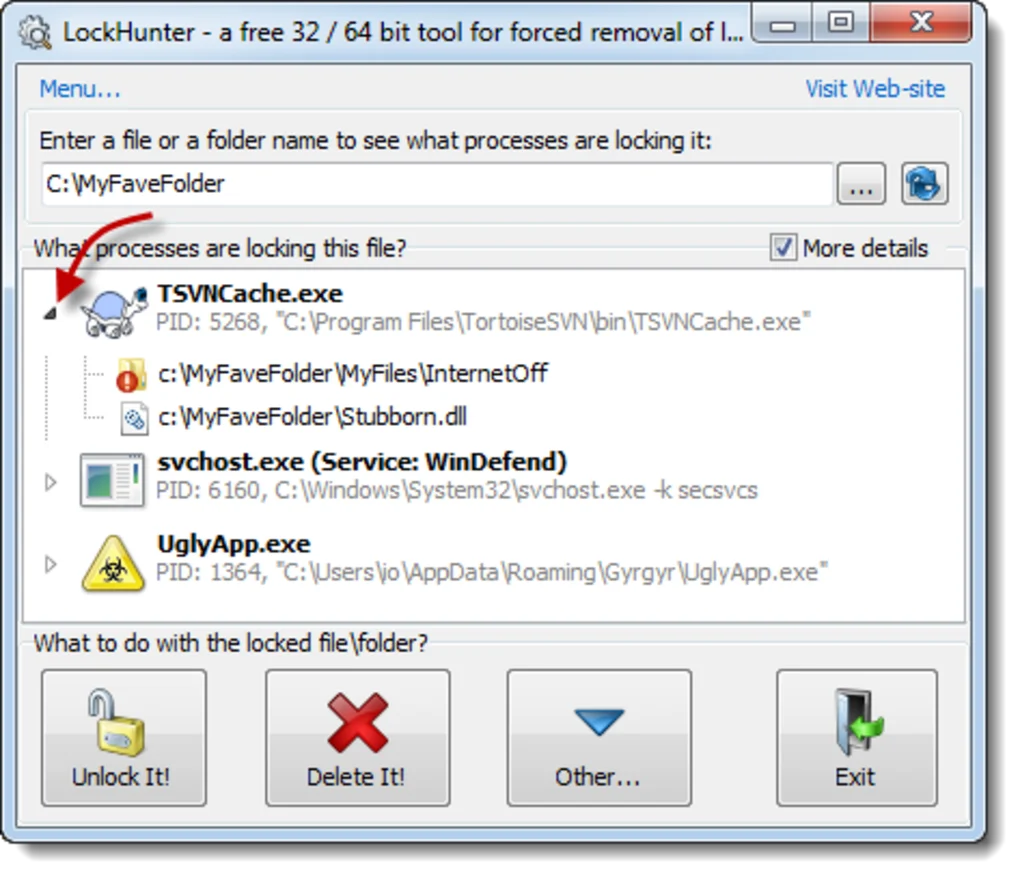
Research and identify reputable third-party unlocker tools available for your operating system. There are several options available online, each with its own unique features and capabilities. Some of the most reliable options include Unlocker, Microsoft Process Explorer, LockHunter, and others.
Conclusion
The “File is Open in Another Program” error in Windows can be a frustrating roadblock, but it’s not insurmountable. By employing techniques such as rebooting, using Task Manager, customizing File Explorer settings, and leveraging command prompt or third-party tools, you can triumph over this error and regain control of your files. With these solutions at your disposal, you will have the knowledge and tools to overcome any file-related hurdles.
Dinesh Lakhwani
Author Bio:
Dinesh Lakhwani 

Dinesh Lakhwani, the entrepreneurial brain behind “TechCommuters,” achieved big things in the tech world. He started the company to make smart and user-friendly tech solutions. Thanks to his sharp thinking, focus on quality and the motto of never giving up, TechCommuters became a top player in the industry. His commitment to excellence has propelled the company to a leading position in the industry.
Popular Post
Recent Post

5 Best Data Recovery Software For Windows 11 and Windows 10
A crashed drive can ruin a whole day. One minute your photos, work files, and tax records sit safe on your PC. The next minute they are gone. A power cut, a bad update, or one wrong click can wipe out years of memories and months of work in seconds. That sinking feeling is why […]

How To Update NVIDIA Drivers On Windows 11/10 PC
Learn how to update NVIDIA drivers on Windows 11/10 with simple methods, safety tips, and easy steps for smoother gaming and better PC performance.

Top AI Features Hidden Inside Windows 11
Explore the top AI features in Windows 11, from Copilot to Recall, plus safety tips and simple steps to use each tool the right way.

Customize Your Screen Saver Settings in Windows [Easy Steps]
Learn how to customize screen saver settings in Windows 11 with easy steps, safety tips, and simple tricks to personalize your PC screen.

Driver Easy Windows Driver Updater Tool Review: Tried & Tested
In-depth information about Driver Easy’s functions and features can be found in our review. Learn how to update drivers more easily with this tool for a more seamless computer experience.

Is Avast Driver Updater Worth It? A Hands-On Analysis
A full review of Avast Driver Updater covering features, setup steps, pricing, pros and cons, and real PC results, to help you decide if it is worth buying.

IObit Driver Booster 13 (PRO) Review: [Tried & Tested]
IObit Driver Booster 13 is built for one purpose: keeping your PC drivers up to date. Well, yes! Outdated drivers can cause crashes, slowdowns, and hardware issues. This tool scans fast and updates with one click. The interface is simple. Even beginners can use it without confusion. Updates are pulled from a huge database, covering […]

Auslogics Driver Updater: A Detailed Walkthrough [2026]
This comprehensive review covers the key features, pros, and cons, pricing, and a final verdict on Auslogics’ driver update utility. Learn how it stacks up against manual driver maintenance.

5 Best Driver Updater Tools for Windows to Use (Free and Paid)
Introduction: Most people blame their PC for problems that a driver caused. A driver works like a bridge between your hardware and your operating system. When this bridge cracks, strange things start to happen. Screens flicker without reason. Printers go silent mid-task. Games freeze or crash out of nowhere. Manually finding the right driver is […]

