











Imagine this. You spend hours perfecting a video project. You hit save. Then your laptop freezes, reboots, and when the screen comes back. The file is gone. Your stomach sinks. It’s not just you. Lost files happen all the time. A dropped hard drive, a bad update, an accidental delete, or a corrupted partition can […]
ClearVPN 2 Review: Why Should You Choose This?
Introduction
One of the various products offered by MacPaw, a business that works to provide secure and confidential online connections, is ClearVPN. Although its user-friendly layout and capacity to unblock streaming services are excellent, it is not yet prepared to compete with major providers. Fortunately, there is a thirty-day refund guarantee, so you may try all the features without taking risks.
Use A-grade technology like ClearVPN 2 for the best safety if you are thinking about utilizing a virtual private network (VPN) for the first time. In this thorough assessment, let us talk about why.
ClearVPN 2 by MacPaw: The Easy-To-Use VPN Solution
Since it just entered the market at the tail end of 2020, ClearVPN 2 is a modest newcomer. Windows, macOS, and mobile devices may all use this MacPaw program. Additionally, it offers the most desired free plan forever. Although it is not the most affordable VPN service, it is simple to use, has servers in 17 countries, and consistently connects to Netflix.
Premium does not, however, offer several security measures that other providers do, including a virus blocker and a second VPN.
With only four program editions, MacPaw offers minimal requirements for ClearVPN distribution. Applications or clients are only available for the following operating systems: Windows, macOS, Android, and iOS platforms. This rules out the use of routers, TV boxes, and extensions for browsers.
Advantages of ClearVPN 2
- Returns for a 30-day refund
- Malware and ad blocker, unlock Netflix, amazon prime, and HBO
- Private and secure torrenting
- Several different shortcuts
Limitations of ClearVPN 2
- Inability to unblock BBC iPlayer
- Vulnerable to DNS leaks and no customization options for power users.
- No Split tunneling and shortcuts are counterproductive.
Basic ClearVPN 2 specifications
Below are some of ClearVPN 2’s fundamental specifications:
- Number of regions: 40
- Kill Switch: Yes
- VPN Protocols: IKEv2, OpenVPN, Custom WireGuard
- Value for money: 6/10
- Speed: 7/10
- Split Tunnelling: No
- Torrenting: Yes
- Stealth/Obfuscation: No
- Apps: Windows, macOS, iOS, Android
- No Logs: Yes
Features of ClearVPN 2
Along with the standard VPN features, ClearVPN 2 offers a convenient additional method for accessing geo-restricted streaming services. Here is a list of every feature it has:
● Encryption
Like any VPN worth its salt, ClearVPN 2 encrypts your internet data with military-grade AES-256. All companies utilize it as the most secure alternative to safeguard critical data.
The “256” in AES-256 stands for the 256-bit size of the encryption key. ISPs, governmental censors, and hackers find it almost hard to breach.
● Kill Switch
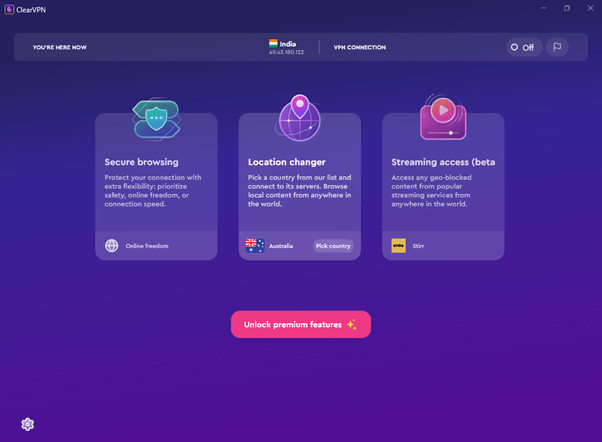
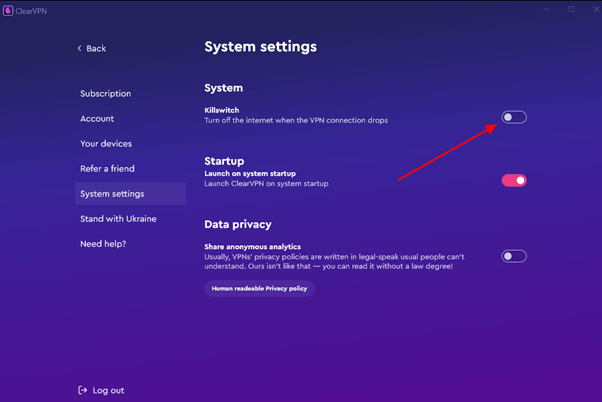
The kill switch function will immediately stop any web browser on the device if the VPN link breaks. This stops websites, applications, and other snoopers from accidentally learning your genuine IP address. The option to kill the switch is inactive by default. Switch the toggle from off to on in the ClearVPN 2 system preferences to activate it.
● Accessibility and Applications
With its iOS, Android, Windows, and macOS applications, ClearVPN 2 covers every one of the bases. To safeguard every activity on the smartphone, download the necessary software. The average home may link up to six devices simultaneously; that is more than plenty.
Lacking a clear method for configuring at the router stage, which is a fantastic approach to secure your whole network at once, is where ClearVPN 2 lags short. While evaluating ClearVPN 2, we did run into several usability problems.
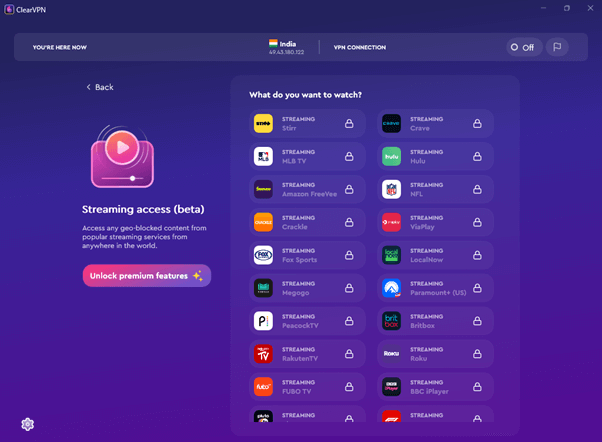
Even if the user interface appears considerably better than in the app’s first iteration, there are still a few minor issues. It will help if you go to the “Browse securely and secretly” area in the older software version. With ClearVPN 2, the company has made some improvements, although it still feels unclear.
The UI overall makes an excessive effort to differentiate from the competition. While their goal is to simplify the process, certain shortcuts make the software less user-friendly. However, we enjoy a few modifications made in ClearVPN 2.
● Server Network
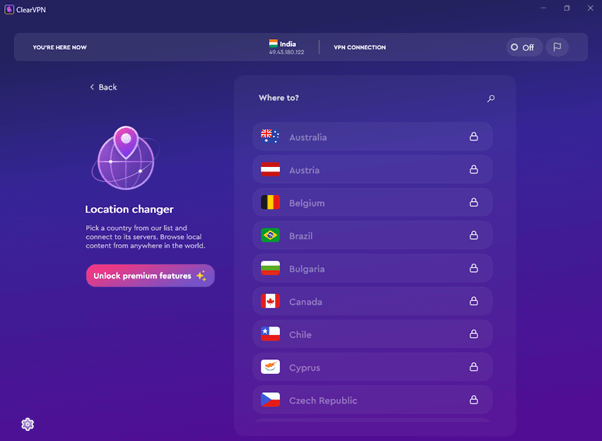
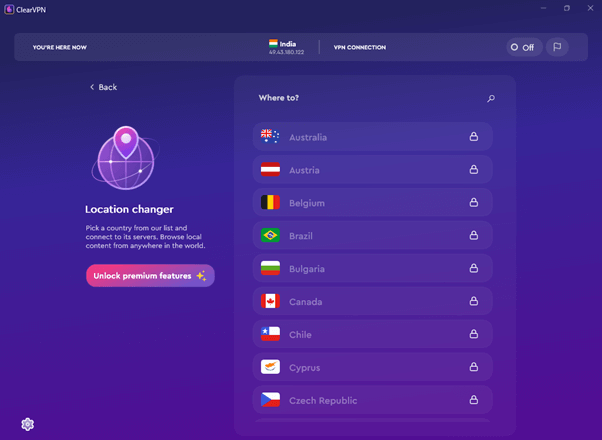
Servers in 40 different nations are accessible using ClearVPN 2. Free users receive an automated location assignment; however, paid customers can select their preferred location.
The absence of different locations within a single nation is the sole drawback of the ClearVPN 2 servers network. This may make it hard to retrieve regional material within a single nation. For instance, local media coverage and athletics are in New York if you live in Los Angeles.
● ClearVPN 2 Speed
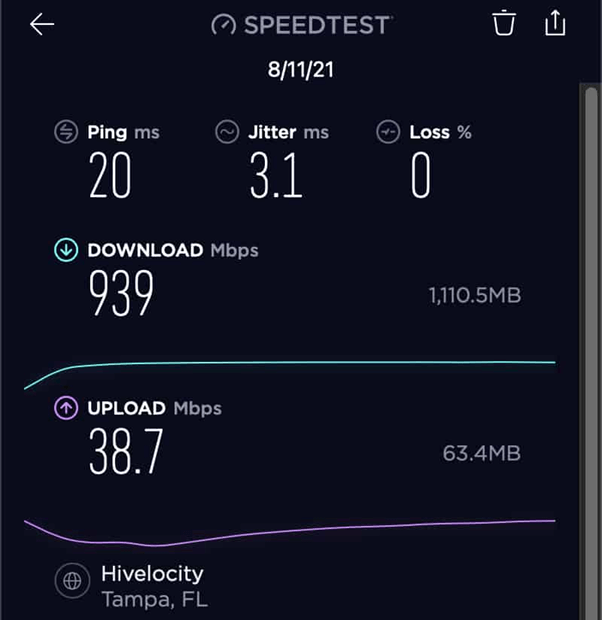
A VPN will constantly slow down your internet since it routes your data through a second server, except your ISP is purposefully slowing it down. The impact increases with the distance between the server and your actual location.
Considering everyone has a different base internet speed, it is crucial to determine how much it decreases while the VPN is active and if it falls below the level you need. This still permits 4K streaming or simultaneous HD streaming by many users and is far within the permitted range. ClearVPN 2 is a fantastic option for sharing documents and video chatting because of the minimal effect on upload.
● Protocols
In addition to OpenVPN, ClearVPN 2 supports IKEv2. OpenVPN is one of the most trustworthy and secure networks available, which employs SSL/TLS security.
Your desired protocol is not truly selectable in the settings, though. Depending on your priority setting in the “Secure browsing” area, it seems to automate the operation.
● Privacy
A crucial aspect of ClearVPN 2’s privacy policy is that it keeps no logs. It follows that the corporation neither tracks nor saves browsing information.
By signing in, you may share a ton of information, including your cell phone ID and technical data like crash records. The fact that the app prompts you how much information you wish to give is always a positive.
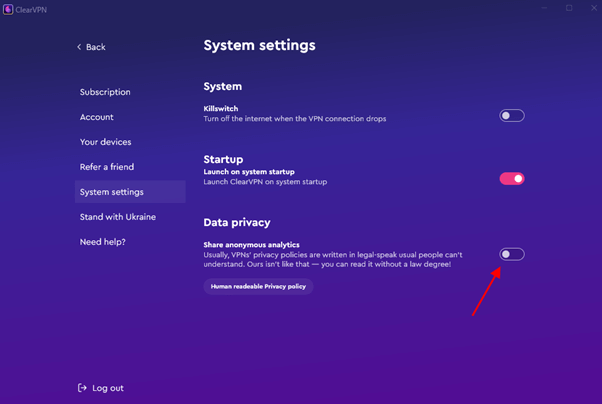
Only the data obtained without your permission should cause you any worry. This includes both successful and failed connectivity attempts, the amount of broadband you use, and gadget information, such as the OS and language.
While all the information is anonymized and undoubtedly aids in improving ClearVPN 2’s applications, it would be preferable if it were not gathered. Luckily, there have not been any public disputes or unfavourable reports surrounding the privacy of this VPN company.
● Customer Service
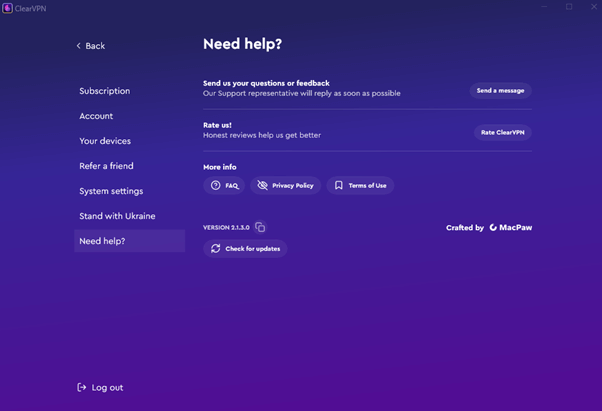
The official domain of MacPaw or the software provides access to ClearVPN’s customer service page, making it simple to discover.
ClearVPN has a comprehensive FAQ section that addresses the most common questions regarding its VPN. On the website, there additionally exists an “about ClearVPN” section that provides further details about the service supplier and its capabilities.
How to use ClearVPN 2?
What you must do for ClearVPN 2 to safeguard your connection without further hinder is as follows:
Step 1: First download ClearVPN 2.

Step 2: Open the ClearVPN application.
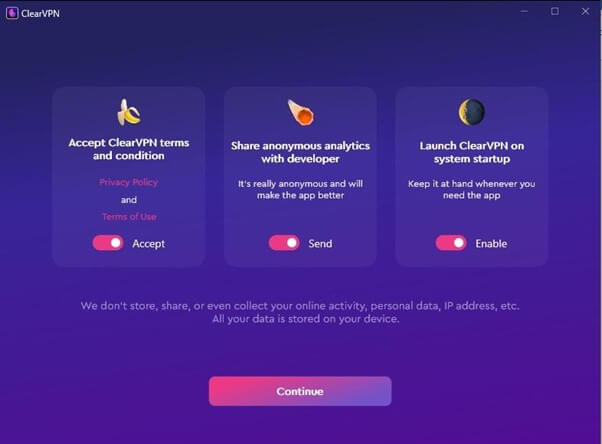
Step 3: Choose the Secure browsing option.
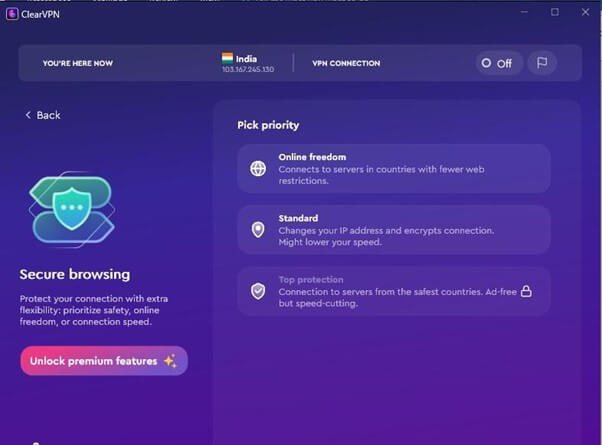
Step 4: Secure browsing has 3 security methods that offer diverse protection levels and good connection speed:
- Online freedom connects you to servers in countries with fewer web restrictions.
- Standard mode offers you more protection and encrypts connection.
- Top protection mode is your online heavy shield.
Step 5: Done! Your link is now protected and disguised.
However, ClearVPN 2 contains capabilities for various online operations, so it is much more than a rapid IP shift! Apply the premade VPN options for particular tasks if you would like additional control over your VPN.
Conclusion
It is a fantastic VPN all around. Although the user experience was the focus when designing the interface, it will require a lot of additional servers and more robust security measures.
When broadcasting or playing games at peak times, the limited server selection may result in severe buffering, disconnections, and latency problems since there might not be another server accessible in the same location if the one you are on is overloaded. Additionally, it would greatly enhance privacy if you were not required to instantly withdraw your consent to data gathering to protect your data.
Author Bio:
Dinesh Lakhwani 

Dinesh Lakhwani, the entrepreneurial brain behind “TechCommuters,” achieved big things in the tech world. He started the company to make smart and user-friendly tech solutions. Thanks to his sharp thinking, focus on quality and the motto of never giving up, TechCommuters became a top player in the industry. His commitment to excellence has propelled the company to a leading position in the industry.
Popular Post
Recent Post

5 Best Data Recovery Software For Windows 11 and Windows 10
A crashed drive can ruin a whole day. One minute your photos, work files, and tax records sit safe on your PC. The next minute they are gone. A power cut, a bad update, or one wrong click can wipe out years of memories and months of work in seconds. That sinking feeling is why […]

How To Update NVIDIA Drivers On Windows 11/10 PC
Learn how to update NVIDIA drivers on Windows 11/10 with simple methods, safety tips, and easy steps for smoother gaming and better PC performance.

Top AI Features Hidden Inside Windows 11
Explore the top AI features in Windows 11, from Copilot to Recall, plus safety tips and simple steps to use each tool the right way.

Customize Your Screen Saver Settings in Windows [Easy Steps]
Learn how to customize screen saver settings in Windows 11 with easy steps, safety tips, and simple tricks to personalize your PC screen.

Driver Easy Windows Driver Updater Tool Review: Tried & Tested
In-depth information about Driver Easy’s functions and features can be found in our review. Learn how to update drivers more easily with this tool for a more seamless computer experience.

Is Avast Driver Updater Worth It? A Hands-On Analysis
A full review of Avast Driver Updater covering features, setup steps, pricing, pros and cons, and real PC results, to help you decide if it is worth buying.

IObit Driver Booster 13 (PRO) Review: [Tried & Tested]
IObit Driver Booster 13 is built for one purpose: keeping your PC drivers up to date. Well, yes! Outdated drivers can cause crashes, slowdowns, and hardware issues. This tool scans fast and updates with one click. The interface is simple. Even beginners can use it without confusion. Updates are pulled from a huge database, covering […]

Auslogics Driver Updater: A Detailed Walkthrough [2026]
This comprehensive review covers the key features, pros, and cons, pricing, and a final verdict on Auslogics’ driver update utility. Learn how it stacks up against manual driver maintenance.

5 Best Driver Updater Tools for Windows to Use (Free and Paid)
Introduction: Most people blame their PC for problems that a driver caused. A driver works like a bridge between your hardware and your operating system. When this bridge cracks, strange things start to happen. Screens flicker without reason. Printers go silent mid-task. Games freeze or crash out of nowhere. Manually finding the right driver is […]

