












Introduction: On tech forums, you’ll often see posts like this: “I connected my pen drive to my laptop this morning, but the folder was empty. All my college project files had vanished. I don’t have a backup. Can someone help me?” Stories like this are very common. Pen drives, USB drives and SD cards are […]
How To Fix App Store Missing On iPhone or iPad
Every iPhone and iPad user needs the App Store. It lets users discover and download apps, games, and other digital content. However, sometimes users need help finding the App Store. This can be challenging if you need to access an app quickly. Rest assured. Several options exist to assist in locating the App Store.
This blog post will discuss these potential fixes for the app store missing on iPhone or iPad issues. You could be dealing with a software error, a disabled setting, or something more serious, regardless of the root cause – we have the answers! Find out how to fix this issue in 6 simple ways. But first, let’s find out the reason.
Why is the App Store missing on iPhones or iPads?
Few people realize they accidentally deleted the App Store from their iPhone, causing much concern. The App Store is part of iOS and cannot be deleted. The App Store may have disappeared from the Home Screen, App Library, and Spotlight Search because the device has been restricted from installing unfamiliar apps.
Siri cannot open the App Store in this situation. This could mislead people into thinking the App Store is gone. We will solve this confusing problem.
6 Ways to Restoring the App Store on iPhone or iPad
Rest assured that if you cannot locate the app store on the iPhone or iPad. It is impossible to be deleted it from your device. It’s hiding somewhere; we can find it with a little investigation. This section will look into the six effective methods to resolve the missing app store on your iPhone or iPad. Below are some ways to fix this troubleshooting. They are:
1. Use the App library to find
The App Library feature was introduced in iOS 14. It automatically categorizes your applications into various categories. So you can find the desired app easily.
Step 1: For App Library, swipe right to the left. This will take you to the App Library.
Step 2: If your home screen contains many pages of apps, you might have to lift more than once to reach the App Library.
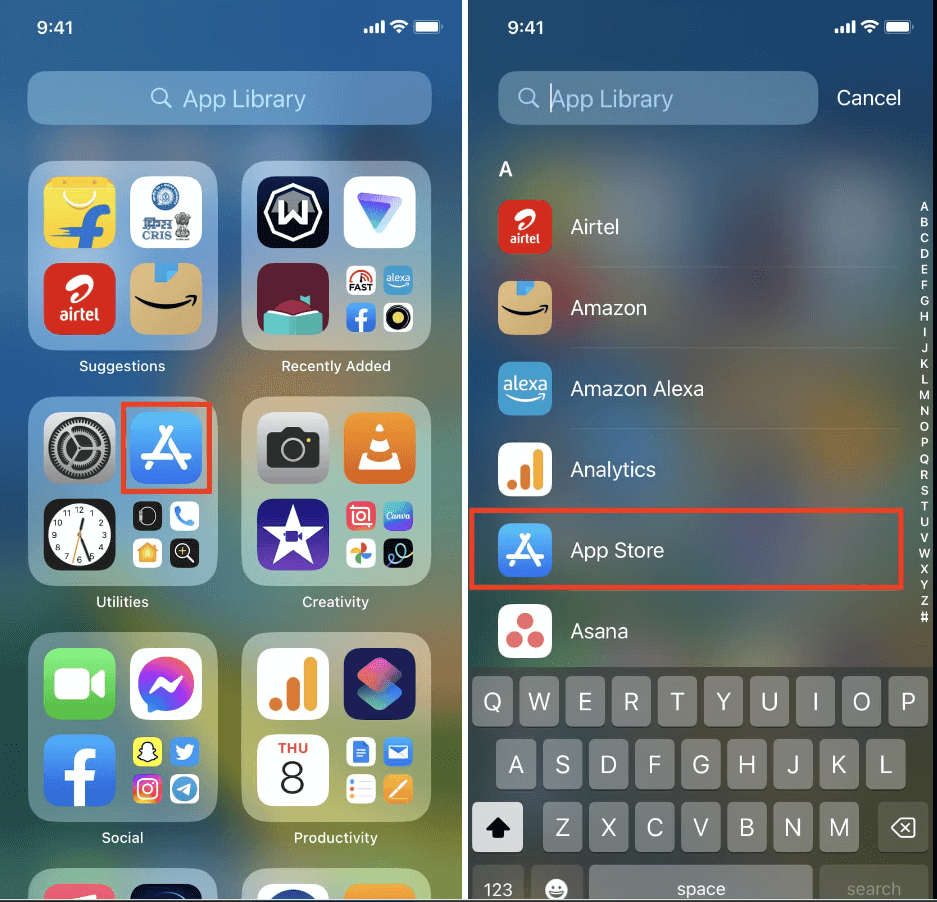
Step 3: Under “Utilities,” you will find the App Store.
2. Disable Restrictions to fix
You may have set up some restrictions on your iPhone, which further prevents you to get complete access of the App Store. Though, there is no need to worry – you can easily disable all the restrictions to get full access. Here’s how:
Step 1: Go to Settings and then click on the Screen Time. After that, click on the Content & Privacy Restrictions on your iPhone or iPad.
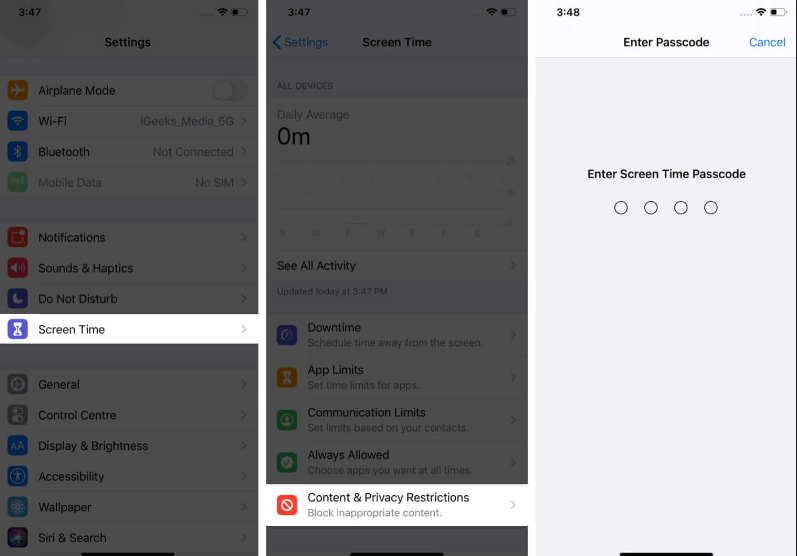
Step 2: Select iTunes & App Store Purchases to fix the missing App Store on your iPhone or iPad.
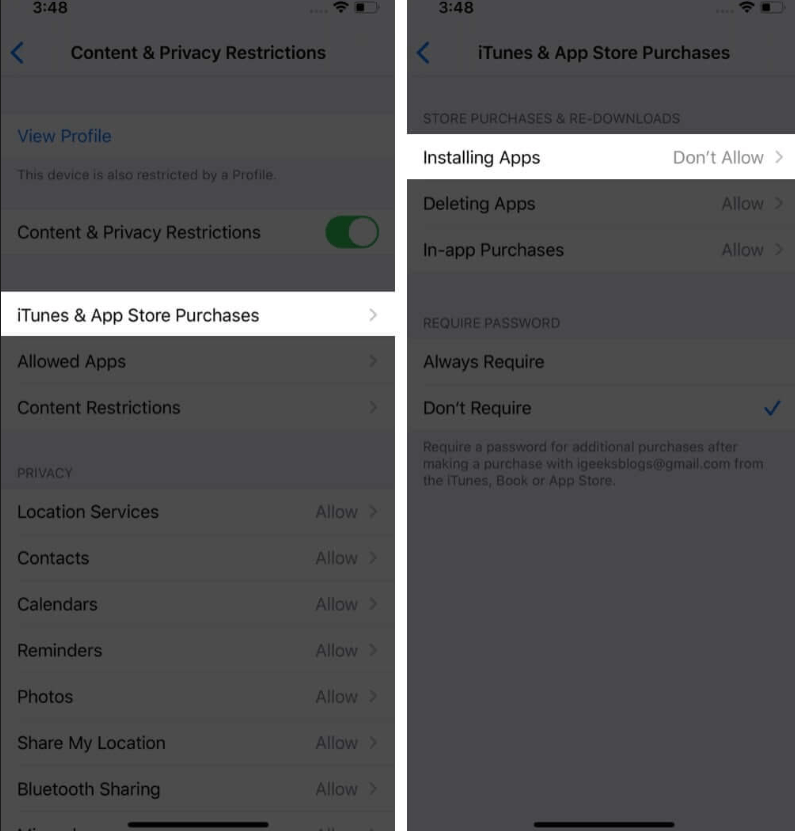
Step 3: Click on the Installing Apps after clicking it. Then, click the toggle switch next to Content & Privacy Restrictions.
3. Restore the Default Home Screen Layout
Following this step, you will restore your iPhone or iPad’s Home Screen to its original layout. Do not panic. Your apps will not get deleted. The Home Screen will, however, be returned to its original position if you have moved any stock apps around.
Step 1: Open your Settings.
Step 2: Go to General and click on the “Reset Home Screen.
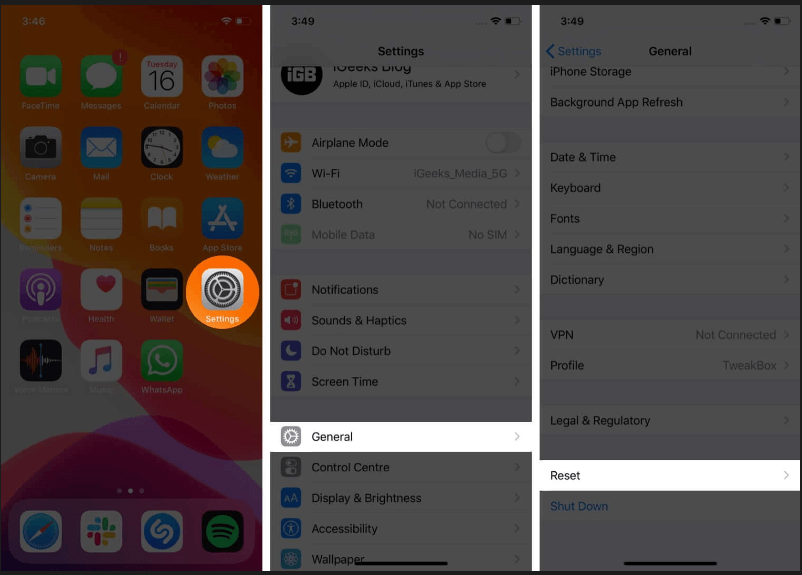
Step 3: Click Reset the Home Screen Layout and select Reset Home Screen.
4. Set up your settings again
Reset all settings to fix the issues of athe pp store missing on your iPhone or iPad after trying every previous procedure. Resetting your device’s settings may restore the missing icon. It will not impact your existing files.
Step 1: First, go to your Settings.
Step 2: Scroll down and click on the “General.” Then, click on reset under it.
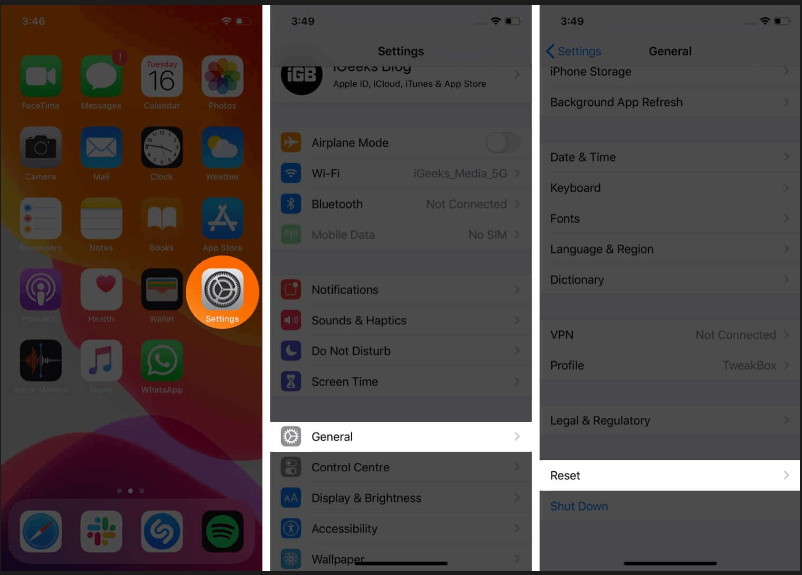
Step 3: Click on the “reset all settings” now.
Step 4: Again, click on the “reset all settings”.
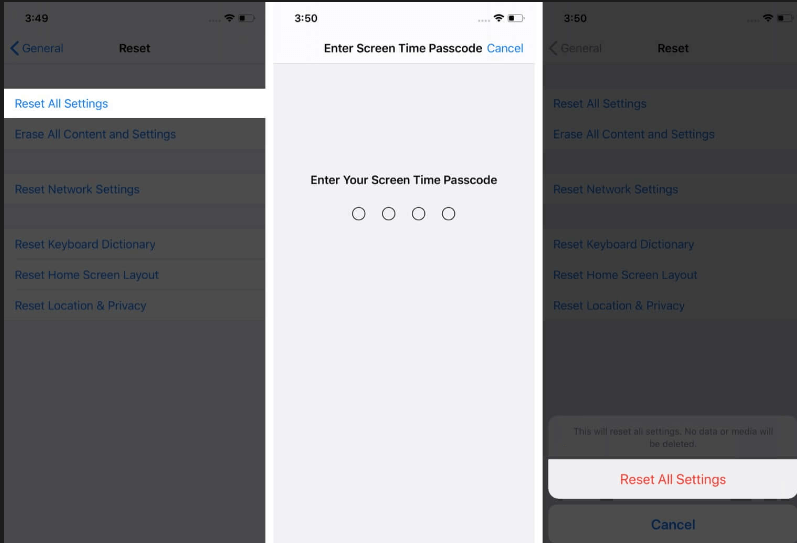
Once your device is back up and running, search again for “App Store.” Now should be the time to find it.
5. Simply search
The App Store icon is sometimes hidden in a folder with other apps. Here are the steps to search the App Store.
Step 1: Scroll down from your Home screen.
Step 2: The search bar on your iPhone will appear. Then, search “App Store.”
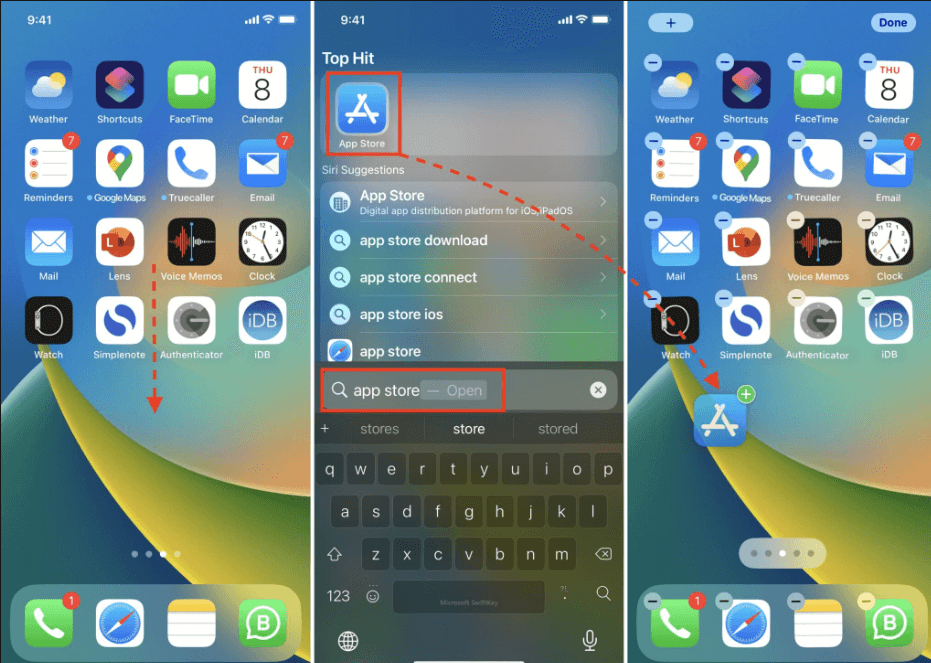
The result of the “App Store” will appear. And if not, then try other methods.
6. Update your iPhone or iPad software
Make sure your iOS is the latest version before resolve the problem of missing app store on iPhone or iPad. Even though it’s not a common issue, outdated iOS can sometimes cause the App Store to be unavailable. You can verify or update it by following the instructions provided.
Step 1: Open your settings option.
Step 2: Go to the General option and click on Software update.
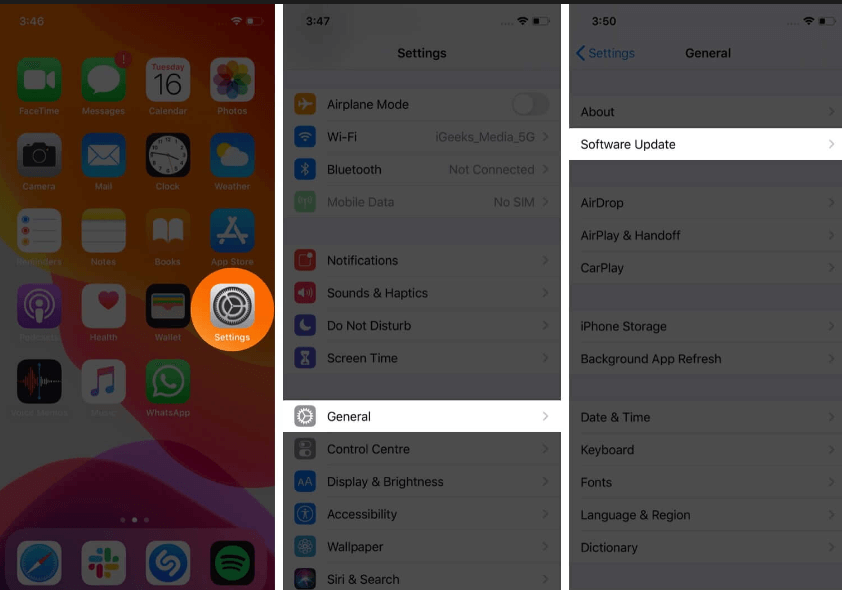
Step 3: See if the new version is available. If so, then click on the download and install option.
Step 4: Wait while your iPhone is downloading. It will take some time.
Step 5: After completing the download, check the App store.
Conclusion
In conclusion, iPhones and iPads need the App Store. It is the leading platform for downloading apps, games, and other digital content. If the App Store is missing from your device, no worries. This article will help you restore the App Store and resume downloading and using your favorite apps. These simple techniques can rapidly fix the missing App Store on your iPhone or iPad.
Check Screen Time to see if the App Store is hidden or restricted. Or else, restart your device, reset your home screen layout, or update your software. If everything else fails, return your smartphone to factory settings. Follow our tips to get back to enjoying your device after the App Store disappears!
Author Bio:
Dinesh Lakhwani 

Dinesh Lakhwani, the entrepreneurial brain behind “TechCommuters,” achieved big things in the tech world. He started the company to make smart and user-friendly tech solutions. Thanks to his sharp thinking, focus on quality and the motto of never giving up, TechCommuters became a top player in the industry. His commitment to excellence has propelled the company to a leading position in the industry.
Popular Post
Recent Post

How To Recover Files Deleted from the Recycle Bin [Windows 11]
Losing a file can happen in seconds. You clear your desktop, hit Delete, and empty the Recycle Bin. Then, just when you need that file again, it seems to have vanished. This guide will walk you through ways to restore files removed from the Recycle Bin. We will begin with simple fixes, then look at […]

Disk Drill Data Recovery Tool Explained: Full Review and Guide
It happens in a split second. You delete a folder by mistake. Your drive stops showing up. A photo album from your last trip just vanishes. And your stomach drops. Lost files feel personal. They are not just data. They are memories, work hours, and sometimes years of effort packed into a few gigabytes. When […]

Recover Deleted Files In Windows 11 With Software & Without
Introduction What is the first thing that goes through your mind the second an important file vanishes from a Windows 11 PC? For most people, it is a mix of panic and disbelief, followed by a frantic click through every folder that file could possibly be hiding in. It happens in a split second: one […]

EaseUS Data Recovery Wizard: Everything To Know
Data loss does not always come from a big disaster either. Most cases start small and boring. A drive gets formatted by mistake. A laptop freezes mid-save and restarts on its own. A memory card stops showing up after being pulled out too fast. None of these feel like emergencies at first, until you realize […]

Recuva Data Recovery Tool: Is it Actually Worth it?
When I first tried Recuva Data Recovery, I wanted to see if it could really bring back lost files. The tool is free, small in size, and promises quick recovery, which made me curious enough to test it on my own PC. The setup was fast, and the wizard guided me step by step. I […]

GetData Recover My Files Data Recovery Tool: Honest Review
A hard drive error brings a special kind of silence. Well, yes! The screen freezes, then a message appears saying the drive can’t be found or must be formatted. In that moment, years of photos and work files feel at risk. It never happens at a good time. Coffee spills near a laptop, a memory […]

Windows File Recovery: A Complete Review [Tried & Tested]
Imagine this. You spend hours perfecting a video project. You hit save. Then your laptop freezes, reboots, and when the screen comes back. The file is gone. Your stomach sinks. It’s not just you. Lost files happen all the time. A dropped hard drive, a bad update, an accidental delete, or a corrupted partition can […]

5 Best Data Recovery Software For Windows 11 and Windows 10
Introduction: A crashed drive can ruin a whole day. One minute your photos, work files, and tax records sit safe on your PC. The next minute they are gone. A power cut, a bad update, or one wrong click can wipe out years of memories and months of work in seconds. That sinking feeling is […]

How To Update NVIDIA Drivers On Windows 11/10 PC
Learn how to update NVIDIA drivers on Windows 11/10 with simple methods, safety tips, and easy steps for smoother gaming and better PC performance.

