











Imagine this. You spend hours perfecting a video project. You hit save. Then your laptop freezes, reboots, and when the screen comes back. The file is gone. Your stomach sinks. It’s not just you. Lost files happen all the time. A dropped hard drive, a bad update, an accidental delete, or a corrupted partition can […]
How To Use Do Not Disturb Mode on Android
Introduction
On the phone, there are different applications that people use daily. Most of them have an in-built alerting system that constantly sends push notifications to phones, from information related to software upgrades to text alerts. While these are useful, getting notifications from all of the apps on your phone can become troublesome after a while.
Luckily, there is Android DND Mode that you can enable to manage notification-related settings as per your preferences. You can turn off all alerts or set notifications from certain apps through this section. Are you wondering how it works? Read this post to learn how to utilize the Android Do Not Disturb settings efficiently.
How to handle different settings for Android DND Mode?
You can take different steps to set up different settings related to Android’s Do Not Disturb mode. Follow the given methods carefully.
Method 1: Manage the DND stings from the notification panel
It cannot be easy to open the Settings menu each time you have to use the DND mode on your smartphone. In this case, you can directly add the toggle for Do Not Disturb in the Quick Settings menu on your phone.
Step 1: Slide the notification panel of your device down.
Step 2: Tap on the pencil icon.
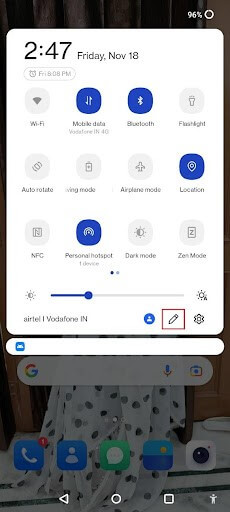
Step 3: Choose the Do Not Disturb icon and move it to your preferred location in the panel.
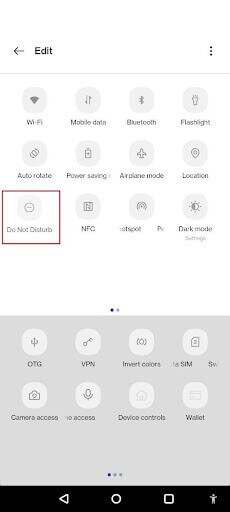
Step 4: Then, you have to press the back button. Then, you can use it to control the Android Do Not Disturb setting to activate or deactivate notifications from the notification panel directly. This functionality is usable on different Android version models.
Step 1: On the main Android smartphone screen, slide and pull down your notification panel.
Step 2: You will see many notifications here, like the Bluetooth, WiFi, Hotpot, Mobile Data, DND, Power Saving Mode, and Flash Light settings.
Step 3: Click on the icon on Android DND Mode to activate the feature. Open the settings from there for the Do Not Disturb mode to choose which chats and apps appear on alerts and the ones you will put on silent. It is possible to disable the mode and set up specifically scheduled time-outs from here as well.
Method 2: Schedule automatic turn-on and turn-off mechanism for Do Not Disturb Mode
Another easy solution for operating the Do Not Disturb mode on your device is to set up a specific schedule for the feature to activate. This assures that your selected function will be enabled or disabled at your scheduled timings.
One of the standard settings related to this function is sleeping mode. This is where the DND mode activates automatically at the assigned periods of your REM cycle. You can use this function or set up other customized settings for the Do Not Disturb functionality at other times.
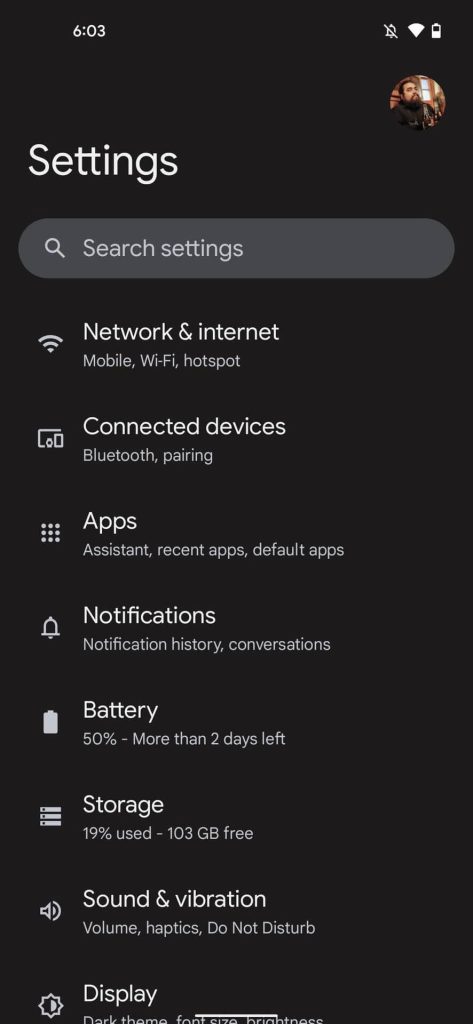
Step 1: Click on the Settings app from your menu.
Step 2: Under the Settings section, scroll down and choose the Notifications option.
Step 3: Click on the Do Not Disturb option.
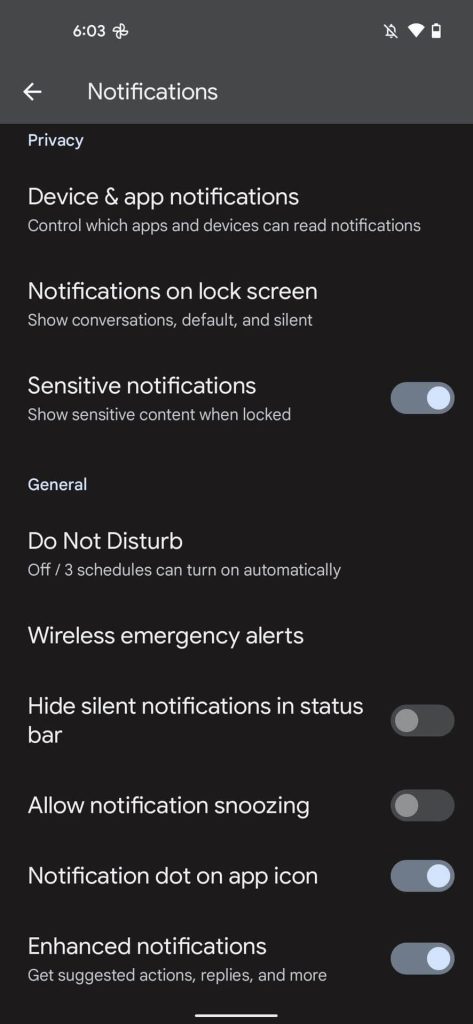
Step 4: Then choose the Schedules selection from your menu.
Step 5: Click on the Gear icon next to change the listed schedule or directly choose the Add More button here. Then, make your personalized schedule.
Step 6: Select the preferred schedule type.
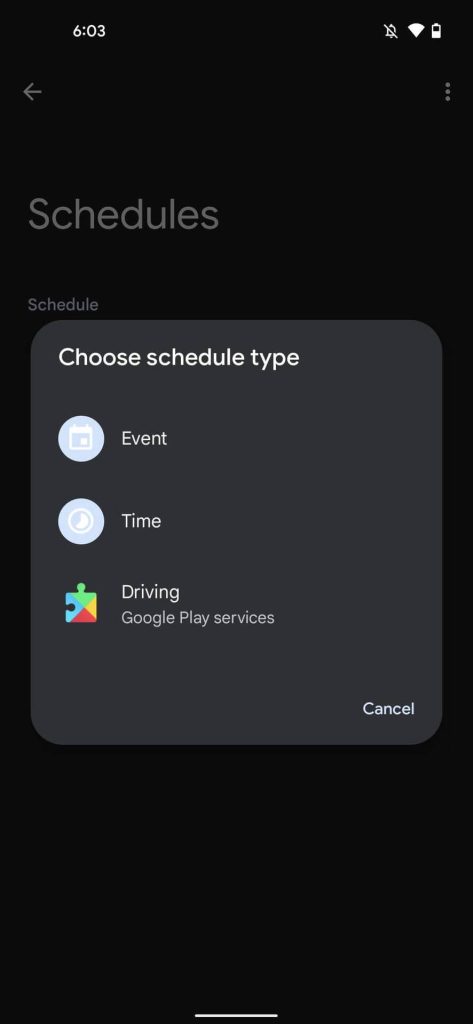
Step 7: Type in a name and tap on the Add button.
Step 8: Make changes to the date and time of your schedule.
Step 9: Keep the Use Schedule toggle active to make sure that this process is in working condition.
Method 3: Set up a specific duration for the DND mode
You can use the schedule setup process to plan your Do Not Disturb settings timeline for different apps. Besides that, another useful method that you can try is activating the duration-based scheduling factor on your Android smartphone.
This is useful for one-time occasions or short-term events like meetings or functions that do not require per-day scheduling. In these situations, the duration-based setup through the Android Do Not Disturb setting is very efficient. However, activating this function is only available through the quick toggles on your smartphone, so make sure to add this feature to that first.
Step 1: On your Android smartphone, click on the Settings app.
Step 2: Then, go to the Notifications option from the menu.
Step 3: Under this section, choose the Do Not Disturb option to access the settings for that.
Step 4: Scroll downward and click on the Duration for Quick Settings option.
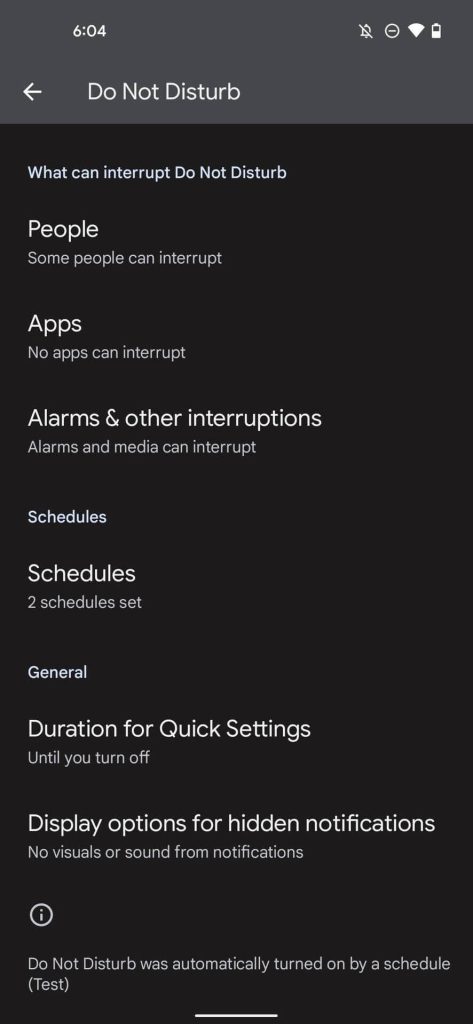
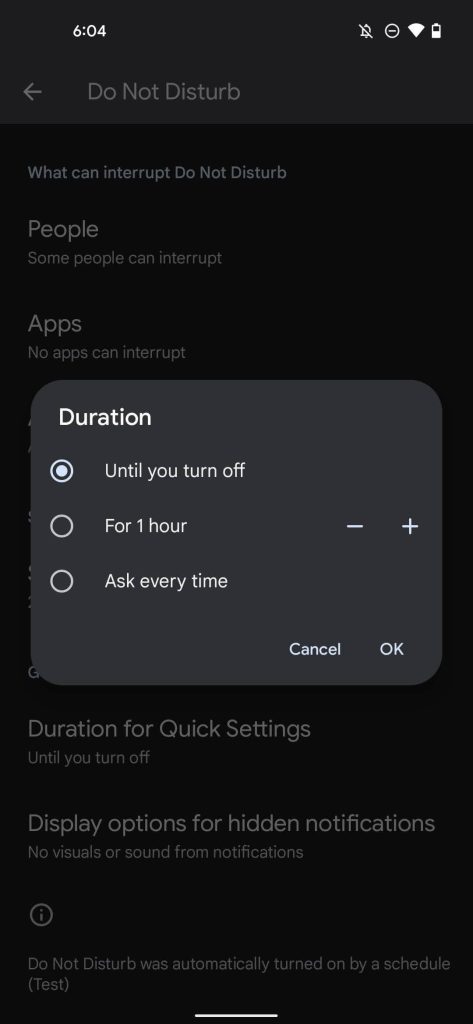
Step 5: Choose your preferred duration and tap on the OK button.
Method 4: Select which alerts to show or hide
Another popular feature from the Android Do Not Disturb settings that you can operate is to choose to show or hide specific notifications. This is useful for some apps sending too many notifications you do not require, e.g., a shopping app’s sale updates.
You can temporarily deactivate the notifications for that specific app and other such apps and reactivate them later at your convenience. However, remember that this function does not mute the critical alerts on your phone system, like battery percentage warnings or OS upgrade notifications.
Step 1: Click on Settings on your Android smartphone from the homepage or list of apps.
Step 2: In this menu, tap on the Notifications option.
Step 3: Click on the Do Not Disturb option under the Notifications section.
Step 4: Click on the People option and select the specific Messages and Calls that you will allow unrestricted access.
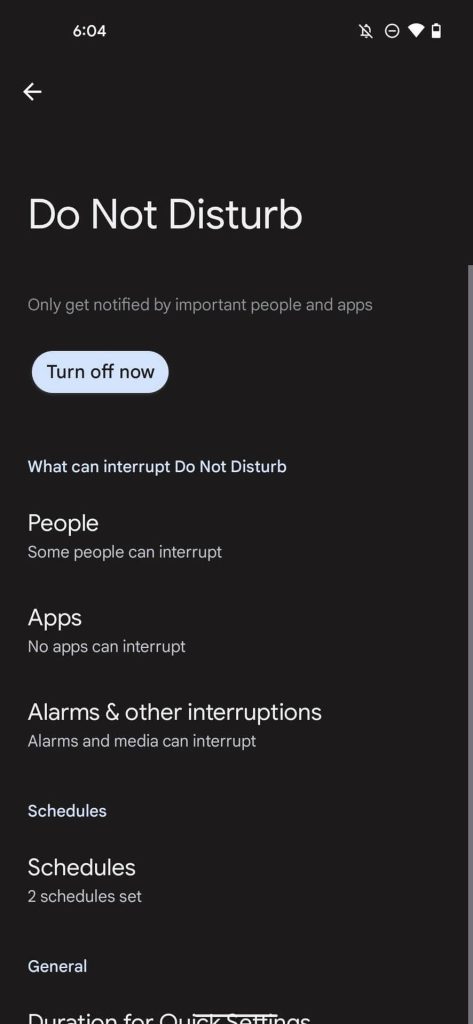
Under the Apps section, select the particular app whose notifications you want to be switched on.
Select which additional interruptions and notifications you want to come through under the Alarms & other interruptions option.
Conclusion
It is possible for users to quickly set up different levels of notifications-related controls through the Do Not Disturb mode on Android. Follow the different steps to set up various settings for the feature on your phone to control the number of alerts that come in.
Author Bio:
Dinesh Lakhwani 

Dinesh Lakhwani, the entrepreneurial brain behind “TechCommuters,” achieved big things in the tech world. He started the company to make smart and user-friendly tech solutions. Thanks to his sharp thinking, focus on quality and the motto of never giving up, TechCommuters became a top player in the industry. His commitment to excellence has propelled the company to a leading position in the industry.
Popular Post
Recent Post

5 Best Data Recovery Software For Windows 11 and Windows 10
A crashed drive can ruin a whole day. One minute your photos, work files, and tax records sit safe on your PC. The next minute they are gone. A power cut, a bad update, or one wrong click can wipe out years of memories and months of work in seconds. That sinking feeling is why […]

How To Update NVIDIA Drivers On Windows 11/10 PC
Learn how to update NVIDIA drivers on Windows 11/10 with simple methods, safety tips, and easy steps for smoother gaming and better PC performance.

Top AI Features Hidden Inside Windows 11
Explore the top AI features in Windows 11, from Copilot to Recall, plus safety tips and simple steps to use each tool the right way.

Customize Your Screen Saver Settings in Windows [Easy Steps]
Learn how to customize screen saver settings in Windows 11 with easy steps, safety tips, and simple tricks to personalize your PC screen.

Driver Easy Windows Driver Updater Tool Review: Tried & Tested
In-depth information about Driver Easy’s functions and features can be found in our review. Learn how to update drivers more easily with this tool for a more seamless computer experience.

Is Avast Driver Updater Worth It? A Hands-On Analysis
A full review of Avast Driver Updater covering features, setup steps, pricing, pros and cons, and real PC results, to help you decide if it is worth buying.

IObit Driver Booster 13 (PRO) Review: [Tried & Tested]
IObit Driver Booster 13 is built for one purpose: keeping your PC drivers up to date. Well, yes! Outdated drivers can cause crashes, slowdowns, and hardware issues. This tool scans fast and updates with one click. The interface is simple. Even beginners can use it without confusion. Updates are pulled from a huge database, covering […]

Auslogics Driver Updater: A Detailed Walkthrough [2026]
This comprehensive review covers the key features, pros, and cons, pricing, and a final verdict on Auslogics’ driver update utility. Learn how it stacks up against manual driver maintenance.

5 Best Driver Updater Tools for Windows to Use (Free and Paid)
Introduction: Most people blame their PC for problems that a driver caused. A driver works like a bridge between your hardware and your operating system. When this bridge cracks, strange things start to happen. Screens flicker without reason. Printers go silent mid-task. Games freeze or crash out of nowhere. Manually finding the right driver is […]

