












So, search for a pair of shoes once online. Close the tab. By evening, those same shoes are sitting on your news site, your video app, and even your recipe blog. Nobody placed them there by chance. A cookie did. Well, yes! Cookies are small files that websites place on your device while you browse. […]
How to Fix the Audio Renderer Not Working for YouTube on Windows
Introduction
With a vast library of eclectic video content, high-quality resolution, and free video streaming benefits, YouTube is highly popular globally. However, some users can notice problems in functionality while operating the app. One prominent one is the audio renderer error Windows 10/11 message that comes up due to certain functional defects.
Steps to Rectify the YouTube Audio Renderer Not Working Problem
You can take multiple steps to remove the audio renderer error Windows 10 issue on your device. For a better experience, we have detailed all the steps you can take to remove this issue well. Please go through them and follow each part of the sequence accurately.
Fix 1: Unplug/replug the default Audio device
One of the easiest methods to fix the audio renderer problem for YouTube is to check the connected audio hardware, e.g., headphones. A wrongly attached device can cause minor troubles when trying to detect and allow audio rendering.
So, you should unplug the audio device and then replug it in the right socket. This method only applies to small-scale bugs and works if the glitch is not major.
Fix 2: Restart the computer
Restarting the computer is another suitable way to handle the audio renderer error Windows 10 and 11 users get on their device while trying to open YouTube. When you reboot the software, it would jumpstart the regular functioning of the PC and force-stop the cause of the error.
This is a temporary fix, and the issue can come up after a while if the main cause for the error is serious.
Fix 3: Update audio driver with IObit Driver Booster 9
One of the common issues that cause the problem of YouTube audio rendering is the pre-built PC drivers. The audio-specific drivers can stop performing and slow overall system functions if they are not up-to-date or have some damage.
You can download the IObit Driver Booster 9 app to fix audio renderer error on YouTube. It can analyze the system for defective or outdated drivers and allow users to update it. While the Pro version has more available driver options or advanced repair features, you can easily use the free version.
How to do this?
Step 1: Download and install the IObit Driver Booster app and launch it, following all on-screen instructions.
Step 2: Click on the Scan button. This process would take some time to complete.
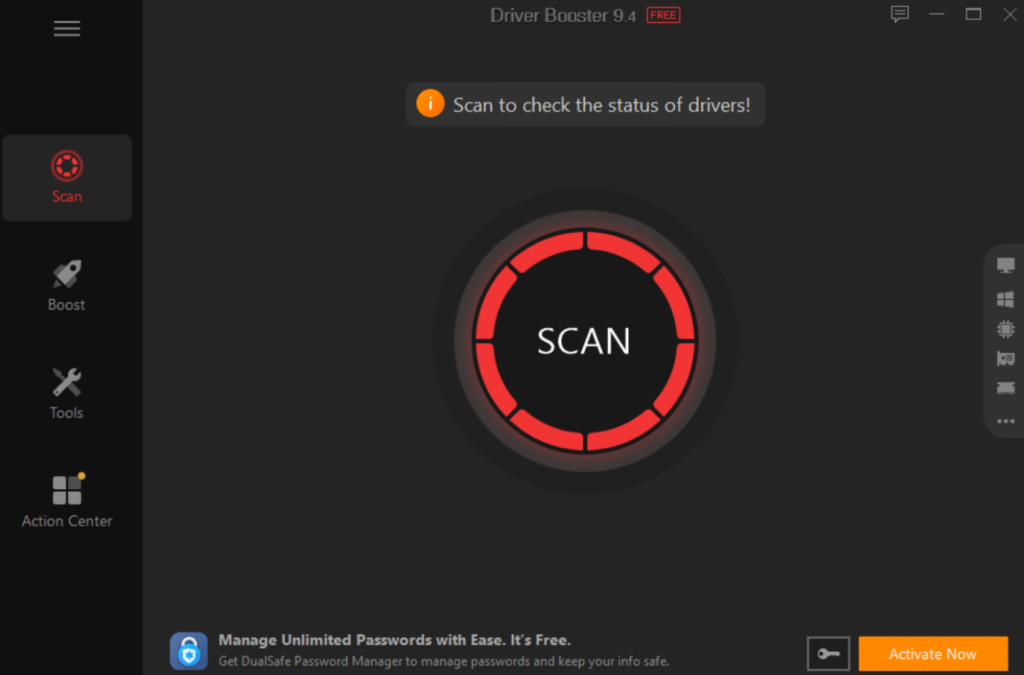
Step 3: Choose the right audio device drivers that the app detects as outdated if it comes up.
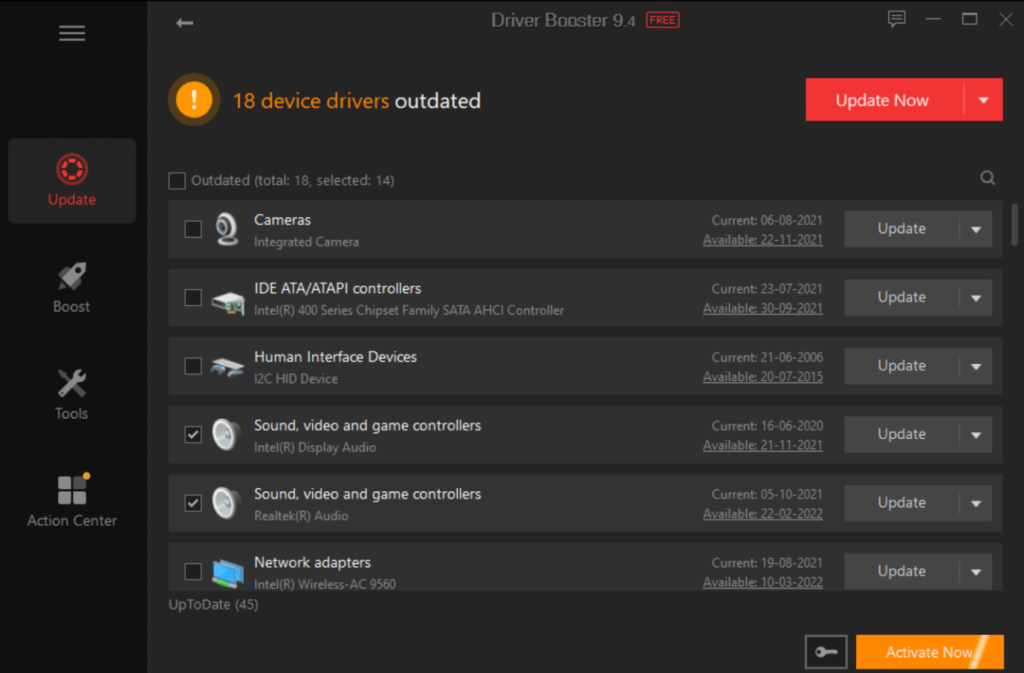
Step 4: Click on Update Now to start the update for the selected driver(s).
Fix 4: Get the Latest Audio Driver from Windows
If the audio renderer error in Windows 10 is due to outdated or defective audio drivers, you can also directly download it from Windows. The update may be available, but you must carry out specific steps to find and activate it. If the updates are unavailable here, you can directly visit the manufacturer’s website or rely on Fix 3, as mentioned.
How to do this?
Step 1: Click on the Start menu and type Device Manager. Click on the first option.
Step 2: When the window opens, find the “Audio Inputs and Outputs” option and double-click on it.
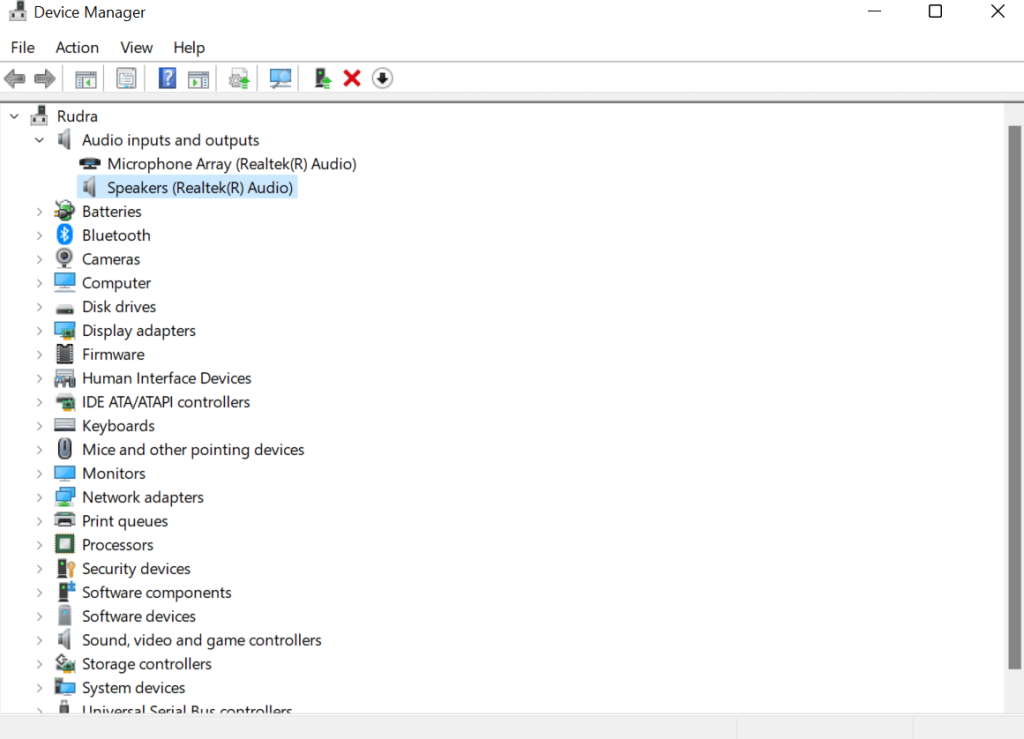
Step 3: Next, right-click the cursor on the audio device you have connected. From the next menu, select the “Update driver” option.
Step 4: Find “Search automatically for drivers” and click on it. The update process will activate.
Fix 5: Reboot Audio Device
One way to fix audio renderer error on Windows 10 or 11 devices is to enable/disable the audio device one is using. This is not the most common solution, but it is possible to bypass the audio renderer problem in YouTube by restarting audio devices.
How to do this?
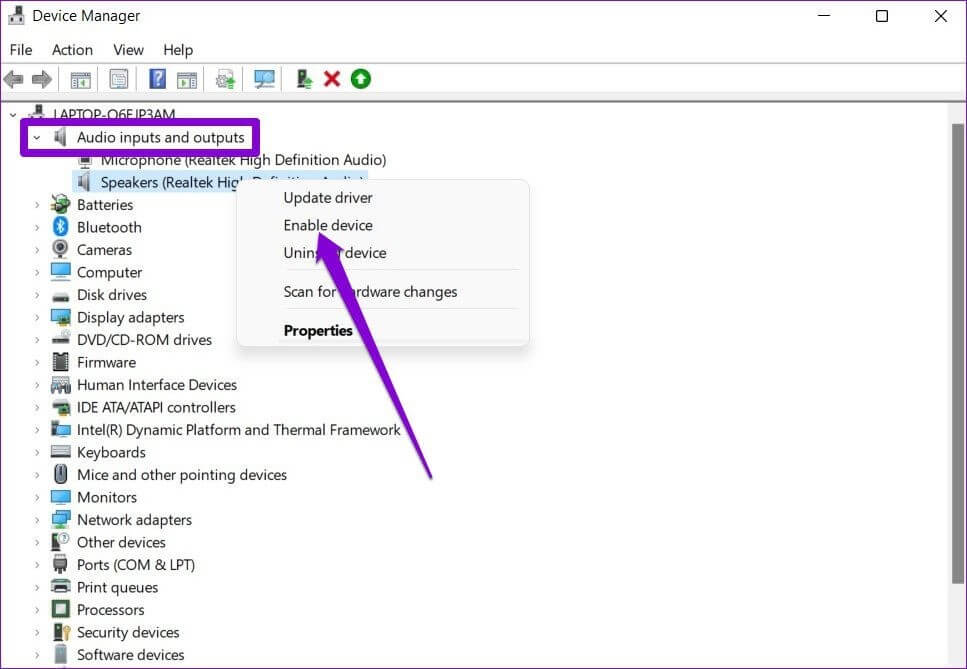
Step 1: Press the Windows and X keys on your laptop keyboard. From the list, choose Device Manager.
Step 2: Choose the “Audio Inputs and Outputs” option and press the arrow beside it. When it expands, choose the device and click on Disable Device.
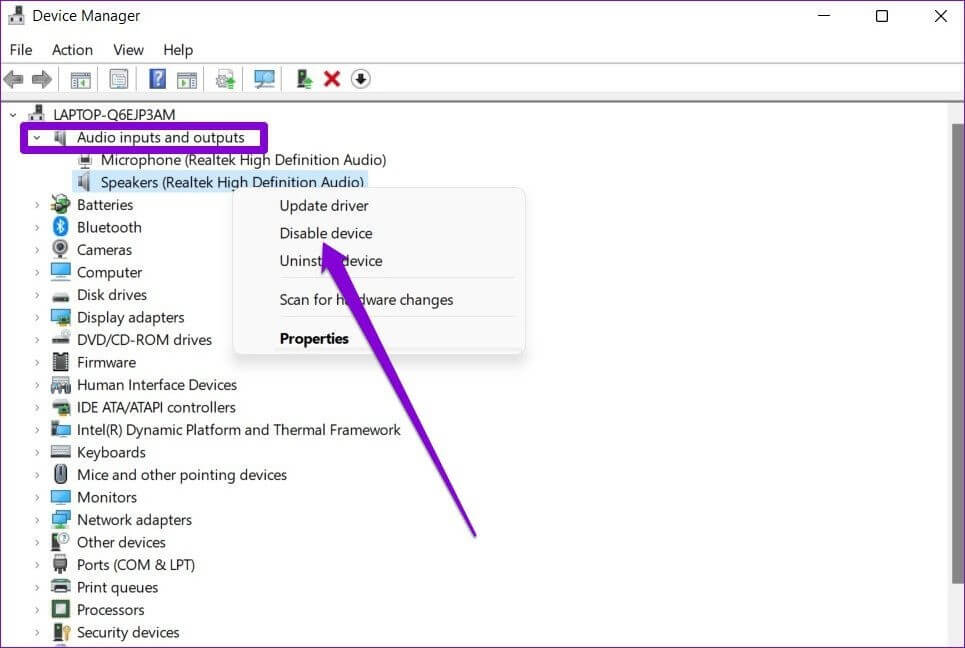
Step 3: Again, right-click on your select device a second time and choose Enable Device next.
Fix 6: Use the Windows Troubleshooter for Audio
Windows OS includes multiple pre-set troubleshooters that focus on quickly finding and fixing varying system issues. Like most fundamental components, there is a troubleshooter for audio connections. With this built-in tool, you can diagnose the software-specific issue causing the rendering problem on YouTube and automatically repair it.
How to do this?
Step 1: Press Win + R.
Step 2: When the Run dialog box opens, add the following command: ms-settings:troubleshoot.
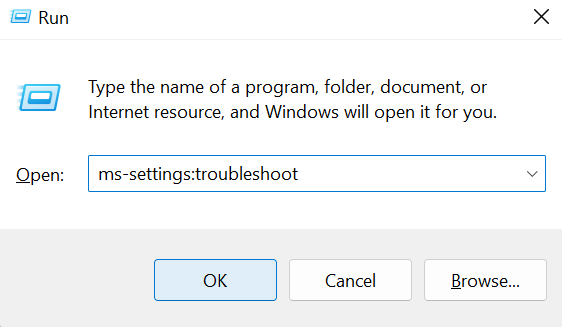
Click OK to run it.
Step 3: Choose the “Playing Audio” option in the next window.
Step 4: Click on the “Run the troubleshooter” button on the next screen. Wait for the process to complete.
Step 5: When the device options come up, choose the one you are using and click the Next button.
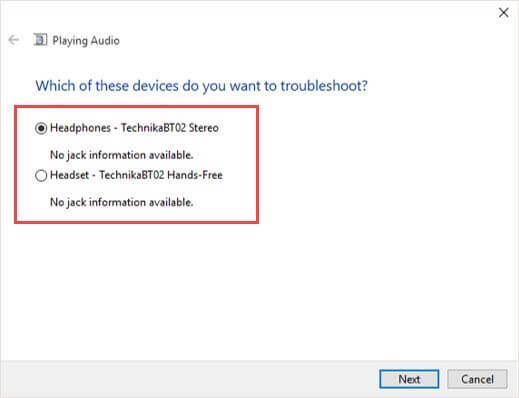
Step 6: If the device has an issue, its relevant repair strategy will come up. Press YES and continue the steps as mentioned.
Step 7: Restart the device and wait for it to complete. Open YouTube and check if the issue is still available.
Fix 7: Remove YouTube browsing data
One possible reason for the YouTube audio renderer issue is an overfilled cache folder within the app, specifically if they are corrupted. So, you should remove the store cache data on the YouTube app if the prompt comes up, and even consistently.
How to do this?
Step 1: Open the browser, i.e., Chrome.
Step 2: Press Ctrl + Shift + Delete keys on the keyboard.
Step 3: After the “Clear browsing data” panel appears, choose the Time range from the drop-down menu. Set this to the “All Time” choice.
Step 4: Find the “Cached images and files” option and check the box beside it.
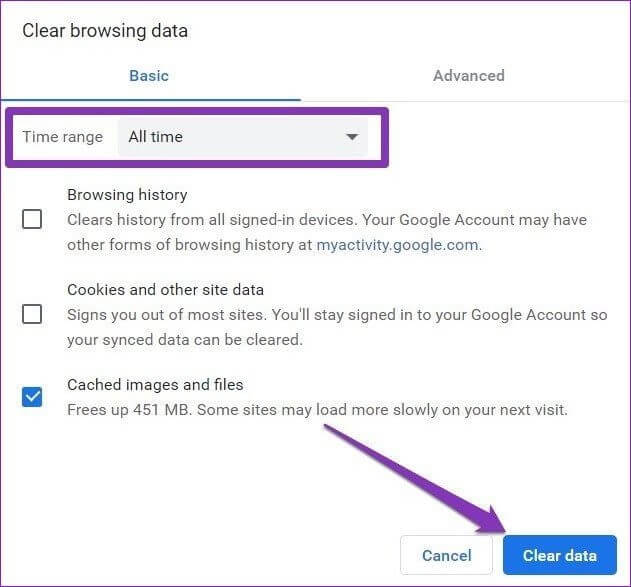
Step 5: Press the Clear Data button to remove all cached browsing data.
Fix 8: Disable Browser-based Hardware Acceleration
If the hardware acceleration feature is activated on different browsers, it can affect video streaming and playback performance. So, one way you can fix the audio renderer error on YouTube is to disable this setting, as it is a probable cause for the problem.
The following is a way to deactivate the settings in a specific browser, i.e., Google Chrome. The steps may differ for other browsers.
How to do this?
Step 1: Open the Google Chrome app on your device by clicking on it from the Desktop or searching through the Start menu.
Step 2: At the top right of the home page, you will see a three-dot icon for the menu. Click on it and choose Settings from the drop-down list.
Step 3: Expand to the left side pane for Advanced > System.
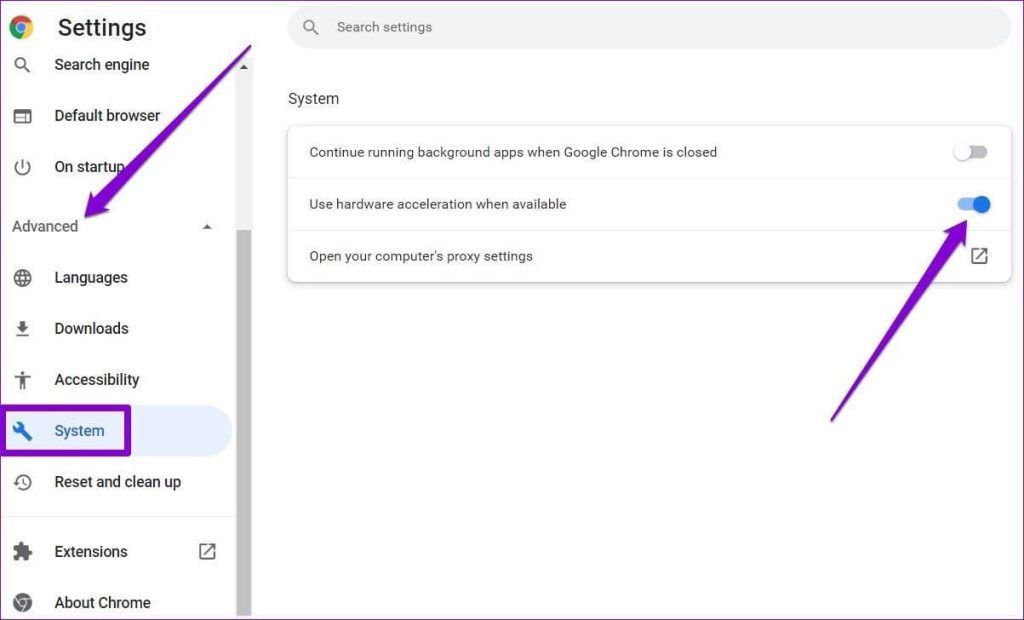
Step 4: Find the “Use hardware acceleration when available” option and turn it OFF.
Fix 9: Adjust the Settings for Audio Playback
Some Windows devices may have audio enhancement or mixing software which affects the regular functioning of the system audio playback. This may result in the error or audio rendering while using YouTube. So, it would be best if you changed the audio playback system settings to fix the problem.
How to do this?
Step 1: On the Taskbar, you will see the icon of Speaker. Right-click your cursor on it.
Step 2: Choose the “Sound Settings” option.
Step 3: Scroll through the menu and choose the Advanced section. Then, click on the “More Sound Settings” option to open its window.
Step 4: Find the audio device you use and right-click on it. Choose Properties.
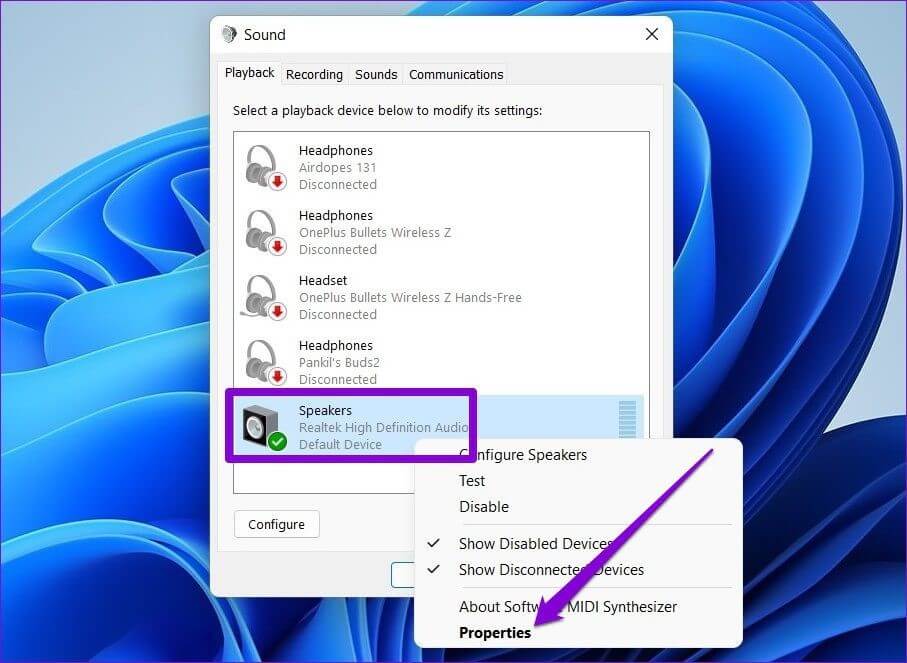
Step 5: Find the Advanced section and turn the checkmark beside the “Allow applications to take exclusive…” function to OFF.
Step 6: Click on the Apply button and then press OK.
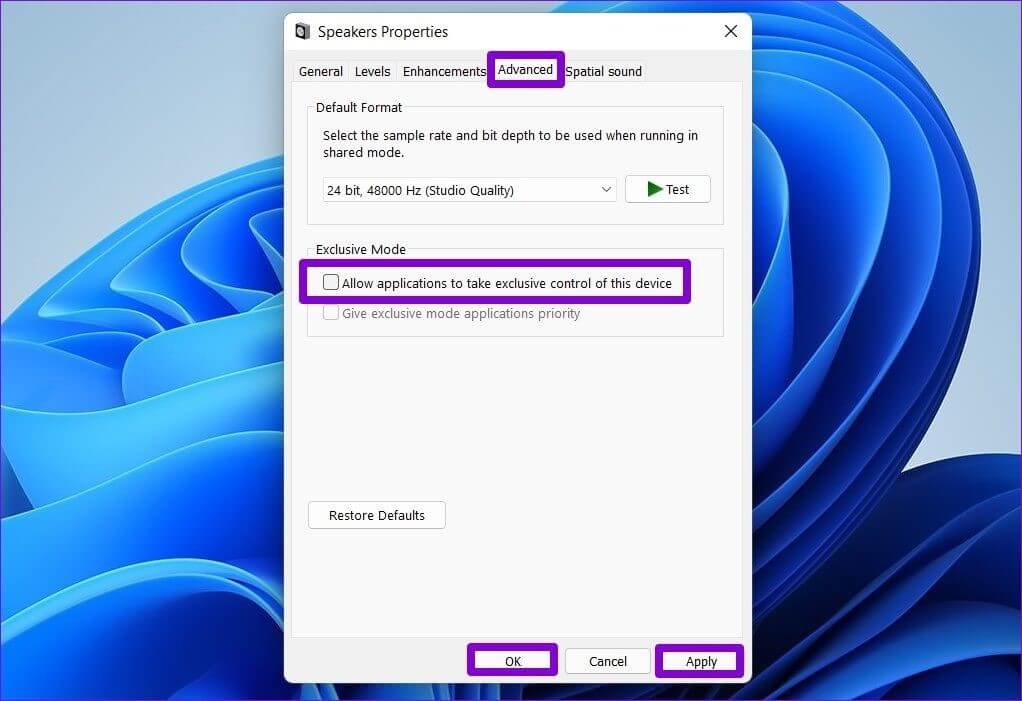
Step 7: Restart the device and try switching YouTube to play a video.
Conclusion
Follow the given solutions to fix the audio renderer error Windows 10-based problem in your YouTube application. Typically, the fix is easy to accomplish and does not require complex technical steps. For complex problems like defective drivers, download helpful apps like IObit Driver Booster 9. If problems still persist, you can involve experts in the fixing process.
Author Bio:
Dinesh Lakhwani 

Dinesh Lakhwani, the entrepreneurial brain behind “TechCommuters,” achieved big things in the tech world. He started the company to make smart and user-friendly tech solutions. Thanks to his sharp thinking, focus on quality and the motto of never giving up, TechCommuters became a top player in the industry. His commitment to excellence has propelled the company to a leading position in the industry.
Popular Post
Recent Post

How To Disable Background Apps In Windows: 4 Quick Methods
A slow PC rarely gives a warning. One day, it simply takes longer to start. Apps open late. The fan runs loud, even when the screen is almost empty. Most people blame old hardware. Often, that is not the real reason. The real reason is hiding in plain sight. Windows keeps many apps active in […]

How to Activate Windows with a Product Key for Windows 11 & Windows 10
It always shows up at the worst time. You are halfway through a report, or about to join a video call. Then you spot it in the bottom right corner of the screen. Activate Windows. Go to Settings to activate Windows. Initially, an unactivated copy of Windows may seem like a minor inconvenience. Over time, […]

Is Easy Duplicate Finder Worth It? Honest Review
The photos folder looked normal at first glance. Then the storage warning popped up. One trip photo appeared four times. A tax PDF sat in three different folders. Two old setup files were still in Downloads, and each one was over 500 MB. Nobody plans this mess. Copies pile up slowly. A download runs twice. […]

Wise Duplicate Finder Review: Real Results from Wise Duplicate Finder
Read my honest Wise Duplicate Finder review. See features, pricing, pros and cons, and real PC test results. Find out if this free duplicate cleaner can free up your Windows storage.

How to Recover Deleted Files from Pen drive, USB Drive, SD Card
Introduction: On tech forums, you’ll often see posts like this: “I connected my pen drive to my laptop this morning, but the folder was empty. All my college project files had vanished. I don’t have a backup. Can someone help me?” Stories like this are very common. Pen drives, USB drives and SD cards are […]

How To Recover Files Deleted from the Recycle Bin [Windows 11]
Losing a file can happen in seconds. You clear your desktop, hit Delete, and empty the Recycle Bin. Then, just when you need that file again, it seems to have vanished. This guide will walk you through ways to restore files removed from the Recycle Bin. We will begin with simple fixes, then look at […]

Disk Drill Data Recovery Tool Explained: Full Review and Guide
It happens in a split second. You delete a folder by mistake. Your drive stops showing up. A photo album from your last trip just vanishes. And your stomach drops. Lost files feel personal. They are not just data. They are memories, work hours, and sometimes years of effort packed into a few gigabytes. When […]

Recover Deleted Files In Windows 11 With Software & Without
Introduction What is the first thing that goes through your mind the second an important file vanishes from a Windows 11 PC? For most people, it is a mix of panic and disbelief, followed by a frantic click through every folder that file could possibly be hiding in. It happens in a split second: one […]

EaseUS Data Recovery Wizard: Everything To Know
Data loss does not always come from a big disaster either. Most cases start small and boring. A drive gets formatted by mistake. A laptop freezes mid-save and restarts on its own. A memory card stops showing up after being pulled out too fast. None of these feel like emergencies at first, until you realize […]

