












So, search for a pair of shoes once online. Close the tab. By evening, those same shoes are sitting on your news site, your video app, and even your recipe blog. Nobody placed them there by chance. A cookie did. Well, yes! Cookies are small files that websites place on your device while you browse. […]
Here’s How to Uninstall a Printer from Your Mac?
Even though digitization is the new way to operate. There are still some situations where you need a hard copy of your documents.
For example, when you need to print out your certificates for a job interview or print some photos to create an art piece for your kid’s school.
But these situations arise very rarely nowadays when you need to print something as digital documents are acceptable everywhere. In this case, there is no purpose in keeping a printer on your Mac, especially when your disk space is already running out.
In addition, if you are replacing your old printer, you need to install drivers for the new printer in System Preferences to run it. So, there is no need to keep your old printers on your system and increase their workload.
It is pretty simple to uninstall a printer from your Mac. You can both manually and automatically uninstall a printer. Let’s explore all the options in detail.
How to Remove Printer Drivers on Your Mac
If you have replaced your old printer, you should delete it from your Mac. That’s because old printer drivers can conflict with the new driver files, disturbing the printer’s features. Plus, when you have no plan to connect a printer with your Mac, what is the purpose of keeping its drivers and overloading your disk space.
So, following these steps, you can quickly delete printer drivers on your Mac:
Step 1. Go to the Apple Menu and select System Preferences.
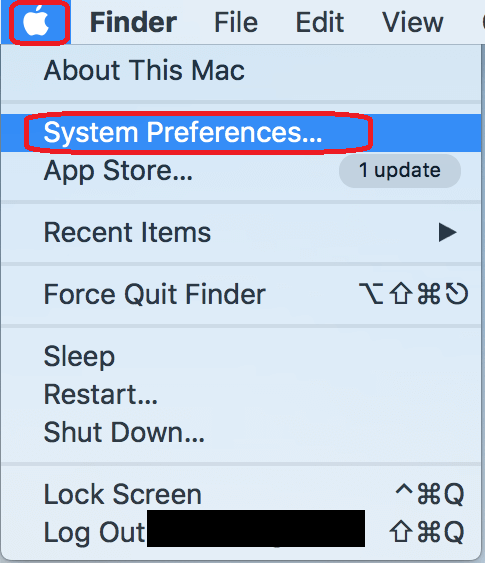
Step 2. After that, click on the Printers & Scanners pane.
Step 3. Navigate to the printer that you want to remove from the sidebar.
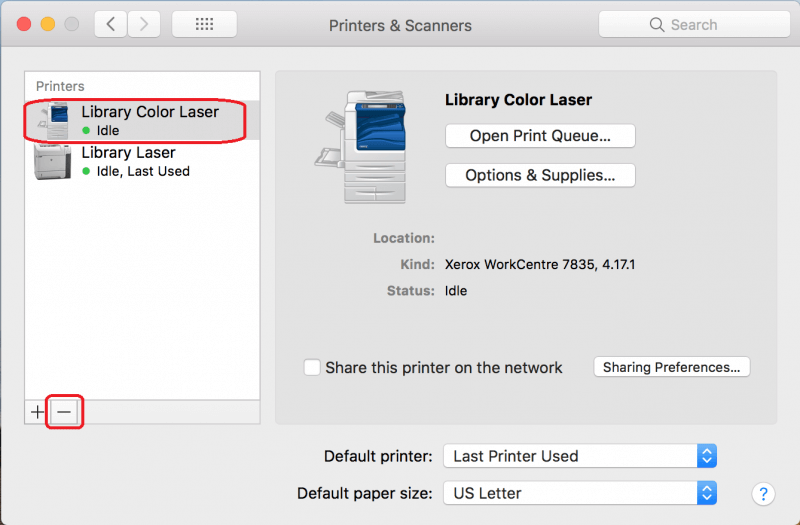
Step 4. Now, just click on the ‘-‘ sign from the bottom of the sidebar to remove printer drivers from your system.
How to Uninstall a Printer from Your Mac?
When you delete a printer in System Preferences, it becomes unavailable in the Print dialogue box. But, it doesn’t completely uninstall your system.
For that, you need to delete all the files that a printer has installed on your Mac. Below we have explained 3 easy options to uninstall a printer on your Mac:
Option 1. Use the Printer Uninstaller File
If your printer manufacturer has an uninstaller, which will probably be available in your Applications folder, it is the best way to uninstall a printer on your Mac. Here’s how this option works:
Step 1. Head over to the Application folder on your Mac. Now, look for a folder with your printer’s manufacturer name that you want to uninstall.
Step 2. After that, scroll down to the Uninstaller file and double-click to open it.
Step 3. Simply follow the on-screen instructions to remove all the printer files from your computer.
Option 2. Go to Finder
If your printer manufacturer has no uninstaller, you have to manually find and delete the printer driver. Unfortunately, it is a time-consuming task as your printer drivers have installed several files in different locations on your Mac.
So, you have to find all the possible printer driver files and manually drag them to the Trash. To complete this mammoth task, follow these steps:
Step 1. Go to the Finder icon in the Dock.
Step 2. Select the Go Menu and next click on the Go to Folder.
Step 3. Paste the following path into the text field, one by one. At every location, look for the files with your printer manufacturer’s name and drag them to the Trash folder.
~/Library/Cache
~/Library/Preferences
~/Library/Logs
~/Library/Application Support
~/Library/Containers
~/Library/Printers
Step 4. Cross-check all the folders to ensure that no printer files remain behind. Once you are sure, empty the Trash to permanently get rid of all the printer drivers.
Option 3. Use Third-party Tools
In the absence of your printer manufacturer uninstaller, it is not easy to uninstall all printer files manually. It takes time, and you can also delete the important files by mistake. Thus, the easiest solution is to get a powerful tool like CleanMyMac X.
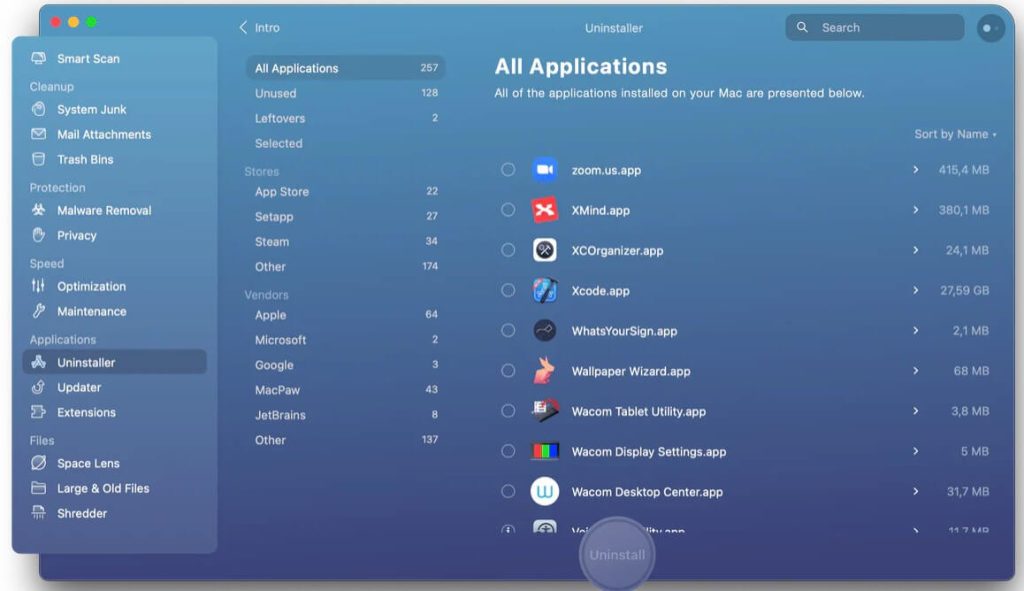
CleanMyMac X is the perfect tool to remove unwanted files from your Mac and maintain its performance. Using its Uninstaller module, you uninstall most applications, including print drivers.
Here’s how to uninstall a printer using CleanMyMac X:
Step 1. Install CleanMyMac X for free on your Mac.
Step 2. Launch the application and select the Uninstaller in the sidebar.
Step 3. Search for the printer name you want to uninstall in the search box.
Step 4. Once the drivers appear in the right-hand pane, check the box next to them and click on the Uninstall.
How to Reinstall a Printer on Your Mac?
If you have to reconnect your old printer to your Mac machine by chance, maybe your new printer is not useful or needs repair. In that case, you can easily reinstall a printer on your Mac.
There you have several options to reinstall printers to your Mac, like:
With a USB
With WiFi or network
Via IP address
Using Bluetooth
Or connecting to an AirPort Time Capsule
For this guide, let’s quickly see how to add a printer using a USB:
Step 1. Go to the Apple menu > App Store.
Step 2. Click on the Updates to install the latest software updates. If there are no updates available, your MacOS already has the latest updates on your printer’s software.
Step 3. Using the user manual, unpack your printer and install toner or ink cartridges.
Step 4. Test to ensure there are no errors.
Step 5. Connect the printer to your Mac using the USB cable. A message will prompt on your screen to download new software.
Step 6. Download and install the software.
Parting Thoughts
Uninstalling a printer in System Preferences is simple. But unfortunately, it doesn’t completely uninstall the printer from the Mac. For that, you need to uninstall every file that printer manufacturers have installed on your system.
And doing that manually will take too much time. Thus, third-party tools like CleanMyMac X are the best option. It will not only uninstall printer drivers but also helps to maintain your Mac’s health.
Now, the choice is yours. We know you will make a wise decision.
If you find this post helpful, don’t forget to check our other Mac guides.
Author Bio:
Dinesh Lakhwani 

Dinesh Lakhwani, the entrepreneurial brain behind “TechCommuters,” achieved big things in the tech world. He started the company to make smart and user-friendly tech solutions. Thanks to his sharp thinking, focus on quality and the motto of never giving up, TechCommuters became a top player in the industry. His commitment to excellence has propelled the company to a leading position in the industry.
Popular Post
Recent Post

How To Disable Background Apps In Windows: 4 Quick Methods
A slow PC rarely gives a warning. One day, it simply takes longer to start. Apps open late. The fan runs loud, even when the screen is almost empty. Most people blame old hardware. Often, that is not the real reason. The real reason is hiding in plain sight. Windows keeps many apps active in […]

How to Activate Windows with a Product Key for Windows 11 & Windows 10
It always shows up at the worst time. You are halfway through a report, or about to join a video call. Then you spot it in the bottom right corner of the screen. Activate Windows. Go to Settings to activate Windows. Initially, an unactivated copy of Windows may seem like a minor inconvenience. Over time, […]

Is Easy Duplicate Finder Worth It? Honest Review
The photos folder looked normal at first glance. Then the storage warning popped up. One trip photo appeared four times. A tax PDF sat in three different folders. Two old setup files were still in Downloads, and each one was over 500 MB. Nobody plans this mess. Copies pile up slowly. A download runs twice. […]

Wise Duplicate Finder Review: Real Results from Wise Duplicate Finder
Read my honest Wise Duplicate Finder review. See features, pricing, pros and cons, and real PC test results. Find out if this free duplicate cleaner can free up your Windows storage.

How to Recover Deleted Files from Pen drive, USB Drive, SD Card
Introduction: On tech forums, you’ll often see posts like this: “I connected my pen drive to my laptop this morning, but the folder was empty. All my college project files had vanished. I don’t have a backup. Can someone help me?” Stories like this are very common. Pen drives, USB drives and SD cards are […]

How To Recover Files Deleted from the Recycle Bin [Windows 11]
Losing a file can happen in seconds. You clear your desktop, hit Delete, and empty the Recycle Bin. Then, just when you need that file again, it seems to have vanished. This guide will walk you through ways to restore files removed from the Recycle Bin. We will begin with simple fixes, then look at […]

Disk Drill Data Recovery Tool Explained: Full Review and Guide
It happens in a split second. You delete a folder by mistake. Your drive stops showing up. A photo album from your last trip just vanishes. And your stomach drops. Lost files feel personal. They are not just data. They are memories, work hours, and sometimes years of effort packed into a few gigabytes. When […]

Recover Deleted Files In Windows 11 With Software & Without
Introduction What is the first thing that goes through your mind the second an important file vanishes from a Windows 11 PC? For most people, it is a mix of panic and disbelief, followed by a frantic click through every folder that file could possibly be hiding in. It happens in a split second: one […]

EaseUS Data Recovery Wizard: Everything To Know
Data loss does not always come from a big disaster either. Most cases start small and boring. A drive gets formatted by mistake. A laptop freezes mid-save and restarts on its own. A memory card stops showing up after being pulled out too fast. None of these feel like emergencies at first, until you realize […]

