












Read my honest Wise Duplicate Finder review. See features, pricing, pros and cons, and real PC test results. Find out if this free duplicate cleaner can free up your Windows storage.
10 Best Text to Speech Software: Complete Guide
Text-to-speech (TTS) software has become a powerful tool. It helps people listen to written content instead of reading. This is useful for students, professionals, and people with reading difficulties. You can hear emails, books, articles, or notes read aloud in clear, natural voices.
TTS tools are now smarter and faster. Many support different languages, accents, and voice styles. Some even let you change speed or tone. In this article, we list the 10 best TTS software options. Each one offers something special. You’ll find tools for learning, working, and creating content.
Top 10 Text-to-speech software
We looked through many software options that claim to be the finest text-to-speech solution available. After checking their functionality, additional features, and final product quality, we compiled this list of the ten usable software options. Read ahead to know their details.
1. Google Text-to-Speech
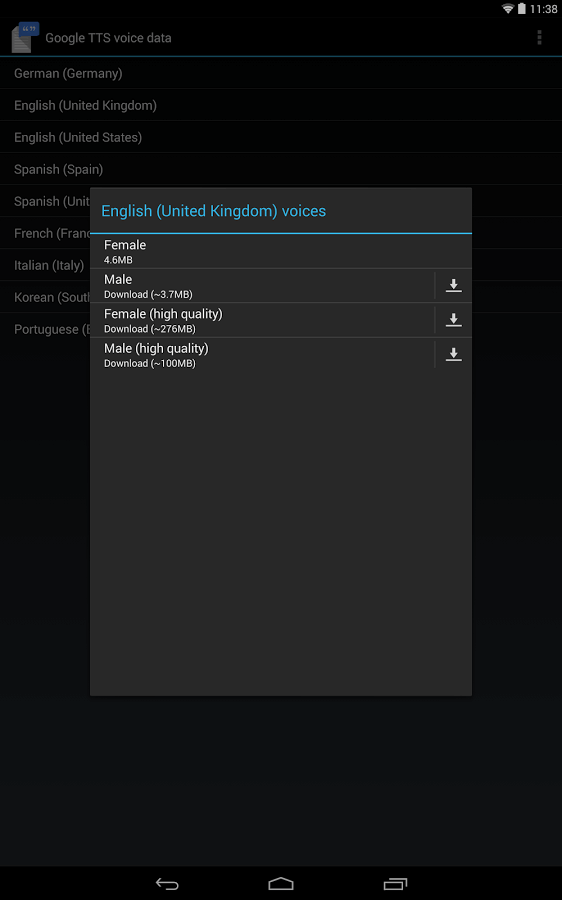
Google Text-to-Speech allows users to create customized voiceovers with a personalized voice as the software records and analyses users’ tones. The final outcome can have your voice, or you can add from its curated list of 220+ voices. There are over 40 different language variations available and 90 more options if you choose WaveNet voices.
You can adjust the speech speed by 4 times or change the audio volume to fit a suitable level.
Compatibility: web-based, Windows, Mac, Chromebook
Price: Free with character-based customized pricing.
Main Selling Points:
- Train the custom beta speech analysis software to create natural-sounding voiceovers.
- Convert text files into audio with Linear16, MP3, Opus, and other formats.
- SSML supports help set pauses, time, date, etc., for the voiceovers.
- Change pitch setting by 20 semitones.
Pros:
- Easy to use for beginners and professionals alike.
- It assures strong text support.
- Optimize the software for different speaker types to create specific audio profiles.
Cons:
- For Standard voices, you would get the initial 4 million characters for free.
- For Wavenet voices, 1 million characters are free to use each month only.
2. Narrator’s Voice
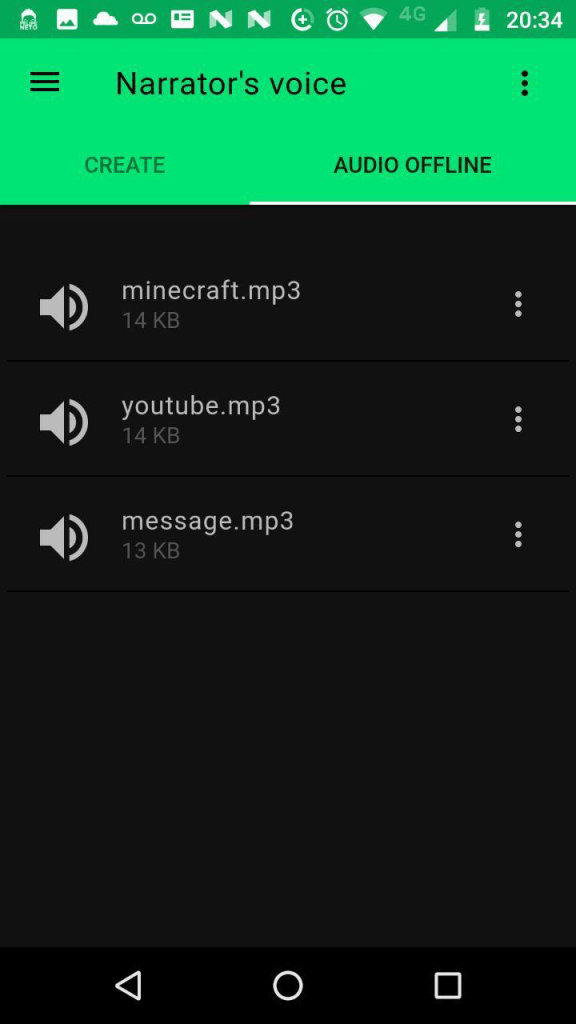
You can use Narrator’s Voice to create different voice-based content from text or speech in a realistic lone. There are language options with accent-based differences and funny tones that you can add to videos or audio files.
You can opt for this app to narrate texts in a read-aloud manner, adding effects and pauses. It is easy to use this app to create voiceovers for social media-based promotional videos, slideshows, and more.
Compatibility: iOS, Android
Price: Free with in-app purchases starting at USD 1.99
Main Selling Points:
- Different voice options like MLG, pink sheep, Cortana, etc.
- Natural-sounding and expressive text-to-audio speeches.
- Add effects to the voices.
- Convert and share files in MP4 or MP3 format.
Pros:
- Easily prepare voiceovers for Tiktok and YouTube videos and share them.
- Use offline after you save the audio file.
- Read aloud feature for books and documents.
Cons:
- No desktop version is available.
- Not a lot of language variety is supported.
3. Voicely
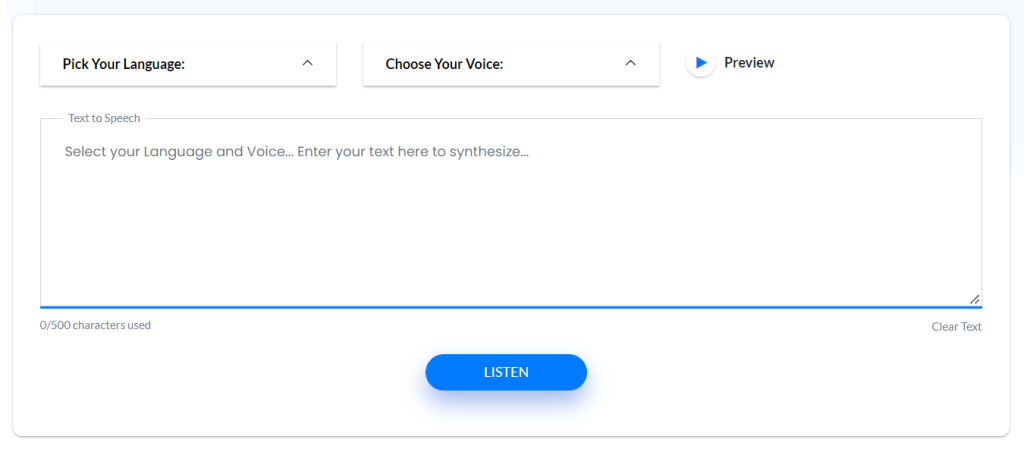
Users of this AI voice generator can get options of realistic voices for TTS voiceovers in 840+ different options. Though computer-generated, they sound exceptionally realistic with accents, natural tonal contrast, and dialects. Real artists who handle voiceover projects have provided their voice for the software with machine learning capabilities to mimic them.
You would get limited words for each plan, which expires as you synthesize or listen to the text-to-audio clips. The latter can consume the whole word limit since the whole text would convert into audio first.
Compatibility: Windows, Mac, website
Price: Personal- USD 15, Professional- USD 25, Business- USD 35
Main Selling Points:
- Adjust the voice pitch to sound lower or deeper.
- Customize the sound volume and the speed of the speaker’s speech.
- Change pronunciation and save for later use.
- Natural sounding AI vocalization.
Pros:
- After uploading the file for conversion, it would appear in the dashboard directly for download.
- Takes some minutes for the conversion to complete.
- Unused word count rolls into next month’s payment under the prepaid plan, so its not a waste.
Cons:
- You have to purchase again if the accepted word limit runs out.
- Your characters get consumed even during listening.
4. Pocket
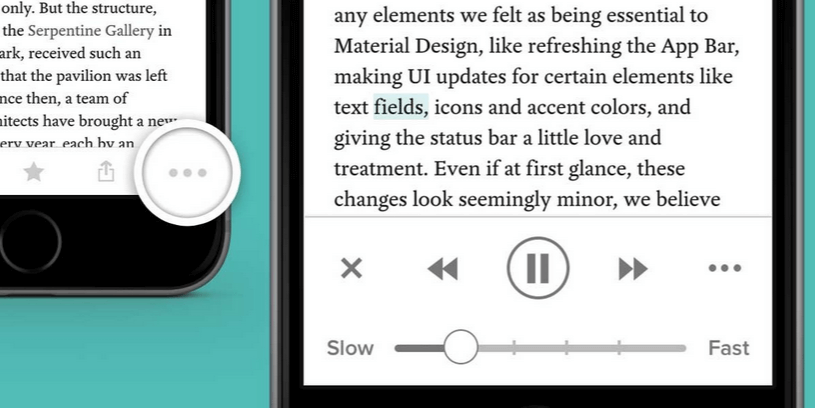
Pocket is one of the platforms that offer reading material of different types to users. The articles available differ in terms of style and content, and you can save them easily to your personalized library on the app for future use.
It is easy to convert the recommended articles into voice recordings as well with the integrated text-to-speech service here. You can adjust the viewing mode, font style, and text sizes of the content during reading or convert it to audio playback.
Compatibility: Windows, Android
Price: Free
Main Selling Points:
- Suggested tags are available for all projects.
- Users get premium fonts for the text.
- Full-text-to-speech conversion option.
- Save all recordings permanently into the library for future use.
Pros:
- Best for reading material or books on the app.
- No ads are available.
- Get unlimited highlighting options.
Cons:
- The voiceover sounds robotic after a while.
- Mostly used for reading purposes than audiobooks.
5. Play.ht
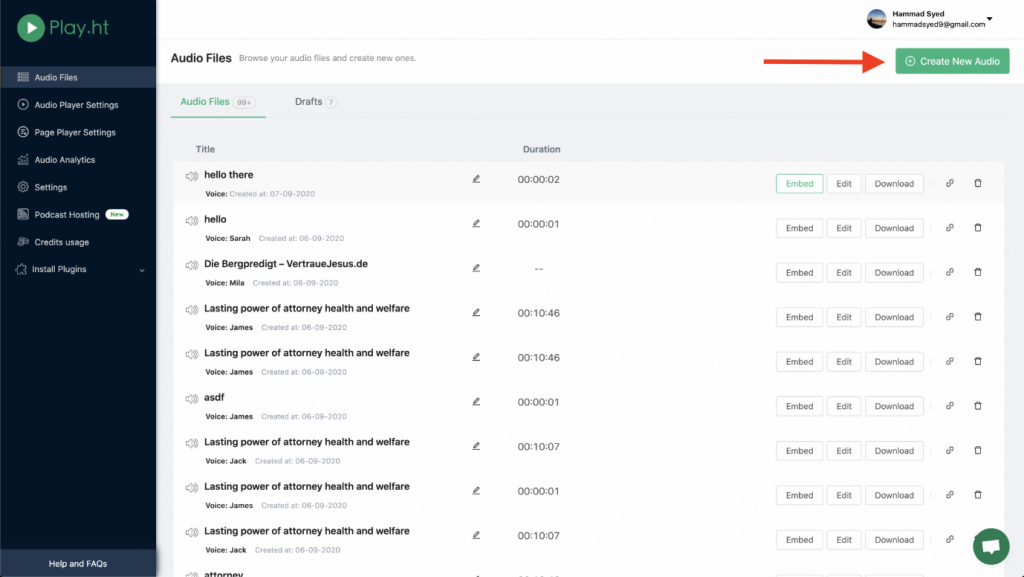
Play.ht is a suitable text-to-speech software that uses AI technology to easily generate synthetic voices from documents. The sound users hear with this software does not seem excessively robotic and includes voice inflections and accents that make it sound realistic.
You can convert the text documents like blogs with an AI generator into different voices and download them as WAV/MP3 files. It supports SSML and covers different types of voiceovers, like promo, marketing, podcast, and narrative.
Compatibility: Windows, Mac, web-based
Price: Personal- USD 14.25, Professional- USD 29.25, Growth- USD 74.25, Business- USD 149.25, all monthly.
Main Selling Points:
- Over 60+ languages work here, like Hindi, Portuguese, English, etc.
- Realistic voiceover creation for podcasts, videos, and e-learning.
- Turn blogs into audio files with synthetic voice translation.
- Exports files in formats like WAV and MP3.
Pros:
- Tonal and accent-wise differences are available.
- Over 570 different voice types.
- Easy conversion method from text to speech with the integrated API.
Cons:
- Commercialized audio files are not available for personal users.
- Automated voice generation is available under bigger paid plans only.
6. Murf AI
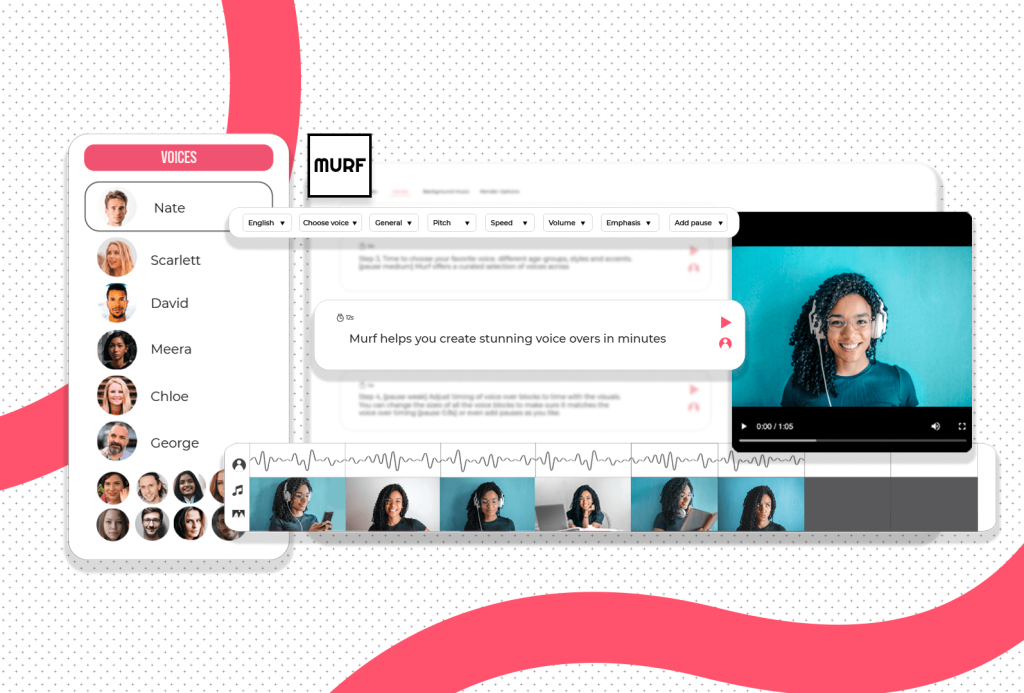
Murf AI is high-quality studio-based software that reduces time and effort in converting text format into voice recordings easily. Users can properly use this software to get professional-sounding voices in high-quality sound in 20 different language options.
There are 120 and counting voice options to choose from, ranging in gender, demography, and age. Users can use this software to make audiobooks, elearning course recordings, promos, and explanation videos.
Compatibility: Windows, web-based
Price: Free, Basic- USD 19, Pro- USD 39, Enterprise- USD 249, all per month
Main Selling Points:
- AI-powered text-to-speech translation within minutes.
- Available voices have tonal differences based on accents and emotions.
- Studio-quality voiceover syncing.
- The voice cloning feature is available.
Pros:
- There are over 20 different languages the software supports.
- You can add music or choose from the stocked, royalty-free audio on the software.
- It is possible to add pauses in the audio.
Cons:
- Only the Studio version is available, so there is no mobile app version of this.
- Accent types are supported in some languages only.
7. Resemble AI
Resemble AI uses artificial intelligence to generate speech clips from the inserted text in different artificial voice types. You can opt for a demo of the service before usage.
The application covers different types of voices and provides voiceovers for ads and promotional content with some clicks. You can update the voice assistant sound with this software and get a personalized voice instead.
Compatibility: Web-based, Windows, Mac
Price: Entry- USD 30 per month, Build, Enterprise- based on quotes.
Main Selling Points:
- Low-latency API is available for building personalized voices.
- Add your real voice or personal audio files for conversion if no script is available.
- Four options for personalized AI-generated synthetic voiceovers.
- Increase or decrease the volume of the audio player.
Pros:
- Choose professionally narrated voices from real experts.
- Use the API to create new audio clips and fetch existing options.
- Record around 50 samples easily on the platform.
Cons:
- You can translate voice recordings mostly and some text formats with this software.
- Extremely costly, even from the lowest plan.
8. Lovo
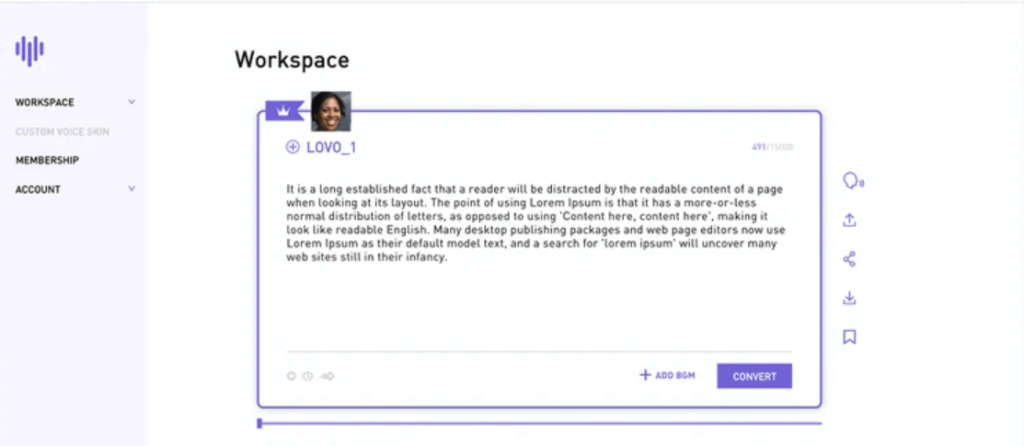
Lovo is a web-based freemium software that users can opt for to get AI technology support to turn texts and scripts into full-blown voiceovers. There are different types of voices available with regional speech variations that people can choose for a unique voiceover sound.
If you used the free plan for Lovo Studio, you could get 3 days’ worth of premium voice options to try. Handle an unlimited number of voiceover clip listening, TTS conversions, and easy sharing.
Compatibility: Windows, Mac, web-based
Price: Free, Personal- USD 17.49, Freelancer- USD 49.99
Main Selling Points:
- Over 180 different voice options are available.
- Realistic voiceovers with emotion-based tonal changes for a true person’s voice feel.
- Customized voice cloning technology is available.
- Constantly getting updated with new voices.
Pros:
- Around 33 language options are available.
- Easy to use Lovo Studio for choosing voice and uploading script.
- Instant conversion of textures to voiceovers.
Cons:
- Voice cloning can take around 15 minutes to complete the transformation.
- Make 3 downloads each month if you are using the free version.
9. @Voice Aloud Reader
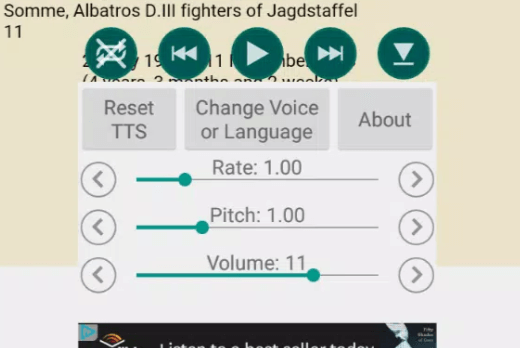
This app is useful software for reading on-screen news articles, blogs, web pages, long emails, and other content in audio format. It works with different types of documents like FB2 ebooks, DOCX, DOC, PDF, and Open Office documents as well.
You can open the files in the app and activate the voiceover feature to hear the audio version of the content. The app comes with an Optical Character Recognition function that extracts texts easily for playback from different file types.
Compatibility: Android
Price: Free
Main Selling Points:
- Control the pitch, speed rate, and volume of the voices.
- Long-press on words or phrases to view meaning from Wikipedia, transactions, and dictionaries.
- RegEx-power speech correction.
- Record speech-based articles to OGG or WAC formats.
Pros:
- Add pauses between different paragraphs.
- Choose language manually, or the software detects, analyses, and finds the right type.
- Use sleep time to pause speech after some period.
Cons:
- Big file size of 42 MB can lag the application during usage on some devices.
- Mainly for mobile-based app usage, and no official desktop site is available.
10. Voiceovermaker
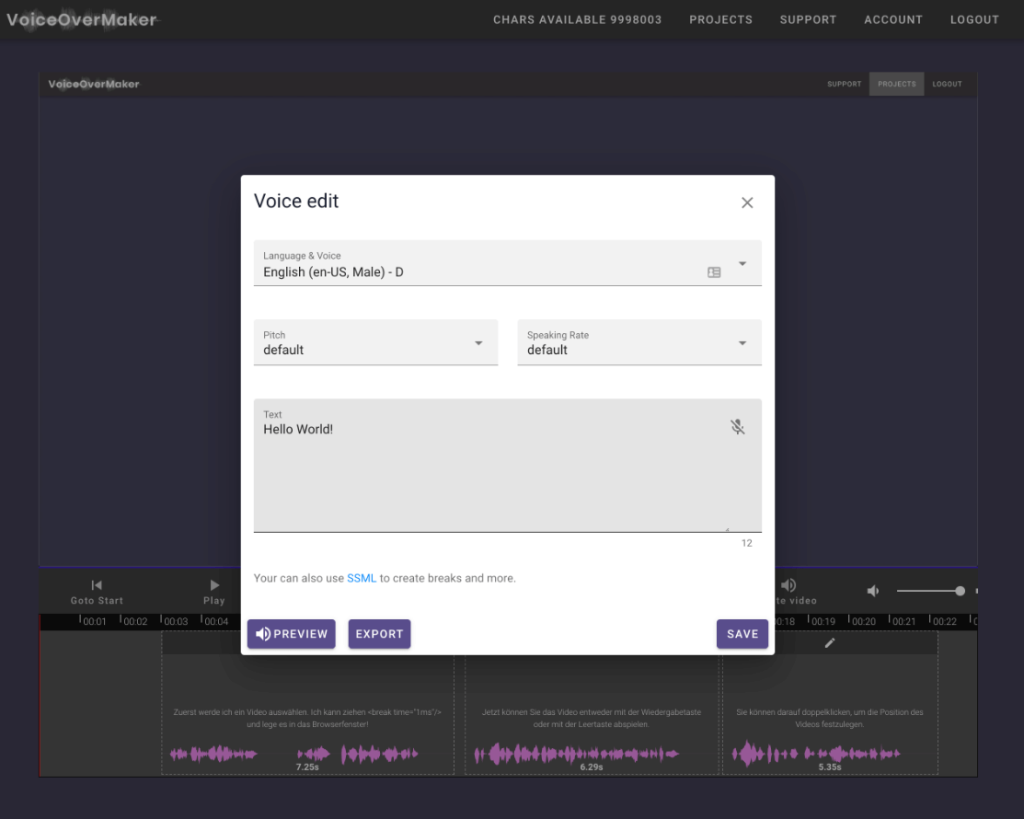
Voiceovermaker is another top option for creating professional-quality voiceovers online from the text. You can create different projects with this software and prepare natural-sounding voiceovers with the list of available voice options.
Here, it is easy to control the speech and pitch controls and even increase or decrease the audio speed. The text-to-speech editors allow users to reduce the volume to whisper-level sound quality.
Compatibility: Windows, Mac, web-based
Price: Free, Standard- USD 9.48, Medium- USD 14.75, Large- USD 33.72
Main Selling Points:
- Automatic translation of text or video to audio files.
- Use SSML tags to add background sound from the library.
- Batch processing is available for text-to-speech functions.
- Supports different export formats like MP3, MP4, and WAV.
Pros:
- Screencast video content to the browser for voiceover conversion.
- Transcribe both audio and video files automatically.
- Prepare voiceovers and share them instantly on social media accounts, like YouTube informational videos.
Cons:
- You would lose the afforded characters while previewing or saving generated audio files.
- Only 800 characters are available under the free plan.
Conclusion
TTS software is no longer just for accessibility. It’s now used in schools, offices, and homes. People use it to save time, improve focus, and enjoy hands-free reading. Some tools are great for making videos or podcasts. Others help with studying or writing.
TTS voices sound more real than ever. You can choose male or female voices, slow or fast speech, and even emotional tones. Many tools work on phones, tablets, and computers. Picking the right one depends on your needs. With so many choices, there’s a perfect TTS tool for everyone.
FAQs
1. What is text-to-speech software?
It reads written text out loud. You type or paste words, and the software speaks them. It helps with reading, learning, and multitasking.
2. Can I use TTS in other languages?
Yes. Most tools support many languages. You can pick English, Hindi, Spanish, and more. Some also offer accents and voice styles.
3. Is free TTS good enough?
Free tools work well for basic tasks. They are good for short texts and simple reading. Paid tools offer better voice quality and more features like saving audio files.
Author Bio:
Dinesh Lakhwani 

Dinesh Lakhwani, the entrepreneurial brain behind “TechCommuters,” achieved big things in the tech world. He started the company to make smart and user-friendly tech solutions. Thanks to his sharp thinking, focus on quality and the motto of never giving up, TechCommuters became a top player in the industry. His commitment to excellence has propelled the company to a leading position in the industry.
Popular Post
Recent Post

How to Recover Deleted Files from Pen drive, USB Drive, SD Card
Introduction: On tech forums, you’ll often see posts like this: “I connected my pen drive to my laptop this morning, but the folder was empty. All my college project files had vanished. I don’t have a backup. Can someone help me?” Stories like this are very common. Pen drives, USB drives and SD cards are […]

How To Recover Files Deleted from the Recycle Bin [Windows 11]
Losing a file can happen in seconds. You clear your desktop, hit Delete, and empty the Recycle Bin. Then, just when you need that file again, it seems to have vanished. This guide will walk you through ways to restore files removed from the Recycle Bin. We will begin with simple fixes, then look at […]

Disk Drill Data Recovery Tool Explained: Full Review and Guide
It happens in a split second. You delete a folder by mistake. Your drive stops showing up. A photo album from your last trip just vanishes. And your stomach drops. Lost files feel personal. They are not just data. They are memories, work hours, and sometimes years of effort packed into a few gigabytes. When […]

Recover Deleted Files In Windows 11 With Software & Without
Introduction What is the first thing that goes through your mind the second an important file vanishes from a Windows 11 PC? For most people, it is a mix of panic and disbelief, followed by a frantic click through every folder that file could possibly be hiding in. It happens in a split second: one […]

EaseUS Data Recovery Wizard: Everything To Know
Data loss does not always come from a big disaster either. Most cases start small and boring. A drive gets formatted by mistake. A laptop freezes mid-save and restarts on its own. A memory card stops showing up after being pulled out too fast. None of these feel like emergencies at first, until you realize […]

Recuva Data Recovery Tool: Is it Actually Worth it?
When I first tried Recuva Data Recovery, I wanted to see if it could really bring back lost files. The tool is free, small in size, and promises quick recovery, which made me curious enough to test it on my own PC. The setup was fast, and the wizard guided me step by step. I […]

GetData Recover My Files Data Recovery Tool: Honest Review
A hard drive error brings a special kind of silence. Well, yes! The screen freezes, then a message appears saying the drive can’t be found or must be formatted. In that moment, years of photos and work files feel at risk. It never happens at a good time. Coffee spills near a laptop, a memory […]

Windows File Recovery: A Complete Review [Tried & Tested]
Imagine this. You spend hours perfecting a video project. You hit save. Then your laptop freezes, reboots, and when the screen comes back. The file is gone. Your stomach sinks. It’s not just you. Lost files happen all the time. A dropped hard drive, a bad update, an accidental delete, or a corrupted partition can […]

5 Best Data Recovery Software For Windows 11 and Windows 10
Introduction: A crashed drive can ruin a whole day. One minute your photos, work files, and tax records sit safe on your PC. The next minute they are gone. A power cut, a bad update, or one wrong click can wipe out years of memories and months of work in seconds. That sinking feeling is […]

