











Imagine this. You spend hours perfecting a video project. You hit save. Then your laptop freezes, reboots, and when the screen comes back. The file is gone. Your stomach sinks. It’s not just you. Lost files happen all the time. A dropped hard drive, a bad update, an accidental delete, or a corrupted partition can […]
How to Optimize Mac for Gaming? Top 7 Tips
When you think of “Mac” gadgets, you might not think of playing online games on them. This is because Mac haven’t been connected with hardcore gaming till their inception. Top-tier games necessitate top-tier settings. However, due to Apple’s emphasis on design elegance and efficiency, Macs were always available as pre configured systems in a few configurations. That meant there’s little scope for all of the tweaks that the finest Mac games demanded.
Previously, gamers would choose to apply all necessary software updates to improve their gaming experience. If this fails, they may think about updating their hardware, such as an GPU or a new SSD. However, there are various methods for optimising your Mac for gaming at the moment. Let’s have a look at a few strategies for making such games run smoothly.
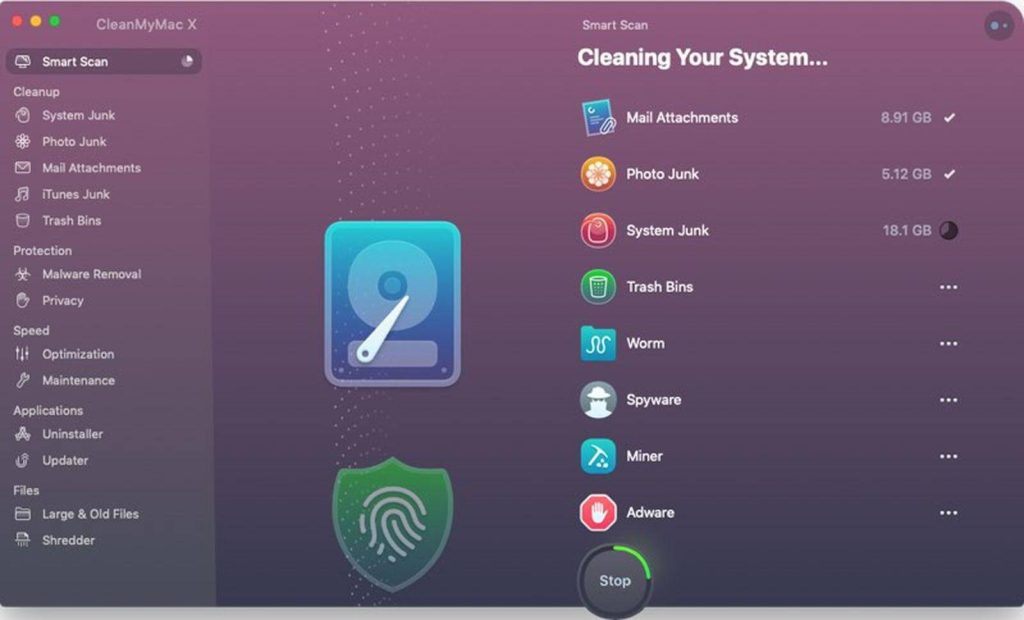
Optimize Your Mac with CleanMyMac X
When it comes to optimizing your Mac, tools such as CleanMyMac X might be helpful. CleanMyMac X is a macOS optimization application that substitutes hundreds of many other optimization programs. It has everything, including a macOS cleaner, virus remover, performance monitor, and tremendous relief.
It hunts for garbage in every nook of your macOS. It removes unnecessary files such as old caches, faulty downloads, logs, and extra localizations. So, if you are a gamer and want to enjoy and maximize your gaming experience on your macOS, you must optimally set up your Mac for gaming.
Other Ways to Optimize Your Mac for Playing Games
Now that you know you have to optimize your Mac for gameplay, you must be curious enough to know the best ways. So, here we are with the most significant ways that assist you in playing with interruptions.
Fix 1: Free Some Space for Games
Apple’s MacBooks feature some of the quickest and most dependable storage available today. Unfortunately, after you’ve acquired your system, you won’t be able to increase the storage. It might cause problems while installing and playing new games. However, Mac are usually extremely dependable devices you will use for many years.
Making more space available on your Mac devices might help you improve your gaming experience. Anything you save is saved on the device’s hard drive. After installing your game, keeping some storage space might be beneficial because part of that space will be consumed when playing.
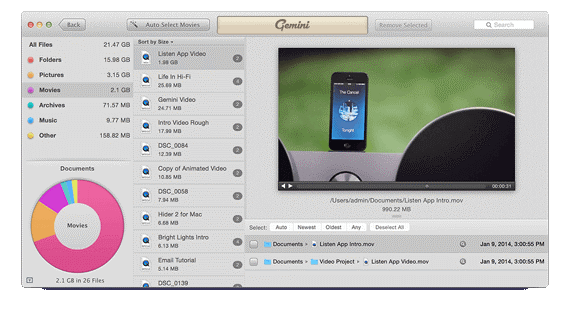
Remove unused applications, unwanted images and videos, and duplicate files and images. The best method to free up your Mac’s space and remove duplicate files is using Disk Drill and Gemini.
Disk Drill is not just a data retrieval application, but it also has some vital capabilities that enable us to examine files on our Mac for duplicate images and files. Disk Drill is advantageous because of its contemporary and user-friendly design. Moreover, it’s a vital tool for anything involving data on your Mac.

Furthermore, Gemini is a sophisticated tool that effortlessly distinguishes between copies and originals. It understands what files to retain untouched. The best part is that it tends to identify duplicates in the same manner you would do. The algorithm in Gemini retains what users can remove and what they select to preserve. It finds and removes duplicate files, even if they are hidden in the furthest recesses of your system.
Fix 2: Check on the Performance of Your Mac
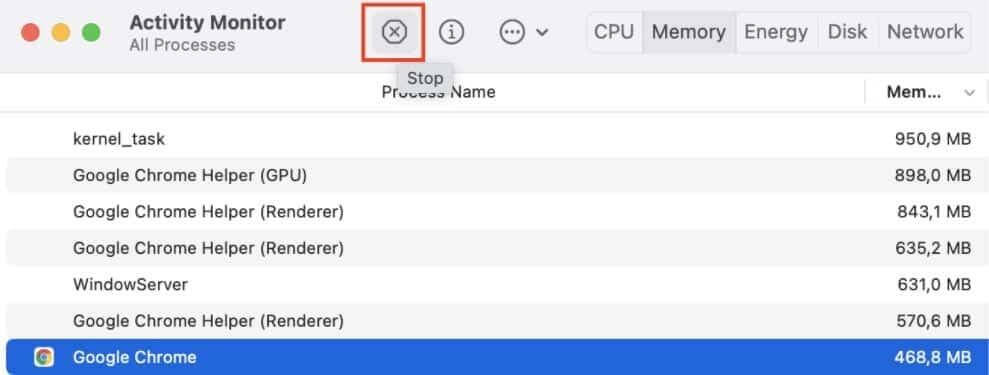
Having plenty of space available can typically improve your Mac’s speed. However, you must also monitor the overall performance of your Mac device. Activity Monitor, an in-built program, is included with OS X and provides a comprehensive view of which programs and apps are consuming the CPU usage, most memory, and disk resources.
It may also inform you which program is lagging behind when playing your favorite Mac games. Next, run the Activity Monitor to navigate through tabs such as CPU, Energy, Memory (RAM), and so on. It displays all current tasks utilizing your Mac’s capacity and enables you to end them directly from the program.
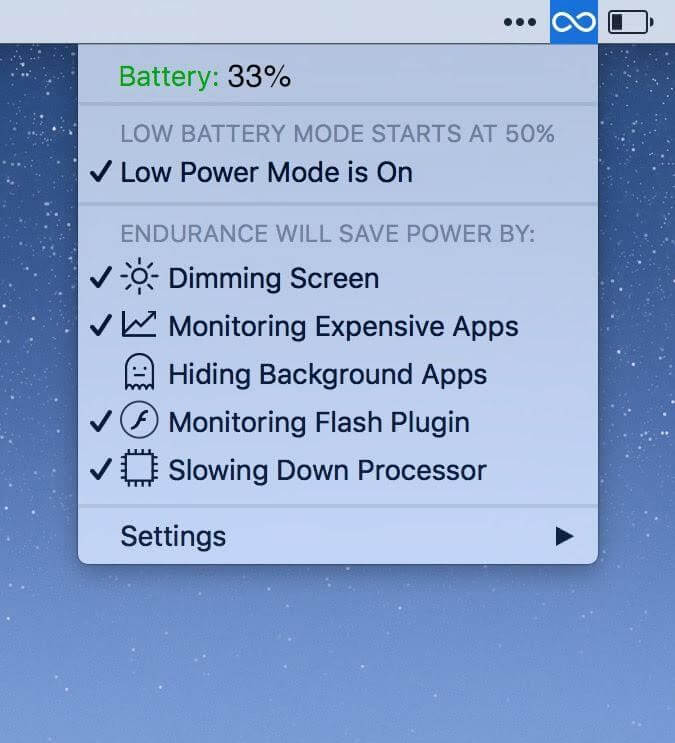
Gamers can also install Endurance app available on setapp to enhance their gameplay. As hours of gameplay consumes more energy, this app can help with it. Endurance is essentially a collection of multiple features put together in one software that may function together or independently to assist you reduce your energy use. It’s a much more active energy management utility designed to assist Mac users in increasing battery life. When your Mac’s battery level declines to a particular percentage, it enters a low-power option.
Fix 3: Upgrade Your Software
Upgrading software is another step that aids in system maintenance and optimizes Mac for gaming. Continue to check the App Store for any fresh updates to the apps or games since any form of issue could be decelerating the play pace. With a simple modification, you can upgrade all your games or other software.
Navigate to System Preferences > Applications and tick the box next to ‘Automatically check for updates.’ Ensure that you update all applications, including the operating system, to ensure the smooth running of your Mac, which will aid in the removal of any problems or malfunctions.
You can also use one of the best App Store alternatives to install or update games and apps on your Mac device. Setapp, sometimes termed as Unstore, is a game-changing alternative platform. Setapp, from MacPaw, is a jam-packed package with over 180 Mac applications.
The platform offers several “maintenance apps,” “productivity apps,” and “task management apps” that help your mac devices to run smoothly. You don’t have to browse for any app when you have Setapp on your side. Simply go to Setapp and look for the application you want to install or upgrade.
Fix 4: Don’t Overburden Your Mac’s RAM
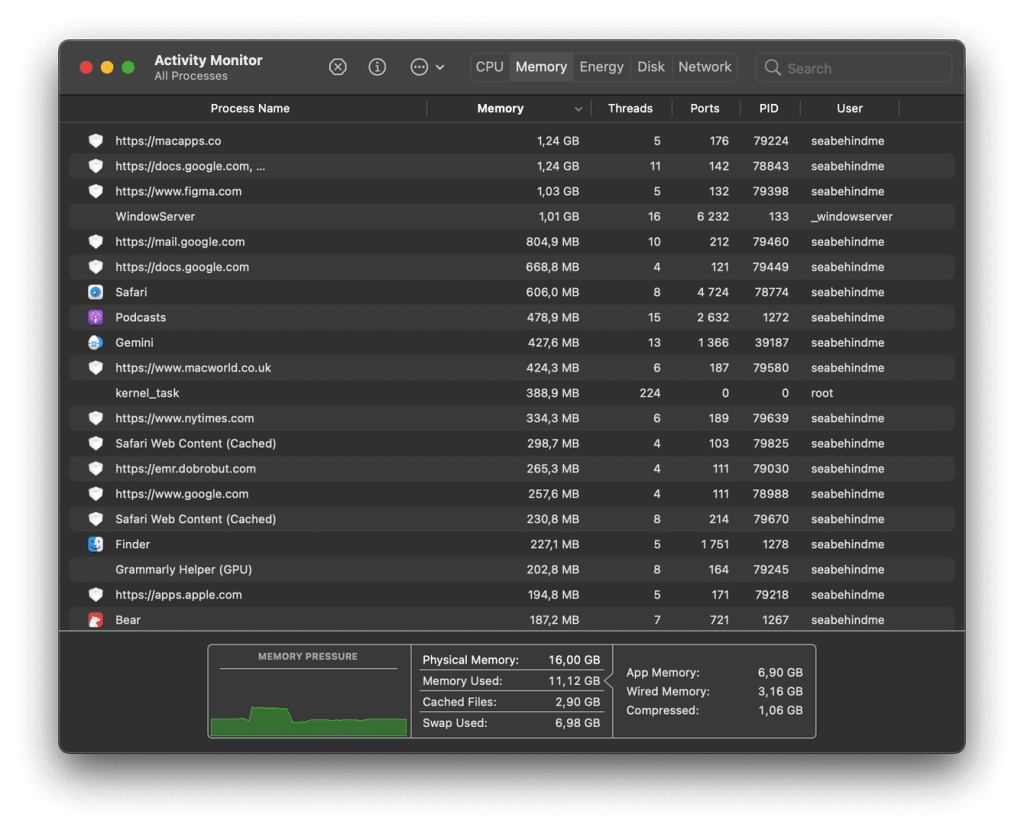
All system functions, programs, and games consume CPU and RAM. If you’re preparing to play games, you might want to shut off specific programs to get the most outstanding performance. You can view each application’s amount of RAM by using the OS X Activity Monitor.
Web browsers are infamous for using RAM, particularly if you have a large number of windows or tabs active. Having web pages with Flash contents open can eat up the valuable RAM required to run games. Try closing specific programs and windows if you’re experiencing problems.
Fix 5: Use VPN to Enhance Your Gaming Experience
If you like to play games on your Mac, it can be a wise option to utilize a VPN. It contributes to the preservation of your security and privacy. Furthermore, your gameplay should result in faster speeds and lower latency and latency times when you use VPNs.
Getting virtually linked to a more suitable server than the one given to you by your broadband provider implies that your information has a much easier path to get there. VPNs also improve the response time of online games by evading automated bandwidth restrictions. For example, some internet providers restrict the amount of data on your connection at busy periods or if they identify you were streaming, uploading, or file sharing.
Certain games demand regular updates, while others use more bandwidth each hour, which means you’ll soon reach your daily limit and may encounter latency when the throttling begins. However, the internet service provider would not be able to identify your activity if you use a VPN.
It will camouflage your data using encryption to prevent any data problems when surfing or streaming. A high-quality VPN service may also enhance your gaming experience.
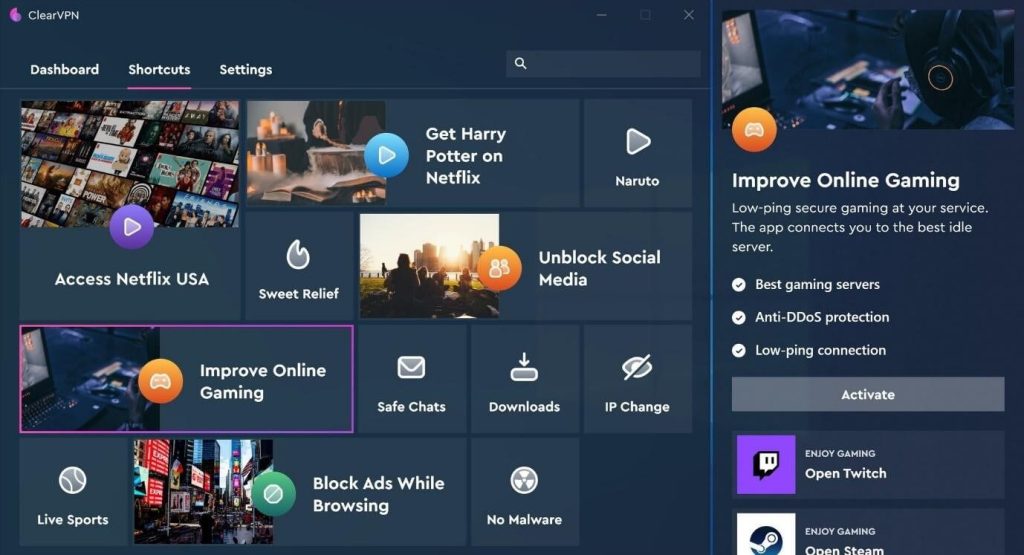
ClearVPN is the most excellent all-in-one VPN application for your Mac. If you like to play online games and want to improve your gaming experience, ClearVPN ensures that you always have low-ping server access. It assesses your existing network state and then links you to the fastest spare server accessible using the unique DynamicFlow technique. Moreover, your gameplay is completely secure owing to the highest industry-standard encryption of ClearVPN.
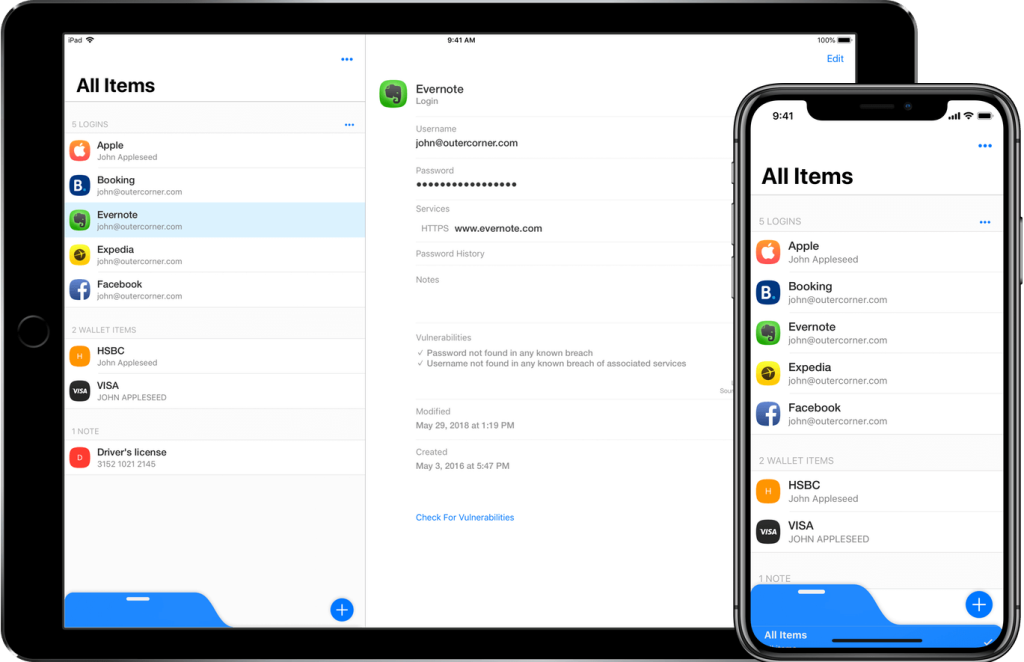
A VPN, as we all know, provides online privacy and confidentiality by establishing a secure network. However, if you want to be extra cautious about your security and vital credentials, you may use a privacy-protecting tool like Secrets. Secrets is an easy-to-use password organiser and secure wallets. It securely stores your passwords, bank and credit card information, and other information. It also lets individuals to send messages privately to their friend and the world.
Fix 6: Restart Your Mac Occasionally
MacOS is not intended to be employed in the traditional sense. However, it doesn’t imply it can’t run for weeks without encountering minor slowdowns. Mac may be kept on for extended periods, yet no app-tuning or cleaning will clear up all the resources. Many people shut down and restart their computers regularly, which is perfectly acceptable.
However, if you keep your Mac device sleeping for long periods, ensure that you restart it now and then to rejuvenate the system. During the downtime and start-up operations, your Mac deletes its cache, performs a few basic maintenances, and waits for other chores.
Fix 7: Enhance Your Mac’s Productivity with Unclutter
The majority of users prefer an ordered, basic desktop look because it allows them to become more productive, dynamic, and attentive. There are several Mac productivity applications available to help you with various everyday tasks.
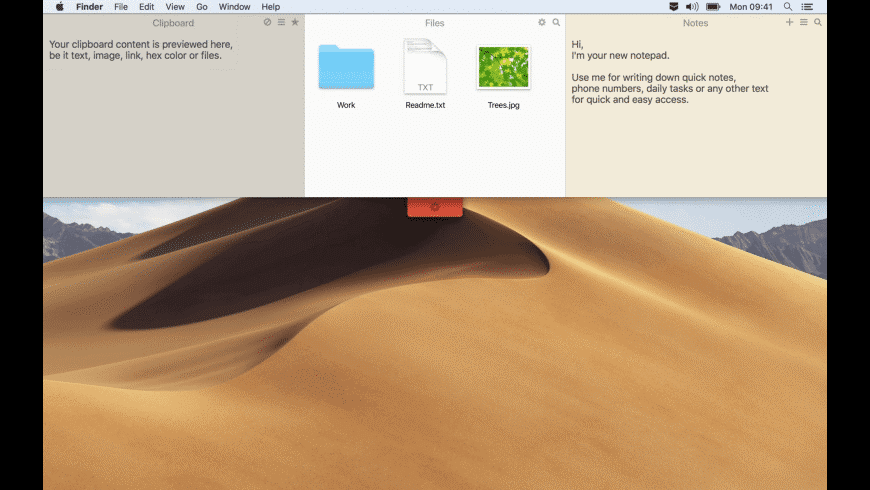
Unclutter promises to be able to assist users keep clutter-free desktops while still providing simple access to the resources they require. It is a 3-in-1 productivity program that will boost your performance on your Mac and encourage your gameplay. Also, it’s a brilliant and really useful location on your desktops for saving notes, documents, etc.
Mac and Gameplay
The MacBook Air, Mac Pro, and iMac desktops are all part of Apple’s computer portfolio. These systems are all strong devices built to handle many apps running at the same time while maintaining seamless performance and the best graphics in a sleek form. Unfortunately, while these characteristics make Mac an excellent choice for many sorts of users looking for a high-powered system, they fall a little short when it comes to gaming efficiency.
Mac are wonderful professional computers suitable for businesses, but they are not initially built to be gaming PCs. However, with some intelligent optimization, gaming on a Mac may not be as challenging as you think. Whenever you think about playing games on your Mac, all you have to do is optimize your Mac for optimal performance. As a result, you may effortlessly enjoy gaming on your Mac devices using certain practical methods and approaches. So, let’s find out the best ways that can help.
Bottom Line
This article contains the most significant recommendations to assist you with your mac optimization. We hope you liked all the ideas and methods for optimizing your Mac for gaming. For best results, we recommend using CleanMyMac X. It includes a performance monitor, a virus remover, a macOS cleaner, and other valuable utilities. Using this program continuously, you will notice a speedier Mac performance with more storage capacity than before.
Author Bio:
Dinesh Lakhwani 

Dinesh Lakhwani, the entrepreneurial brain behind “TechCommuters,” achieved big things in the tech world. He started the company to make smart and user-friendly tech solutions. Thanks to his sharp thinking, focus on quality and the motto of never giving up, TechCommuters became a top player in the industry. His commitment to excellence has propelled the company to a leading position in the industry.
Popular Post
Recent Post

5 Best Data Recovery Software For Windows 11 and Windows 10
A crashed drive can ruin a whole day. One minute your photos, work files, and tax records sit safe on your PC. The next minute they are gone. A power cut, a bad update, or one wrong click can wipe out years of memories and months of work in seconds. That sinking feeling is why […]

How To Update NVIDIA Drivers On Windows 11/10 PC
Learn how to update NVIDIA drivers on Windows 11/10 with simple methods, safety tips, and easy steps for smoother gaming and better PC performance.

Top AI Features Hidden Inside Windows 11
Explore the top AI features in Windows 11, from Copilot to Recall, plus safety tips and simple steps to use each tool the right way.

Customize Your Screen Saver Settings in Windows [Easy Steps]
Learn how to customize screen saver settings in Windows 11 with easy steps, safety tips, and simple tricks to personalize your PC screen.

Driver Easy Windows Driver Updater Tool Review: Tried & Tested
In-depth information about Driver Easy’s functions and features can be found in our review. Learn how to update drivers more easily with this tool for a more seamless computer experience.

Is Avast Driver Updater Worth It? A Hands-On Analysis
A full review of Avast Driver Updater covering features, setup steps, pricing, pros and cons, and real PC results, to help you decide if it is worth buying.

IObit Driver Booster 13 (PRO) Review: [Tried & Tested]
IObit Driver Booster 13 is built for one purpose: keeping your PC drivers up to date. Well, yes! Outdated drivers can cause crashes, slowdowns, and hardware issues. This tool scans fast and updates with one click. The interface is simple. Even beginners can use it without confusion. Updates are pulled from a huge database, covering […]

Auslogics Driver Updater: A Detailed Walkthrough [2026]
This comprehensive review covers the key features, pros, and cons, pricing, and a final verdict on Auslogics’ driver update utility. Learn how it stacks up against manual driver maintenance.

5 Best Driver Updater Tools for Windows to Use (Free and Paid)
Introduction: Most people blame their PC for problems that a driver caused. A driver works like a bridge between your hardware and your operating system. When this bridge cracks, strange things start to happen. Screens flicker without reason. Printers go silent mid-task. Games freeze or crash out of nowhere. Manually finding the right driver is […]

