










You turn on your PC and wait. And wait. The same laptop that once opened apps in a snap now feels tired. This is not bad luck. It just happens over time. Files pile up. The registry gets messy. Old drivers stay installed long after they are useful. Junk data quietly eats up space on […]
How to Access Microsoft’s New Emoji in Windows 11
Ever since the public introduction of Windows 11, we’ve seen it gradually mature further towards the operating system that it is presently. Microsoft is working hard to give Windows 11 a next-generation experience, as well as new updates, are being released as a result. So now, emoticons in Windows 11 have been updated.
Microsoft later confirmed that the company does not intend to deliver indigenous 3D Microsoft new emoji alongside Windows 11. Instead, those 3D emoticons were created for Microsoft’s programs such as Skype and Teams.
However, people anticipated that 3D emoticons would be added to Windows 11. Nevertheless, anything is preferable to none at all, and all these new 2D Fluent Emoticons are quite a significant improvement over the company prior emojis.
However, with the new built of Windows Update, it became possible that new emojis would be soon available for download with the new built. Therefore, several other additional features came along with the new built.
Emojis have established themselves as an essential element of modern digital life; they enable us to interact and convey ourselves more effectively. And it’s no mystery because our vibrant internet exchanges would be lifeless without these. As a result, we’re already on the lookout for unique emoji arrivals to help spice up our interactions.
Microsoft’s new Emoji
Microsoft has released up an entire set of new emojis inside an article on the Windows Blog, which has elicited more condemnation than appreciation from the web. The software behemoth placed these in for a Windows 11 upgrade this winter–and they are nothing like we expected.
The latest version contains the Microsoft new Emoji guaranteed users back in July, but the 3D aesthetic previously showcased on its designing blog has been modified. The business has now agreed on a 2D strategy for Windows 11. At the same time, the more aesthetically attractive 3D emojis might well be retained for services such as Flipgrid, Microsoft Teams, and others, giving its consumers exclusive access.
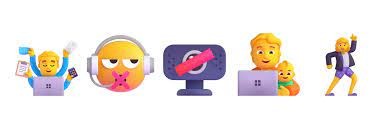
Microsoft updated all of its current Emoji and generated new ones to match the unique circumstances of mixed work. Given the period above and a half, the organization sought to portray several feelings that workers experience when working from home.
For example, an emoticon depicts a person who wears the upper part of a suit but then only underpants from the torso down — the kind that many of us can identify with because of the video conference.
Microsoft claims that it wants its Emoji to be fun because it feels that play is vital in the job. The organization discusses how “play drives creativity,” and emoticons are a critical aspect of playful interaction. As a result, its latest Emoji are intended to be “innately joyful,” with all designs made out of basic shapes.
This also ensures that the 1,888 new emoji in Windows 11, accessible in Windows and elsewhere, seem identical. Every one of the emoticons included in the package is vibrant and energetic, yet they don’t appear out of place when placed next to one other.
What Are the Differences Between the New Windows 11 Emoji and the Older Emoji?
As per Microsoft, these latest Fluent style Microsoft new emojis are familiar and personal, adhering to the design guidelines of Windows 11. The removal of strong and black edges surrounding the emojis, as well as the resurrection of Clippy from the grave, are indeed the two big distinctions users have noticed.
It’s unclear why, despite assurances, Microsoft has not implemented its 3D concepts in Windows 11, although it’s probably because a smoother 2D style works much better throughout different programs.
Furthermore, because 3D designs appear differently for various displays and configurations, Microsoft is expected to have opted on even a 2D design for a much more uniform portrayal of its emoticons, including all Windows 11 customers.
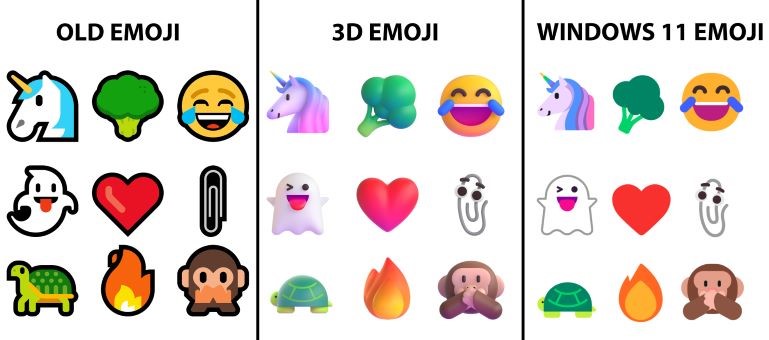
The latest emoji package in Windows 11 has included the reintroduction of Clippy, as Microsoft replaced the conventional paperclip emoticon with the Clippy emoji. Microsoft began evaluating this Emoji in earlier Windows 11 Dev Channel versions, although it will likely be available to general users shortly.
Furthermore, all emoticons inside the new Emoji in Windows 11 selection appear brighter, lively, and much more vibrant than the Windows 10 counterpart. Although the latest Windows 11 emoticons don’t look almost exactly like what has been promised, they seem to have a good clean appearance. Since Windows 10 users have been excluded, they may continue implementing the operating system’s default emoji picker.
How to Install Microsoft’s New Emoji in Windows 11?
Since its release, users have gathered into updating their emoticon package and get the new emojis as soon as possible. Therefore, here there’s a step-by-step instruction to adding Microsoft’s new Emoji in Windows 11.
- The first step is to download the KB5007262 Upgrade and then install the update, following all the installation wizard’s steps.
- Once you have installed the KB5007262 update, the latest collection of emojis is now accessible on the most recent Windows 11 build. The KB5007262 update is by far the most recent Windows 11 release.
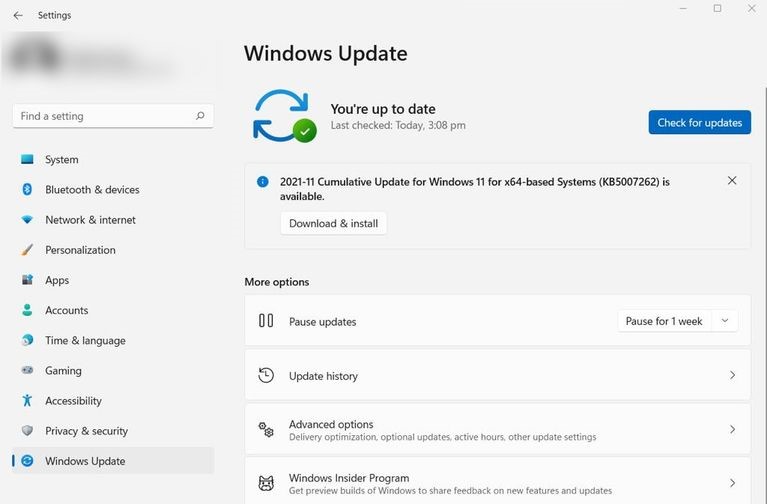
To obtain the updated emojis, you must quickly download and apply the KB5007262 update on the Windows 11 operating system.
Here are the steps to upgrade the computer to the most recent version.
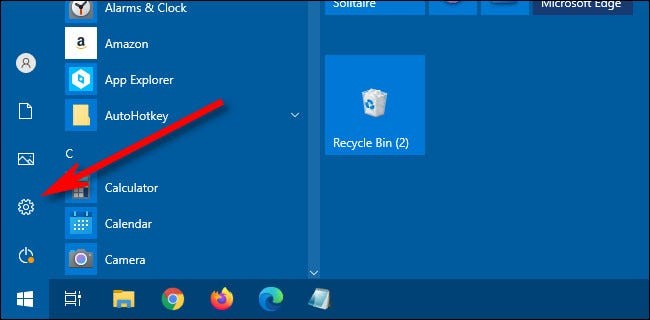
- Select the Windows icon from the taskbar. In the start window, navigate to Settings.
- In the settings window pane, select Update & Security.
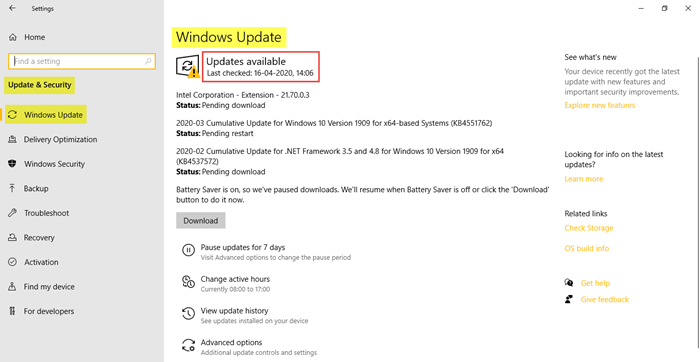
- And then click on Windows Update. A Windows Update screen will appear.
- Select the Check for Updates option.
- Windows 11 would then check for the latest updates. Once the search is complete, you will see the KB5007262 update, along with any other required updates.
- Select the Download options.
- Once the download is complete, select the install option, and complete the entire process.

How to Use Windows 11’s New Emoji’s?
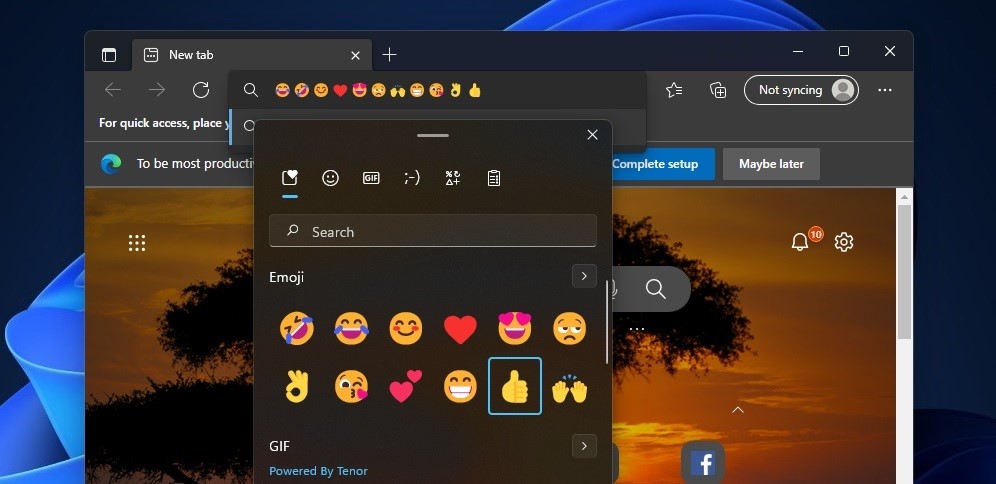
Once you activate the latest Emoji under the emoji selector upon deploying the Windows 11 KB5007262 Update, press the Windows + Period key.
You will see all the new emojis are available to be used. Therefore, always make sure that you have successfully installed the update.
Conclusion
The new Emoji in Windows 11 is pretty exciting and are made keeping in mind the different structures for the emoticons. Additionally, the reintroduction of the older Clippy emoji has positively impacted the users. Therefore, if you wish to switch to the newer version of the emoticons, you have to follow the steps explained above, and you will be able to download and activate the new set of emojis in your system.
Author Bio:
Dinesh Lakhwani 

Dinesh Lakhwani, the entrepreneurial brain behind “TechCommuters,” achieved big things in the tech world. He started the company to make smart and user-friendly tech solutions. Thanks to his sharp thinking, focus on quality and the motto of never giving up, TechCommuters became a top player in the industry. His commitment to excellence has propelled the company to a leading position in the industry.
Popular Post
Recent Post

Avast Cleanup PC Cleaner and Optimizer: Everything You Need to Know
A slow computer makes it hard to focus. Programs take too long to open. Free space keeps shrinking until the disk is almost full. This happens to most PC owners at some point. Even new machines can slow down after a while. That is the exact problem cleanup tools are built to solve. They comb […]

Fortect Software Review: The Ultimate PC & Mobile Cleaning, Optimization & Security Tool
Slow computers are a common problem for almost every Windows user. Well, yes! Over time, your PC picks up junk files. These files sit quietly in the background. They take up space and slow things down. Programs open slower. Windows takes longer to boot. Even simple tasks like opening a folder can feel sluggish. There […]

CCleaner PC Optimizer Review: A Complete Guide for Windows Users
If your computer has started to feel slow, you are not alone. Most Windows PCs slow down over time. Junk files pile up. The registry gets messy. Too many apps open when you start your PC. All this adds up and makes even a good machine feel tired. This is where a PC cleaner tool […]

5 Best PC Cleaners for Windows 11 & 10 | Top PC Optimizers
Remember when your PC felt fast? Every click was quick. Every app opened in seconds. Now it feels like a different machine. Windows takes forever to boot. Programs freeze for no reason. Even opening a browser feels like a chore. You are not alone in this. Almost every PC slows down over time. Files pile […]

Auslogics Duplicate File Finder: Full Review and User Guide
A computer quietly gathers clutter over time. This includes duplicate photos, repeated downloads, and forgotten backups hiding in random folders. This buildup slowly eats away at storage and can make even a fast PC feel sluggish. Manually finding and deleting duplicates is tedious. It means checking every folder, comparing file names, and guessing which copies […]

CCleaner Duplicate File Finder: Key Features, Pricing, Step-by-Step Guide and More
Every computer collects junk over time. Right? Well, yes! Photos often get copied twice. Documents get saved in two folders by mistake. Old downloads pile up and never get deleted. This slowly eats up your storage space, and most people do not even notice until their drive is almost full. That is where a duplicate […]

Duplicate File Finder Pro: A Complete Review, Everything You Should Know
Computers collect thousands of files over time. Well, yes! Many of them end up being duplicates created by backups, downloads, or accidental copies. These extra files take up valuable storage space and make it harder to keep everything organized. Finding and removing them manually can take hours. Right? Duplicate File Finder Pro is a tool […]

Top 3 Duplicate File Finder for Windows 11 & Windows 10
If your PC storage keeps filling up even after you delete big files, duplicate files could be the real reason. Most of us save the same photo twice, download a document more than once, or copy a whole folder by mistake. Over months and years, these duplicate files pile up quietly. You do not even […]

Monitor Screen Calibration Guide: Everything You Should Know
Your monitor shows colors every single day. But are those colors actually correct? Most people never stop to check this. They just use the screen as it comes out of the box. This habit can lead to wrong colors in photos, videos, and work files. Colors may look too warm or too cold without you […]

