












Read my honest Wise Duplicate Finder review. See features, pricing, pros and cons, and real PC test results. Find out if this free duplicate cleaner can free up your Windows storage.
10 Best Disk Cloning Software for Windows 11 & Windows 10 (Free and Paid)
If you want to clone your Windows operating system or your entire hard drive to another disk, you will need reliable disk cloning software to get the job done. These cloning tools allows you to create a replica of your existing drive, which can be useful for backup purposes or upgrading to a new hard drive or SSD.
But with so many disk cloning programs options available for Windows, it can be challenging to decide which one to use. That’s why we’ve compiled a list of the 10 best cloning tools for Windows 10 and Windows 11 to help you choose the right one for your needs.
How to Choose a Disk Cloning Software?
Choosing the right disk cloning software is crucial for ensuring a smooth and secure data migration or backup process. Whether you’re upgrading to a larger SSD, creating a system backup, or duplicating drives for deployment, the ideal tool should match your technical needs and comfort level.
Consider the following factors before making your pick:
- Compatibility: Ensure the software supports your version of Windows (10 or 11) and the file systems you’re using (e.g., NTFS, FAT32).
- Cloning Modes: Look for options like sector-by-sector cloning, partition cloning, and disk-to-disk cloning.
- Bootable Clone Support: Essential if you’re migrating your OS to a new drive and want to boot from it without reinstalling.
- Ease of Use: A clean interface and guided steps are helpful for beginners and reduce the risk of errors.
- Speed and Performance: Efficient cloning speeds and minimal system impact are key for large drives or enterprise use.
- Error Handling: Smart error detection and recovery features help prevent data loss during the cloning process.
- Additional Features: Backup scheduling, disk imaging, partition management, and encryption can add value.
- Price and Licensing: Compare free vs. paid versions based on your needs—some free tools offer robust features, while paid ones may include premium support and automation.
Comparison Table: Top 5 Software to Clone Disk
When it comes to reliability, performance, and features, these five disk cloning tools stand out for Windows users. Here’s a quick comparison to help you decide:
| Software | Free/Paid | Key Features | Ease of Use | Bootable Clone | OS Support |
| EaseUS Disk Copy Pro | Paid | Sector-by-sector clone, SSD optimization, bootable USB creation | High | Yes | Windows 11/10/8/7 |
| MiniTool Partition Wizard Pro | Paid | Disk/partition clone, file system conversion, recovery tools | High | Yes | Windows 11/10/8/7 |
| Clonezilla | Free (Open Source) | Command-line interface, supports multiple file systems, and encryption | Moderate | Yes | Windows/Linux/macOS |
| Paragon Hard Disk Manager | Paid | Disk imaging, partitioning, backup, recovery, and virtual disk support | High | Yes | Windows 11/10/8/7 |
| O&O Disk Image 18 | Paid | Real-time imaging, incremental backups, and restore to different hardware | High | Yes | Windows 11/10/8/7 |
Top Disk Cloning Tools for Windows 11 & Windows 10
Whether you’re a tech-savvy user or a beginner, you’re sure to find a suitable option on our list that meets your requirements. So let’s dive in and explore the best disk cloning programs available for Windows users.
1. EaseUS Disk Copy Pro
With EaseUS Disk Copy Pro, users can create exact copies of their hard drives, SSDs, or partitions for various purposes such as disk upgrades, data backup, or data recovery. The software is highly adaptable and provides a straightforward user interface that simplifies disk cloning for users of all proficiencies.
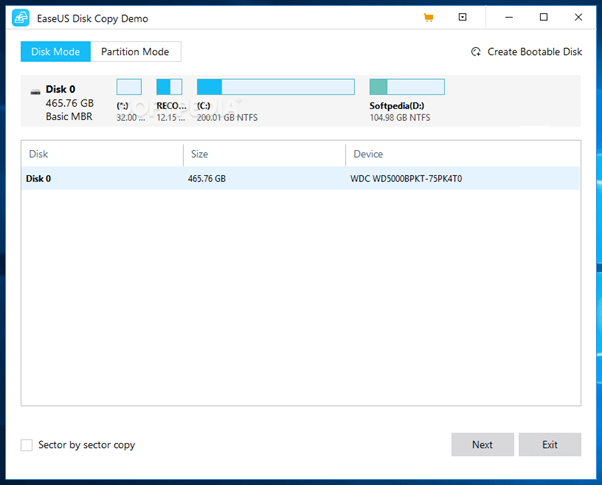
Features:
- Copies all data, including system files and deleted files, from the source disk to the target disk.
- Supports HDD, SSD, GPT, MBR, and dynamic disks.
- Upgrades hard drive without losing data.
- Offers disk cloning, partition cloning, and system cloning.
- Allows users to create a bootable USB or CD/DVD to clone the disk.
- Creates a local backup of the hard drive.
- Resizes partitions when copying disks.
Pros:
- Fast and efficient cloning process.
- Quickly migrates data from one PC to another.
- Can clone disks without an operating system.
- Offers technical support through email, phone, or live chat.
Cons:
- The free version has limited features
Compatibility: Windows 11/10/8.1/8/7.
Price: $23.48/1-year subscription.
2. MiniTool Partition Wizard Pro
MiniTool Partition Wizard Pro is a feature-rich disk clone software tool that provides users with a comprehensive disk management solution. With its user-friendly interface, users can easily manage their hard drives, solid-state drives (SSDs), and partitions.
Its compatibility with both basic and dynamic disks, GPT and MBR partition schemes, and various file systems make it a versatile option for individuals as well as for professionals.
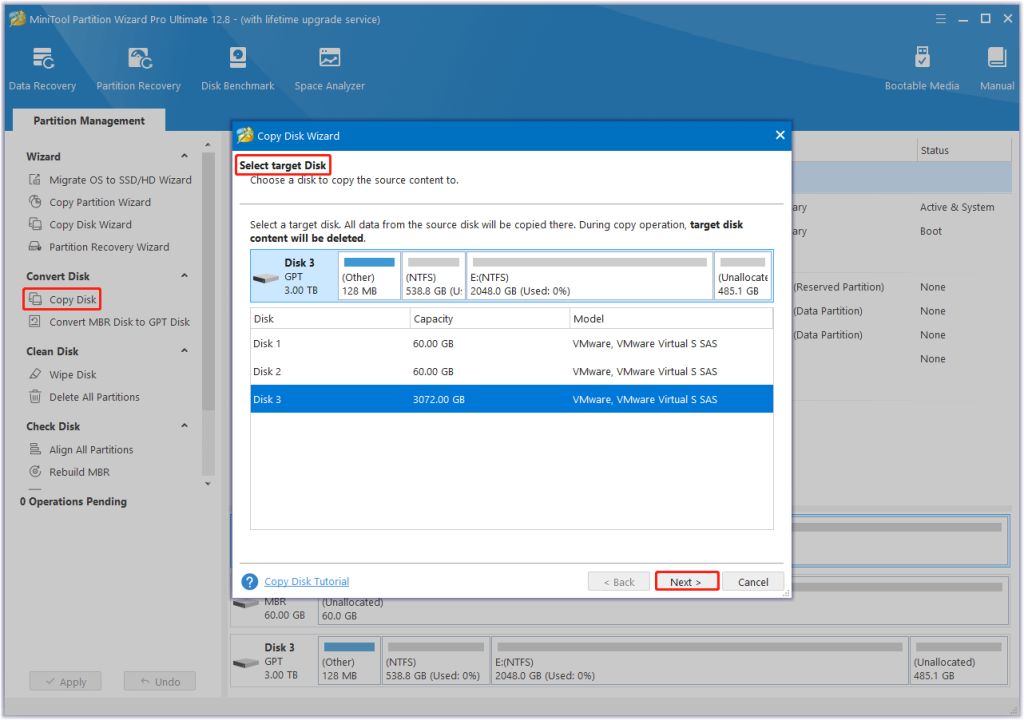
Features:
- Enables users to create a replica of their entire disk or a single partition.
- Offers advanced features such as disk benchmark, disk surface test, and partition recovery.
- Allows users to create, resize, move, merge, split, and align partitions on their hard drives.
- Helps users recover lost or deleted data from their hard drives.
Pros:
- Compatible with both basic and dynamic disks, GPT, and MBR partition schemes.
- Bootable media creation.
- Safe and secure.
- Multi-lingual support.
Cons:
- Slow performance when dealing with large-sized disk partitions.
- The free version offers limited functionality.
Compatibility: Windows 11, 10 / 8.1 / 8 / 7 / Vista.
Price:
- Pro: $59/annual subscription.
- Pro Platinum: $109/annual subscription.
- Pro Professional: $159/annual subscription.
3. Clonezilla
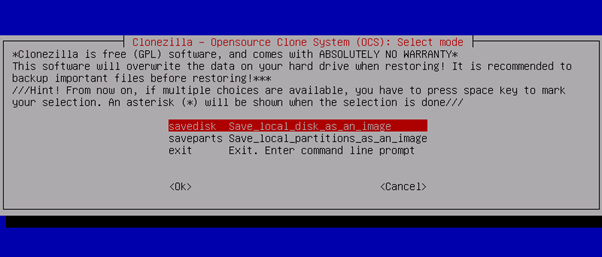
Clonezilla is a free and open-source disk cloning program available in three different versions: Clonezilla Live, Clonezilla Lite Server, and Clonezilla SE (Server Edition), which can be installed on a server and used to clone multiple machines simultaneously.
This nifty tool can effectively clone disks with different formats, such as GPT and MBR, and it can work with both HDDs and SSDs. Clonezilla is an excellent choice for users who need to clone disks or partitions across multiple operating systems or platforms.
Features:
- Supports a wide range of file system formats including NTFS, FAT16, FAT32, exFAT, and others.
- Follows a strong, secure AES-256 disk encryption.
- Multiple cloning modes.
- Advanced backup and restore features.
Pros:
- Free to use.
- Customizable disk cloning process.
- Supports a wide range of file systems and disk types, making it a flexible option for users with diverse cloning needs.
Cons:
- Does not support online image cloning.
- Lacks automatic software update capabilities.
Compatibility: Clonezilla is available for all versions of Windows (32-bit and 64-bit versions).
Price: Free.
4. Paragon Hard Disk Manager
Here comes our next pick on the 10 best disk cloning software for Windows 11. Paragon Hard Disk Manager Advanced is a powerful and user-friendly disk management software designed for tech-savvy users who require the highest levels of data safety and disk health.
With this software, users can easily organize their disks, ensure the capacity and performance of their storage media, and transfer systems on the fly. If you are looking for high-quality disk management software, Paragon seems a decent choice.
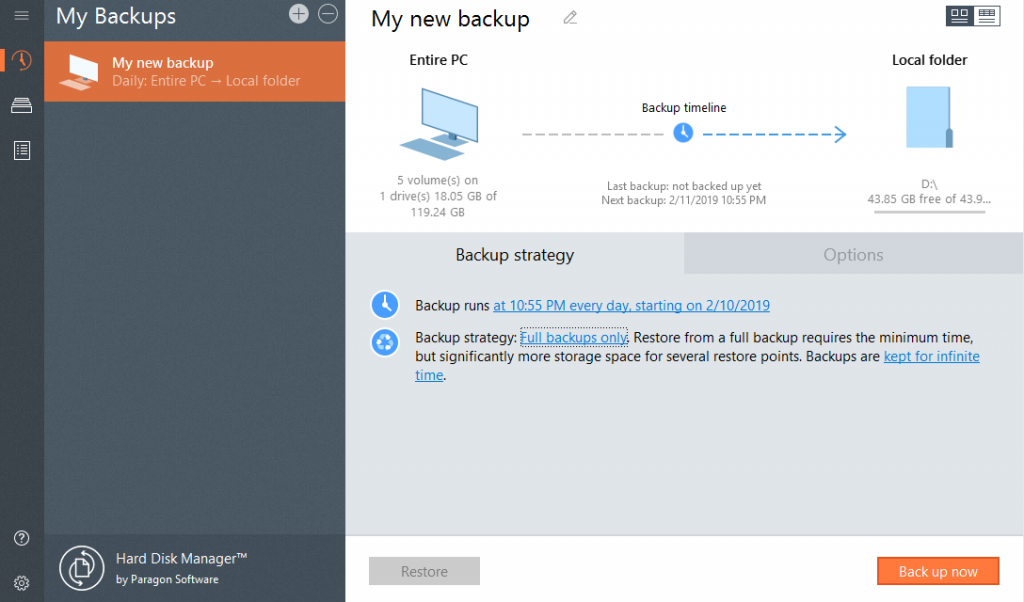
Features:
- Clone your entire hard drive or specific partitions, including the operating system and all applications, to a new disk or SSD.
- Securely erase sensitive data from your hard drive or SSD, making it unrecoverable by any means.
- Migration to SSD.
- Also includes various advanced tools, such as file transfer wizard, disk editor, boot media builder, email notifications, and more.
Pros:
- Comprehensive backup and recovery process.
- Easy to use.
- Secure data wiping.
Cons:
- Inaccurate time estimations.
- Limited free version.
Compatibility: Windows 11/10/8.1/8/7.
Price: Up to $80 for a lifetime license covering 3 PCs.
5. O&O Disk Image 18
O&O DiskImage 18 provides users with the convenience of backing up their entire computer or selected files, even while the computer is in use. If personal data is lost, the software enables easy restoration with minimal effort, even in situations where Windows cannot be started.
In addition, O&O DiskImage 18 offers support for SSD drives and the latest UEFI System, and allows for the duplication or cloning of an entire PC or hard drive. Furthermore, the software’s capabilities include carrying out system restores, making it a comprehensive solution for data backup and recovery.
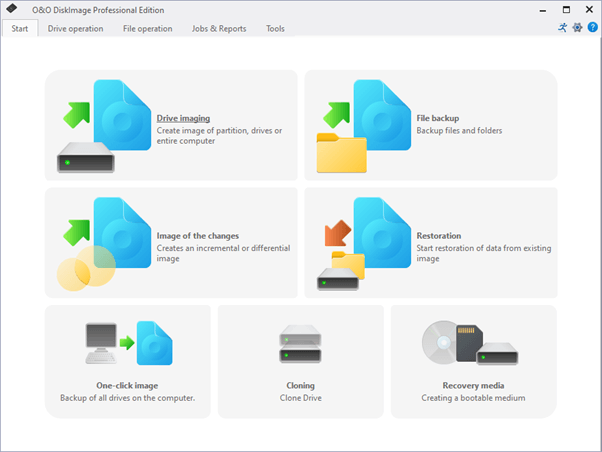
Features:
- Includes a unique “Plug and Play” feature that automatically backs up selected files and folders.
- Easily restores files, folders, drives, and disks.
- Supports SSD drives and the latest UEFI System.
- Image verification for data consistency.
- Option to create bootable media.
- Password protection and encryption for backups.
Pros:
- Monitors the cloning process and warns you of any security risks.
- Checks image files for errors.
- Can formulate boot medium.
- User-friendly interface.
Cons:
- Lacks some advanced features, such as cloud backup integration.
- Backup scheduling can be more flexible.
Compatibility: Windows 11/10/8.1.
Price: $49.95
6. PING
PING, which stands for Partition Is Not Ghost, is a free and open-source disk clone software. It is designed to clone, backup, and restore entire disks or partitions. With its comprehensive set of tools, PING is an excellent choice for backing up and restoring entire partitions.
One of the standout features of PING is its support for a wide range of filesystems, including NTFS, ReiserFS, and FAT32. This makes it a versatile tool that can be used on many different types of systems.
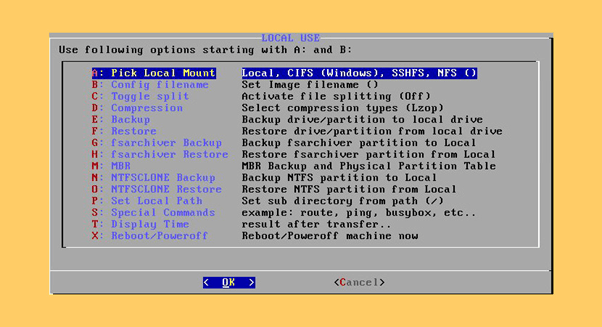
Features:
- Backs up and restores BIOS data as well.
- Can be burnt on a CD and booted, or integrated into a PXE/TFTP environment.
- Several additional tools have been added and written to the ISO to enhance its functionality.
Pros:
- Free and open-source.
- Can be used with a variety of systems and configurations.
- Lightweight and fast, with a small download size.
- Offers both backup and restore functionality.
Cons:
- Limited support compared to other paid disk cloning software.
- UX can be improved for easy access.
- May require some technical knowledge to use effectively.
Compatibility: All versions of Windows and Linux operating systems
Price: Free.
7. Macrium Reflect
Macrium Reflect 8 is a backup and disk imaging software developed by Macrium Software. It allows users to create an exact copy or “image” of their hard drive, which can be used to restore the system in case of data loss or a system failure.
This nifty tool can create a complete image of a hard drive or partition, including the operating system, applications, and data. It can prove to be one of the best disk cloning software for Windows in terms of flexibility and the advanced features it offers.
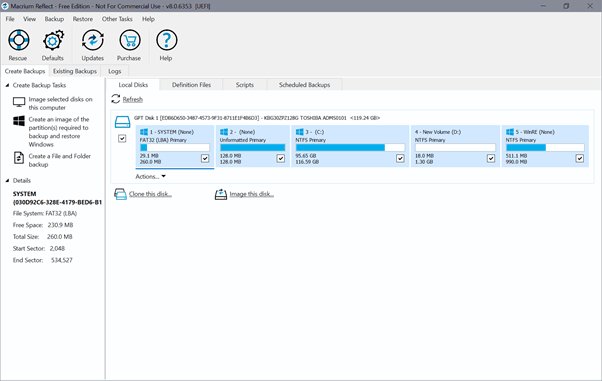
Features:
- Flexible data backup and restore options.
- Offers incremental and differential backups.
- Rapid Delta restore.
- Verifies the integrity of backups.
- Disaster recovery.
Pros:
- 1-year premium tech support.
- Ransomware protection and encryption.
- Offers comprehensive support, including online tutorials, forums, and email support.
Cons:
- Does not offer cloud backup options.
- Limited options in the free version.
Compatibility: Windows 11, 10 / 8 / 7, Vista, and XP
Price: $69.95
8. DAEMON Tools Pro 8
DAEMON Tools Pro is a powerful and professional disk clone software that allows users to work with disc images and virtual drives. Whether you need to create virtual drives, mount disk images, or burn data to physical disks, DAEMON Tools Pro has got you covered.
Its advanced imaging tools allow you to create and edit disk images with ease, and the disk management software supports a wide range of image formats. It is undoubtedly one of the top disk cloning tools offering a fully-fledged mounting solution for Windows.
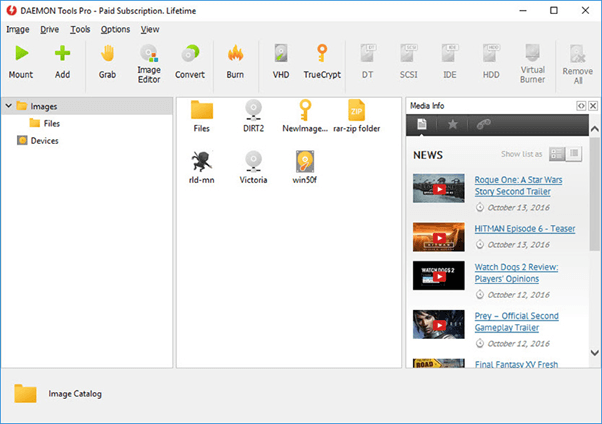
Features:
- Allows users to create up to 32 virtual drives that can be used to mount disk images.
- Users can mount a variety of disk image formats, including ISO, MDX, MDS, and VHD, among others.
- Advanced disk imaging options.
- Advanced security features like password protection and data encryption.
Pros:
- Fast and efficient.
- Easy to navigate.
- Interface customization options.
- Offers a 14-day free-trial period.
Cons:
- The free version of the software includes advertisements, which may be a turn-off for some users.
- Poor customer support.
Compatibility: Windows 11/10/8.1/8/7/Vista/XP Pro/Server2008.
Price: $26.99 for a lifetime subscription.
9. DriveImage XML
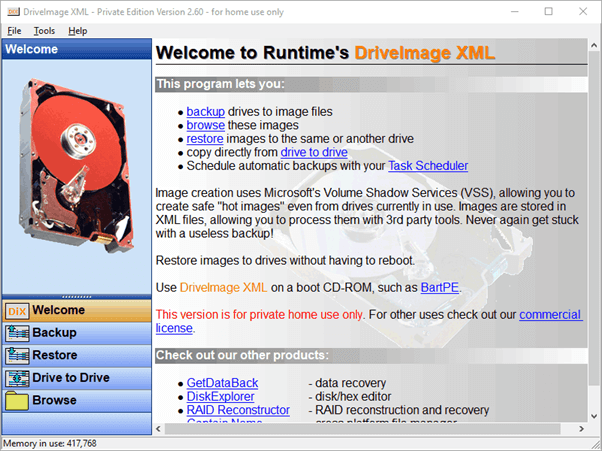
DriveImage XML is free disk cloning software that enables users to create backup images of their hard drives or partitions, which can be used to restore their system in case of a failure or disaster. The software can also clone one drive to another, making it easy to upgrade to a new drive without having to reinstall your entire system.
Features:
- Backs up logical drives and partitions to image files.
- Creates “Hot Images” with VSS technology.
- Scheduled automatic data backups.
- Restores without the need for a reboot.
Pros:
- Allows selective backups.
- Fast backup and restore.
- Easy to use.
Cons:
- Does not support differential backups.
- No technical support.
Compatibility: Windows 10/8/7/XP/Vista.
Price: Free.
10. Active Disk Image
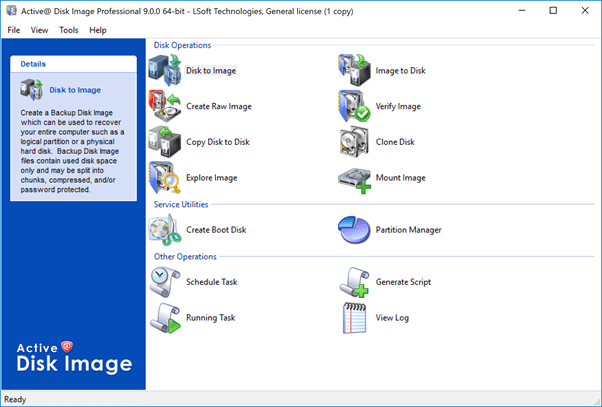
Active Disk Image is a versatile disk management software for Windows that enables users to create backup images of their hard drives or partitions. The software can create images of the entire system, including the operating system, applications, settings, and data, making it easy to restore a system to a previous state in case of a disaster or failure.
Features:
- Clones up to 20 disks efficiently.
- Creates bootable media, such as a CD, DVD, or USB drive.
- Supports both incremental and differential backups.
- Creates RAW disk images.
- Cloud storage.
- Email notifications.
Pros:
- Creates bootable disks.
- Scheduled backup options.
- Windows servers are supported.
- Premium tech support.
Cons:
- Lacks a few advanced features.
- Outdated user interface.
Compatibility: Windows 11/10/8.1/8/7/Sever 2003/Server 2008/Server 2012/Server 2016/Server 2022.
Price: $39/per year.
Conclusion
This sums up our list of best disk cloning software for Windows 11 and Windows 10 to use in 2026 (Free and Paid). By carefully evaluating your needs and weighing the pros and cons of each software, you can choose the best software for cloning disk for your specific situation and ensure the safety and security of your data.
FAQs:
What is disk cloning software?
It is a program that allows you to make an exact copy of your hard drive or a specific partition. This copy, or clone, can then be used to restore your system in case of a failure or disaster.
Is it safe to use disk cloning software?
Yes, it is safe to use a cloning program as long as you choose a reliable program and follow instructions carefully. It is important to make sure you have enough storage space for your backup image or clone and that you select the correct drive or partition to clone.
How long does it take to create a backup image or clone of my hard drive?
The time it takes to create a backup image or clone of your hard drive will depend on the size of your drive and the speed of your computer. Generally, it can take anywhere from a few minutes to several hours.
Author Bio:
Dinesh Lakhwani 

Dinesh Lakhwani, the entrepreneurial brain behind “TechCommuters,” achieved big things in the tech world. He started the company to make smart and user-friendly tech solutions. Thanks to his sharp thinking, focus on quality and the motto of never giving up, TechCommuters became a top player in the industry. His commitment to excellence has propelled the company to a leading position in the industry.
Popular Post
Recent Post

How to Recover Deleted Files from Pen drive, USB Drive, SD Card
Introduction: On tech forums, you’ll often see posts like this: “I connected my pen drive to my laptop this morning, but the folder was empty. All my college project files had vanished. I don’t have a backup. Can someone help me?” Stories like this are very common. Pen drives, USB drives and SD cards are […]

How To Recover Files Deleted from the Recycle Bin [Windows 11]
Losing a file can happen in seconds. You clear your desktop, hit Delete, and empty the Recycle Bin. Then, just when you need that file again, it seems to have vanished. This guide will walk you through ways to restore files removed from the Recycle Bin. We will begin with simple fixes, then look at […]

Disk Drill Data Recovery Tool Explained: Full Review and Guide
It happens in a split second. You delete a folder by mistake. Your drive stops showing up. A photo album from your last trip just vanishes. And your stomach drops. Lost files feel personal. They are not just data. They are memories, work hours, and sometimes years of effort packed into a few gigabytes. When […]

Recover Deleted Files In Windows 11 With Software & Without
Introduction What is the first thing that goes through your mind the second an important file vanishes from a Windows 11 PC? For most people, it is a mix of panic and disbelief, followed by a frantic click through every folder that file could possibly be hiding in. It happens in a split second: one […]

EaseUS Data Recovery Wizard: Everything To Know
Data loss does not always come from a big disaster either. Most cases start small and boring. A drive gets formatted by mistake. A laptop freezes mid-save and restarts on its own. A memory card stops showing up after being pulled out too fast. None of these feel like emergencies at first, until you realize […]

Recuva Data Recovery Tool: Is it Actually Worth it?
When I first tried Recuva Data Recovery, I wanted to see if it could really bring back lost files. The tool is free, small in size, and promises quick recovery, which made me curious enough to test it on my own PC. The setup was fast, and the wizard guided me step by step. I […]

GetData Recover My Files Data Recovery Tool: Honest Review
A hard drive error brings a special kind of silence. Well, yes! The screen freezes, then a message appears saying the drive can’t be found or must be formatted. In that moment, years of photos and work files feel at risk. It never happens at a good time. Coffee spills near a laptop, a memory […]

Windows File Recovery: A Complete Review [Tried & Tested]
Imagine this. You spend hours perfecting a video project. You hit save. Then your laptop freezes, reboots, and when the screen comes back. The file is gone. Your stomach sinks. It’s not just you. Lost files happen all the time. A dropped hard drive, a bad update, an accidental delete, or a corrupted partition can […]

5 Best Data Recovery Software For Windows 11 and Windows 10
Introduction: A crashed drive can ruin a whole day. One minute your photos, work files, and tax records sit safe on your PC. The next minute they are gone. A power cut, a bad update, or one wrong click can wipe out years of memories and months of work in seconds. That sinking feeling is […]

