











Imagine this. You spend hours perfecting a video project. You hit save. Then your laptop freezes, reboots, and when the screen comes back. The file is gone. Your stomach sinks. It’s not just you. Lost files happen all the time. A dropped hard drive, a bad update, an accidental delete, or a corrupted partition can […]
How to Uninstall Drivers on Mac: Complete Guide
In this blog, we will discuss how you can easily uninstall drivers on a Mac using a manual method and app.
Drivers on Mac! Many computer users have rarely ever heard the two terms together. That’s because drivers are mostly associated with Windows PCs, not Macs.
To be honest, macOS doesn’t actually require driver software to support hardware functions. Mac gadgets have built-in solutions to integrate with hardware, so no need to install third-party driver software.
However, there are still a few operations that require drivers on Mac, especially when you want to use third-party hardware devices. And, you’ll also need to keep drivers updated to run those operations on your device. Importantly, once they become obsolete, you have to delete them to free up space on your disk.
The TC experts have compiled this guide to demonstrate how to uninstall drivers on Mac correctly. So, you resolve problems that outdated drivers cause on your Mac and free up space on your drive. Let’s get going.
Important Precautions Before Uninstalling Drivers on Mac
Removing drivers on macOS needs a careful approach. Drivers control how hardware communicates with the system. Removing the wrong one can affect devices or system stability. Taking a few precautions helps avoid errors and makes recovery easier if something goes wrong. These checks ensure the uninstall process stays safe and clean.
- Confirm the driver is not in use:
Disconnect the related device before removal. Active drivers may not uninstall properly. - Identify the exact driver:
Similar driver names can cause confusion. Removing the wrong file affects other hardware. - Create a system backup:
A Time Machine backup allows quick recovery if issues appear. - Check macOS version compatibility:
Some drivers behave differently across macOS versions. - Quit background apps:
Open apps may lock driver files and prevent deletion. - Use official uninstallers if available:
Vendor uninstallers remove hidden files safely. - Avoid deleting core system files:
macOS system drivers should never be removed manually. - Restart after uninstallation:
Restarting clears cached files and reloads system services.
Example of Drivers on Mac
macOS is integrated with almost all the necessary software to smoothly run operating systems. Such as printers, Mac comes with a technology called AirPrint that lets you support printers without drivers.
But, for printers and scanners that don’t support AirPrint, you have to download the necessary drivers to use them. For lots of other hardware like graphics tablets and game controllers, you also need third-party drivers.
Additionally, you have to constantly update these drivers to ensure that they keep on working with the latest macOS versions. But, when you no longer use hardware devices, or manufacturers stop making them, drivers will become obsolete for you. In that case, it’s ideal for uninstalling drivers to free up space on your Mac disk.
How to Uninstall Drivers on Mac?
Once you have an obsolete driver on your Mac, you have two options to uninstall it — manually or with CleanMyMac X. Let’s us demonstrate both methods so you can decide which one is better for you:
How to Uninstall Drivers Manually on Mac
Before uninstalling old drivers on your Mac, you have to locate them. Some hardware drivers are added to System Preferences and some are in the Application folder. Many drivers also put files in other folders in the Library folder or the system Library folders. Usually, you will find driver files in the Application Support, LaunchAgents, and System Preferences sections.
To manually uninstall every driver on your Mac, you have to follow different steps. So, we are using the printer driver as an illustration to demonstrate the process:
- Go to the Apple Menu, and select System Preferences.
- Next, click on the Print & Fax.
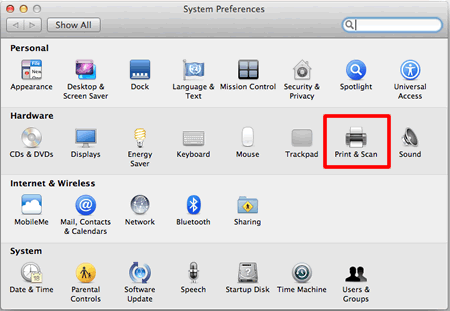
- Highlight your printer files, click on the ‘-‘ button to remove them from the Printers list, and click OK.
- Now, go and open the Hard Drive.
- Navigate to Library > Printers.
- Select all the files labeled with your printer’s name and move them to the trash.
- Empty the Trash and restart your Mac.
- That’s it! All your printer driver files are uninstalled from your device and you can reinstall by visiting the appropriate printer model page.
The manual driver uninstall has a small shortcoming — finding drivers. As driver files are scattered in different locations on your Mac, it is hard to locate them manually. So, locating every file and deleting it is a tricky part of this method. Thankfully, there is an easier solution available.
How to Uninstall Drivers on Mac with CleanMyMac X
CleanMyMac X is a premium cleaning tool for Mac devices. The software can free up gigabytes of space and speed up your Mac in one go. Meanwhile, protecting your system from malware and providing an ultra online security shield. Overall, it is the perfect application to uninstall unwanted apps and files on your Mac.
You can even try CleanMyMac X for free before getting the full version. Importantly, identifying all the unnecessary driver files and deleting them is a one-click process with CleanMyMac X. Just follow these steps:
- Download & install CleanMyMac X. (Note: This is an affiliate link but it does not compromise the authenticity of this blog)
- Ensure that you are using macOS 10.10+ or higher.
- Click on the Download Trial button and then mount to downloaded CleanMyMac.dmg.
- Now, drag the CleanMyMac X icon to the Applications folder as per the on-screen instructions.
- Go to the Application folder to launch CleanMyMac X on your Mac.
- Once the software is launched, click Activate in the upper right-hand corner.
- Next, you’ll be asked to enter your Activation Number, or you can resume the free trial. To get an Activation Number, click on Buy License and then Enter Activation Number.
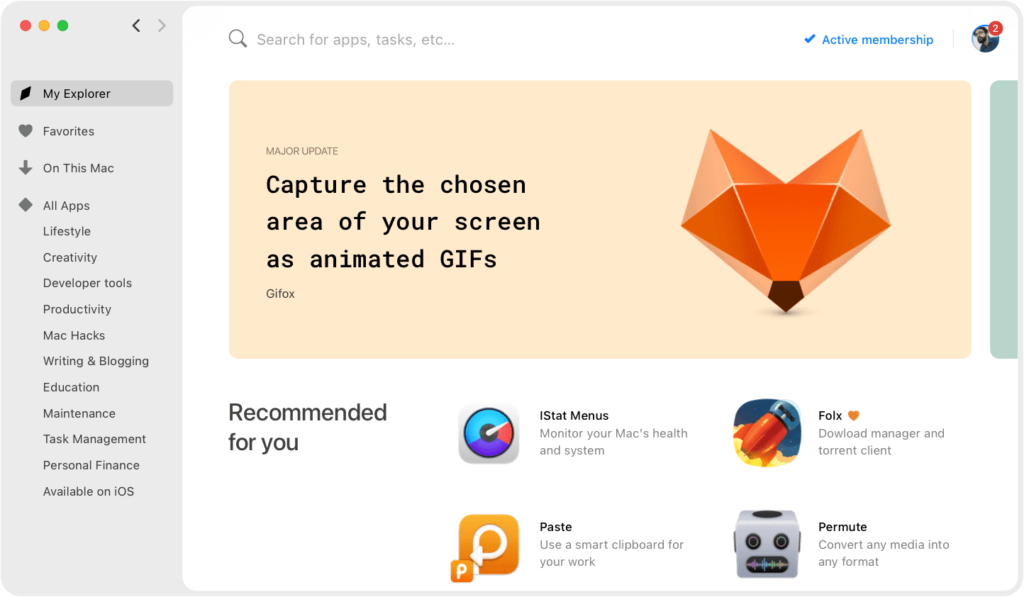
- Now, CleanMyMac X is ready to uninstall drivers on your Mac, click the CleanMyMac X icon.
- Select the Uninstaller tab in the sidebar and inspect the list of apps.
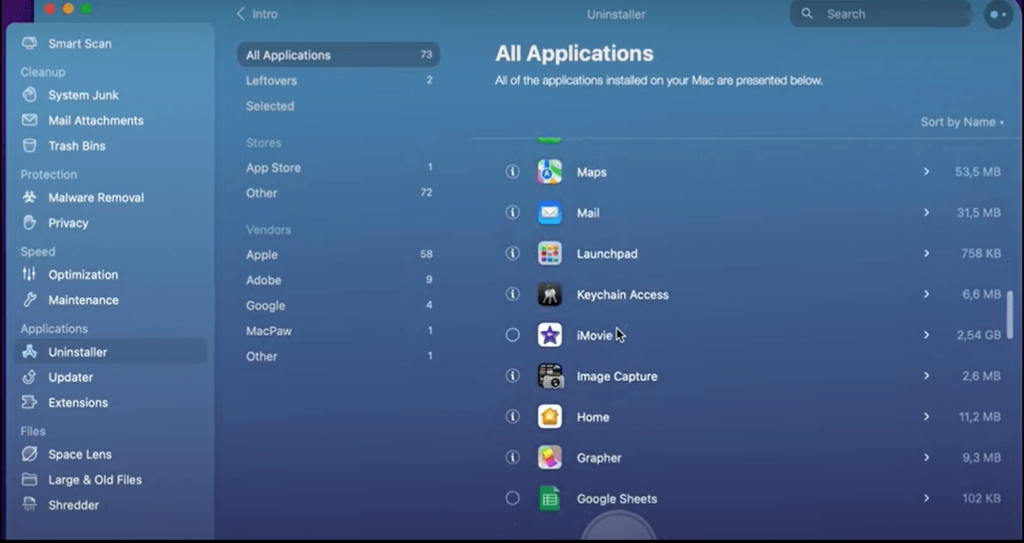
- You have to select the driver that you want to uninstall and click Uninstall. If you don’t find the driver in the list of apps, you can click on the Optimization tab to search for drivers and delete them.
Your work is done here. CleanMyMac X will now automatically delete all driver files from your system. Not only that, but it can also remove extensions or text files related to the driver. Simply choose Extensions > Preference panes and delete driver extensions.
Author’s Tip
Do not rush when uninstalling drivers on a Mac. Take time to check where the driver files are located and what they control. Many drivers store support files in system folders. Removing only one file may not fully uninstall the driver. Using official uninstall tools or trusted methods reduces leftover files.
If you are unsure about a driver, search its developer name first. Some drivers auto-reinstall through system updates or connected devices. After removal, monitor system behavior for a short time. If the hardware stops responding, reinstall the driver immediately. This approach keeps your Mac stable and predictable.
Parting Thoughts
Now, you know how to uninstall drivers on your Mac manually and with CleanMyMac X. It’s completely up to you which method you use to remove drivers on your Mac.
But, when you are looking for a fast and effective solution, CleanMyMac X is a better option. If you don’t have time to locate different driver files on your disk and fix your crashing Mac, this tool can instantly locate and remove them for you.
Additionally, CleanMyMac X promises 5x more free disk space, 2.5x speedier app launch, and 4.5x faster boot time. So, with a tool, you are gaining so many more benefits!
However, the final choice is yours. In our opinion, try both the manual method and the CleanMyMac X tool to uninstall drivers on your Mac and make the right decision. And, don’t forget to share your experience with us!
FAQs
Is it safe to uninstall drivers on a Mac?
Yes, it is safe when done correctly. Third party drivers for printers, audio devices, or USB tools can be removed safely. System drivers should not be touched. Always confirm the driver’s purpose before removal. Keeping a backup adds extra safety.
How do I know which drivers are installed on my Mac?
You can find drivers by checking System Settings and device software folders. Some drivers appear under Extensions or Profiles. Application folders may also contain related support files. Vendor documentation helps identify driver names. This avoids deleting the wrong files.
What should I do if something breaks after uninstalling a driver?
Restart the Mac first to refresh system services. If the issue continues, reinstall the driver from the official source. Restoring from Time Machine is the fastest fix for major problems. Avoid repeated manual deletions. A clean reinstall usually resolves the issue.
Dinesh Lakhwani
Author Bio:
Dinesh Lakhwani 

Dinesh Lakhwani, the entrepreneurial brain behind “TechCommuters,” achieved big things in the tech world. He started the company to make smart and user-friendly tech solutions. Thanks to his sharp thinking, focus on quality and the motto of never giving up, TechCommuters became a top player in the industry. His commitment to excellence has propelled the company to a leading position in the industry.
Popular Post
Recent Post

5 Best Data Recovery Software For Windows 11 and Windows 10
A crashed drive can ruin a whole day. One minute your photos, work files, and tax records sit safe on your PC. The next minute they are gone. A power cut, a bad update, or one wrong click can wipe out years of memories and months of work in seconds. That sinking feeling is why […]

How To Update NVIDIA Drivers On Windows 11/10 PC
Learn how to update NVIDIA drivers on Windows 11/10 with simple methods, safety tips, and easy steps for smoother gaming and better PC performance.

Top AI Features Hidden Inside Windows 11
Explore the top AI features in Windows 11, from Copilot to Recall, plus safety tips and simple steps to use each tool the right way.

Customize Your Screen Saver Settings in Windows [Easy Steps]
Learn how to customize screen saver settings in Windows 11 with easy steps, safety tips, and simple tricks to personalize your PC screen.

Driver Easy Windows Driver Updater Tool Review: Tried & Tested
In-depth information about Driver Easy’s functions and features can be found in our review. Learn how to update drivers more easily with this tool for a more seamless computer experience.

Is Avast Driver Updater Worth It? A Hands-On Analysis
A full review of Avast Driver Updater covering features, setup steps, pricing, pros and cons, and real PC results, to help you decide if it is worth buying.

IObit Driver Booster 13 (PRO) Review: [Tried & Tested]
IObit Driver Booster 13 is built for one purpose: keeping your PC drivers up to date. Well, yes! Outdated drivers can cause crashes, slowdowns, and hardware issues. This tool scans fast and updates with one click. The interface is simple. Even beginners can use it without confusion. Updates are pulled from a huge database, covering […]

Auslogics Driver Updater: A Detailed Walkthrough [2026]
This comprehensive review covers the key features, pros, and cons, pricing, and a final verdict on Auslogics’ driver update utility. Learn how it stacks up against manual driver maintenance.

5 Best Driver Updater Tools for Windows to Use (Free and Paid)
Introduction: Most people blame their PC for problems that a driver caused. A driver works like a bridge between your hardware and your operating system. When this bridge cracks, strange things start to happen. Screens flicker without reason. Printers go silent mid-task. Games freeze or crash out of nowhere. Manually finding the right driver is […]

