












A slow computer makes it hard to focus. Programs take too long to open. Free space keeps shrinking until the disk is almost full. This happens to most PC owners at some point. Even new machines can slow down after a while. That is the exact problem cleanup tools are built to solve. They comb […]
Managing Update Delivery Optimization: Latest Guide for Windows
Windows updates are essential. They keep your computer secure and fix bugs. But updates can be large. They can slow down your internet without warning. Videos buffer. Pages load slowly. Most people do not know why this happens. The reason is often updates running quietly in the background. That is where managing update delivery optimization comes in. It gives you control over how updates are downloaded and how much bandwidth Windows can use.
Delivery Optimization is a smart system built into Windows. It can pull update files from Microsoft’s servers or from other PCs on your home network. This speeds things up for everyone. But it also means your PC could be sending data out without you knowing. That upload activity uses your bandwidth too. Managing update delivery optimization properly means you get the speed benefits without the hidden costs. You stay in control of what goes in and what goes out.
This guide covers everything you need. It starts with precautions, then answers common questions, and then walks through three clear methods to take control of your settings. The steps work on both Windows 10 and Windows 11.
Before You Begin: Important Precautions to Know
Before you start changing any settings, it is smart to take a few precautions. Managing update delivery optimization can affect your internet speed and your data usage.
Back Up Your Current Settings First:
Before you change anything, write down or take a screenshot of your current Delivery Optimization settings. This way, if something does not feel right after you make changes, you can easily go back to where you started. It takes less than a minute and can save you a lot of trouble later.
Check Your Windows Version:
Some settings may look different depending on whether you are running Windows 10 or Windows 11. Make sure you know your version before following any steps. Go to Settings, then System, then About to find out which version you have. This helps you follow the right path.
Know Your Internet Plan Limits:
If your internet plan has a data cap, be very careful. Delivery Optimization can upload update data to other PCs. This upload counts against your data limit. Check with your internet provider to understand your plan before allowing uploads to others.
Do Not Disable Updates Completely:
Some people think the best solution is to turn off Windows updates altogether. Do not do this. Updates include important security patches. Instead, use managing update delivery optimization to control how and when they happen, not to stop them entirely.
Use Admin Access Only:
You need administrator rights to change Delivery Optimization settings. If you are using a work or school computer, check with your IT team before making changes. Some settings may be locked by company policy, and changing them could cause problems.
Check Available Disk Space:
Delivery Optimization stores downloaded update files temporarily on your hard drive. Make sure you have at least 10 GB of free space. If your disk is too full, updates may fail, or your PC may slow down a lot while downloading. Read This Guide on How To Manage & Free Up Disk Space On Windows
Restart After Making Changes:
After you adjust your settings, restart your computer. Some changes do not take full effect until after a reboot. A simple restart ensures that all your new settings are properly applied and working the way you want them to.
Avoid Changing Settings During an Active Update:
If Windows is already downloading or installing an update, wait until it is finished before you make any changes. Interrupting the process mid-way can corrupt the update file and force Windows to start the download all over again.
Things People Often Forget to Ask:
What Exactly Is Delivery Optimization and Why Does It Exist?
Delivery Optimization is a built-in Windows technology that helps download updates more efficiently. Instead of always pulling data from Microsoft’s servers, your PC can grab update files from other nearby devices. These could be computers on your home network or, if you allow it, PCs elsewhere on the internet. Microsoft created this system to reduce strain on its own servers and to make updates reach you faster. Managing update delivery optimization simply means taking control of this process so it works in your favor rather than quietly using up your bandwidth in the background.
Does Delivery Optimization Slow Down My Internet?
Yes, it can if left unchecked. By default, Windows may use a significant portion of your internet connection to both download updates and upload them to other PCs. If you have a slow connection or a limited data plan, this can be very noticeable. The good news is that managing update delivery optimization lets you set bandwidth limits. You can tell Windows to only use a certain percentage of your download and upload speed. Once you set these limits, updates happen quietly in the background without disrupting your browsing, streaming, or work tasks.
Is It Safe to Allow My PC to Share Updates With Others?
Microsoft designed the sharing feature with safety in mind. The files shared are only official Windows update files, not any personal data from your computer. However, if privacy is a concern or if you are on a metered connection, you can choose to only allow sharing with PCs on your local network. That way, your computer helps other devices in your home get updates faster without sending data to strangers on the internet. Most home users are fine with local-only sharing, and it is one of the first things to adjust when managing update delivery optimization for the first time.
What Happens If I Turn Delivery Optimization Off Completely?
If you turn it off, your PC will only download updates directly from Microsoft’s servers. This is perfectly fine and completely safe. Your updates will still arrive and install as normal. The difference is that downloads might be slower during peak hours when Microsoft’s servers are busy. You also lose the ability to get updates quickly from a nearby PC on your network. For most home users, turning it off completely is not a problem. But if you are managing update delivery optimization across multiple computers in an office, keeping it on for local sharing can save a lot of time and bandwidth.
3 Methods to Manage Update Delivery Optimization
There are multiple ways to take control of this Windows feature. You do not need to be a tech expert to use any of these methods. Each one gives you a different level of control. Pick the one that fits your comfort level and your needs. All three are valid approaches to managing update delivery optimization on Windows 10 and Windows 11.
Method 1: Using the Windows Settings App
This is the easiest and most beginner-friendly method. The Windows Settings app gives you a clean visual interface to see and change your Delivery Optimization options. You do not need to use any commands or tools. Everything is laid out in plain language with simple toggles and sliders.
This method is great if you just want to do a quick adjustment, such as turning off internet sharing or setting basic bandwidth limits. It works the same way on both Windows 10 and Windows 11, though the menus look slightly different in each version.
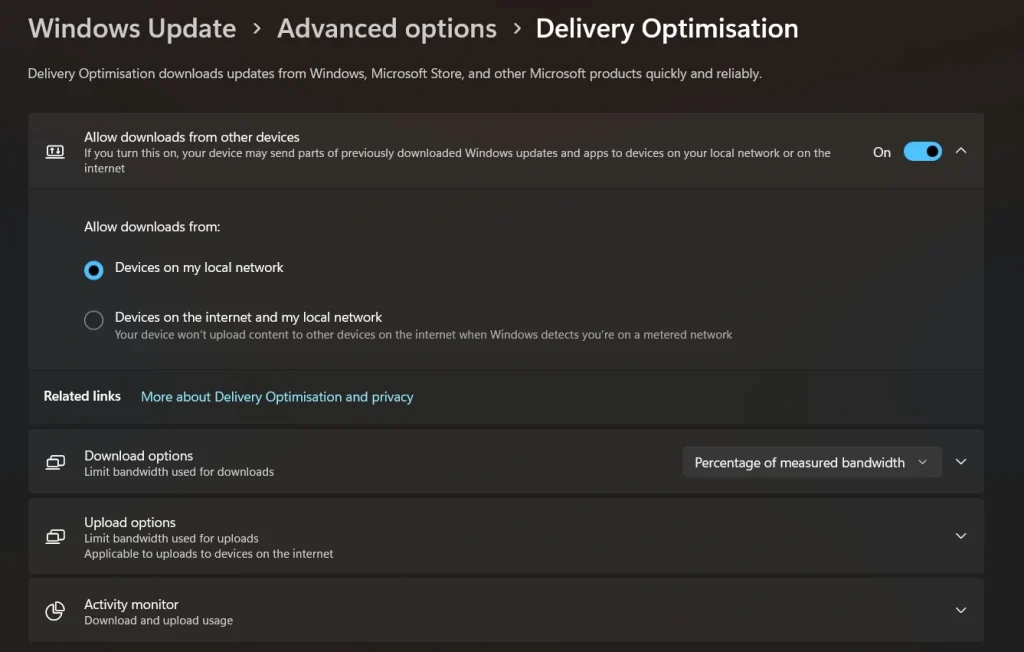
Step 1: Go to Settings, then Windows Update, then Advanced Options, then Delivery Optimization, and toggle off “Allow downloads from other PCs” or choose “Devices on my local network only.”
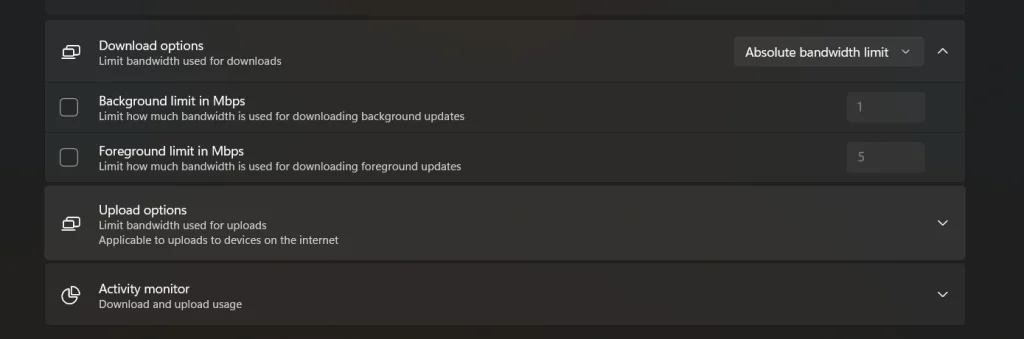
Step 2: Click “Download Options” on the same screen and use the sliders to set your preferred download and upload bandwidth percentages, then click Save.
Method 2: Using Group Policy Editor
The Group Policy Editor gives you deeper, more precise control over Delivery Optimization. This method is best for users who are comfortable navigating system administration tools, or for IT professionals managing multiple computers in a business setting. Group Policy lets you enforce specific rules about how updates are handled. These rules apply every time, regardless of what individual users change in the Settings app.
This makes it a powerful tool for managing update delivery optimization in a consistent and locked-down way across one or many Windows machines.
Step 1: Press Windows + R, type “gpedit.msc,” and press Enter. Navigate to Computer Configuration > Administrative Templates > Windows Components > Delivery Optimization. Double-click “Download Mode.”
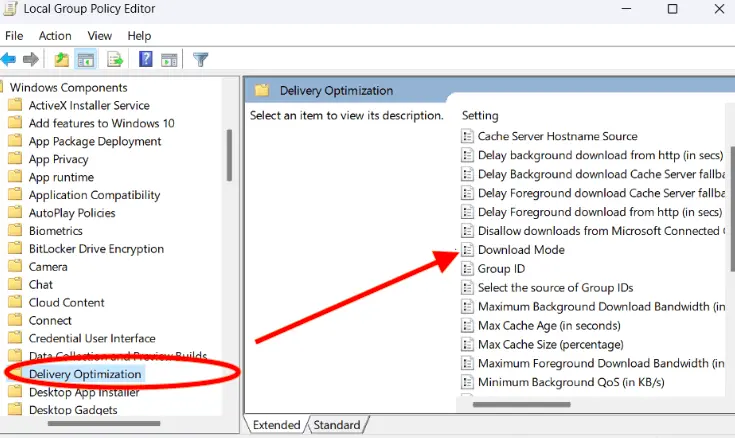
Step 2: Select “Enabled,” choose your preferred mode from the dropdown (Mode 1 for local network only is recommended), click OK, and close the editor.
Method 3: Using PowerShell Commands
PowerShell is a powerful command-line tool built into Windows. It lets you view and change Delivery Optimization settings with precise commands. This method is best for advanced users, system administrators, or anyone who wants to automate the process across many computers. With just a few lines of code, you can check your current configuration, change the download mode, and set bandwidth limits all at once.
Managing update delivery optimization through PowerShell is especially useful when you need to apply changes quickly without navigating through multiple menus.
Step 1: Right-click the Start menu, choose “Windows PowerShell (Admin),” and type Get-DeliveryOptimizationStatus to view your current settings.
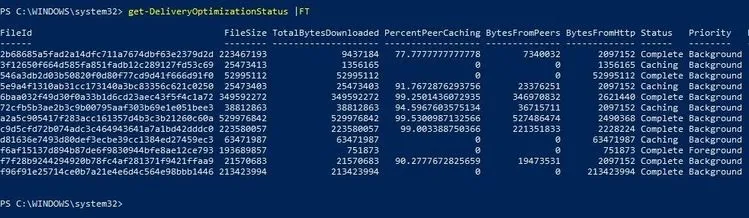
Step 2: Run Set-DeliveryOptimizationStatus -DownloadMode 1 to switch to local network only, then run Get-DeliveryOptimizationStatus again to confirm the change applied.
Author’s Tip
Most bandwidth issues during the day come from updates running in the background. People blame their internet provider, they restart their router, and they call tech support. But the real fix is often just spending five minutes managing update delivery optimization. Setting the background download limit to 20% or lower makes an immediate difference in how fast browsers and streaming apps work. This single change does more for everyday internet speed than most hardware upgrades ever could.
It is also worth checking the Delivery Optimization activity reports every few months. These can be found in the Settings app under Windows Update, then Advanced Options, then Delivery Optimization. Look at how much data the PC is uploading to others. On a metered or limited plan, that upload number can be a real surprise. Many people are giving away gigabytes of data each month without realizing it.
Once those numbers are visible, it becomes very clear why managing update delivery optimization is not just a nice-to-have but a must-do for anyone serious about keeping internet costs low.
Conclusion
Windows Delivery Optimization is a powerful feature that most people ignore. That is a mistake. When left on default settings, it can quietly consume your bandwidth, eat into your data plan, and slow down your daily internet use. But when you take the time to understand and control it, the results are very noticeable. Managing update delivery optimization gives you real command over how your computer handles updates. You decide the source of the downloads, the speed limits, and whether your PC uploads anything to others.
In this guide, you learned three different methods to take control. The Settings app gives you a simple and quick path to change the basics. The Group Policy Editor provides deep control for professional environments. And PowerShell gives you precise, scriptable commands for advanced users and bulk configurations. Each method is valid and effective. Pick the one that suits your skill level and the type of computer you are working on.
FAQs:
1. Can I limit update speed only during work hours?
Yes, you can control update speed during work hours. Windows lets you set active hours, so updates do not disturb your work. You can also go to advanced delivery optimization settings and limit bandwidth. This helps keep your internet stable while you are working. It is a simple way to balance performance and updates.
2. Does Delivery Optimization work without internet?
No, it does not work without an internet connection. Your system needs internet access to download updates from Microsoft servers. However, if you have other PCs on the same network, your system can share update files with them. This reduces repeated downloads but still requires the internet at least once.
3. Will turning it off stop updates?
No, turning it off will not stop updates. Your system will still receive and install updates normally. The only change is that updates will come only from Microsoft servers. This may make downloads slower in some cases, but it gives you better control over data usage.
Author Bio:
Dinesh Lakhwani 

Dinesh Lakhwani, the entrepreneurial brain behind “TechCommuters,” achieved big things in the tech world. He started the company to make smart and user-friendly tech solutions. Thanks to his sharp thinking, focus on quality and the motto of never giving up, TechCommuters became a top player in the industry. His commitment to excellence has propelled the company to a leading position in the industry.
Popular Post
Recent Post

Fortect Software Review: The Ultimate PC & Mobile Cleaning, Optimization & Security Tool
Slow computers are a common problem for almost every Windows user. Well, yes! Over time, your PC picks up junk files. These files sit quietly in the background. They take up space and slow things down. Programs open slower. Windows takes longer to boot. Even simple tasks like opening a folder can feel sluggish. There […]

CCleaner PC Optimizer Review: A Complete Guide for Windows Users
If your computer has started to feel slow, you are not alone. Most Windows PCs slow down over time. Junk files pile up. The registry gets messy. Too many apps open when you start your PC. All this adds up and makes even a good machine feel tired. This is where a PC cleaner tool […]

Auslogics Duplicate File Finder: Full Review and User Guide
A computer quietly gathers clutter over time. This includes duplicate photos, repeated downloads, and forgotten backups hiding in random folders. This buildup slowly eats away at storage and can make even a fast PC feel sluggish. Manually finding and deleting duplicates is tedious. It means checking every folder, comparing file names, and guessing which copies […]

CCleaner Duplicate File Finder: Key Features, Pricing, Step-by-Step Guide and More
Every computer collects junk over time. Right? Well, yes! Photos often get copied twice. Documents get saved in two folders by mistake. Old downloads pile up and never get deleted. This slowly eats up your storage space, and most people do not even notice until their drive is almost full. That is where a duplicate […]

Duplicate File Finder Pro: A Complete Review, Everything You Should Know
Computers collect thousands of files over time. Well, yes! Many of them end up being duplicates created by backups, downloads, or accidental copies. These extra files take up valuable storage space and make it harder to keep everything organized. Finding and removing them manually can take hours. Right? Duplicate File Finder Pro is a tool […]

Top 3 Duplicate File Finder for Windows 11 & Windows 10
If your PC storage keeps filling up even after you delete big files, duplicate files could be the real reason. Most of us save the same photo twice, download a document more than once, or copy a whole folder by mistake. Over months and years, these duplicate files pile up quietly. You do not even […]

Monitor Screen Calibration Guide: Everything You Should Know
Your monitor shows colors every single day. But are those colors actually correct? Most people never stop to check this. They just use the screen as it comes out of the box. This habit can lead to wrong colors in photos, videos, and work files. Colors may look too warm or too cold without you […]

How To Check Installed RAM and RAM Slots [Complete Guide]
RAM plays an important role in how smoothly a computer runs. Short for Random Access Memory, it stores the data and instructions that Windows and active applications need at any given moment. From opening multiple browser tabs to running games and productivity software, RAM helps keep everything responsive. A system with limited memory may experience […]

What is Microsoft Autopilot Everything You Need To Know
Technology has changed the way companies manage computers. Well, yes! Employees now work from offices, homes, and remote locations. Setting up devices manually for every worker takes time and effort. It can also create mistakes that slow down productivity. This is where Microsoft Autopilot becomes useful. It helps businesses prepare and deploy Windows devices with […]

