












So, search for a pair of shoes once online. Close the tab. By evening, those same shoes are sitting on your news site, your video app, and even your recipe blog. Nobody placed them there by chance. A cookie did. Well, yes! Cookies are small files that websites place on your device while you browse. […]
9 Quick Tips: How To Optimize Computer Performance
Is your computer running slow? Does it take forever to open programs? You’re not alone. Many people face these issues daily. The good news is that you can fix most problems yourself.
Computer performance can drop for many reasons. Old files pile up. Programs run in the background. Hard drives get full. Your system needs regular care. Think of it like maintaining a car. Regular check-ups keep things running smoothly.
Discover how to enhance your PC’s performance with clear, beginner-friendly steps. No technical know-how required—just follow the guide, and enjoy smoother, faster operation. Your computer will be glad you did!
Part 1: Common Signs and Symptoms: Your PC Needs Urgent Attention!
Your computer gives you warning signs when it needs help. Watch for these red flags. They tell you it’s time to act.
- Slow startup times – Your computer takes more than 2 minutes to boot up
- Programs freeze or crash – Apps stop working or close without warning
- Browser runs slowly – Web pages take forever to load
- Files take a long time to open – Opening documents or photos feels sluggish—each one takes noticeably longer than expected to load.
- Fan runs constantly – Your computer sounds like a jet engine
- Blue screen errors – Your screen turns blue with error messages
- Storage space warnings – Pop-ups say your disk is almost full
- Multitasking becomes impossible – You can’t run two programs at once
Part 2: How to Optimize Computer Performance?
A slow computer affects your daily work. It wastes time and causes stress. But you can fix this. The right steps will bring your computer back to life.
Most performance issues have simple solutions. You don’t need expensive software. Basic maintenance works wonders. Clean up your system regularly. Remove what you don’t need. Keep only the essentials.
Tip 1: Clean Up Your Hard Drive
Your hard drive stores everything on your computer. This includes all your files, photos, and programs. Over time, it fills up with junk files. These are temporary files that stay behind. Old downloads pile up, too. Cache files grow bigger each day. These files slow down your system. They take up valuable space. Your computer has to search through more clutter.
Think of your hard drive like a storage room. At first, it’s organized and spacious. You can find things easily. But over time, you add more stuff. You forget to throw things away. Soon, the room becomes messy. Finding anything takes forever. Your computer faces the same problem.
Cleaning your hard drive is like organizing your closet. You go through everything item by item. Remove old clothes you don’t wear. Throw away broken things. Keep only what you need. Your computer works the same way. Remove files you don’t use. Delete old programs. Keep your system lean and clean.
Step 1: Open “This PC”. Right-click your main drive (usually C:). Select “Properties,” then click “Disk Cleanup.”
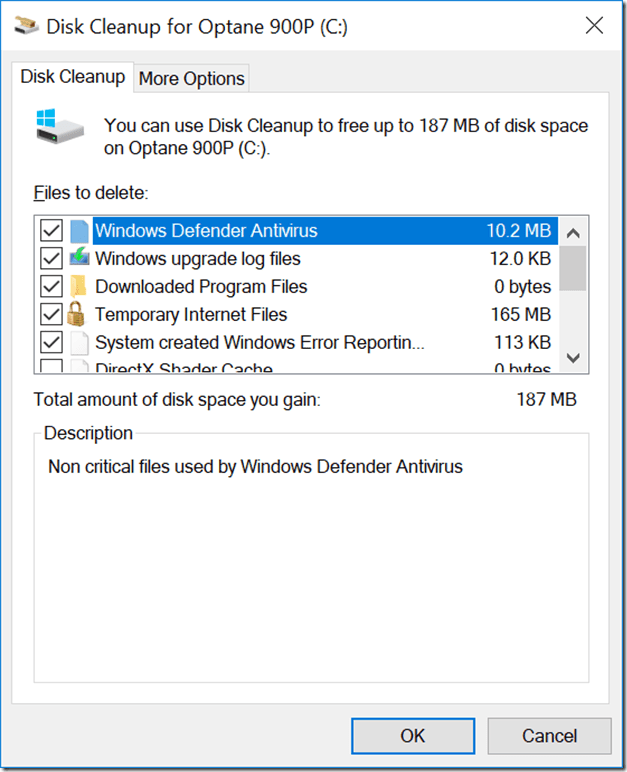
Step 2: Check all boxes except “Downloads” (unless you’re sure). Click “OK” and let it clean. This removes temporary files and system junk.
Tip 2: Uninstall Unused Programs
Every program on your computer takes up space. Most people install programs and forget about them. These unused programs still consume resources. They run background processes. Some start up with your computer automatically. This slows down boot time. Your system memory gets divided among too many programs.
Think about your smartphone. You probably delete apps you don’t use. Your computer needs the same treatment. Go through your program list carefully. Be honest about what you actually use. That game you played once last year? Delete it. Old photo editors you replaced? Remove them too. Free trials that expired? Get rid of them. Your computer will breathe easier. Wondering how to optimize computer performance? Follow these steps:
Step 1: Go to Settings > Apps > Installed Apps. Look through your installed programs.
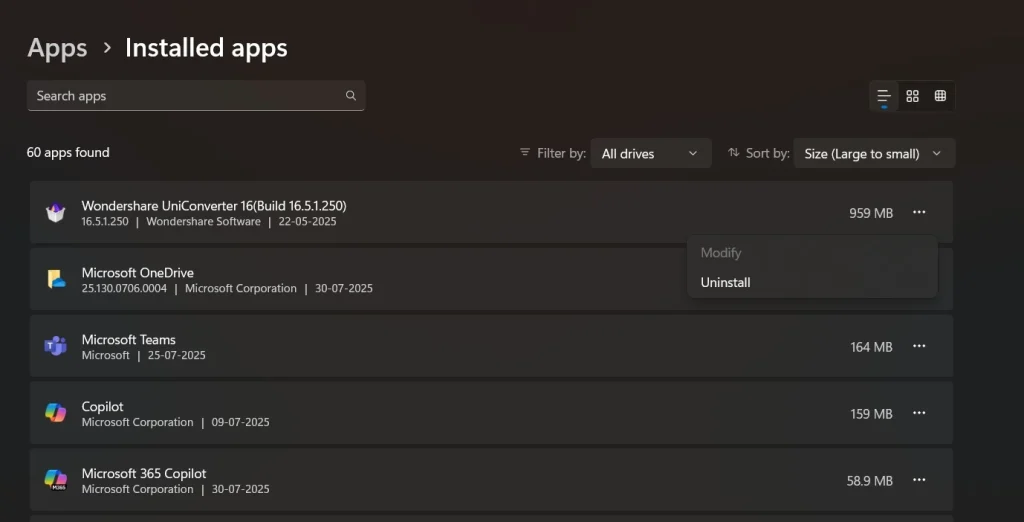
Step 2: Click on programs you don’t use and select “Uninstall.” Restart your computer when done.
Read this complete guide to uninstall apps from computer.Tip 3: Disable Startup Programs
Your computer loads many programs when it starts. This happens automatically. You probably don’t need most of these programs right away. They consume precious memory. They also make startups take much longer. Some programs are sneaky. They add themselves to a startup without asking.
Every program that starts on your computer uses resources. These resources could go to programs you actually want to use. You only need essential programs at startup. Things like antivirus software and system tools. Most other programs can wait. Let them start when you actually need them.
Step 1: Press Ctrl + Shift + Esc. This will open Task Manager. Click the “Startup” tab.
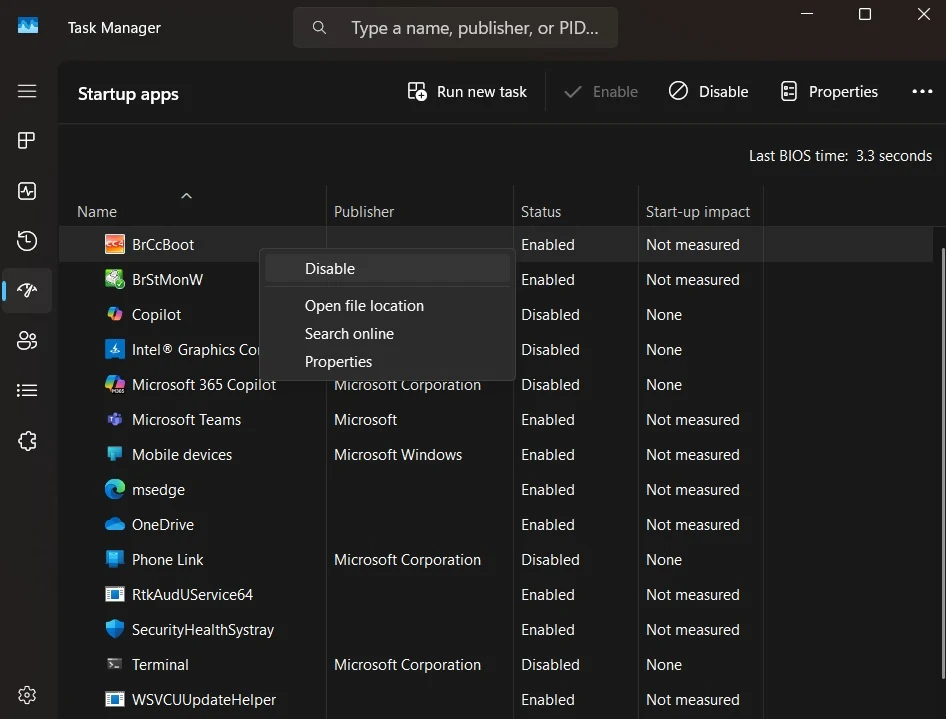
Step 2: To speed up your computer’s startup, right-click any unnecessary programs in the task manager and hit “Disable.” Pay special attention to those labeled as having “High” impact—they tend to slow things down the most.
Tip 4: Run Disk Defragmentation
Your hard drive doesn’t store files in one piece. It breaks them into small chunks. These chunks get scattered all over your drive. When you need a file, your computer hunts for all the pieces. This takes extra time. It’s like having a book with pages scattered in different rooms.
Modern computers create and delete files constantly. Over time, the scattered pieces multiply. Your hard drive becomes fragmented.
What Is Defragmentation? Imagine your files scattered like jigsaw puzzle pieces all over your hard drive. Defragmentation is the tidy-up crew—it gathers those scattered pieces and puts them back in order, just like organizing a messy room. When everything’s in the right place, your computer doesn’t have to go hunting—it grabs files faster and performs more efficiently.
Step 1: Open the Windows search box. Type “Defrag”. Open “Defragment and Optimize Drives.”
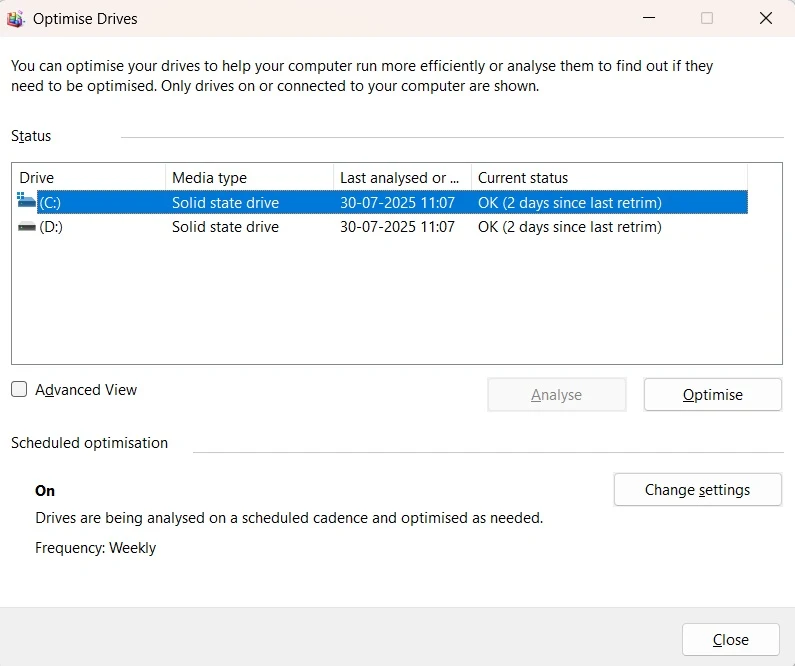
Step 2: Select your main drive and click “Optimize.” This process takes time. Let it finish completely.
Tip 5: Update Your Operating System
Software companies constantly improve their products. They fix bugs that slow down your computer. They patch security holes. They make programs run more efficiently. Your operating system is like the foundation of your house. Keep it strong and updated.
Old software often has performance problems. These problems get fixed in newer versions. Updates also improve compatibility with new hardware. They add better memory management. Some updates even reduce power consumption. Windows updates happen automatically by default. But you should check manually too. Make sure you’re running the latest version. Don’t ignore those update notifications.
Step 1: Go to Settings > Windows Update.
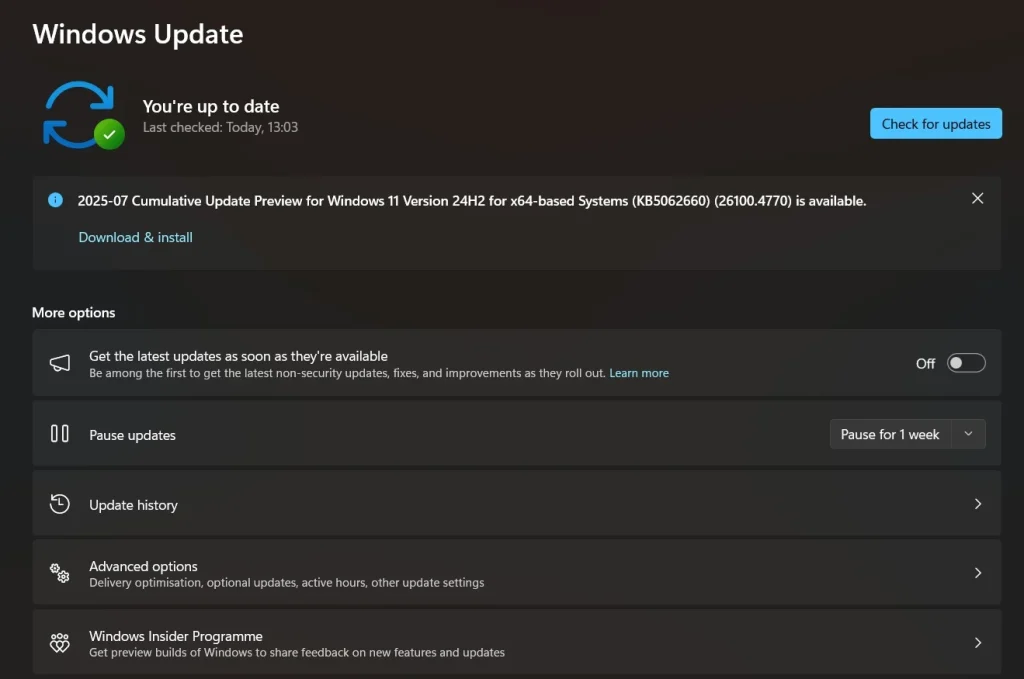
Step 2: Click “Check for updates.” Install any available updates and restart when prompted.
Tip 6: Add More RAM Memory
RAM stands for Random Access Memory. It’s where your computer stores data temporarily. Think of RAM as your computer’s workspace. A bigger workspace lets you do more things at once. When you run out of RAM, your computer slows down dramatically. It starts using your hard drive as backup memory. Hard drives are much slower than RAM.
Most older computers came with 4GB or 8GB of RAM. This was enough years ago. But modern programs use more memory. Web browsers eat up RAM quickly. Video calls consume even more. If you have 4GB or less, consider upgrading. Adding RAM is often the best upgrade you can make. It gives instant results. Your computer will feel much faster. Multitasking becomes smooth again.
Step 1: Check how much RAM you have. Press Ctrl + Shift + Esc. Look at memory usage in Task Manager.
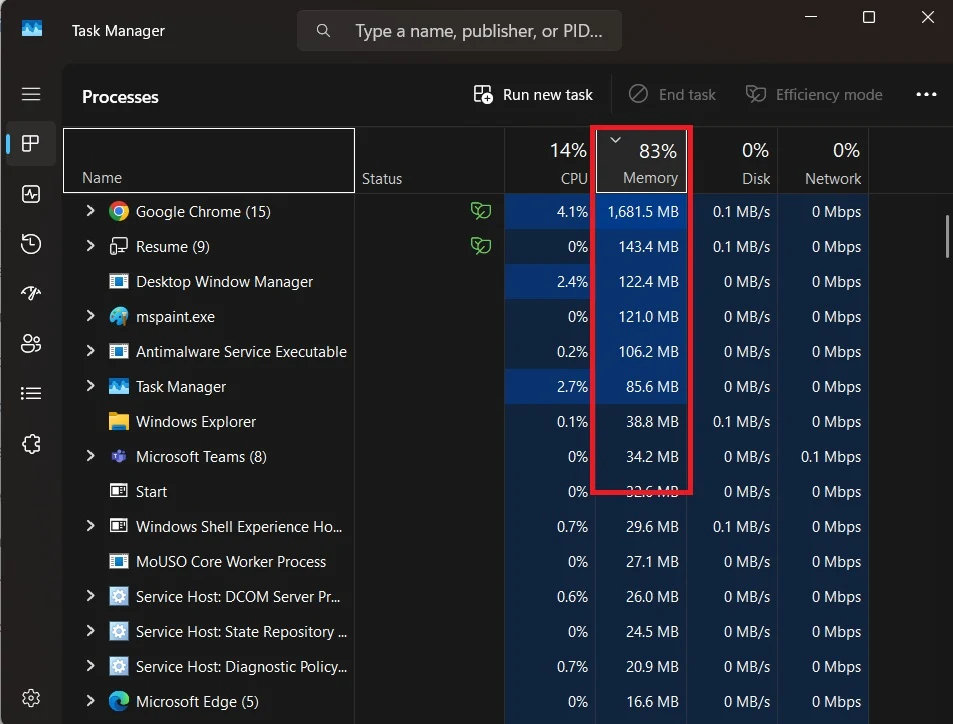
Step 2: Buy compatible RAM for your computer. Install it yourself or have a technician do it.
Tip 7: Clean Your Computer Physically
Computers generate heat when they work. They need airflow to stay cool. Dust is the enemy of good airflow. It builds up inside your computer over time. Dust blocks fans and vents. It covers heat sinks. When components get too hot, they slow down automatically. This protects them from damage.
A dusty computer sounds like a jet engine. The fans work overtime trying to cool things down. Heat also shortens the life of your components. Regular cleaning prevents these problems. Think of it as giving your computer room to breathe. Clean your computer every few months. Use compressed air to blow out dust. Pay special attention to fans and vents. Work in a well-ventilated area.
Step 1: Shut down and unplug your computer. Open the case (for desktops) or find vents (for laptops).
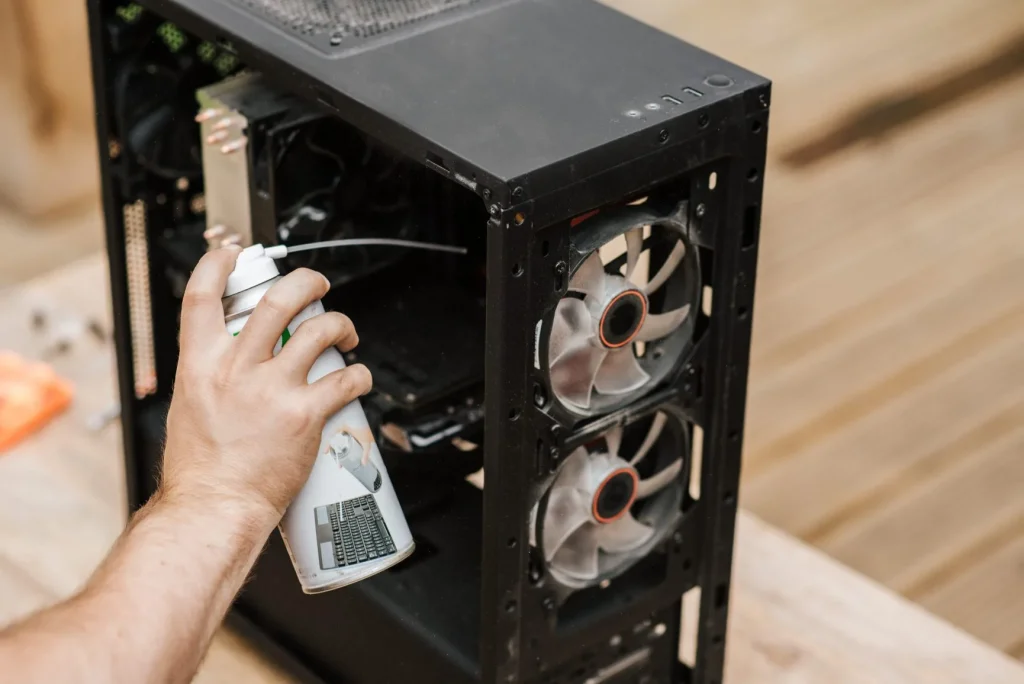
Step 2: Use compressed air to blow out dust. Work outside if possible. Dust will fly everywhere.
Tip 8: Use an SSD Drive
Traditional hard drives have spinning disks inside. These mechanical parts move to read data. This movement takes time. Solid State Drives (SSDs) have no moving parts. They use flash memory instead. This makes them much faster. An SSD can make even an old computer feel brand new.
The difference is dramatic. Your computer will start in seconds instead of minutes. Programs open almost instantly. File transfers happen much quickly. Boot times drop from 60 seconds to 15 seconds. SSDs cost more than regular drives per gigabyte. But prices have dropped significantly. The speed boost is worth every penny. It’s like upgrading from a bicycle to a motorcycle.
Step 1: Buy an SSD that fits your computer. Make sure it has enough storage space for your needs.
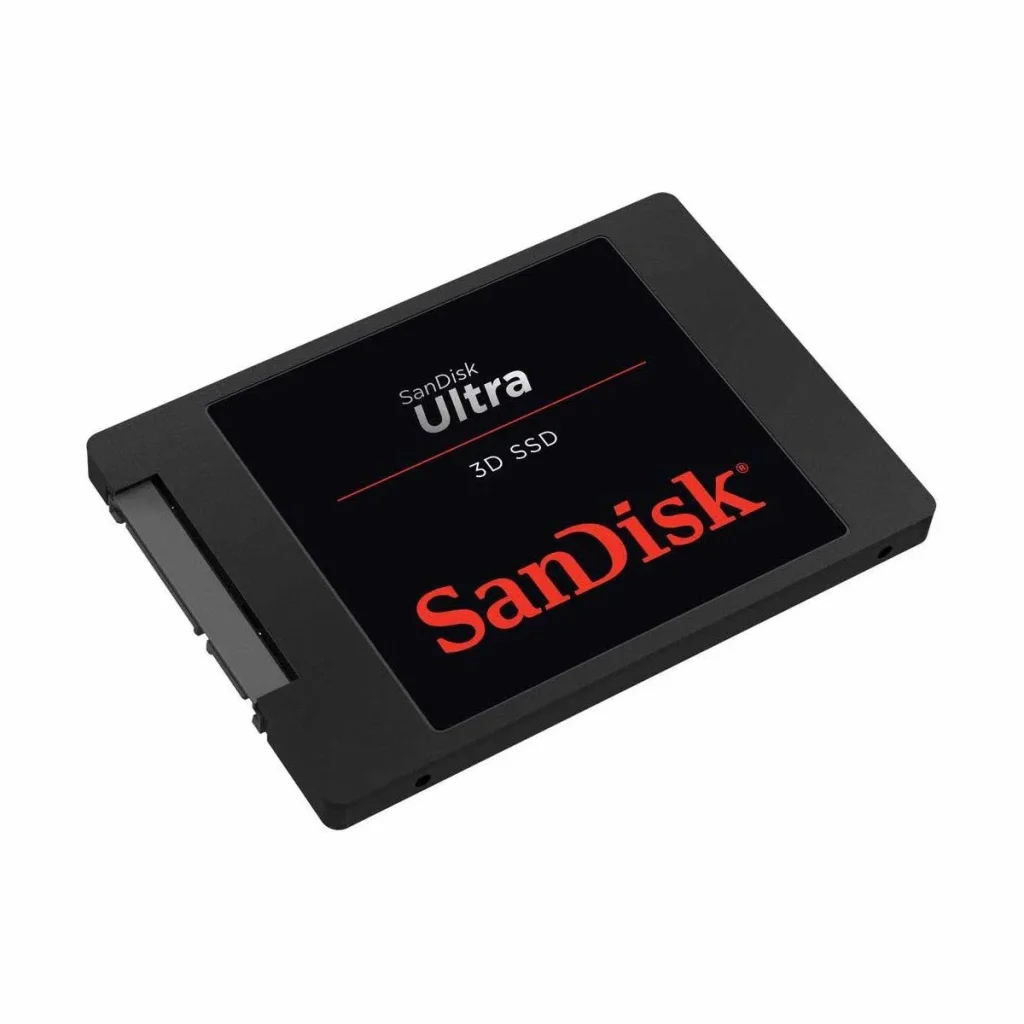
Step 2: Clone your old drive to the new SSD. Or do a fresh Windows install. This requires some technical skill.
Tip 9: Run Antivirus Scans
Viruses and malware slow down computers. They run hidden processes. They steal your computer’s resources. Regular scans catch these problems.
Use Windows Defender or another trusted antivirus. Scan your system weekly. Remove any threats it finds.
Step 1: Open Windows Security from your Start menu. Click “Virus & threat protection.”
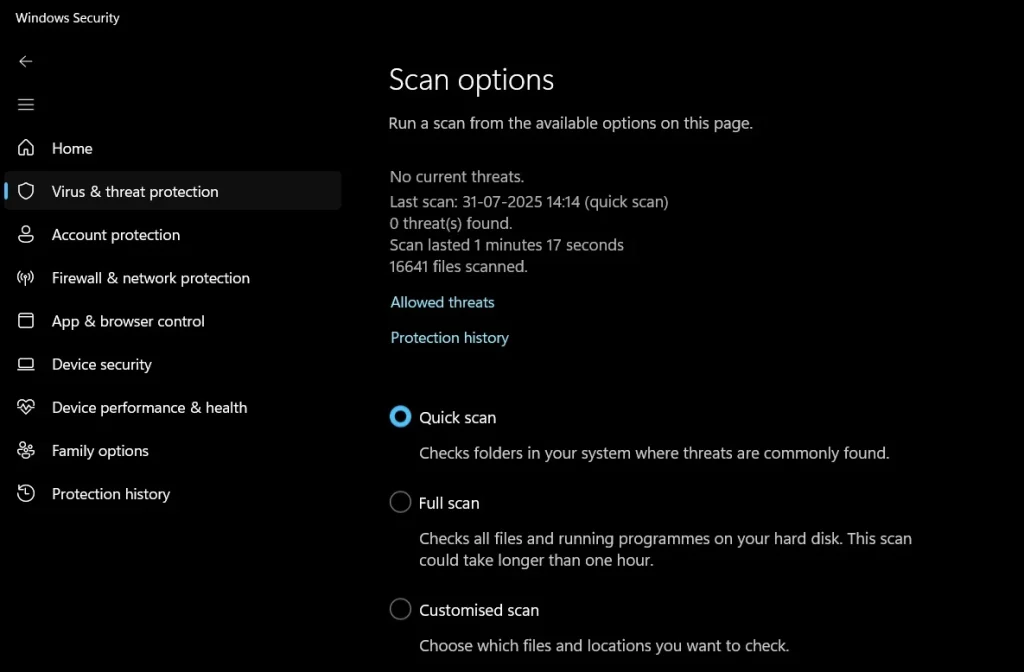
Step 2: Run a “Quick scan” weekly. Do a “Full scan” monthly. This finds and removes harmful software.
Part 4: Pro Tips to Optimize a Computer’s Performance
These advanced tips can give you extra performance gains. They require a bit more technical knowledge. But they’re still doable for most users.
- Adjust visual effects – Turn off fancy animations and transparent windows for speed
- Increase virtual memory – Let Windows use hard drive space as extra RAM
- Clean registry files – Remove broken registry entries that slow your system
- Update device drivers – New drivers often improve hardware performance
- Use ReadyBoost – Speed up older computers with a USB flash drive
- Disable background apps – Stop unnecessary programs from running automatically
- Change power settings – Use “High Performance” mode instead of “Balanced”
- Monitor system temperature – Keep your computer cool for best performance
Author’s TIP
Here’s our best advice after years of computer repair work. The single most important thing you can do is restart your computer regularly. Many people never shut down their computers. They just close the laptop or put it to sleep.
Restarting clears your computer’s memory. It stops programs that got stuck. It applies updates that were waiting. Do this at least once a week. Your computer will run much better. It’s the simplest way to optimize computer performance without any technical knowledge.
Conclusion
A faster computer improves your daily life. You waste less time waiting. You get more work done. The steps in this guide really work. Start with the easy ones first.
Remember that computer maintenance is ongoing. Do these tasks regularly. Set reminders if you need to. A little effort now saves big headaches later. Your optimized computer will serve you well for years to come.
FAQs:
Q: How often should I optimize my computer’s performance?
Basic maintenance should happen monthly. Run disk cleanup and antivirus scans weekly. Restart your computer at least once a week. Check for updates every few weeks. Physical cleaning needs to happen every 3-6 months, depending on your environment.
Q: Will these steps work on both Windows and Mac computers?
Most concepts apply to both systems. But the specific steps are for Windows computers. Mac users should look for similar tools in their system. The basic principles remain the same. Both systems need regular cleaning and maintenance.
Q: How much faster will my computer be after optimization?
Results vary based on your computer’s condition. Heavily cluttered systems see the biggest improvements. You might see 30-50% faster startup times. Programs may open twice as fast. The exact gains depend on what problems you had before starting.
Author Bio:
Dinesh Lakhwani 

Dinesh Lakhwani, the entrepreneurial brain behind “TechCommuters,” achieved big things in the tech world. He started the company to make smart and user-friendly tech solutions. Thanks to his sharp thinking, focus on quality and the motto of never giving up, TechCommuters became a top player in the industry. His commitment to excellence has propelled the company to a leading position in the industry.
Popular Post
Recent Post

How To Disable Background Apps In Windows: 4 Quick Methods
A slow PC rarely gives a warning. One day, it simply takes longer to start. Apps open late. The fan runs loud, even when the screen is almost empty. Most people blame old hardware. Often, that is not the real reason. The real reason is hiding in plain sight. Windows keeps many apps active in […]

How to Activate Windows with a Product Key for Windows 11 & Windows 10
It always shows up at the worst time. You are halfway through a report, or about to join a video call. Then you spot it in the bottom right corner of the screen. Activate Windows. Go to Settings to activate Windows. Initially, an unactivated copy of Windows may seem like a minor inconvenience. Over time, […]

Is Easy Duplicate Finder Worth It? Honest Review
The photos folder looked normal at first glance. Then the storage warning popped up. One trip photo appeared four times. A tax PDF sat in three different folders. Two old setup files were still in Downloads, and each one was over 500 MB. Nobody plans this mess. Copies pile up slowly. A download runs twice. […]

Wise Duplicate Finder Review: Real Results from Wise Duplicate Finder
Read my honest Wise Duplicate Finder review. See features, pricing, pros and cons, and real PC test results. Find out if this free duplicate cleaner can free up your Windows storage.

How to Recover Deleted Files from Pen drive, USB Drive, SD Card
Introduction: On tech forums, you’ll often see posts like this: “I connected my pen drive to my laptop this morning, but the folder was empty. All my college project files had vanished. I don’t have a backup. Can someone help me?” Stories like this are very common. Pen drives, USB drives and SD cards are […]

How To Recover Files Deleted from the Recycle Bin [Windows 11]
Losing a file can happen in seconds. You clear your desktop, hit Delete, and empty the Recycle Bin. Then, just when you need that file again, it seems to have vanished. This guide will walk you through ways to restore files removed from the Recycle Bin. We will begin with simple fixes, then look at […]

Disk Drill Data Recovery Tool Explained: Full Review and Guide
It happens in a split second. You delete a folder by mistake. Your drive stops showing up. A photo album from your last trip just vanishes. And your stomach drops. Lost files feel personal. They are not just data. They are memories, work hours, and sometimes years of effort packed into a few gigabytes. When […]

Recover Deleted Files In Windows 11 With Software & Without
Introduction What is the first thing that goes through your mind the second an important file vanishes from a Windows 11 PC? For most people, it is a mix of panic and disbelief, followed by a frantic click through every folder that file could possibly be hiding in. It happens in a split second: one […]

EaseUS Data Recovery Wizard: Everything To Know
Data loss does not always come from a big disaster either. Most cases start small and boring. A drive gets formatted by mistake. A laptop freezes mid-save and restarts on its own. A memory card stops showing up after being pulled out too fast. None of these feel like emergencies at first, until you realize […]

