












The photos folder looked normal at first glance. Then the storage warning popped up. One trip photo appeared four times. A tax PDF sat in three different folders. Two old setup files were still in Downloads, and each one was over 500 MB. Nobody plans this mess. Copies pile up slowly. A download runs twice. […]
IObit Driver Booster 13 (PRO) Review: [Tried & Tested]
IObit Driver Booster 13 is built for one purpose: keeping your PC drivers up to date. Well, yes! Outdated drivers can cause crashes, slowdowns, and hardware issues. This tool scans fast and updates with one click.
The interface is simple. Even beginners can use it without confusion. Updates are pulled from a huge database, covering millions of devices. Safety checks help avoid risky installs.
In this detailed review, we look at performance, features, and pricing. You’ll see where Driver Booster shines and where it falls short.
The goal is clear: help you decide if it’s worth using.
IObit Driver Booster 13 (PRO) Review: What, Why and How
Part 1: Brief Overview: IObit Driver Booster 13
IObit Driver Booster 13 is a driver update program made for Windows PCs. It scans your system, finds old or broken drivers, and replaces them with fresh, tested ones. The company behind it, IObit, has built driver and PC tools for many years, so this is not a new or untested name in the space. This version brings a bigger driver library and a cleaner scan process compared to older releases, along with wider support for newer hardware types.
The tool works for regular home users and gamers alike. It also fits IT helpers who manage many machines across an office or a small team. The setup is simple from start to finish. You install the program, run a scan, and pick what to update.
Most actions need just one click, and the whole flow is built so that a first-time user does not feel lost. The interface avoids clutter, showing only the details that matter, such as device names, current driver versions, and available updates.
Quick features include:
- One‑click driver update – scans and updates outdated drivers instantly.
- Large driver database – supports millions of hardware devices.
- Offline driver update – installs drivers without internet access.
- Game components update – keeps gaming libraries like DirectX and Visual C++ fresh.
- Auto backup and restore – saves old drivers before updating.
- Silent installation mode – updates drivers quietly in the background.
- Device error fix – helps solve sound, network, and display issues.
- Scheduled scans – automates driver checks at set times.
Part 2: Why IObit Driver Booster 13 Deserves a Spot on Your PC
People pick driver tools for many different reasons. Some want speed. Some want safety. Some just want fewer computer headaches during their daily work or play. Below are eight reasons why many Windows users choose this program over doing things by hand, along with a short note on why each one matters.
- Fast driver scanning – the tool quickly checks your system for outdated drivers. You save time and avoid long manual searches.
- Safe updates – drivers come from trusted sources. This reduces the chance of installing unstable or harmful files.
- Offline update support – you can download drivers on another PC and install them without internet. Perfect for fixing machines with broken network drivers.
- Game performance boost – updates gaming components like DirectX and Visual C++. This helps games run smoother and reduces crashes.
- Automatic backups – before updating, the tool saves your old drivers. If something goes wrong, you can roll back easily.
- Simple interface – the dashboard is clean and easy to use. Even beginners can update drivers without confusion.
- Error fixing tools – it helps solve common problems like no sound, bad network, or display glitches. This makes troubleshooting faster.
- Scheduled maintenance – you can set scans to run automatically. Your system stays stable without needing constant manual checks.
Part 3: Key Features Explained: IObit Driver Booster 13 Tool
The real value of any driver tool sits in its features, not just its marketing claims. Below are seven parts of the program worth knowing before you install it, each explained in plain terms so you know exactly what you are getting.
One-click scan and update:
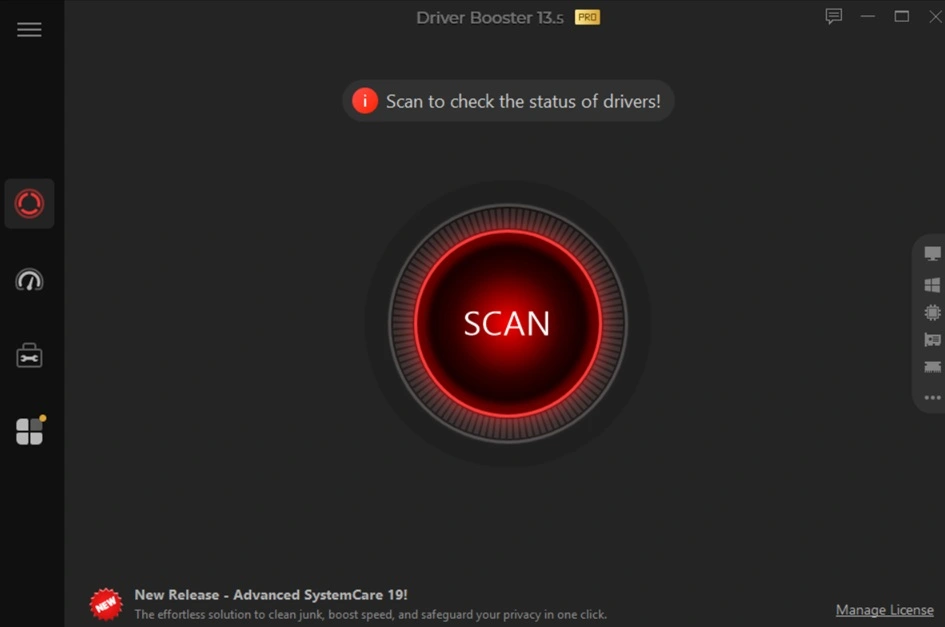
The scan checks your whole system for driver issues in one single pass. A short report appears within seconds, listing what needs fixing along with the current driver age. You then choose to update one item at a time, or update everything together with a single click. This saves a lot of back and forth compared to checking each device on its own.
Large driver database:
The tool draws from a database built over many years of collection and testing. It matches your hardware against millions of known driver files, covering brands both common and less known. This wide coverage helps it find correct matches even for older laptops or budget parts that smaller tools often miss.
Backup and restore system:
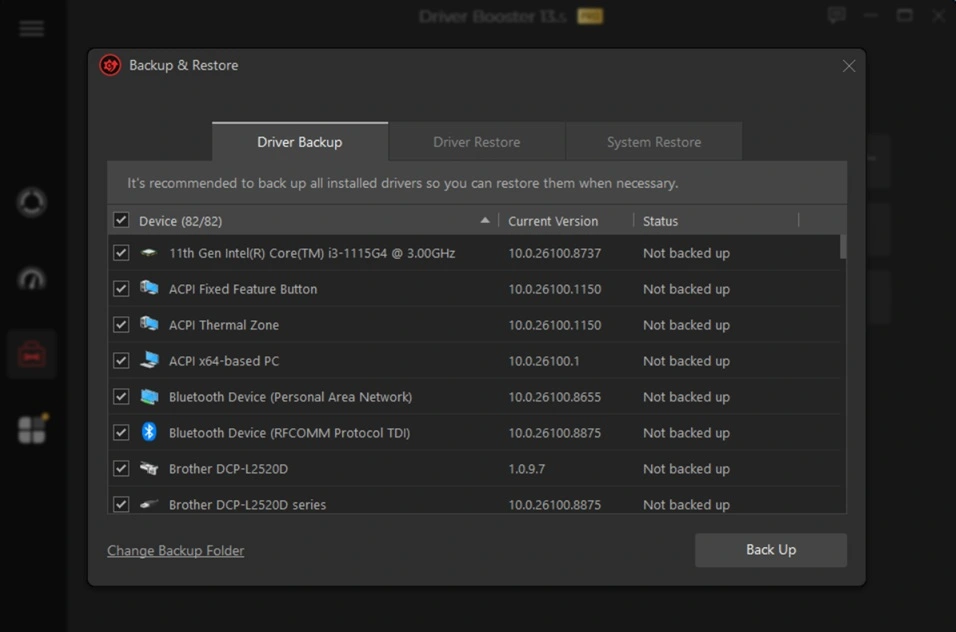
Before any driver changes happen, the program saves a copy of the old files to a safe spot on your drive. If a new driver causes a problem, such as a screen glitch or a sound issue, you can restore the earlier version with just a few clicks. This backup step gives peace of mind to users who worry about breaking something that already works.
Game Boost Feature:
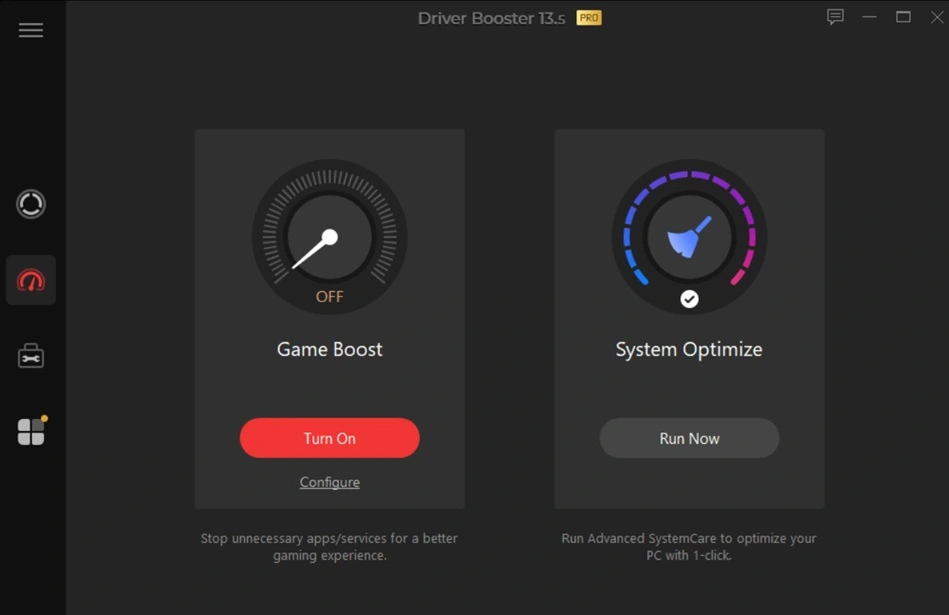
The Game Boost feature in IObit Driver Booster 13 is designed to improve gaming performance by freeing up system resources. It temporarily shuts down unnecessary background processes and services, giving more CPU and RAM to your games.
This results in smoother gameplay, fewer lags, and faster load times. For players who want maximum performance without manual tweaks, Game Boost offers a simple one‑click solution that makes a noticeable difference.
Offline driver fix:
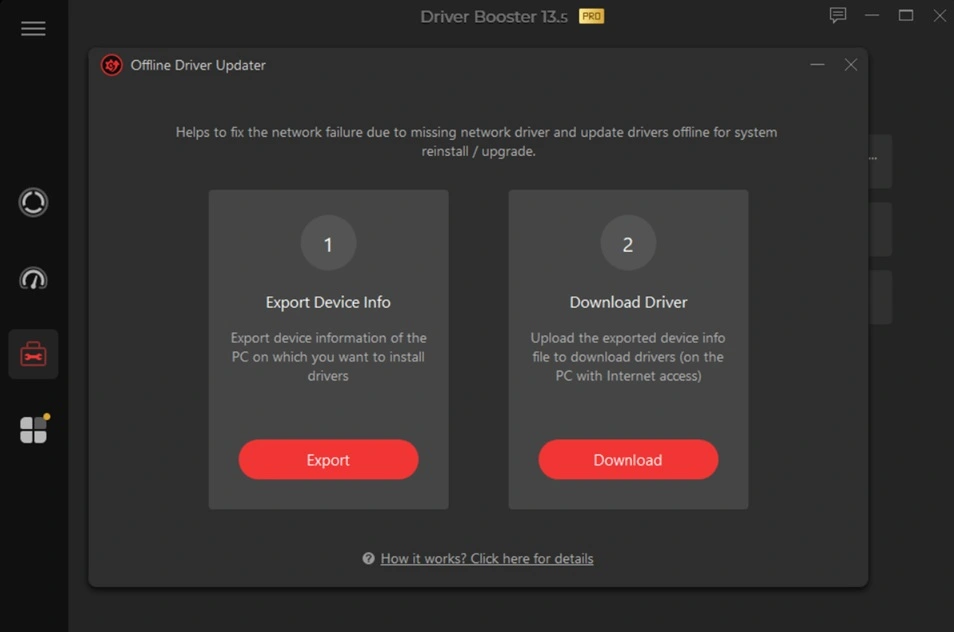
Sometimes a broken network driver blocks internet access entirely, which creates a strange loop where you need the internet to fix the very thing stopping you from getting online. This mode solves that by letting you fix the driver using files stored ahead of time, without needing a live connection at that moment.
System information view:
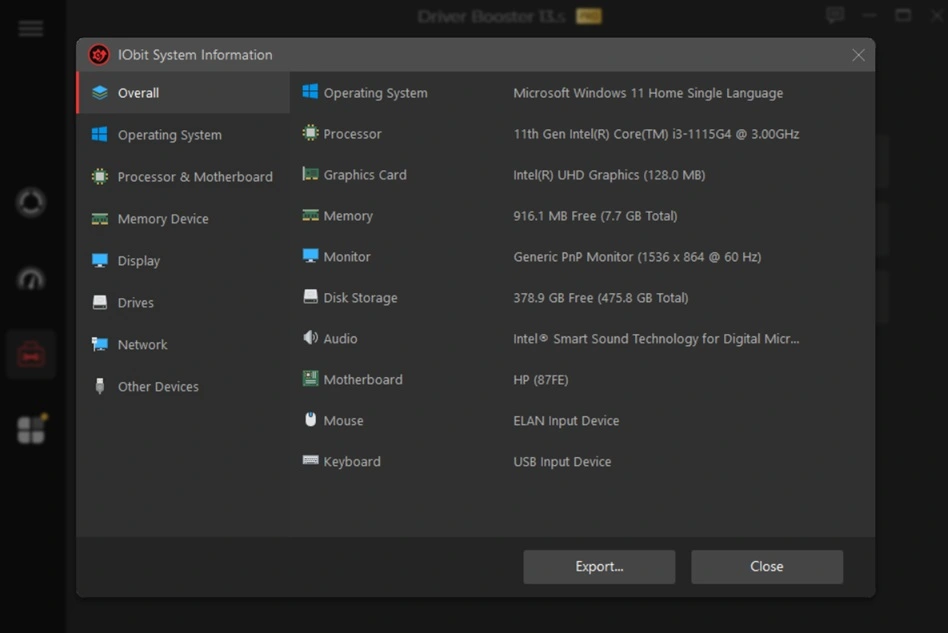
The tool includes a built-in panel that shows key details about your PC, such as the operating system version, processor type, installed memory, and graphics card model. This gives a quick snapshot of your machine without needing to open separate Windows menus, which is handy when you need this information for support requests or when comparing parts before an upgrade.
Fix incompatible drivers:
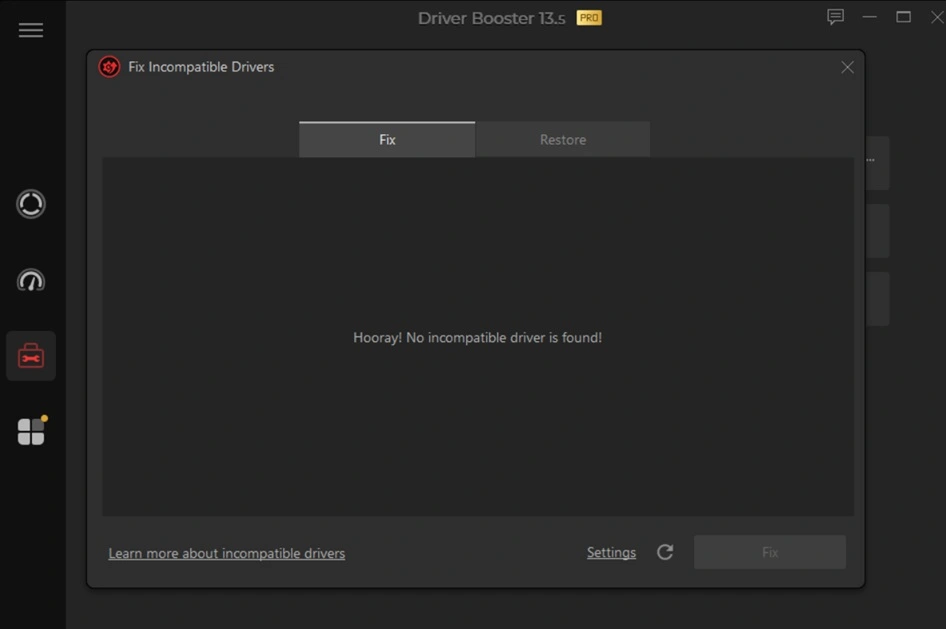
Some driver issues are not about age but about a bad match between the file and your specific hardware or Windows version. This feature checks for drivers that are technically installed but not truly compatible, then swaps them out for a version built to work correctly with your setup. This helps solve strange bugs that a normal outdated driver scan might miss entirely.
Part 4: How to Use IObit Driver Booster 13 Tool: Step-by-Step Guide
Getting started with this program does not take long, and most people finish the whole process within ten minutes. The layout is simple, and most menus explain themselves without needing a manual or a search online. Even a first-time user should feel comfortable within minutes of opening the tool for the first time.
Below are the three main steps to get your drivers updated and your system running a bit smoother. Each step covers what to expect on screen and what to click, so nothing feels like a surprise along the way.
Step 1: Visit the official IObit site and download the setup file for the current version. Run the file and follow the on-screen prompts, which mostly involve clicking Next a few times and picking an install folder. Launch the tool on your PC. Click Scan.
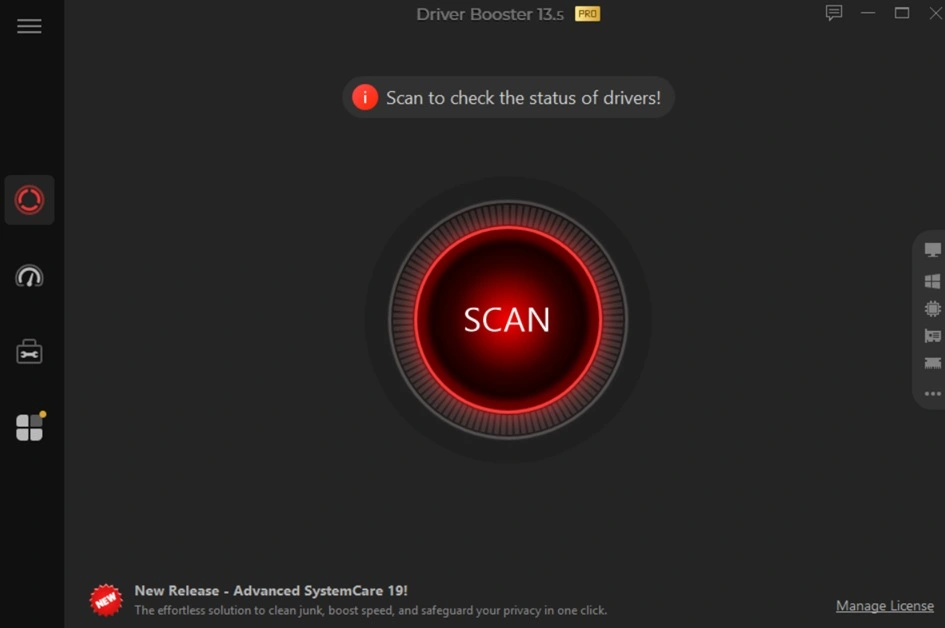
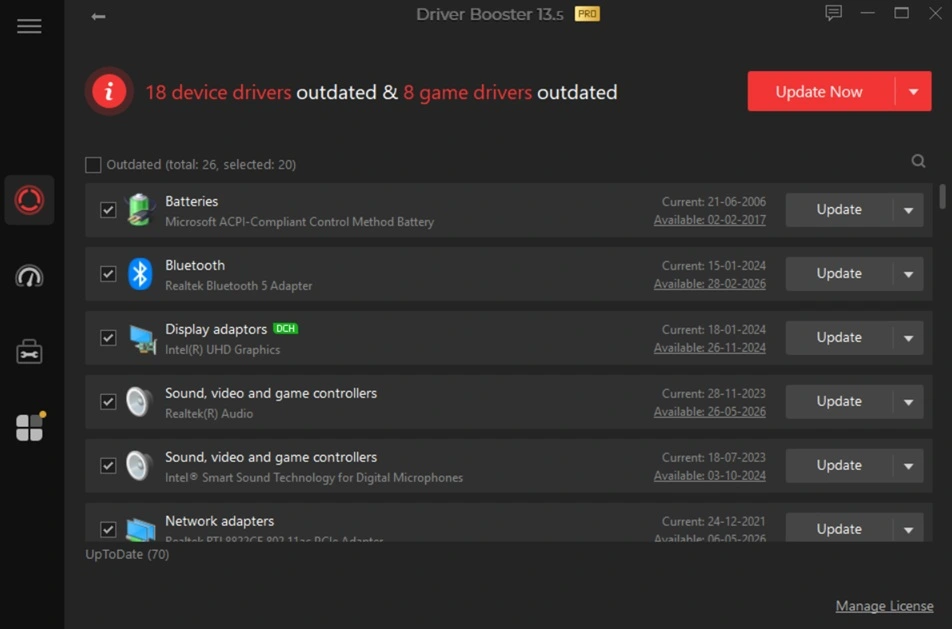
Step 2: Wait for the scanning process. Within seconds, you will see a report that shows which drivers are outdated, missing, or broken, sorted in a simple list. Each item lists the device name, the driver’s current age, and a short note on why it needs attention.
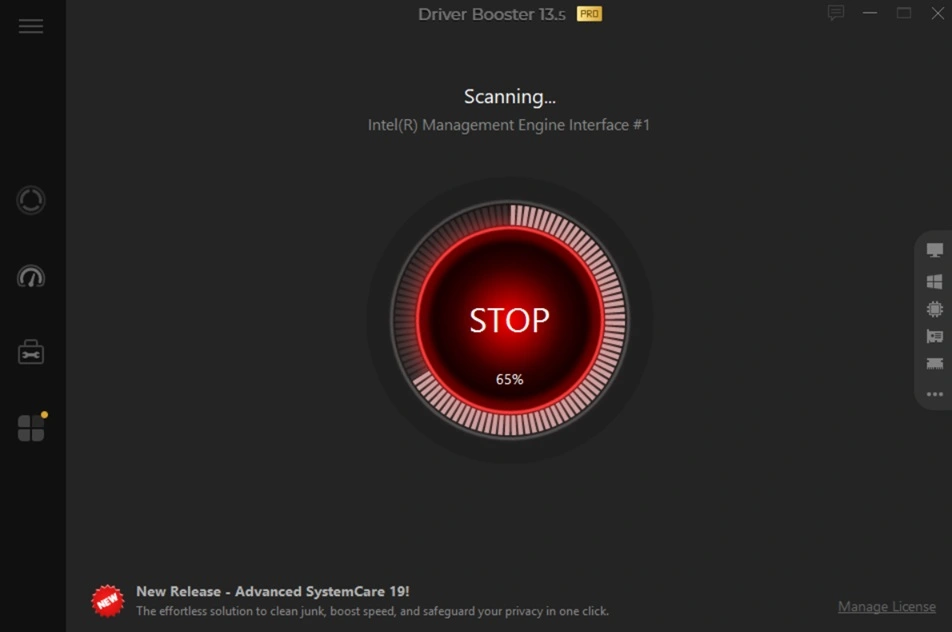
Step 3: Click Update next to a single driver if you only want to fix one issue, or choose Update Now to fix everything at once in one pass. The program downloads and installs new drivers quietly in the background while you continue other work.
NOTE: A restart may be needed once the process finishes, especially after graphics or chipset driver changes.
Part 5: Pros and Cons Explained: IObit Driver Booster 13
Every tool has strong points and weak points, and this one is no different. Knowing both sides helps you decide if this program fits your setup before you spend time or money on it. Below is an honest look at what works well and what could use some improvement.
Pros:
- Large driver database – covers millions of devices, ensuring wide compatibility.
- One‑click updates – simple process that saves time and effort.
- Game component updates – improve gaming performance by keeping libraries fresh.
- Backup and restore – adds safety by allowing rollback if issues occur.
- Offline update mode – useful for PCs without internet access.
- Futuristic black theme – sleek interface design that looks modern and professional.
Cons:
- Single‑PC license limit – most plans cover only one computer unless you buy the 3‑PC option.
- Internet reliance – full functionality requires a stable connection, except offline mode.
- Legacy hardware gaps – very old devices may not always be supported.
Part 6: Pricing Plans: IObit Driver Booster 13 Tool
IObit Driver Booster 13 comes in a free version and a paid Pro version, and picking between them depends on how deep your needs go. The free plan covers basic scanning and driver updates for casual users. The Pro plan unlocks faster downloads, full backups, and wider device support for those who want more control and speed.
1‑Year Subscription (Most Popular)
1 Year / 3 PCs:
Regular price: $74.85
Discounted price: $22.95
- Covers up to 3 computers, includes full PRO features, offline updates, backups, and priority support.
1 Year / 1 PC:
Regular price: $39.95
Discounted price: $14.95–$19.95 depending on promotions.
- Best for single‑device users.
Short‑Term Plan
3 Months / 1 PC:
Price: $11.95
- Good for testing the PRO features before committing to a full year.
Bundle & Hot Deals:
- Often paired with other IObit tools like Advanced SystemCare PRO or IObit Uninstaller PRO at steep discounts.
- Promotions may include free gifts such as Smart Defrag or Protected Folder.
- Discounts range from 50% to 75% off during seasonal sales.
Pricing Snapshot:
| Plan | Devices Covered | Discounted Price | Regular Price |
| 1 Year / 3 PCs | 3 PCs | $22.95 | $74.85 |
| 1 Year / 1 PC | 1 PC | $14.95–$19.95 | $39.95 |
| 3 Months / 1 PC | 1 PC | $11.95 | N/A |
Things to Note:
- Renewal pricing is usually higher than first‑year promotional rates.
- Licenses are device‑specific (1 PC or 3 PCs). Extra PCs require additional licenses.
- Seasonal deals often include bonus utilities, so timing purchases around sales can maximize value.
Free VS Paid Comparison:
| Feature | Free Version | Pro Version |
| Driver scan | Yes | Yes |
| One-click update | Limited, one at a time | Yes, update all at once |
| Download speed | Standard | Faster |
| Driver backup | Basic | Full backup and restore |
| Offline driver fix | No | Yes |
| Game Ready drivers | Limited | Full support |
| Technical support | Community only | Priority support from IObit |
| Number of PCs covered | One | One or three, based on plan |
| Auto update scheduling | Limited | Full scheduling control |
| Access to full driver database | Partial | Complete access |
Part 7: Honest Feedback of Using IObit Driver Booster 13 On My PC
When I launched the first scan, the tool detected 18 outdated device drivers and 8 game drivers. The list was detailed, showing each driver name, version, and update status. It felt reassuring to see everything organized in one place.
The update process was smooth. Device drivers installed quickly, fixing minor issues like slow USB response and occasional sound glitches. The game drivers improved performance in titles that previously stuttered.
After the updates, the system felt more stable. Boot time improved slightly, and games ran without interruptions. Finding 26 updates in one scan proved the database is extensive. It showed that Driver Booster 13 PRO can truly keep a PC optimized and reliable.
Part 8: Trust, Reviews, and Ratings of IObit Driver Booster 13 Worldwide
Trustpilot Feedback
- Overall sentiment: Many users highlight quick support responses and smooth PC performance after updates.
- Positives: Effective driver updates, long‑term satisfaction, dependable for system maintenance.
- Concerns: Intrusive pop‑up ads, bundled software, occasional update failures or blue screens. (Free version).
- Rating trend: Generally favorable.
Expert Reviews
- WindowsTechies (2025): Rated 3/5 stars. Praised for ease of use, large driver database, and restore points. Criticized for possible misidentifications and blue screens.
- HasibX Review (2025): Rated 4.6/5 stars. Called fast, lightweight, and reliable with extras like game boosting and offline updates. Minor negatives include bundled promotions and upsell attempts.
User Experience Highlights
- Ease of use: One‑click scanning and updating is consistently praised.
- Database size: Covers millions of devices, making it one of the largest driver libraries.
- Safety features: Backup and restore options reassure users.
- Mixed trust: Some users worry about bundled offers and aggressive marketing tactics.
Risks and Trade‑offs
- Aggressive promotions: Frequent upsell prompts may annoy users.
- Reliability issues: Some reports of failed updates or system instability.
- Pricing concerns: Renewal costs can be higher than first‑year pricing.
IObit Driver Booster 13 is widely trusted for driver updates and earns strong ratings from many reviewers. However, users should be aware of marketing tactics and occasional reliability issues. For most Windows users, it remains a solid choice for hassle‑free driver maintenance.
Part 9: Security and Reliability of IObit Driver Booster 13
- Verified driver sources – updates are pulled from trusted vendors, reducing risks of malware or unstable files.
- Backup and restore safety – every update creates a backup, so you can roll back if something goes wrong.
- System stability focus – updates are tested to minimize crashes and blue screens.
- Automatic restore points – Windows restore points are created before major changes for extra protection.
- Error fix reliability – built‑in tools help solve sound, network, and display issues safely.
Conclusion
IObit Driver Booster 13 PRO proves itself as a reliable driver updater. It offers speed, safety, and a huge database. The tool makes updates simple and stress-free.
Its extra features add real value. Offline updates, game component fixes, and automatic backups make it more than just a basic updater. Users get both convenience and control.
Overall, it is a strong choice for keeping Windows systems stable. While promotions and pricing may bother some, the performance benefits outweigh the downsides. Driver Booster 13 earns its place on many PCs.
FAQs
Is IObit Driver Booster 13 safe to use on my PC?
Yes, it is generally safe for most Windows systems. The program pulls drivers from a tested database and backs up old files before making any changes, which lowers the risk of a broken install. As with any system tool, it helps to keep a recent backup of your important files before running big driver updates, just as a general safety habit rather than a sign of a specific risk with this program.
Do I need the Pro version to fix my drivers?
Not always, since the free version handles basic scans and single driver updates well for casual users. The Pro version adds faster downloads, full backup features, and offline fixes, which matter more for gamers or users who update drivers often across multiple machines. If your needs are light, the free version alone may cover everything you actually use.
Will updating my drivers slow down or speed up my PC?
In most cases, updated drivers help your PC run smoother, especially for graphics, sound, and network devices that had been running on old files. Some users notice small speed gains after clearing out old, mismatched drivers, though results can vary based on your hardware age, overall setup, and how outdated the previous drivers were before the update.
Author Bio:
Dinesh Lakhwani 

Dinesh Lakhwani, the entrepreneurial brain behind “TechCommuters,” achieved big things in the tech world. He started the company to make smart and user-friendly tech solutions. Thanks to his sharp thinking, focus on quality and the motto of never giving up, TechCommuters became a top player in the industry. His commitment to excellence has propelled the company to a leading position in the industry.
Popular Post
Recent Post

Wise Duplicate Finder Review: Real Results from Wise Duplicate Finder
Read my honest Wise Duplicate Finder review. See features, pricing, pros and cons, and real PC test results. Find out if this free duplicate cleaner can free up your Windows storage.

How to Recover Deleted Files from Pen drive, USB Drive, SD Card
Introduction: On tech forums, you’ll often see posts like this: “I connected my pen drive to my laptop this morning, but the folder was empty. All my college project files had vanished. I don’t have a backup. Can someone help me?” Stories like this are very common. Pen drives, USB drives and SD cards are […]

How To Recover Files Deleted from the Recycle Bin [Windows 11]
Losing a file can happen in seconds. You clear your desktop, hit Delete, and empty the Recycle Bin. Then, just when you need that file again, it seems to have vanished. This guide will walk you through ways to restore files removed from the Recycle Bin. We will begin with simple fixes, then look at […]

Disk Drill Data Recovery Tool Explained: Full Review and Guide
It happens in a split second. You delete a folder by mistake. Your drive stops showing up. A photo album from your last trip just vanishes. And your stomach drops. Lost files feel personal. They are not just data. They are memories, work hours, and sometimes years of effort packed into a few gigabytes. When […]

Recover Deleted Files In Windows 11 With Software & Without
Introduction What is the first thing that goes through your mind the second an important file vanishes from a Windows 11 PC? For most people, it is a mix of panic and disbelief, followed by a frantic click through every folder that file could possibly be hiding in. It happens in a split second: one […]

EaseUS Data Recovery Wizard: Everything To Know
Data loss does not always come from a big disaster either. Most cases start small and boring. A drive gets formatted by mistake. A laptop freezes mid-save and restarts on its own. A memory card stops showing up after being pulled out too fast. None of these feel like emergencies at first, until you realize […]

Recuva Data Recovery Tool: Is it Actually Worth it?
When I first tried Recuva Data Recovery, I wanted to see if it could really bring back lost files. The tool is free, small in size, and promises quick recovery, which made me curious enough to test it on my own PC. The setup was fast, and the wizard guided me step by step. I […]

GetData Recover My Files Data Recovery Tool: Honest Review
A hard drive error brings a special kind of silence. Well, yes! The screen freezes, then a message appears saying the drive can’t be found or must be formatted. In that moment, years of photos and work files feel at risk. It never happens at a good time. Coffee spills near a laptop, a memory […]

Windows File Recovery: A Complete Review [Tried & Tested]
Imagine this. You spend hours perfecting a video project. You hit save. Then your laptop freezes, reboots, and when the screen comes back. The file is gone. Your stomach sinks. It’s not just you. Lost files happen all the time. A dropped hard drive, a bad update, an accidental delete, or a corrupted partition can […]

