












A slow PC rarely gives a warning. One day, it simply takes longer to start. Apps open late. The fan runs loud, even when the screen is almost empty. Most people blame old hardware. Often, that is not the real reason. The real reason is hiding in plain sight. Windows keeps many apps active in […]
Top 11 Time Tracker Software for Windows & Mac
By regular time tracking, you can straightaway prevent 80% of productivity leaks in your organization. With time tracking, you can meet deadlines, improve productivity, and enhance your team’s efficiency in one go. Additionally, you can gain insightful time management data to make better strategies and decisions. Without any ado, let’s learn about the top 11 time tracker software for Windows and Mac.
Top 5 Time Tracker Tools for Windows & Mac
Time tracking software is essential for managing productivity, payroll, and remote teams. Whether you’re a freelancer, a small business owner, or part of a large organization, choosing the right tool can help streamline your workflow and improve accountability.
Below is a quick comparison of five popular time tracking tools available.
| Tool Name | Platform | Free Plan | Key Strength | Ideal For |
| Buddy Punch | Win, Mac | No | Attendance & payroll | SMBs needing scheduling |
| Hubstaff | Win, Mac | Yes | Remote team monitoring | Distributed teams |
| Clockify | Win, Mac | Yes | Simple time tracking | Freelancers & startups |
| DeskTime | Win, Mac | Yes | Productivity analytics | Performance-focused teams |
| WebWork Time Tracker | Win, Mac | Yes | Activity tracking | Teams needing oversight |
11 Time Tracker Software for Windows 10/11 & Mac
After analyzing and comparing various time tracking tools, our technical team has shortlisted the best Windows and Mac time trackers based on their features, usability, efficiency, and other relevant factors.
1. Buddy Punch
Capterra Rating – 4.8/5
G2 Rating – 4.9/5
Compatibility – Web Solution, Android, iOS
Number of Users – Over 10,000 organizations
Price – Starts from $25.99/month
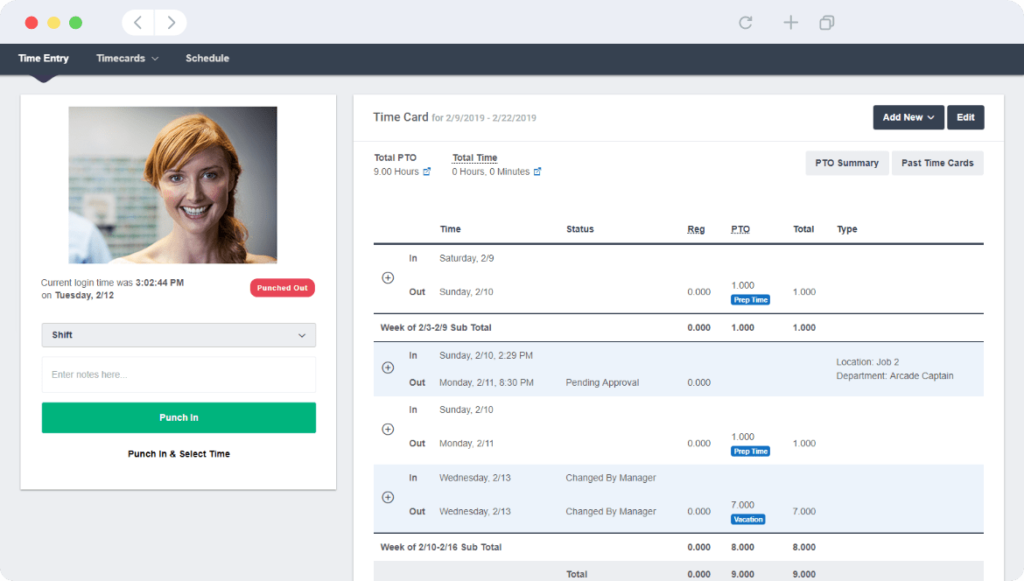
Streamline time tracking with Buddy Punch. It’s one of the simplest yet powerful solutions that is designed to perform numerous tasks seamlessly. You can use it to simplify payroll, track employee time, monitor remote workers, manage paid and unpaid time off, monitor overtime, track changes, create payroll and timesheet reports, and more. You can easily integrate it with your existing payroll software. It helps you eliminate paper timesheets and messy calculations.
Features
- You’ll get real-time insights into your employee’s hours.
- It offers GPS location and webcam images to track employee’s work location,
- Track time-off request with built-in calendar.
- Easily create and assign job codes and more.
Pros
- Multiple useful features with an easy navigation
- Budget friendly pricing
Cons
- Limited access to features in the free trial
- Scheduling feature could be improved
2. Hubstaff
Capterra Rating – 4.6/5
G2 Rating – 4.4/5
Compatibility – macOS, Windows 10/11, iOS, Linux, and Android
Number of Users – 34000+ business users
Price – Free basic version. The paid version starts from $7/per user/month.
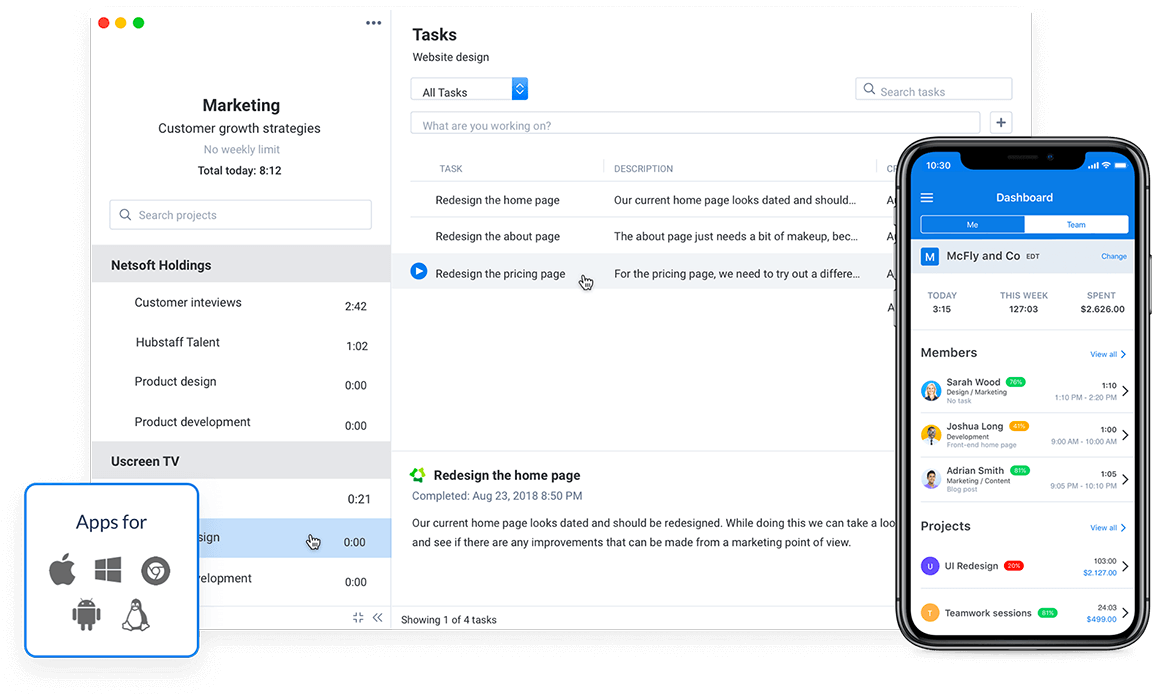
Hubstaff is a leading software that deals with inefficient work environments. It is a time tracking, invoice managing, report generation—in short; it is a complete efficiency dashboard. The software can be operated through the desktop, web, and even mobile devices.
Features
- It can be integrated with 30+ programs like PayPal, Trello, Jira, GitHub, etc.
- Track real-time location with GPS monitoring and identity productivity roadblocks.
- Idle time monitoring, screen recording, and keystroke analysis help in generating an insightful productivity report.
- Payroll and job management systems effectively manage your various employees, including in-house, remote, field, and freelancers.
Pros
- The free plan is perfect for beginners.
- Easy to use.
Cons
- Complicated screenshot recording.
- Prone to crash.
3. Clockify
Capterra Rating – 4.7/5
G2 Rating – 4.4/5
Compatibility – macOS, Windows 10/11, iOS, Linux, and Android
Number of Users – N/D
Price – Free up to unlimited users. Extra features can be ordered by requesting a quote from the company.

You can use this time tracker software to gain unlimited time tracking and payroll management features. It is a completely free solution for freelancers and small businesses. Keeping track of time, maintaining timesheets, assigning task logs, and generating reports has been simplified by Clockify.
Features
- The software is available for desktop, web, and mobile devices for fast time tracking.
- Complete employees’ databases can be maintained with Clockify.
- The vacation or leave log is maintained automatically.
- Multiple billing methods help in simplifying payroll management.
Pros
- The free version is brilliant.
- Starting time tracking and creating labels and projects is very easy.
Cons
- It doesn’t support importing or exporting data.
- Manual stop button.
4. DeskTime
Capterra Rating – 4.4/5
G2 Rating – 4.6/5
Compatibility – macOS, Windows 11/10, iOS, Linux, and Android
Number of Users – 100K users in 98 countries
Price – Free version and trial available. The paid version starts from $7/per user/month.
DeskTime is an automated software for tracking time that has proven to improve productivity by 30% within the first week. The software enables you to track your projects, employees’ time, and cost calculation as per working hours. Also, it generates multiple reports for in-house use or sharing with customers.

Features
- Automatic time tracking keeps you always connected with your employees.
- Attendance and leave management systems are useful to improve turnaround time.
- With mobile tracking, you can track time anytime and anywhere.
- To improve your team’s productivity, employee efficiency tracking, screenshots recording, and productivity analysis features are very useful.
Pros
- Pomodoro timer is very effective to take timely breaks.
- Micromanaging remote teams is possible.
Cons
- Some employees are reluctant to use it as software tracks every moment.
- The free version has limited features.
5. WebWork Time Tracker
Capterra Rating – 4.4/5
G2 Rating – 4.7/5
Compatibility – macOS, Windows 11/10, iOS, and Android
Number of Users – N/D
Price – 7-day free trial. Paid version for $2/per user/month.
It is the simplest way to learn your work productivity, calculate time spent on each task, and evaluate total working hours. All the time tracking data will automatically convert into a report based on screenshots recording, statistical data, and much more. It is a perfect tool for all sizes of teams.

Features
- Billing and invoice features make it easy to create invoices and share them with your vendors.
- With time zone tracking and task management, remote work systems can be easily sustained.
- An employee’s complete history can be maintained to improve workflow.
- Task allotment and tracking is a powerful tool to meet your project deadlines.
Pros
- The free version offers huge functionality.
- The software asks before sending screenshots.
Cons
- The clock stops after 7 minutes of “inactivity.”
- Sometimes time isn’t logged properly.
6. Toggl
Capterra Rating – 4.7/5
G2 Rating – 4.5/5
Compatibility – macOS, Windows, iOS, Linux, and Android
Number of Users – 1 million+
Price – Free up to 5 members. The paid version starts from $9/per user/month.
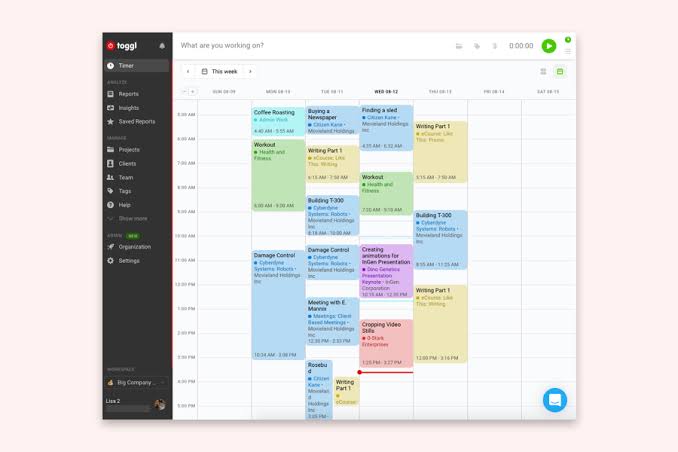
Toggl is a cloud-based time tracker software for small businesses and freelancers. It is a highly flexible time tracking system with multiple device support and various reporting modes. The graphical and Excel sheet periodic reports can be generated based on real-time data.
Features
- It can be integrated with various invoicing and PM tools.
- Offline time tracking keeps you on track even when your internet speed is slow.
- You can monitor large teams with an effective employee monitoring dashboard.
- Managing payroll has been simplified with a salaried employee tracking function.
Pros
- The free version is powerful.
- Simple to use.
- Improves productivity.
Cons
- Chaotic interface.
- Sometimes time logging errors occur.
7. Paymo
Capterra Rating – 4.7/5
G2 Rating – 4.5/5
Compatibility – macOS, Windows, iOS, Linux, and Android
Number of Users – N/D
Price – Free for Schools, Universities, and Colleges. The starting price is $9.56/per user/month.
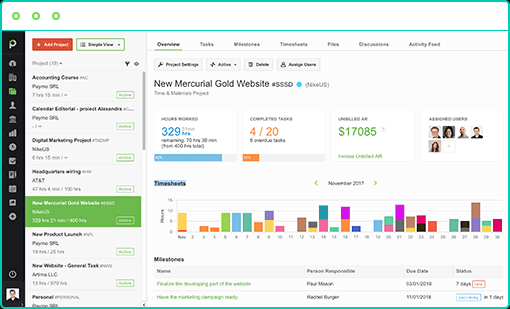
Paymo is a modern tool for remote teams and small businesses. The software offers complete work management solutions from project time tracking to paying employees. Various tracking and management activities can be performed with it—task management, time tracking, team collaboration, scheduling, etc.
Features
- Budget management features are very useful for small businesses to improve their financial health.
- Multiple report charts help in making quick decisions like the Gantt chart.
- Remote teams can easily collaborate with Paymo.
- To motivate and encourage employees, milestone tracking can be helpful.
Pros
- Easy to record each project’s progress.
- Complete remote work solution.
Cons
- Hard to learn.
- Tracking too many projects together is confusing.
8. Harvest
Capterra Rating – 4.5/5
G2 Rating – 4.3/5
Compatibility – macOS, Windows, iOS, Linux, and Android
Number of Users – 40,000+ users
Price – Free for a user. Paid one for $12/per person/month or $10.80/per user/month.
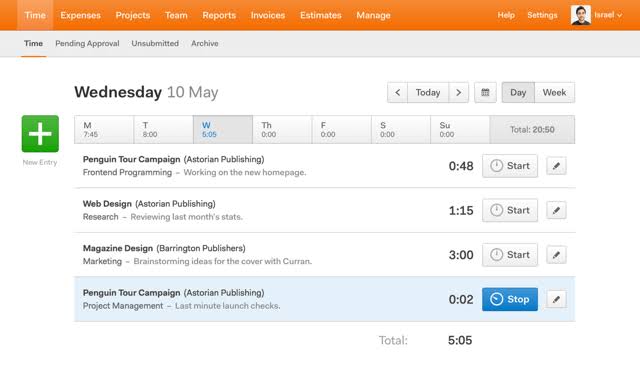
Harvest is a flexible time tracker software that lets you track time from your desktop, mobile devices, and other tools like Trello, Asana, etc. The collected timesheet data can be easily presented into intuitive visual reports for quick analysis. From sending invoices to making vital budgetary decisions, Harvest can help with everything.
Features
- Time and expense tracking can help in making important business decisions.
- Timesheet data’s visual presentation makes it easy to understand your employees’ productivity.
- With answers to key visual questions, you can keep your projects on track.
- The billable time and expense features make a seamless payment receiving system.
Pros
- Interactive user interface.
- Effective staff time optimization.
Cons
- Less non-admin features.
- Don’t fully disclose the total time spent.
9. Chrometa
Capterra Rating – 4.3/5
G2 Rating – 3.8/5
Compatibility – macOS, Windows 10/11, iOS, Linux, and Android
Number of Users – N/D
Price – $19.00/month/user.
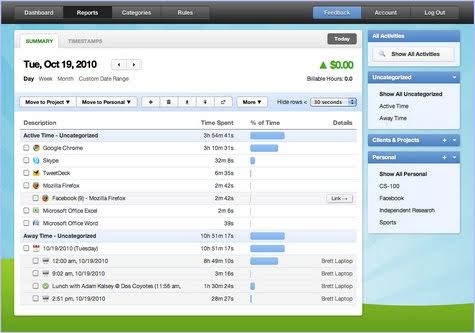
Chrometa is a slightly different software. It can be used to track web pages, URLs, and other applications while managing invoices, payrolls, etc. This software is perfect for freelancers, accountants, project managers, lawyers, and other individual professionals.
Features
- Automatic time capture makes time management effective and error-free.
- Distinguishable billable and non-billable hours simplify payroll and invoice management.
- Offline time tracking keeps on recording time, even when you are offline.
- Timesheet management empowers users to make decisions swiftly.
Pros
- Highly stable and functional software.
- Each job is easily customizable.
Cons
- Not free and paid version is expensive.
- Online timer creates unnecessary interruptions.
10. TimeCamp
Capterra Rating – 4.7/5
G2 Rating – 4.7/5
Compatibility – macOS, Windows, iOS, Linux, and Android
Number of Users – 140,000+ users
Price – Free. The paid version starts from $25/per user/month.
TimeCamp is one of the advanced time tracker software available in the market. The proficient timesheets and analytical reports help track the productivity of your employees, smoothly manage remote teams, and deliver high-quality projects. With the centralized and real-time dashboard, TimeCamp offers a compact time management solution.

Features
- With overtime calculation, billable, and non billable features, you can perfectly manage payroll.
- The robust mobile tracking system enables you to stay constantly connected with your team.
- Project and client wise time tracking data can be separately generated for better productivity.
- Expense tracking lets you stick under your budgetary limits.
Pros
- Helpful in scaling the team.
- Saves time.
- Improves productivity.
Cons
- Mobile tracking has some errors.
- UI isn’t interactive.
11. Timely
Capterra Rating – 4.7/5
G2 Rating – 4.8/5
Compatibility – macOS, Windows, iOS, Linux, and Android
Number of Users – 46,000+ users
Price – $25/per user/month.
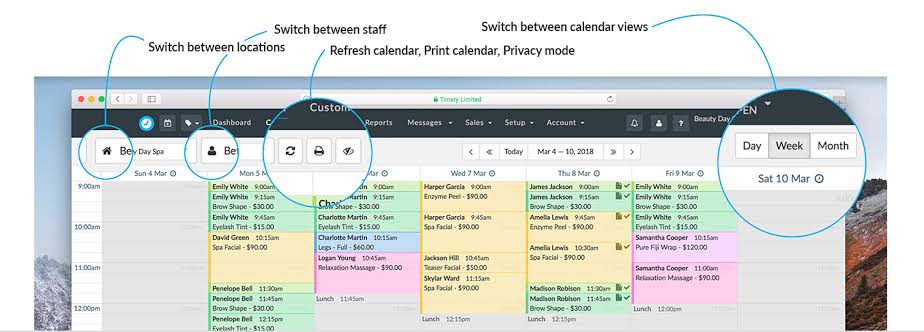
Timely is the most accurate software for small and big companies. The automatic time tracking never let you miss anything. Quick resource scheduling and powerful reporting improve your productivity dramatically.
Features
- AI-powered multilingual support and predictive analysis to easily connect remote teams.
- Convolutional Neural Networks, ML Algorithm Library, Model Training, and Neural Network Modeling are robust deep learning features.
- Billable and non-billable hours, overtime calculation, and multiple billing rates are a few of Timely’s payroll management functions.
- Mobile time tracking is also available.
Pros
- The web-based version is very useful.
- Save lots of time with “Memory Tracker.”
Cons
- Not free.
- The mobile app lacks functionality.
Conclusion
Each of these tools brings something unique to the table. Buddy Punch is ideal for businesses that need accurate attendance and payroll features. Hubstaff excels in managing remote teams with detailed activity tracking and integrations. Clockify stands out for its simplicity and generous free plan, making it perfect for freelancers and small teams.
DeskTime and WebWork Time Tracker are great for teams that want deeper insights into productivity. They offer automatic tracking and detailed reports that help managers understand how time is spent. Ultimately, the best choice depends on your team size, budget, and the level of monitoring you need.
FAQs:
1. Which tool is best for freelancers?
Clockify is a good choice. It has a free plan. It’s easy to use. You can track time, projects, and billable hours. It works well for solo users and small teams.
2. Can I monitor productivity with these tools?
Yes, you can. DeskTime and WebWork show app usage and time spent. They give reports and scores. You can see how time is used and find distractions.
3. Do these tools work on mobile devices?
Yes, all five tools have mobile apps. You can track time from your phone. Some apps also work offline. GPS tracking is available in some tools.
Author Bio:
Dinesh Lakhwani 

Dinesh Lakhwani, the entrepreneurial brain behind “TechCommuters,” achieved big things in the tech world. He started the company to make smart and user-friendly tech solutions. Thanks to his sharp thinking, focus on quality and the motto of never giving up, TechCommuters became a top player in the industry. His commitment to excellence has propelled the company to a leading position in the industry.
Popular Post
Recent Post

How to Activate Windows with a Product Key for Windows 11 & Windows 10
It always shows up at the worst time. You are halfway through a report, or about to join a video call. Then you spot it in the bottom right corner of the screen. Activate Windows. Go to Settings to activate Windows. Initially, an unactivated copy of Windows may seem like a minor inconvenience. Over time, […]

Is Easy Duplicate Finder Worth It? Honest Review
The photos folder looked normal at first glance. Then the storage warning popped up. One trip photo appeared four times. A tax PDF sat in three different folders. Two old setup files were still in Downloads, and each one was over 500 MB. Nobody plans this mess. Copies pile up slowly. A download runs twice. […]

Wise Duplicate Finder Review: Real Results from Wise Duplicate Finder
Read my honest Wise Duplicate Finder review. See features, pricing, pros and cons, and real PC test results. Find out if this free duplicate cleaner can free up your Windows storage.

How to Recover Deleted Files from Pen drive, USB Drive, SD Card
Introduction: On tech forums, you’ll often see posts like this: “I connected my pen drive to my laptop this morning, but the folder was empty. All my college project files had vanished. I don’t have a backup. Can someone help me?” Stories like this are very common. Pen drives, USB drives and SD cards are […]

How To Recover Files Deleted from the Recycle Bin [Windows 11]
Losing a file can happen in seconds. You clear your desktop, hit Delete, and empty the Recycle Bin. Then, just when you need that file again, it seems to have vanished. This guide will walk you through ways to restore files removed from the Recycle Bin. We will begin with simple fixes, then look at […]

Disk Drill Data Recovery Tool Explained: Full Review and Guide
It happens in a split second. You delete a folder by mistake. Your drive stops showing up. A photo album from your last trip just vanishes. And your stomach drops. Lost files feel personal. They are not just data. They are memories, work hours, and sometimes years of effort packed into a few gigabytes. When […]

Recover Deleted Files In Windows 11 With Software & Without
Introduction What is the first thing that goes through your mind the second an important file vanishes from a Windows 11 PC? For most people, it is a mix of panic and disbelief, followed by a frantic click through every folder that file could possibly be hiding in. It happens in a split second: one […]

EaseUS Data Recovery Wizard: Everything To Know
Data loss does not always come from a big disaster either. Most cases start small and boring. A drive gets formatted by mistake. A laptop freezes mid-save and restarts on its own. A memory card stops showing up after being pulled out too fast. None of these feel like emergencies at first, until you realize […]

Recuva Data Recovery Tool: Is it Actually Worth it?
When I first tried Recuva Data Recovery, I wanted to see if it could really bring back lost files. The tool is free, small in size, and promises quick recovery, which made me curious enough to test it on my own PC. The setup was fast, and the wizard guided me step by step. I […]

