











Imagine this. You spend hours perfecting a video project. You hit save. Then your laptop freezes, reboots, and when the screen comes back. The file is gone. Your stomach sinks. It’s not just you. Lost files happen all the time. A dropped hard drive, a bad update, an accidental delete, or a corrupted partition can […]
10 Photo Editors for Mac (Free & Paid)
Photo editing has become essential for professionals and hobbyists alike. Whether you’re enhancing portraits or designing graphics, the right software makes all the difference. Mac users have a wide range of tools to choose from.
Some editors offer advanced features like AI-powered enhancements and RAW processing. Others focus on simplicity and speed. Free and paid options cater to different needs and budgets.
This guide highlights the ten top photo editors for Mac. We’ll explore their strengths, pricing, and usability. Let’s start with a comparison of the five most popular choices.
Comparison Table: Top 5 Photo Editors for Mac
Choosing the best photo editor depends on your workflow, skill level, and creative goals. Below is a comparison of five standout apps that offer powerful features and smooth performance on macOS.
| Editor | Key Features | Price (2025) | Best For | Pros | Cons |
| Adobe Photoshop Lightroom CC | Cloud sync, presets, RAW editing, AI tools | Subscription: $9.99/mo | Professional photographers | Powerful, cloud-based | Subscription required |
| Affinity Photo | Layer support, HDR merge, batch processing | One-time: $69.99 | Designers and advanced users | No subscription, rich features | Steeper learning curve |
| Luminar 4 | AI sky replacement, portrait tools, filters | One-time: $79 | Creative edits and quick fixes | Intuitive, AI-powered | Limited layer support |
| Pixelmator Pro | ML-enhanced, vector tools, macOS integration | One-time: $49.99 | Mac users seeking versatility | Fast, sleek UI | Fewer pro-level features |
| GIMP | Open-source, customizable, plugin support | Free | Budget-conscious users | Free and flexible | Dated interface, steep curve |
Top 10 Photo Editors for Mac Users
In this article, we are going to cover the top 10 paid and free photo editors for Mac. You just need to pick the best app to edit images on your Mac as per your budgetary and feature requirements from the following names –
1. Adobe Photoshop Lightroom CC
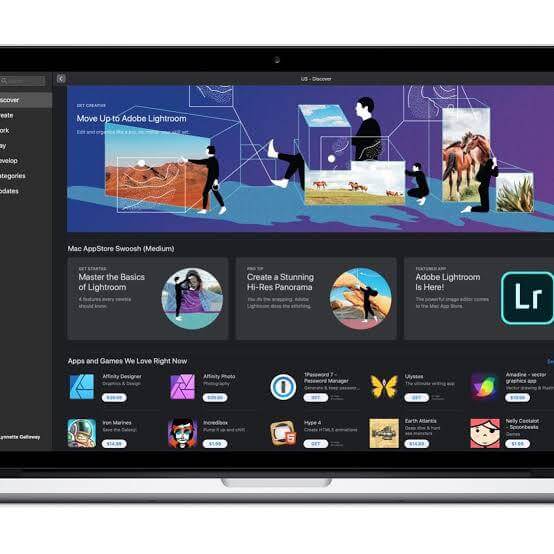
Compatible OS – Windows, macOS, iOS, Android, and tvOS.
Price – $9.99 per month
Lightroom is the best photo editor for Mac because it is backed with the Adobe brand legacy. It is the feature-loaded cloud-oriented software that offers all the perfect features to manage photos. You can edit, manage, store, and share your images across your numerous devices without any hassle. Anywhere editing function with tools like presets and sliders is a phenomenal way to edit your photos on the web, app, or desktop.
Lightroom Features
- The software can manage, edit, and share a large number of photos in one place.
- Lightroom tutorials make the photo editing process a lot easier with inspirational and educational content from professional photographers.
- Adobe Sensei machine learning easily identifies people and themes so you can smoothly organize your photo library with Lightroom.
- Panorama fill edges feature can effortlessly stitch edges of two photos together to create a beautiful shot.
2. Affinity Photo
Compatible OS – Windows, macOS, and iOS
Price – $49.99
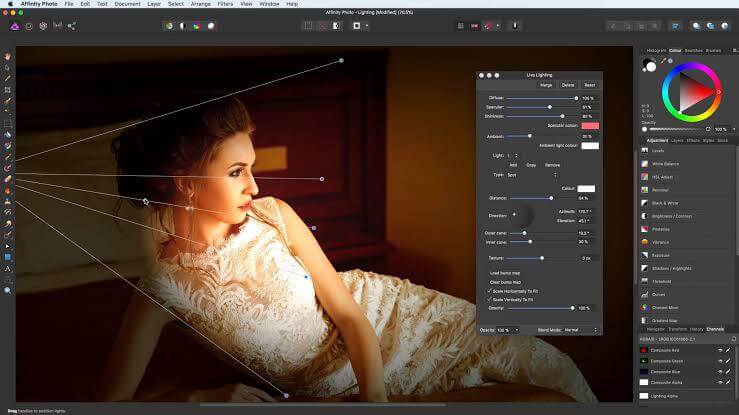
When you are seeking the photo editing app for Mac that works seamlessly, you can try Affinity Photo, aka “Apple’s App of the Year.” Professional photographers around the globe trust this app. It is a powerful computer technology that offers precision and speed to creative people.
Affinity Photo Features
- Real-time edits are rendered with the vast toolkit, including super-smooth zoom, PSD editing, etc.
- Support for Nik Collection 2.5 plug-in.
- A photo can be flawlessly retouched with blemish removal, burn, patch, and other tools.
- Multiple live filter layers to erase, mask, or adjust various objects.
- Rawness in the photos can be maintained with end to end 16-bit experience.
- Various effects, live filters, and adjustments can be grouped to create a complex photo.
- Fluid and natural brush strokes are incredible, and let you smoothly paint digitally.
- Panorama stitching and focus merge help in creating natural photos.
3. Luminar 4
Compatible OS – Windows and MacOS
Price – $89 with 30 days money-back guarantee
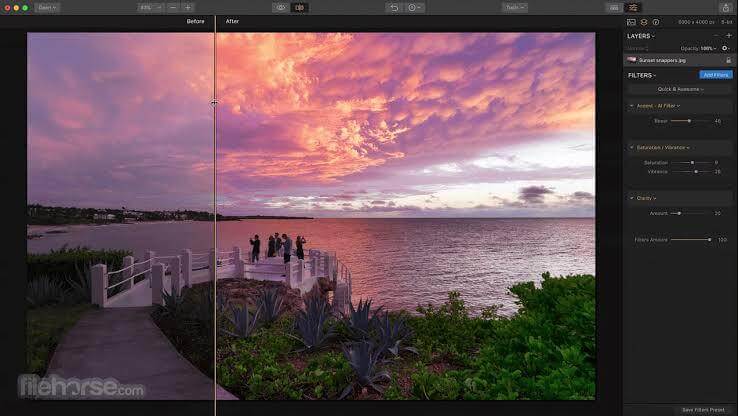
Luminar 4 is the improved version of Luminar 3 by Skylum. It is a non-destructive photo editing app to provide professional experience in less time. Usage of Artificial Intelligence in the image editor app has completely recharged the photo editing app market. You can let AI control the editing process, or you can manually take the lead.
Luminar 4 Features
- The tool is categorized into six tabs for users’ convenience, including Layers, Canvas, Essentials, Creative, Portrait, and Pro.
- You can directly open photos in Luminar 4 from external editors like Lightroom, Apple Photos, etc.
- Get realistic results with the AI Sky Replacement tool.
- Unleash your creativity with the AI Augmented Sky tool.
- Retouching beauty becomes powerful with AI Skin and Portrait Enhancer.
- Face Feature Detection Network helps in sorting your photos.
- To capture the golden dusk of sunlight, the Golden Hours feature comes handy.
4. Pixelmator Pro
Compatible OS – Windows and macOS
Price – $27.99
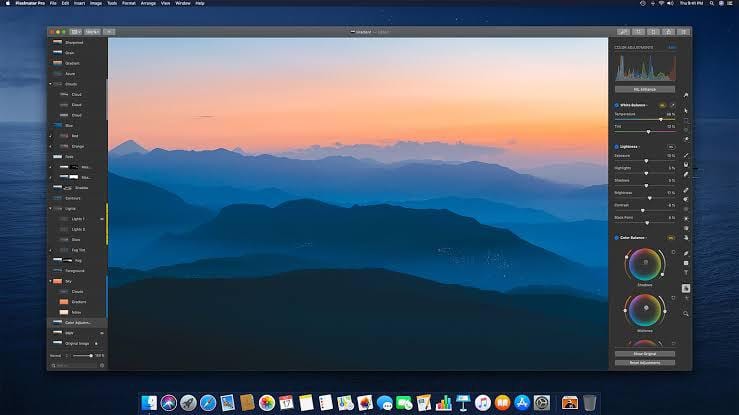
It is one of the best photo editing apps for Mac to make some of the dynamic images with ease. The software is packed with a series of features for better editing, creating graphics, vectors, retouching photos, and so much more. It is a simple and stunning app for everyone.
Pixelmator Pro Features
- With 1.7 Sequoia, you can easily add text on different paths and shapes to develop engaging graphics.
- It provides support to RAW images.
- A single window interface lets you focus on the selected image.
- Arrange Tool facilitates effortless resizing and rotating the photo to obtain a better angle.
- Advanced alignment tools enable aligning multiple objects with one click.
- Metal 2 graphics technology-powered paintbrush is a dream feature for an artist.
- The color adjustment feature lets you modify colors – the way you desire.
5. GIMP
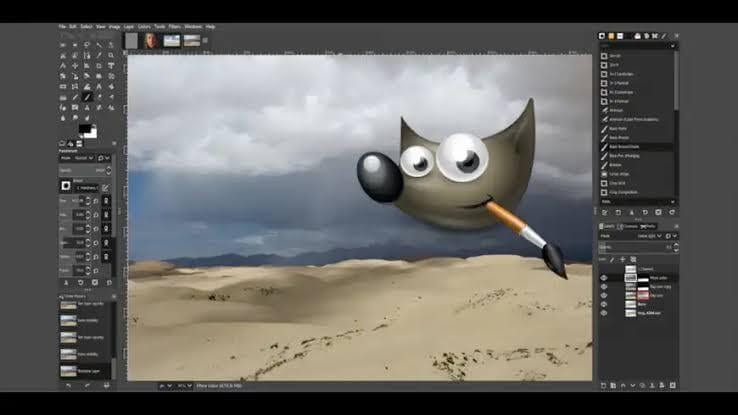
Compatible OS – Linux, Windows, macOS, OS X, and others
Price – Free
Search for Mac’s top free photo editor can’t be complete without the open-source – GNU Image Manipulation Program (GIMP). It is a cross platform app so you can change its source code and share your change with others. Anyone can practically use this app – from a professional photographer to an amateur graphic designer – anyone can get their photo editing job done with this software.
GIMP Features
- This free tool has powerful image manipulation tools – from restoring to retouching images, you can freely flow your creative juices with the app.
- When you want to create an artistic piece on your computer, GIMP lets you transform a photo with your unique imagination.
- It has the full support of multiple programming languages such as Perl, Python, scheme, C, C++, and many more.
- It provides perfect color management features to maintain high fidelity of color reproduction over print media and digital graphics.
- You can gain high-level flexibility with easy to integrate features and create customized designs.
6. Fotor Photo Editor
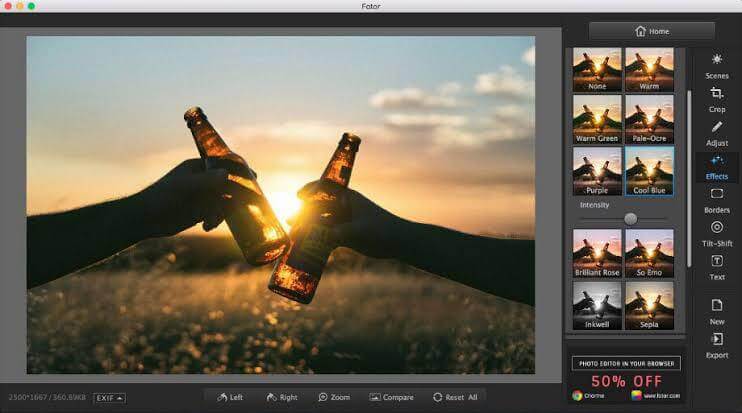
Compatible OS – Windows, macOS, and Linux
Price – $8.99
With Fotor’s vivid social media templates and custom photo editing features, you can simply create some charming and eye-soothing photos. From your informative YouTube banners to your attractive Facebook covers, you have so many options with the top free photo editor for Mac to create unique images. Within just a few clicks, Fotor can retouch, edit, and enhance your photos.
Fotor Photo Editor Features
- Using an online photo editing suite, you can modify the color, light, size, and other components.
- A large collection of photo filers to show your creativity.
- Transform your portraits with advanced beauty and makeover features.
- You can make stunning photo collages with the ready to use templates.
- Multiple fonts are available to adorn your image.
- With the countless pretty stickers, you can pop up your photos.
- From drop shadow to the color picker, you have numerous design tools to play with.
7. darktable
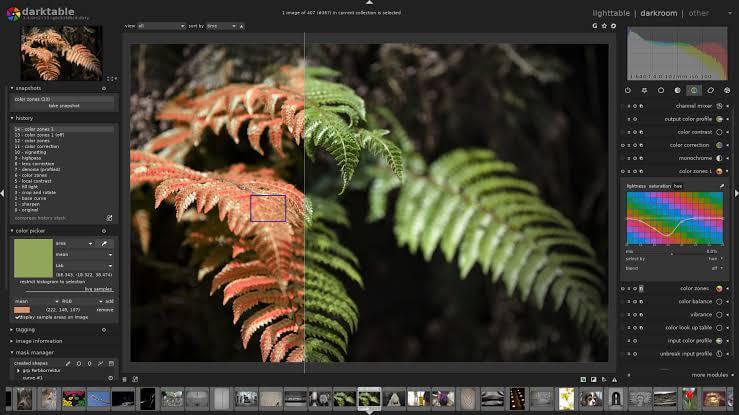
Compatible OS – Linux, Windows, and macOS
Price – Free
darktable is yet another of the top free photo editors for Mac with an open source photography workflow features. It is a lit darkroom for photographers and graphic designers. The software organizes your digital negatives in the database and facilitates you to view them via a zoomable light table and develop raw images.
darktable Features
- Non-destructive editing process so your original photos are never modified.
- darktable core functions are operated on a 4×32-bit floating point pixel buffer that offers speed and power.
- The Zoomable user interface offers zero latency.
- It supports multiple image formats, including JPEG, CR2, NEF, HDR, PFM, RAF, etc.
- Tethered shooting supports live view for some camera brands.
- The software can understand 21 languages.
- Repetitive tasks can be automated to reduce your workload.
- Easily share edited images on social media platforms.
8. Canva

Compatible OS – Windows, iOS, macOS, and Android
Price – Free with app-in purchases
When you are looking for a simple and easy to use photo editing app for Mac, you can’t bypass Canva. With thousands of ready-made templates and interactive interfaces, it is the perfect app for professionals as well as amateurs.
Canva Features
- Wide range of textured backgrounds to enhance the appeal of your photos.
- Simple cropping tool to trim a large number of images.
- You can create some engaging comics with easy drag and drop speech bubbles.
- Numerous ready to use social media templates can help you create a unique online brand.
- There are plenty of photo effects present to give a glamorous turn to your images.
9. PhotoScape
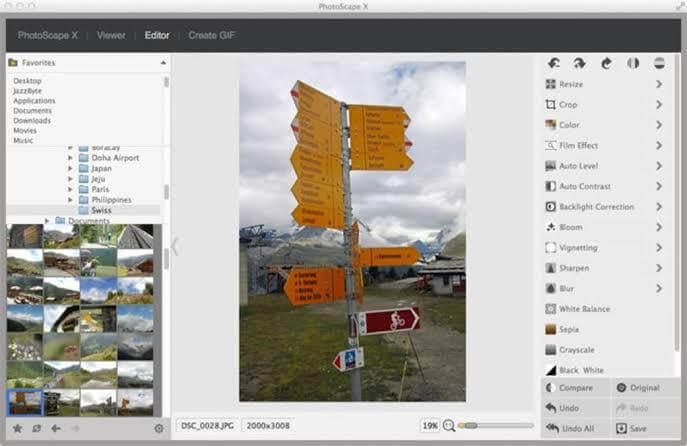
Compatible OS – Windows and macOS
Price – Free
If you are in the mood to install a fun and easy photo editor, you can use PhotoScape. It is an advanced photo editor for Mac to fix and enhance your memorable photos quickly.
PhotoScape Features
- It has a complete editor with color adjustment, resizing, and other features.
- The batch editor helps in editing a large number of photos at once.
- Seamlessly attach multiple photos – horizontally or vertically.
- Multiple photos can be combined together to form interesting animated photos.
- Using a splitter, you can easily slice a photo into numerous pieces.
10. Pixlr
Compatible OS – Windows and macOS
Price – Free
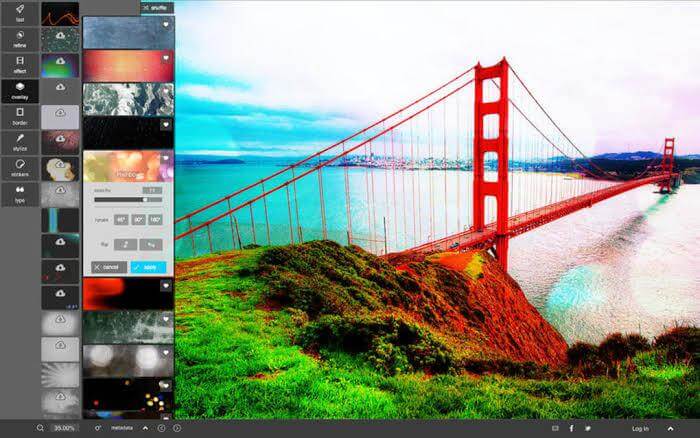
Pixlr is one of the top free photo editor for Mac that lets you edit photos directly from your web browser. With AI-powered intuitive photo editing, you can swiftly yet professionally edit your multiple photos available in multiple formats.
Pixlr Features
- AI-powered editing tools can save you from performing repetitive tasks.
- Easy to drag and drop editing features have reduced the development time dramatically.
- Well stocked the library with numerous stickers, borders, icons, and font styles.
- It’s an online photo editor so start your editing process anytime and anywhere.
- It is a tool perfect for beginners with an easy learning curve.
Conclusion
Mac users have excellent choices for photo editing. From free tools like GIMP to industry leaders like Lightroom, there’s something for everyone.
Paid apps offer more polish and advanced features. Free editors still provide solid functionality for basic and intermediate tasks.
The best editor depends on your goals. Try a few and see which one fits your creative style and workflow.
FAQs:
Which photo editor is best for beginners on Mac?
Pixelmator Pro is a great choice for beginners. It offers a clean interface and smart tools powered by machine learning. Users can quickly enhance photos without needing deep technical knowledge. It also integrates well with macOS features like iCloud and Apple Photos.
Is GIMP a good alternative to paid editors?
Yes, GIMP is a strong alternative for users who want powerful editing without spending money. It supports layers, masks, and plugins. While its interface may feel outdated, it’s highly customizable and capable of professional-level work with some effort.
Can I use Lightroom without an internet connection? Lightroom CC relies on cloud syncing, but you can still edit photos offline. Changes will sync once you’re back online. However, some features like cloud storage and mobile access require an active connection. Lightroom Classic may be better for fully offline
Dinesh Lakhwani
Author Bio:
Dinesh Lakhwani 

Dinesh Lakhwani, the entrepreneurial brain behind “TechCommuters,” achieved big things in the tech world. He started the company to make smart and user-friendly tech solutions. Thanks to his sharp thinking, focus on quality and the motto of never giving up, TechCommuters became a top player in the industry. His commitment to excellence has propelled the company to a leading position in the industry.
Popular Post
Recent Post

5 Best Data Recovery Software For Windows 11 and Windows 10
A crashed drive can ruin a whole day. One minute your photos, work files, and tax records sit safe on your PC. The next minute they are gone. A power cut, a bad update, or one wrong click can wipe out years of memories and months of work in seconds. That sinking feeling is why […]

How To Update NVIDIA Drivers On Windows 11/10 PC
Learn how to update NVIDIA drivers on Windows 11/10 with simple methods, safety tips, and easy steps for smoother gaming and better PC performance.

Top AI Features Hidden Inside Windows 11
Explore the top AI features in Windows 11, from Copilot to Recall, plus safety tips and simple steps to use each tool the right way.

Customize Your Screen Saver Settings in Windows [Easy Steps]
Learn how to customize screen saver settings in Windows 11 with easy steps, safety tips, and simple tricks to personalize your PC screen.

Driver Easy Windows Driver Updater Tool Review: Tried & Tested
In-depth information about Driver Easy’s functions and features can be found in our review. Learn how to update drivers more easily with this tool for a more seamless computer experience.

Is Avast Driver Updater Worth It? A Hands-On Analysis
A full review of Avast Driver Updater covering features, setup steps, pricing, pros and cons, and real PC results, to help you decide if it is worth buying.

IObit Driver Booster 13 (PRO) Review: [Tried & Tested]
IObit Driver Booster 13 is built for one purpose: keeping your PC drivers up to date. Well, yes! Outdated drivers can cause crashes, slowdowns, and hardware issues. This tool scans fast and updates with one click. The interface is simple. Even beginners can use it without confusion. Updates are pulled from a huge database, covering […]

Auslogics Driver Updater: A Detailed Walkthrough [2026]
This comprehensive review covers the key features, pros, and cons, pricing, and a final verdict on Auslogics’ driver update utility. Learn how it stacks up against manual driver maintenance.

5 Best Driver Updater Tools for Windows to Use (Free and Paid)
Introduction: Most people blame their PC for problems that a driver caused. A driver works like a bridge between your hardware and your operating system. When this bridge cracks, strange things start to happen. Screens flicker without reason. Printers go silent mid-task. Games freeze or crash out of nowhere. Manually finding the right driver is […]

