











Imagine this. You spend hours perfecting a video project. You hit save. Then your laptop freezes, reboots, and when the screen comes back. The file is gone. Your stomach sinks. It’s not just you. Lost files happen all the time. A dropped hard drive, a bad update, an accidental delete, or a corrupted partition can […]
Top 3 Batch File Renamer For Mac [Complete Guide]
In this article, we will discuss the Mac batch file renamer tools to rename multiple files in bulk.
File renaming could be real trouble!
Now, if you have decided to deal with this trouble, then you have two options to get rid of this situation.
First, go for a manual batch renaming, which sounds more like impractical and time-consuming as you have hundreds and thousands of files to rename. Next is to use the best batch file renaming tools, which offer instant, accurate, and real-time results.
The good news is that Mac offers a built-in tool to fix this problem. Let’s discuss multiple ways to fix the file renaming issue to better organize your storage space on Mac.
1. Batch Rename Files on Mac Using Finder
If you are using Yosemite or later versions, then you can use this built-in tool to batch rename your files easily. This batch rename utility is part of the Finder, which means no add-ons or downloads you required to batch rename your files.
You can use this tool to append text to file names or to completely format the existing file names to the new text. To use this tool, follow these steps.
- Select the files in the Finder that you wish to batch rename.
- Right-click on the selected files and select “Rename X Items” (X=number of items).
- A new window named “Rename Finder Items” will appear. Select “Replace Text” from the dropdown.
- Fill the required information in the “Find” and “Replace with” boxes.
- Click on the “Rename” button to instantly see the results.
2. Batch Rename Files on Mac Using Automator
If you are on a prior to Yosemite (Mac OS 10.10) version, you will require using a built-in tool like Automator to first create a workflow to batch rename files. To do this, follow these steps.
- Open Automator, located in your Mac’s Applications folder, and select New Document > Workflow.
- Click on Files & folders, in the leftmost column and select “Get Selected Finder Items” in the middle column.
- Double-click on “Rename Finder Items”, a popup window will appear asking you whether you want to create copies of renamed files. Select the option as per your need (we preferred Don’t Add option).
- Select options like Make Sequential or others from the drop-down menu.
- Provide the desired name in the “new name” tab. You can leave or change the other settings.
Now select the files you wish to rename from a desktop or from the Finder. Click on the play button in Automator to change the selected files. Save workflow for future purposes.
3. Using Batch Renamer Apps on Mac
Apart from the built-in tools available on Mac to rename batch files, you can use batch rename apps as well for instant results. You can use these amazing apps to organize your cluttered files and folders. Do not forget to take a backup of files before going for the batch file renaming process. Let’s discuss some useful batch file renamer apps here.
1. A Better Finder Rename:
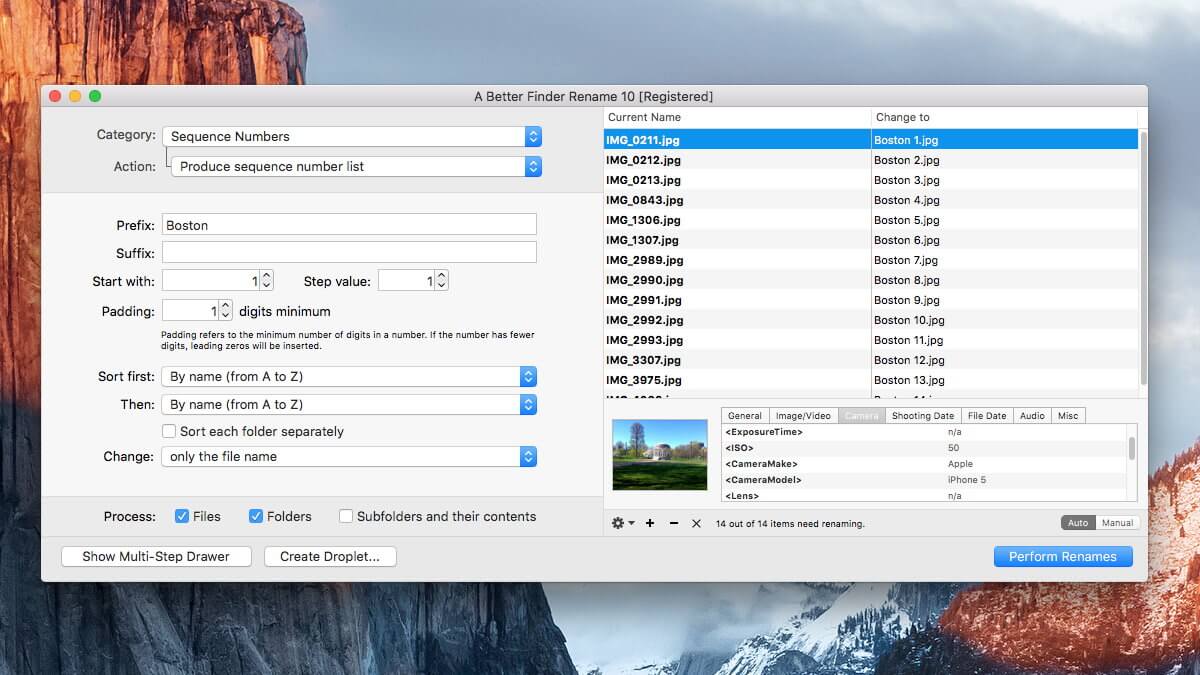
This impressive tool offers a huge array of renaming options. To be precise, it offers these renaming options into 15 intuitive categories which cover almost all important categories, including text, position, character, conversion, and truncation features.
This amazing tool has transformed file renaming to a new and improved level of sophistication by offering the latest 64-bit multi-threaded renaming engine. This new offering helps you fix many problems instantly. It offers a lot of features for digital photographers and music lovers.
Its instant preview option helps you see real-time changes while renaming your files, avoiding costly mistakes. In other options, it offers tag-based renaming, multi-step rename, file content & metadata preview, etc.
Pros
- Offers a lot of intuitive categories for renaming options.
- Uses a sophisticated 64-bit multi-threaded renaming engine to fix a lot of problems.
- Covers all basic and advanced renaming features.
Cons
- App size can be reconsidered for smooth functioning.
2. Renamer 5:
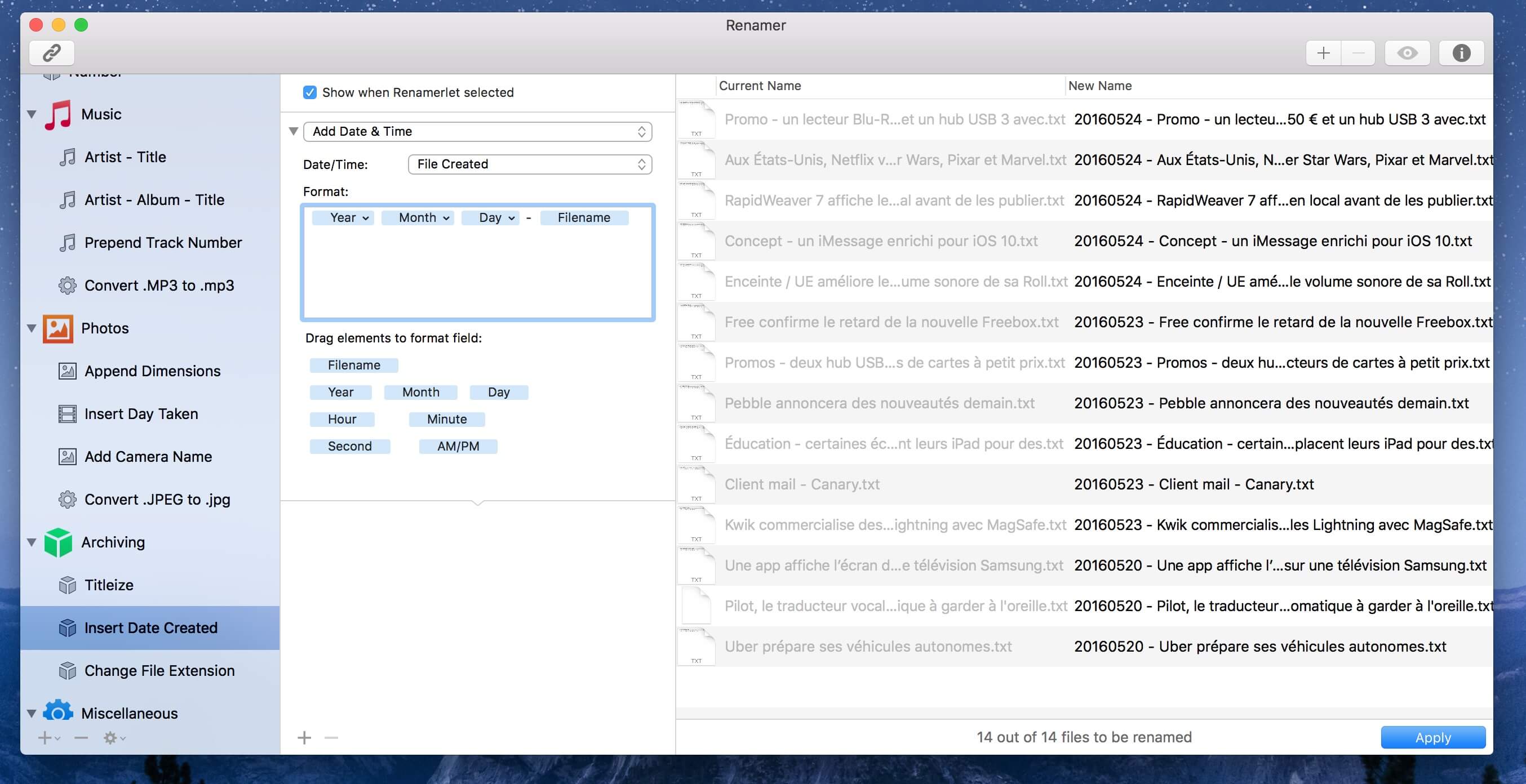
This amazing batch file renaming app for macOS allows you to rename a bunch of files instantly and conveniently. It offers an intuitive user interface and useful new enhancements to make the batch file renaming process smoother.
You can use this tool to number files sequentially or randomly, find and replace text, organize music and other files, add date and time, insert EXIF and GPS photo tags, and a lot more.
This renamer for Mac offers smart file backup and undo to protect your important data and helps you organize your rename tasks with Renamerlets and groups. Use this tool for instant and accurate results.
Pros
- Intuitive user interface.
- User-friendly with all necessary details.
- Offers all the latest renaming options.
Cons
- A bit expensive than similar products.
3. File Renamer:
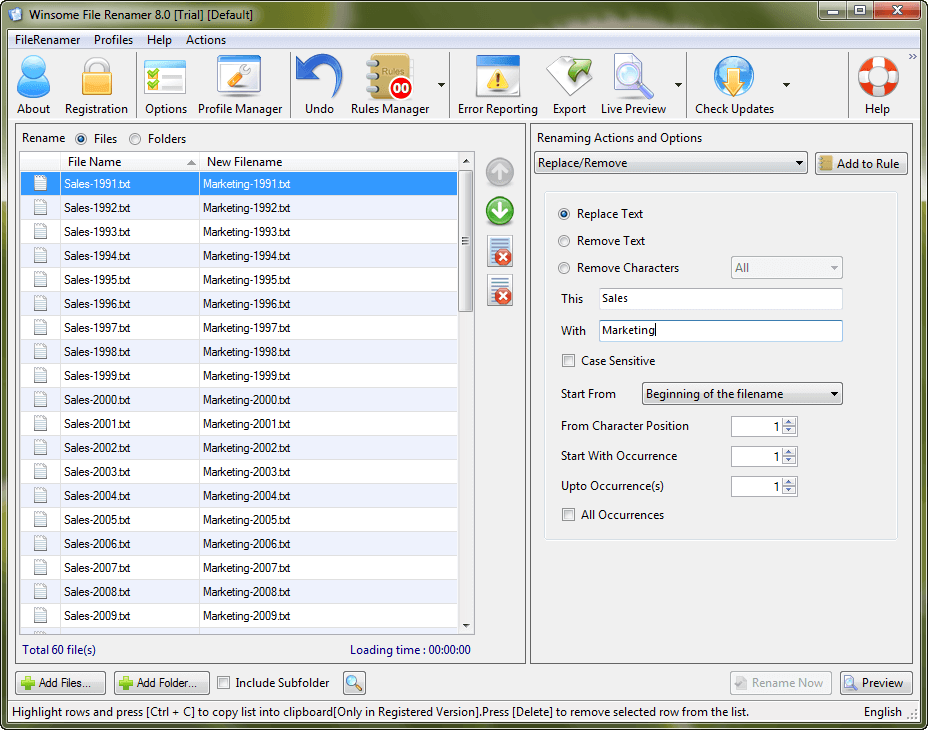
This simple yet powerful tool offers 40+ renaming options to instantly rename your batch files. You can rename, add, or edit details of multiple files, including photo files, music files, documents, and much more. You can use this tool to rename hundreds and thousands of your files instantly.
You can replace non-file characters with desired characters or make other changes swiftly. You can see a preview of the file before you rename it and undo all your actions if you want. It offers command-line support for the renaming process. You can use Renamer to rename all your files using an external file list in Excel or a CSV file. You can even use the profile to save all your frequent app settings.
Pros
- Displays real-time changes.
- Offers a lot of renaming options.
- Easy to use.
Cons
- Offers a lot of features that you may not even use.
Conclusion:
The best batch file renamer software for Mac helps you perform renaming tasks seamlessly. These advanced tools offer unique features to help you perform the renaming task of hundreds and thousands of files in a few clicks. In fact, using these software programs, you can reduce your manual efforts and time considerably to perform similar tasks.
FAQs
Q1. What is a batch file renamer for Mac?
A batch file renamer changes many file names at once. It saves time. You do not rename files one by one. It follows set rules. Common rules include numbers, dates, or text replacement. It works well for photos, documents, and media files.
Q2. Are batch file renamers safe to use on macOS?
Yes, most trusted tools are safe. They only change file names. They do not alter file content. Still, mistakes can happen. Always preview changes. Keep a backup of important folders.
Q3. Do Macs have a built-in batch renaming tool?
Yes. Finder includes batch renaming. You select files and rename them together. It supports numbers and format options. It works for basic needs. Advanced users may prefer dedicated tools.
Q4. When should I use a third-party batch renamer instead of Finder?
Use one when you need complex rules. Third-party tools allow metadata use. They support patterns and conditions. Finder stays basic. Power users gain more control with dedicated apps.
Q5. Can batch renaming break files or apps?
It can if names matter. Some apps rely on fixed names. Renaming system files is risky. User files are usually safe. Preview results before applying changes.
Q6. What features matter most in a batch renamer for Mac?
Preview mode matters most. Undo support is important. Metadata access helps. Speed matters with large folders. Clear rules reduce mistakes.
Dinesh Lakhwani
Author Bio:
Dinesh Lakhwani 

Dinesh Lakhwani, the entrepreneurial brain behind “TechCommuters,” achieved big things in the tech world. He started the company to make smart and user-friendly tech solutions. Thanks to his sharp thinking, focus on quality and the motto of never giving up, TechCommuters became a top player in the industry. His commitment to excellence has propelled the company to a leading position in the industry.
Popular Post
Recent Post

5 Best Data Recovery Software For Windows 11 and Windows 10
A crashed drive can ruin a whole day. One minute your photos, work files, and tax records sit safe on your PC. The next minute they are gone. A power cut, a bad update, or one wrong click can wipe out years of memories and months of work in seconds. That sinking feeling is why […]

How To Update NVIDIA Drivers On Windows 11/10 PC
Learn how to update NVIDIA drivers on Windows 11/10 with simple methods, safety tips, and easy steps for smoother gaming and better PC performance.

Top AI Features Hidden Inside Windows 11
Explore the top AI features in Windows 11, from Copilot to Recall, plus safety tips and simple steps to use each tool the right way.

Customize Your Screen Saver Settings in Windows [Easy Steps]
Learn how to customize screen saver settings in Windows 11 with easy steps, safety tips, and simple tricks to personalize your PC screen.

Driver Easy Windows Driver Updater Tool Review: Tried & Tested
In-depth information about Driver Easy’s functions and features can be found in our review. Learn how to update drivers more easily with this tool for a more seamless computer experience.

Is Avast Driver Updater Worth It? A Hands-On Analysis
A full review of Avast Driver Updater covering features, setup steps, pricing, pros and cons, and real PC results, to help you decide if it is worth buying.

IObit Driver Booster 13 (PRO) Review: [Tried & Tested]
IObit Driver Booster 13 is built for one purpose: keeping your PC drivers up to date. Well, yes! Outdated drivers can cause crashes, slowdowns, and hardware issues. This tool scans fast and updates with one click. The interface is simple. Even beginners can use it without confusion. Updates are pulled from a huge database, covering […]

Auslogics Driver Updater: A Detailed Walkthrough [2026]
This comprehensive review covers the key features, pros, and cons, pricing, and a final verdict on Auslogics’ driver update utility. Learn how it stacks up against manual driver maintenance.

5 Best Driver Updater Tools for Windows to Use (Free and Paid)
Introduction: Most people blame their PC for problems that a driver caused. A driver works like a bridge between your hardware and your operating system. When this bridge cracks, strange things start to happen. Screens flicker without reason. Printers go silent mid-task. Games freeze or crash out of nowhere. Manually finding the right driver is […]

