











You turn on your PC and wait. And wait. The same laptop that once opened apps in a snap now feels tired. This is not bad luck. It just happens over time. Files pile up. The registry gets messy. Old drivers stay installed long after they are useful. Junk data quietly eats up space on […]
Top 3 Duplicate File Finder for Windows 11 & Windows 10
If your PC storage keeps filling up even after you delete big files, duplicate files could be the real reason. Most of us save the same photo twice, download a document more than once, or copy a whole folder by mistake.
Over months and years, these duplicate files pile up quietly. You do not even notice them until your drive shows a low storage warning.
How Does Duplicate File Finder Help?
A duplicate file finder solves this problem in a simple way. It scans your drive, finds files that are exact copies of each other, and lets you delete the extra ones. This frees up space without touching your important files. The good tools also check file content, not just file names, so they never delete something you actually need.
In this article, we tested three popular duplicate file finder tools for Windows 11 and Windows 10. These are Duplicate File Finder Pro, CCleaner, and Auslogics Duplicate File Finder. We installed each tool on a real Windows machine, ran scans on folders full of photos, documents, and downloads, and noted how each one performed.
Top Factors: Choosing The Best Duplicate File Finder
When selecting software to find duplicate files on Windows, consider these important factors:
- Scanning Speed – Good tools scan thousands of files quickly without freezing your computer.
- Accuracy – An efficient software should find all duplicates with no false positives.
- Comparison Methods – Better tools compare file content, not just names or sizes.
- Preview Options – You should be able to see files before deleting them.
- Automatic Selection – The best tools help select which duplicates to remove.
- Safety Features – Protection against deleting all copies or system files.
- User Interface – Easy to understand results and simple controls.
Precautions To Take When Using Duplicate File Finder Windows
Before using any app to remove duplicate files on Windows PC, take these important precautions:
- Backup Your Data – Always make a backup before mass-deleting files.
- Review Before Deleting – Don’t use automatic deletion without checking.
- Start Small – Begin with one folder before scanning your entire drive.
- Verify Results – Double-check some of the duplicates to confirm they’re truly identical.
- Update Software – Use the latest version of your chosen tool.
- Scan One Drive at a Time – Don’t scan multiple drives simultaneously your first time.
- Check File Attributes – Some duplicates might have different dates or permissions.
Below you will find a full comparison, pricing details, pros and cons, and our honest firsthand experience with each tool.
Comparison Table: Top 3 Duplicate File Finder Tools for Windows PC
How We Tested These Tools?
Before we get into each tool, let us explain how we tested them. This helps you trust our findings.
We used a Windows 11 laptop with an SSD and 8 GB of RAM as our main test machine. We also tested on an older Windows 10 desktop with a 1 TB hard drive to see how each tool handles slower storage. Our test folder had over 12,000 files. This included photos copied across five folders, PDF and Word documents saved in multiple places, downloaded music files, and video clips.
Some files had the same name but different content, and some had different names but the exact same content. This mix helped us check if each tool could tell the difference correctly.
For each tool, we measured four things. First, how long the scan took. Second, how many true duplicates it found. Third, whether it wrongly flagged any unique file as a duplicate. Fourth, how easy the interface felt for a regular user, not just a tech expert.
Top 3 Duplicate File Finder for Windows 11 and Windows 10
1. Duplicate File Finder Pro
Developed by Mind Gems, Duplicate File Finder Pro, or Fast Duplicate File Finder is a dedicated tool built with one job in mind: finding and removing duplicate files. Yes, that’s right. It does not try to be a full PC cleanup suite. This focus shows in how the app feels.
The interface is simple, with a big scan button, clear folder selection, and a results screen that groups duplicates together.
Working Process
Step 1. Open the Duplicate File Finder Pro app on your PC. Click the Add Folder option. Choose the drive to scan. Hit the “Start Scan” button placed at the bottom.
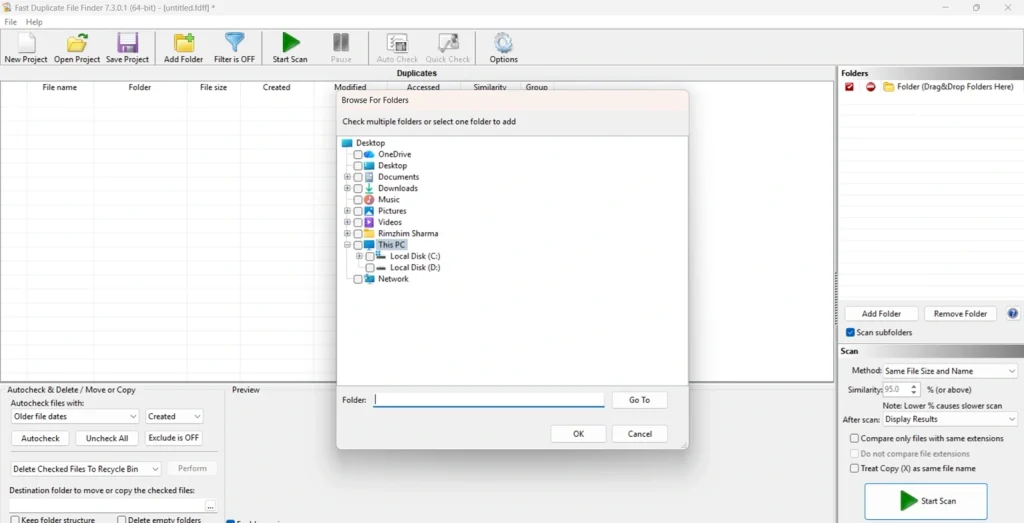
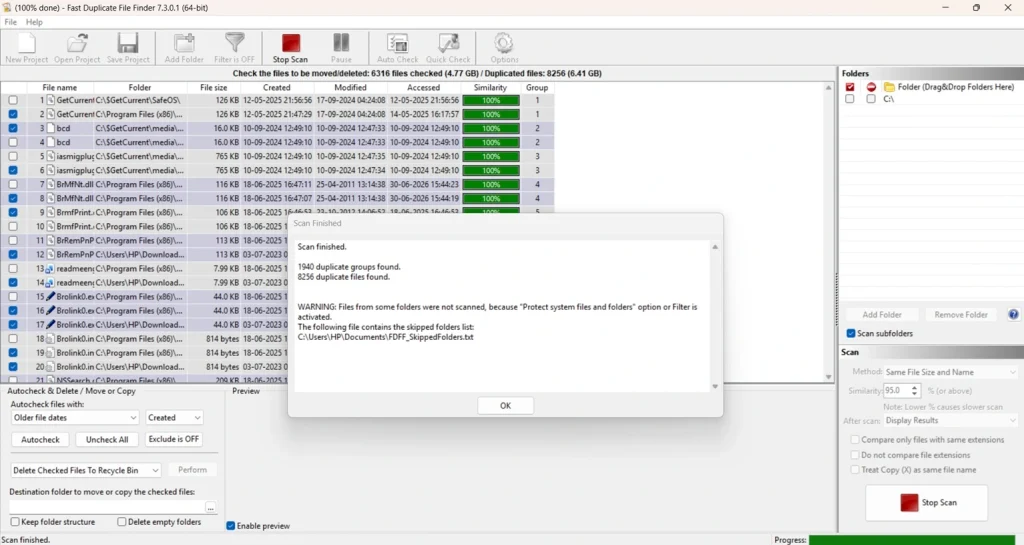
Step 2. The scanning process will begin now. The tool checks file content and groups duplicates together. You can monitor the progress of scanning at the bottom of the screen.
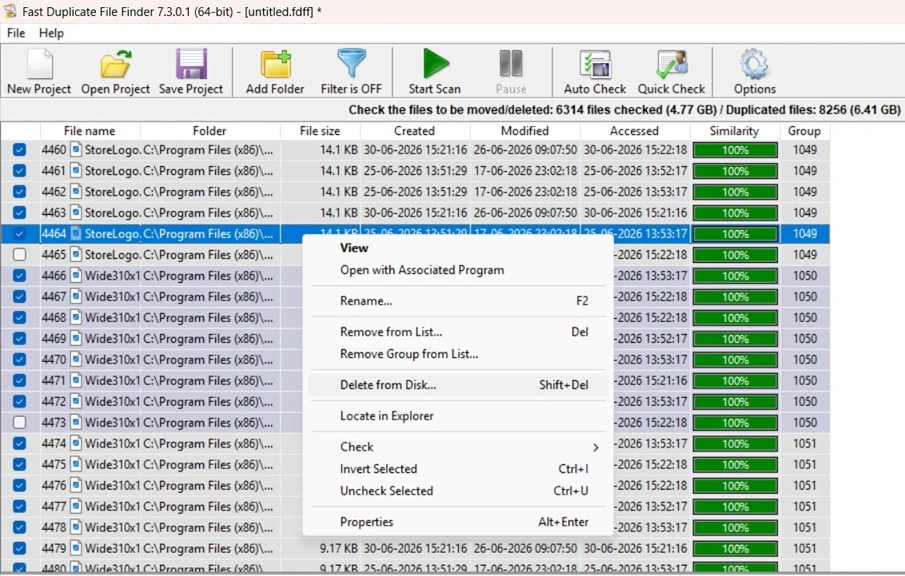
Step 3. Preview the files, select the copies you want to remove. Right-click the items to delete, select “Delete from disk”. And that’s it. This is how you can get rid of duplicate files on your Windows PC easily using Fast Duplicate Finder.
Why This Tool Is on Our List?
We added Duplicate File Finder Pro because it strikes a good balance between simplicity and safety. Many duplicate finders either feel too basic or too complex for an average user. This tool keeps things clean, while still giving control over what gets deleted.
Facts and Stats From Our Test
During our scan of the C drive folder, Duplicate File Finder Pro completed the scan in just 1-2 minutes.
We did not notice any false positives in our test, meaning it did not mark any unique file as a duplicate.
Free Version vs Pro Version
The free version lets you scan a limited number of folders at a time and shows you the results, but some advanced filters stay locked. You can still delete duplicates in the free version, which is helpful if you only need to clean up occasionally. The Pro version removes these limits. It adds unlimited folder scanning, faster scan speed, scheduled scans, and priority customer support.
If you manage large photo libraries or work with big project folders regularly, the Pro version saves real time.
Pros
- Easy to learn, even for first-time users.
- Preview before deletion adds an extra layer of safety.
- Content-based scanning accurately identifies duplicates and reduces mistakes.
- Clean, uncluttered interface with no intrusive ads or unnecessary promotions.
Cons
- Does not include additional PC maintenance features like junk file cleanup.
- Scans can take longer on older hard drives than on SSDs.
- The free version has folder limits that may be restrictive for heavy users.
Price
The Pro version costs around 29.95 dollars per year. Occasional discounts bring this price down further, so it is worth checking for offers before buying.
My Experience With This Tool
In my test, the program felt smooth to use right from the start. I selected the C drive folder from the scan window and clicked Start Scan. The tool matched files by content, so it caught copies even when the file names were completely different. That accuracy stood out during my test.
The wait time was reasonable on my SSD machine. Once the scan finished, I liked being able to preview each file before deciding what to keep. This stopped me from accidentally removing a file that only looked similar but was not a real duplicate.
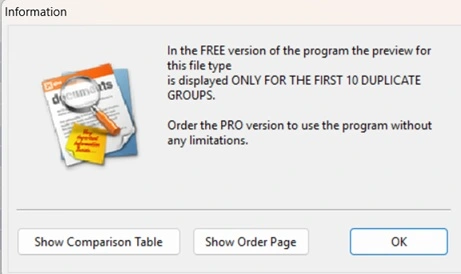
Plus Point: the developer does not add any bundled toolbars or extra installs during setup, which I appreciated. My only complaint is that the free version does not show a preview for all file types. Here is a screenshot for reference:
For occasional cleanup, this is fine, but for larger libraries, the Pro version becomes necessary.
2. CCleaner
CCleaner is a name most Windows users already know. Well, yes! It started as a junk file cleaner and registry tool, and over time it added a duplicate file finder as part of its bigger cleanup suite.
This means you are not just getting a duplicate finder; you get a full PC maintenance tool with duplicate detection built in.
Working Process
Step 1. Open CCleaner and go to the Tools section to find Duplicate Finder. Click the “Start Now” button to begin scanning.
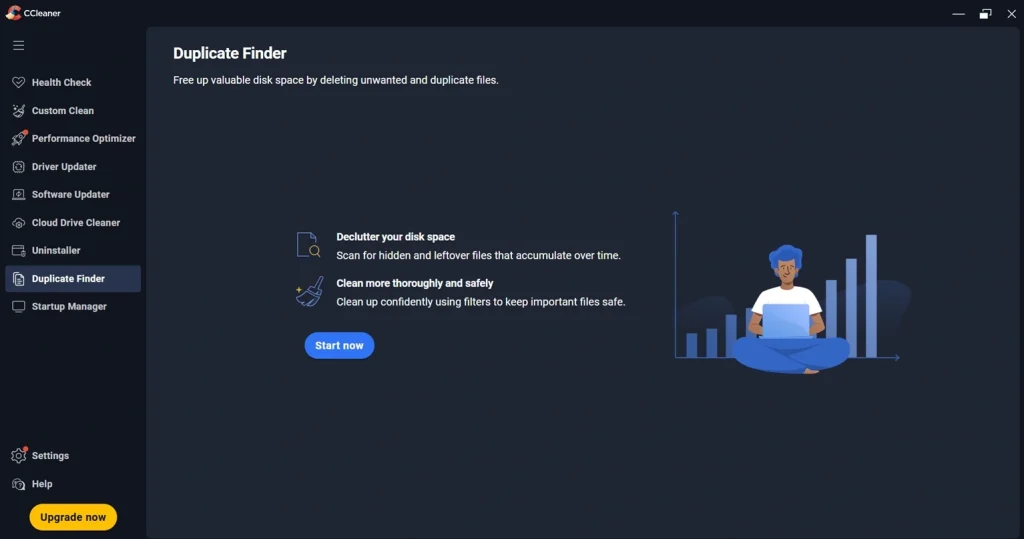
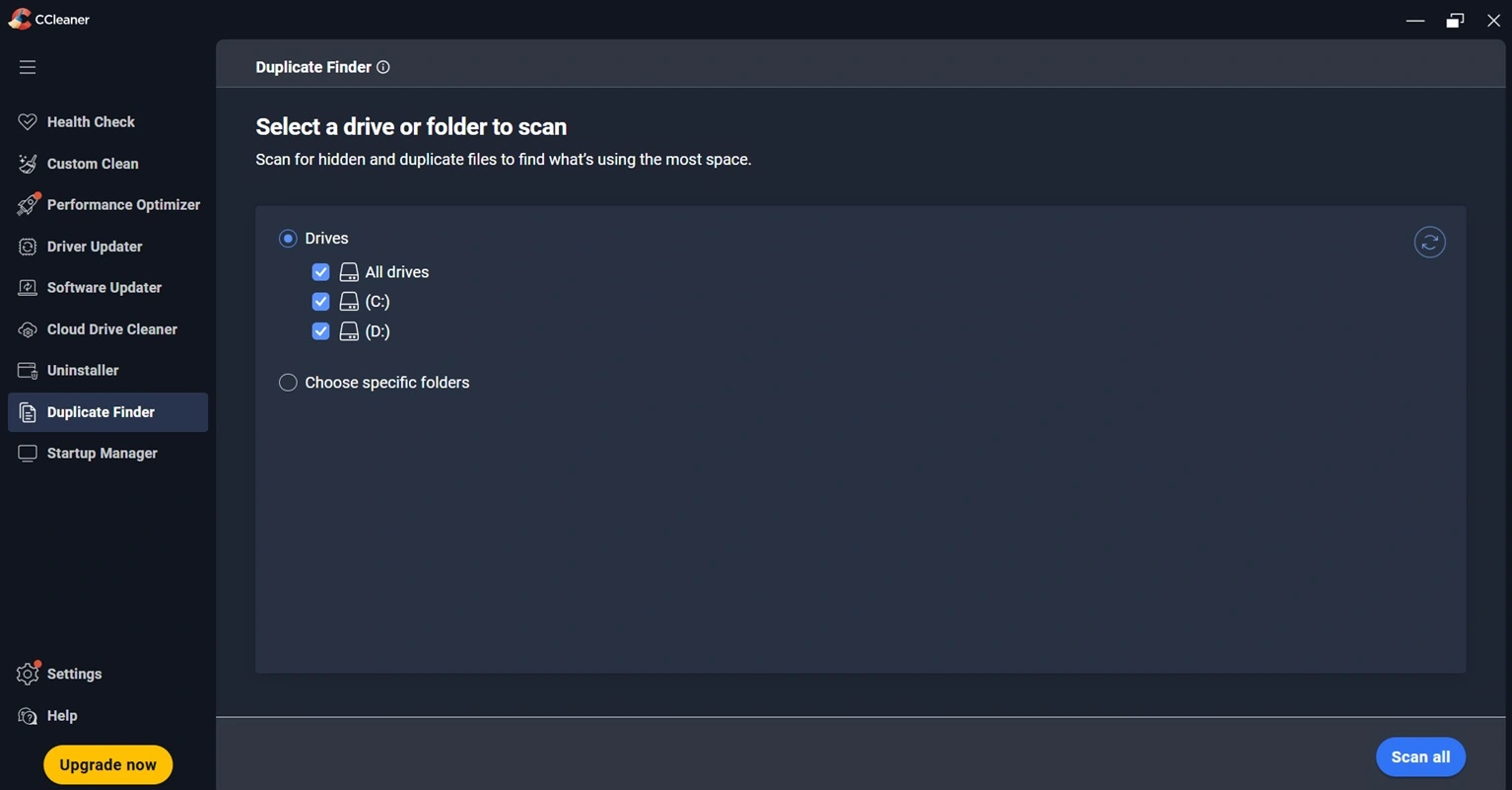
Step 2. Pick the drive to scan. Choose your matching criteria, such as name, size, date, or content, then start the scan.
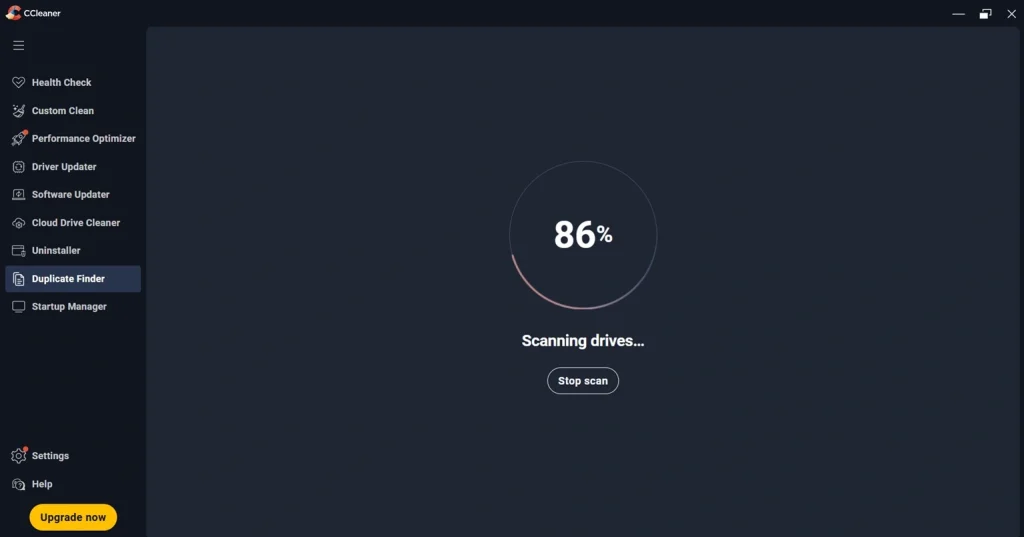
Step 3. The scanning process will begin right away.
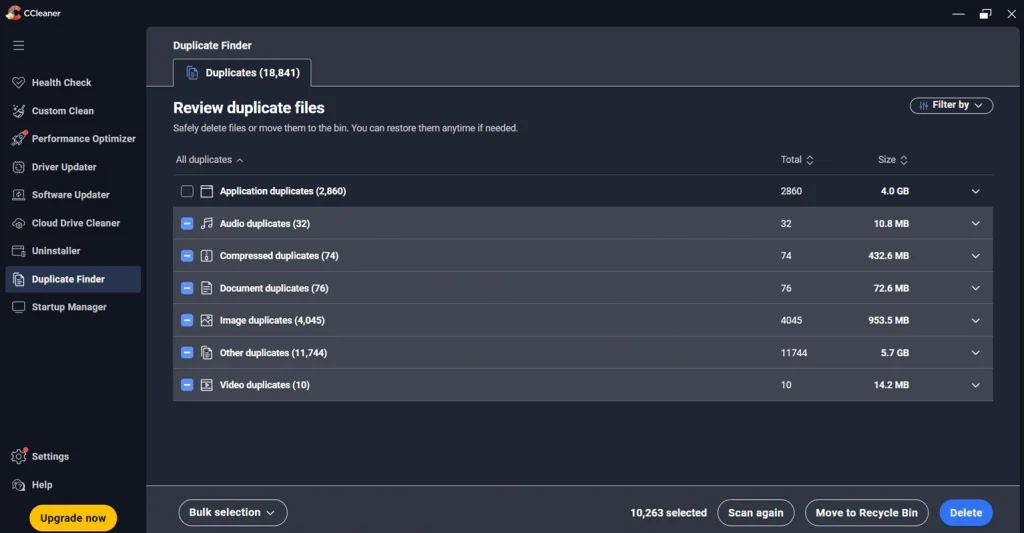
Step 4: Review the list, check the duplicates you want to remove, and delete them. That’s it!
Why This Tool Is In Our List
CCleaner earned its place here because so many people already use it for general PC cleanup. If you are someone who runs CCleaner regularly to clear cache and junk files, having duplicate finding in the same app saves you from installing another program. It is convenient, and the brand has been around for a long time, which gives many users a sense of familiarity.
Facts and Stats From Our Test
CCleaner has been downloaded over 2 billion times since it launched, according to Piriform, the company behind it. In our own test, the duplicate scan of the C drive folder took about 1-2 minutes, which is quite fast.
Free Version vs Pro Version
The free version of CCleaner includes basic duplicate finding along with junk file cleanup. It works fine for casual users who clean their PC once in a while. The Pro version, priced at 29.95 dollars per year for one device, adds deeper and more frequent scanning, real-time monitoring of junk files, and automatic browser history clearing. Higher tiers, like CCleaner Pro Plus, cost more and cover multiple devices, which suits families or small offices with several computers.
Pros
- Combines duplicate file finding with a full PC cleanup suite.
- Supports multiple matching methods for more accurate results.
- Works on Windows, Mac, Android, and iOS.
- Good choice for users managing multiple devices across platforms.
Cons
- No preview option before deleting duplicate files.
- Some users remain cautious due to the 2017 security breach, despite it being resolved.
- Deleted duplicate files are permanently removed and cannot be sent to the Recycle Bin.
Price
CCleaner Pro costs 29.95 dollars per year for one device. CCleaner Pro Plus goes up to 49.95 dollars per year for three devices, and higher for five devices.
My Experience With This Tool
In my test, I found the Duplicate Finder tucked inside the Tools menu, which took a moment to locate for someone opening CCleaner for the first time. I selected my C drive and checked the boxes for name and content matching, then ran the scan.
The scan speed felt average, not the fastest of the three tools I tried, but not slow either.
The biggest gap for me was the missing preview option. I had to trust the file name, size, and path shown in the list, without actually seeing the file before deletion. Since CCleaner also deletes files permanently, with no recycle bin backup, I found myself double-checking the list more carefully than I did with the other two tools.
3. Auslogics Duplicate File Finder
Auslogics Duplicate File Finder comes from Auslogics, a company based in Sydney, Australia, that has built PC optimization software since 2008. Unlike CCleaner, this tool focuses only on duplicate files, similar to Duplicate File Finder Pro. It uses smart content matching, which means it looks inside the actual file data, not just the file name, to confirm duplicates.
Working Process
Step 1. Launch the Auslogics Duplicate File Finder app on your PC. Hit the “Start Scan” button.
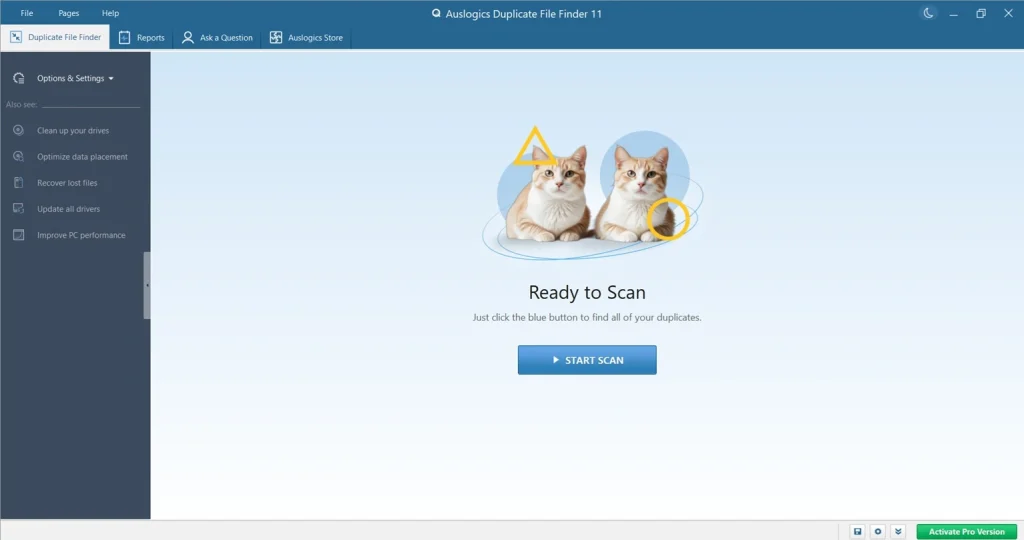
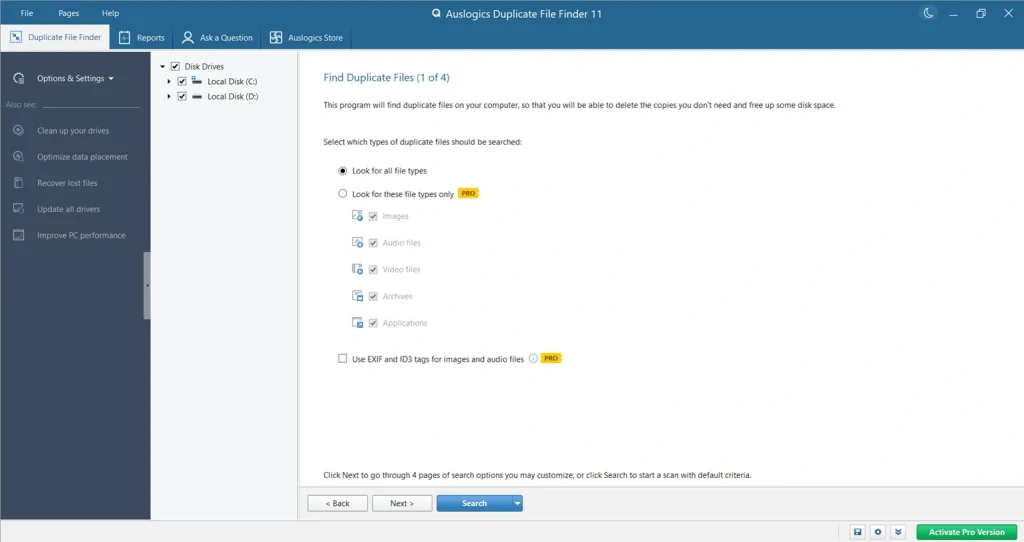
Step 2. Choose the drive to scan the duplicates. Pick specific file types like photos, audio files, video files, etc. The tool compares file content to find true duplicates, even with different names.
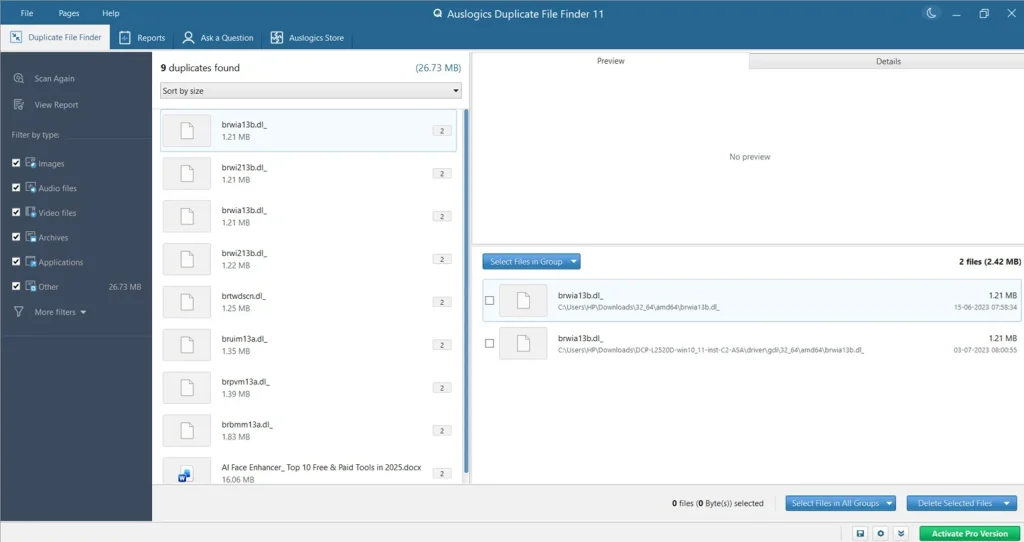
Step 3. Review the grouped results, choose files to remove, and click on “Delete Selected Files”.
Why This Tool Is In Our List
Auslogics made our list because of its strong safety net. The Rescue Center feature and automatic ignore list for system folders mean the tool protects you from deleting something important by mistake. It is also the most thorough at catching true duplicates, even when file names do not match at all, which is a common problem with downloaded or renamed files.
Facts and Stats From Our Test
In our test, Auslogics Duplicate File Finder took about 30-45 seconds to scan our 12,000-file folder. This higher number likely comes from its content-based approach, which caught renamed duplicate files that the other tools missed.
The software has also been checked on safety platforms like VirusTotal and Softpedia, and general scan results show it is free of malware, though as with any downloaded software, it is good practice to verify the source before installing.
Free Version vs Pro Version
The free version of Auslogics Duplicate File Finder already covers a lot. You get full system-wide scanning, external drive support, content-based matching, and basic deletion tools. This makes it a genuinely useful free option, not just a limited trial. The Pro version, priced around 29.99 dollars for three PCs, adds EXIF and ID3 tag scanning for photos and music, better auto-select rules, permanent delete options, and access to more advanced filters.
If you mostly clean up personal photos and downloads occasionally, the free version may be all you need. If you manage multiple PCs or want deeper scanning for large media libraries, the Pro version becomes worth the cost.
Pros
- Free version is fully functional and not just a limited demo.
- Content-based scanning detects duplicates even when file names differ.
- Rescue Center lets you recover files after deletion if needed.
- Automatic ignore list helps protect system files from accidental scanning or deletion.
- Right-click scanning from File Explorer makes the process faster and more convenient.
Cons
- Available only for Windows, with no Mac or Linux support.
- Filter options may take some time for new users to learn.
- No option to preview duplicate files in the free version.
- A few users have reported scan accuracy issues with very large file libraries, although this may not affect everyone.
Price
The Pro version costs around 29.95 to 29.99 dollars, and pricing can vary depending on your country and any active discount codes. Auslogics also offers a 30-day refund if you are not satisfied with the Pro purchase.
My Experience With The Tool
In my testing, this tool did the best job of finding duplicate files, even when they had completely different names. The content-based scan worked really well and found files that normal scans could miss. I chose the full system scan because I wanted to check my whole drive instead of just one folder.
I also liked that the tool automatically skipped important system folders, so there was less chance of scanning or deleting something important. The biggest downside was the interface. It looks a bit old compared to modern Windows apps, and some of the filter options were not easy to understand at first.
After using it for a while, everything made sense, but it took a little time to learn.
Conclusion: Which One Should You Choose?
Duplicate File Finder Pro is the right choice if you want a tool built only for duplicates, with a clean and simple interface that anyone can use.
CCleaner works well if you already use it for general PC maintenance and just want duplicate finding as a bonus feature, though it comes with fewer safety options like preview and recycle bin support.
Auslogics Duplicate File Finder is the strongest pick when accuracy and safety matter most, especially for large photo and music collections, and its free version alone is often enough for most home users.
Frequently Asked Questions
Is it safe to delete duplicate files found by these tools?
Yes, as long as you review the results before deleting. All three tools use content matching to confirm true duplicates, which lowers the risk of removing something important. Still, it helps to preview files when that option is available.
Do these tools work on both Windows 11 and Windows 10?
Yes, all three tools we tested support Windows 11 and Windows 10. Auslogics also supports older versions like Windows 7 and 8.1.
Will removing duplicate files speed up my PC?
Removing duplicates frees up storage space, which helps if your drive was nearly full. It will not directly boost your processor or memory speed, but file searches and backups often feel faster once clutter is gone.
Can I recover a file if I delete it by mistake?
With Duplicate File Finder Pro and Auslogics, you get recovery options like a Recycle Bin or Rescue Center. CCleaner does not offer this safety net, so deletions there are permanent, which means extra caution is needed.
Author Bio:
Dinesh Lakhwani 

Dinesh Lakhwani, the entrepreneurial brain behind “TechCommuters,” achieved big things in the tech world. He started the company to make smart and user-friendly tech solutions. Thanks to his sharp thinking, focus on quality and the motto of never giving up, TechCommuters became a top player in the industry. His commitment to excellence has propelled the company to a leading position in the industry.
Popular Post
Recent Post

Avast Cleanup PC Cleaner and Optimizer: Everything You Need to Know
A slow computer makes it hard to focus. Programs take too long to open. Free space keeps shrinking until the disk is almost full. This happens to most PC owners at some point. Even new machines can slow down after a while. That is the exact problem cleanup tools are built to solve. They comb […]

Fortect Software Review: The Ultimate PC & Mobile Cleaning, Optimization & Security Tool
Slow computers are a common problem for almost every Windows user. Well, yes! Over time, your PC picks up junk files. These files sit quietly in the background. They take up space and slow things down. Programs open slower. Windows takes longer to boot. Even simple tasks like opening a folder can feel sluggish. There […]

CCleaner PC Optimizer Review: A Complete Guide for Windows Users
If your computer has started to feel slow, you are not alone. Most Windows PCs slow down over time. Junk files pile up. The registry gets messy. Too many apps open when you start your PC. All this adds up and makes even a good machine feel tired. This is where a PC cleaner tool […]

5 Best PC Cleaners for Windows 11 & 10 | Top PC Optimizers
Remember when your PC felt fast? Every click was quick. Every app opened in seconds. Now it feels like a different machine. Windows takes forever to boot. Programs freeze for no reason. Even opening a browser feels like a chore. You are not alone in this. Almost every PC slows down over time. Files pile […]

Auslogics Duplicate File Finder: Full Review and User Guide
A computer quietly gathers clutter over time. This includes duplicate photos, repeated downloads, and forgotten backups hiding in random folders. This buildup slowly eats away at storage and can make even a fast PC feel sluggish. Manually finding and deleting duplicates is tedious. It means checking every folder, comparing file names, and guessing which copies […]

CCleaner Duplicate File Finder: Key Features, Pricing, Step-by-Step Guide and More
Every computer collects junk over time. Right? Well, yes! Photos often get copied twice. Documents get saved in two folders by mistake. Old downloads pile up and never get deleted. This slowly eats up your storage space, and most people do not even notice until their drive is almost full. That is where a duplicate […]

Duplicate File Finder Pro: A Complete Review, Everything You Should Know
Computers collect thousands of files over time. Well, yes! Many of them end up being duplicates created by backups, downloads, or accidental copies. These extra files take up valuable storage space and make it harder to keep everything organized. Finding and removing them manually can take hours. Right? Duplicate File Finder Pro is a tool […]

Top 3 Duplicate File Finder for Windows 11 & Windows 10
If your PC storage keeps filling up even after you delete big files, duplicate files could be the real reason. Most of us save the same photo twice, download a document more than once, or copy a whole folder by mistake. Over months and years, these duplicate files pile up quietly. You do not even […]

Monitor Screen Calibration Guide: Everything You Should Know
Your monitor shows colors every single day. But are those colors actually correct? Most people never stop to check this. They just use the screen as it comes out of the box. This habit can lead to wrong colors in photos, videos, and work files. Colors may look too warm or too cold without you […]

