












A slow PC rarely gives a warning. One day, it simply takes longer to start. Apps open late. The fan runs loud, even when the screen is almost empty. Most people blame old hardware. Often, that is not the real reason. The real reason is hiding in plain sight. Windows keeps many apps active in […]
Wondershare DemoCreator Review
Using a screen casting software, we can capture the screen but it isn’t enough to make a compelling video or YouTube video tutorial. For this, we need a video recording and editing software that can polish screen recording. This is the reason why we reviewed Wondershare DemoCreator video recorder and editor for Windows.
After reading this review you will get to know how this amazing product works and why to use DemoCreator.
Wondershare DemoCreator: Overview
Price: Free and $ 29.99 Annually
Free and $23.99 Annually (The product price may change slightly according to different activities, please refer to the official website.)
Latest Version: 4.0.0
Compatibility: Windows 7/8/10 (64-bit OS)
| Pros | Cons |
| Provides powerful video recording and editing features | The exported videos in the trial version are watermarked. |
| Add annotations | |
| Cursor Effects | |
| Trained technical support | |
| Import audio/video/images | |
| Flexible recording options |
Wondershare DemoCreator video recorder and editing software is equipped with remarkably wide-ranging video capturing and editing features. DemoCreator gives you full control from selecting the area of the screen to record & edit recorded video. Not only this, it even allows importing media files, record screen with audio, export created video to MP4, WMV, AVI, MOV, GIF, MP3, change video resolution, Bitrate, Frame rate, edit audio when exporting.
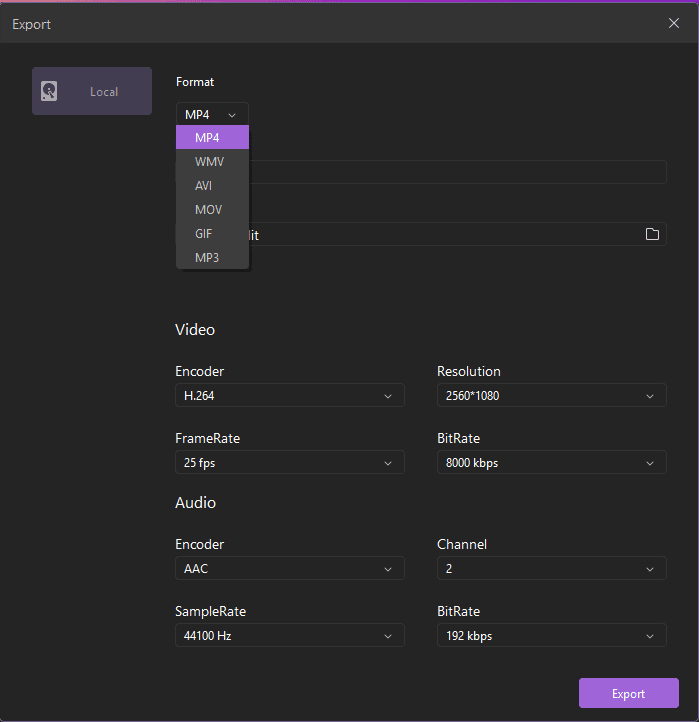
Export menu to change file format
| Using this amazing tool, you can record screen in just 2 easy steps 1. Open Recorder – By clicking Capture button you can set an area to record, audio device and record video with flexible options. 2. Editing Tools – After the video is recorded you can add annotations, animation, green screen effect. Share – Once editing is done, you can publish as MP4, WMV, AVI, MOV, GIF, MP3 |
Wondershare DemoCreator: Detailed Review
Now that we know what we can do using this wonderful video recorder, let’s learn more about its features in detail. Anyone can easily use screen recording software and make great presentation or tutorial videos.
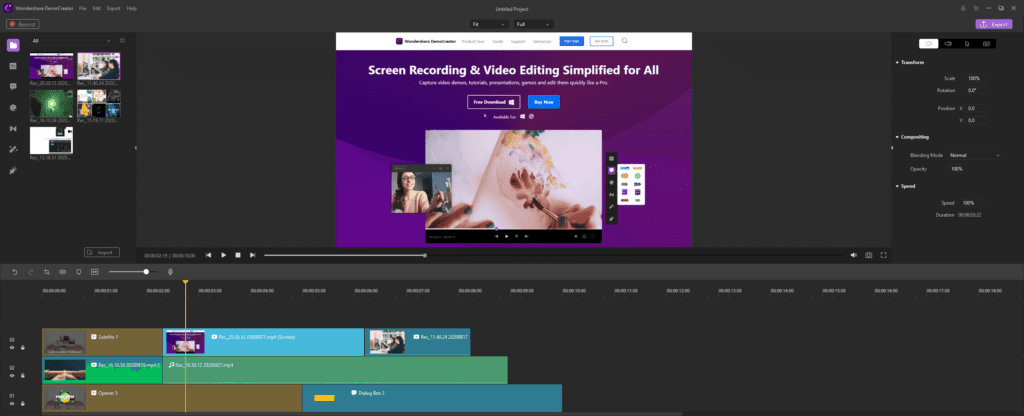
Editing menu
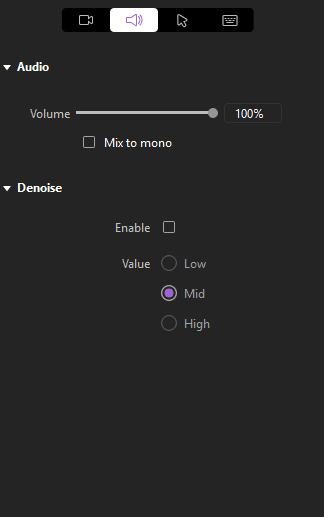
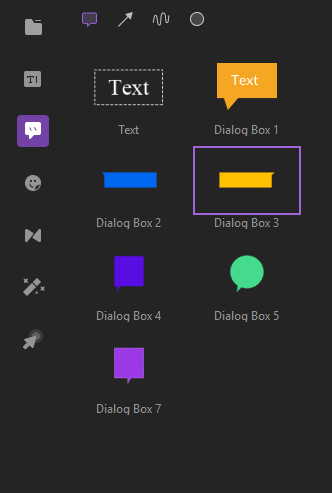
Once the screen is selected for recording and recorded you can make green screen effect, make transitions, add stickers, captions, add annotations, cursor effects, notes, callouts, crop video, denoise it, increase & decrease volume, and do a lot more. All this makes your video more detailed and interesting.
Denoise and audio menu
Annotations menu
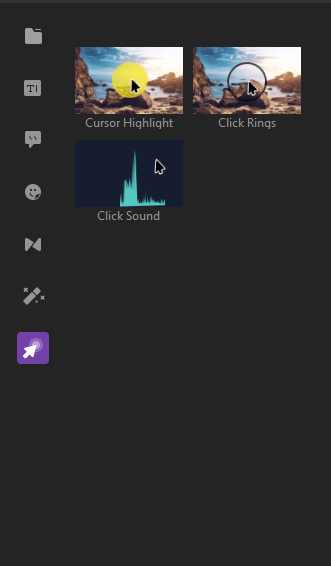
Cursor editing menu
What Makes Wondershare DemoCreator Unique?
Features that make this application outstanding and stand out among the other competitors are as follows:
- Record webcam
- Record computer screen
- Record audio
- Edit video
- Add annotations, cursor effects, green screen, transition effects, Stickers, Captions
- Import video/audio/images
- Full-function for trial version
- Tech support
Why you need Wondershare DemoCreator
- Capture screen from your Windows screen
- Edit recorded videos and captured screen
- Add annotations
- Eye-catching Cursors
- Exporting captured screenshot or recorded video in MOV, MP4 and MP3 formats
- Highlight area around the cursor
- User defined Hotkeys to enhance screen recording
Easy Recording Options
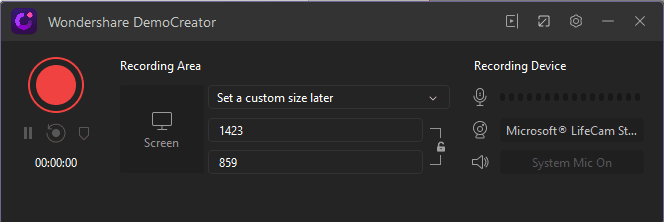
Wondershare DemoCreator gives you various options to record screens. You can record an area on the desktop and eliminate the rest. This means you can customize screen size or choose to make full motion recording. DemoCreator is a simple-to-use software for your screen recording.
Record with Audio
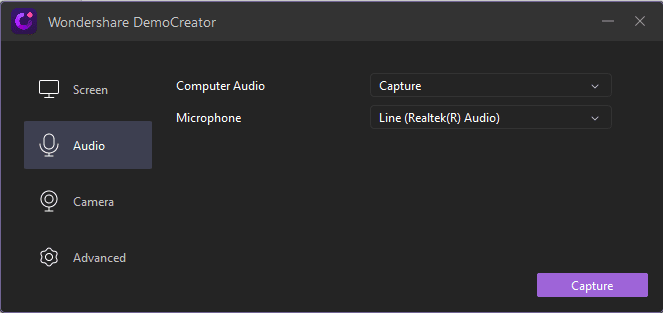
A video without voice is of no use, right? Wondershare DemoCreator understands this and offers the option to record screen using microphone. Once a video is recorded with voice you can edit it later or can even denoise it.
Moreover, you can time control your recording process using hotkeys or control panels.
Editing Options
- Add Annotations
- Transition Effects
- Sticker Effects
- Caption Effects
- Cursor with highlights, left click rings, left click sound
- Crop video
- Denoise
- Take Snapshot
Using these and other editing features you can create engaging videos and impress your colleagues, bosses. In addition to this you can even talk through your videos. In times like this when we all are working from home and need assistance Wondershare DemoCreator helps a lot.
How to install Wondershare DemoCreator?
To install and use Wondershare DemoCreator follow the steps below:
- Download and install free trial of DemoCreator
- Double click .exe file to start installation process and follow on screen instructions
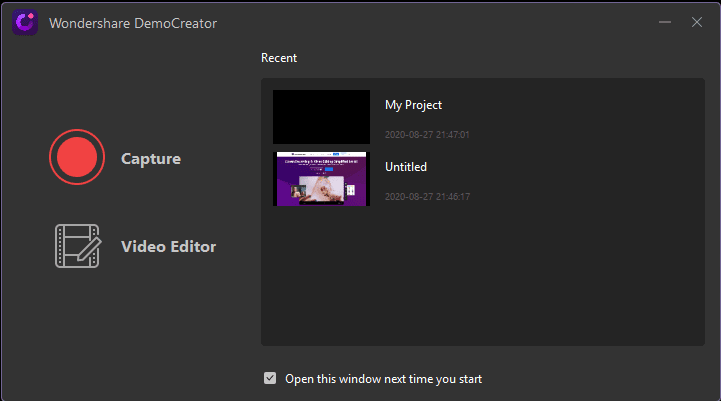
- Open DemoCreator and click Capture or Video Editor if you want to edit videos
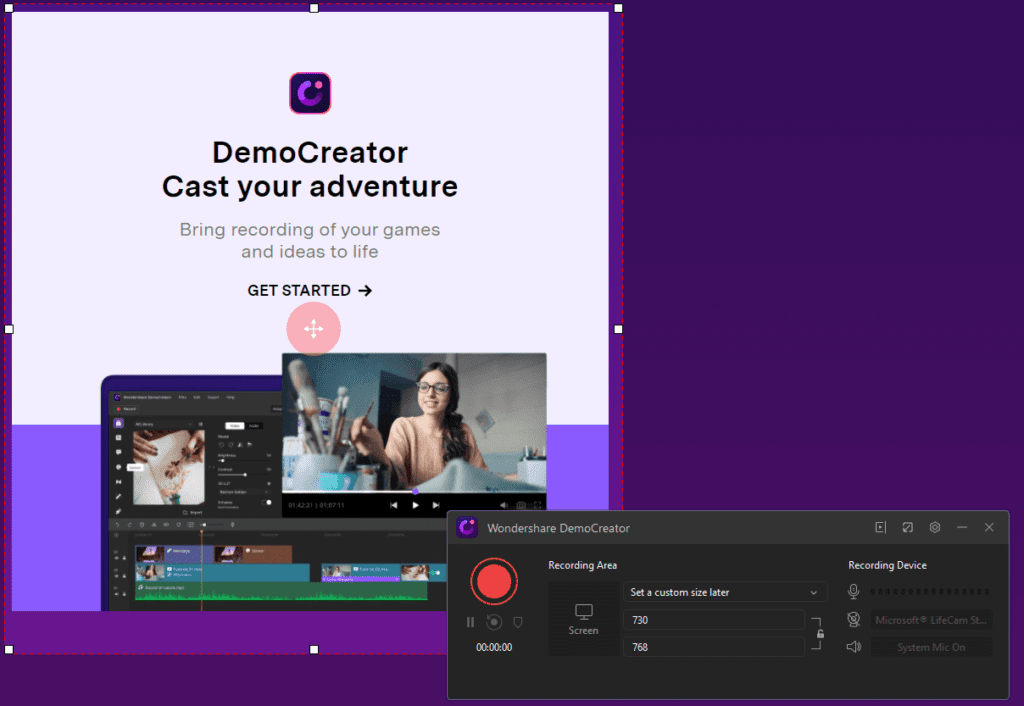
4. Once you click Quick Capture you will need to select the screen to record. Use the frame that appears to select the screen.
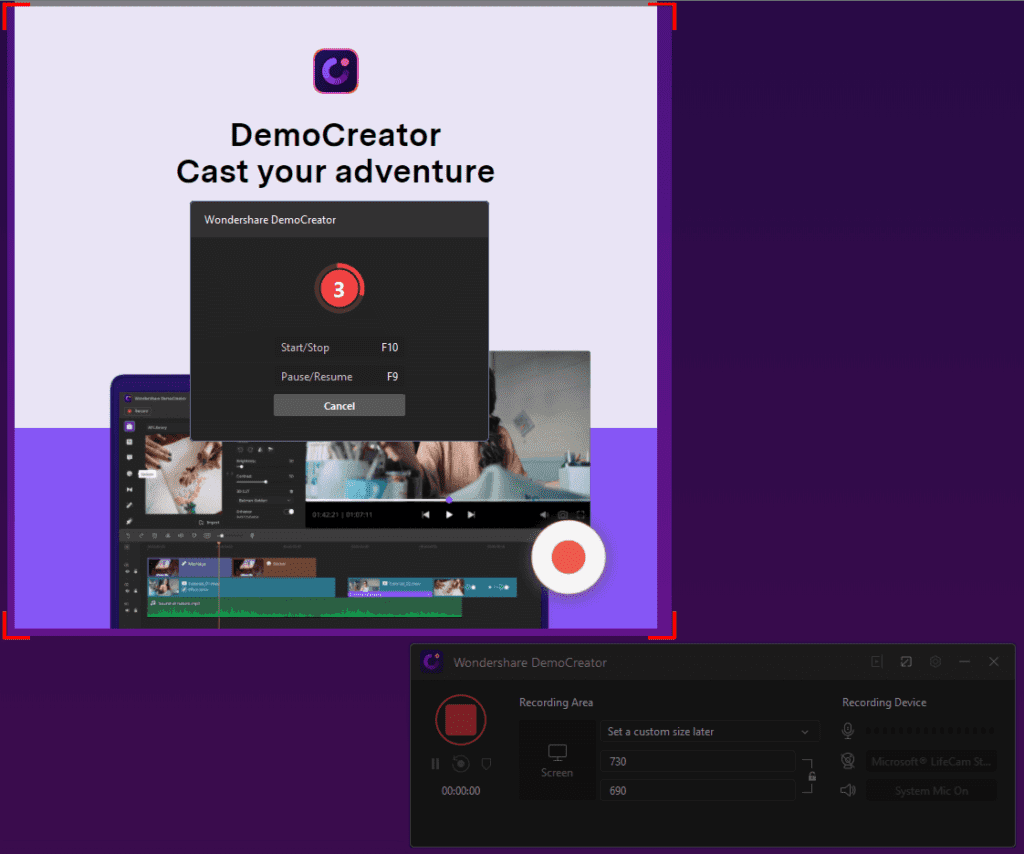
5. To start recording the screen click the Record button and wait for it to begin.
6. When the recording is done click the stop button. This will save the recorded screen that you can use for presentations, creating videos and do a lot more.
This is all using this powerful DemoCreator you can record and edit video.
In addition to this if you want to customize recording settings click settings button on the home screen. This will open a Setup window from here you can customize recording settings.
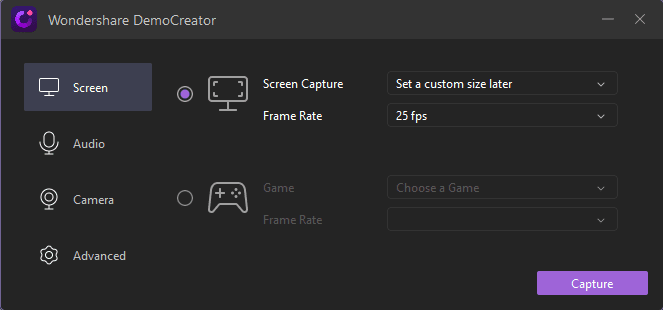
For instance, you can select the recording region, frame rate and other similar settings. You can also set up hotkeys.
To decide what action you want to perform click the down arrow next to Screen
Capture. This will show different options. Alongside when you click Audio Setup
from the left pane you can decide whether you want to record with or without
audio. You can also record using webcam for this click Camera option. By
clicking Advanced tab, you can choose location to save files, set up hotkeys,
choose whether to hide controls and do a lot more.
This and a lot more make Wondershare DemoCreator an excellent and must have video recorder and editor. Once you use it you will be able to explore more options. To use this amazing tool, you don’t need any training. Simply install it and start recording.
Nowadays when people are busy and don’t have time, they like things that make things easy. With this tool you can give training on the go via videos and can become a great instructor. Isn’t this what we all want?
So, what are you waiting for? If you have any presentation to make, a tutorial video to make or want to be great with YouTube Video use Wondershare DemoCreator today and see the magic.
Author Bio:
Dinesh Lakhwani 

Dinesh Lakhwani, the entrepreneurial brain behind “TechCommuters,” achieved big things in the tech world. He started the company to make smart and user-friendly tech solutions. Thanks to his sharp thinking, focus on quality and the motto of never giving up, TechCommuters became a top player in the industry. His commitment to excellence has propelled the company to a leading position in the industry.
Popular Post
Recent Post

How to Activate Windows with a Product Key for Windows 11 & Windows 10
It always shows up at the worst time. You are halfway through a report, or about to join a video call. Then you spot it in the bottom right corner of the screen. Activate Windows. Go to Settings to activate Windows. Initially, an unactivated copy of Windows may seem like a minor inconvenience. Over time, […]

Is Easy Duplicate Finder Worth It? Honest Review
The photos folder looked normal at first glance. Then the storage warning popped up. One trip photo appeared four times. A tax PDF sat in three different folders. Two old setup files were still in Downloads, and each one was over 500 MB. Nobody plans this mess. Copies pile up slowly. A download runs twice. […]

Wise Duplicate Finder Review: Real Results from Wise Duplicate Finder
Read my honest Wise Duplicate Finder review. See features, pricing, pros and cons, and real PC test results. Find out if this free duplicate cleaner can free up your Windows storage.

How to Recover Deleted Files from Pen drive, USB Drive, SD Card
Introduction: On tech forums, you’ll often see posts like this: “I connected my pen drive to my laptop this morning, but the folder was empty. All my college project files had vanished. I don’t have a backup. Can someone help me?” Stories like this are very common. Pen drives, USB drives and SD cards are […]

How To Recover Files Deleted from the Recycle Bin [Windows 11]
Losing a file can happen in seconds. You clear your desktop, hit Delete, and empty the Recycle Bin. Then, just when you need that file again, it seems to have vanished. This guide will walk you through ways to restore files removed from the Recycle Bin. We will begin with simple fixes, then look at […]

Disk Drill Data Recovery Tool Explained: Full Review and Guide
It happens in a split second. You delete a folder by mistake. Your drive stops showing up. A photo album from your last trip just vanishes. And your stomach drops. Lost files feel personal. They are not just data. They are memories, work hours, and sometimes years of effort packed into a few gigabytes. When […]

Recover Deleted Files In Windows 11 With Software & Without
Introduction What is the first thing that goes through your mind the second an important file vanishes from a Windows 11 PC? For most people, it is a mix of panic and disbelief, followed by a frantic click through every folder that file could possibly be hiding in. It happens in a split second: one […]

EaseUS Data Recovery Wizard: Everything To Know
Data loss does not always come from a big disaster either. Most cases start small and boring. A drive gets formatted by mistake. A laptop freezes mid-save and restarts on its own. A memory card stops showing up after being pulled out too fast. None of these feel like emergencies at first, until you realize […]

Recuva Data Recovery Tool: Is it Actually Worth it?
When I first tried Recuva Data Recovery, I wanted to see if it could really bring back lost files. The tool is free, small in size, and promises quick recovery, which made me curious enough to test it on my own PC. The setup was fast, and the wizard guided me step by step. I […]

