












Introduction: On tech forums, you’ll often see posts like this: “I connected my pen drive to my laptop this morning, but the folder was empty. All my college project files had vanished. I don’t have a backup. Can someone help me?” Stories like this are very common. Pen drives, USB drives and SD cards are […]
Airtime Pro – The Perfect Solution for Starting An Internet Radio Station
If you’ve ever dreamed of becoming a radio DJ and starting your own radio station, you’re in luck as setting up a station on the Internet has never been easier. The barriers to setting up a terrestrial station (getting licensed to broadcast on the FM/AM dial, buying an expensive antenna, building an expensive studio, etc.) no longer apply as you can simply set up and broadcast and manage your station online, from the comfort of your home.
We’ve discovered the perfect internet radio software, and it’s easy to set up and start broadcasting your first talk, news and music shows within minutes. Airtime Pro from Sourcefabric is hands-down one of the best radio broadcast automation tools on the market. They also offer a free 7-day trial that gives you full access and the ability to set up a station, then decide if the platform is right for you. The best part of this no-obligation demo is that it doesn’t require a credit card to get started.
Their software is highly flexible, easy to use, and you don’t even need to download it onto your computer or laptop. Once you sign up and become a subscriber, your station is hosted and accessible on Sourcefabric’s servers. All you need to do is log on, start programming your station and let Airtime Pro take care of the rest.
Airtime Pro has affordable plans for everyone from the weekend hobbyist to the professional running a full-time, commercial online radio station. We will take a look below at how you can get started broadcasting today with Airtime Pro. We’ll also go over what equipment you will need to get started as well as some foundational ideas for building a great station. And, finally, we’ll break down some of the finer details and features that make Airtime Pro the premiere choice for starting and managing an online radio station.
A Clean Interface Accessible to Anyone, Anywhere, Anytime
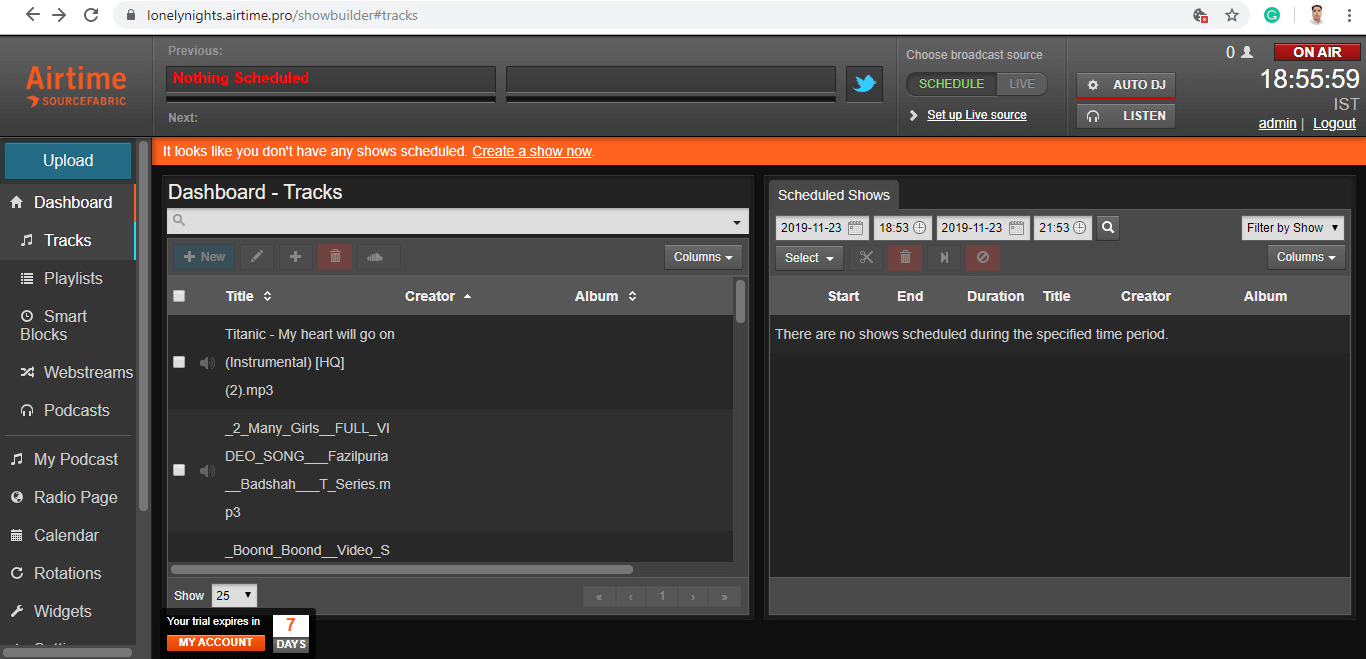
Airtime Pro’s interface is easy to use and anyone on your team can quickly access it from anywhere in the world. Since your station will be hosted in the cloud, songs and recorded shows are uploaded to the server and can then be scheduled alongside any live programming such as song intros, interviews or live performances.
But before we get ahead of ourselves, let’s take a quick look at the essential equipment you’ll need once you have signed up for an internet radio broadcasting software such as Airtime Pro. First, of course, you’ll need an internet-connected laptop or desktop computer. Y
ou will also need a microphone (for talking on the air) and a pair of headphones for monitoring what’s going out over the air. And that’s really about all you need to get going. But as you become more experienced, you’ll want to add a few items, and Airtime Pro has this handy guide on their blog: “10 Essential Pieces of Equipment for Online Radio Newbies Looking to Become Broadcasting Pros”.
In fact, one of the best things about Airtime Pro is that they have great documentation, videos and tips that beginners and pros alike will find extremely useful. For instance, check out their YouTube video “Getting on Air with Airtime Pro in Under 5 Minutes” or their blog post “How to Start an Internet Radio Station From Home: A Step-By-Step Guide”. And for more advanced topics on marketing and promoting your new station, they have a wide selection of articles such as “The 4 Steps to Successful Public Relations for Internet Radio” and “How to Promote Your Internet Radio Station the Right Way”.
Airtime Pro
Airtime Pro is one of the best broadcast automation and streaming programs to get an online radio station up and running. This powerful platform ensures uninterrupted services whether you’re a one-man station or a larger media operation.
DJ management, an intelligent automation system, and live audio streaming are made easy with Airtime Pro’s user-friendly console. Airtime has proven its mettle and won multiple awards. In 2012, it won the award for Best Use of Technology for Social Change by Guardian Awards for Digital Innovation.
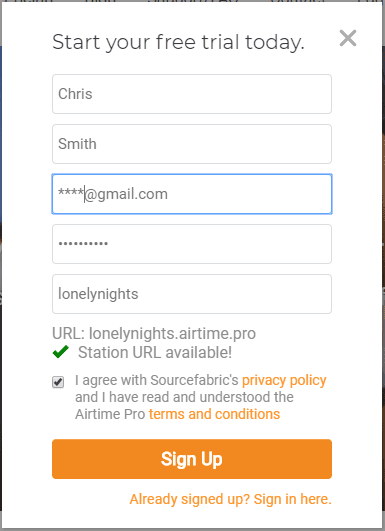
If you think that setting up an online radio station in 10 minutes is a stretch, you are mistaken! You don’t need a professional degree or years of experience to set up an online radio station. Bulky or expensive equipment is not required. You can have your own internet radio station on the air in just 10 minutes. Here’s all you need to do:
Step 1.Go to Airtime.pro and click on the ‘Start Your Free Trial’ button.
Step 2. It will open up a form for your basic details. Enter your details and click the ‘Sign Up’ button.
Step 3. As soon as you are signed up, it will take you to the stationed URL you specified while signing up for Airtime Pro.
Step 4. Select the station language and station time zone of your preference and click ‘Ok’.
“Please Note: With a FREE trial account, you get a 7-day FREE trial service with 5 GB storage.”
Step 5.Click on the ‘Upload’ button on the top-left corner of the screen and browse for songs you wish to add to your dashboard.
Step 6. Once you have uploaded the content, you can create a playlist according to time, mood and genres of music.
Step 7. Click on ‘Playlist’ on the left-hand side panel and then click on ‘New’ to create a playlist.
Step 8. Select the playlist in the left box to edit it on the right-hand side.
Step 9. Drag and drop tracks in the right-hand side list after editing the name of the playlist. Songs will be added to the new playlist and then you click on the ‘Save’ button.
Step 10.Now it’s time to schedule your favorite shows to go on the air. You can also play a live show if you want to initiate a show then and there.
Step 11. Click on ‘New Schedule’ and fill in the details as in what, when, rotation, Live Stream Input, and save the schedule. Once the scheduled time hits, the online radio station will start the broadcast automatically.
Step 12. By default, it will go on air when the timer hits. You can check near the RED button on the top-right corner labeled ‘ON AIR’ too see how many connections are listening to your broadcast.
Once you your account is set up, configured and you are broadcasting, you can start sharing your link on social media networks. Visitors can click those links to instantly listen to your broadcasts.
Airtime Pro Features
There are numerous features that distinguish Airtime Pro from its competitors. Here are some of the more outstanding features that will make your station shine:
Intelligent Library
Full support for numerous audio file formats, including MP3, Ogg, WAV, FLAC, AAC, and many others. Simply upload songs, then drag and drop from the library to quickly create playlists.
Media Builder
Drag-and-drop audio files from your library into playlists. Playlists are easy to manage, and once created, they stay in your library for future use.
Promotion Tools
It’s easy to promote your station with a convenient Facebook widget and full integration for Twitter, TunedIn, Soundcloud, and more.
Smart Blocks
The ‘Smart Block’ feature is a great way to speed up your content scheduling. Specify criteria (like genre or time since last play) and Airtime Pro’s radio automation software will populate that block according to the conditions you select.
24/7 Show Scheduling
Easy to navigate scheduling tool. Schedule all the time slots on a regular basis. With week, month or day views it’s easy for DJs to find content quickly, visualise overall programming and focus on the finer details.
Podcasting
Podcast hosting is built in to Airtime pro, so you can easily turn shows in to podcasts and syndicate them, or subscribe to other podcasts and automatically import them.
Live Broadcast Solution
Support for live input from almost any Icecast-compatible third-party software, like Mixxx, for example. Makes cutting back and forth between scheduled programs and live broadcasting intuitive and easy.
Mobile Friendly
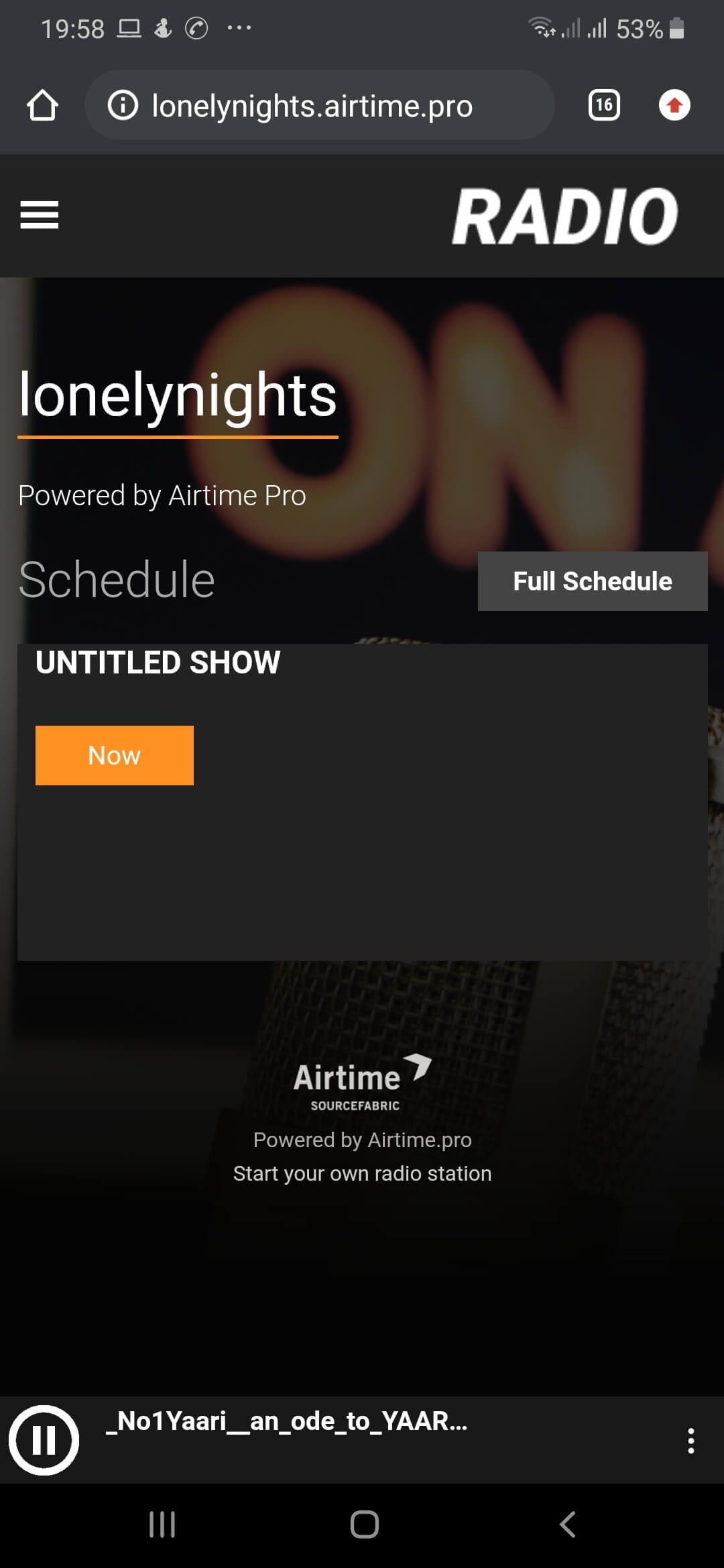
Radio pages have a sleek, responsive, and mobile-friendly design. Download their app and manage your station on the go from any device.
Embeddable Player Widget
Embed your Airtime radio station onto your website in seconds with the Airtime Pro Player widget.
Apart from these, there are many more great features, including: built-in Microsites to share with your friends, an embeddable schedule widget, reporting manager, playout history, listener statistics and full DJ management.
Plans & Pricing
Airtime Pro plans start at just $9.95 per month and top out at $83.29. There are four different plans (Hobbyist, Starter, Plus, Premium) with various features, services, and enhancements.
The major difference between plans is the number of streams, stream quality, listener count, storage space, bandwidth, number of podcast episodes, etc. There are hefty discounts on plans and pricing for students and resellers.
Author Bio:
Dinesh Lakhwani 

Dinesh Lakhwani, the entrepreneurial brain behind “TechCommuters,” achieved big things in the tech world. He started the company to make smart and user-friendly tech solutions. Thanks to his sharp thinking, focus on quality and the motto of never giving up, TechCommuters became a top player in the industry. His commitment to excellence has propelled the company to a leading position in the industry.
Popular Post
Recent Post

How To Recover Files Deleted from the Recycle Bin [Windows 11]
Losing a file can happen in seconds. You clear your desktop, hit Delete, and empty the Recycle Bin. Then, just when you need that file again, it seems to have vanished. This guide will walk you through ways to restore files removed from the Recycle Bin. We will begin with simple fixes, then look at […]

Disk Drill Data Recovery Tool Explained: Full Review and Guide
It happens in a split second. You delete a folder by mistake. Your drive stops showing up. A photo album from your last trip just vanishes. And your stomach drops. Lost files feel personal. They are not just data. They are memories, work hours, and sometimes years of effort packed into a few gigabytes. When […]

Recover Deleted Files In Windows 11 With Software & Without
Introduction What is the first thing that goes through your mind the second an important file vanishes from a Windows 11 PC? For most people, it is a mix of panic and disbelief, followed by a frantic click through every folder that file could possibly be hiding in. It happens in a split second: one […]

EaseUS Data Recovery Wizard: Everything To Know
Data loss does not always come from a big disaster either. Most cases start small and boring. A drive gets formatted by mistake. A laptop freezes mid-save and restarts on its own. A memory card stops showing up after being pulled out too fast. None of these feel like emergencies at first, until you realize […]

Recuva Data Recovery Tool: Is it Actually Worth it?
When I first tried Recuva Data Recovery, I wanted to see if it could really bring back lost files. The tool is free, small in size, and promises quick recovery, which made me curious enough to test it on my own PC. The setup was fast, and the wizard guided me step by step. I […]

GetData Recover My Files Data Recovery Tool: Honest Review
A hard drive error brings a special kind of silence. Well, yes! The screen freezes, then a message appears saying the drive can’t be found or must be formatted. In that moment, years of photos and work files feel at risk. It never happens at a good time. Coffee spills near a laptop, a memory […]

Windows File Recovery: A Complete Review [Tried & Tested]
Imagine this. You spend hours perfecting a video project. You hit save. Then your laptop freezes, reboots, and when the screen comes back. The file is gone. Your stomach sinks. It’s not just you. Lost files happen all the time. A dropped hard drive, a bad update, an accidental delete, or a corrupted partition can […]

5 Best Data Recovery Software For Windows 11 and Windows 10
Introduction: A crashed drive can ruin a whole day. One minute your photos, work files, and tax records sit safe on your PC. The next minute they are gone. A power cut, a bad update, or one wrong click can wipe out years of memories and months of work in seconds. That sinking feeling is […]

How To Update NVIDIA Drivers On Windows 11/10 PC
Learn how to update NVIDIA drivers on Windows 11/10 with simple methods, safety tips, and easy steps for smoother gaming and better PC performance.

