










Imagine this. You spend hours perfecting a video project. You hit save. Then your laptop freezes, reboots, and when the screen comes back. The file is gone. Your stomach sinks. It’s not just you. Lost files happen all the time. A dropped hard drive, a bad update, an accidental delete, or a corrupted partition can […]
How to Import and Export Phone Contacts On Android & iPhone
Switching between smartphones is a status symbol these days and keeping all your contacts at one place is a bit tricky exercise. In this article, you are going to explore how to import contacts from Google Contacts to phone memory of an iPhone or an Android device or vice versa. Here we have collated ways to Import, Export, Backup / Recover deleted contacts and transfer contacts from SIM to Phone or Google Account.
Using these tips and tricks to import and export phone contacts on Android / iOS devices, you also can keep all your contacts safe and device independent. No matter if you use your iPhone or an Android device, all you need to do is sign in with your Google account, go to contacts and then import and export all your saved contacts on any device.
When you use multiple Android or iOS devices at the same time, or you plan to go for a new smartphone, you need to be certain that all your contacts are saved on Google contacts to make them available on all your devices associated with the same Google account.
In situations where you have contacts left over the phone’s local storage or SIM card, those contacts won’t be available for you on other devices. To solve this problem, here we present an easy and step-by-step process to import and export phone contacts on Android / iOS device, Google account and keep them synced on all your devices at the same time.
How to Export Device Contacts to Google Account
Here is a step-by-step guide to import and export phone contacts on Android /iOS device assuming that you have Google account configured on your device and you are signed IN.
Android Device
Export from SIM to Google Account
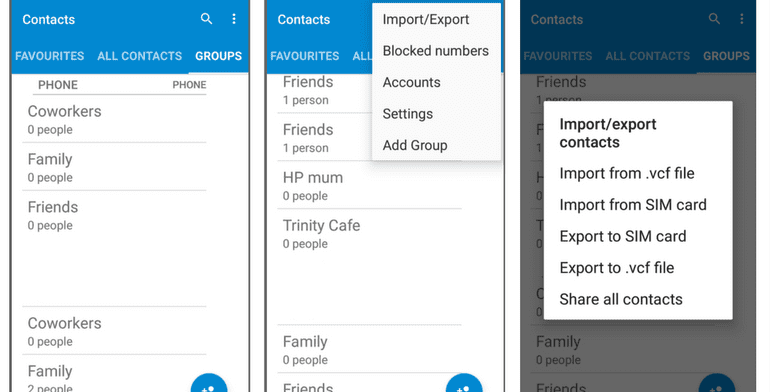
If you have leftover contacts on your device and you want to export contacts from your SIM to your Google account, it is quite an easy and quick process which will save you a lot of time and frustration in the future. That means when you plan to use a new smartphone, all you need to do is to log in to your Google account and all your personal and professional contacts will be ready to use on a new device.
Step 1. Open Contacts App on your smartphone device Tap the three dots icon at the top right-hand corner to open the contacts menu options select ‘Import/Export’ OR ‘Import/Export Contacts’ as per your version of Android.
Step 2. Select ‘Export from SIM card’, which will export Names and Numbers saved on your smartphone’s SIM card in (.CSV or .VCF) File format in your selected location. Give a file name as (name.csv) and tap on Save / Export. Generally, it gets exported to device storage.
Export from Phone Storage to Google Account
Import the exported file from device storage to Google account
Step 3. Open ‘Contact list’ on your device Tap three dots on the top right-hand corner to open the contacts menu tap on ‘Import/Export’ OR ‘Import/Export Contacts’.
Step 4. Tap on ‘Import vCard File’ and locate and tap the vCard file to be imported from the device storage and let the import process complete.
Import Contacts on a PC / Laptop
If you have the Google account open on a Laptop / PC, you may also follow the following steps.
From your smartphone, send that exported (.CSV / .VCF) file on your email and download it on your PC.
Import Contacts in Google Account
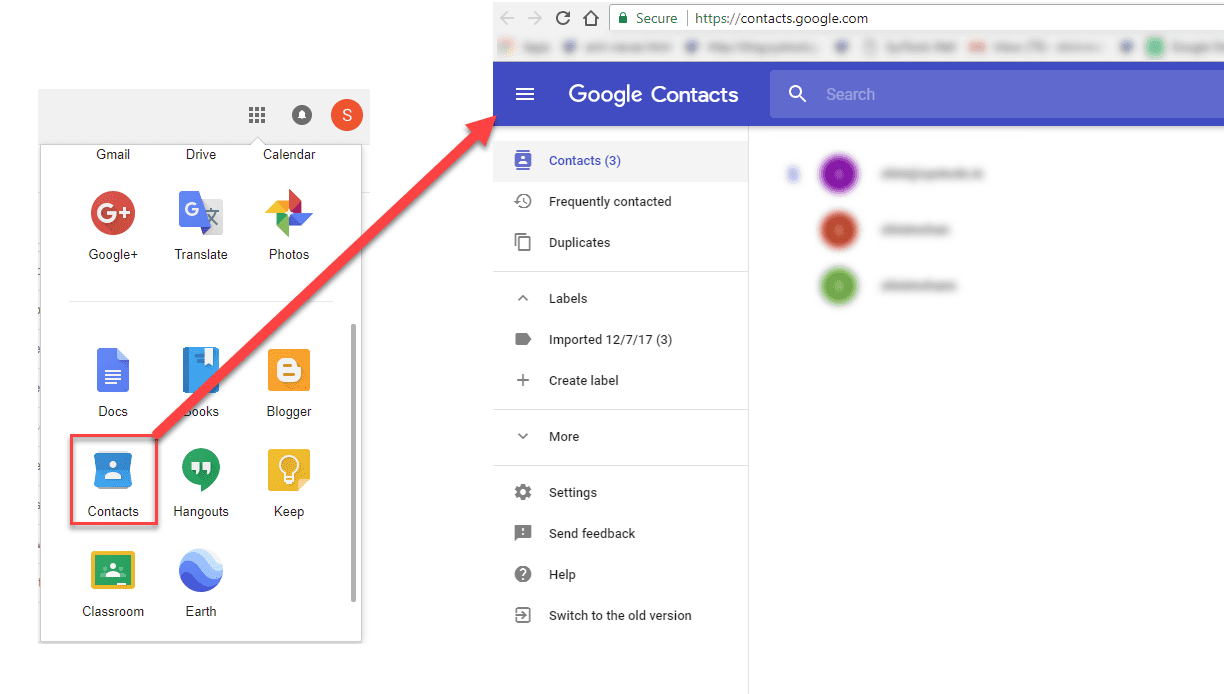
Step 1. Open contacts page in your Google account by clicking on the ‘Google Apps’ option (9 dots on the top right of the screen) and click on ‘Contacts’.
Step 2. Once you have the page open, you need to click on the ‘Import’ option on the left-hand-side panel. It will ask you to select a file (.CSV / .VCF) to import contacts. Select the downloaded file and click on the ‘Import’ button to initiate the process.
Import and export phone contacts on iPhone Device
Export from SIM to iPhone / Google Account
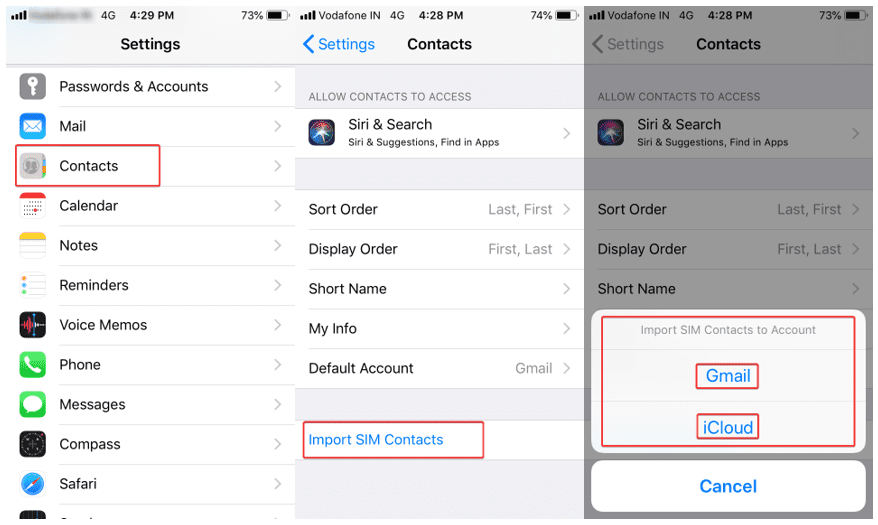
When you switched to a new SIM and want to import and export phone contacts on iPhone from your old SIM, you may follow these steps to get contacts from old SIM to your iPhone or Google contacts.
Step 1. Remove your new SIM card from iPhone and insert your old SIM card.
Step 2. Open ‘Settings’ on your device go to ‘Contacts’ and Tap on ‘Import SIM Contacts’.
Step 3. Select the account to be imported and let the import process be completed.
Step 4. Now you may remove old SIM and insert the new one back in your iPhone and check for the updated contacts. Imported contacts should be available in your default account (Gmail / iCloud). You may switch between accounts from below options.
Open ‘Settings’ on the device Navigate to ‘Contacts’ Tap on ‘Default Account’ and choose your default account between Gmail or iCloud.
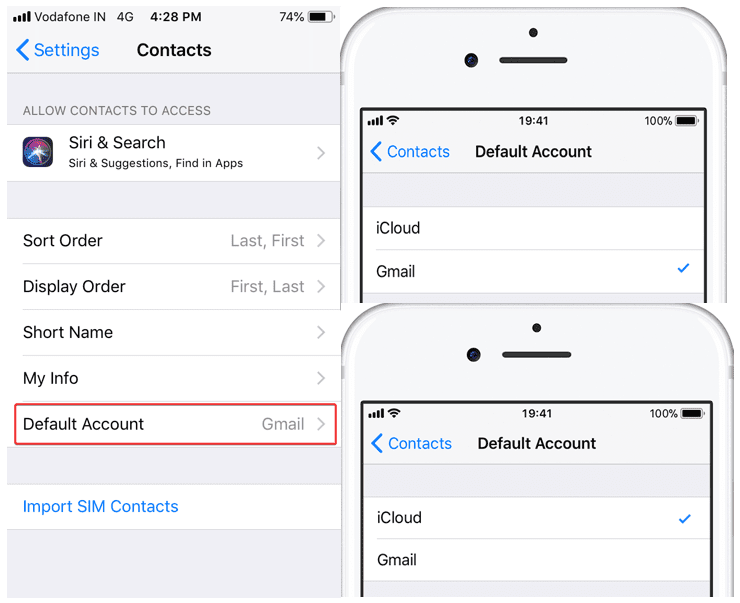
iCloud & Google Account Sharing
To export contacts from iCloud to a Google account, you can follow these steps.
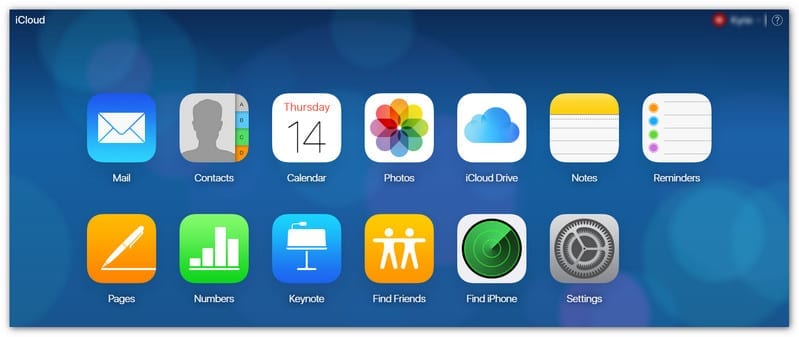
Step 1. Log in to your iCloud account on a Laptop or a PC.
Step 2. Go to ‘Contacts’ and click on the ‘Settings’ icon on the bottom left corner.
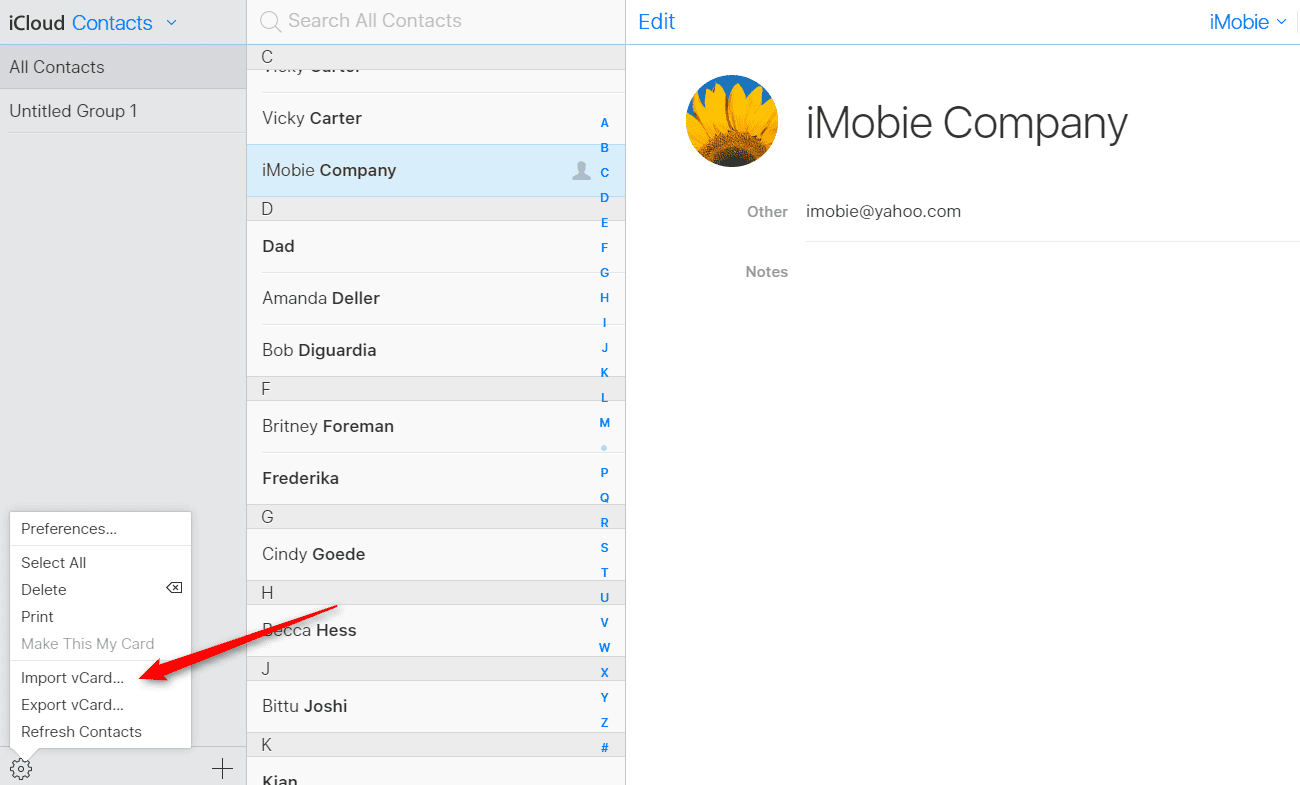
Step 3. Click on Import vCard if you wish to get your Google account contacts to be imported on iCloud. Click on Export vCard if you wish to get your iCloud contacts to be imported on Google account. Both the options will ask you to browse the .VCF file and act accordingly.
Conclusion
Technology is so advance and we can’t afford to lose any of our precious contacts. We have covered how to import and export phone contacts on Android / iPhone, from device to Google account & export contacts from SIM to sync contacts at one place. Now you can stay rest assured and shouldn’t worry about deleted contacts as you know the options to backup contacts on Google account.
You can anytime recover deleted contacts or get your contacts from a lost phone as you already have a backup of contacts on your Google Contacts account. Just ensure the account is linked and contacts are properly synced with your account.
FAQs:
1. How do I import contacts from a SIM card to my phone?
On Android, open the Contacts app, go to settings, and look for the Import option. Choose SIM card and select where you want to save the contacts, such as your Google account or device storage. On iPhone, go to Settings, tap Contacts, then select “Import SIM Contacts.” The phone will copy all saved numbers to your device.
2. What is the easiest way to export contacts as a file?
On Android, you can export contacts as a VCF file from the Contacts app. This file can be saved to your storage or shared easily. On iPhone, exporting usually requires iCloud. You can sync your contacts to iCloud and then export them as a VCF file from the iCloud website. This format works across most devices.
3. Will I lose my contacts when switching phones?
No, as long as your contacts are synced with a Google account on Android or iCloud on iPhone, they stay safe online. When you sign in on a new phone, your contacts will sync automatically. If they are stored only on the device, you should export them first to avoid losing any data.
Author Bio:
Dinesh Lakhwani 

Dinesh Lakhwani, the entrepreneurial brain behind “TechCommuters,” achieved big things in the tech world. He started the company to make smart and user-friendly tech solutions. Thanks to his sharp thinking, focus on quality and the motto of never giving up, TechCommuters became a top player in the industry. His commitment to excellence has propelled the company to a leading position in the industry.
Popular Post
Recent Post

5 Best Data Recovery Software For Windows 11 and Windows 10
A crashed drive can ruin a whole day. One minute your photos, work files, and tax records sit safe on your PC. The next minute they are gone. A power cut, a bad update, or one wrong click can wipe out years of memories and months of work in seconds. That sinking feeling is why […]
How To Update NVIDIA Drivers On Windows 11/10 PC
Learn how to update NVIDIA drivers on Windows 11/10 with simple methods, safety tips, and easy steps for smoother gaming and better PC performance.

Top AI Features Hidden Inside Windows 11
Explore the top AI features in Windows 11, from Copilot to Recall, plus safety tips and simple steps to use each tool the right way.

Customize Your Screen Saver Settings in Windows [Easy Steps]
Learn how to customize screen saver settings in Windows 11 with easy steps, safety tips, and simple tricks to personalize your PC screen.

Driver Easy Windows Driver Updater Tool Review: Tried & Tested
In-depth information about Driver Easy’s functions and features can be found in our review. Learn how to update drivers more easily with this tool for a more seamless computer experience.

Is Avast Driver Updater Worth It? A Hands-On Analysis
A full review of Avast Driver Updater covering features, setup steps, pricing, pros and cons, and real PC results, to help you decide if it is worth buying.

IObit Driver Booster 13 (PRO) Review: [Tried & Tested]
IObit Driver Booster 13 is built for one purpose: keeping your PC drivers up to date. Well, yes! Outdated drivers can cause crashes, slowdowns, and hardware issues. This tool scans fast and updates with one click. The interface is simple. Even beginners can use it without confusion. Updates are pulled from a huge database, covering […]

Auslogics Driver Updater: A Detailed Walkthrough [2026]
This comprehensive review covers the key features, pros, and cons, pricing, and a final verdict on Auslogics’ driver update utility. Learn how it stacks up against manual driver maintenance.

5 Best Driver Updater Tools for Windows to Use (Free and Paid)
Introduction: Most people blame their PC for problems that a driver caused. A driver works like a bridge between your hardware and your operating system. When this bridge cracks, strange things start to happen. Screens flicker without reason. Printers go silent mid-task. Games freeze or crash out of nowhere. Manually finding the right driver is […]

