












A slow PC rarely gives a warning. One day, it simply takes longer to start. Apps open late. The fan runs loud, even when the screen is almost empty. Most people blame old hardware. Often, that is not the real reason. The real reason is hiding in plain sight. Windows keeps many apps active in […]
10 Best Game Boosters and Optimizers for Windows PC
Overview
If you are experiencing slow gaming performance on your Windows 10 or 11 PC, then it is time to optimize it for better gaming performance. Using the best game boosters & optimizers is one such solution you can try to boost your gaming performance.
The Problem
Windows 10 and the latest Windows 11 are designed to offer seamless performance matter you are a power user or a gaming enthusiast. While it is designed for easy compatibility with resource-hungry games, it isn’t free of its own issues. Overoccupied disk space, programs running in the background, and unnecessary login items are a few reasons that make your system run slow when you are playing your favorite game.
The Solution
You can try various built-in utilities & features to optimize Windows for better gaming performance. In addition to that, you can try the best game boosters for Windows 11/10/8 to get instant and efficient results. The ideal game booster program has the following traits;
- Ability to boost the PC speed and defrag it
- Handle unnecessary operations
- It can optimize overclocking software
- Can customize the boosting process
- It can boost the performance of system hardware
First, Know The Answers To These Questions
My game still lags even after using a booster. What should I check first
Start by looking at the apps running in the background. Some tools leave heavy programs active if you did not grant full permission. Check your storage as well because a nearly full drive slows loading. Update your graphics drivers and make sure the game is running in the correct performance mode. A booster helps, but the system also needs basic upkeep to avoid slowdowns.
The booster closed an app I needed. How do I prevent this from happening again
Open the settings and mark the app as protected or excluded. Most boosters allow you to create a safe list. This keeps important tools such as browsers, messaging apps, or recording software from being stopped during a gaming session. A small adjustment here prevents future issues.
Why does my PC heat up even after optimization
A booster reduces background load, but heat depends on the game’s graphics demand and the airflow inside your system. Clean dust from vents, ensure the fan curve is working, and avoid blocking the laptop base. When the hardware runs cooler, the booster’s changes become more effective and the system stays stable for longer sessions.
How We Made This List
We reviewed many tools that claim to improve gaming performance on Windows. We focused on features that help real users. This includes how well each tool frees system resources, how simple the interface feels, and how safely it works with Windows settings. We also looked at updates, support, and long-term reliability.
- Performance impact
We checked how much each tool improves game loading, frame stability, or overall smoothness. - System resource control
We looked at how well each tool closes background apps, frees memory, and reduces CPU load. - User interface quality
We selected tools with simple layouts that guide users without confusion. - Safety and trust
We checked developer history and user feedback to see whether the tool avoids risky actions. - Game mode features
Some tools offer special modes for long gaming sessions. We tested how steady these modes remain. - Compatibility with Windows versions
We made sure the tools run well on current Windows systems without errors. - Extra utilities
We noted helpful extras like startup management, network boosts, or deep clean options. - Value for money
We compared paid and free features to see which tools offer good long term value.
Top 5 Comparison Table
These five tools stand out due to performance, reliability, and general ease of use. The table below helps readers compare the main points in one place.
| Tool | Safety and Legitimacy | Ease of Use | Stability | Game Performance Impact |
| Advanced SystemCare 15 Pro | Very safe, trusted developer | Very easy | High | Strong improvement |
| Advanced PC Cleanup | Safe for cleaning tasks | Simple | Good | Noticeable improvement |
| WTFast | Trusted for network boosts | Moderate | High | Strong improvement for online games |
| Game Fire | Safe and focused on gaming | Easy | Good | Steady improvement |
| Wise Game Booster | Safe and free | Very easy | Moderate | Mild but helpful improvement |
10 Best Game Boosters & Optimizers for Windows 11/10/8/7 PC
Here we have tested & reviewed the 10 best tools you should use to optimize Windows for improved game performance. Do try these software to enjoy the game on the large flat screen on your PC.
#1. Advanced SystemCare 15 Pro
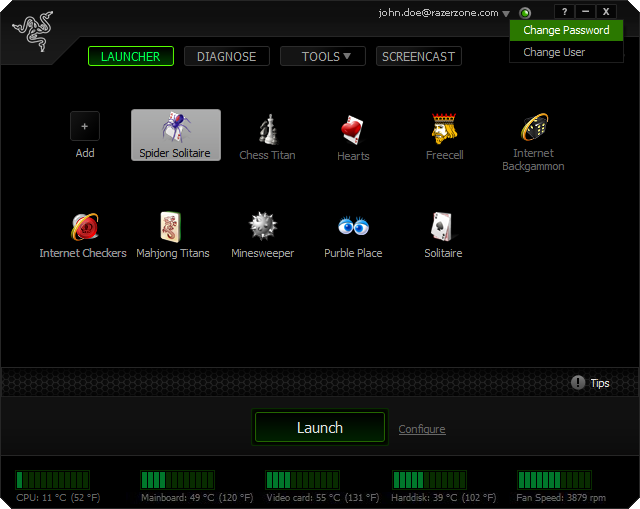
IObit Advanced SystemCare 15 Pro is a powerful game booster for Windows. It offers a one-click switch to turn your PC into a gaming machine. During the process, it shuts down unnecessary background processes and services to free up valuable system resources. Once you are done playing, you can switch your PC to normal mode.
Features of IObit Game Booster
- It helps you move your favorite games to the game box to boost the game automatically when launching.
- It helps you update game drivers.
- You can use this powerful game booster to simplify downloading and updating game software.
- It works in a background to provide top PC performance.
- It offers multiple game tools to provide the complete solution.
Device Compatibility: Windows 11/10/8/7/Vista and XP
Price: Starts from $16.77/year
#2. Advanced PC Cleanup
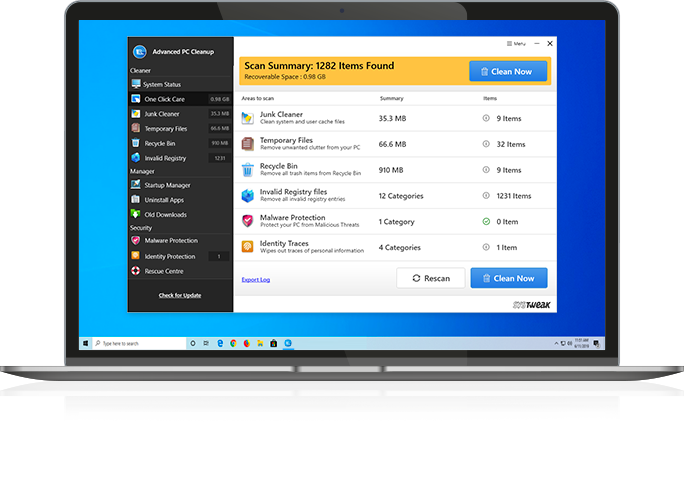
This simple-to-use and efficient advanced program makes sure that your Windows PC isn’t clogged with unnecessary files. It is one of the best game boosters for Windows users as it offers a smooth and lag-free gaming experience. Gamers can swiftly switch between the game and other programs using this tool.
Moreover, if you are troubled with your slow frame rate, then this software can create a virtual desktop specification to overcome this issue. The software creates a healthy environment for gamers by keeping system software up to date. This program is an all-in-one solution and can help in defragging the disk as well.
Features of Advanced PC Cleanup
- You can use this software to enjoy distraction-free gaming by running games in a dedicated sandbox mode.
- It works as a memory optimizer to help you free up RAM to instantly boost PC performance for gaming.
- It is an all-in-one PC cleaning & optimization software to speed up Windows 10.
- It works as a system cleaner to free up valuable disk space.
- It works as a driver updater and helps you update outdated for better gaming performance.
Device Compatibility: Windows 11/10/8.1/8/7 (Both 32 bit and 64 bit)
Price: $39.95
#3. WTFast

If you are tired of slow lag issues, then from the house of best game optimizers and boosters for Windows PC, you have WTFast at your rescue. This program automatically boosts the Frames per second so that your game-playing mode doesn’t get disturbed. To use this program, you have to log in using an ID and password that can be created free on the website. The ratings and reviews of this software are very good.
Features of WTFast
- Using machine learning, WTFast selects an optimized traffic path automatically for your game connection.
- It also supports custom settings for effective results.
- You can use WTFast for reduced latency, lower ping, and fewer lost packets.
- It offers real-time analytics to help you understand where your data is traveling.
- Perfect tool for power users.
Device Compatibility: Windows 11/10/8.1/8/7
Price: $99.90/year
#4. Game Fire
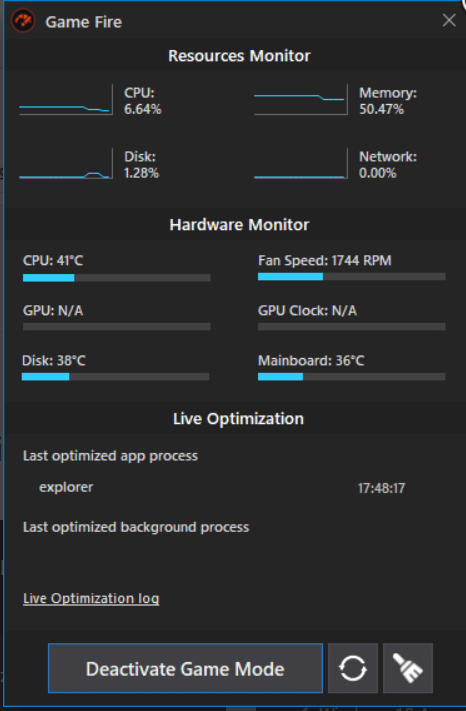
Windows users, who are facing the problem of slow lag, should definitely try Game Fire software. This software is designed with all the optimizer resources that help in removing all the lag time issues.
Moreover, this software offers a feature called “Turn Game Mode On” which blocks all the features in the background while you are playing the game. Just like other booster apps, this tool has a system optimizer that will let your PC perform without any hitch.
Features of Game Fire
- It helps you boost games and applications’ performance in real-time.
- It offers an automatic performance boost when launching games.
- It helps you tune up system settings to eliminate lags & interruptions.
- You can use Game Fire to defrag the hard drive for a better gaming experience.
- In addition to that, it helps you optimize RAM automatically and tweak system settings.
Device Compatibility: Windows 10/8.1/8/7/Vista (Both 32 bit and 64 bit)
Price: $17.95
#5. Wise Game Booster

Wise Game Booster is an incredible option for gamers who are looking for a smooth working experience on a Windows PC. This is a big part of the advanced game boosters for Windows PC with the easy pressing Optimise icon. This program will automatically optimize and will directly launch on your PC.
You can use the dynamic System Optimiser feature present in this program and can optimize the performance of your Windows without any difficulty. This tool is very useful for gamers.
Features of Wise Game Booster
- It helps you close startups, tune-up networks, and free up memory to keep your PC in-game performance.
- The tool is available for free use.
- You can put your favorite games into the “My games” category to instantly optimize your PC while playing them.
- It also helps you tweak system settings for better gaming experience.
- It offers multiple language support.
Device Compatibility: Windows 10/8/7
Price: Free
#6. Razer Cortex
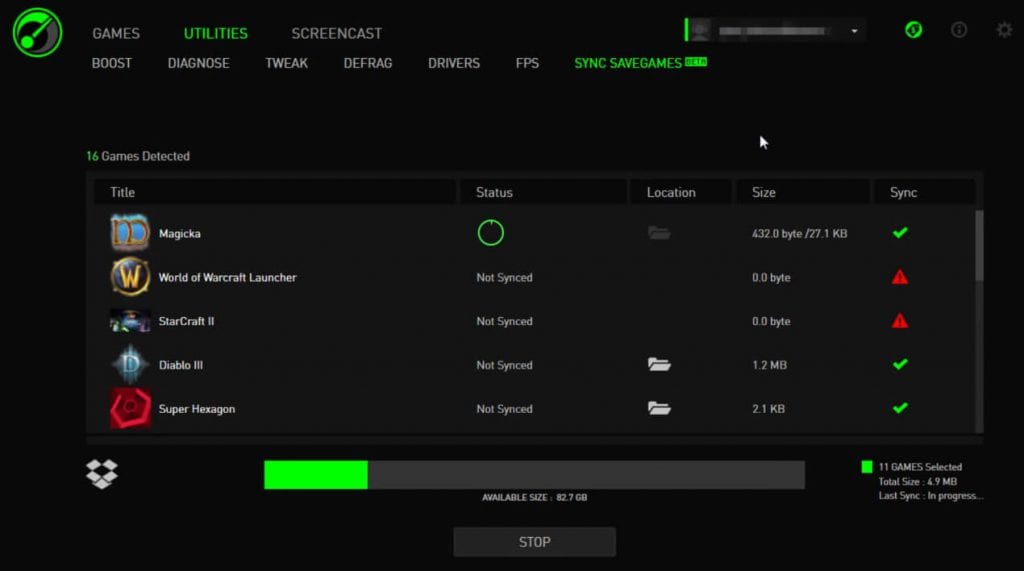
This is the most popular game booster software present for Windows users. It can enhance the overall performance of your system by shutting down any application that you haven’t used in some time. This background closing app feature will focus on the GPU, RAM, CPU, and other resources of the game.
It is a computer-savvy program that will allow you to customize settings as per your requirements. Apart from boosting features, this app has plenty of other features to offer like an FPS monitor graph, unique currency, lucrative rewards, and much more.
Features of Razer Cortex
- Xbox Game Bar in Razer Cortex makes it easier to take control of all your favorite gaming activities.
- It offers a one-click game boost to save time.
- It is available for free to use and works fine on Windows 11/10/8/7.
- It offers auto or expert controls to fulfill all your needs.
- It also works as a system optimizer.
Device Compatibility: Windows 11,10, 8, 7
Price: Free
#7. MSI Afterburner

This is one of the best game boosters for Windows PC that can improve your overall gaming experience by giving you the opportunity to access overlocking features. This software has numerous extra features such as – video recording, benchmarking, monitoring, and speed customization. You can optimize your GPU of any brand using this software.
The next important feature of the MSI Afterburner is a hardware monitor system. It is a real-time function that can gather information about your usage, voltage, temperature, speed, etc.
Features of MSI Afterburner
- It is available for free to use.
- It offers multiple useful features such as benchmarking, customizing fan profiles, and video recording.
- MSI Afterburner Overclocking tools offer easy access to your graphics card settings.
- With fan speed control, it helps you perfect balance between performance and temperature.
- With OC Scanner feature, it helps you find the highest stable overclock settings for your card.
Device Compatibility: Windows 11/10/8/7
Price: Free
Also Read: Best Free VPN for Windows
#8. Mz Game Accelerator
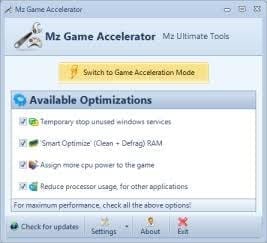
If your requirements are easy to use and simple to implement game booster, then you have to select this booster app. You don’t have to restart your entire system after installing and implementing this software. It is a feather-light app that won’t occupy much space on your system. Plus, the performance booster is competent enough to clean the RAM. So, if you have an old desktop Windows PC, then you can speed up your system using this tool.
Features of Mz Game Accelerator
- It temporarily shuts down unnecessary services, cleans RAM, and intensifies CPU performance.
- It doesn’t overclock your hardware or change the system registry.
- It offers multiple customization features to deliver effective results.
- It helps you clean & defrag the system drive.
- It works on interactive UI and offers multiple language support.
Device Compatibility: Windows 7/2003/Vista/XP
Price: Freeware
#9. Smart Game Booster
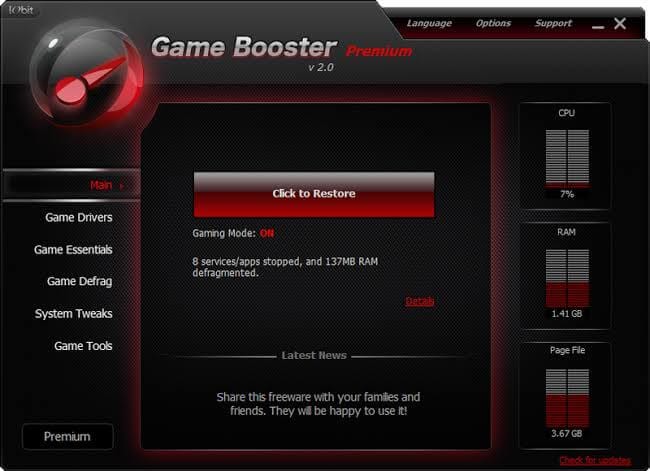
This giant list of the best game boosters for Windows PC is incomplete without GameBoost. This software has all the basic features with the ability to improve internet speed. By using this tool, you can improve the animation, refresh rate, and CPU speed of your PC.
This professional software has an interesting feature where the default frequency of the specific components can be easily changed. For example, you can change the graphics processor frequency automatically without any manual work.
Features of Smart Game Booster
- It offers a single-click boost to optimize your PC.
- You can use this tool to boost FPS and display FPS in-game.
- It helps you monitor CPU and GPU temperature.
- It helps you overclock the GPU.
- With a game launcher, you can organize various Windows games from different distributors.
Device Compatibility: Windows 10/8.1/8/7/Vista/XP
Price: Free
#10. ToolWiz Game Boost
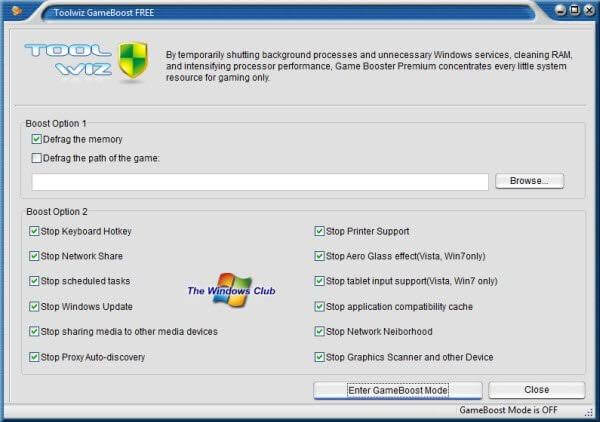
ToolWiz Game Boost is a good toolkit for PC users who want to experience some speed and high performance. This software boosts performance by defragmentation process where all gaming files are defragged to make CPU and RAM efficient.
Other features of the tool are shutting down all unnecessary functions from the background while playing games and notifying when it’s time to update the driver. It is a free game booster for Windows, but the safety and security system of the ToolWiz Game Boost is quite solid.
Features of ToolWiz Game Boost
- It helps you defrag the drive to optimize it for better gaming performance,
- It prevents and avoids possible conflict and incompatibility to increase gaming stability.
- It doesn’t overclock your hardware or tweak the system registry.
- It is available for free use.
- Working on smart algorithms, it optimizes CPU & RAM.
Device Compatibility: Windows 7/Vista/XP
Price: Freeware
Conclusion
Game boosters can help a Windows PC run games with fewer slowdowns. Each tool handles this in its own way. Some focus on network speed. Others work to free memory or stop background apps. The right tool often depends on the type of games the user plays and the current state of the PC. A well-maintained system always performs better, so these tools add support rather than replace good habits.
The five options in this list remain popular because they do not confuse the user with unnecessary features. They offer clear controls, steady updates, and dependable performance gains. When used with care, they can help players enjoy smoother gameplay and longer sessions with fewer interruptions.
FAQs
Do game boosters improve FPS
Most game boosters improve FPS by freeing memory and lowering background load. The improvement can be small or moderate, depending on the game and system health.
Are game boosters safe for Windows
They are safe when downloaded from trusted developers. Problems happen only when users change deep system settings without understanding them.
Do I need a strong PC for these tools to work
No. These tools help weak and mid-range PCs the most. They reduce pressure on hardware and help keep the system stable during play.
Author Bio:
Dinesh Lakhwani 

Dinesh Lakhwani, the entrepreneurial brain behind “TechCommuters,” achieved big things in the tech world. He started the company to make smart and user-friendly tech solutions. Thanks to his sharp thinking, focus on quality and the motto of never giving up, TechCommuters became a top player in the industry. His commitment to excellence has propelled the company to a leading position in the industry.
Popular Post
Recent Post

How to Activate Windows with a Product Key for Windows 11 & Windows 10
It always shows up at the worst time. You are halfway through a report, or about to join a video call. Then you spot it in the bottom right corner of the screen. Activate Windows. Go to Settings to activate Windows. Initially, an unactivated copy of Windows may seem like a minor inconvenience. Over time, […]

Is Easy Duplicate Finder Worth It? Honest Review
The photos folder looked normal at first glance. Then the storage warning popped up. One trip photo appeared four times. A tax PDF sat in three different folders. Two old setup files were still in Downloads, and each one was over 500 MB. Nobody plans this mess. Copies pile up slowly. A download runs twice. […]

Wise Duplicate Finder Review: Real Results from Wise Duplicate Finder
Read my honest Wise Duplicate Finder review. See features, pricing, pros and cons, and real PC test results. Find out if this free duplicate cleaner can free up your Windows storage.

How to Recover Deleted Files from Pen drive, USB Drive, SD Card
Introduction: On tech forums, you’ll often see posts like this: “I connected my pen drive to my laptop this morning, but the folder was empty. All my college project files had vanished. I don’t have a backup. Can someone help me?” Stories like this are very common. Pen drives, USB drives and SD cards are […]

How To Recover Files Deleted from the Recycle Bin [Windows 11]
Losing a file can happen in seconds. You clear your desktop, hit Delete, and empty the Recycle Bin. Then, just when you need that file again, it seems to have vanished. This guide will walk you through ways to restore files removed from the Recycle Bin. We will begin with simple fixes, then look at […]

Disk Drill Data Recovery Tool Explained: Full Review and Guide
It happens in a split second. You delete a folder by mistake. Your drive stops showing up. A photo album from your last trip just vanishes. And your stomach drops. Lost files feel personal. They are not just data. They are memories, work hours, and sometimes years of effort packed into a few gigabytes. When […]

Recover Deleted Files In Windows 11 With Software & Without
Introduction What is the first thing that goes through your mind the second an important file vanishes from a Windows 11 PC? For most people, it is a mix of panic and disbelief, followed by a frantic click through every folder that file could possibly be hiding in. It happens in a split second: one […]

EaseUS Data Recovery Wizard: Everything To Know
Data loss does not always come from a big disaster either. Most cases start small and boring. A drive gets formatted by mistake. A laptop freezes mid-save and restarts on its own. A memory card stops showing up after being pulled out too fast. None of these feel like emergencies at first, until you realize […]

Recuva Data Recovery Tool: Is it Actually Worth it?
When I first tried Recuva Data Recovery, I wanted to see if it could really bring back lost files. The tool is free, small in size, and promises quick recovery, which made me curious enough to test it on my own PC. The setup was fast, and the wizard guided me step by step. I […]

