











Antivirus is the one kind of software that people think about at only two moments. The first is right after installing it. The second is right after something goes wrong. In between, it runs quietly, and most users never check if it is doing a good job. That silence makes the choice harder. Windows 10 […]
Bitdefender Antivirus: Is It Actually Worth Using on a Windows PC
Antivirus is the one kind of software that people think about at only two moments. The first is right after installing it. The second is right after something goes wrong. In between, it runs quietly, and most users never check if it is doing a good job.
That silence makes the choice harder. Windows 10 and Windows 11 already include built-in protection, so paying for another product raises a fair question. What does a third-party antivirus add, and what does it cost in speed, money, and attention? Bitdefender is one of the best-known names in this space, and it also offers a free edition, which makes the comparison even more interesting.
This review looks at Bitdefender Antivirus on Windows. We cover the features, the setup steps, the effect on system speed, and the pricing.
Bitdefender Antivirus Reviewed: Protection, Pricing, and PC Impact
Part 1: Overview: Bitdefender Antivirus for Windows
Bitdefender is a cybersecurity company that makes antivirus and security software for home users. It includes a free edition, Antivirus Plus, and the larger suite, Total Security. This review focuses on Antivirus Plus, the entry-level paid product, and also covers the free edition where it matters.
Antivirus Plus is built to stop viruses, worms, trojans, ransomware, zero-day exploits, rootkits, and spyware. It combines a scanning engine with behavior monitoring, web filtering, and a secure browser for banking. A built-in VPN with a small daily limit comes with it. The app is managed through a web account called Bitdefender Central, where you activate your plan and add devices.
The aim is simple. It tries to protect your PC without asking for constant decisions. A feature called Autopilot makes security choices in the background. Most heavy scanning happens in the cloud, so the app does not need many local resources. Whether that holds up in practice is a key question, and we cover it in the system impact section.
Key features at a glance:
- Real-time malware protection with cloud scanning
- Advanced Threat Defense that watches app behavior
- Multi-layer ransomware protection and file recovery
- Web Attack Prevention, anti-phishing, and anti-fraud filters
- Scam Protection that blocks fake shops and scam links
- Vulnerability Assessment and Rescue Environment
- Safepay secure browser, VPN, and anti-tracker
- Autopilot, Game Mode, Movie Mode, and Work Mode
Quick Info About Bitdefender Antivirus Plus
- Developer: Bitdefender
- Supported OS: Windows 7 SP1, Windows 8.1, Windows 10, and Windows 11
- System Requirements: 2 GB RAM and 2.5 GB of free disk space
- Free Trial: 30 days, no credit card required
- Refund Window: 30 days
- Management: Bitdefender Central account
- Support: 24/7 assistance, per the official page
Part 2: Smart Reasons to Pick Bitdefender Over the Built-In Option
Windows already includes protection, so any extra product must earn its place. Below are the strongest reasons why users choose Bitdefender.
- Strong lab record: Bitdefender’s page shows an AV-TEST protection score of 5.96 out of 6 across its testing history, ahead of the two rivals it lists. This is a company claim that cites AV-TEST data.
- Layered defense: It does not rely on one method. It combines scanning, behavior monitoring, web filtering, and network checks.
- Ransomware safeguards: The multi-layer approach protects documents, pictures, and videos, and it can help restore files if ransomware strikes.
- Cloud-based scanning: Most heavy scanning happens in the cloud, which is designed to keep local impact low.
- Quiet operation: Autopilot and the activity modes aim to reduce pop-ups during games, movies, and work.
- Safe banking browser: Safepay opens a separate, hardened browser for banking and shopping.
Part 3: Key Features Explained: Inside Bitdefender Antivirus
Bitdefender packs many tools into a single app. Below, we explain the seven that matter most in daily use.
Real-Time Protection and Cloud Scanning
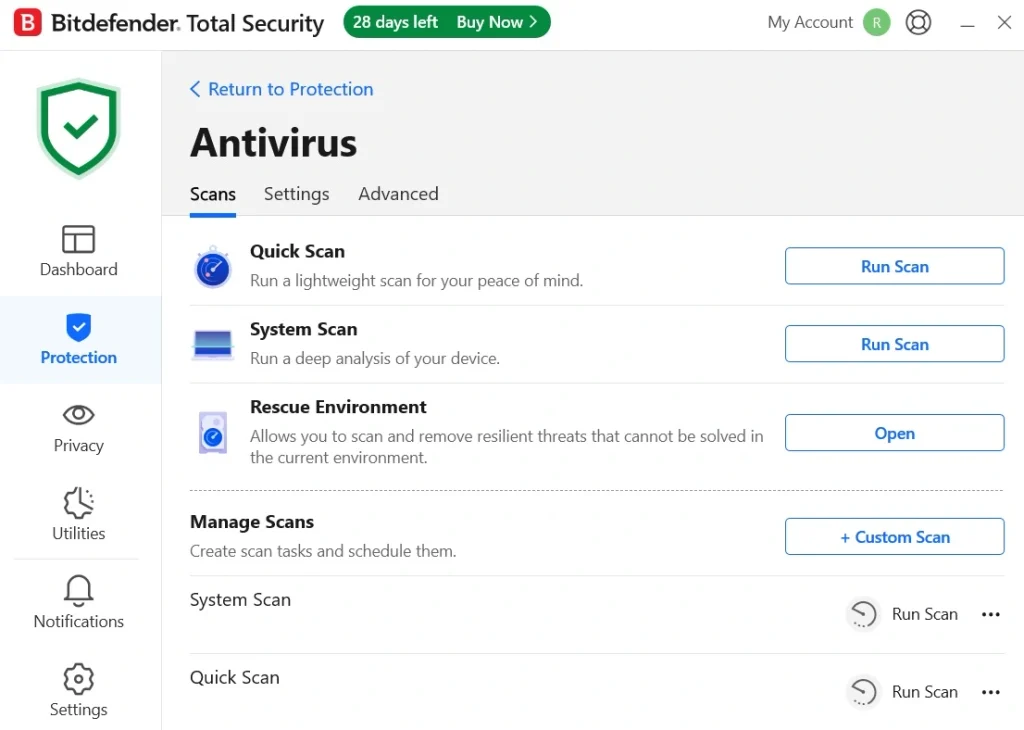
This is the core of the product. Real-time protection checks files, apps, and web content as they are used. Bitdefender says most scanning work happens in its cloud network, called the Global Protective Network. The company also states that it does not scan the contents of your files or upload them to the cloud. You can run a quick scan or a deeper system scan whenever you want a manual check.
Advanced Threat Defense
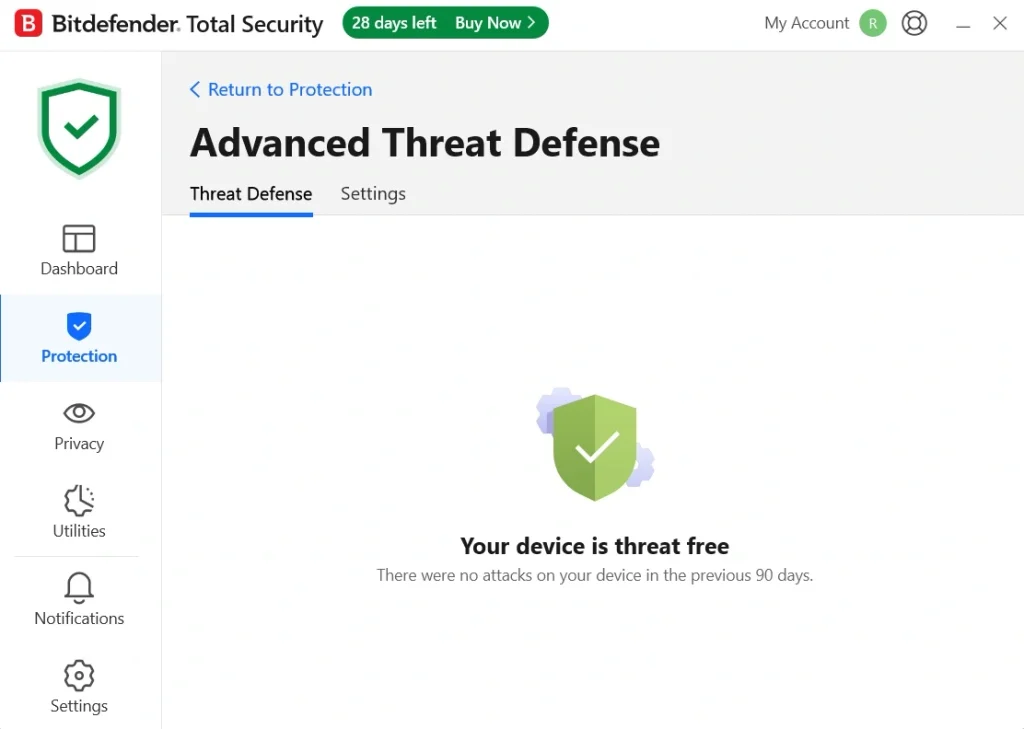
Signature-based detection only catches threats that are already known. Advanced Threat Defense adds behavior monitoring. It watches active apps closely and acts the moment something looks suspicious. This helps against new threats and zero-day attacks that have no known signature yet. It also works together with the ransomware layer to protect important files.
Multi-Layer Ransomware Protection
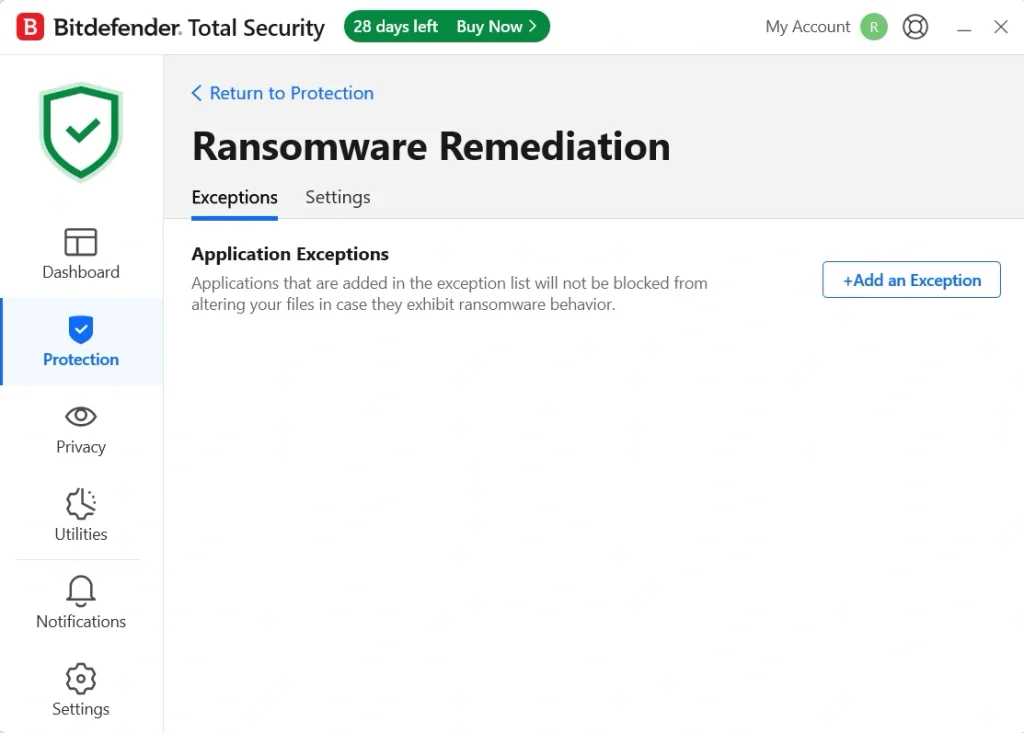
Ransomware locks files and demands payment. Bitdefender’s approach has several layers. A data protection layer guards documents, pictures, videos, and music against encryption. Ransomware Remediation steps in if an attack gets through, and it restores affected files automatically. Reviewers rate this area highly. A PCMag UK review of the free edition also said Bitdefender removed all ransomware samples on sight.
Online threat Prevention, Anti-Phishing, and Scam Protection
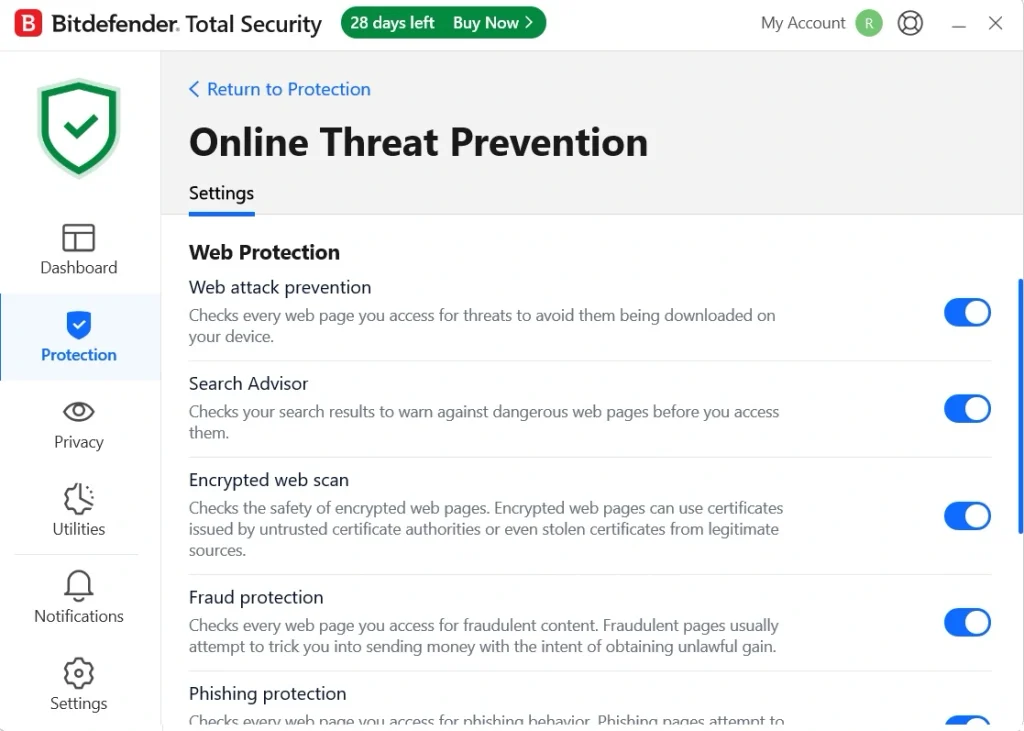
Many attacks start with a link. Web Attack Prevention checks search results and blocks known infected links. Anti-phishing blocks sites that pretend to be trusted ones. Anti-fraud warns you when a site may try to scam you. The newer Scam Protection feature blocks phishing and fake shops in real time. It also recognizes emerging scams on SMS and social media, according to Bitdefender.
Vulnerability Assessment and Rescue Environment
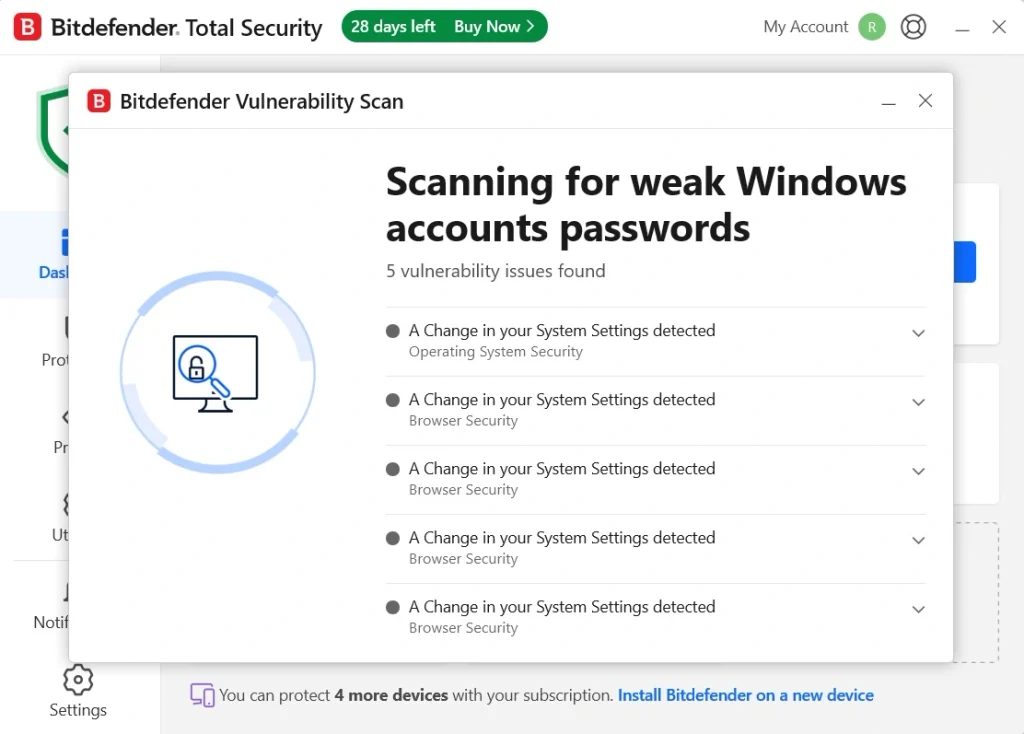
Old software and missing patches are common entry points for attacks. Vulnerability Assessment checks for outdated apps, missing Windows security patches, and unsafe system settings, then suggests a fix. Some threats, such as rootkits, must be removed before Windows starts. For those cases, Rescue Environment reboots the PC into a clean space for repair and restoration.
Safepay, VPN, and Privacy Tools
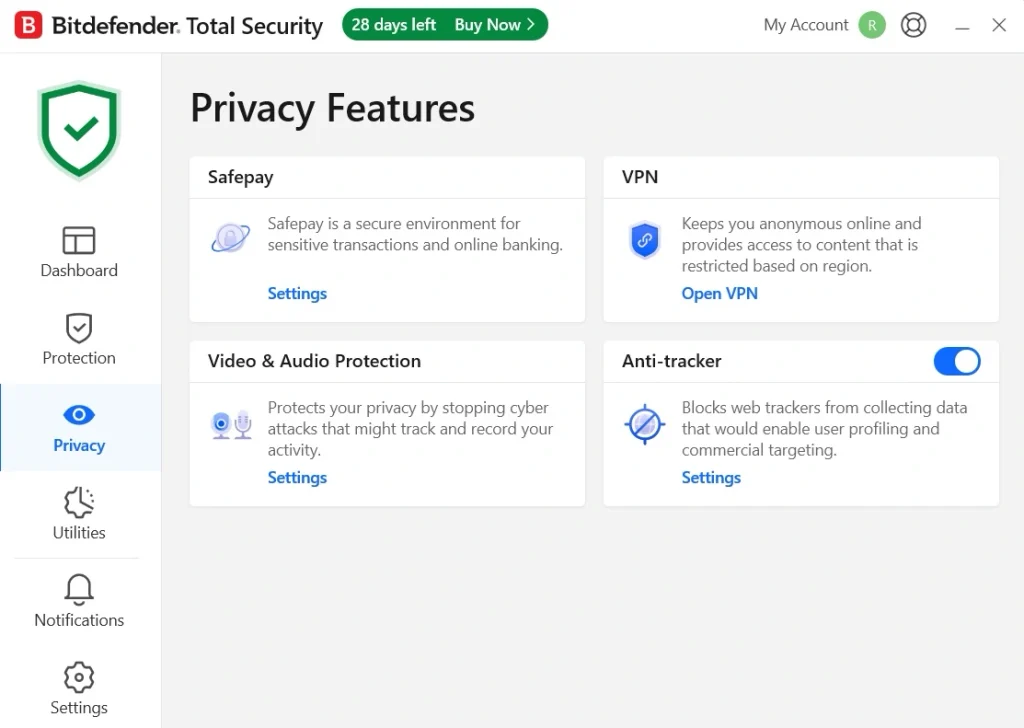
Safepay is a dedicated browser for online banking and shopping. It isolates the session to reduce fraud risk, and it can fill in card details. Antivirus Plus also includes Bitdefender VPN with up to 200 MB per day of traffic. That is enough for quick, private tasks, but not for heavy streaming. Other privacy tools include Anti-Tracker, a Wi Fi Security Advisor, and a File Shredder.
Autopilot and Activity Modes
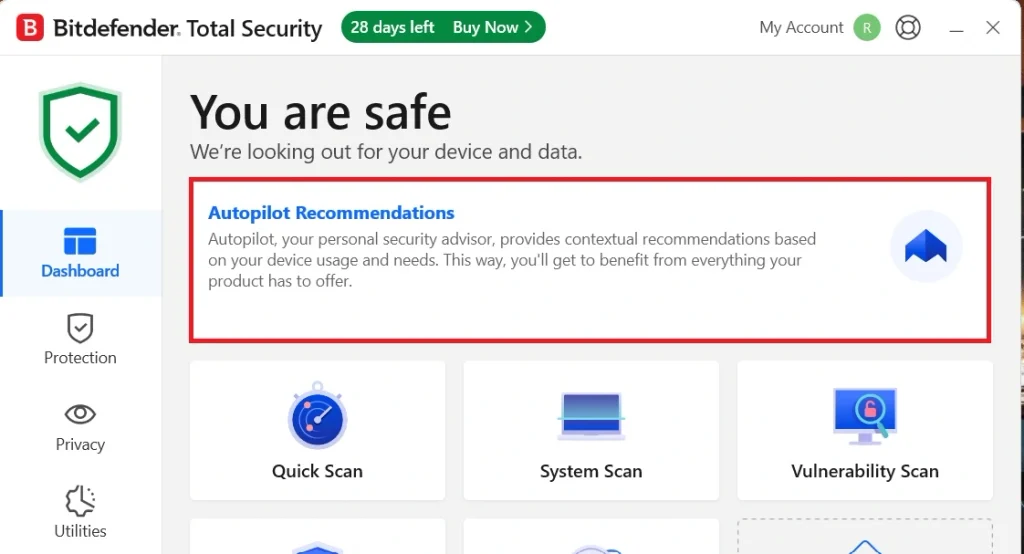
Autopilot works as a security advisor. It recommends actions based on how you use the PC. Game, Movie, and Work Modes detect what you are doing, pause pop-ups, adjust visual settings, and hold back unimportant background tasks. Battery Mode helps laptops by adjusting display, cooling, updates, and Bluetooth settings. These tools aim to keep protection from getting in your way.
Part 4: How to Use Bitdefender Antivirus: Step-by-Step Setup Guide
Setting up Bitdefender takes about ten to fifteen minutes. The product is built to be simple, and most settings are handled for you. Even so, a little preparation avoids problems.
Before you begin, save your work. Uninstall any other third-party antivirus first. Running two real-time antivirus products at once can cause conflicts. Keep your email handy, since your activation steps arrive there. Then follow these three steps.
Step 1: Create Your Account and Install
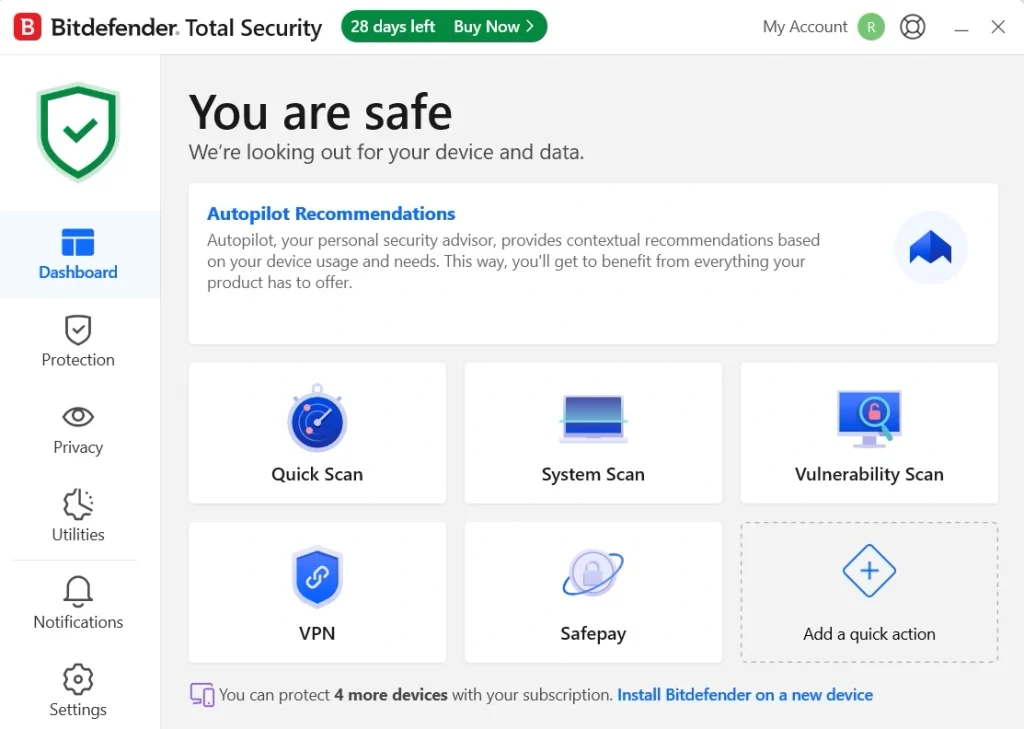
Go to Bitdefender’s official website. Buy a plan or start the 30-day free trial, which needs no credit card. Create a Bitdefender Central account with the same email you used for the purchase. Sign in, go to My Devices, and choose to install protection on this PC. Run the installer and follow the prompts. It downloads the latest files, so keep your internet connection on. When the install finishes, open the app. Click Quick Scan. Run a first scan.
Step 2: Run Your First Scan
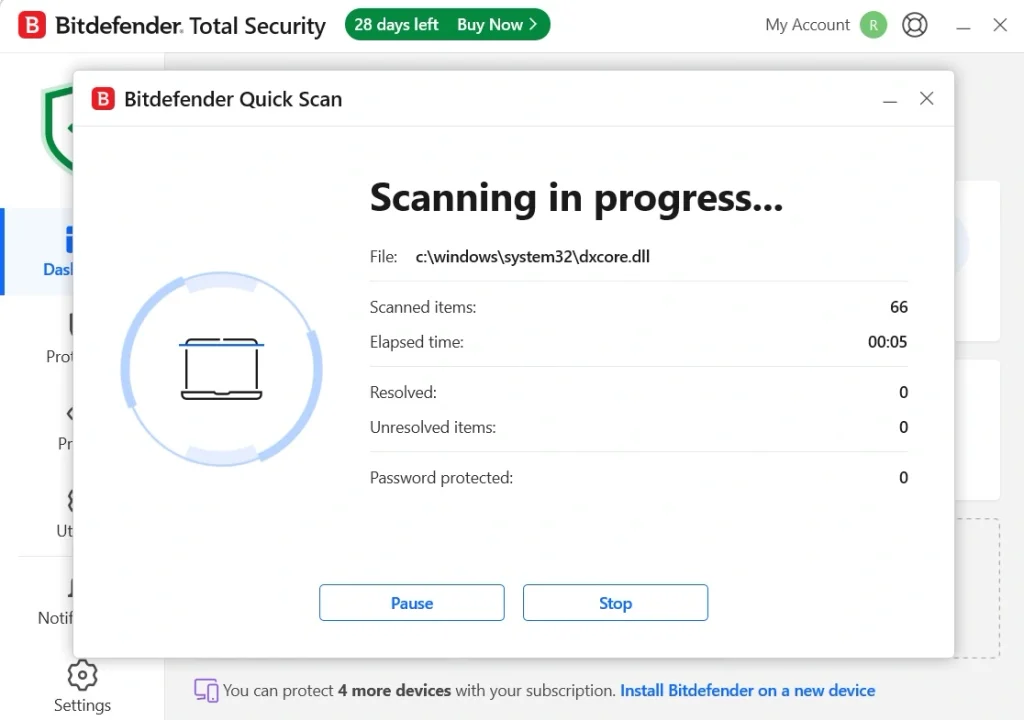
Now, after a quick scan, run a full system scan when you have time. The first full scan takes longer, and your PC may feel slower while it runs. Later scans are faster.
Step 3: Review Your Protection Settings
Open the protection settings and make sure the key shields are on. These include real-time protection, Advanced Threat Defense, and Online Threat Prevention. One review warns that some protections the company markets arrive switched off, so check each one. Turn on Autopilot for background advice. Then run a Vulnerability Assessment and install any missing updates it flags.
Part 5: System Impact: How Much Does Bitdefender Slow Down Your PC?
Bitdefender’s impact on system performance can be checked by comparing CPU, RAM, and disk usage before and after installation. I used the Task Manager app on my Windows 11 laptop to check the same.
On my laptop, idle CPU usage was around 36% before installation and 4% afterward, while RAM usage increased by about 250 MB.
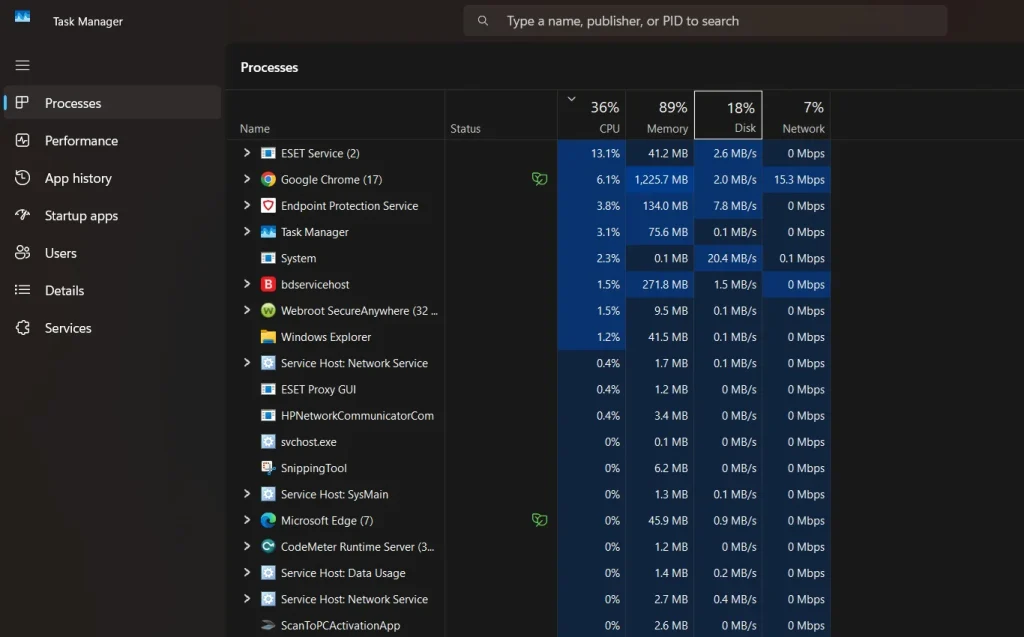
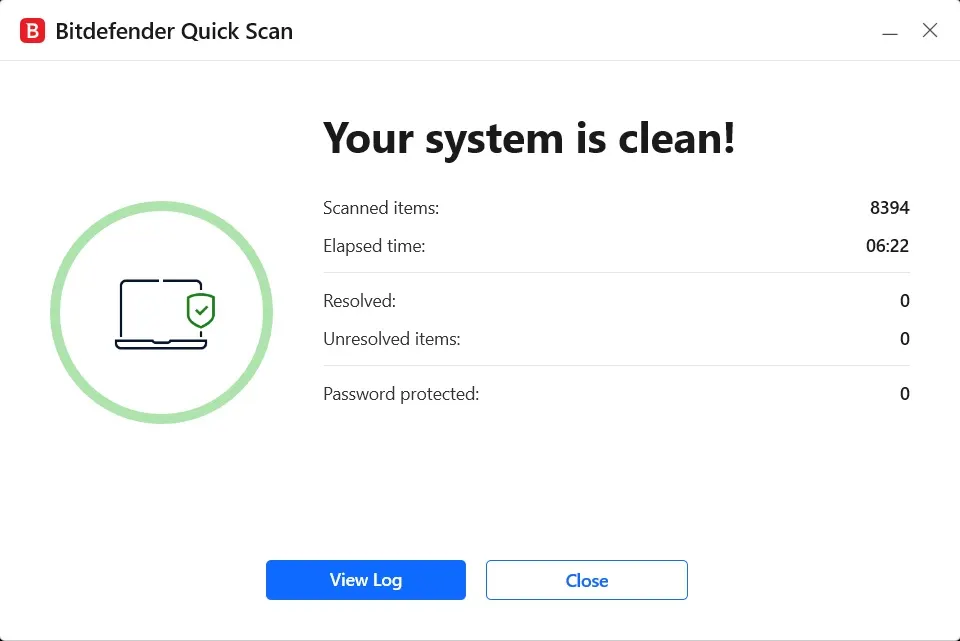
During a quick scan, CPU use reached 39%, while the full system scan took around 6 minutes. The fan sped up slightly, and apps like Chrome and Word felt mostly unaffected.
Resource usage returned to normal after scanning.
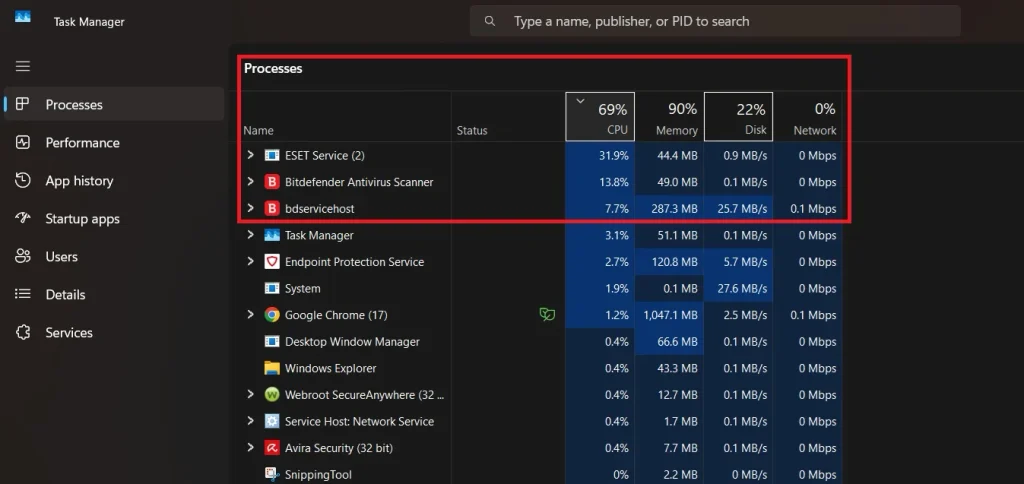
In everyday use, browsing, document editing, and video calls felt smooth. Boot time changed from around 22 to 24 seconds. Bitdefender’s Photon technology adapts to system resources, while its Game, Movie, and Work Modes help reduce interruptions.
The software requires at least 2 GB of RAM and 2.5 GB of free disk space. Older PCs may experience slowdowns, so scheduling full scans outside working hours can help.
Part 6: Pros and Cons: Bitdefender Antivirus
No security product is perfect. Being honest about weak points matters as much as praising strong ones. Below is a clear list of pros and cons, based on our use and on common patterns in reviews.
Pros
- Excellent protection record: Labs and reviewers consistently rank it near the top for malware detection.
- Ransomware defense: Multi-layer protection and file recovery add real value.
- Phishing and scam blocking: Web and scam filters catch fake sites and shops.
- Light on resources in most tests: Cloud scanning and Photon aim to limit impact.
- Useful extras: SafePay, VPN, anti-tracker, and a file shredder come with the plan.
- Risk-free start: A 30-day free trial and a 30-day refund window lower the risk.
Cons
- Renewal price jumps: First-year prices are low, but renewals cost much more.
- Limited VPN: The included VPN allows only 200 MB per day.
- Some protections need checking: One review says protections arrive switched off by default.
- No firewall or password manager in Antivirus Plus: Those features need Total Security, which costs more.
Part 7: Pricing Plans: Bitdefender Antivirus Free, Plus, and Total Security
Bitdefender sells several Windows products. First-year prices are low, and renewal prices are higher. The prices below come from Bitdefender’s official page in October 2026 and from review sites. Offers change often, so check the current price at checkout.
- Bitdefender Antivirus Free: No cost. Windows only. It covers real-time protection and core scanning, but it lacks many paid features.
- Antivirus Plus, 1 device: $24.99 for the first year.
- Antivirus Plus, up to 3 devices: $29.99 for the first year.
- Total Security, up to 5 devices: $59.99 for the first year.
- Renewal Prices: Review sites list Antivirus Plus renewals from about $49.99 to $69.99, and Total Security near $89.99. Bitdefender confirms that renewals cost more than the first year.
- Trial and Refund: A 30-day free trial with no credit card, and a 30-day refund window.
Here is a side-by-side look at the three Windows products, based on the official comparison and review sites.
| Feature | Antivirus Free | Antivirus Plus | Total Security |
| Real-time protection | Yes | Yes | Yes |
| Multi-layer ransomware protection | Basic only | Yes | Yes |
| Scam Protection | Not listed | Yes | Yes |
| SafePay secure browser | No | Yes | Yes |
| VPN | No | 200 MB per day | 200 MB per day |
| Password management | No | No | Yes |
| Device Optimizer | No | No | Yes |
| Cryptomining Protection | No | No | Yes |
| Privacy Firewall | No | No | Yes |
| Devices covered | 1 Windows PC | 1 to 3 devices, all platforms | Up to 5 devices |
| First year price | Free | $24.99 to $29.99 | $59.99 |
Summary: The free edition suits basic protection. Antivirus Plus adds ransomware layers, Scam Protection, and SafePay. Total Security adds a firewall, password manager, and optimizer for users who want an all-in-one suite.
Part 8: My Test Run: What Happened on a Real Windows PC
I installed Bitdefender Antivirus Plus on my Windows 11 laptop using the free trial. Before I began, I removed my other security software. I created a Bitdefender Central account, signed in, and started the install from My Devices. The setup took a few minutes. The app was ready right after the first update download.
I ran a quick scan and then a full system scan. The full scan took longer, and I noticed the laptop fan speed up while it ran. After the scan finished, performance returned to normal.
I also checked each protection setting, since one review had warned that some shields start switched off. It was not perfect. I saw prompts that pointed to other Bitdefender products. The included VPN was too limited for anything beyond quick tasks.
Still, the app felt calm and well organized, and I did not have to make many decisions. For people who want strong protection without constant tuning, it did its job. I would keep it, but I would watch the renewal price.
Part 9: Bitdefender Trust Score: What Do the Reviews Say?
Bitdefender has one of the strongest reputations among home antivirus products. Lab results are consistently high, and many reviewers recommend it. The criticism focuses on pricing after the first year, limited extras in the base plan, and some setup details.
Trust and Reputation Notes
- Lab results: Bitdefender’s page cites an AV-TEST protection score of 5.96 out of 6 from 2011 to August 2026. This is a vendor claim based on AV-TEST data.
- Recent tests: One review reports a 99.94 percent online protection rate in AV-Comparatives’ March 2026 test, with a few false alarms.
- Past awards: TechRadar notes that AV-Comparatives named Bitdefender its Outstanding Product of the Year for 2023.
- Expert caution: Reviewers advise you to check settings after installation, watch renewal prices, and install only one real-time antivirus.
Reviews and Ratings
| Source | Rating | Highlights | Concerns |
| AV-TEST (cited by Bitdefender) | 5.96 out of 6 protection score, 2011 to August 2026 | Top protection results over many years | Vendor presents the data |
| Gizmodo (2026) | Positive, no score seen | Full marks in AV-TEST’s June 2026 Windows round, strong detection | Renewal prices rise, and some protections arrive switched off |
| TechRadar | Positive, no score seen | Top ransomware protection, Outstanding Product of the Year 2023 | An 11th place result in one malware protection test |
| MajorGeeks (free edition) | Positive, no score seen | Lightweight, real-time and phishing protection | Occasional upgrade nags and limited scan options |
| Tech Insider (2026) | Positive, no score seen | Gold in AV-Comparatives Advanced Threat Protection | Did not place in AV-Comparatives’ 2025 Overall Performance test |
Strengths Noted Worldwide
- Detection: Labs and reviewers rank its malware protection near the top.
- Ransomware defense: The multi-layer approach earns praise.
- Ease of use: Autopilot and simple settings suit beginners.
Limitations Affecting Trust
- Renewal cost: First-year discounts hide a higher ongoing price.
- Limited extras: The base plan has no firewall or password manager.
- Upgrade prompts: The free edition nudges you toward paid plans.
- Mixed performance data: Lab results on system impact vary by test.
Part 10: Who Should Use Bitdefender, and Who Can Skip It
Bitdefender is a strong product, but it does not suit everyone. The best choice depends on how you use your PC, how many devices you protect, and how much you want to spend. The lists below show which side you are likely to fall on.
It is a good fit if you:
- Bank, shop, or pay bills online often and want the Safepay secure browser
- Keep important documents, photos, or work files that you cannot afford to lose to ransomware
- Want a single plan that covers up to three devices across Windows, macOS, Android, and iOS
- Receive many links by email, SMS, or social media and want phishing and Scam Protection
- Prefer quiet, set-and-forget protection, with Autopilot making most decisions
- Like to test a product first, since the 30-day free trial needs no credit card
- Use a PC that still runs Windows 7 SP1 or 8.1, which Bitdefender lists as supported
- Do not mind paying a yearly fee for added layers beyond the built-in protection
You may want to skip it if you:
- Browse carefully, install little software, and only need basic protection
- Expect a firewall, password manager, or device optimizer, since these come with Total Security, not Antivirus Plus
- Plan to use the included VPN for streaming or large downloads, since it is limited to 200 MB per day
- Dislike renewal increases, because prices rise after the first year
- Use a PC with less than 2 GB of RAM or less than 2.5 GB of free disk space
- Already run another full security suite with real time protection
- Want a completely free option and are fine with the more limited free edition
- Use a work PC where your IT team manages security for you
Part 11: Getting the Most Out of Bitdefender: Smart Settings and Habits
Installing an antivirus is only half the job. A few settings and habits decide how well it protects you and how much it costs over time. Use the tips below after your first scan. They take only a few minutes, and they apply to Bitdefender Antivirus Plus on Windows.
- Remove other antivirus software first: Run only one real-time antivirus. Two at once can cause conflicts and slow your PC.
- Check the key shields: Open the protection settings and confirm that real time protection, Advanced Threat Defense, and Online Threat Prevention are on. One reviewer notes that some protections arrive switched off.
- Turn on Autopilot: It acts as a security advisor and recommends actions based on how you use your PC. This saves you from guessing what to change.
- Run the Vulnerability Assessment: It checks for outdated apps, missing Windows security patches, and unsafe settings. Run it once a month and apply the fixes it suggests.
- Use Safepay for banking: Open banking and payment sites in the Safepay browser. It isolates the session and can fill in card details for you.
- Schedule full scans for quiet hours: A full system scan uses more CPU, so run it when you are away from the PC, for example at night or during a break.
- Manage devices in Bitdefender Central: Sign in to your Central account to add a new device, remove an old one, or reinstall after a PC change. If an old computer is no longer in use, you do not need an extra slot.
Conclusion
Bitdefender Antivirus is a strong, well-tested security product for Windows. It combines real-time scanning, behavior monitoring, ransomware protection, and phishing and scam blocking. Extras like SafePay and a limited VPN add value. Most lab tests rate its protection near the top, and its design aims to keep system impact low.
The weak points are clear too. Renewal prices climb after the first year. The base plan lacks a firewall and password manager. Some protections may need to be switched on after install. System impact is low in most tests, but results vary, and full scans can use more CPU on older machines.
Is it worth using on a Windows PC? If you want stronger protection against ransomware, phishing, and scams, and you do not mind a modest yearly cost, yes. Start with the 30-day free trial or the free edition. If your needs are basic and you are careful online, the built-in Windows protection may be enough. Whichever you choose, run only one real-time antivirus and keep Windows updated.
FAQs
1. Is Bitdefender worth using when Windows already has built-in protection?
It depends on your needs. Windows includes basic protection at no cost, so careful users with simple needs may be fine without extras. Bitdefender adds multi-layer ransomware defense, Scam Protection, a secure banking browser, and a vulnerability check. Its lab results are consistently strong. If you handle banking, work files, or family devices, those extras may be worth the price. Try the 30-day free trial and compare how it feels on your PC.
2. Is the free edition enough, or should I buy Antivirus Plus?
The free edition gives you real time protection and core scanning on Windows. It lacks many paid features, such as multi-layer ransomware protection, Safepay, the VPN, and the optimizer, according to Softpedia. Antivirus Plus adds ransomware layers, Scam Protection, SafePay, and a limited VPN, and it covers more devices. If you only want basic malware protection, the free edition may do. If you bank and shop online often, Antivirus Plus is the better fit.
3. Can I run Bitdefender together with another antivirus?
It is best not to. Running two real-time antivirus products can cause conflicts and slow your PC. Uninstall other third-party antivirus software before you install Bitdefender. Once Bitdefender is active, it handles real time protection. After the install, check that your protection settings are on and that Windows shows your security status correctly.
Author Bio:
Dinesh Lakhwani 

Dinesh Lakhwani, the entrepreneurial brain behind “TechCommuters,” achieved big things in the tech world. He started the company to make smart and user-friendly tech solutions. Thanks to his sharp thinking, focus on quality and the motto of never giving up, TechCommuters became a top player in the industry. His commitment to excellence has propelled the company to a leading position in the industry.
Popular Post
Recent Post
Top 5 Lightest Antivirus Software To Protect Your PC
Introduction: Antivirus software helps protect Windows PCs from digital threats. It detects viruses, blocks ransomware, and alerts users about unsafe websites. However, some security tools consume too much RAM and CPU power. This can make everyday tasks feel slow. Older laptops and low-end PCs often face this problem. The computer may take longer to start. […]

How To Disable Cookies in Browser [Complete Guide]
So, search for a pair of shoes once online. Close the tab. By evening, those same shoes are sitting on your news site, your video app, and even your recipe blog. Nobody placed them there by chance. A cookie did. Well, yes! Cookies are small files that websites place on your device while you browse. […]

How To Disable Background Apps In Windows: 4 Quick Methods
A slow PC rarely gives a warning. One day, it simply takes longer to start. Apps open late. The fan runs loud, even when the screen is almost empty. Most people blame old hardware. Often, that is not the real reason. The real reason is hiding in plain sight. Windows keeps many apps active in […]

How to Activate Windows with a Product Key for Windows 11 & Windows 10
It always shows up at the worst time. You are halfway through a report, or about to join a video call. Then you spot it in the bottom right corner of the screen. Activate Windows. Go to Settings to activate Windows. Initially, an unactivated copy of Windows may seem like a minor inconvenience. Over time, […]

Is Easy Duplicate Finder Worth It? Honest Review
The photos folder looked normal at first glance. Then the storage warning popped up. One trip photo appeared four times. A tax PDF sat in three different folders. Two old setup files were still in Downloads, and each one was over 500 MB. Nobody plans this mess. Copies pile up slowly. A download runs twice. […]

Wise Duplicate Finder Review: Real Results from Wise Duplicate Finder
Read my honest Wise Duplicate Finder review. See features, pricing, pros and cons, and real PC test results. Find out if this free duplicate cleaner can free up your Windows storage.

How to Recover Deleted Files from Pen drive, USB Drive, SD Card
Introduction: On tech forums, you’ll often see posts like this: “I connected my pen drive to my laptop this morning, but the folder was empty. All my college project files had vanished. I don’t have a backup. Can someone help me?” Stories like this are very common. Pen drives, USB drives and SD cards are […]

How To Recover Files Deleted from the Recycle Bin [Windows 11]
Losing a file can happen in seconds. You clear your desktop, hit Delete, and empty the Recycle Bin. Then, just when you need that file again, it seems to have vanished. This guide will walk you through ways to restore files removed from the Recycle Bin. We will begin with simple fixes, then look at […]

Disk Drill Data Recovery Tool Explained: Full Review and Guide
It happens in a split second. You delete a folder by mistake. Your drive stops showing up. A photo album from your last trip just vanishes. And your stomach drops. Lost files feel personal. They are not just data. They are memories, work hours, and sometimes years of effort packed into a few gigabytes. When […]

