












So, search for a pair of shoes once online. Close the tab. By evening, those same shoes are sitting on your news site, your video app, and even your recipe blog. Nobody placed them there by chance. A cookie did. Well, yes! Cookies are small files that websites place on your device while you browse. […]
Top AI Features Hidden Inside Windows 11
Most people open their laptop, check email, and close it. They never look past the desktop wallpaper. But Windows 11 has grown into something much bigger than a place to open apps. Microsoft has quietly packed it with smart tools that watch, listen, and help without asking for attention. Many users have no idea these tools even exist.
That is a shame, because some of these tools can save real time. A tool that rewrites a messy paragraph in two seconds. A tool that finds a file you saw last week but forgot to save. A tool that blurs your background during a video call without a green screen. These are not science fiction ideas anymore. They sit inside your Start menu, your right-click menu, and your Settings app right now.
Hidden AI Features For Windows 11 Users
This article walks you through the top AI features in Windows 11 that are worth knowing. We will cover what these features are, how to stay safe while using them, and the nine tools that deserve a spot on your daily workflow.
Part 1: What are AI Features on Windows 11?
AI features on Windows 11 are small programs built into the operating system that use machine learning to help with everyday tasks. They do not look like a separate app most of the time. Instead, they show up inside tools you already use, such as File Explorer, Snipping Tool, Photos, and the taskbar. Some run fully on your device using a special chip called an NPU. Others send your request to the cloud and bring back an answer within seconds.
The goal behind these tools is simple. Microsoft wants your PC to feel less like a machine you operate and more like a helper that understands what you are trying to do. That is why you now see options to summarize a document, remove a person from a photo, or search your screen history using plain words.
Some of these tools need newer hardware called a Copilot+ PC. Others work on almost any Windows 11 machine sold in the last two years.
Part 2: Stay Safe First: Precautions Before Turning On AI Features
Before you switch on every AI toggle you see, it helps to pause. These tools are useful, but a few of them touch personal data in ways you should understand first. Here are eight things to check before you dive in.
- Read what each feature actually does. Some tools take screenshots of your screen every few seconds. Others send text to the cloud. Open the description in Settings before you turn anything on.
- Check if the feature runs on your device or online. On-device tools keep your data local. Cloud-based tools send data outside your PC, so treat them with more caution.
- Turn off Recall if you share your PC. Recall stores a searchable history of your screen. Anyone who logs into that account could see what you were doing.
- Avoid using AI tools on sensitive documents. Do not run tax papers, medical records, or work contracts through cloud-based rewriting tools unless your company allows it.
- Review your privacy settings regularly. Windows updates sometimes turn features back on. Check your Settings app after every major update.
- Use a strong PIN or password. Many AI features are tied to your Windows login, so a weak password puts your saved data at risk too.
- Be careful with camera and microphone permissions. Features like Windows Studio Effects and Live Captions need access to your camera or mic. Grant access only to apps you trust.
- Keep your system updated. Microsoft patches security holes in AI tools often. An outdated PC is more exposed to bugs and leaks.
Part 3: Top 9 Windows PC AI Features You Must Know About
Windows 11 hides these tools in plain sight, and most users walk past them every single day.
NOTE: Worth noting, most of these features have not been officially rolled out to everyone yet.
If you’re curious, you can check whether your PC is on the Windows Insider Program, since that’s often where Microsoft introduces experimental features first.
Below are the nine AI features worth learning, along with simple steps to turn each one on.
1. Copilot on the Taskbar
Copilot sits quietly on your taskbar, ready whenever you need a quick answer. It can write an email draft, explain a confusing error message, or summarize a long article you pasted in. Think of it as a chat window that lives inside your desktop instead of a browser tab.
What makes Copilot useful is how fast it responds without switching apps. You do not need to open a browser or download anything extra. It already understands basic system tasks too, so it can guide you to a setting you cannot find.
For anyone who feels overwhelmed by Windows menus, Copilot acts like a friendly guide standing next to you. It answers in plain language and adjusts based on your follow-up questions.
Step 1: Click the Copilot icon on your taskbar.
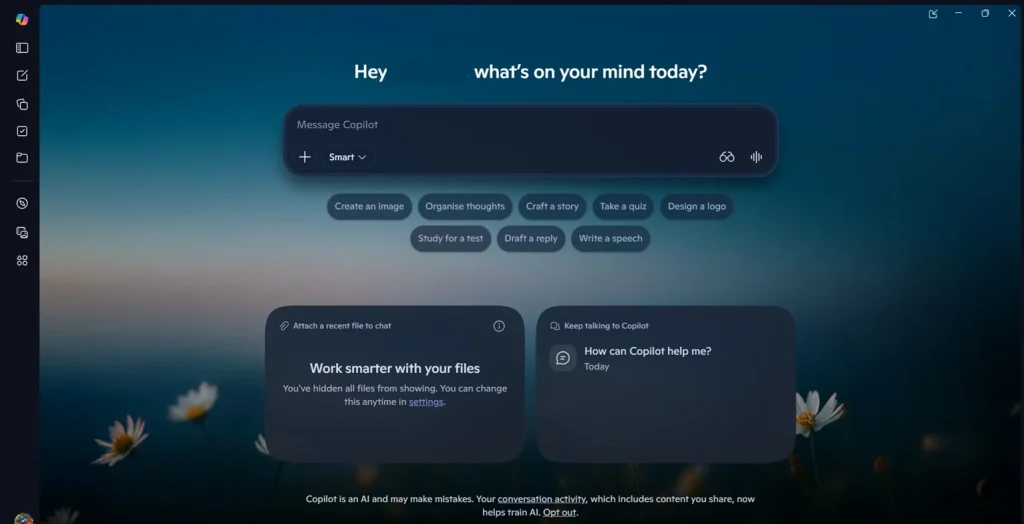
Step 2: Type your question or request in the chat box. Review the answer and ask a follow-up question if needed.
2. Windows Recall
Recall is one of the most talked-about AI features in Windows 11. It quietly takes snapshots of your screen every few seconds and stores them in an encrypted, searchable timeline. Instead of digging through old folders, you type what you remember, and Recall finds it.
This tool works fully on your device if you own a Copilot+ PC. That means the search happens locally, not on a distant server. It can locate a spreadsheet you edited last Tuesday, or a website you visited but forgot to bookmark.
Because Recall stores so much activity, it is smart to review your settings before turning it on, especially on a shared computer.
Step 1: Open Settings and go to Privacy and security. Select Recall and snapshots.
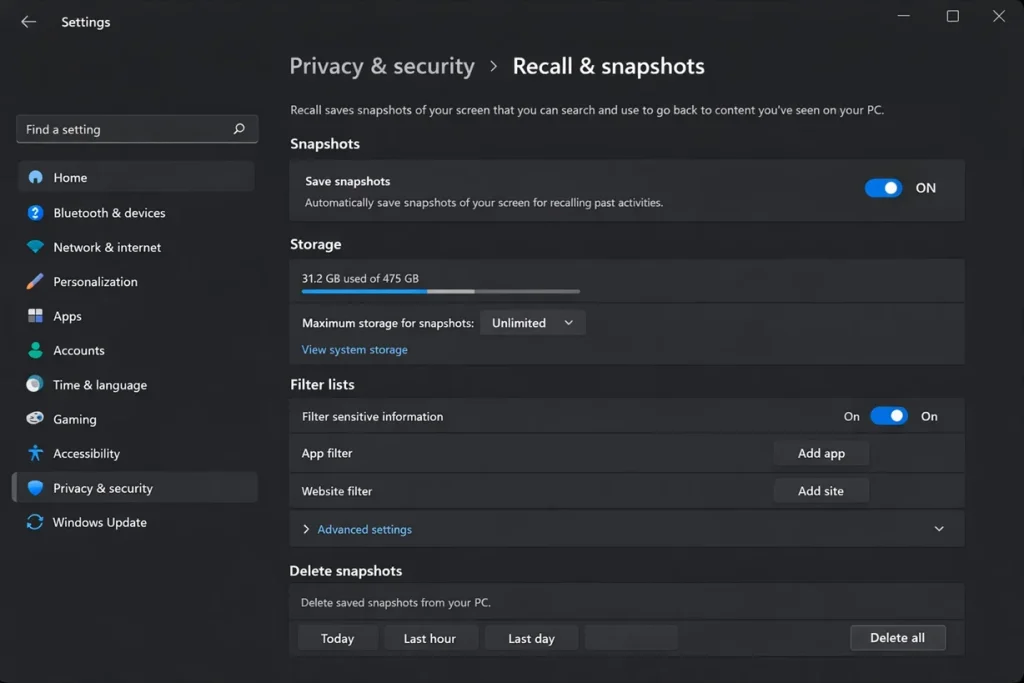
Step 2: Turn on the feature and choose which folders or apps to exclude.
3. Click to Do
Click to Do lets you highlight text or images on your screen and instantly send them to an AI action. Right-click on a paragraph, a photo, or even a screenshot, and a menu pops up with smart suggestions.
This feature saves time because you skip the usual copy and paste steps. You can summarize a paragraph, rewrite a sentence, or blur part of an image directly from where you are working.
It works best on Copilot+ PCs, where the processing happens locally through the NPU chip, keeping things fast and private.
Step 1: Press the Windows key plus the Click to Do shortcut, or right-click on selected content.
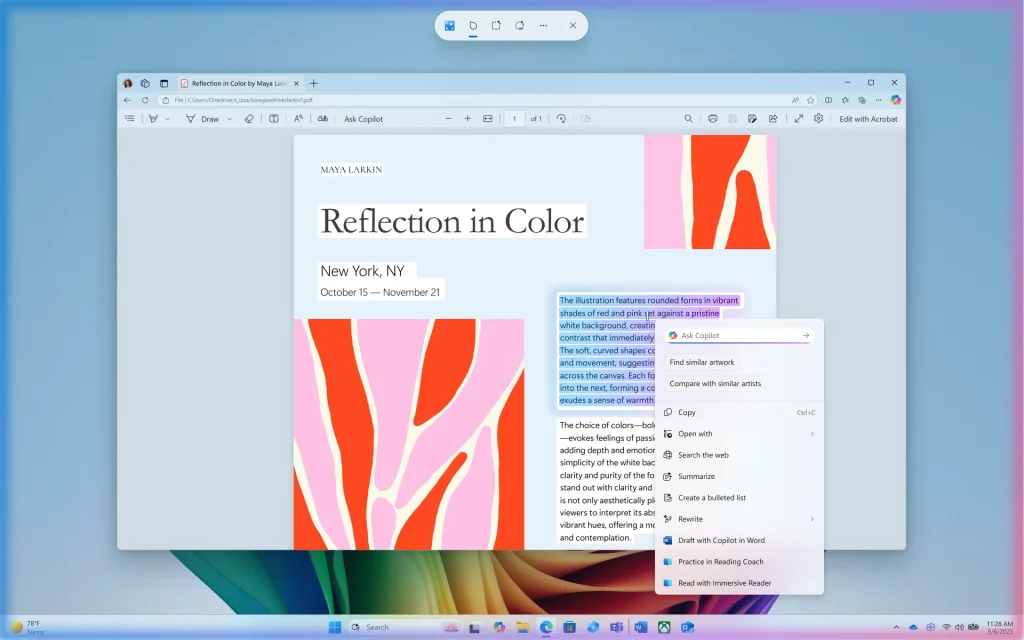
Step 2: Choose an action from the menu, such as summarize or rewrite. Review the result and copy it if you want to use it elsewhere.
4. Windows Studio Effects
Windows Studio Effects improves how you look and sound during video calls. It blurs your background, adjusts your eye contact, and reduces background noise, all without any extra software.
This feature relies on your camera and the built-in NPU chip to process video in real time. You do not need a green screen or a fancy microphone to get a cleaner call.
It is especially useful for remote workers who take back-to-back meetings in less than ideal rooms.
Step 1: Open Settings and go to Bluetooth and devices, then Cameras.
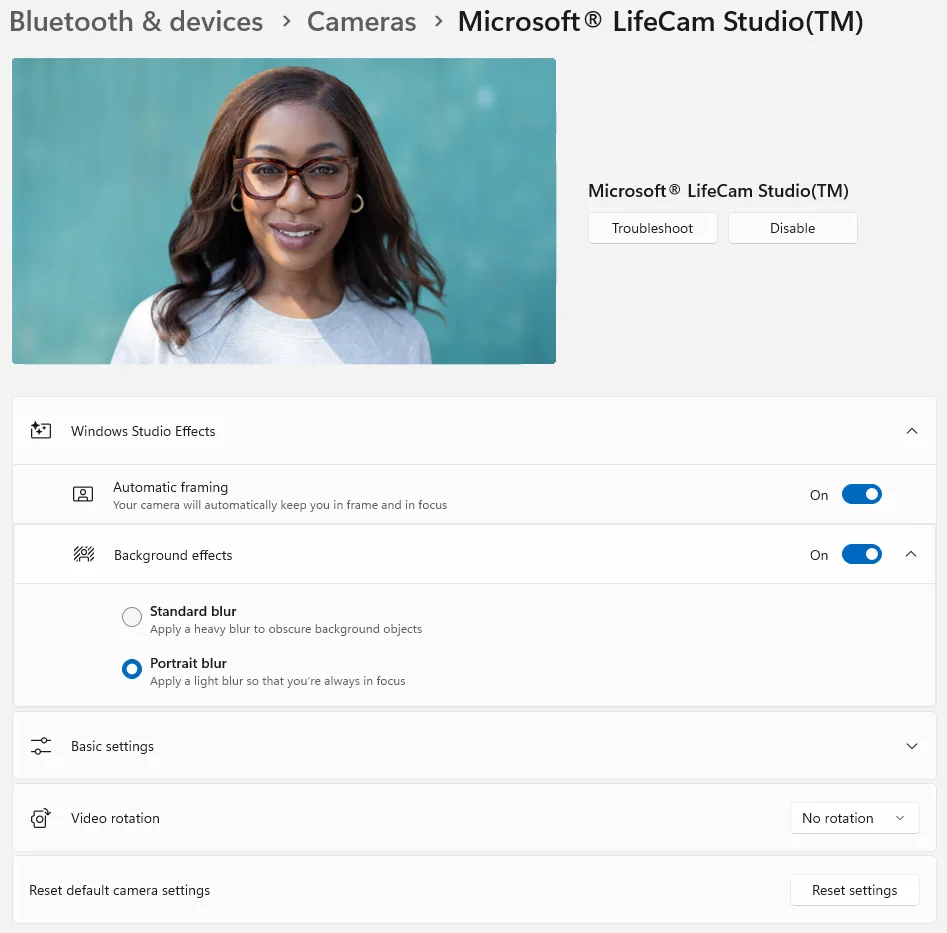
Step 2: Select your webcam and open Windows Studio Effects. Turn on background blur, eye contact, and voice focus as needed.
5. Live Captions with Translation
Live Captions adds real-time subtitles to any audio playing on your PC, even videos without built-in captions. It also translates spoken language into English text as it plays.
This feature helps people who are hard of hearing, but it also helps anyone watching a video in a language they do not fully understand. You get captions instantly, without pausing the video to search for a translation.
It works across apps too, so a YouTube video, a podcast, or a work call all get the same live caption support.
Step 1: Press Windows key plus Ctrl plus L to open Live Captions.

Step 2: Click the settings icon inside the caption bar. Turn on translation and pick your preferred language.
6. Cocreator in Paint
Cocreator brings AI image generation directly into the classic Paint app. You type a short description, and Paint draws an image based on your words. You can also sketch a rough shape and let AI turn it into a polished picture.
This feature is great for quick visuals, like a birthday card design or a simple illustration for a presentation. You do not need any design skills to get a decent result.
It blends your own drawing with AI suggestions, so the final image still feels personal rather than fully automated.
Step 1: Open Paint and click the Cocreator icon in the toolbar.
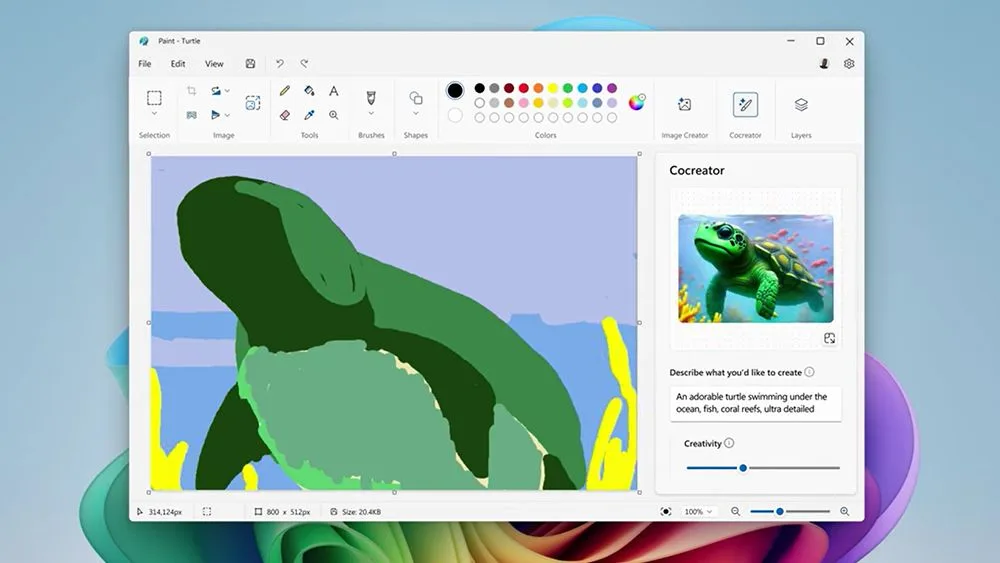
Step 2: Type a description of the image you want, or sketch a rough shape. Choose your favorite result from the generated options.
7. Photos App AI Editing
The Photos app now includes tools like Restyle and Super Resolution. Restyle can change the look of a picture, turning a regular photo into a sketch or painting style. Super Resolution sharpens blurry or low-quality images.
These tools remove the need for separate photo editing software for simple fixes. You can clean up an old scanned photo or enhance a picture taken in low light within seconds.
Since the AI features in Windows 11 handle this locally on supported hardware, your photos do not need to leave your device to get these edits.
Step 1: Open the Photos app and select an image.
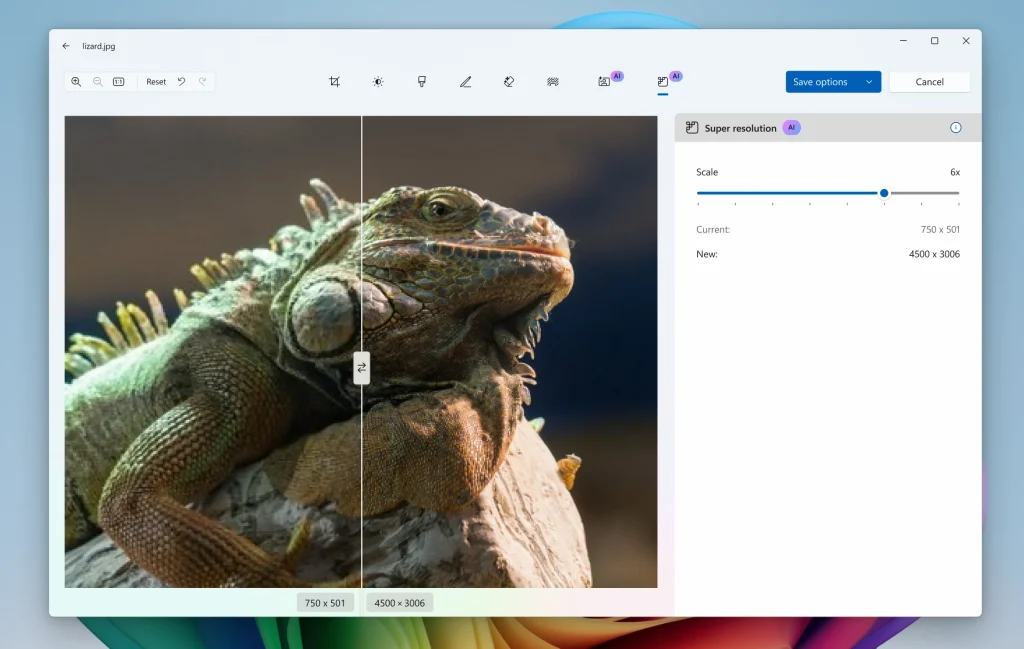
Step 2: Click Edit, then choose Restyle or Super Resolution from the tools panel. Adjust the strength of the effect and save your edited photo.
8. Snipping Tool Text Actions
The Snipping Tool now reads text inside your screenshots. After capturing an image, click Text Actions to copy any visible text, or use Quick Redact to hide phone numbers and email addresses before sharing.
This is handy when you screenshot a document, a receipt, or a form and need the text without retyping it manually. It saves time compared to manually transcribing details from an image.
Quick Redact is useful for privacy too, though it currently works best on phone numbers and emails, so always double-check before sending a screenshot to someone else.
Step 1: Open Snipping Tool and capture a screenshot.
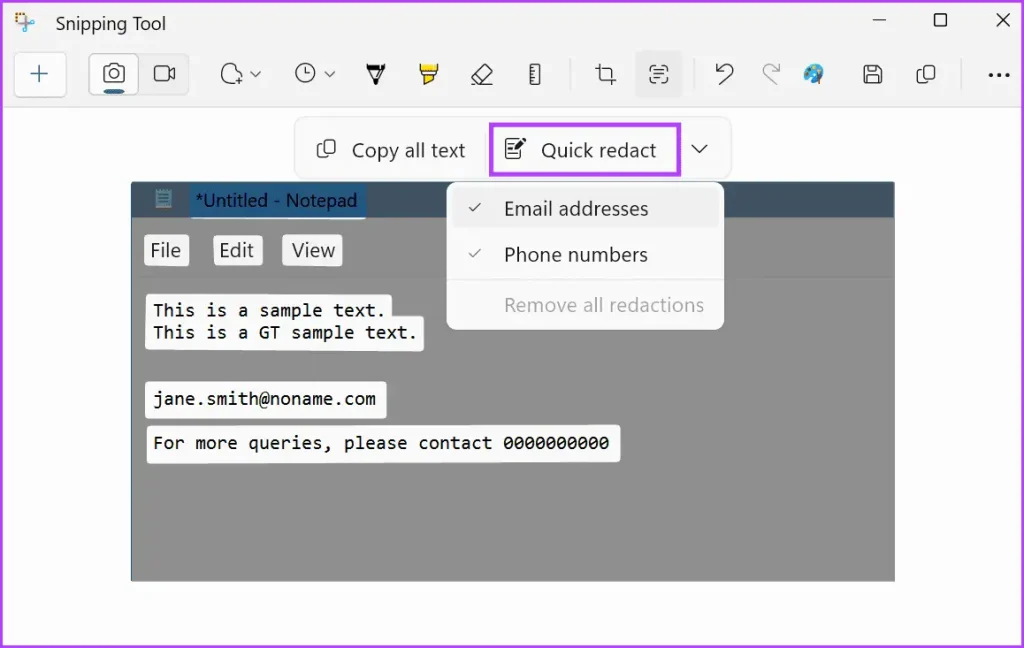
Step 2: Click the Text Actions button in the toolbar. Select the text to copy, or use Quick Redact to hide sensitive details.
9. AI-Powered Windows Search
Windows Search has grown smarter, letting you search using natural phrases instead of exact file names. You can type something like the report I worked on last week and get relevant results, even if you do not remember the exact title.
This feature blends local file search with web results, so you get a mix of your own documents and useful information from the internet in one place.
It saves time for anyone who struggles to remember exact file names, which is most people after a busy week of work.
Step 1: Click the search icon on your taskbar or press the Windows key plus S.
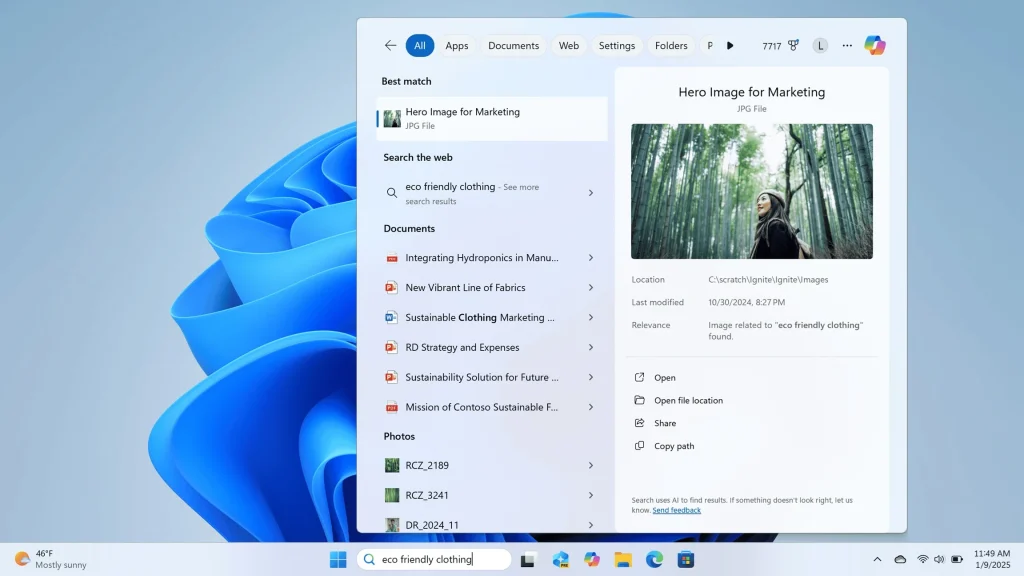
Step 2: Type a natural phrase describing what you are looking for. Browse the mixed results and open the file or link you need.
Part 4: Get the Best Out of It: Tips to Make the Most of AI Features Hidden Inside Windows 11
Turning on a feature is only half the job. Using it well takes a bit of practice. Here are eight tips to help you get more value from these tools without wasting time or risking your privacy.
- Start with one feature at a time. Learning Copilot, Recall, and Click to Do all at once can feel confusing. Master one before adding another.
- Customize your exclusions in Recall. Exclude banking sites, private folders, and work apps that contain sensitive data.
- Pair Click to Do with your most repeated tasks. If you often rewrite emails or summarize articles, this tool saves the most time there.
- Test Windows Studio Effects before an important call. Lighting and background can change how well the blur and eye contact features perform.
- Use Live Captions for language learning too. Watching foreign shows with translated captions is a fun way to pick up new words.
- Keep your NPU driver updated. Many on-device AI tools depend on updated drivers to run smoothly and quickly.
- Combine Photos AI tools with your own light editing. Use Restyle or Super Resolution first, then fine-tune brightness and cropping manually.
Conclusion
Windows 11 has quietly turned into a smart operating system, even if most people never notice. The AI features in Windows 11 covered here are not hidden tricks meant only for tech experts. They are practical tools built for regular daily use, from writing help to photo editing to faster searches.
Give a few of these features a try this week. Start small, pick one or two tools that match your daily habits, and build from there. You may find that your PC was capable of a lot more than you ever realized.
FAQs
1. Do I need a special PC to use AI features on Windows 11?
Some features, like Copilot and Live Captions, work on most Windows 11 PCs. Others, like Recall and Click to Do, run best on Copilot+ PCs that include a dedicated NPU chip. Check your PC specifications in Settings to see which category your device falls into before expecting full performance from every tool.
2. Is Windows Recall safe to use on a shared computer?
Recall stores a searchable history of your screen activity, which can be seen by anyone with access to that Windows account. On a shared computer, it is safer to leave Recall turned off or to carefully exclude sensitive apps and folders. Always check your privacy settings before enabling it on a device other people also use.
3. Can I turn off all AI features in Windows 11 at once?
There is no single master switch that disables every AI feature together. Microsoft has spread these tools across Settings, individual apps, and Group Policy controls. You need to turn off each feature separately, such as Recall, Copilot, and personalized recommendations, through their own dedicated settings pages.
Author Bio:
Dinesh Lakhwani 

Dinesh Lakhwani, the entrepreneurial brain behind “TechCommuters,” achieved big things in the tech world. He started the company to make smart and user-friendly tech solutions. Thanks to his sharp thinking, focus on quality and the motto of never giving up, TechCommuters became a top player in the industry. His commitment to excellence has propelled the company to a leading position in the industry.
Popular Post
Recent Post

How To Disable Background Apps In Windows: 4 Quick Methods
A slow PC rarely gives a warning. One day, it simply takes longer to start. Apps open late. The fan runs loud, even when the screen is almost empty. Most people blame old hardware. Often, that is not the real reason. The real reason is hiding in plain sight. Windows keeps many apps active in […]

How to Activate Windows with a Product Key for Windows 11 & Windows 10
It always shows up at the worst time. You are halfway through a report, or about to join a video call. Then you spot it in the bottom right corner of the screen. Activate Windows. Go to Settings to activate Windows. Initially, an unactivated copy of Windows may seem like a minor inconvenience. Over time, […]

Is Easy Duplicate Finder Worth It? Honest Review
The photos folder looked normal at first glance. Then the storage warning popped up. One trip photo appeared four times. A tax PDF sat in three different folders. Two old setup files were still in Downloads, and each one was over 500 MB. Nobody plans this mess. Copies pile up slowly. A download runs twice. […]

Wise Duplicate Finder Review: Real Results from Wise Duplicate Finder
Read my honest Wise Duplicate Finder review. See features, pricing, pros and cons, and real PC test results. Find out if this free duplicate cleaner can free up your Windows storage.

How to Recover Deleted Files from Pen drive, USB Drive, SD Card
Introduction: On tech forums, you’ll often see posts like this: “I connected my pen drive to my laptop this morning, but the folder was empty. All my college project files had vanished. I don’t have a backup. Can someone help me?” Stories like this are very common. Pen drives, USB drives and SD cards are […]

How To Recover Files Deleted from the Recycle Bin [Windows 11]
Losing a file can happen in seconds. You clear your desktop, hit Delete, and empty the Recycle Bin. Then, just when you need that file again, it seems to have vanished. This guide will walk you through ways to restore files removed from the Recycle Bin. We will begin with simple fixes, then look at […]

Disk Drill Data Recovery Tool Explained: Full Review and Guide
It happens in a split second. You delete a folder by mistake. Your drive stops showing up. A photo album from your last trip just vanishes. And your stomach drops. Lost files feel personal. They are not just data. They are memories, work hours, and sometimes years of effort packed into a few gigabytes. When […]

Recover Deleted Files In Windows 11 With Software & Without
Introduction What is the first thing that goes through your mind the second an important file vanishes from a Windows 11 PC? For most people, it is a mix of panic and disbelief, followed by a frantic click through every folder that file could possibly be hiding in. It happens in a split second: one […]

EaseUS Data Recovery Wizard: Everything To Know
Data loss does not always come from a big disaster either. Most cases start small and boring. A drive gets formatted by mistake. A laptop freezes mid-save and restarts on its own. A memory card stops showing up after being pulled out too fast. None of these feel like emergencies at first, until you realize […]

