












The photos folder looked normal at first glance. Then the storage warning popped up. One trip photo appeared four times. A tax PDF sat in three different folders. Two old setup files were still in Downloads, and each one was over 500 MB. Nobody plans this mess. Copies pile up slowly. A download runs twice. […]
How To Check Installed RAM and RAM Slots [Complete Guide]
RAM plays an important role in how smoothly a computer runs. Short for Random Access Memory, it stores the data and instructions that Windows and active applications need at any given moment. From opening multiple browser tabs to running games and productivity software, RAM helps keep everything responsive. A system with limited memory may experience slower performance, longer loading times, and reduced multitasking capabilities.
There are many reasons to check the amount of RAM installed in a computer. You may be considering a memory upgrade, comparing hardware specifications, troubleshooting performance issues, or simply learning more about the system. Knowing how many RAM slots are available can also help determine whether additional memory can be added in the future.
Windows includes built-in tools that make it easy to view memory information. There is no need to install extra programs or open the computer case. This guide explains how to check installed RAM, find out how many memory slots are available, and see which slots are currently occupied.
Precautions Before You Begin:
Before you check the installed RAM and RAM slots, keep a few things in mind:
- Save any open work before launching system tools. Some tools may need a restart.
- Do not download unknown software to check your RAM. Windows has built-in tools for this.
- If you plan a physical RAM upgrade after this check, shut down your PC fully and unplug it before touching any hardware.
- Avoid touching RAM sticks with your bare hands. Static electricity can damage memory modules.
- Do not force RAM sticks out or in. They fit only one way.
- If you are on a laptop, check the manufacturer’s website before buying new RAM. Many modern laptops have soldered RAM that cannot be upgraded.
- Always note down your current RAM specs before buying new sticks. Mixing wrong RAM types can cause boot issues.
How To Check Installed RAM and RAM Slots
There are two reliable ways to check installed RAM and RAM slots on Windows. Both use tools that come built into the operating system. And the best part? No downloads are needed.
Method 1: Check Installed RAM Using Task Manager
Task Manager is one of the fastest ways to check installed RAM and RAM slots on a Windows PC.
Step 1: Press Ctrl + Shift + Esc on your keyboard. This opens Task Manager directly. Click on the Performance tab at the top.
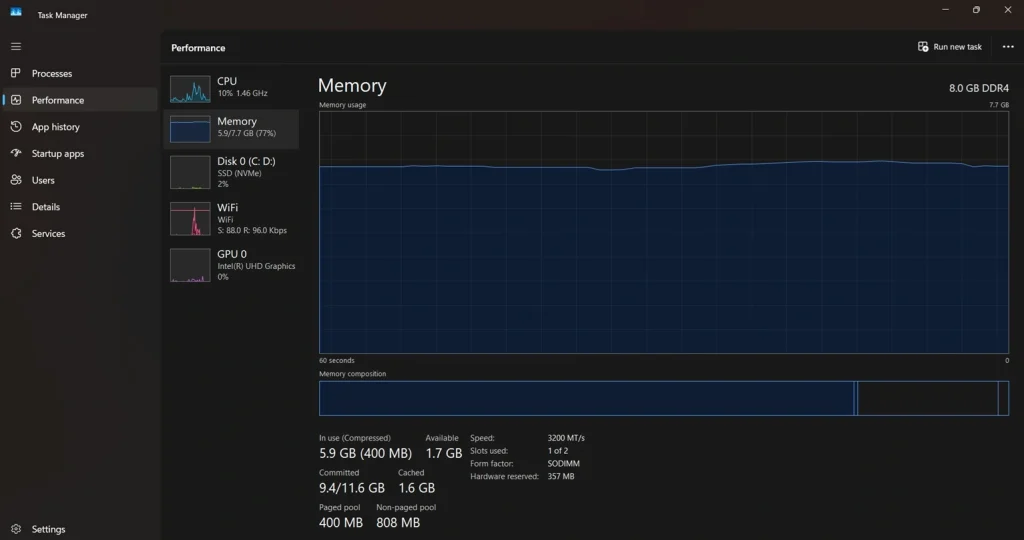
Step 2: On the left side, click Memory. You will now see a detailed view of your RAM usage.
Here is what each detail means on this screen:
- The top of the screen shows your total installed RAM. For example, it may say 8 GB or 16 GB. Below the graph, you will see details like Speed, Slots used, Form factor, and Hardware reserved.
- The Slots used field is especially helpful. It tells you how many RAM slots are currently in use. For example, it may show 2 of 4. This means two slots have RAM sticks and two are empty. This is useful when planning an upgrade.
- The Speed field tells you the clock speed of your RAM in MHz. The Form factor tells you whether it is SODIMM (used in laptops) or DIMM (used in desktops).
Task Manager gives you a clear overview. It is the easiest way to check installed RAM and RAM slots without using any commands.
Method 2: Check RAM Details Using Command Prompt
Command Prompt gives you even more detailed information about your memory. This method is useful if you want to know the exact RAM type, manufacturer, part number, and individual stick sizes.
Step 1: Press the Windows key on your keyboard. Type cmd in the search bar. Right-click on Command Prompt and select Run as administrator.
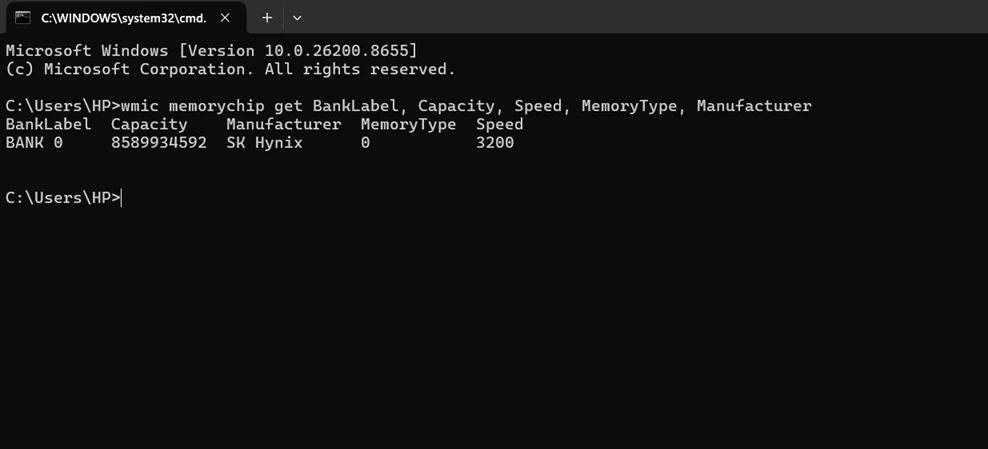
Step 2: In CMD window, execute this command:
wmic memorychip get BankLabel, Capacity, Speed, MemoryType, Manufacturer
Wait a moment. The results will appear in rows.
Here is what each column tells you:
- BankLabel shows which slot the RAM stick is in, such as BANK 0 or BANK 2. Capacity shows the size of each stick in bytes. Divide the number by 1,073,741,824 to get the value in GB. Speed shows the clock speed of that individual stick. The manufacturer shows the brand name of the RAM.
- To check how many RAM slots your motherboard has in total, type this command:
- wmic memphysical get MaxCapacity, MemoryDevices
- The MemoryDevices field shows the total number of RAM slots on your motherboard. MaxCapacity shows the maximum RAM your system can support, displayed in kilobytes.
This step helps you understand not just how much RAM is installed but also how it is distributed across slots. It is one of the most complete ways to check installed RAM and RAM slots using only built-in Windows tools.
Bonus: How To Check RAM Slots Physically Inside Your PC
Sometimes you may want to see your RAM slots with your own eyes. This is helpful when you are planning an upgrade and want to confirm how many slots are free. It is also useful if your PC is not detecting all the RAM correctly.
Follow these steps carefully:
What you need:
- A screwdriver (Phillips head)
- An anti-static wrist strap (recommended)
- A clean, flat surface to work on
Steps:
- Power off and unplug your PC. Press the power button once to remove any leftover charge.
- Locate the memory slots on the motherboard and check how many are available. Then identify which slots already contain RAM modules and which ones are empty.
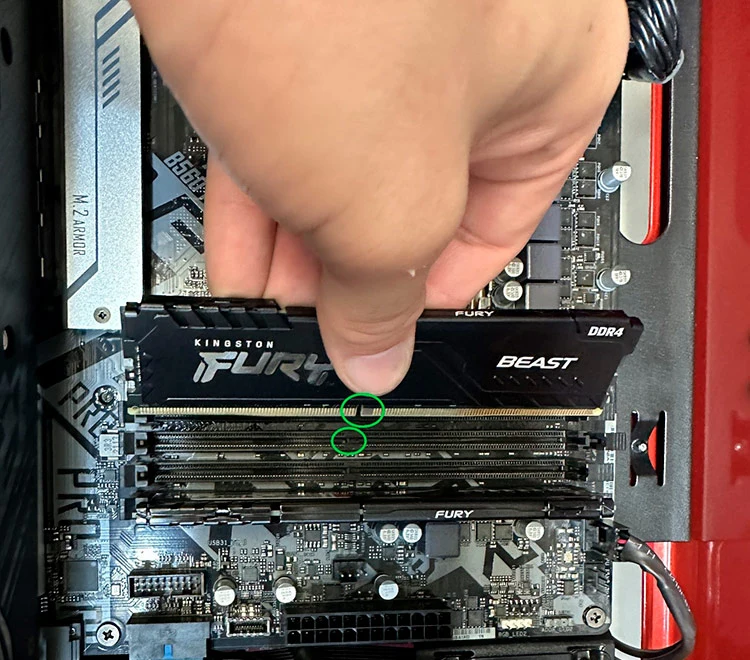
- Note any empty slots available for upgrades. Close the case, reconnect the power cable, and turn the PC back on.
What to look for inside:
The RAM sticks themselves are green or black rectangular boards with chips on them. Each stick sits flat in its slot and is held in place by small plastic clips on either side. If a clip is not fully locked, the RAM may not be detected by the system.
If a slot looks damaged, discolored, or has bent pins, do not insert RAM into it. A damaged slot can cause boot failures or system errors.
Checking your RAM slots physically gives you the most accurate count of total and available slots. It also lets you spot any physical damage that software tools cannot detect.
Tips To Get the Most Out of Your RAM Check
- Use Task Manager for a quick overview and Command Prompt for full details.
- If your slots used show 2 of 2, your motherboard is full. You will need to replace existing sticks to upgrade.
- Running RAM in pairs (dual channel) improves performance. If you have two slots free, add two matching sticks instead of one.
- Check the maximum supported RAM before buying. Adding more than your motherboard supports will not help.
- Match the RAM speed of your existing sticks when upgrading. Mismatched speeds can cause the system to run all sticks at the lowest speed.
- If your system shows less RAM than installed, check if any is reserved by the hardware. You can see this under Hardware Reserved in Task Manager.
- Use the MemoryType number from the Command Prompt to identify your RAM type. For example, 24 means DDR3 and 26 means DDR4.
- Restart your PC after any RAM upgrade and check again using these same steps to confirm the new RAM is detected.
Conclusion
Checking your RAM details does not have to be complicated. Windows gives you everything you need right out of the box. Task Manager shows you total RAM, slot usage, speed, and form factor in just a few clicks. Command Prompt goes deeper and shows individual stick details, manufacturer info, and total slot count. Both tools are free, fast, and reliable.
Whether you are planning an upgrade or just curious about your system, knowing how to check installed RAM and RAM slots is a useful skill. It takes less than two minutes and does not require opening your computer or installing anything extra. Use these steps any time you need a clear picture of your memory setup.
Frequently Asked Questions
Q1. Can I check RAM slots without opening my PC?
Yes, you can check the installed RAM and RAM slots without physically opening your computer. Windows Task Manager shows how many slots are in use under the Memory section in the Performance tab. Command Prompt can also show the total slot count and individual slot details using the wmic command. These tools give you all the information you need without touching any hardware.
Q2. How do I know if I have free RAM slots for an upgrade?
The easiest way is through Task Manager. Open it with Ctrl + Shift + Esc, go to the Performance tab, and click Memory. Look for the Slots used field. It will show something like 2 of 4, meaning two slots are occupied, and two are free. You can also use Command Prompt with the wmic memphysical get MemoryDevices command to see the total slot count and compare it with the number of sticks detected.
Q3. Why does my PC show less RAM than what is installed?
This is usually because some RAM is reserved by the hardware or the operating system. You can see the Hardware Reserved value in Task Manager under the Memory section. In some cases, a 32-bit version of Windows can only use up to 4 GB of RAM regardless of how much is installed. Switching to a 64-bit version of Windows fixes this. Also, check your BIOS settings to make sure all RAM sticks are properly recognized.
Author Bio:
Dinesh Lakhwani 

Dinesh Lakhwani, the entrepreneurial brain behind “TechCommuters,” achieved big things in the tech world. He started the company to make smart and user-friendly tech solutions. Thanks to his sharp thinking, focus on quality and the motto of never giving up, TechCommuters became a top player in the industry. His commitment to excellence has propelled the company to a leading position in the industry.
Popular Post
Recent Post

Wise Duplicate Finder Review: Real Results from Wise Duplicate Finder
Read my honest Wise Duplicate Finder review. See features, pricing, pros and cons, and real PC test results. Find out if this free duplicate cleaner can free up your Windows storage.

How to Recover Deleted Files from Pen drive, USB Drive, SD Card
Introduction: On tech forums, you’ll often see posts like this: “I connected my pen drive to my laptop this morning, but the folder was empty. All my college project files had vanished. I don’t have a backup. Can someone help me?” Stories like this are very common. Pen drives, USB drives and SD cards are […]

How To Recover Files Deleted from the Recycle Bin [Windows 11]
Losing a file can happen in seconds. You clear your desktop, hit Delete, and empty the Recycle Bin. Then, just when you need that file again, it seems to have vanished. This guide will walk you through ways to restore files removed from the Recycle Bin. We will begin with simple fixes, then look at […]

Disk Drill Data Recovery Tool Explained: Full Review and Guide
It happens in a split second. You delete a folder by mistake. Your drive stops showing up. A photo album from your last trip just vanishes. And your stomach drops. Lost files feel personal. They are not just data. They are memories, work hours, and sometimes years of effort packed into a few gigabytes. When […]

Recover Deleted Files In Windows 11 With Software & Without
Introduction What is the first thing that goes through your mind the second an important file vanishes from a Windows 11 PC? For most people, it is a mix of panic and disbelief, followed by a frantic click through every folder that file could possibly be hiding in. It happens in a split second: one […]

EaseUS Data Recovery Wizard: Everything To Know
Data loss does not always come from a big disaster either. Most cases start small and boring. A drive gets formatted by mistake. A laptop freezes mid-save and restarts on its own. A memory card stops showing up after being pulled out too fast. None of these feel like emergencies at first, until you realize […]

Recuva Data Recovery Tool: Is it Actually Worth it?
When I first tried Recuva Data Recovery, I wanted to see if it could really bring back lost files. The tool is free, small in size, and promises quick recovery, which made me curious enough to test it on my own PC. The setup was fast, and the wizard guided me step by step. I […]

GetData Recover My Files Data Recovery Tool: Honest Review
A hard drive error brings a special kind of silence. Well, yes! The screen freezes, then a message appears saying the drive can’t be found or must be formatted. In that moment, years of photos and work files feel at risk. It never happens at a good time. Coffee spills near a laptop, a memory […]

Windows File Recovery: A Complete Review [Tried & Tested]
Imagine this. You spend hours perfecting a video project. You hit save. Then your laptop freezes, reboots, and when the screen comes back. The file is gone. Your stomach sinks. It’s not just you. Lost files happen all the time. A dropped hard drive, a bad update, an accidental delete, or a corrupted partition can […]

