












The photos folder looked normal at first glance. Then the storage warning popped up. One trip photo appeared four times. A tax PDF sat in three different folders. Two old setup files were still in Downloads, and each one was over 500 MB. Nobody plans this mess. Copies pile up slowly. A download runs twice. […]
How To Clean Your Computer Keyboard: Complete Guide
A computer keyboard is touched more than almost any other device you own. It is used during work, study, gaming, and casual browsing. Fingers carry natural oils, sweat, and dirt. Small food crumbs fall between keys without notice. Dust settles each day slowly. Over time, this creates a hidden layer of grime. Many users do not realize how dirty a keyboard becomes until keys start sticking or typing feels uneven.
Cleaning a keyboard is not only about appearance. Dirt can affect key response and long-term performance. Germs also build up on frequently touched surfaces. In shared spaces, keyboards can carry more bacteria than a phone screen. Regular cleaning helps prevent this. It also improves comfort and focus. Once you understand how to clean computer keyboard parts properly, the task becomes simple and routine. This guide explains everything!
Tools You Need Before You Begin Cleaning
Having the right items ready makes the process easy and safe. These tools are simple and affordable. Most are already available at home.
- Microfiber cloth: This cloth traps dust instead of spreading it. It does not scratch keys or surfaces.
- Compressed air can: It pushes out debris from between keys where fingers cannot reach.
- Soft brush: A small paintbrush or makeup brush works well. It removes stuck dirt gently.
- Isopropyl alcohol: This helps disinfect keys. It dries fast and leaves no residue.
- Cotton swabs: These reach narrow gaps around key edges.
- Dry towel or mat: Placing it under the keyboard keeps your desk clean.
- Small container: Useful if you remove keycaps for deep cleaning.
- Keycap puller: Helpful for mechanical keyboards, but not required.
Important Precautions to Follow Before Cleaning
Keyboards contain sensitive electronic parts. Cleaning without care can cause damage. These precautions protect both the keyboard and your system.
- Shut down the computer: This avoids accidental input or errors.
- Disconnect the keyboard: Wired keyboards should never be cleaned while plugged in.
- Remove batteries from wireless keyboards: This prevents electrical issues.
- Never pour liquid directly: Liquids should always be applied to the cloth first.
- Avoid household cleaners: These can erase key labels or damage plastic.
- Do not scrub aggressively: Hard pressure can loosen keys.
- Keep moisture minimal: Even small drops can seep inside.
- Allow enough drying time: Reconnecting too early can cause failure.
How to Clean a Computer Keyboard Step by Step
Keyboard cleaning should be done in stages. Each step removes a different type of dirt. Follow this order for best results.
- Turn the keyboard upside down
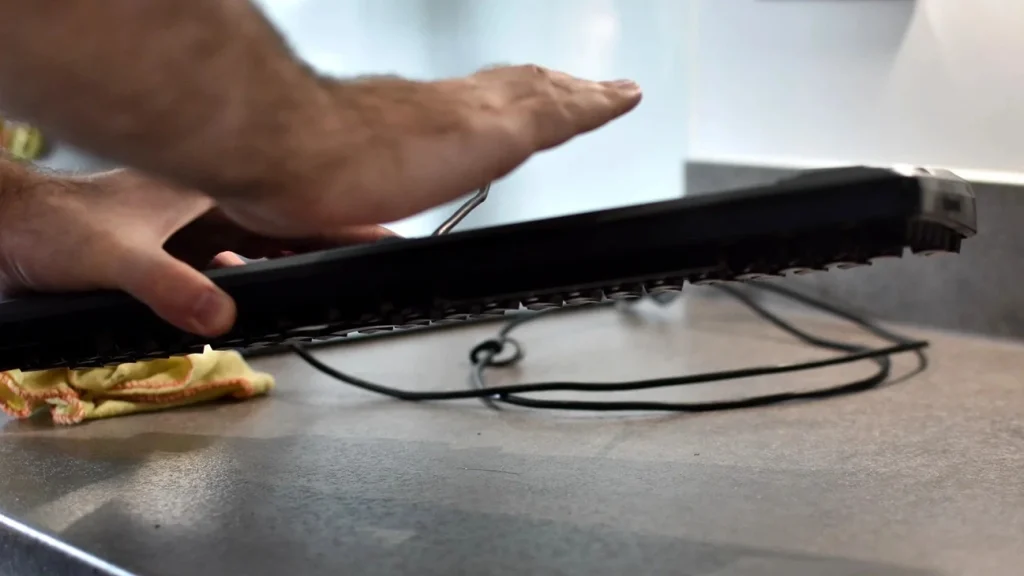
Gently tap the back. Loose crumbs and dust will fall out.
- Use compressed air between keys
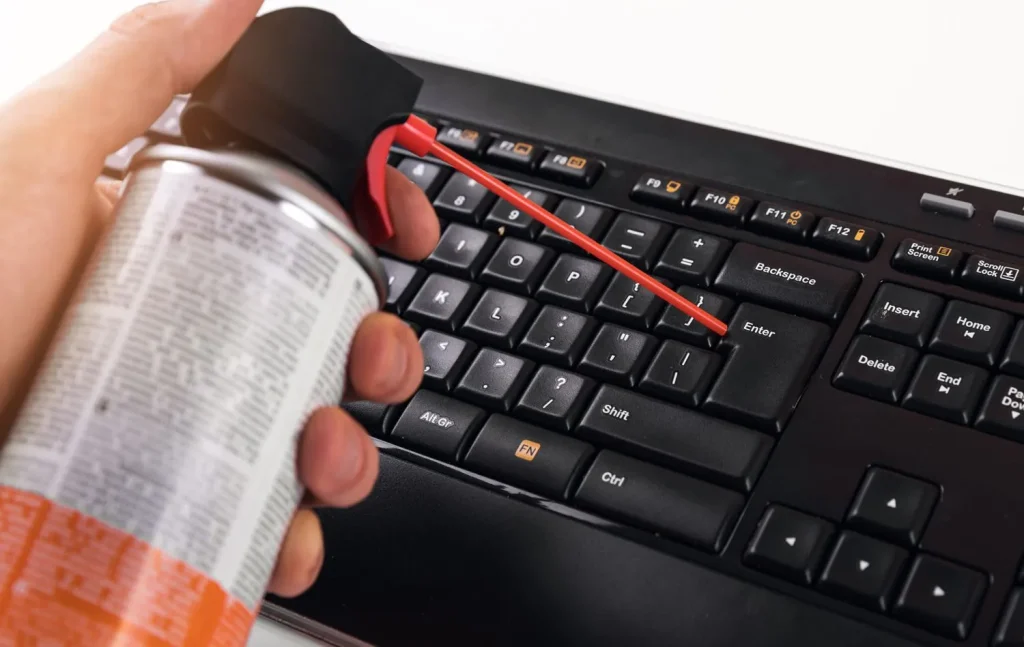
Spray in short bursts. Move across rows evenly.
- Brush remaining debris
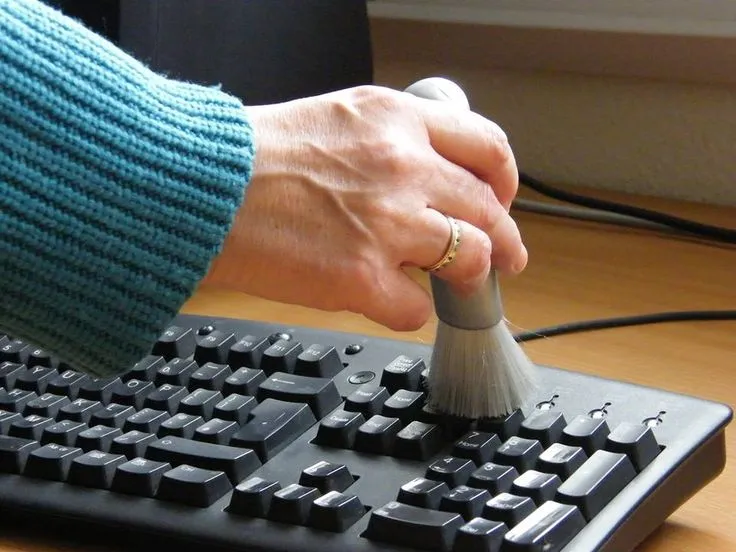
Use a gentle brush to loosen particles that are stuck.
- Wipe key surfaces
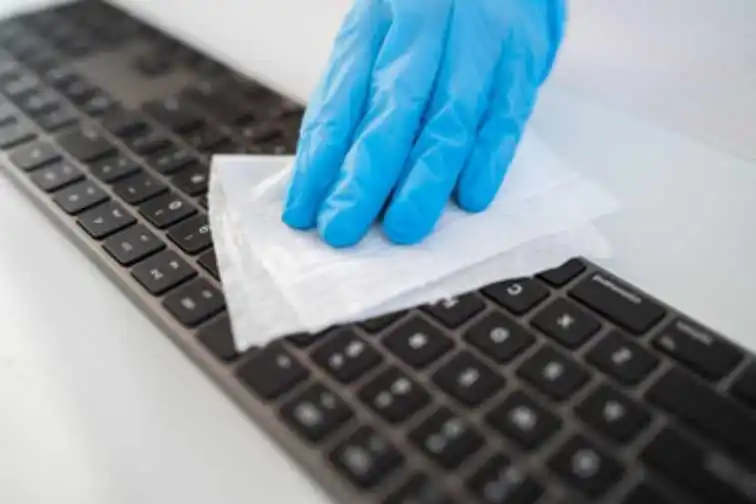
Lightly dampen a microfiber cloth with alcohol. Clean each row slowly.
- Clean tight edges.
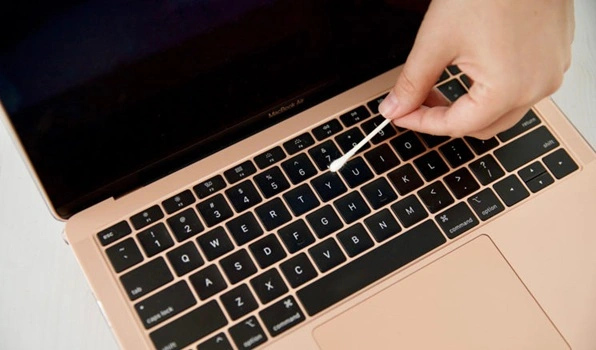
Use cotton swabs around key borders and corners.
- Let it air dry fully
Wait at least fifteen minutes before reconnecting.
This method works for most standard keyboards. It also suits users learning how to clean computer keyboard surfaces safely.
Extra Care for Mechanical and Laptop Keyboards
Mechanical keyboards feature removable keycaps, enabling thorough cleaning with care. Use a keycap puller to detach them, soak briefly in warm soapy water, rinse, and dry completely before reattaching.
Laptop keyboards require more caution. Keys are fixed and sensitive. Avoid excess pressure. Never remove keys unless advised by the manufacturer. Use light air sprays and gentle wiping only. This approach protects internal components.
Author’s Practical Tips for Long-Term Keyboard Cleanliness
Good habits reduce how often deep cleaning is needed. These tips help keep keyboards cleaner for longer periods.
● Wash your hands before typing
Clean hands help reduce the transfer of oils, dirt, and bacteria onto your keyboard. This simple habit slows down grime buildup and keeps your keys looking fresh longer.
● Avoid snacks near the keyboard
Eating near your keyboard can lead to crumbs falling between the keys, attracting pests, and causing sticky residue. Keep food away to prevent the most common keyboard issues.
● Wipe keys lightly each week
A gentle weekly wipe with a microfiber cloth or alcohol wipe removes surface dust and oils. These small efforts prevent long-term buildup that can be harder to clean later.
● Cover the keyboard when not used
Using a dust cover or even a clean cloth helps shield your keyboard from airborne particles, accidental spills, and pet hair. It’s a simple way to extend its lifespan.
● Keep drinks at a distance
Liquids are one of the biggest threats to keyboards. A single spill can short out circuits or cause sticky keys. Always place drinks away from your workspace to minimize risk.
● Store cleaning tools nearby
Having tools like compressed air, wipes, and brushes within reach makes it easier to clean regularly. Convenience encourages consistency in maintenance.
● Inspect keys often
Check your keyboard for sticky or unresponsive keys. These are early signs of dirt buildup or residue and should be addressed before they worsen.
● Clean shared keyboards more often
Keyboards used by multiple people at home or in offices accumulate germs faster. Regular cleaning helps maintain hygiene and reduces the spread of illness.
These habits support anyone serious about how to clean computer keyboard equipment correctly.
Conclusion
A keyboard is a daily tool that deserves regular care. Ignoring it leads to discomfort, poor typing, and reduced lifespan. Cleaning does not require special skills or expensive products. With simple tools and calm steps, anyone can maintain a clean keyboard. The results are immediate. Keys feel smoother. The workspace looks better. Hygiene improves as well.
Once you practice how to clean computer keyboard parts properly, it becomes second nature. Regular maintenance saves money and avoids replacement. It also creates a healthier work environment. Make keyboard cleaning part of your monthly routine. Small care today prevents bigger problems later.
Frequently Asked Questions
Can I use water to clean my keyboard?
Using water directly on a keyboard is not safe. Water can slip under the keys and reach internal parts. This may cause damage or stop keys from working. A lightly damp cloth is a better choice. It should never drip. Mechanical keycaps can be removed and washed separately, but only if they are dried fully before putting them back.
How often should keyboards be cleaned?
Keyboards should be cleaned on a regular schedule. Light cleaning once a week helps remove dust and surface oils. This keeps keys smooth and comfortable to use. A deeper clean once a month works well for most people. Shared or office keyboards may need more frequent care.
Is alcohol safe for key surfaces?
Isopropyl alcohol is safe when used carefully. It should be applied in small amounts using a cloth or cotton swab. Alcohol removes grease and germs without harming key surfaces. It also dries quickly, which lowers the risk of moisture damage.
Author Bio:
Dinesh Lakhwani 

Dinesh Lakhwani, the entrepreneurial brain behind “TechCommuters,” achieved big things in the tech world. He started the company to make smart and user-friendly tech solutions. Thanks to his sharp thinking, focus on quality and the motto of never giving up, TechCommuters became a top player in the industry. His commitment to excellence has propelled the company to a leading position in the industry.
Popular Post
Recent Post

Wise Duplicate Finder Review: Real Results from Wise Duplicate Finder
Read my honest Wise Duplicate Finder review. See features, pricing, pros and cons, and real PC test results. Find out if this free duplicate cleaner can free up your Windows storage.

How to Recover Deleted Files from Pen drive, USB Drive, SD Card
Introduction: On tech forums, you’ll often see posts like this: “I connected my pen drive to my laptop this morning, but the folder was empty. All my college project files had vanished. I don’t have a backup. Can someone help me?” Stories like this are very common. Pen drives, USB drives and SD cards are […]

How To Recover Files Deleted from the Recycle Bin [Windows 11]
Losing a file can happen in seconds. You clear your desktop, hit Delete, and empty the Recycle Bin. Then, just when you need that file again, it seems to have vanished. This guide will walk you through ways to restore files removed from the Recycle Bin. We will begin with simple fixes, then look at […]

Disk Drill Data Recovery Tool Explained: Full Review and Guide
It happens in a split second. You delete a folder by mistake. Your drive stops showing up. A photo album from your last trip just vanishes. And your stomach drops. Lost files feel personal. They are not just data. They are memories, work hours, and sometimes years of effort packed into a few gigabytes. When […]

Recover Deleted Files In Windows 11 With Software & Without
Introduction What is the first thing that goes through your mind the second an important file vanishes from a Windows 11 PC? For most people, it is a mix of panic and disbelief, followed by a frantic click through every folder that file could possibly be hiding in. It happens in a split second: one […]

EaseUS Data Recovery Wizard: Everything To Know
Data loss does not always come from a big disaster either. Most cases start small and boring. A drive gets formatted by mistake. A laptop freezes mid-save and restarts on its own. A memory card stops showing up after being pulled out too fast. None of these feel like emergencies at first, until you realize […]

Recuva Data Recovery Tool: Is it Actually Worth it?
When I first tried Recuva Data Recovery, I wanted to see if it could really bring back lost files. The tool is free, small in size, and promises quick recovery, which made me curious enough to test it on my own PC. The setup was fast, and the wizard guided me step by step. I […]

GetData Recover My Files Data Recovery Tool: Honest Review
A hard drive error brings a special kind of silence. Well, yes! The screen freezes, then a message appears saying the drive can’t be found or must be formatted. In that moment, years of photos and work files feel at risk. It never happens at a good time. Coffee spills near a laptop, a memory […]

Windows File Recovery: A Complete Review [Tried & Tested]
Imagine this. You spend hours perfecting a video project. You hit save. Then your laptop freezes, reboots, and when the screen comes back. The file is gone. Your stomach sinks. It’s not just you. Lost files happen all the time. A dropped hard drive, a bad update, an accidental delete, or a corrupted partition can […]

