












A slow computer makes it hard to focus. Programs take too long to open. Free space keeps shrinking until the disk is almost full. This happens to most PC owners at some point. Even new machines can slow down after a while. That is the exact problem cleanup tools are built to solve. They comb […]
How To Switch To A Dark Background Theme In Windows [2026]
Introduction:
Most people spend many hours each day in front of a computer screen. Office work, online classes, editing, browsing, and streaming all require long screen time. A bright white background may look clean at first. However, over time, it can feel sharp and tiring. The strong contrast between white backgrounds and black text may cause eye strain, especially in low-light rooms. Because of this, many users look for ways to switch to a dark background theme in Windows.
A darker interface creates a softer visual experience. It reduces glare and feels calmer on the eyes. Many users prefer darker tones when working late at night. It also gives the system a modern and professional look. If you want to switch to a dark theme in Windows, the process is simple and safe. You can switch to a dark theme now Windows using built-in personalization settings. This guide explains each part in a clear and structured way so you can make the change without confusion.
Why Many Users Prefer Dark Mode?
Dark themes are no longer limited to developers or advanced users. Today, they are a common option in most operating systems. Microsoft has improved its customization features over time. With a few clicks, you can change the appearance of menus, taskbars, and supported apps. When you switch to a dark background theme Windows, the system adjusts colors across many areas. This creates a consistent look.
Choosing a theme is also about comfort and personal taste. Some users enjoy light themes during the day and dark themes at night. Others prefer a dark layout all the time. If you decide to switch to a dark theme in Windows, you can always return to light mode later. The flexibility makes it easy to try different settings. If you feel ready, you can switch to a dark theme now Windows and explore the benefits yourself.
Why a Dark Theme Can Improve Your Experience?
Changing the display style may seem like a small adjustment. However, it can affect how you feel during long work sessions. Many people decide to switch to a dark background theme on Windows because of comfort and visual appeal. Below are the main advantages explained in simple language.
- Reduced eye strain
Dark backgrounds produce less bright light. This can lower stress on your eyes in dim rooms. - Better experience at night
A dark screen feels softer when the lights are off. It reduces harsh reflections. - Improved focus
White text on a dark background often stands out clearly. Many users find it easier to concentrate. - Modern system look
Dark mode gives Windows a sleek and updated design style. - Consistent app design
Many modern apps support dark themes. The system looks unified. - Comfortable for long working hours
Writers, programmers, and designers often prefer darker layouts for extended sessions. - Less visible glare
Reflections on the screen are not as strong as they are with bright backgrounds. - Personal preference flexibility
Users can adjust accent colors to match their style.
A dark theme is more than a style change. It affects how light reaches your eyes. For people who spend eight to ten hours daily on a computer, this difference matters. Even small comfort improvements can help over time.
Possible Drawbacks of Using a Dark Theme
Although dark themes are popular, they may not be ideal for everyone. In bright daylight, dark screens may appear less sharp. Some people find that small fonts look harder to read on dark backgrounds. Reading long documents in dark mode may feel unusual at first.
Another limitation is compatibility. Certain older programs do not fully support dark mode. This can cause some windows to remain white while others are dark. The mixed layout may look uneven. If you frequently print documents, you may switch back and forth between display styles. This constant adjustment can feel inconvenient.
It is also important to consider personal comfort. Eye sensitivity varies from person to person. While many users benefit when they switch to a dark background theme Windows, others may prefer light themes for daytime clarity. Testing both options for a few days helps you decide.
Key Precautions to Follow Before Changing Your Theme
Before you switch to a dark background theme Windows, it is wise to review a few simple precautions. The process is safe, but careful preparation ensures smooth changes. Below are important points to check before making adjustments.
- Check your Windows version
Make sure you are using Windows 10 or Windows 11, as older versions may not support full dark mode. - Install system updates
Updating your system reduces the risk of display or theme errors. - Save open work
Close active documents before making system changes. - Review display brightness
Adjust brightness levels to match dark mode for better comfort. - Check graphics settings
Outdated graphics drivers can cause color display issues. - Back up personalization settings
While uncommon, settings changes may reset during updates. - Test app compatibility
Confirm that important apps support dark themes. - Consider ambient lighting
Dark mode works best in low or moderate lighting conditions.
These simple checks take only a few minutes. They help avoid confusion later. Careful preparation ensures you can switch to a dark theme in Windows without problems.
3 Quick Methods to Switch To A Dark Background Theme on Windows
There are several simple ways to change your system’s appearance. You do not need advanced knowledge. Windows includes built-in tools for customization. Below are three clear methods to help you switch to a dark background theme in Windows.
Method 1: Using Windows Personalization Settings
This is the easiest and most common method. It requires only a few clicks. The settings are located in the main system panel.
First, open the Settings application from the Start menu. Once inside, choose the Personalization option. You will see multiple sections such as Background, Colors, and Themes. The color section controls light and dark modes.
This method changes system menus, the taskbar, and supported apps. If you want to switch to a dark theme in Windows quickly, this is the fastest way.
Step 1: Open Settings > Personalization > Colors.
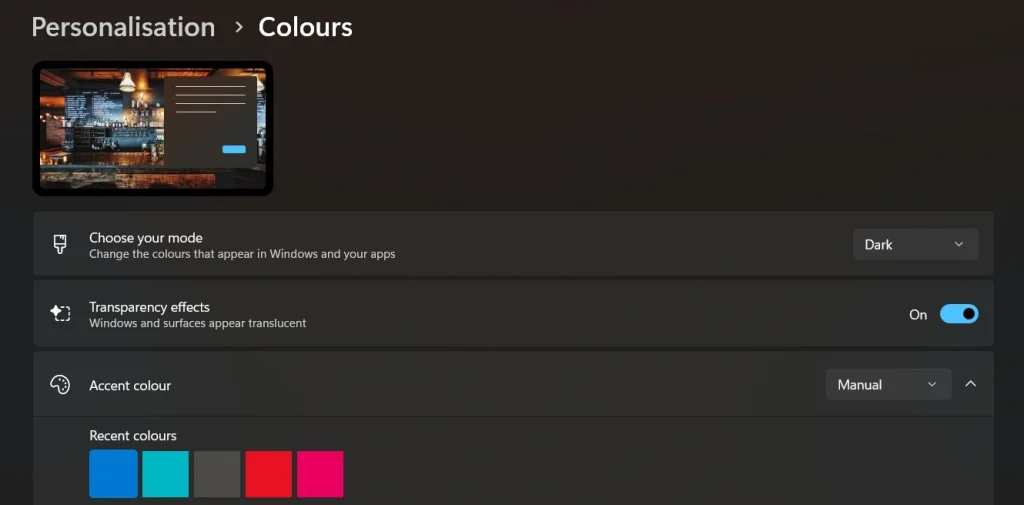
Step 2: Under Choose your color, select Dark from the dropdown menu.
The interface will change immediately. If needed, you can switch to a dark theme now in Windows, and adjust accent colors afterward.
Method 2: Using High Contrast Settings
This method is helpful for users who want a stronger contrast. It is also useful for accessibility needs.
High contrast settings allow more control over text and background colors. Although it is not exactly the same as standard dark mode, it creates a dark visual style.
Open the Settings panel again. Navigate to Accessibility options. From there, you will find contrast themes. Choose a dark-styled preset.
Step 1: Open Settings > Accessibility > Contrast Themes.
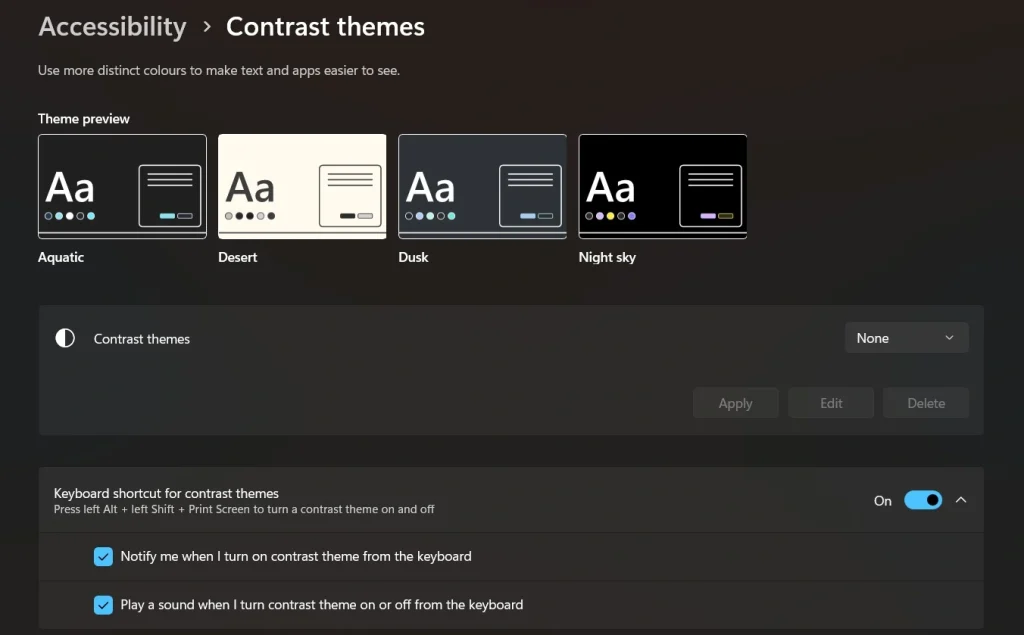
Step 2: Select a dark theme option and click Apply.
This method may change font and highlight colors as well. It is ideal for users who need improved visibility.
Method 3: Using Windows Themes Section
Themes combine background, color, and sound settings. This method provides a complete visual transformation.
Go to Personalization in the Settings panel. Instead of selecting Colors, choose Themes. You will see available theme options.
Some default themes use dark backgrounds automatically. Selecting one of them adjusts system’s appearance.
Step 1: Open Settings > Personalization > Themes.
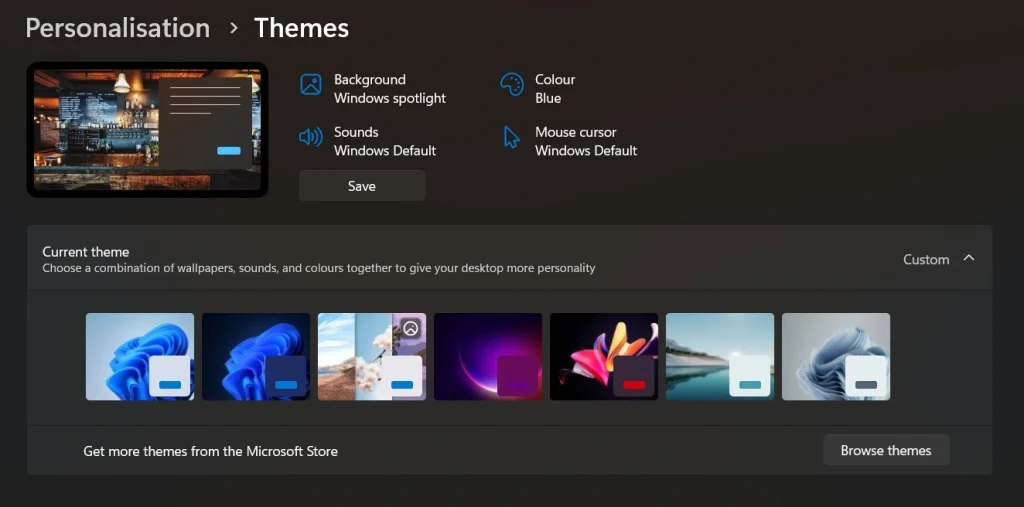
Step 2: Select a dark-themed option from the available list.
This method is useful if you want wallpaper and system colors to change together.
Author’s Tip
When you switch to a dark background theme in Windows, do not stop at changing the color setting. Take a few minutes to fine-tune your display. Lower the screen brightness to a comfortable level. Dark mode does not automatically reduce brightness. If the screen remains too bright, your eyes may still feel tired after long use. A medium brightness level usually works well in most rooms. You can also adjust accent colors so menus and highlights are easy to see without looking harsh.
It is also wise to turn on Night Light in Windows. This setting reduces blue light during evening hours. Blue light can disturb sleep and cause eye discomfort late at night. When you combine Night Light with dark mode, the screen feels warmer and softer. This is helpful if you work after sunset or use your laptop in bed. Small changes in brightness and color tone can improve comfort in a noticeable way, especially during long sessions of reading, writing, or browsing.
Conclusion
Changing your display theme is a simple but meaningful step. A dark interface can improve comfort and focus, especially during long working hours. The steps are quick and do not require advanced skills.
If you want to switch to a dark theme in Windows, you can do so in just a few clicks. You can also switch to a dark theme now on Windows and return to light mode anytime. Testing different settings helps you find what suits your eyes best. In the end, comfort should guide your choice.
FAQs:
1. Does dark mode reduce eye strain?
Dark mode can reduce glare, especially in low-light rooms. Many users feel it is easier on their eyes at night. However, the level of comfort depends on screen brightness, text size, and personal sensitivity. Adjusting brightness along with dark mode gives better results.
2. Can I switch back to light mode later?
Yes, you can return to light mode at any time through the Personalization and Colors settings. The change takes only a few seconds and does not affect your files or programs. You can switch between light and dark themes as often as you like.
3. Does dark mode save battery?
Dark mode may save some battery on devices with OLED or similar display types because darker pixels use less power. On standard LCD screens, the difference is usually small. Battery savings vary depending on your device and brightness level.
Author Bio:
Dinesh Lakhwani 

Dinesh Lakhwani, the entrepreneurial brain behind “TechCommuters,” achieved big things in the tech world. He started the company to make smart and user-friendly tech solutions. Thanks to his sharp thinking, focus on quality and the motto of never giving up, TechCommuters became a top player in the industry. His commitment to excellence has propelled the company to a leading position in the industry.
Popular Post
Recent Post

Fortect Software Review: The Ultimate PC & Mobile Cleaning, Optimization & Security Tool
Slow computers are a common problem for almost every Windows user. Well, yes! Over time, your PC picks up junk files. These files sit quietly in the background. They take up space and slow things down. Programs open slower. Windows takes longer to boot. Even simple tasks like opening a folder can feel sluggish. There […]

CCleaner PC Optimizer Review: A Complete Guide for Windows Users
If your computer has started to feel slow, you are not alone. Most Windows PCs slow down over time. Junk files pile up. The registry gets messy. Too many apps open when you start your PC. All this adds up and makes even a good machine feel tired. This is where a PC cleaner tool […]

Auslogics Duplicate File Finder: Full Review and User Guide
A computer quietly gathers clutter over time. This includes duplicate photos, repeated downloads, and forgotten backups hiding in random folders. This buildup slowly eats away at storage and can make even a fast PC feel sluggish. Manually finding and deleting duplicates is tedious. It means checking every folder, comparing file names, and guessing which copies […]

CCleaner Duplicate File Finder: Key Features, Pricing, Step-by-Step Guide and More
Every computer collects junk over time. Right? Well, yes! Photos often get copied twice. Documents get saved in two folders by mistake. Old downloads pile up and never get deleted. This slowly eats up your storage space, and most people do not even notice until their drive is almost full. That is where a duplicate […]

Duplicate File Finder Pro: A Complete Review, Everything You Should Know
Computers collect thousands of files over time. Well, yes! Many of them end up being duplicates created by backups, downloads, or accidental copies. These extra files take up valuable storage space and make it harder to keep everything organized. Finding and removing them manually can take hours. Right? Duplicate File Finder Pro is a tool […]

Top 3 Duplicate File Finder for Windows 11 & Windows 10
If your PC storage keeps filling up even after you delete big files, duplicate files could be the real reason. Most of us save the same photo twice, download a document more than once, or copy a whole folder by mistake. Over months and years, these duplicate files pile up quietly. You do not even […]

Monitor Screen Calibration Guide: Everything You Should Know
Your monitor shows colors every single day. But are those colors actually correct? Most people never stop to check this. They just use the screen as it comes out of the box. This habit can lead to wrong colors in photos, videos, and work files. Colors may look too warm or too cold without you […]

How To Check Installed RAM and RAM Slots [Complete Guide]
RAM plays an important role in how smoothly a computer runs. Short for Random Access Memory, it stores the data and instructions that Windows and active applications need at any given moment. From opening multiple browser tabs to running games and productivity software, RAM helps keep everything responsive. A system with limited memory may experience […]

What is Microsoft Autopilot Everything You Need To Know
Technology has changed the way companies manage computers. Well, yes! Employees now work from offices, homes, and remote locations. Setting up devices manually for every worker takes time and effort. It can also create mistakes that slow down productivity. This is where Microsoft Autopilot becomes useful. It helps businesses prepare and deploy Windows devices with […]

