












Read my honest Wise Duplicate Finder review. See features, pricing, pros and cons, and real PC test results. Find out if this free duplicate cleaner can free up your Windows storage.
Resolving Microphone Detection Problems: Latest Guide [2026]
Microphones are important tools in daily life. People use them for office meetings, online classes, interviews, gaming, customer support, and content creation. When a system fails to detect a microphone, communication stops at once. This situation can cause stress and confusion. Many users believe the microphone is damaged. In reality, most problems are simple and can be corrected.
Resolving microphone detection problems does not always require advanced technical knowledge. In many cases, a small settings adjustment solves the issue. Sometimes the operating system blocks access without clear notice. At other times, the driver may be outdated. This complete guide explains how to resolve microphone detection problems in a clear and simple manner. Each section follows a logical order, so you can fix the issue without unnecessary trial and error.
Key Benefits of Fixing Microphone Issues Promptly
When audio issues are handled quickly, work continues without disruption. A properly functioning microphone improves both personal and professional communication. Below are the major advantages.
- Better communication quality: Clear sound allows others to understand your message without asking you to repeat yourself. Conversations become smoother and more natural. This is especially important in business meetings and academic discussions.
- Smooth online interviews: Reliable audio helps you speak with confidence during interviews. You can focus on answering questions instead of worrying about technical issues. This creates a strong and professional impression.
- Improved remote learning: Students can respond to teachers and join discussions when their microphone works properly. Clear voice input supports active participation and better understanding of lessons.
- Clear content creation: Podcasters and video creators depend on accurate sound recording. A properly detected microphone reduces background noise and prevents audio gaps during editing.
- Reduced technical stress: Fixing problems early prevents last-minute panic before meetings or presentations. When you trust your equipment, you feel more relaxed and prepared.
- Better gaming coordination: Multiplayer games require quick and clear communication among team members. A working microphone improves teamwork and helps players respond faster during gameplay.
- Professional presentation: Good sound quality shows that you are prepared and attentive to detail. Clients and colleagues take communication more seriously when audio is clear.
- Improved device reliability: Updating drivers and checking settings improves not only microphone function but overall device performance. Regular care reduces unexpected technical interruptions.
When users focus on resolving microphone detection problems early, they prevent work delays and maintain productivity.
Common Challenges While Fixing Microphone Issues
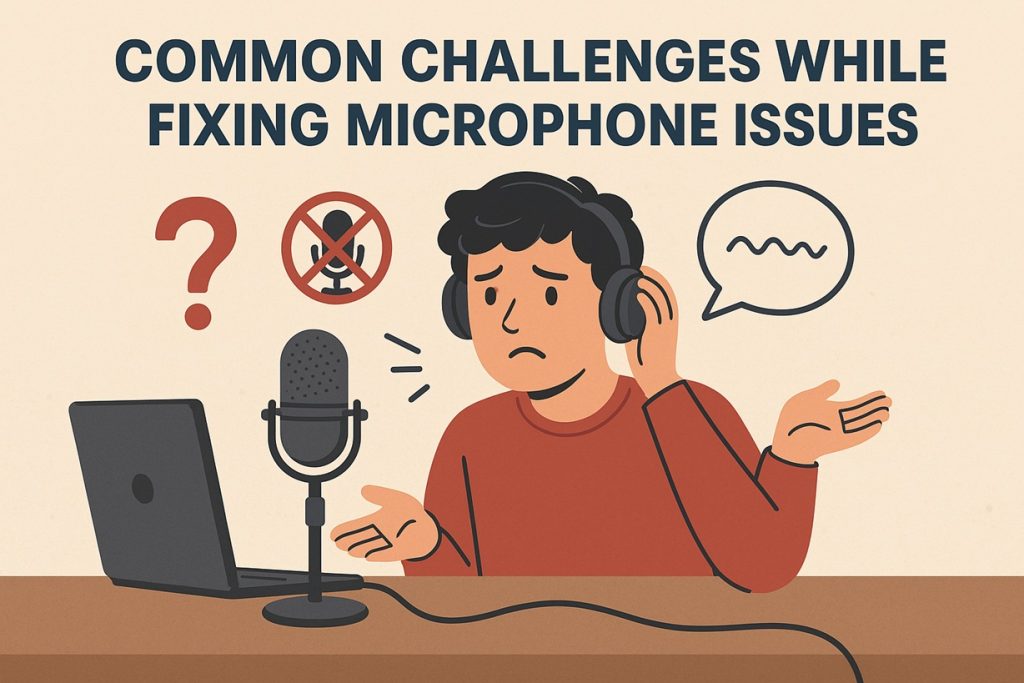
Although many microphone problems are simple, some difficulties may arise during troubleshooting. Understanding these challenges helps avoid mistakes.
- Incorrect driver updates: Installing the wrong driver version can create new audio conflicts instead of fixing the issue. The system may fail to recognize the microphone completely. In some cases, sound features may disappear until the correct driver is restored.
- Accidental settings modification: Changing advanced sound settings without proper understanding may disable the microphone input. Some options can mute or hide devices from the list. Restoring original settings can take extra time.
- Hardware damage risk: Forcing cables into ports or removing them roughly can damage internal connectors. Bent pins or loose ports may require professional repair. Physical damage is often harder to fix than software issues.
- Hidden privacy restrictions: Operating systems sometimes block microphone access for security reasons. These restrictions may not show clear warning messages. Users may believe the device is faulty when it is simply blocked by permissions.
- Software conflicts: Third-party recording programs or communication apps may interfere with audio drivers. When multiple programs try to control the microphone, detection problems can occur.
- Frequent restarts: Some updates and driver installations require several restarts. This process can interrupt work and delay troubleshooting. Users may find this repetitive and inconvenient.
- Outdated operating system: Older system versions may not fully support modern microphones. Compatibility gaps can prevent proper detection or reduce audio performance.
- Compatibility limitations: Very old microphones may lack updated drivers for new systems. Even if detected, they may not function reliably. In such cases, upgrading to a newer device may be necessary.
Despite these challenges, resolving microphone detection problems is achievable when proper steps are followed carefully.
Essential Precautions Before Troubleshooting
Taking precautions protects both your device and your data. Careful preparation reduces risks during the repair process.
- Back up important documents: Save essential files before updating drivers or changing system settings. Store copies on external storage or cloud services. This protects your data if something goes wrong during troubleshooting.
- Inspect cables properly: Check all cables carefully for loose connectors, bent pins, or outer damage. Even small cuts or weak joints can interrupt the signal. Replace damaged cables before continuing.
- Confirm a stable internet connection: Ensure your internet connection is steady and not dropping frequently. Many fixes require downloading updated drivers or system patches. An unstable connection may interrupt installation.
- Remove unused audio devices: Disconnect extra microphones, headsets, or USB sound devices. Multiple connected devices can confuse the system and cause incorrect detection.
- Note current configurations: Write down your existing sound settings before changing anything. This helps you restore original settings if needed. It also prevents confusion later.
- Keep batteries charged: Wireless microphones rely fully on battery power. Low battery levels may cause random disconnections or detection failure. Charge or replace batteries before testing again.
- Update the operating system: Install the latest system updates before adjusting advanced settings. Updates often fix hidden bugs and improve hardware compatibility.
- Use official manufacturer websites: Download drivers only from the official website of the device manufacturer. Avoid unknown sources, as they may provide incorrect or unsafe software.
These precautions support safe troubleshooting while resolving microphone detection problems.
Methods to Resolve Microphone Detection Problems
Different causes require different solutions. Each method below focuses on a common reason behind detection failure. Follow the sequence carefully. These instructions clearly explain how to resolve microphone detection problems in a structured manner.
Method 1: Check Physical Connections
Physical connection issues are among the most common causes. A slightly loose cable may stop the device from appearing in system settings. USB connectors sometimes shift without notice. Dust inside the audio port can also interrupt contact.
Wired microphones depend entirely on secure connections. Even a minor misalignment may prevent detection. Users often overlook this simple possibility and move directly to complex solutions.
Wireless microphones require proper pairing. Low battery levels may disconnect the device without warning. Ensure that the microphone has sufficient power and is within range of the receiver.
Step 1: Disconnect the microphone carefully. Clean the port with a soft brush. Reconnect it firmly and test again.
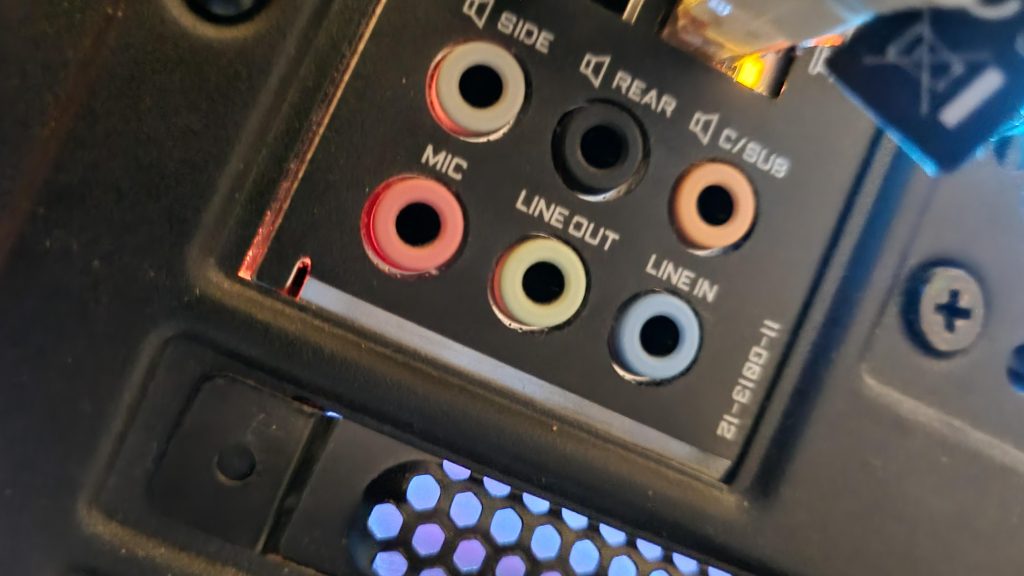
Step 2: Try another USB port if available. For Bluetooth devices, remove the pairing and reconnect.
Method 2: Verify Microphone Settings in the Operating System
Sometimes the system detects the microphone, but it is disabled in settings. This situation is common after updates. The default input device may change without notification.
Operating systems allow multiple audio input devices. If another device is set as the default, your microphone may not work. Reviewing these settings often resolves the issue quickly.
Privacy settings may block application access. Even if the device is connected properly, apps cannot use it without permission.
Step 1: Open sound settings and check the input section. Select your microphone as the default device.
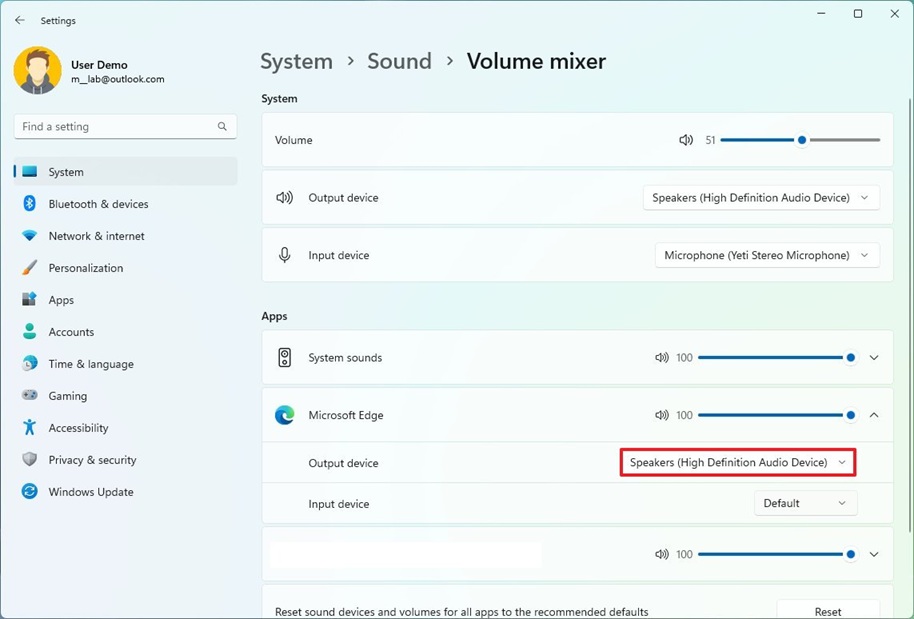
Step 2: Open privacy settings and enable microphone access for required applications.
Method 3: Update or Reinstall Audio Drivers
Drivers allow the operating system to communicate with hardware. Outdated drivers may fail to detect newly connected devices. Corrupted drivers also create detection errors.
After major system updates, driver conflicts may occur. Reinstalling the driver often refreshes communication between hardware and software.
Using official drivers is important. Incorrect versions may worsen the problem.
Step 1: Open Device Manager. Locate audio inputs. Update the driver using the official manufacturer option.
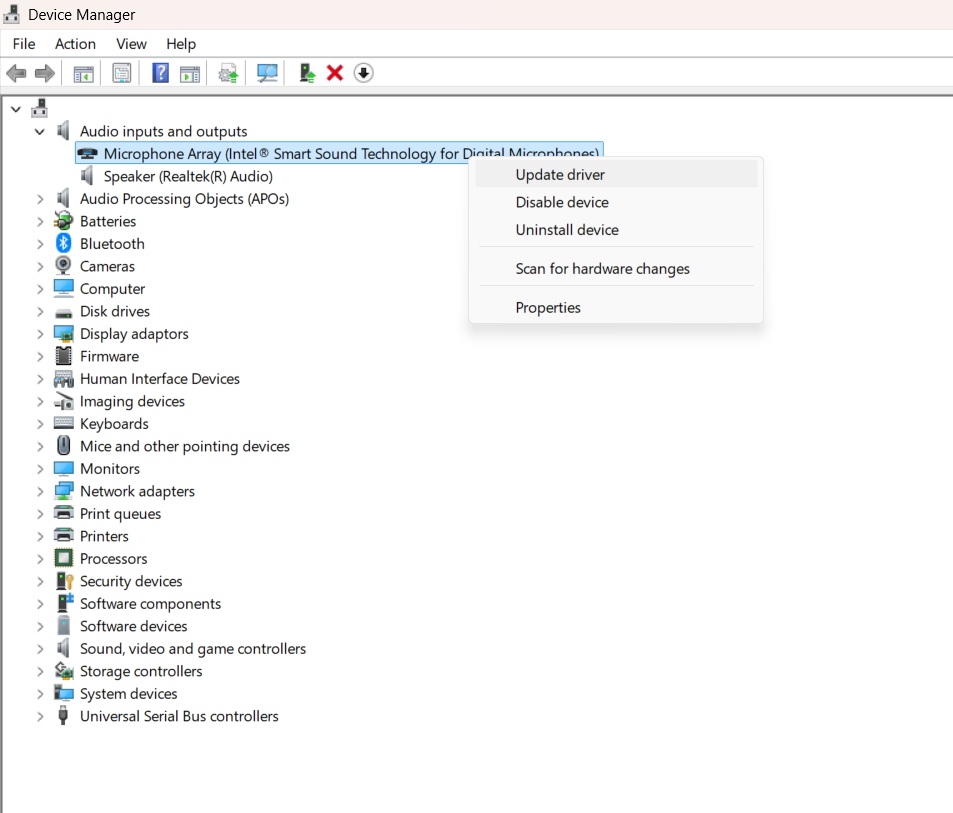
Step 2: If updating fails, uninstall the driver. Restart the system to allow automatic reinstallation.
Method 4: Run Built-in Troubleshooting Tools
Modern operating systems include audio troubleshooting tools. These tools automatically detect and fix minor configuration errors.
Troubleshooters examine driver status, permissions, and device connections. They often solve common issues without manual adjustments.
Although not perfect, this method saves time and identifies hidden faults.
Step 1: Go to system settings and open the troubleshooting section. Select the audio input troubleshooter.
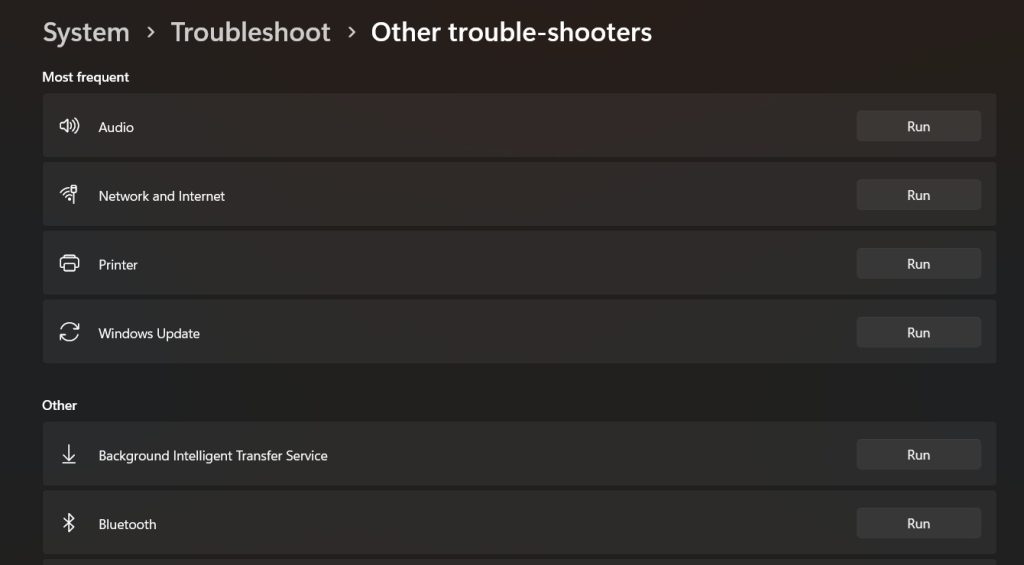
Step 2: Follow the instructions provided and apply suggested fixes.
Method 5: Check Hardware Functionality on Another Device
If software fixes do not work, hardware may be damaged. Testing the microphone on another computer helps confirm this.
If the microphone works on another device, the issue lies within your system settings. If it fails again, replacement may be necessary.
Testing removes confusion and prevents unnecessary system modifications.
Step 1: Connect the microphone to a different computer or laptop.
Step 2: If it fails there as well, consider servicing or replacing the device.
Author’s Tip
Do not rush into advanced technical solutions. Begin with the simplest checks, such as verifying connections and reviewing sound settings. Many users ignore these basic steps and move directly to complex fixes. This approach often leads to confusion and wasted time. Work slowly and follow each step in order. Careful observation helps you identify the real cause without creating new problems. Patience and a clear sequence are essential when resolving microphone detection problems.
Keep your operating system and audio drivers updated on a regular basis. Updates improve compatibility between hardware and software. They also fix known bugs that may affect microphone detection. Simple maintenance reduces the risk of sudden audio failure during meetings or recordings. Preventive care takes only a few minutes, but it saves hours of repeated troubleshooting later.
Conclusion
Microphone detection issues are common, but they are rarely permanent. Most problems result from loose connections, disabled settings, or outdated drivers. When handled carefully, these issues can be resolved within minutes.
This complete guide explains how to resolve microphone detection problems using practical methods. By following precautions and structured troubleshooting, users can restore clear audio and continue their work without disruption.
FAQs
1. Why is my microphone not detected after a system update?
After a system update, audio settings may reset automatically, or the default input device may change. Sometimes the update installs a new driver that does not work properly with your microphone. Checking the sound settings, selecting the correct input device, and updating or reinstalling the audio driver usually solves the issue.
2. Can a damaged cable cause detection problems?
Yes, a damaged or loose cable can stop the system from detecting the microphone. Even small internal wire breaks may interrupt the signal without visible damage outside. Always inspect the cable carefully and try using another cable or port before changing system settings.
3. How often should audio drivers be updated?
Audio drivers should be checked after major operating system updates or when you experience sound issues. You do not need to update them daily, but keeping them reasonably current improves compatibility and stability. Regular maintenance reduces the chances of detection problems in the future.
Author Bio:
Dinesh Lakhwani 

Dinesh Lakhwani, the entrepreneurial brain behind “TechCommuters,” achieved big things in the tech world. He started the company to make smart and user-friendly tech solutions. Thanks to his sharp thinking, focus on quality and the motto of never giving up, TechCommuters became a top player in the industry. His commitment to excellence has propelled the company to a leading position in the industry.
Popular Post
Recent Post

How to Recover Deleted Files from Pen drive, USB Drive, SD Card
Introduction: On tech forums, you’ll often see posts like this: “I connected my pen drive to my laptop this morning, but the folder was empty. All my college project files had vanished. I don’t have a backup. Can someone help me?” Stories like this are very common. Pen drives, USB drives and SD cards are […]

How To Recover Files Deleted from the Recycle Bin [Windows 11]
Losing a file can happen in seconds. You clear your desktop, hit Delete, and empty the Recycle Bin. Then, just when you need that file again, it seems to have vanished. This guide will walk you through ways to restore files removed from the Recycle Bin. We will begin with simple fixes, then look at […]

Disk Drill Data Recovery Tool Explained: Full Review and Guide
It happens in a split second. You delete a folder by mistake. Your drive stops showing up. A photo album from your last trip just vanishes. And your stomach drops. Lost files feel personal. They are not just data. They are memories, work hours, and sometimes years of effort packed into a few gigabytes. When […]

Recover Deleted Files In Windows 11 With Software & Without
Introduction What is the first thing that goes through your mind the second an important file vanishes from a Windows 11 PC? For most people, it is a mix of panic and disbelief, followed by a frantic click through every folder that file could possibly be hiding in. It happens in a split second: one […]

EaseUS Data Recovery Wizard: Everything To Know
Data loss does not always come from a big disaster either. Most cases start small and boring. A drive gets formatted by mistake. A laptop freezes mid-save and restarts on its own. A memory card stops showing up after being pulled out too fast. None of these feel like emergencies at first, until you realize […]

Recuva Data Recovery Tool: Is it Actually Worth it?
When I first tried Recuva Data Recovery, I wanted to see if it could really bring back lost files. The tool is free, small in size, and promises quick recovery, which made me curious enough to test it on my own PC. The setup was fast, and the wizard guided me step by step. I […]

GetData Recover My Files Data Recovery Tool: Honest Review
A hard drive error brings a special kind of silence. Well, yes! The screen freezes, then a message appears saying the drive can’t be found or must be formatted. In that moment, years of photos and work files feel at risk. It never happens at a good time. Coffee spills near a laptop, a memory […]

Windows File Recovery: A Complete Review [Tried & Tested]
Imagine this. You spend hours perfecting a video project. You hit save. Then your laptop freezes, reboots, and when the screen comes back. The file is gone. Your stomach sinks. It’s not just you. Lost files happen all the time. A dropped hard drive, a bad update, an accidental delete, or a corrupted partition can […]

5 Best Data Recovery Software For Windows 11 and Windows 10
Introduction: A crashed drive can ruin a whole day. One minute your photos, work files, and tax records sit safe on your PC. The next minute they are gone. A power cut, a bad update, or one wrong click can wipe out years of memories and months of work in seconds. That sinking feeling is […]

