












The photos folder looked normal at first glance. Then the storage warning popped up. One trip photo appeared four times. A tax PDF sat in three different folders. Two old setup files were still in Downloads, and each one was over 500 MB. Nobody plans this mess. Copies pile up slowly. A download runs twice. […]
How To Fix A Frozen Computer: Complete Guide [Windows 11/10]
A frozen computer is one of the most common problems Windows users face. The screen stops responding. The mouse pointer does not move. Keyboard inputs do nothing. You may hear the fan running loudly. Sometimes the system looks alive, but nothing works. This situation often happens when you are busy or working on something important. It creates panic and frustration. Many users think their computer is damaged. In reality, most freezing issues are temporary and fixable.
Windows 11 and Windows 10 are powerful systems. Still, they depend on a hardware, memory, and software balance. When one part struggles, the whole system slows or freezes. Freezing is a signal, not a failure. It tells you that the system needs attention. This guide on how to fix a frozen computer explains every step in plain language. You do not need technical knowledge. Each section moves slowly and clearly, so anyone can follow it.
This complete guide focuses on safe solutions. You will learn why freezing happens. You will learn what to do immediately. You will also learn how to stop it from happening again.
Why Does My Computer Keep Freezing: Top Reasons
Common Causes Behind Computer Freezing Issues
A computer does not freeze without reason. Something always pushes it beyond its limit. That limit could be memory, heat, storage speed, or software conflicts. Understanding these causes helps you choose the right fix. Below are the most common reasons explained in simple terms.
- Low system memory: RAM holds active tasks. When it fills up, Windows struggles to manage processes. The system pauses to catch up, which feels like freezing.
- Too many background programs: Many apps start automatically. They run silently and consume resources. Over time, this slows everything.
- Overheating components: Dust blocks air vents. Fans slow down. Heat rises. To protect hardware, Windows reduces performance or freezes.
- Corrupt Windows system files: System files guide Windows operations. When damaged, commands fail, and programs hang.
- Outdated or faulty drivers: Drivers connect hardware to Windows. Old drivers cannot handle new updates properly.
- Malware and unwanted software: Some programs run without permission. They steal CPU and memory power.
- Hard drive or SSD issues: Slow or failing storage delays file access. Windows waits too long and freezes.
- Incomplete Windows updates: Interrupted updates cause system confusion and instability.
Precautions Before Following the Steps
Safety Measures Before Fixing a Frozen Computer
Before you try any fix, pause and prepare. Rushing can make the problem worse. A few careful steps protect your data and system.
- Try to save open files
If the system allows it, save work before doing anything else. - Disconnect external devices
USB drives and external disks may cause conflicts. - Ensure steady power
Plug in laptops to avoid shutdown during fixes. - Avoid repeated force shutdowns
These can damage system files. - Close visible background apps
Reduce load before troubleshooting. - Note recent changes
New apps or updates may be the cause. - Be patient with fixes
Some processes take several minutes. - Keep basic backups
Cloud or external backups reduce stress.
How To Fix A Frozen Computer
Freezing problems often look serious but are easy to solve. Start with the safest fix. Move forward only if the issue continues. This section explains how to fix a frozen computer step by step for Windows 11 and Windows 10 users.
Fix 1: Wait Briefly and Use Task Manager
Sometimes Windows freezes because it is busy handling a heavy task in the background. This can happen when large files are being copied, updates are installing, or system checks are running. During these moments, the system may look stuck, but it is often still working. Waiting for about a minute gives Windows time to finish the task and respond again without risk.
Task Manager helps you see what is really happening behind the scenes. It shows which programs are using high memory or CPU power. If one app stops responding, you can close it safely from there. This avoids forcing a shutdown and reduces the chance of data loss.
Why use this fix
- Identifies problematic programs
- Prevents forced shutdown
- Safe for beginners
- Quick and effective
Steps
- Step 1. Press Ctrl + Shift + Esc.
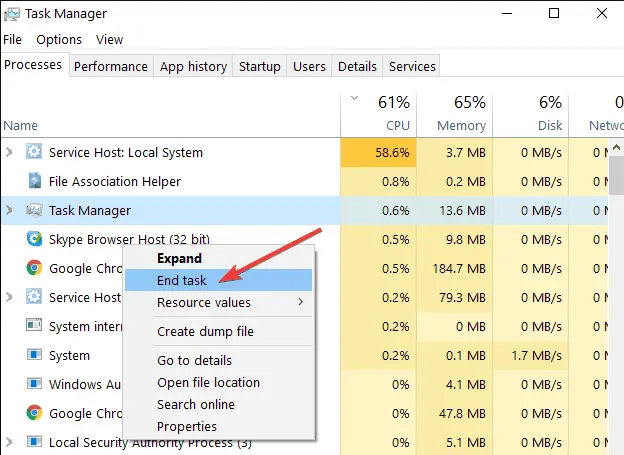
- Step 2. Select the frozen program and click End Task
Fix 2: Restart Windows Explorer
Windows Explorer manages the desktop, taskbar, Start menu, and file folders. When it stops responding, the screen may look completely frozen. The mouse might move, but clicks do nothing. In many cases, the system is still running in the background. Only the visual interface has stopped responding.
Restarting Windows Explorer reloads these elements and brings the screen back to life. It does not shut down your computer or close open programs. This makes it a safe and quick fix when the desktop or taskbar becomes unresponsive.
Why use this fix
- Fixes a stuck desktop
- Restores taskbar response
- No file loss risk
- Very fast solution
Steps
- Step 1. Open Task Manager.
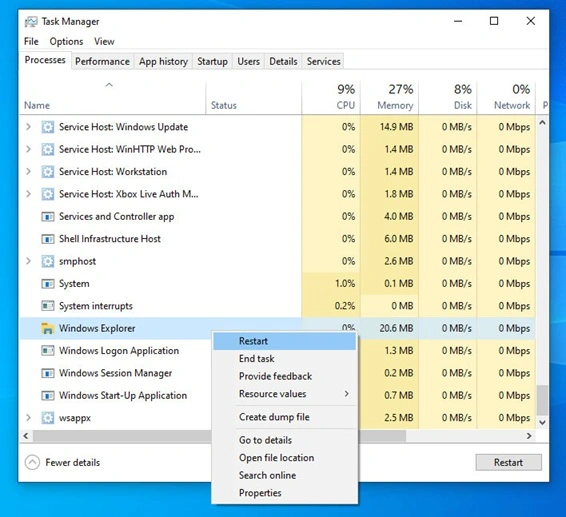
- Step 2. Right-click Windows Explorer and select Restart
Fix 3: Restart the Computer Properly
Restarting the computer clears temporary memory and stops stuck background processes. It gives Windows a fresh start and reloads system services properly. Many freezing problems disappear after a restart because the system is no longer overloaded. This simple step often fixes issues caused by long usage or heavy multitasking.
Avoid holding the power button unless the system is completely unresponsive. Forced shutdowns can damage system files over time. A proper restart using the Windows power menu is much safer and helps keep the system stable.
Why use this fix
- Clears memory overload
- Stops stuck background processes
- Refreshes system performance
- Solves many random freezes
Steps
- Step 1. Press Ctrl + Alt + Delete.
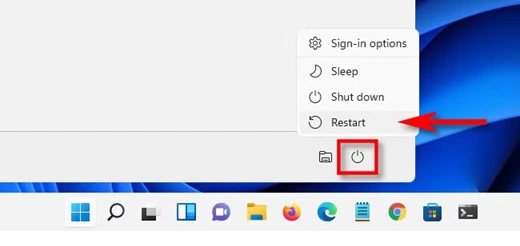
- Step 2. Choose Restart from the power menu
Fix 4: Check for Overheating Problems
Overheating reduces system performance and can lead to frequent freezing. Laptops are especially sensitive because they have limited space for airflow. Dust buildup inside vents and fan traps heat and prevents proper cooling. As temperatures rise, Windows lowers its performance to protect the hardware, which causes slowdowns or freezes.
If the device feels unusually hot to the touch or the fans are running loudly, overheating is a strong possibility. These signs mean the system is struggling to cool itself. Improving airflow and cleaning dust can quickly reduce freezing caused by heat.
Why use this fix
- Prevents hardware damage
- Improves system speed
- Reduces unexpected freezes
- Extends device lifespan
Steps
- Step 1. Place the device on a hard surface.
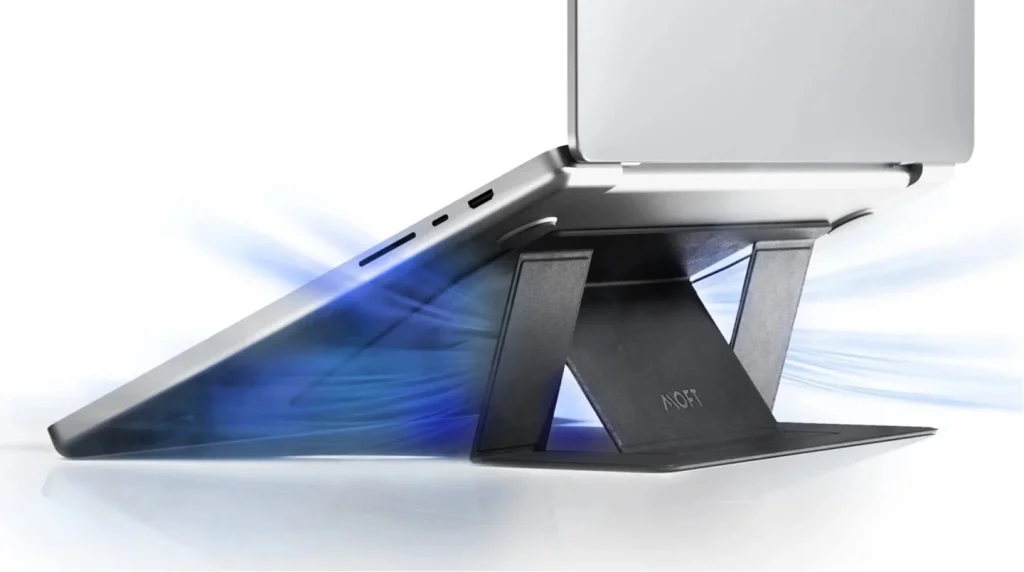
- Step 2. Clean vents and ensure airflow
Fix 5: Scan the System for Malware
Malware often runs silently in the background without clear signs. It uses CPU, memory, and disk resources, which slows the system over time. As these hidden processes pile up, Windows struggles to respond and may freeze during normal tasks. Freezing caused by malware usually becomes more frequent if left unchecked.
Windows Security provides strong built-in protection for Windows 11 and Windows 10 users. It can detect and remove the most common threats without installing extra software. Running regular scans helps keep system resources free and reduces freezing problems.
Why use this fix
- Removes hidden threats
- Frees CPU and memory
- Improves system stability
- Protects personal data
Steps
- Step 1. Open Windows Security.
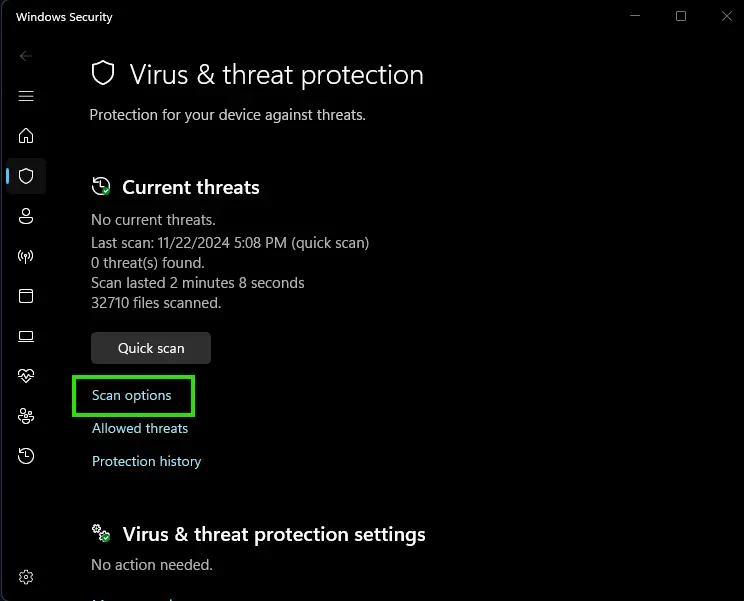
- Step 2. Run a full scan
Fix 6: Update Windows and Drivers
Updates fix known bugs and improve how Windows works with hardware and software. Many freezing issues are caused by small errors that updates repair. Drivers also need regular updates so they can communicate properly with Windows after system changes. Without these updates, conflicts can build up and slow the system.
Skipping updates may seem harmless, but it often leads to instability over time. Outdated drivers and system files struggle to keep up with newer programs. This increases the chances of freezes, crashes, and slow performance during daily use.
Why use this fix
- Fixes system bugs
- Improves hardware performance
- Prevents future freezes
- Keeps the system secure
Steps
- Step 1. Go to Settings and open Windows Update.
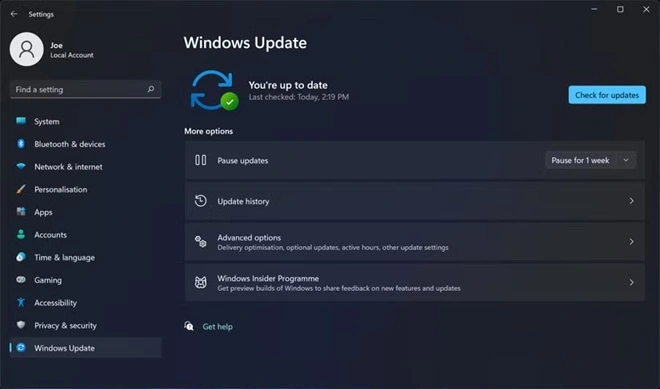
- Step 2. Install all available updates
Fix 7: Repair Disk and System Files
Damaged system files make it harder for Windows to run commands correctly. When these files are missing or corrupted, programs may hang or stop responding. Disk errors also slow down file access because Windows has trouble reading or writing data. Over time, these delays build up and lead to frequent freezing.
Windows includes built-in repair tools to handle these problems safely. These tools scan for errors and fix them automatically in many cases. Using them regularly helps restore system stability and reduces freezing issues.
Why use this fix
- Repairs corrupt system files
- Improves boot and load speed
- Reduces system errors
- Increases reliability
Steps
- Step 1. Open Command Prompt as administrator.
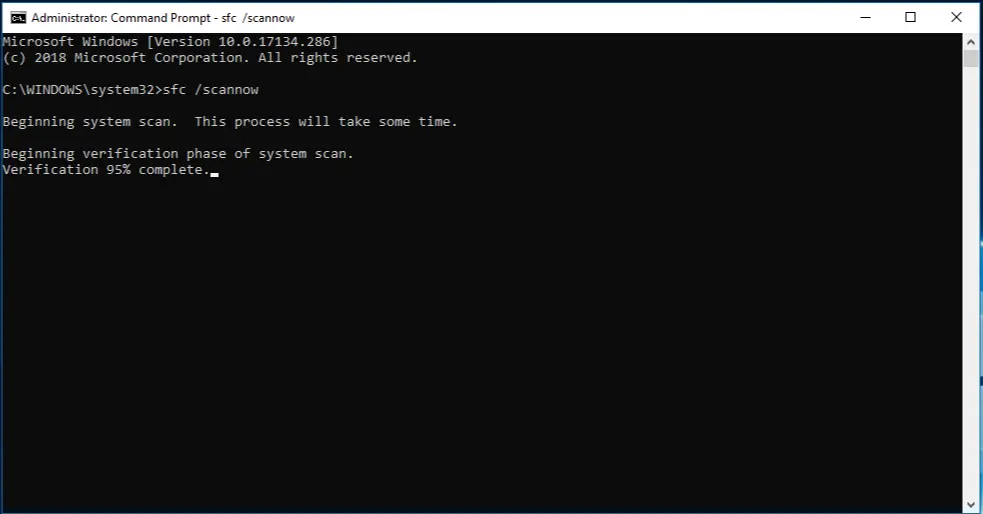
- Step 2. Type sfc /scannow and press Enter
Habits to Follow: To Avoid Freezing the PC
Daily Practices That Keep Windows Smooth
Good habits prevent most freezing issues. Small changes make a big difference over time.
- Restart once a week
Clears memory and refreshes services. - Reduce startup programs
Faster boot and less load. - Maintain free disk space
Windows need space to function properly. - Update software regularly
Fixes bugs that cause freezing. - Clean hardware every few months
Reduces overheating risks. - Install trusted apps only
Avoid hidden background processes. - Use built-in antivirus tools
Prevents malware slowdown. - Check Task Manager occasionally
Spot issues early.
Advanced Tips
Deeper Fixes for Frequent Freezing Problems
If freezing continues, advanced steps may help. These are optional but effective.
- Increase virtual memory size
Helps systems with limited RAM. - Upgrade RAM if supported
Reduces memory bottlenecks. - Switch from HDD to SSD
Faster data access reduces freezing. - Review Event Viewer logs
Identifies hidden errors. - Disable unused Windows services
Reduces background load. - Perform clean boot testing
Finds conflicting software. - Reset Windows as last option
Fixes deep software problems. - Get hardware checked professionally
Faulty parts cause repeated freezes.
Conclusion
A frozen computer can feel overwhelming, but it is rarely permanent. Most freezing issues come from memory overload, overheating, background apps, or outdated software. Windows 11 and Windows 10 offer strong built-in tools to handle these problems. Learning how to fix a frozen computer gives you control. It removes fear and helps you act calmly when the system stops responding.
Prevention matters as much as repair. Simple habits like regular restarts, updates, and cleaning protect system health. Advanced fixes should only be used when basic steps fail. With patience and care, your computer can stay smooth and responsive. This complete guide on how to fix a frozen computer is designed to help you work confidently without panic.
FAQs
1. How long should I wait before restarting a frozen computer?
When a computer freezes, it may still be working in the background. Large files, updates, or heavy programs can cause short pauses. Waiting one to two minutes is usually enough. Watch for disk light activity or fan noise. If nothing changes and the screen stays unresponsive, open Task Manager if possible. If that also fails, restart the system in a safe way.
2. Can freezing mean my hardware is failing?
Yes, freezing can sometimes point to hardware problems. Overheating is a common cause, especially in laptops with blocked vents. A failing hard drive or SSD can also slow file access and cause system pauses. Low RAM forces Windows to struggle with tasks. If freezes happen often, hardware checks should be considered.
3. Will adding RAM stop freezing completely?
Adding RAM can greatly reduce freezing, especially when many programs run at once. It gives Windows more space to manage tasks. However, RAM alone cannot fix software problems, malware, or system errors. For best results, combine a RAM upgrade with regular updates, clean software use, and good system habits.
Author Bio:
Dinesh Lakhwani 

Dinesh Lakhwani, the entrepreneurial brain behind “TechCommuters,” achieved big things in the tech world. He started the company to make smart and user-friendly tech solutions. Thanks to his sharp thinking, focus on quality and the motto of never giving up, TechCommuters became a top player in the industry. His commitment to excellence has propelled the company to a leading position in the industry.
Popular Post
Recent Post

Wise Duplicate Finder Review: Real Results from Wise Duplicate Finder
Read my honest Wise Duplicate Finder review. See features, pricing, pros and cons, and real PC test results. Find out if this free duplicate cleaner can free up your Windows storage.

How to Recover Deleted Files from Pen drive, USB Drive, SD Card
Introduction: On tech forums, you’ll often see posts like this: “I connected my pen drive to my laptop this morning, but the folder was empty. All my college project files had vanished. I don’t have a backup. Can someone help me?” Stories like this are very common. Pen drives, USB drives and SD cards are […]

How To Recover Files Deleted from the Recycle Bin [Windows 11]
Losing a file can happen in seconds. You clear your desktop, hit Delete, and empty the Recycle Bin. Then, just when you need that file again, it seems to have vanished. This guide will walk you through ways to restore files removed from the Recycle Bin. We will begin with simple fixes, then look at […]

Disk Drill Data Recovery Tool Explained: Full Review and Guide
It happens in a split second. You delete a folder by mistake. Your drive stops showing up. A photo album from your last trip just vanishes. And your stomach drops. Lost files feel personal. They are not just data. They are memories, work hours, and sometimes years of effort packed into a few gigabytes. When […]

Recover Deleted Files In Windows 11 With Software & Without
Introduction What is the first thing that goes through your mind the second an important file vanishes from a Windows 11 PC? For most people, it is a mix of panic and disbelief, followed by a frantic click through every folder that file could possibly be hiding in. It happens in a split second: one […]

EaseUS Data Recovery Wizard: Everything To Know
Data loss does not always come from a big disaster either. Most cases start small and boring. A drive gets formatted by mistake. A laptop freezes mid-save and restarts on its own. A memory card stops showing up after being pulled out too fast. None of these feel like emergencies at first, until you realize […]

Recuva Data Recovery Tool: Is it Actually Worth it?
When I first tried Recuva Data Recovery, I wanted to see if it could really bring back lost files. The tool is free, small in size, and promises quick recovery, which made me curious enough to test it on my own PC. The setup was fast, and the wizard guided me step by step. I […]

GetData Recover My Files Data Recovery Tool: Honest Review
A hard drive error brings a special kind of silence. Well, yes! The screen freezes, then a message appears saying the drive can’t be found or must be formatted. In that moment, years of photos and work files feel at risk. It never happens at a good time. Coffee spills near a laptop, a memory […]

Windows File Recovery: A Complete Review [Tried & Tested]
Imagine this. You spend hours perfecting a video project. You hit save. Then your laptop freezes, reboots, and when the screen comes back. The file is gone. Your stomach sinks. It’s not just you. Lost files happen all the time. A dropped hard drive, a bad update, an accidental delete, or a corrupted partition can […]

