












The photos folder looked normal at first glance. Then the storage warning popped up. One trip photo appeared four times. A tax PDF sat in three different folders. Two old setup files were still in Downloads, and each one was over 500 MB. Nobody plans this mess. Copies pile up slowly. A download runs twice. […]
How To Get Help With File Explorer in Windows 11 [Complete Guide]
File Explorer is one of the most important tools in Windows 11. It is used to open folders, view files, and manage stored data. Almost every action on a Windows computer depends on it in some way. When users open documents, save downloads, or organize photos, File Explorer is always involved.
Because it is used so often, even a small issue can cause frustration. When File Explorer stops responding, freezes, or closes suddenly, work slows down. Many users do not know where to start when this happens. They may restart the system again and again without results.
Windows 11 includes several ways to solve these problems. Some tools are built into the system itself. Others are available through official Microsoft resources. These options are safe and designed for regular users.
This article explains every support option in clear language. Each step is broken down so it is easy to follow. You do not need technical experience to understand the guidance. The goal is to help users stay calm and fix issues with confidence.
Quick Answers to Common File Explorer Questions
What slows down File Explorer the most?
File Explorer slows down mainly due to very large folders and low available system memory. Folders that contain thousands of files, especially images or videos, take longer to load. Running too many programs at the same time also reduces memory and affects performance. Clearing unused files and closing extra apps can improve speed.
How often should I clear File Explorer history?
Clearing File Explorer history once every few weeks is usually enough for most users. This helps remove old access data that can slow down loading. It also improves privacy by removing recently opened files and folders. Regular cleaning keeps File Explorer running smoothly.
Can Windows updates cause File Explorer issues?
Yes, Windows updates can sometimes cause File Explorer issues. New updates may introduce temporary bugs or compatibility problems. These issues are often fixed in later updates or patches. Keeping Windows updated ensures you receive those fixes as soon as they are released.
Where can users learn how to get help with File Explorer?
Users can find reliable support through Microsoft’s built-in help tools and official support guides. The Get Help app and Microsoft Support website offer clear instructions. Community forums also provide real user experiences and solutions. These sources are safe and regularly updated.
Understanding File Explorer in Windows 11
File Explorer is the file management system of Windows 11. It allows users to browse internal drives, external storage, and connected devices. Files and folders are displayed visually so users can understand their layout easily.
The Windows 11 version of File Explorer looks different from older versions. The toolbar is simpler. Menus are cleaner. Icons are spaced out for better visibility. These changes aim to reduce confusion and make navigation easier.
File Explorer depends on background Windows services to function properly. If one service is not responding, File Explorer may slow down or stop opening. This often happens after system updates or unexpected shutdowns.
Large folders can also cause performance problems. When a folder contains thousands of files, File Explorer may take longer to load. Media-heavy folders, such as videos or images, can slow it down further.
Knowing these basics helps users understand why problems appear. Most issues are temporary and related to system behavior rather than permanent damage.
How To Get Help With File Explorer in Windows 11
Getting support for File Explorer does not require technical skills. Windows 11 includes built-in tools, guided help, and safe recovery options. These are designed for everyday users.
Before looking outside the system, it is always best to try the official support paths. These methods are stable, tested, and regularly updated by Microsoft.
Below are the most reliable ways to get help, explained clearly and separately.
Use thet Get Help App
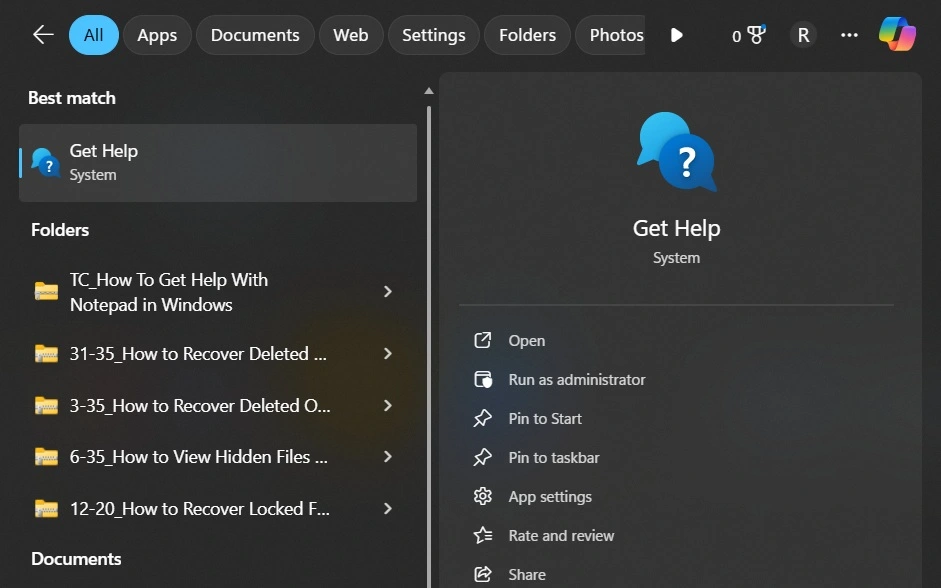
The Get Help app is built into Windows 11. It connects users directly to Microsoft support content. You can open it from the Start menu. Once open, type a short description of the problem. The app then shows suggested solutions.
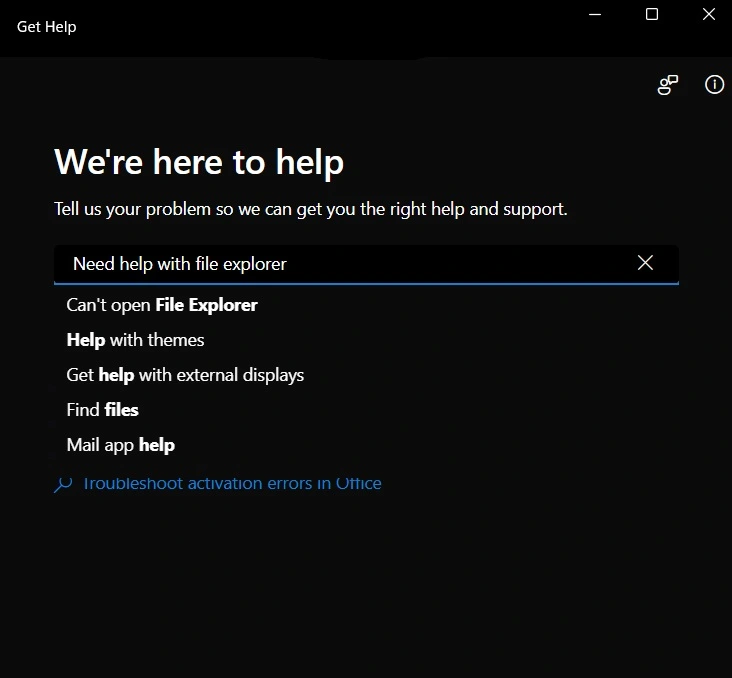
These solutions often include step-by-step instructions. Some also link to official articles. This method is safe and works well for common issues.
Use Settings for Guided Support
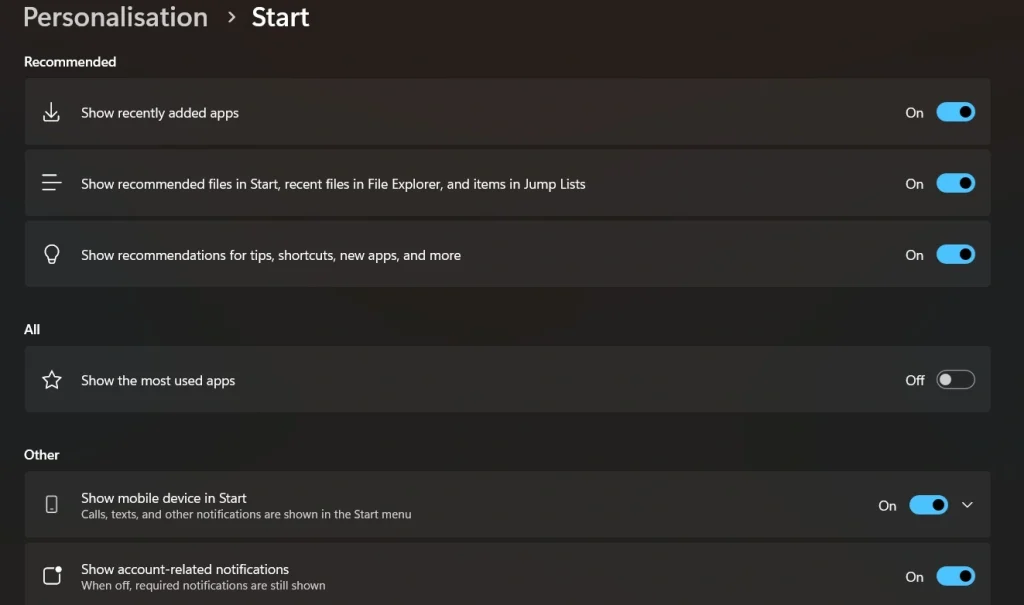
Image name: how-to-get-help-with-file-explorer-in-windows-11-04.jpg
Image alt:
The Settings app is another place to find help. Many File Explorer-related options are connected to system performance and storage.
By searching inside Settings, users may find system repair suggestions. Windows sometimes detects errors automatically and offers fixes.
This approach is helpful when File Explorer issues are linked to updates or system files.
Restart File Explorer Using Task Manager
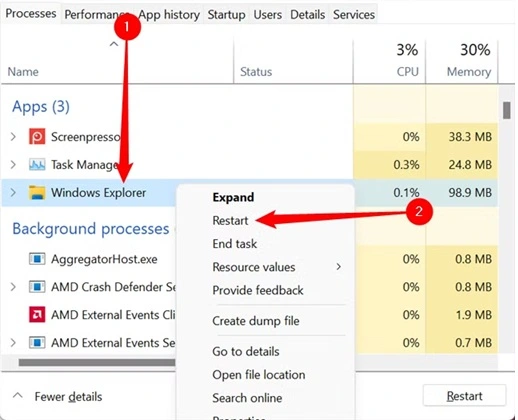
Task Manager is one of the fastest ways to fix freezing problems.
When File Explorer stops responding, opening Task Manager and restarting Windows Explorer refreshes the process. This clears temporary errors without restarting the computer.
This method is simple and effective. It does not delete data or settings.
Use Windows Troubleshooters
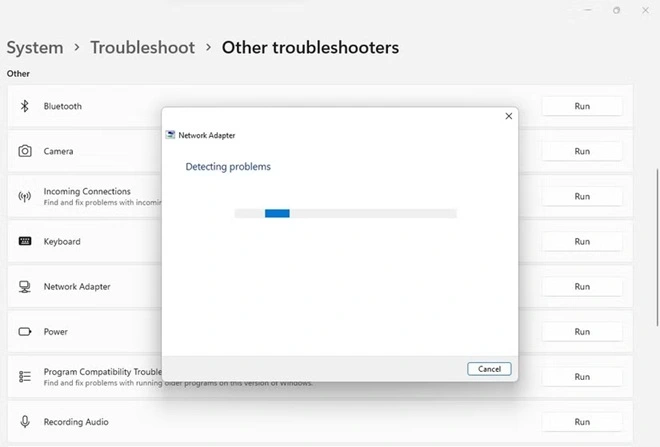
Windows 11 includes troubleshooters that scan for known problems. These tools check system behavior and apply fixes automatically when possible. They are useful when the cause of the issue is not clear.
Troubleshooters are safe because they only change approved system settings.
__________________________________________________________________________________
Built-in Help Options in Windows 11
Windows 11 includes support tools that are already installed. Many users do not realize how useful these tools are.
The Get Help app is designed to guide users step by step. It connects directly to Microsoft support. Users can type questions in plain language. The app then suggests solutions based on the issue.
The Settings app is another helpful area. Searching inside Settings often reveals troubleshooting options. Windows may recommend fixes automatically if it detects a known issue.
Task Manager is one of the fastest ways to resolve freezes. When File Explorer stops responding, restarting it through Task Manager clears temporary issues. This does not delete files or affect saved work.
Using these built-in tools teaches users how to get help with File Explorer without risk. These options are safe and designed specifically for Windows 11.
Using Microsoft Support and Online Resources
Microsoft provides official support through its website. These resources are reliable and updated often. They are written for everyday users, not just technical experts.
Support articles explain problems using clear language. Many include screenshots that show exactly where to click. This helps users avoid mistakes.
Microsoft Community forums are also useful. Real users share their experiences and solutions. Reading these posts often provides practical advice that feels familiar.
Video tutorials are another valuable option. Many users learn better by watching. Seeing the fix step by step builds confidence.
It is important to avoid random websites. Unofficial sources may suggest risky actions. Always rely on trusted Microsoft platforms.
Troubleshooting Common File Explorer Issues
Some File Explorer problems appear more often than others. Slow loading is one of the most common complaints. This usually happens when the system cache grows too large.
File Explorer freezing or crashing is another frequent issue. Restarting the Windows Explorer process often solves it. In some cases, a full system restart helps.
Files that appear missing often cause panic. Many times, files are hidden due to view settings. Changing folder options restores visibility.
Search failures happen when the index becomes outdated. Rebuilding the index refreshes search results and improves accuracy.
Addressing these common issues early prevents larger problems later.
Precautions Before Making Changes
Before attempting any fix, it is important to take safety steps. These steps protect data and system stability.
● Backup important files
Keep copies of documents, photos, and settings on an external drive or cloud storage. This protects data if troubleshooting causes issues.
● Close running applications
Shut down open programs before starting. This reduces conflicts and prevents losing unsaved work.
● Avoid unknown software
Do not install unverified tools. They can damage system files or create new problems.
● Check for Windows updates
Run Windows Update regularly. Updates often fix bugs, improve performance, and add security patches.
● Follow official instructions
Use Microsoft’s support guides when possible. Official steps are safer and more reliable.
● Restart the system
Restarting clears temporary errors and refreshes background processes. It often solves minor issues quickly.
● Avoid forced shutdowns
Do not hold the power button unless necessary. Forced shutdowns may corrupt files or disrupt updates.
● Write down error details
Record error codes and messages. This helps identify the problem and speeds up finding solutions.
These precautions reduce stress and prevent data loss.
Common Reasons File Explorer Needs Support
File Explorer issues often follow a pattern. Understanding the cause makes fixing them easier.
System updates may introduce temporary bugs. These usually get fixed later through patches.
Large folders slow down loading times. Media files, such as video,s increase strain on the system.
Sudden shutdowns may damage system files. This can cause Explorer crashes.
Third-party software may conflict with system processes. This happens with some customization tools.
Identifying the reason helps choose the right fix.
Tips to Use File Explorer Better
Good usage habits improve File Explorer performance over time.
● Use Quick Access wisely
Pin folders you use often to Quick Access. This saves time and reduces clicks.
● Clear File Explorer history
Clear the recent file and folder history. It helps File Explorer run faster and protects your privacy.
● Learn keyboard shortcuts
Use shortcuts like Ctrl+E for search or Alt+Enter for properties. They make navigation quicker and reduce mouse use.
● Keep folder names short
Use brief, clear names for folders. Long names can slow down loading and clutter the view.
● Avoid overloaded folders
Don’t store too many files in one folder. Split large folders into smaller groups to improve loading speed.
● Use search filters
Apply filters like date, type, or size when searching. This helps you find files faster and more accurately.
● Choose the correct view modes
Switch between views like Details, List, or Icons. Use the Details view to sort and organize files easily.
● Clean unused files regularly
Delete old or unused files. This frees up space and keeps your system running smoothly.
Simple habits prevent many future problems.
Advanced Help and Repair Options
Some issues require deeper solutions. These options should be used carefully.
System File Checker scans Windows files and repairs corruption. It replaces missing or damaged components automatically.
DISM repairs Windows system images. It is helpful after update failures or repeated crashes.
Creating a new user account can resolve profile-specific issues. If File Explorer works in the new account, the problem is isolated.
Resetting File Explorer settings clears damaged view preferences. This restores the default behavior.
Always back up files before using advanced tools.
Author’s Tip
Most File Explorer issues are not serious. Many users feel anxious too quickly. Simple actions such as restarting Explorer fix more problems than expected.
Understanding system behavior helps reduce panic. Knowing how to get help with File Explorer makes troubleshooting faster and calmer.
Conclusion
File Explorer plays a central role in Windows 11. It is used for opening files, managing folders, and handling everyday work. When it fails or slows down, even small tasks start to feel difficult. Users may struggle to access documents, move files, or complete routine actions on time. This can interrupt both personal and professional work.
The good news is that most File Explorer problems are not serious. Windows 11 includes reliable support tools that are easy to use. Official resources, simple precautions, and a calm approach solve most issues quickly. Learning how to get help with File Explorer gives users confidence. It helps them fix problems safely and continue their work without unnecessary stress.
FAQs
Why does File Explorer stop responding?
File Explorer usually stops responding when the system is under heavy load. This can happen if too many apps are running at the same time. Large folders with many files can also cause delays. In some cases, damaged system files or software conflicts lead to freezing. A simple restart or closing unused programs often helps.
Can File Explorer be removed and reinstalled?
File Explorer cannot be removed or reinstalled on its own. It is a core part of the Windows operating system. Because it is built into Windows, it works closely with other system services. Fixing issues usually involves restarting it, repairing system files, or updating Windows.
Should I install File Explorer repair software?
It is better not to install third-party repair software. Many such tools are unreliable and may cause more problems. Built-in Windows tools are safer and designed for this purpose. Using official options reduces the risk of data loss or system damage.
Author Bio:
Dinesh Lakhwani 

Dinesh Lakhwani, the entrepreneurial brain behind “TechCommuters,” achieved big things in the tech world. He started the company to make smart and user-friendly tech solutions. Thanks to his sharp thinking, focus on quality and the motto of never giving up, TechCommuters became a top player in the industry. His commitment to excellence has propelled the company to a leading position in the industry.
Popular Post
Recent Post

Wise Duplicate Finder Review: Real Results from Wise Duplicate Finder
Read my honest Wise Duplicate Finder review. See features, pricing, pros and cons, and real PC test results. Find out if this free duplicate cleaner can free up your Windows storage.

How to Recover Deleted Files from Pen drive, USB Drive, SD Card
Introduction: On tech forums, you’ll often see posts like this: “I connected my pen drive to my laptop this morning, but the folder was empty. All my college project files had vanished. I don’t have a backup. Can someone help me?” Stories like this are very common. Pen drives, USB drives and SD cards are […]

How To Recover Files Deleted from the Recycle Bin [Windows 11]
Losing a file can happen in seconds. You clear your desktop, hit Delete, and empty the Recycle Bin. Then, just when you need that file again, it seems to have vanished. This guide will walk you through ways to restore files removed from the Recycle Bin. We will begin with simple fixes, then look at […]

Disk Drill Data Recovery Tool Explained: Full Review and Guide
It happens in a split second. You delete a folder by mistake. Your drive stops showing up. A photo album from your last trip just vanishes. And your stomach drops. Lost files feel personal. They are not just data. They are memories, work hours, and sometimes years of effort packed into a few gigabytes. When […]

Recover Deleted Files In Windows 11 With Software & Without
Introduction What is the first thing that goes through your mind the second an important file vanishes from a Windows 11 PC? For most people, it is a mix of panic and disbelief, followed by a frantic click through every folder that file could possibly be hiding in. It happens in a split second: one […]

EaseUS Data Recovery Wizard: Everything To Know
Data loss does not always come from a big disaster either. Most cases start small and boring. A drive gets formatted by mistake. A laptop freezes mid-save and restarts on its own. A memory card stops showing up after being pulled out too fast. None of these feel like emergencies at first, until you realize […]

Recuva Data Recovery Tool: Is it Actually Worth it?
When I first tried Recuva Data Recovery, I wanted to see if it could really bring back lost files. The tool is free, small in size, and promises quick recovery, which made me curious enough to test it on my own PC. The setup was fast, and the wizard guided me step by step. I […]

GetData Recover My Files Data Recovery Tool: Honest Review
A hard drive error brings a special kind of silence. Well, yes! The screen freezes, then a message appears saying the drive can’t be found or must be formatted. In that moment, years of photos and work files feel at risk. It never happens at a good time. Coffee spills near a laptop, a memory […]

Windows File Recovery: A Complete Review [Tried & Tested]
Imagine this. You spend hours perfecting a video project. You hit save. Then your laptop freezes, reboots, and when the screen comes back. The file is gone. Your stomach sinks. It’s not just you. Lost files happen all the time. A dropped hard drive, a bad update, an accidental delete, or a corrupted partition can […]

