












Read my honest Wise Duplicate Finder review. See features, pricing, pros and cons, and real PC test results. Find out if this free duplicate cleaner can free up your Windows storage.
How To Manage Camera Permissions for App On Windows [New Guide]
Many users run into issues when trying to join video calls or online meetings—their camera simply won’t turn on. This can happen for a few reasons: Windows might be blocking access, or the app may not have the correct permissions. These hiccups often lead to confusion and frustration.
Fortunately, Windows provides straightforward tools to help you manage camera settings with ease. Whether you’re trying to adjust webcam permissions, explore camera settings on your computer, or just looking for a simple guide, you’re not alone. Users frequently ask how to control camera access for apps in Windows. And the good news is, it’s easier than you think.
This article explains everything in an easy way.
Precautions: Keep Your Camera Safe With These Basic Checks
Before you change any settings, it is good to follow some basic safety steps. This will keep your system safe. It will also help the camera run without problems. These points help you avoid risk and stay aware when you manage camera permissions for apps on Windows or when you check Camera Settings.
The same steps also help when you open Webcam settings or when you explore camera settings on my computer.
Check these points before you start. They help you protect your camera from misuse. They also help you avoid errors during setup.
- Check for malware: Scan your system with a trusted tool. This helps prevent misuse of your camera.
- Keep Windows updated: Updates fix bugs and help you manage camera permissions for apps on Windows in a smooth way.
- Update your camera driver: Updated drivers help Camera Settings load faster. They also help Webcam settings work without issues.
- Turn off unknown apps: Remove apps you do not trust. Many unsafe tools can misuse camera settings on my computer.
- Cover the camera when not used: A simple cover avoids unwanted access. It also adds a layer of safety.
- Check power settings: Wrong power settings may turn off the camera. This affects Camera Settings and Webcam settings.
- Restart after changes: A restart helps Windows apply new settings.
- Keep your accounts safe: Use strong passwords. It stops outsiders from changing camera settings on my computer.
First, Ask These Questions To Yourself
1. Why do camera permission issues happen?
Many users wonder why the camera does not respond during calls. There can be many reasons. One app may block another. Your system may have old Camera Settings. Webcam settings may load slowly. Sometimes the camera settings on my computer stop working because of conflicts. This can confuse new users. Windows tries to manage camera permissions for apps in a stable way. Still, the system may freeze or block apps at times. These common issues make it important to understand how Camera Settings behave. When you learn the right steps, your device becomes more stable.
2. Why do apps ask for camera access?
Modern apps need video access for calls and meetings. Some need it for taking pictures. Others use it for security scans. Windows checks this and allows apps to request access. You must manage camera permissions for Windows apps to make sure only safe apps can use the camera. Camera Settings help you choose who gets access. Webcam settings help you adjust quality and focus. The camera settings on my computer help you see all approved apps. This protects your privacy and lets you control how the camera works.
3. Why can some apps not detect your camera?
Sometimes an app cannot see the camera. This may happen when other software blocks it. Old drivers also create problems. Wrong Camera Settings or wrong Webcam settings may stop the app from loading. You may also face this when the camera settings on my computer are not saved correctly. When you manage camera permissions for apps on Windows in a rushed way, errors occur. This is why you should follow the steps carefully. Most of the time, a small mistake causes a big issue. Correct changes fix the problem.
4. Why does your camera work for one app but not another?
Many users face this issue. One app may get full access, and the other is blocked. This happens because of how Windows assigns priority. Camera Settings may allow one app first. Webcam settings may not support the second app. The camera settings on my computer may show one app approved and the other denied. You must manage camera permissions for Windows apps with care to avoid this. Once you update the list and approve all trusted apps, your camera will run smoothly.
How To Manage Camera Permissions for App On Windows
Windows gives tools that let you allow or block camera access for any app. The steps are simple. You need only a few clicks. This works with Camera Settings, Webcam settings, and camera settings on my computer.
These steps help you manage camera permissions for apps on Windows without worry.
Step 1: Open the main camera privacy panel
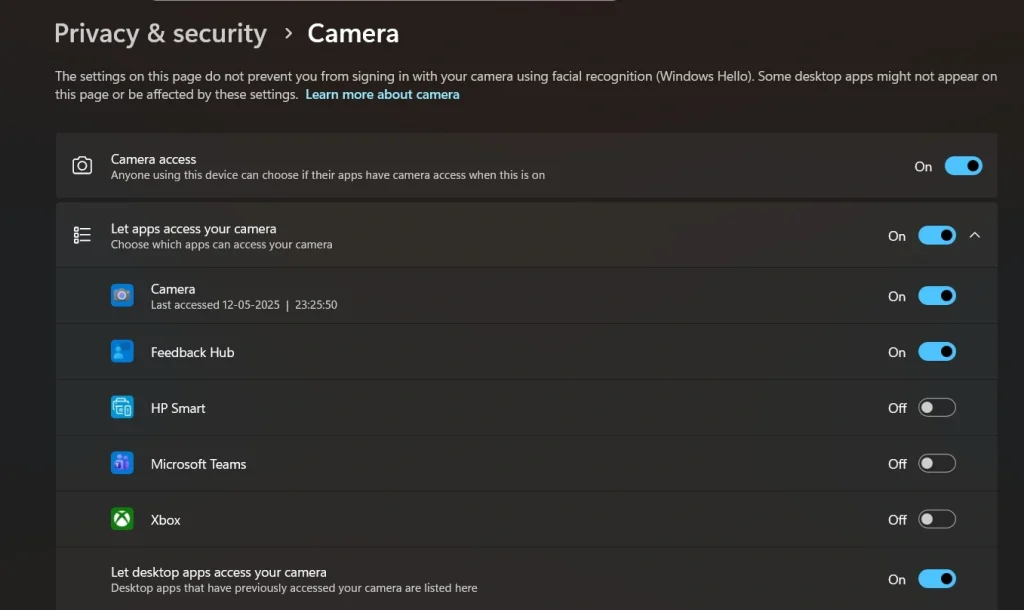
Go to Settings. Open Privacy and Security. Select Camera. You will see a list of apps that want access. This panel controls Camera Settings. It also affects Webcam settings. If you work with camera settings on my computer often, this page will become your main tool.
Step 2: Allow or block each app
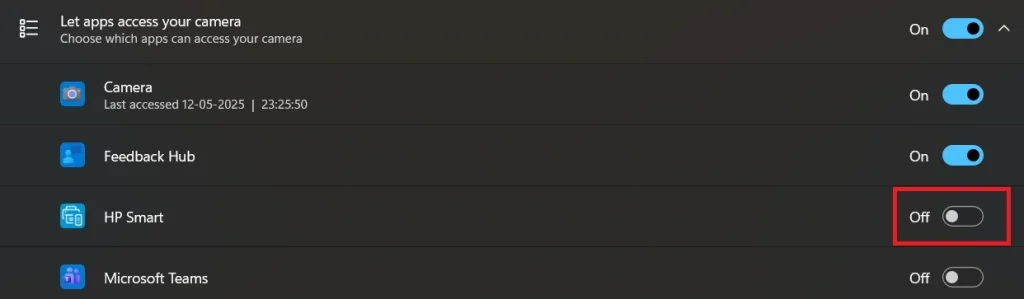
Every app has a switch. Turn it on if you trust it. Turn it off if you do not. This is the key part when you manage camera permissions for apps on Windows. These switches help you give control only where needed. You can change them anytime. They also reflect in Camera Settings and Webcam settings.
Step 3: Test the camera
After making changes, open the Camera app or any app that uses video. Check if the camera works. This confirms whether the new rules were applied correctly. The camera settings on my computer will show the updated list. If something fails, repeat the steps. Most users see quick results after these checks.
Author’s Tip
Many users forget simple checks and spend a long time trying to fix the camera. Always start by checking if your device has a free USB port or a stable built-in camera. Then check permission lists. This helps you avoid confusion while using Camera Settings or Webcam settings.
Also, take a moment to think about privacy. Give access only to apps that need it. This keeps your system safe. It also keeps the camera settings on my computer free from random apps that might cause trouble. When you manage camera permissions for apps on Windows in a careful way, you build a safe digital space.
Advanced Tips: Take Control With These Smart Camera Rules
Some users want deep control over camera behavior. They work with many apps and want strong security. These advanced tips help you improve the way you manage camera permissions for apps on Windows. They also help when you check Camera Settings or Webcam settings. You can also use them when checking camera settings on my computer.
Advanced intro
These tips are ideal for users who want stable performance and high safety. They can help you avoid camera errors and protect your privacy.
- Create separate user profiles: Use different accounts for work and home. This helps you isolate settings.
- Use the device manager for deeper checks: Disable and enable the camera driver if the camera freezes.
- Check background apps: Some apps hide in the background and use the camera. Turn them off.
- Review app update logs: Some updates change camera rules. Check the update notes to stay aware.
- Use a secure network: Unsafe networks may lead to risky camera behavior.
- Try hardware testing tools: These tools show if the camera has any physical faults.
- Use temporary blocks when needed: If you feel unsafe, turn off access for all apps for some time.
- Clean old apps: Remove apps you do not use. This keeps Camera Settings simple and clear.
Conclusion
Managing camera access is not hard. It only needs awareness and regular checks. When you learn to manage camera permissions for apps on Windows, you gain full control. You also become familiar with Camera Settings and Webcam settings. You learn how to adjust the camera settings on your computer in a stable way. This reduces stress and helps you work smoothly during calls or recordings.
A small change in settings can solve big problems. Once you follow the steps in this guide, you will notice how stable your camera becomes. You will also feel more confident when you change system tools. When you manage camera permissions for apps on Windows with care, you protect your privacy and improve device performance.
FAQs
1. Why does my camera stop working in some apps
An app may not have permission. You must manage camera permissions for apps on Windows to fix this. Sometimes the issue comes from Camera Settings or Webcam settings. The camera settings on my computer may also show blocked apps.
2. How do I check if my camera is allowed for an app
Go to Privacy and Security, then open Camera. This shows all apps. You can change Camera Settings and Webcam settings here. It also updates the camera settings on my computer. This panel helps you manage camera permissions for apps on Windows.
3. Why does Windows block my camera
Windows block the camera for safety. It wants to protect your privacy. Some apps may behave in a risky way. Camera Settings and Webcam settings help you see warnings. The camera settings on my computer also show if something is blocked. You can manage camera permissions for apps Windows to fix this.
Author Bio:
Dinesh Lakhwani 

Dinesh Lakhwani, the entrepreneurial brain behind “TechCommuters,” achieved big things in the tech world. He started the company to make smart and user-friendly tech solutions. Thanks to his sharp thinking, focus on quality and the motto of never giving up, TechCommuters became a top player in the industry. His commitment to excellence has propelled the company to a leading position in the industry.
Popular Post
Recent Post

How to Recover Deleted Files from Pen drive, USB Drive, SD Card
Introduction: On tech forums, you’ll often see posts like this: “I connected my pen drive to my laptop this morning, but the folder was empty. All my college project files had vanished. I don’t have a backup. Can someone help me?” Stories like this are very common. Pen drives, USB drives and SD cards are […]

How To Recover Files Deleted from the Recycle Bin [Windows 11]
Losing a file can happen in seconds. You clear your desktop, hit Delete, and empty the Recycle Bin. Then, just when you need that file again, it seems to have vanished. This guide will walk you through ways to restore files removed from the Recycle Bin. We will begin with simple fixes, then look at […]

Disk Drill Data Recovery Tool Explained: Full Review and Guide
It happens in a split second. You delete a folder by mistake. Your drive stops showing up. A photo album from your last trip just vanishes. And your stomach drops. Lost files feel personal. They are not just data. They are memories, work hours, and sometimes years of effort packed into a few gigabytes. When […]

Recover Deleted Files In Windows 11 With Software & Without
Introduction What is the first thing that goes through your mind the second an important file vanishes from a Windows 11 PC? For most people, it is a mix of panic and disbelief, followed by a frantic click through every folder that file could possibly be hiding in. It happens in a split second: one […]

EaseUS Data Recovery Wizard: Everything To Know
Data loss does not always come from a big disaster either. Most cases start small and boring. A drive gets formatted by mistake. A laptop freezes mid-save and restarts on its own. A memory card stops showing up after being pulled out too fast. None of these feel like emergencies at first, until you realize […]

Recuva Data Recovery Tool: Is it Actually Worth it?
When I first tried Recuva Data Recovery, I wanted to see if it could really bring back lost files. The tool is free, small in size, and promises quick recovery, which made me curious enough to test it on my own PC. The setup was fast, and the wizard guided me step by step. I […]

GetData Recover My Files Data Recovery Tool: Honest Review
A hard drive error brings a special kind of silence. Well, yes! The screen freezes, then a message appears saying the drive can’t be found or must be formatted. In that moment, years of photos and work files feel at risk. It never happens at a good time. Coffee spills near a laptop, a memory […]

Windows File Recovery: A Complete Review [Tried & Tested]
Imagine this. You spend hours perfecting a video project. You hit save. Then your laptop freezes, reboots, and when the screen comes back. The file is gone. Your stomach sinks. It’s not just you. Lost files happen all the time. A dropped hard drive, a bad update, an accidental delete, or a corrupted partition can […]

5 Best Data Recovery Software For Windows 11 and Windows 10
Introduction: A crashed drive can ruin a whole day. One minute your photos, work files, and tax records sit safe on your PC. The next minute they are gone. A power cut, a bad update, or one wrong click can wipe out years of memories and months of work in seconds. That sinking feeling is […]

