












Read my honest Wise Duplicate Finder review. See features, pricing, pros and cons, and real PC test results. Find out if this free duplicate cleaner can free up your Windows storage.
How To Re-Pair Bluetooth Earbuds For Stereo Sound on Windows
Quickest Solution to Fix Stereo Sound Issue
Sometimes Bluetooth earbuds connect as two separate devices instead of one stereo pair. This usually happens when Windows saves an old or broken connection profile. As a result, audio plays in mono or only from one side, even though both earbuds are working fine.
The fastest way to fix this is to remove the saved Bluetooth connection and pair the earbuds again properly. This forces Windows to detect them as a single stereo device and restores normal sound output without changing any advanced settings.
Step 1: Go to Settings > Bluetooth & devices. Remove your earbuds and turn Bluetooth off and on again.
Step 2: Put your earbuds in pairing mode and reconnect them from the Bluetooth list.
Points We Will Discuss in This Article
Bluetooth audio issues on Windows can feel confusing, especially when your earbuds work fine on your phone but not on your computer. The problem often comes from pairing errors, incorrect settings, or small system glitches that are easy to miss.
In this guide, we will walk through the most important areas so you can fix the issue properly and avoid it next time.
- Why do earbuds connect as separate devices instead of a stereo
- Common Windows Bluetooth pairing mistakes
- How to properly reset and re-pair earbuds
- Settings that affect stereo sound output
- Precautions before you begin and how to prepare your system
- Key questions you should answer before reconnecting your earbuds.
Common Reasons Behind Bluetooth Stereo Sound Issues
Bluetooth earbuds are designed to work together as a pair, but Windows may not always recognize them correctly. Small glitches in pairing, settings, or drivers can break the stereo connection and lead to a poor audio experience.
Understanding the root causes makes it easier to fix the issue quickly and avoid it in the future.
Using hands-free (call) mode
Windows may select call mode, which reduces sound quality and disables stereo.
Improper pairing process
If earbuds are not paired together before connecting to Windows, they may act as separate devices.
Saved old connection profiles
Windows may use outdated settings from previous connections, causing conflicts.
Earbuds are not synced with each other
Some earbuds lose internal sync and need a reset before pairing again.
Wrong audio output selected
Windows may switch to a single earbud or a hands-free mode instead of stereo.
Bluetooth driver issues
Outdated or faulty drivers can prevent proper stereo connection.
Low battery in one earbud
One side may disconnect or fail to sync if the battery is weak.
Interference from other devices
Nearby Bluetooth devices can interrupt the pairing process.
Precautions Before You Begin: Prepare Your System Before Reconnecting
- Charge your earbuds: A low battery can stop the stereo mode from loading. A short charge helps the buds link without any trouble.
- Turn off nearby Bluetooth devices: Many devices can fight for the same connection. This may cause the earbuds to join in a limited mode. Keep only the needed device active.
- Update Windows audio drivers: Old drivers can block stereo features. A quick check for updates clears most problems.
- Clean Bluetooth history: Too many saved devices confuse the system. Removing old entries makes pairing simple.
- Check the earbuds for dirt: Dust on the sensors can cause random disconnections. A soft cloth keeps the buds ready for a stable link.
- Stay close to your computer: Walking far away during pairing weakens the signal. Stay within a close range till the link is active.
- Turn off power saving on the earbuds: Some models switch to a low mode that harms stereo sound. Set them to normal mode before connecting.
- Restart the computer once: A fresh start clears stuck Bluetooth processes. It helps Windows pick the right sound mode.
First, Know the Answers To These Questions:
What causes stereo sound to stop working?
Stereo issues appear when Windows switches to a hands-free audio profile. This profile supports calls but reduces sound quality. Other causes include low signal strength, outdated drivers, or leftover Bluetooth entries that confuse the system. Sometimes the earbuds hold an old profile that must be cleared. In many cases, the fix works as soon as you re-pair bluetooth earbuds for stereo sound on Windows because the system selects the correct driver again.
Read This Guide: How To Install, Uninstall & Reinstall Bluetooth Drivers on Windows 11/10 PC
Why does Windows force earbuds into mono mode?
Windows often loads a mixed-use profile when it senses a call option. Many earbuds support two profiles. The call profile is fine for meetings but not for music. When Windows picks it first, the stereo option stays hidden. You can return to the stereo after removing the old link and setting up a fresh one with the right steps.
Why do earbuds disconnect during pairing?
Disconnections happen when the signal is weak, the battery is low, or other Bluetooth gadgets interrupt the link. Some wireless keyboards and mice also cause signal clutter. A quick reset helps. Also, make sure the earbuds are in active pairing mode. This gives the computer a clean signal to pick up.
Is stereo mode supported on all earbuds?
Most modern earbuds offer stereo sound, but some very old models support only basic profiles. Check the model page once to confirm. If your model supports stereo, Windows should pick it. If not, your only option is to update the earbuds or use alternate hardware. When stereo is supported, the fix usually works when you re-pair bluetooth earbuds for stereo sound on Windows.
How To Re-Pair Bluetooth Earbuds For Stereo Sound on Windows
Windows sometimes mixes up the audio mode of wireless earbuds. A fresh pairing can fix this. The steps below show different ways to set up a correct stereo link. Use the method that suits your system. All methods aim to re-pair bluetooth earbuds for stereo sound on Windows with a clean and stable connection.
Method 1: Remove and Reconnect from Windows Settings
This is the most common fix for sound mode issues. Windows keeps profiles in its Bluetooth list. When these profiles break, the stereo mode fails. Removing the device forces the system to build a fresh entry. This helps Windows load the stereo profile.
You can use this method when your earbuds show two modes in the sound list. One is stereo. One is hands-free. If Windows uses the hands-free mode first, you will hear thin audio. Removing the device helps the system forget the wrong mode and return to the right one.
Why Use This Method
- Removes old profiles
- Helps Windows detect stereo mode
- Works on most models
Steps
Step 1. Open Settings, go to Bluetooth, and find your earbuds.
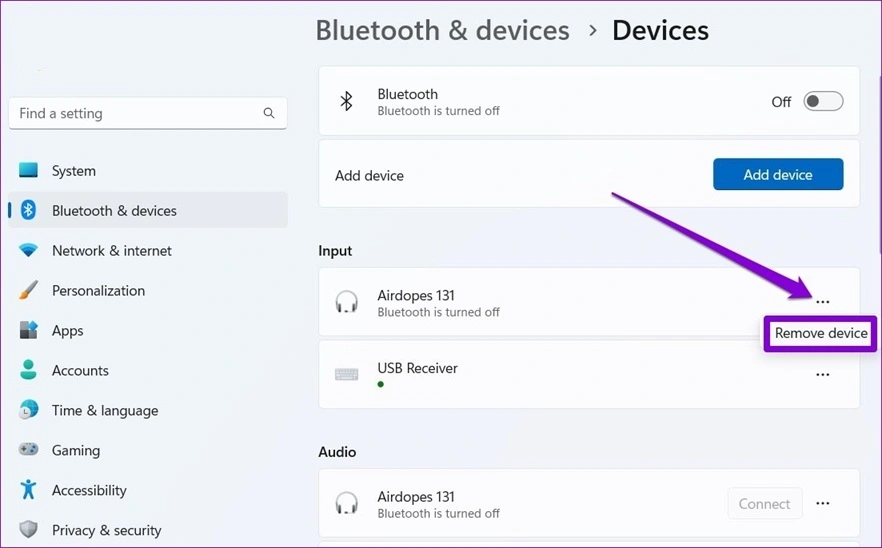
Step 2. Remove the device, refresh Bluetooth, and pair again.
Method 2: Reset the Earbuds and Pair Again
Many earbuds have a reset function. This clears saved devices and old audio profiles stored in the buds. When this internal memory becomes cluttered, stereo sound fails. A reset lets the earbuds act like new. This makes pairing smooth.
This method also helps when one earbud fails to link or both buds connect as two separate devices. A reset forces them to join as a single stereo unit. Use this method when you feel the buds behave in an unusual way.
Why Use This Method
- Clears stuck pairing data
- Fixes single earbud issues
- Helps the buds join as one stereo device
Steps
Step 1. Use the reset button or touch gesture shown in the manual.
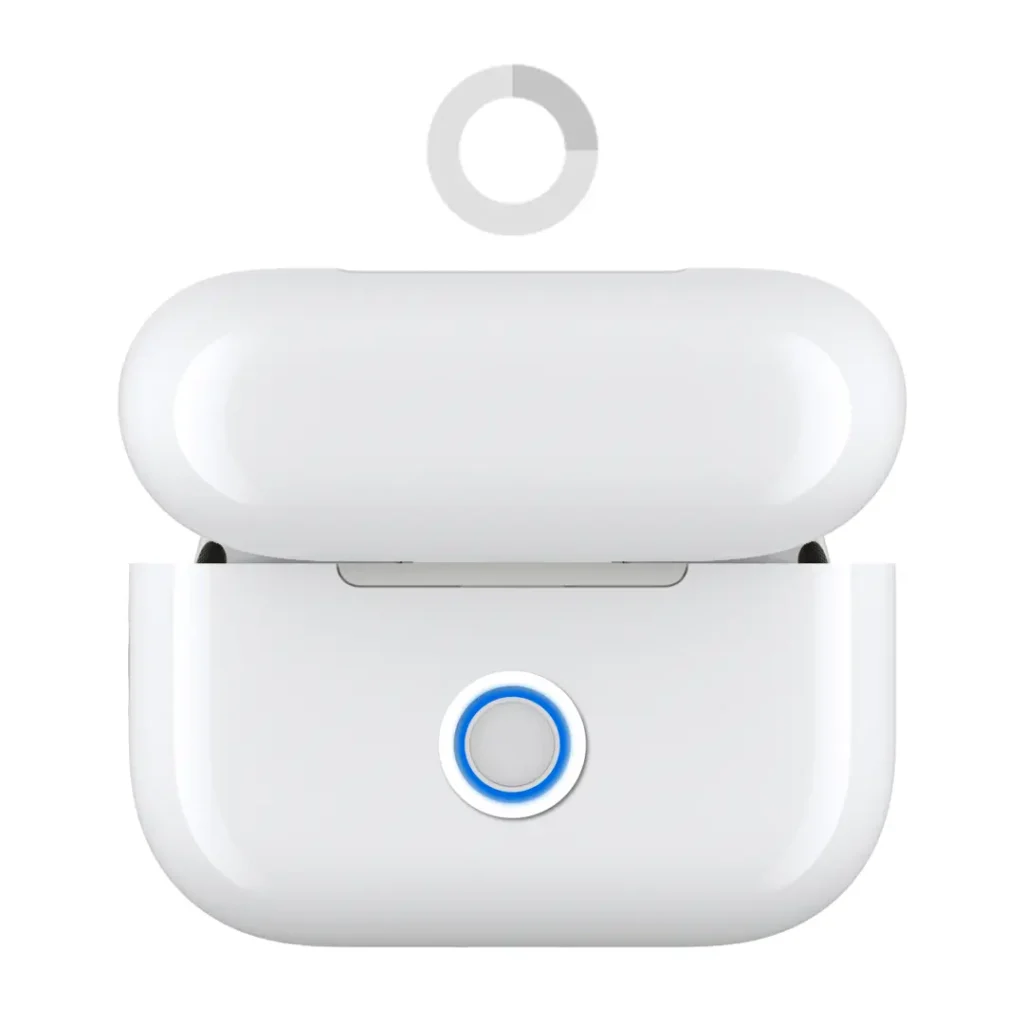
Step 2. After the reset, open Bluetooth on Windows and pair again.
Method 3: Switch to Stereo Manually in Sound Settings
Windows may detect the correct stereo profile but still use the wrong one as the default. You can choose the right profile from the sound panel. This works when the pairing is fine, but Windows refuses to switch modes on its own.
This method is also helpful when the earbuds appear twice in the list. One folder is the stereo profile. The other is the hands-free call profile. You must select the stereo option to get full quality. This quick change solves the problem without removing the device.
Why Use This Method
- Fixes the wrong default audio mode
- Helps when both profiles are visible
- Quick and simple
Steps
Step 1. Open sound settings and find your earbuds under output.
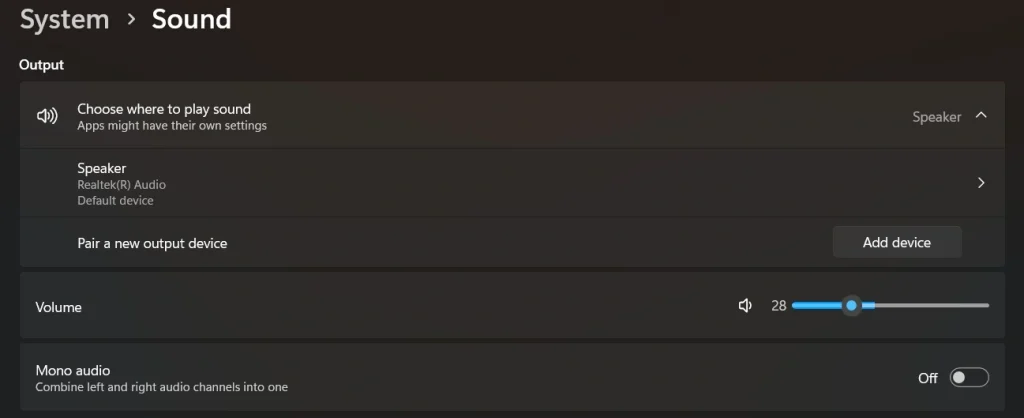
Step 2. Click the stereo profile to switch from hands-free to full sound.
Method 4: Restart Bluetooth Services in Windows
Bluetooth services run in the background of Windows. When these services glitch, audio quality drops, or the stereo mode fails. Restarting these services clears the old state and loads new tasks. This often restores a correct audio link.
This method is helpful if the earbuds show up in stereo mode, but no sound plays. It is also good when the system takes too long to connect. A short service restart forces Windows to refresh all Bluetooth processes.
Why Use This Method
- Fixes background process errors
- Helps when a stereo is detected, but silent
- Makes Windows load a clean connection
Steps
Step 1. Open the Run box, type services.msc, press Enter, and locate all Bluetooth services in the list.
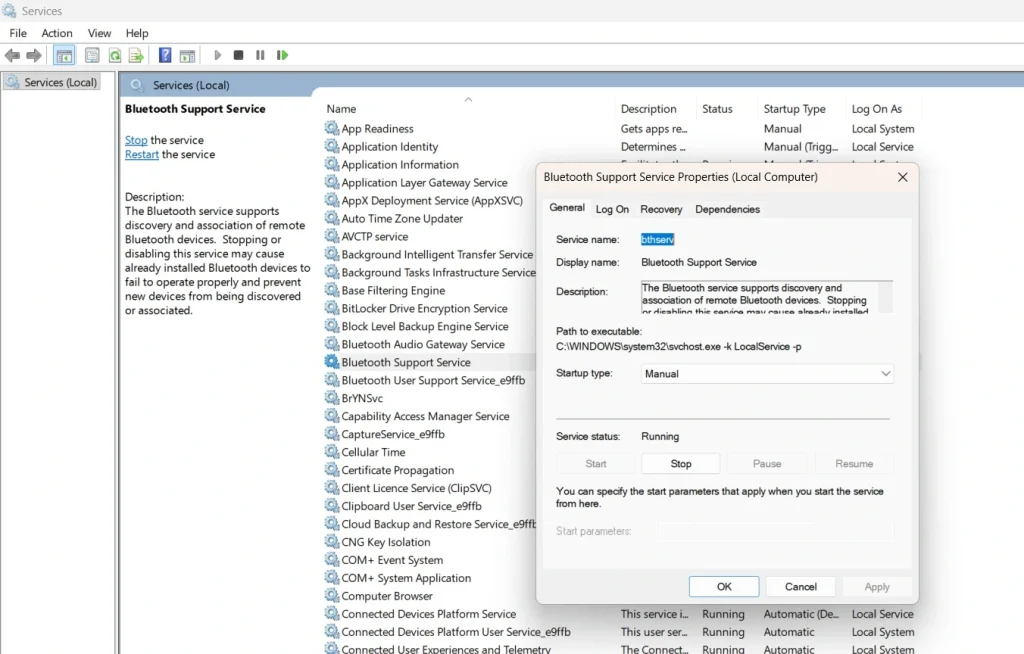
Step 2. Right-click each Bluetooth service, choose Restart, then pair your earbuds again.
Author’s Tip
Stereo sound problems can become worse if you keep switching between many devices. Try to use your earbuds with a limited number of gadgets. Each new device adds more pairing data. This increases the chance of a wrong profile being selected. A simple habit of clearing old links keeps your earbuds stable.
You can also rename your earbuds in Windows. A clear name helps you pick the right profile when you have many sound devices. This small step avoids confusion during quick tasks like calls or playback. It keeps daily use smooth and trouble-free.
Advanced Tips: Improve Bluetooth Audio Quality Further
- Use the latest Bluetooth adapter
Old adapters may not support modern stereo codecs. Upgrading improves clarity and range. - Keep your system free of wireless clutter
Many nearby signals reduce Bluetooth strength. Turn off unused wireless tools to keep sound stable. - Choose high-quality audio apps
Some apps load lower-quality streams that do not use full stereo features. Pick apps with proper audio support. - Disable call features when not needed
Some earbuds switch to hands-free mode if any call option is active. Turning off call features prevents mode shifts. - Place your computer in an open area
Thick walls and metal objects weaken sound signals. Keep the computer in a clear location. - Install all optional device updates
Some updates improve Bluetooth handling. These updates help Windows manage profiles better. - Check audio enhancements
Some enhancements reduce stereo width. Turning them off keeps the sound natural. - Keep Bluetooth at the top of your device list
When many devices fight for priority, the stereo mode breaks. Remove unwanted devices to keep the connection simple.
Conclusion
Stereo sound creates depth, comfort, and balance when you listen to music or watch movies. If Windows loads the wrong profile, this quality disappears. The methods in this guide give you simple ways to fix the issue. You only need a clean connection, correct audio mode, and a stable Bluetooth setup. When you follow these steps, the sound returns to its full form.
Most users find that problems vanish once they re-pair bluetooth earbuds for stereo sound on Windows. This resets the profile, refreshes the link, and lets Windows select the correct settings. With the right method and a little patience, you can enjoy smooth stereo audio on any day.
FAQs:
Why do my earbuds show two profiles in Windows?
They show two profiles because one profile is for calls and the other is for stereo sound. Windows sometimes picks the call profile first. You must choose the stereo option from the sound settings to get full audio quality.
Why does only one earbud play sound?
This may happen when the earbuds pair as two separate devices. A reset forces them to join as one stereo unit. After the reset, pair them again so they load the correct audio profile.
How do I check if stereo mode is active?
Open sound settings. Look for the output device list. Select the entry that says stereo. If the wrong mode is active, change it once. Windows should keep the setting afterward.
Author Bio:
Dinesh Lakhwani 

Dinesh Lakhwani, the entrepreneurial brain behind “TechCommuters,” achieved big things in the tech world. He started the company to make smart and user-friendly tech solutions. Thanks to his sharp thinking, focus on quality and the motto of never giving up, TechCommuters became a top player in the industry. His commitment to excellence has propelled the company to a leading position in the industry.
Popular Post
Recent Post

How to Recover Deleted Files from Pen drive, USB Drive, SD Card
Introduction: On tech forums, you’ll often see posts like this: “I connected my pen drive to my laptop this morning, but the folder was empty. All my college project files had vanished. I don’t have a backup. Can someone help me?” Stories like this are very common. Pen drives, USB drives and SD cards are […]

How To Recover Files Deleted from the Recycle Bin [Windows 11]
Losing a file can happen in seconds. You clear your desktop, hit Delete, and empty the Recycle Bin. Then, just when you need that file again, it seems to have vanished. This guide will walk you through ways to restore files removed from the Recycle Bin. We will begin with simple fixes, then look at […]

Disk Drill Data Recovery Tool Explained: Full Review and Guide
It happens in a split second. You delete a folder by mistake. Your drive stops showing up. A photo album from your last trip just vanishes. And your stomach drops. Lost files feel personal. They are not just data. They are memories, work hours, and sometimes years of effort packed into a few gigabytes. When […]

Recover Deleted Files In Windows 11 With Software & Without
Introduction What is the first thing that goes through your mind the second an important file vanishes from a Windows 11 PC? For most people, it is a mix of panic and disbelief, followed by a frantic click through every folder that file could possibly be hiding in. It happens in a split second: one […]

EaseUS Data Recovery Wizard: Everything To Know
Data loss does not always come from a big disaster either. Most cases start small and boring. A drive gets formatted by mistake. A laptop freezes mid-save and restarts on its own. A memory card stops showing up after being pulled out too fast. None of these feel like emergencies at first, until you realize […]

Recuva Data Recovery Tool: Is it Actually Worth it?
When I first tried Recuva Data Recovery, I wanted to see if it could really bring back lost files. The tool is free, small in size, and promises quick recovery, which made me curious enough to test it on my own PC. The setup was fast, and the wizard guided me step by step. I […]

GetData Recover My Files Data Recovery Tool: Honest Review
A hard drive error brings a special kind of silence. Well, yes! The screen freezes, then a message appears saying the drive can’t be found or must be formatted. In that moment, years of photos and work files feel at risk. It never happens at a good time. Coffee spills near a laptop, a memory […]
Windows File Recovery: A Complete Review [Tried & Tested]
Imagine this. You spend hours perfecting a video project. You hit save. Then your laptop freezes, reboots, and when the screen comes back. The file is gone. Your stomach sinks. It’s not just you. Lost files happen all the time. A dropped hard drive, a bad update, an accidental delete, or a corrupted partition can […]

5 Best Data Recovery Software For Windows 11 and Windows 10
Introduction: A crashed drive can ruin a whole day. One minute your photos, work files, and tax records sit safe on your PC. The next minute they are gone. A power cut, a bad update, or one wrong click can wipe out years of memories and months of work in seconds. That sinking feeling is […]

